
How to fix Windows update error 0xc190012e?
Prefer to fix it yourself? The manual steps follow.
7 methods in this guide
Hi, I can't install the latest Windows 10 update to upgrade to the 20H2 version. Instead, I receive an error code 0xc190012e every time I try via the settings menu. Any suggestions on how to fix this?
0xc190012e is yet another error that can occur while trying to install the latest Windows updates. Alternatively, the error code might also represent a failure to upgrade from older Windows versions, for example, Windows 7, to the newest one. Unfortunately, this means that users who experience these problems might run into some bugs, or lack the most relevant software vulnerability patches.
Users who encountered the error claimed that it occurs at some point during the installation process - the bar can go up to a maximum of 100% and still fail with error 0xc190012e. It is worth noting that update errors are extremely common and are encountered by hundreds every day; other examples include 0x8007007e, 0x80070003, or 0x80070490.
Just as many other errors, this one is delivered by a standard message in Windows:
Updates failed
There were problems installing some updates, but we'll try again later.
As evident, such an explanation does not really explain anything, neither does it provide any tips on how to fix 0xc190012e error. Those who dealt with the problem said that, even after they waited awhile, the update would still not install and resulted in the same error code.
The most common reason for Windows update errors include:
- Windows system file corruption
- Disabled services that are responsible for Windows updates
- Overly aggressive third-party anti-virus software
- Unstable internet connection, etc.
Thus, if you want to fix error 0xc190012e, you will have to perform quite a bit of troubleshooting - keep in mind that you are likely to try several methods before one works for you.
Fix 1. Use Windows Update troubleshooter
If you ever experience issues with Windows updates, the first thing you should try is the built-in troubleshooting service. It might not always solve your problem, but it might point you in the right direction:
- Type in troubleshoot in Windows search and press Enter
- You should see all the available troubleshooters listed on the right
- If they are not visible, you should go to Additional troubleshooters
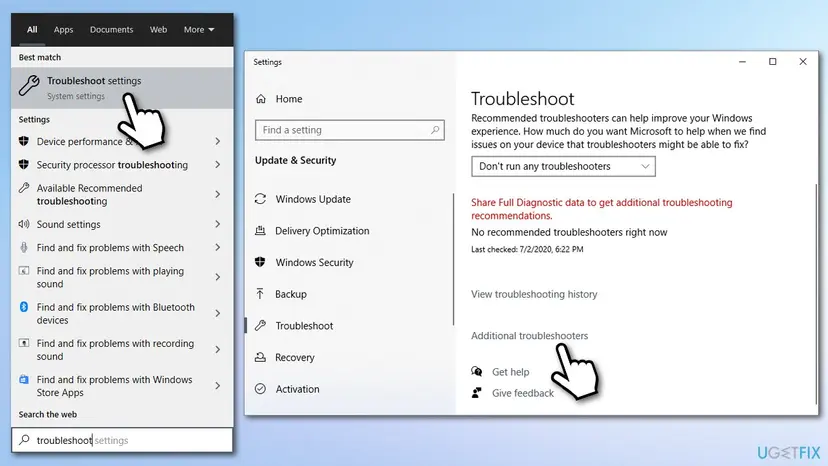
How to fix windows update error 0xc190012e run troubleshooter - Locate Windows update on the list - click it once
- Finally, select Run the troubleshooter and wait till the process is finished.
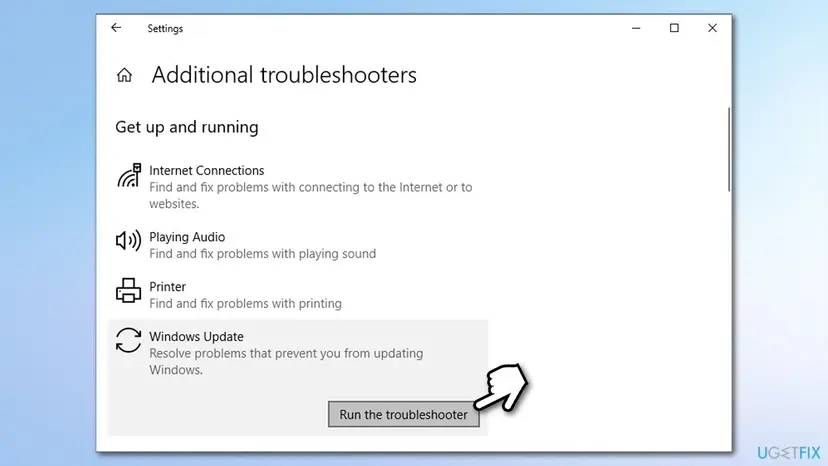
How to fix windows update error 0xc190012e run troubleshooter2
Fix 2. Uninstall third-party antivirus
A third-party antivirus is known to be one of the reasons for a failed Windows update. Therefore, you should either temporarily disable it or uninstall it and then try downloading the update once again. Keep in mind that it is not safe to let your PC run without protection (you might infect it with malware),, so install another security program or employ the built-in Windows Defender for the purpose.
Fix 3. Perform a clean boot
- Type in msconfig in Windows search and press Enter
- Once System Configuration window opens, go to the Services tab
- Mark Hide all Microsoft services checkbox and select Disable all
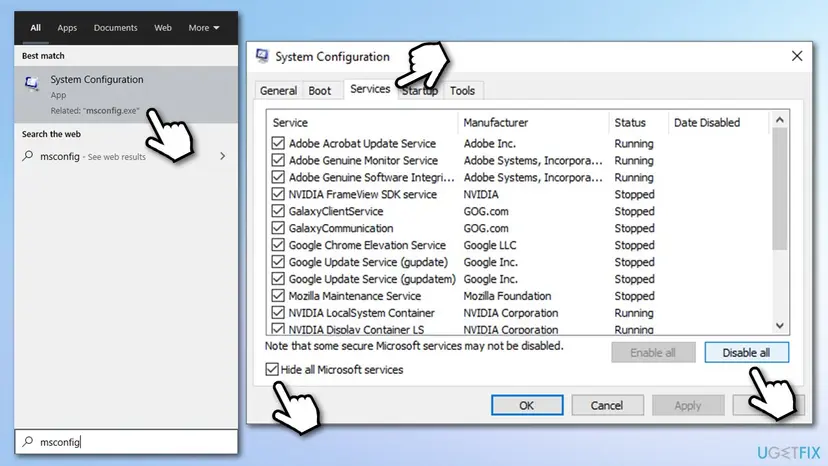
How to fix windows update error 0xc190012e safe boot - Next, go to Startup tab and click Open Task Manager
- Here, you will see a list of startup items - disable them all by right-clicking and pressing Disable
- Close the Task Manager and go to Boot tab in the System Configuration window
- Mark the Safe boot checkbox and click Apply, then OK
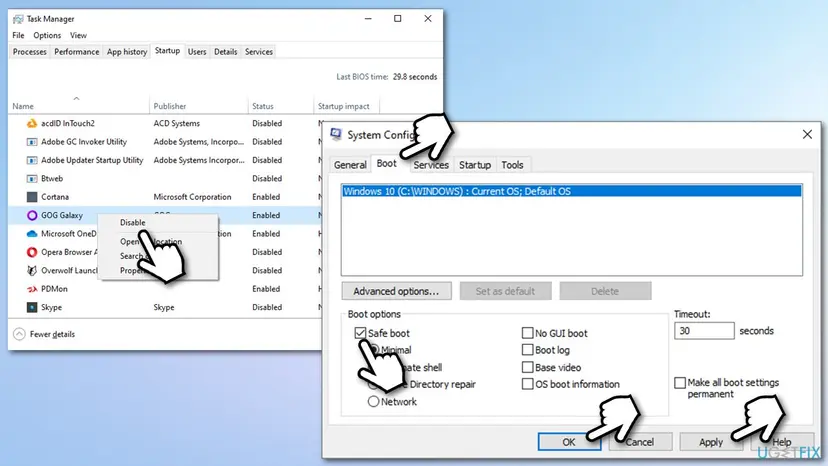
How to fix windows update error 0xc190012e safe boot2 - After a restart, try downloading the update as usual.
Fix 4. Fix corrupted system files
In case some of your Windows system files are corrupted, the OS will not be able to perform the standard update process correctly.
- Type in cmd in Windows search
- Right-click on the Command Prompt search result and pick Run as administrator
- In the new window, type in the following command and press Enter:
sfc /scannow
- Wait till scan is complete and reboot your PC.
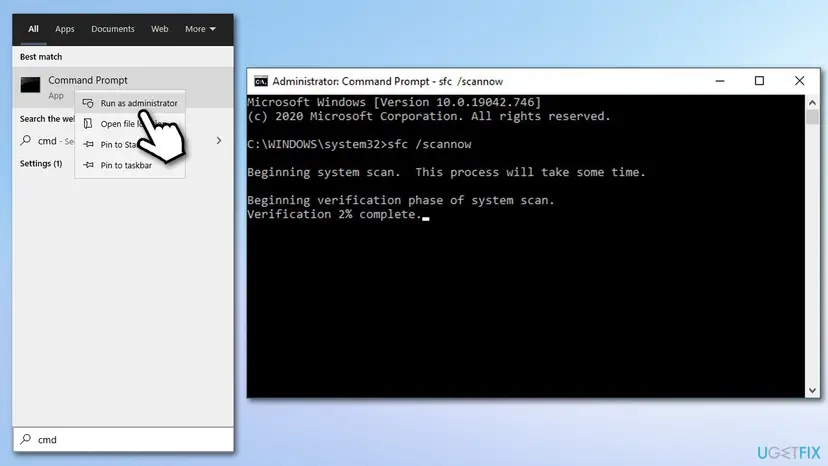
How to fix windows update error 0xc190012e run sfc scan
In case the SFC scan was unable to repair corrupted system files, you can run the following commands to repair Windows image (don't forget to press Enter each time):
Dism /Online /Cleanup-Image /CheckHealth
Dism /Online /Cleanup-Image /ScanHealth
Dism /Online /Cleanup-Image /RestoreHealth
Fix 5. Reset Windows update components
Windows runs dozens of services that keep the operating system running as intended. BITS, for example, is responsible for downloading data in the background, so if this service is not running, the update will fail. Thus, resetting BITS and other relevant services might help you fix the problem:
- Open Command Prompt as administrator as explained in the step above
- Copy and paste the following commands, pressing Enter after each:
net stop wuauserv
net stop cryptSvc
net stop bits
net stop msiserver
ren C:\\Windows\\SoftwareDistribution SoftwareDistribution.old
ren C:\\Windows\\System32\\catroot2 Catroot2.old
net start wuauserv
net start cryptSvc
net start bits
net start msiserver - Restart your computer.
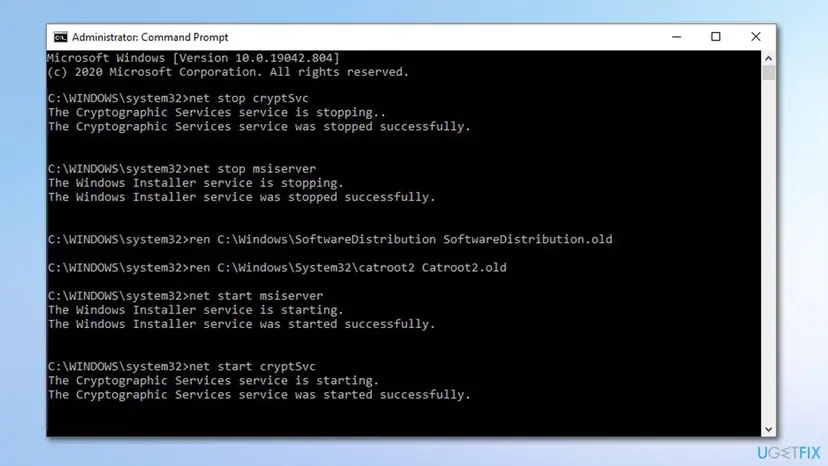
How to fix windows update error 0xc190012e reset windows0update components
Fix 6. Download the update manually
In case you are unable to update Windows automatically via the settings menu, you can always try to update Windows manually. Here's how:
- Type in Update in Windows search and press Enter
- Click View Update History on the right side of the window
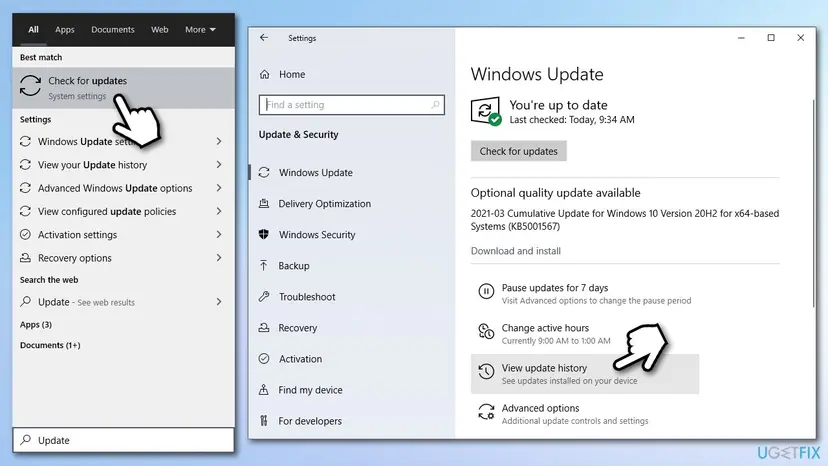
How to fix windows update error 0xc190012e reset install update manually - In here, you will see the list of installed and failed updates - note down the KB number that failed with the error 0xc190012e
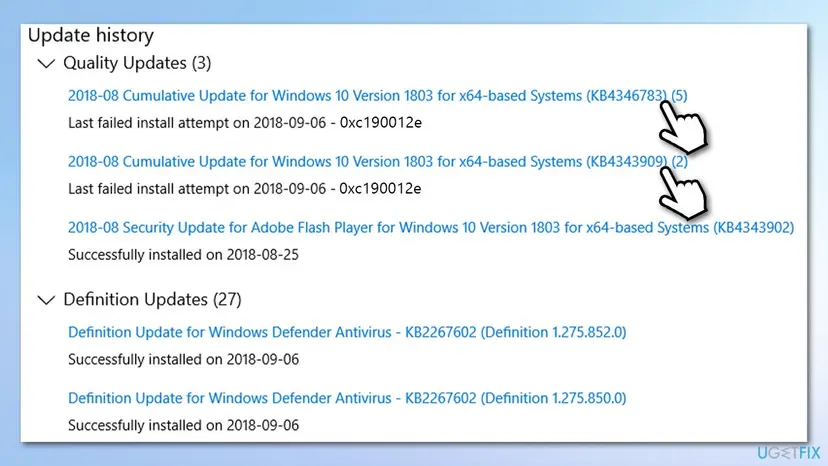
How to fix windows update error 0xc190012e reset install update manually2 - Go to Microsoft Update Catalog
- Type in the KB number from before into the search box and press Search
- Select the 64-bit or 32-bit version of the update (according to your OS version) and download the update
- Once downloaded, double-click the installer and proceed with on-screen instructions
- Restart your PC once done.
Fix 7. Use Windows Media Creation tool to upgrade
- Download Windows 10 installation media from the official Microsoft website
- Double-click the installer
- Agree to Terms and pick Next
- Select Upgrade this PC now and then click Next
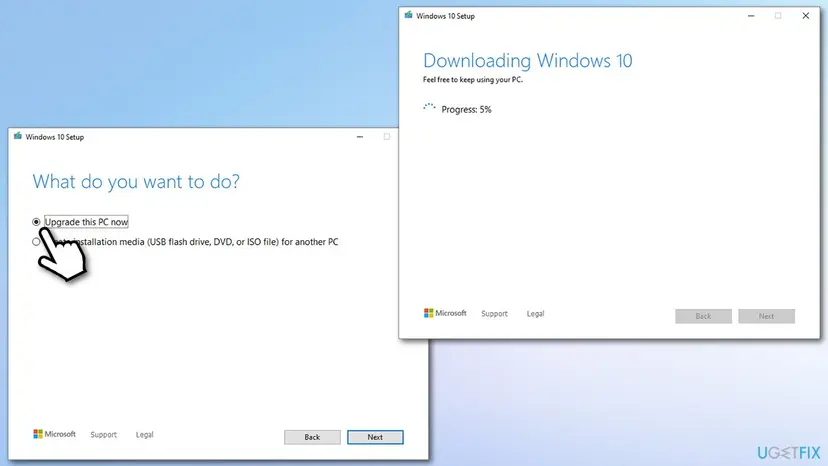
How to fix windows update error 0xc190012e reset install use media creation tool - Windows should then download and install the relevant updates
- Once complete, you PC will reboot and the newest version should be installed.
Did this fix work?
One click, no account. It tells the next reader which guides are worth their time.
Questions and experiences: fix Windows update error 0xc190012e
Still broken, or found a fix we did not cover? Ask here: members and our editors answer. Reading is open; writing needs a free account.
…