
How to fix Word error "This image cannot currently be displayed" in Windows?

Prefer to fix it yourself? The manual steps follow.
- 9methods
- 2 to 30 minutes
- Easy
Applies to Word for Microsoft 365, Word 2024, 2021, 2019 and 2016 on Windows 11 and Windows 10; the same box appears in PowerPoint and Outlook
9 methods in this guide
Hello. I keep getting the "This image cannot currently be displayed" error in Microsoft Word. How do I fix it?
This image cannot currently be displayed means Word knows a picture belongs in that spot but cannot draw it. Most often the picture is linked to a file that moved, or its data in the document is damaged. Start by relinking or reinserting the picture, then save a fresh copy.
Word draws an empty frame with a small red X when it cannot find or read a picture. If the message says the linked image cannot be displayed, the picture file was moved or renamed: relink it in File > Info > Edit Links to Files or insert it again (Fix 1). If the picture was embedded, save a copy with File > Save As, reopen it and replace the broken pictures (Fix 2 and Fix 3).
| Error | A white box with a small red X in its top left corner and the text This image cannot currently be displayed. Newer Word versions write The picture can't be displayed. or The linked image cannot be displayed. The file may have been moved, renamed, or deleted. Verify that the link points to the correct file and location. |
|---|---|
| Where it appears | Inside a Word document, in the place of a picture, screenshot or logo, when you open the file or scroll to the picture. The same box shows in PowerPoint slides and Outlook emails. |
| Main cause | The picture is linked, not embedded, and Word can no longer find the file at the saved path. Next most common: damaged picture data inside the document. |
| Fastest fix | Relink the picture with File > Info > Edit Links to Files > Change Source, or right-click it and use Change Picture to load it again (Fix 1). |
| Also written as | The picture can't be displayed, this picture can't be displayed, picture cannot be displayed Word, the image cannot currently be displayed, the linked image cannot be displayed. |
| Affects | Word for Microsoft 365, Word 2024, 2021, 2019 and 2016 on Windows, and documents first made in Word 97 to 2003. |
| Microsoft's status | Not a bug. Microsoft support staff say a red X usually means Word does not recognize the path to the image. The old Show picture placeholders option was removed on purpose in 2024, so many older fixes point to a box that is gone. |
| Time to fix | 2 minutes for one linked picture. Up to 30 minutes when you must replace many pictures or repair Office. |
Facts checked on 15 October 2026. Steps written for Word for Microsoft 365, Word 2024 and Word 2021 on Windows 11 (25H2 and 26H2) and Windows 10 22H2, read against Microsoft Q&A answers by Microsoft staff and Word MVPs.
What "This image cannot currently be displayed" means in Word
Word keeps a frame for every picture in a document. When it cannot draw the picture that belongs in the frame, it shows a white box with a small red X in the top left corner and a short message. The text depends on the Word version and on how the picture got into the file.
| What the box says | Usually seen in | What it tells you |
|---|---|---|
| This image cannot currently be displayed. | Documents made in older Word versions, Outlook emails | Word cannot read or reach the picture |
| The picture can't be displayed. | Word for Microsoft 365, Word 2021 and 2024 | The same problem, newer wording |
| The linked image cannot be displayed. The file may have been moved, renamed, or deleted. Verify that the link points to the correct file and location. | Word 2007 and later | The picture is a link to a file, and that file is not where the link says |
| Empty frame with a red X and no text | Small pictures, or text clipped by the frame size | Same problem; enlarge the frame to read the message |
There are two kinds of picture behind the red X. A linked picture is only a path stored in an INCLUDEPICTURE field. Move, rename or email the document without the picture file, and the path breaks. An embedded picture lives inside the document, so a red X there means the picture data itself could not be read.
The message touches only the pictures. The words, tables and layout of the document are not damaged. Before you start, save a copy of the file with File > Save As so every fix runs on a copy.
Why Word cannot display a picture, from the most common cause to the rare
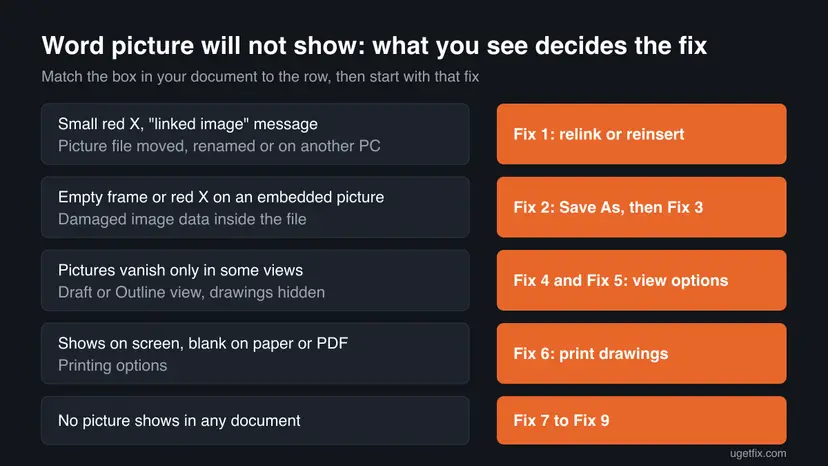
Microsoft support staff list the same short set of causes for the red X: a broken path, a picture moved or renamed, a linked picture that did not travel with the document, a missing graphics filter and an out of date Office. The ranking below adds the view and print settings that hide pictures without any damage.
| How often | Cause | Typical sign | Fix |
|---|---|---|---|
| Most often | Linked picture whose file was moved, renamed, deleted or left on another PC | The linked image message; the document came by email or from a network folder | Fix 1 |
| Often | Damaged picture data inside the document, after a crash, a sync conflict or a conversion | Red X on embedded screenshots, often only at the end of the file | Fix 2, Fix 3 |
| Often | Draft or Outline view, which does not show floating pictures | Pictures come back in Print Layout | Fix 4 |
| Less often | Show drawings and text boxes on screen turned off | Shapes, text boxes and wrapped pictures are all missing | Fix 5 |
| Less often | Print options that skip drawings or print in draft quality | Pictures on screen, blank on paper or in a PDF | Fix 6 |
| Rarely | Outdated Office or a missing graphics filter for that picture format | No picture shows in any document, or one format (EMF, WMF, TIFF) never shows | Fix 7, Fix 8 |
| Rarely | Display driver problem | Pictures flicker or draw as black or blank boxes in several apps | Fix 9 |
Some guides say the text wrapping style alone causes the message. We found no Microsoft document that says so. Wrapping matters only in Draft and Outline view, which show inline pictures but not floating ones. That is why Fix 4 includes it.
How to fix "This image cannot currently be displayed" in Word
The fixes are ordered by how often they bring the picture back and how little they change. Work on a copy of the document. After each fix, scroll to the broken picture: when it shows normally, close the document, open it again and check that it stays.
| What you see | Start with | Then |
|---|---|---|
| The linked image cannot be displayed, or the document came from another PC | Fix 1 | Fix 3 |
| Red X on screenshots or pictures you pasted into the document | Fix 2 | Fix 3 |
| Pictures are missing only in some views, or shapes and text boxes vanish too | Fix 4 | Fix 5 |
| The picture is fine on screen but blank when printed or saved as PDF | Fix 6 | Fix 7 |
| No picture shows in any document, even new ones | Fix 7 | Fix 8, Fix 9 |
Fix 1. Relink the moved picture or insert it again
2 to 5 minutesLow riskThe box says the linked image cannot be displayed, or the document came by email, from a USB stick or from a network folder.
A linked picture is only a path to a file. When the file is not at that path, Word has nothing to draw. Pointing the link to the file, or storing the picture in the document, removes the cause.
- Find the picture file on your PC or ask the sender for it. Copy it next to the document if you can.
- In Word, select File > Info. In the right column, select Edit Links to Files. The link appears only when the document contains links.
- Select the broken link in the list and select Change Source. Browse to the picture file and select Open.
- Tick Save picture in document so the picture is embedded and travels with the file, then select OK.
- If there is no Edit Links to Files, right-click the red X box and select Change Picture > From a File. Pick the picture and select Insert. The size and position stay the same.
Microsoft staff advise that a linked picture must go with the document: attach the picture file to the email or copy it to the same network folder. Embedding the picture with Save picture in document avoids the problem for good.
It worked if: The red X box is replaced by the picture, and it stays after you save, close and reopen the document.
If not: If the picture file is gone or the picture was never linked, go to Fix 2 and Fix 3.
Fix 2. Save the document as a new copy, then close and reopen it
2 minutesLow riskEmbedded pictures or screenshots turned into red X boxes, often after a crash, a OneDrive sync or opening an old .doc file.
Microsoft support staff suggest this first for embedded pictures. A new save writes the document again from what Word holds in memory, and a .doc file saved as .docx drops the old picture format that some pictures use.
- Select File > Save As > Browse.
- Pick a local folder such as Documents, not a synced or network folder.
- In Save as type, choose **Word Document (*.docx)** and give the file a new name.
- Select Save, close Word completely and open the new copy.
It worked if: The pictures display in the new copy.
If not: If the same pictures still show a red X, their data is damaged: replace them with Fix 3.
Fix 3. Replace the broken pictures with Change Picture
5 to 20 minutesLow riskOnly some pictures fail and you still have the originals, or an older copy of the document where they work.
When the picture data inside the file is damaged, no setting can draw it. Loading the picture again writes good data, and Change Picture keeps the frame's size, position and wrapping.
- Right-click the red X box and select Change Picture.
- Choose From a File for a picture on your PC, or From Clipboard after copying the picture from an older copy of the document.
- Select the picture and select Insert.
- Repeat for each broken picture, then save.
No original left? Check File > Info > Version History for a document on OneDrive or SharePoint, or right-click the file in File Explorer and look at Previous versions. Step by step: Restore an earlier version of a file or folder.
It worked if: Each replaced picture shows normally and keeps its place on the page.
If not: If even newly inserted pictures show a red X, the problem is Word, not the document: go to Fix 7.
Fix 4. Switch to Print Layout view or set the picture to In Line with Text
1 minuteLow riskPictures are missing but no red X box shows, or they disappear when you change the view.
Draft and Outline views show only text and inline pictures. A picture with any other wrapping style is not drawn there, which looks like the picture is broken.
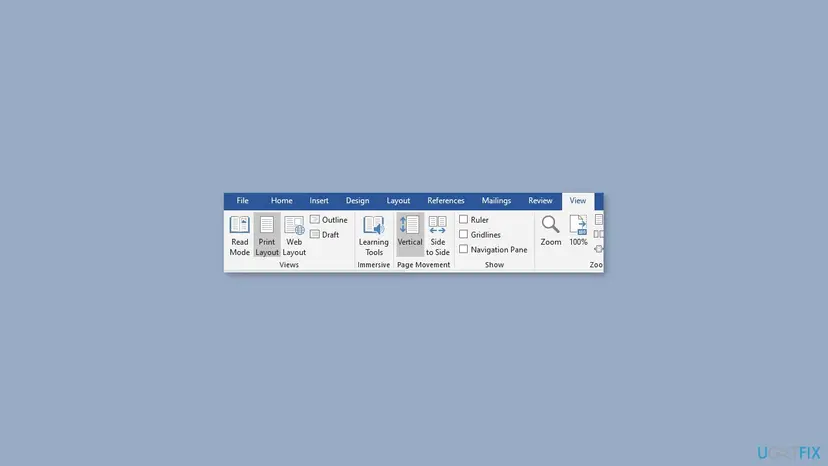
- Select the View tab.
- In the Views group, select Print Layout. Read Mode and Web Layout show pictures too.
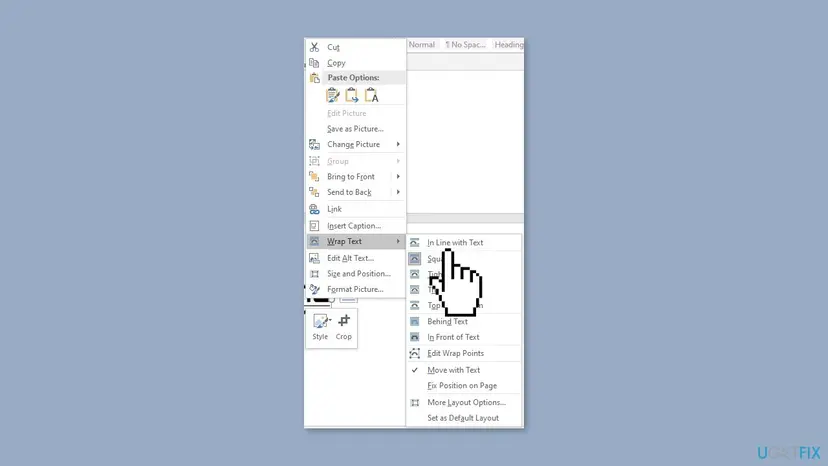
- If you must work in Draft view, right-click the picture and select Wrap Text > In Line with Text.
It worked if: The pictures appear in Print Layout.
If not: If shapes and text boxes are also missing in Print Layout, go to Fix 5.
Fix 5. Turn on Show drawings and text boxes on screen
2 minutesLow riskFloating pictures, shapes and text boxes are all missing, even in Print Layout.
This option hides every drawing object to speed up Word. When it is off, pictures with a wrapping style and all shapes look like empty space.
- Select File > Options > Advanced.
- Scroll to Show document content.
- Tick Show drawings and text boxes on screen.
- If your Word still has Show picture placeholders, clear that box.
- Select OK.
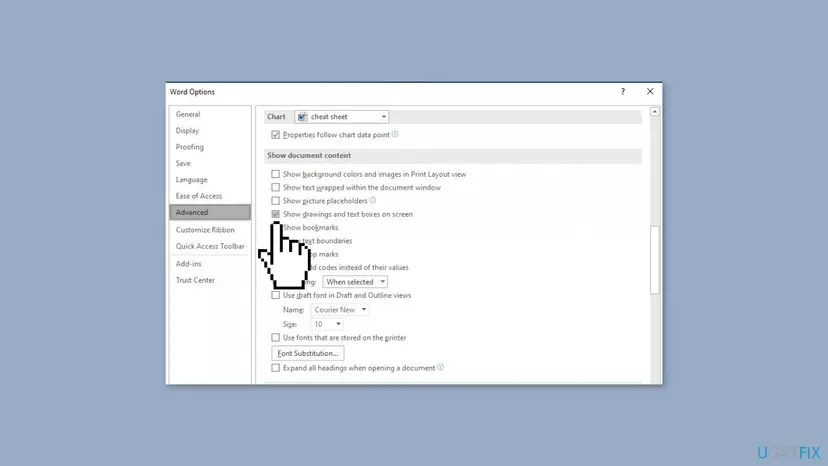
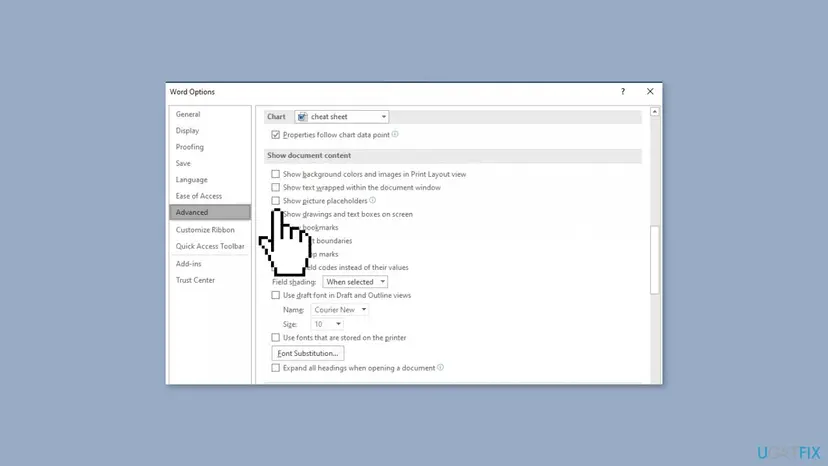
Microsoft removed Show picture placeholders from Word on purpose, and an MVP confirmed it is missing in Microsoft 365 and current Word 2019. If you do not see it, nothing is wrong with your Office; skip that step.
It worked if: Pictures, shapes and text boxes show again.
If not: If pictures show on screen but not on paper, go to Fix 6. If nothing changed, go to Fix 7.
Fix 6. Fix pictures that are blank when printed or saved as PDF
2 minutesLow riskThe picture looks fine in Word but comes out blank on paper or in a PDF.
Two print options leave drawings out of the printout. Word applies them to printing and to PDF made through a printer.
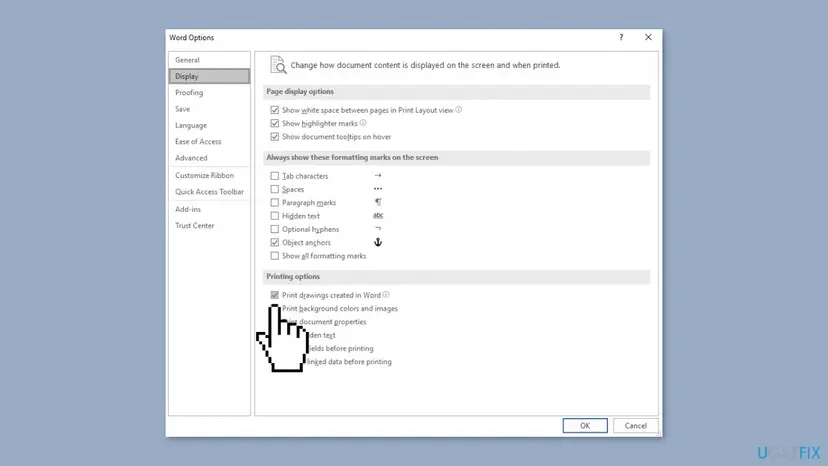
- Select File > Options > Display.
- Under Printing options, tick Print drawings created in Word.
- Select Advanced in the left list and scroll to Print.
- Clear Use draft quality, then select OK and print again.
It worked if: The printout or PDF shows the pictures.
If not: Save as PDF with File > Save As and PDF as the type instead of a PDF printer. If pictures are still blank, go to Fix 7.
Fix 7. Update Office
5 to 15 minutesLow riskNo picture shows in any document, or the problem began after Office sat without updates for months.
Microsoft support staff list an out of date Office as a cause of the red X. Updates replace the parts of Word that read and draw picture formats.
- Open Word and select File > Account.
- Under Product Information, select Update Options > Update Now.
- Wait for You're up to date!, then restart Word and open the document.
It worked if: After the update, the pictures display.
If not: If Update Now is missing, your organization manages updates: ask IT. Otherwise go to Fix 8.
Fix 8. Repair Office to restore missing graphics filters
10 to 30 minutesLow riskOne picture format never shows (EMF, WMF, TIFF, EPS), or Word asks to install a graphics filter when you insert a picture.
Microsoft staff note that a picture shows as a red X when the graphics filter for its format is not installed. Filters are part of Office, so a repair puts them back.
First drag the picture into the document again. If Word shows a dialog about a graphics filter, follow it. If not, run Quick Repair, then Online Repair if needed.
- Open Installed apps. Right-click the Start button and select Installed apps.
- Find Microsoft 365 or Office. Find your Microsoft 365 or Office product in the list. If you have a standalone app such as Visio or Project, search for it by its own name.
- Open the repair window. Select the three dots next to the product and select Modify.
- Start with Quick Repair. In the repair window, select Quick Repair, then Repair. It is the faster option: it finds damaged files and replaces them.
- Finish and test. Follow the instructions on the screen until the repair is done. Restart the PC if you are asked to, then open the app that had the problem.
- Run Online Repair if the problem is still there. Open the same repair window again and select Online Repair, then Repair. Microsoft recommends this option to make sure everything gets fixed. It takes longer than Quick Repair.
These steps were written for Windows 11 25H2 and 26H2. The full page with the other versions and what each result means: How to repair Microsoft 365 or Office
It worked if: Pictures of that format insert and display normally.
If not: If Online Repair did not help, go to Fix 9.
Fix 9. Update the display driver
10 minutesLow riskPictures draw as black or blank boxes in Word and in other apps, or the screen flickers.
Word draws pictures through the graphics driver. We found no Microsoft document that ties the message to drivers, but users report that a driver update helped when pictures failed in several programs.
- Right-click Start and select Device Manager.
- Expand Display adapters, right-click your graphics card and select Update driver.
- Select Search automatically for drivers, or install the newest driver from the card maker's site.
- Restart the PC and open the document.
Full steps with screenshots: Update, roll back or reinstall a driver.
It worked if: Pictures draw normally in Word and other apps.
If not: Read the checks in the next section.
If the picture still cannot be displayed: what to check next
Two short tests show whether the fault is in the document or in Word on your PC.
| Test | Result | What it means |
|---|---|---|
| Open a new blank document and insert any photo | The photo shows | Word is fine; the old document holds broken pictures: Fix 1 to Fix 3 |
| Open the document in Word for the web at office.com | Pictures show | Desktop Word or the PC: Fix 5, Fix 7, Fix 8 |
| Open the document in Word for the web | Red X there too | The picture data is lost in this file; replace the pictures or use an older copy |
- Press Alt + F9 on an inline linked picture to see its INCLUDEPICTURE field and the full path Word looks for. Press it again to hide the field.
- For support, note the Word version from File > Account > About Word and say whether the pictures were linked or pasted.
- On a work PC, tell IT if the pictures come from a network share or a document system; the path may need their access.
How to keep pictures from breaking in Word documents
- Insert pictures with Insert, not Link to File, unless you need a live link.
- Save documents as
.docxand keep a backup copy. - Keep Office updated through File > Account.
- Send the picture files along when you share a document with links.
- Moving or renaming picture folders that documents link to.
- Editing the same document on two PCs while OneDrive is still syncing.
- Force-closing Word while a large document is saving.
- Working only in Draft view in documents full of pictures.
Frequently asked questions
What does "This image cannot currently be displayed" mean?
It means Word has a frame for a picture but cannot draw the picture in it. Word marks the spot with a white box and a small red X so you know something is missing. In most cases the picture was linked to a file that has moved or was not sent along with the document. In other cases the picture data stored inside the document is damaged. Your text is not affected. Relink or reinsert the picture to bring it back.
Why can't a picture be displayed in Word?
The four common reasons are a linked picture whose file moved, damaged picture data, a view that hides pictures, and an option that hides drawings. Linked pictures break when the document travels without the picture file. Damaged data follows a crash or a sync conflict. Draft and Outline views do not draw floating pictures, and the Show drawings and text boxes on screen option hides them in every view. Check them in that order, as in the fixes above.
How do I fix "The picture can't be displayed" in Word?
It is the newer wording of the same problem, so the same fixes apply. Check File > Info for Edit Links to Files and point any broken link to the picture file. If there are no links, save a copy with File > Save As as a .docx file, close Word and reopen the copy. Pictures that still show a red X need to be replaced with right-click, Change Picture. If no picture shows anywhere, update or repair Office.
Where did Show picture placeholders go in Word?
Microsoft removed it. Users noticed in early 2024 that the option was gone from File > Options > Advanced, and an MVP moderator confirmed that Microsoft called this an intentional change. Setting it through VBA or the registry has no effect any more. So if an older guide tells you to clear that box and you cannot find it, there is nothing to clear. The pictures are hidden for another reason; use the other fixes.
How do I fix "The linked image cannot be displayed" in Word?
Point the link to where the picture file is now. Select File > Info, then Edit Links to Files, choose the link and select Change Source. Pick the picture file and tick Save picture in document so it is embedded from then on. If the picture file no longer exists anywhere, the link cannot be fixed; insert the picture again from another source, or use an older copy of the document.
Why does "This image cannot currently be displayed" appear in PowerPoint?
For the same reasons as in Word: a linked picture whose file is missing, or damaged picture data in the presentation. In PowerPoint, right-click the box and select Change Picture to load the picture again; the size and position stay. Saving the presentation as a new .pptx file and reopening it can also help. Updating or repairing Office fixes the rare case where no picture shows in any presentation.
Why do pictures in an Outlook email say they cannot be displayed?
In email the cause is usually different. Pictures in a message are often hosted on a web server, and Outlook blocks them until you choose to download them, or the server no longer has them. Select the bar at the top of the message to download pictures if you trust the sender. Pictures that are gone from the sender's server cannot be brought back from your side. This page covers Word documents.
Why do pictures show in Word but not when I print?
Because two print options can leave drawings out. Open File > Options > Display and tick Print drawings created in Word under Printing options. Then open File > Options > Advanced, go to the Print section and clear Use draft quality. Print again. When saving a PDF, use File > Save As with PDF as the type rather than a PDF printer, since it keeps pictures more reliably.
Can I recover a picture if I no longer have the original file?
Sometimes. If the document is on OneDrive or SharePoint, File > Info > Version History may hold a version where the picture still worked; copy the picture from there. A local file may have an older copy under Previous versions in File Explorer. Opening the document in Word for the web shows whether the picture data still exists. If every copy shows a red X, the picture is lost and must be inserted again.
What does "this image cannot currently be displayed artinya" or "cara mengatasi" mean?
These are Indonesian searches: artinya asks what the message means, and cara mengatasi asks how to fix it. The message means Word cannot show a picture in that spot, usually because the picture file was moved or the picture data is damaged. The fix is the same in every language: relink or insert the picture again (Fix 1), then save a new copy of the document (Fix 2).
Sources
Did this fix work?
One click, no account. It tells the next reader which guides are worth their time.
Questions and experiences: fix Word error "This image cannot currently be displayed" in Windows
Still broken, or found a fix we did not cover? Ask here: members and our editors answer. Reading is open; writing needs a free account.
…