
How to fix Xbox app error 0x803F8007 in Windows?

Prefer to fix it yourself? The manual steps follow.
- 7methods
- 5 to 30 minutes
- Beginner
Applies to Windows 11 and Windows 10; the Xbox app for PC, Microsoft Store, Gaming Services, PC Game Pass and Game Pass Ultimate; the same code also appears on Xbox consoles
7 methods in this guide
Hello, I was wondering if you could help me with a problem I have. I get error code 0x803F8007 whenever I try to launch Ark Survival Evolved via the Xbox app on Windows. How can I solve this?
Error 0x803f8007 means Xbox cannot find your right to play the game or add-on you are starting. Xbox Support ties it to a refund, a canceled preorder or a lapsed subscription, so it is a licence problem, not a broken PC. Check your order history and Game Pass first.
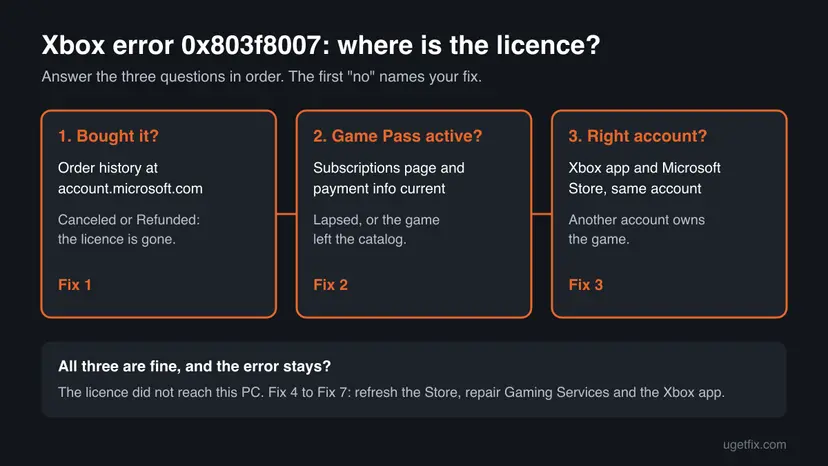
0x803f8007 means Xbox no longer sees a licence for the game or add-on on your account. Open your order history at account.microsoft.com and check whether the purchase shows Canceled or Refunded (Fix 1). If you play through Game Pass, check that the membership is active and the game is still in the catalog (Fix 2). If both are fine, sign in with the account that owns the game (Fix 3).
| Error | 0x803f8007 in the Xbox app or Microsoft Store, often with "To play this, you'll need to buy it" or "Something went wrong". |
|---|---|
| Where it appears | When you start a game or a game add-on on a Windows PC or an Xbox console. |
| Main cause | Xbox Support: you no longer own the content or no longer have permission to use it, for example after a refund or a canceled preorder. |
| Fastest fix | Check the game in your Microsoft account order history (Fix 1), then your Game Pass membership (Fix 2). |
| Also written as | 0x803F8007, 0X803F8007, 803f8007, "Error code: 0x803f8007". |
| Similar code | 0x803F8001, "Do you own this game or app?": Xbox cannot check your rights or the game left Game Pass. Fix 2 and Fix 3 cover it too. |
| Affects | Windows 11 and Windows 10 with the Xbox app, and Xbox Series X|S and Xbox One consoles. |
| Vendor status | Xbox Support has its own page for 0x803f8007 (checked 15 October 2026). It treats the code as an ownership problem, not a bug, and lists no fixed app version. |
| Time to fix | 5 minutes to check the account. Up to 30 minutes when the Store and Gaming Services need a repair. |
Facts checked on 15 October 2026. Steps written for Windows 11 (25H2 and 26H2) and Windows 10 22H2.
What Xbox error code 0x803f8007 means
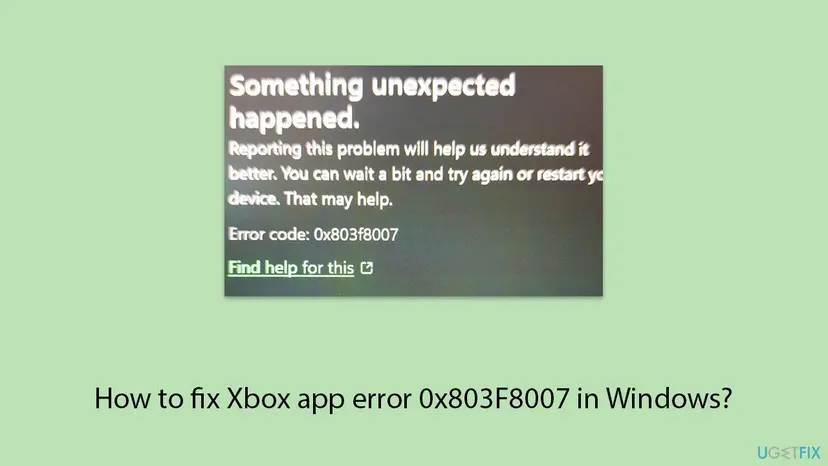
Every time you start an Xbox game or add-on, Windows asks the Xbox service whether your account may use it. 0x803f8007 is the answer "no licence found". Xbox Support shows the short form of the message on PC and console:
Something went wrong with the code 0x803f8007. On a Windows PC you may also see: To play this, you'll need to buy it. Either your purchase was refunded, or your preorder was cancelled. If you haven't cancelled it, make sure your payment info is current. Otherwise, check that you've purchased the game or have an active subscription to play the game.
The same text offers two buttons, Manage subscription and Order history. Those two buttons are the first two fixes on this page. Some readers see a third version, a dark Store window that says "Something unexpected happened" with the same code:
- Code
- 0x803f8007 (also 0x803F8007, 803f8007)
- Shown by
- The Xbox app, Microsoft Store and Xbox consoles
- Meaning
- No valid licence for this game or add-on on the signed-in account
- Not about
- Damaged game files, drivers or system files
0x803f8007, 0x803F8001 and 0x803F800F: three licence codes
All three codes start with 0x803F80 and all three are about the right to play. They differ in what Xbox thinks went wrong, so read the last digits before you start.
| Code | Message | What Xbox says it means | Start with |
|---|---|---|---|
| 0x803f8007 | To play this, you'll need to buy it / Something went wrong | You no longer own it or no longer have permission, for example after a refund or canceled preorder | Fix 1 |
| 0x803F8001 | Do you own this game or app? | Xbox has trouble checking usage rights, or the game left the Game Pass catalog | Fix 2, then Fix 3 |
| 0x803F800F | Shown when you try to play a game | A different licence code with its own Xbox Support page | Search that code on support.xbox.com |
Why the Xbox app shows 0x803f8007: the causes, ranked
The first two causes come straight from the Xbox Support page for this code. The others are what is left when the purchase and the membership are fine. Microsoft publishes no numbers, so the order is our reading of the official text and of user reports.
| Cause | How often | How to tell | Fix |
|---|---|---|---|
| The purchase was refunded or the preorder was canceled, so the licence was taken back. | Most often | The order shows Canceled or Refunded, or the Store page offers Buy a Copy. | Fix 1 |
| Game Pass lapsed, a payment failed, or the game left the Game Pass catalog. | Often | The game came with Game Pass, and the membership page shows a problem or the game is gone from the catalog. | Fix 2 |
| Another Microsoft account is signed in to the Xbox app or Microsoft Store than the one that owns the game. | Often | You have more than one account, or someone else in the house bought the game. | Fix 3 |
| The licence is fine, but this PC has an old copy of it in the Store cache. | Sometimes | Order history and Game Pass look right, and the game works on another device. | Fix 4 |
| Gaming Services or the Xbox app is out of date or damaged and cannot check the licence. | Rarely | Several games fail with licence codes, or the Xbox app misbehaves too. | Fix 5 to Fix 7 |
How to fix Xbox app error 0x803f8007 in Windows 11 and Windows 10
Fix 1 to Fix 3 check where the licence is, which is what Xbox Support asks for. Do them first: no repair on the PC can bring back a licence that the account does not have. Fix 4 to Fix 7 refresh and repair the parts of Windows that check the licence.
| What you see or have | Start with |
|---|---|
| "To play this, you'll need to buy it" on a game you bought. | Fix 1 |
| The game came with PC Game Pass or Game Pass Ultimate. | Fix 2 |
| 0x803F8001 "Do you own this game or app?" | Fix 2, then Fix 3 |
| You have more than one Microsoft account, or a family member bought the game. | Fix 3 |
| The purchase and membership look right, and the game works on another device. | Fix 4 |
| Several games fail, or the Xbox app itself misbehaves. | Fix 5, then Fix 6 |
Fix 1. Check your order history for a refund or a canceled preorder
5 minutesLow riskYou bought the game or add-on, or preordered it. This is the first check for everyone who is not on Game Pass.
Xbox Support says 0x803f8007 appears when you no longer own the content, for example after a refund or a canceled preorder. The order history shows that in one line.
- Open account.microsoft.com/billing/orders in a browser and sign in with the account you use in the Xbox app.
- Scroll to the game or add-on. If it is not there, widen the date range of the order history.
- Read its status. Canceled or Refunded means you no longer own it and cannot start it.
- If the game is not listed at all, search for it in Microsoft Store.
- If the Store page shows Buy a Copy, Xbox no longer sees the game on this account.
- If you still want the game, buy it again. If you did not ask for the refund or cancellation, contact Xbox Support with the order details.
The message adds "make sure your payment info is current". A preorder is often charged only on release day. If the card on the account had expired, the charge fails and the preorder can be canceled. Update the card under Payment options in your Microsoft account before you order again.
It worked if: The order shows as completed and not refunded. Or you now know the licence is gone and why.
If not: If the order is fine, or the game came with Game Pass, go to Fix 2.
Fix 2. Check your Game Pass membership, payment info and the game's place in the catalog
5 minutesLow riskYou play the game through PC Game Pass or Game Pass Ultimate, or the message offers Manage subscription.
A Game Pass game has no licence of its own. It is playable only while the membership is active and the game is in the catalog, and Xbox Support names both for 0x803f8007 and 0x803F8001.
- Open account.microsoft.com/services and sign in with the account you use in the Xbox app.
- Find PC Game Pass or Game Pass Ultimate and read its status and renewal date.
- If it shows a payment problem, select Manage and update the payment method, or renew the membership.
- Open the Xbox app, select Game Pass and search for the game.
- If the game no longer shows as part of Game Pass, it left the catalog. You can buy it to keep playing.
- Close the Xbox app completely and open it again after any change, then start the game.
It worked if: The membership shows as active, the game shows as included, and it starts.
If not: If the membership and catalog are fine, go to Fix 3.
Fix 3. Sign in to the Xbox app and Microsoft Store with the account that owns the game
5 minutesLow riskYou have more than one Microsoft account, a family member bought the game, or the error started after you signed in with another account.
The licence belongs to one Microsoft account. Xbox Support's advice for 0x803F8001 is to check that you are signed in with the account that bought the game. If the Xbox app and the Store use different accounts, the game can look unowned.
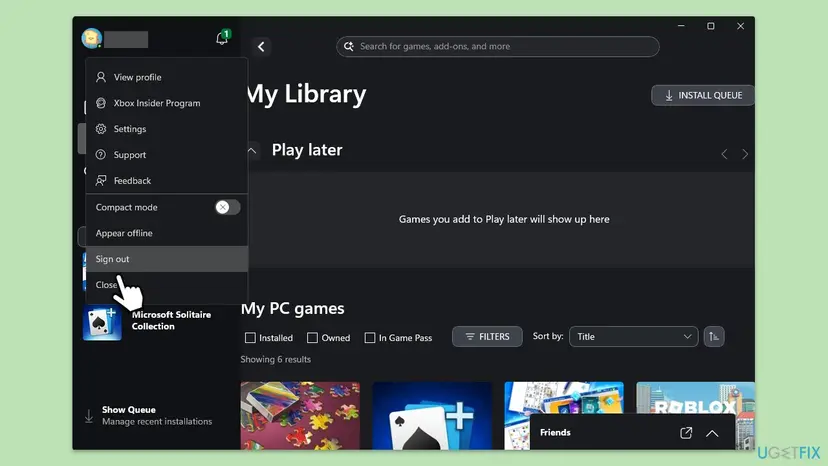
- Open the Xbox app and select your profile picture at the top left.
- Read which account is signed in. If it is not the one that owns the game, select Sign out.
- Sign in again with the account from Fix 1 or Fix 2.
- Open Microsoft Store, select your profile picture at the top right and check that it shows the same account. If not, sign out and sign in with it.
- Restart the PC so both apps start with the same account, then start the game.
It worked if: Both apps show the account that owns the game, and the game starts.
If not: If the right account is signed in and the error stays, go to Fix 4.
Fix 4. Clear the Microsoft Store cache so the licence is read again
5 minutesLow riskFix 1 to Fix 3 show that the licence is fine, for example the game works on another PC or a console with the same account.
Xbox PC games get their licence through Microsoft Store. A cache that still holds an old answer, from before a renewal or a new purchase, can repeat "no licence". Clearing it makes the Store ask again.
- Close the Xbox app and Microsoft Store.
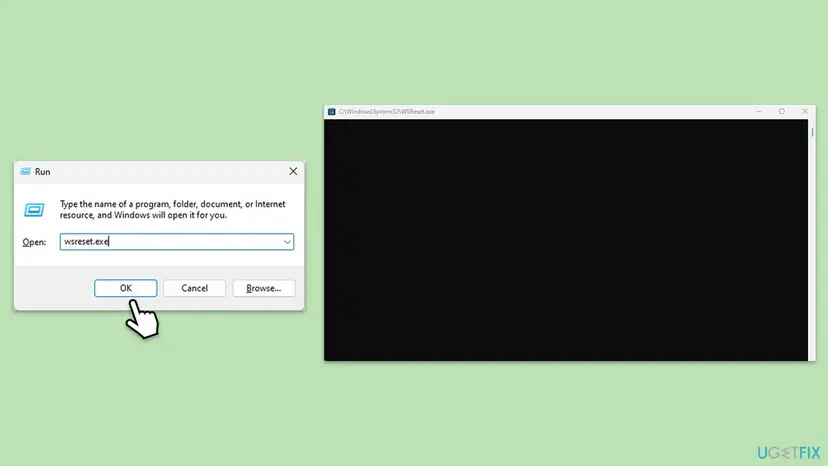
- Press Win + R, type
wsreset.exeand select OK. - Wait. An empty black window opens and closes by itself, and then Microsoft Store opens.
- In the Store, select your profile picture and check that the owner of the game is signed in.
- Open the Xbox app and start the game.
If the Store itself will not open or keeps failing, repair or reset it: Reset the Microsoft Store
It worked if: Microsoft Store opens on its own, and the game starts without 0x803f8007.
If not: Go to Fix 5 and update the Xbox app and Gaming Services.
Fix 5. Update the Xbox app and Gaming Services in Microsoft Store
5 to 10 minutesLow riskThe Xbox app or Gaming Services has not updated for a while, or other Xbox games fail too.
Gaming Services is the Windows component that runs Xbox PC games and checks their licence when they start. An old version can fail that check and report it as a missing licence.
- Open Microsoft Store and select Library at the bottom left.
- Select Get updates and let every update install, including Xbox and Gaming Services.
- Install pending Windows updates too, in Settings > Windows Update.
- Restart the PC and start the game.
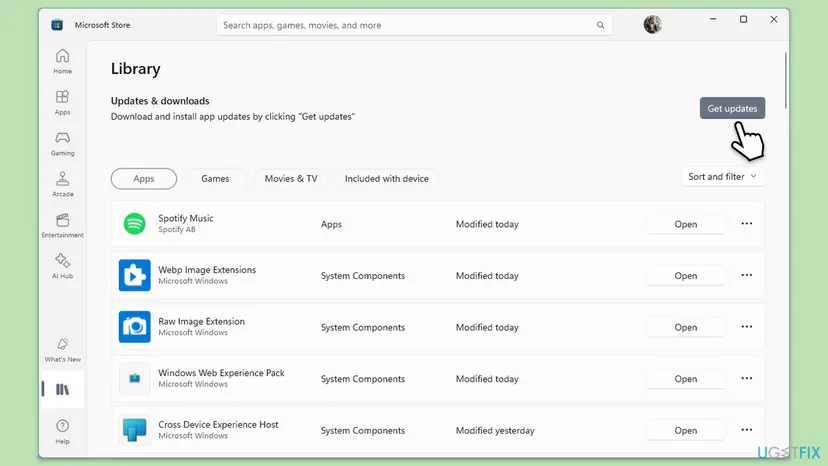
It worked if: Library shows no pending updates, and the game starts.
If not: Go to Fix 6 and repair Gaming Services.
Fix 6. Run the Gaming Services Repair Tool
10 minutesLow riskSeveral games show licence codes, or Gaming Services failed to update in Fix 5.
If Gaming Services is damaged, it cannot ask for the licence at all, and every game looks unowned. Xbox Support offers a repair tool for it inside the Xbox app.
- Open the Xbox app, select your profile picture and then Support.
- Select Gaming Services Repair Tool, then Start Troubleshooting.
- Follow what the tool reports and let it finish.
- Restart the PC and start the game.
Our guide to Xbox app error 0x87e50029 shows how to remove and reinstall Gaming Services with PowerShell when the repair tool does not help.
It worked if: The repair tool reports no problem left, and the game starts.
If not: Go to Fix 7 and repair the Xbox app.
Fix 7. Repair or reset the Xbox app
5 minutesLow riskThe Xbox app itself misbehaves: it signs you out, shows the wrong account or crashes.
The Xbox app stores your sign-in and its view of your library. Repair rebuilds its files without touching your games, and Reset clears its data, so it loads your account and licences fresh.
- Close the Xbox app.
- Press Win + I and open Apps > Installed apps. On Windows 10 open Apps > Apps & features.
- Find Xbox, select the three dots and then Advanced options.
- Select Terminate, then Repair.
- Open the Xbox app and try the game. If it still fails, come back and select Reset, then sign in again with the account that owns the game.
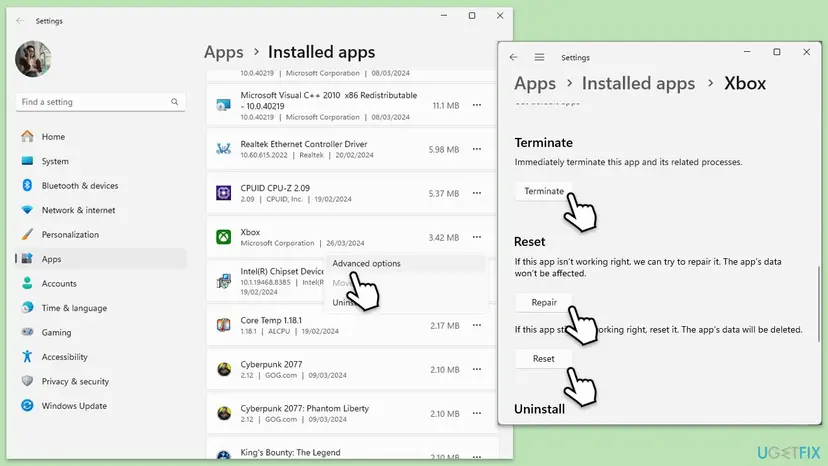
Reset signs you out of the Xbox app on this PC. Your games, saves in the cloud and Game Pass stay with your account. Every screen: How to repair or reset an app in Windows
It worked if: The Xbox app opens with the right account, shows the game as owned or included, and the game starts.
If not: Read "If 0x803f8007 is still there" below.
If 0x803f8007 is still there
When the order is fine, the membership is active and the right account is signed in, the problem is on Microsoft's side or in the account itself. A PC repair cannot change that.
- Check the Xbox status page at support.xbox.com/xbox-live-status. When the store or licence service is down, games that need a licence check fail until it is back.
- Test the account on another device. If the game also fails on a console or another PC with the same account, the licence is the problem, not your PC.
- Contact Xbox Support with the exact code, the game, the account e-mail, the order number from your order history and the Game Pass status.
- A refund you did not ask for or a charge you do not recognise belongs with Microsoft's billing support, not with a repair guide.
0x803f8007 is never a sign of failing hardware. If a game file or drive were damaged, the Xbox app would show a different code, such as 0x87e50029.
How to keep 0x803f8007 from coming back
- Keep the payment method on your Microsoft account current, especially before a preorder is charged or Game Pass renews.
- Use one Microsoft account for the Xbox app, Microsoft Store and your purchases on this PC.
- Watch the Game Pass section of the Xbox app for games leaving the catalog, and buy the ones you want to keep before they go.
- Do not request a refund for a game you still want to play: the licence is removed with the refund.
- Keep the Xbox app, Gaming Services and Windows updated through Microsoft Store > Library and Windows Update.
Windows 10 left support on 14 October 2025. The Xbox app still runs there, but a PC that gets no Windows updates can fall behind what Gaming Services and new games expect.
Frequently asked questions
What does error code 0x803f8007 mean on Xbox?
It means Xbox cannot find a valid licence for the game or add-on on the account you are signed in with. Xbox Support says this may mean you no longer own the content or no longer have permission to use it, for example because you got a refund or your preorder was canceled. On a Windows PC the message often reads "To play this, you'll need to buy it". It is the same code on PC and console, and it is about ownership, not about broken files or drivers.
Why does Xbox say I need to buy a game I already own?
Most often because the purchase is no longer active on that account. Look in your Microsoft account order history: a status of Canceled or Refunded means the licence was taken back. A preorder can be canceled when the payment fails on release day. If the order is fine, check that the Xbox app and Microsoft Store are signed in with the account that bought the game. If they are, and the error stays, clear the Store cache and contact Xbox Support with the order number.
Can I fix 0x803f8007 for a Game Pass game?
Yes, when the membership is the problem. Open account.microsoft.com/services and check that PC Game Pass or Game Pass Ultimate is active and that the payment method works. Then search for the game in the Game Pass section of the Xbox app. If it is no longer included, it left the catalog, and Xbox will ask you to buy it. Most Xbox PC games sync saves to your account, but we could not confirm this for every game, so check the game's own page.
How do I fix 0x803f8007 on an Xbox console?
The check is the same as on PC. Xbox Support gives the console path: press the Xbox button to open the guide, go to Profile & system > Settings > Account > Payment & billing, and select Order history. A Canceled or Refunded order means you no longer own the game. If you own the game on disc, Xbox Support's message for the similar code 0x803F8001 asks you to insert the disc, so try that too.
Will reinstalling the Xbox app or the game fix 0x803f8007?
Usually not. The licence lives on your Microsoft account, not in the game's files, so a reinstall downloads the same game and hits the same check. Reinstalling makes sense only after Fix 1 to Fix 3 show that the licence is fine and Fix 4 to Fix 7 did not help. Even then, try Repair and Reset of the Xbox app first, because they are faster and keep your games installed.
Is 0x803f8007 the same as 0x803F8001?
No, but they are close. The code 0x803f8007 says you no longer own the content, for example after a refund. The other code, 0x803F8001, comes with the question whether you own the game or app. Xbox Support says it can mean trouble checking usage rights, or a game that left the Game Pass catalog. For both codes, check the signed-in account and the Game Pass membership. For 0x803F8001, also check the Xbox status page, because the check itself can fail when the service is down.
Do I need to run SFC or update drivers for 0x803f8007?
No. The older version of this page suggested system file and DISM scans, but 0x803f8007 is a licence answer from the Xbox service. Damaged Windows files do not change what your account owns. Spend the time on the order history, the Game Pass membership and the signed-in account instead. If several Xbox games fail and the Xbox app misbehaves, repair Gaming Services and the Xbox app before any system-wide scan.
The error keeps coming back. What should I do?
If 0x803f8007 keeps returning after you fixed the account, the licence is probably refreshed and then lost again. Check whether someone else uses the PC with another Microsoft account, or whether the Store and the Xbox app switch accounts. Make sure the payment method is valid, because a failed renewal ends Game Pass access. If none of this explains it, contact Xbox Support with the code, the game and the order number. This page also answers readers who write "sigue saliendo" or "keeps appearing".
I searched in another language. Is this the right page?
Yes, if the code on your screen is 0x803f8007. Readers find this page with short searches such as "كيفية حل هذه المشكلة" (how to solve this problem), "pc de", "sigue saliendo", "não voltou", "jak opravit" or "кек". The same holds for a game name such as "no mans sky": the checks below do not change from game to game. The fix does not depend on the language of Windows: check the order history, then Game Pass, then the account in the Xbox app and Microsoft Store, in that order. The menu names may be translated, but they sit in the same places.
Sources
Did this fix work?
One click, no account. It tells the next reader which guides are worth their time.
Questions and experiences: fix Xbox app error 0x803F8007 in Windows
Still broken, or found a fix we did not cover? Ask here: members and our editors answer. Reading is open; writing needs a free account.
…