
How to fix Xbox app error 0x87e50029 in Windows?

Prefer to fix it yourself? The manual steps follow.
- 8methods
- 5 to 45 minutes
- Beginner to intermediate
Applies to Windows 11 and Windows 10; the Xbox app for PC, Gaming Services, PC Game Pass and Microsoft Store games such as Payday 3, Microsoft Flight Simulator 2024 and Minecraft
8 methods in this guide
I tried to install Payday 3 through the Xbox app and received error code 0x87e50029. I restarted the app and then Windows, but it did not help.
Error 0x87e50029 is the Xbox app telling you that some files of the game are missing or corrupted, so the game will not start. The app's own message names the fix: open the game's Manage page and select Verify and repair.
0x87e50029 means the Xbox app found missing or corrupted game files. In the Xbox app, select the game, then More actions > Manage > Files > Verify and repair (Fix 1). If the repair finds nothing or the code returns, reinstall the game (Fix 2), then repair Gaming Services (Fix 3). If your code is 0x87E00029, an install failure, start with Fix 3.
| Error | 0x87e50029 in the Xbox app: "Some game files are missing or corrupted." |
|---|---|
| Where it appears | In a dark Xbox app dialog with an OK button, when you press Play on a PC game or right after an install or update. |
| Main cause | Files of the installed game no longer match what the Xbox app expects: a download or update that stopped, a damaged file, or a moved or edited game folder. |
| Fastest fix | Xbox app > the game > More actions > Manage > Files > Verify and repair (Fix 1). |
| Also written as | 0x87E50029, 0X87E50029, 87e50029, "Error code: (0x87e50029)". Often mistyped as 0x87e00029, which is a different code. |
| Similar code | 0x87E00029, reported by users as "Generic install failure": the install itself stops. Start with Fix 3. |
| Affects | Windows 11 and Windows 10 with the Xbox app. Reports name Payday 3, Microsoft Flight Simulator 2024 and Minecraft. |
| Vendor status | No Xbox Support article for either code in our check on 15 October 2026. The Xbox app's own message is Microsoft's only word on 0x87e50029. |
| Time to fix | 5 to 15 minutes for Verify and repair. Up to an hour when a large game has to download again. |
Facts checked on 15 October 2026. Steps written for Windows 11 (25H2 and 26H2) and Windows 10 22H2.
What Xbox app error code 0x87e50029 means
The Xbox app checks a game's files before it starts the game. When files are missing or do not match, it stops and shows a dialog with this text, word for word:
Some game files are missing or corrupted. To fix this in the Xbox app, go to Installed, select the game, and then select More actions ... > Manage > Files > Verify and repair. Error code: (0x87e50029)
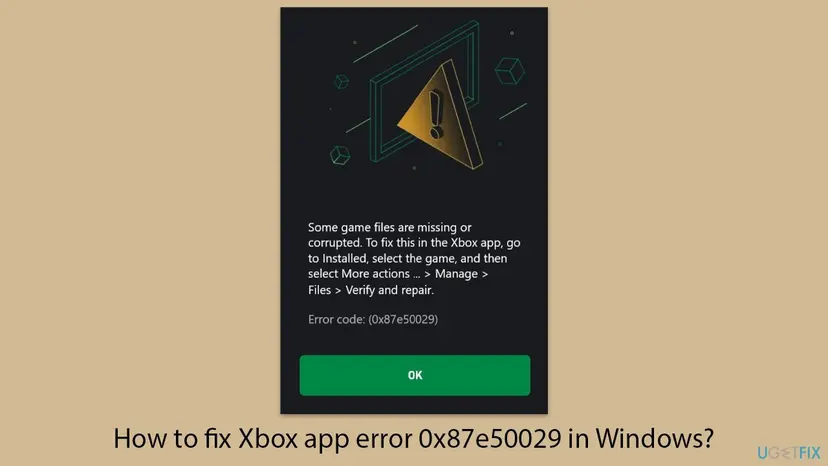
So 0x87e50029 is not a network or account error. It is about the game's files on your drive. The game, the Xbox app and your Microsoft account are all fine, but the copy of the game on the PC is not complete.
- Code
- 0x87e50029 (also typed 0x87E50029, 87e50029)
- Shown by
- The Xbox app for PC, in a dialog with an OK button
- Meaning
- Some game files are missing or corrupted
- Fix named in the message
- Manage > Files > Verify and repair
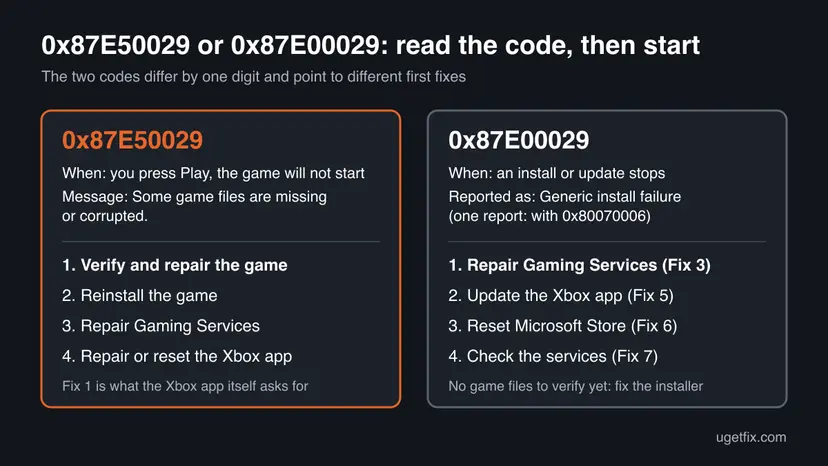
0x87e50029 or 0x87E00029: two codes that look alike
Most people who land on this page typed 0x87e00029, with a 0 where our code has a 5. That is a different error. In a report on the Microsoft Flight Simulator forum, the Xbox app showed 0x87E00029 as "Generic install failure", together with 0x80070006 "The handle is invalid", when an install stopped at 2 %. We could not find a Microsoft page that defines 0x87E00029.
| Code | When you see it | What it is about | Start with |
|---|---|---|---|
| 0x87e50029 | When you press Play, or after an update | The installed game's files are missing or damaged | Fix 1 |
| 0x87E00029 | While a game installs or updates | The install itself fails (reported as Generic install failure) | Fix 3 |
| Both codes, or other 0x87E codes too | On several games | Gaming Services or Microsoft Store | Fix 3, then Fix 6 |
Why the Xbox app shows 0x87e50029: the causes, ranked
The message names the result, not the reason. These are the reasons that fit it, from the most common to the rarest. The order is our reading of the message and the reports we read. Microsoft publishes no numbers for this code.
| Cause | How often | How to tell | Fix |
|---|---|---|---|
| A download or game update stopped half way: the PC slept, lost the network or ran out of space. | Most often | The error came right after an install or update, as in the reader's question. | Fix 1 |
| Files of the game were damaged or removed, for example by a cleanup tool, a drive error or a manual edit of the folder. | Often | The game worked before and stopped with no update. | Fix 1, then Fix 2 |
| The game's install is broken past repair, or it sits on a drive that was moved or disconnected. | Sometimes | Verify and repair finishes, and the code comes back at once. | Fix 2 |
| Gaming Services, the Windows component that installs and runs Xbox PC games, is damaged. | Sometimes | Several games fail, or the Xbox app reports a Gaming Services problem. | Fix 3 |
| The Xbox app or Microsoft Store is out of date or damaged. | Rarely | Other Store apps also fail, or the Xbox app shows missing content. | Fix 4 to Fix 8 |
How to fix Xbox app error 0x87e50029 in Windows 11 and Windows 10
Fix 1 is the repair the Xbox app itself asks for, and it is the one to try first. Fix 2 and Fix 3 deal with a game or Gaming Services that cannot be repaired in place. Fixes 4 to 8 repair the Xbox app and Microsoft Store, which also cover the install error 0x87E00029.
| What you see or have | Start with |
|---|---|
| 0x87e50029 with "Some game files are missing or corrupted" when you press Play. | Fix 1 |
| Verify and repair finishes, and the code comes back. | Fix 2 |
| 0x87E00029, or an install or update that stops before the game is installed. | Fix 3 |
| Every Xbox game fails, or the Xbox app reports a Gaming Services problem. | Fix 3 |
| The Xbox app itself crashes, shows missing content or will not sign in. | Fix 4, then Fix 5 |
| Downloads in Microsoft Store fail too. | Fix 6, then Fix 7 |
Fix 1. Verify and repair the game's files in the Xbox app
5 to 15 minutesLow riskYou see 0x87e50029 with the message "Some game files are missing or corrupted". This is the first fix for everyone.
The error says the game's files do not match. Verify and repair compares every file with the official copy and downloads only the ones that are missing or damaged, which is exactly what the message asks for.
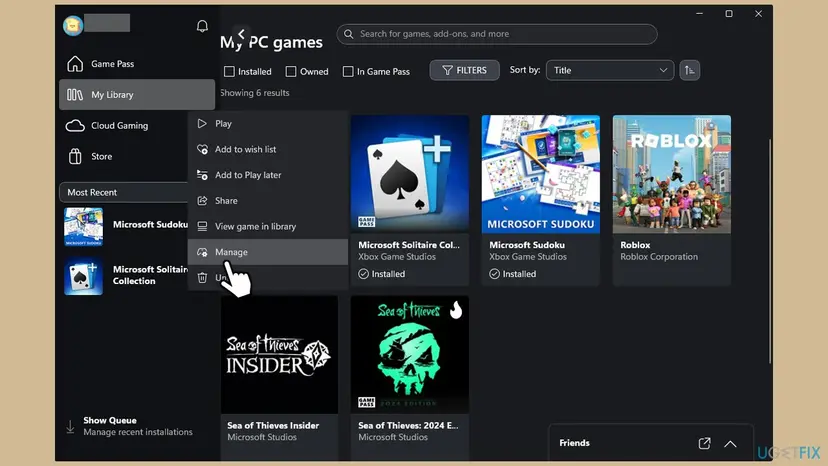
- Close the game if it is open, and open the Xbox app.
- Select My Library on the left, or Installed if your version shows it.
- Select the game, then the More actions button (three dots).
- Select Manage, then the Files tab.
- Select Check for updates first. A missing update is also reported as missing files.
- Select Verify and repair on the same page and wait. A large game can take several minutes.
- When the app says the repair is done, start the game again.
The same check for Steam, Epic and other launchers: How to verify game files in Steam, Epic Games, Xbox app, EA app, Battle.net and GOG Galaxy
It worked if: The Files page reports that the repair is complete, and the game starts without the dialog.
If not: If the code comes back at once, or Verify and repair is grey, go to Fix 2. If the repair itself stops with another code, go to Fix 3.
Fix 2. Uninstall the game and install it again from the Xbox app
15 to 60 minutes, depending on the game's size and your connectionRead the warningVerify and repair finished and 0x87e50029 came back, the game sits on a drive that was moved or replaced, or Verify and repair is not offered.
When the install folder itself is damaged or on the wrong drive, a repair has nothing sound to start from. A clean install writes every file again and registers the game with Gaming Services from scratch.
Most Xbox PC games keep saves in the cloud, but not all of them. Start the game once more if it opens, or wait for the Xbox app to finish syncing. If the game keeps local saves or mods, copy that folder first: Back up your files (Windows Backup, File History, Time Machine)
- Open the Xbox app and select My Library.
- Select the game, then More actions > Uninstall. Confirm.
- Restart the PC.
- Open the Xbox app again, select the game and select Install.
- Choose the drive. Pick an internal drive with enough free space, not a drive that is often disconnected.
- Leave the PC on and awake until the install is done.
It worked if: The download finishes with no error, and the game starts.
If not: If the install itself stops, often with 0x87E00029 or another 0x87E code, go to Fix 3.
Fix 3. Run the Gaming Services Repair Tool, then reinstall Gaming Services
10 to 20 minutesLow riskSeveral games fail, the install stops with 0x87E00029, or Fix 1 and Fix 2 did not help.
Gaming Services is the Windows component that installs Xbox PC games and checks their files. Xbox Support offers its repair tool for install and update problems and for an Xbox app that opens with missing content.
- Open the Xbox app, select your profile picture and then Support.
- Select Gaming Services Repair Tool, then Start Troubleshooting, and follow what it reports.
- Restart the PC and try the game again.
- If the code returns, close the Xbox app and Microsoft Store.
- Right-click Start and select Terminal (Admin). On Windows 10 select Windows PowerShell (Admin). Select Yes.
- Run the command below. It removes Gaming Services for all users.
- Install it again from the Gaming Services page in Microsoft Store, then restart the PC.
Terminal (Admin): remove Gaming Services
Get-AppxPackage -AllUsers Microsoft.GamingServices | Remove-AppxPackage -AllUsers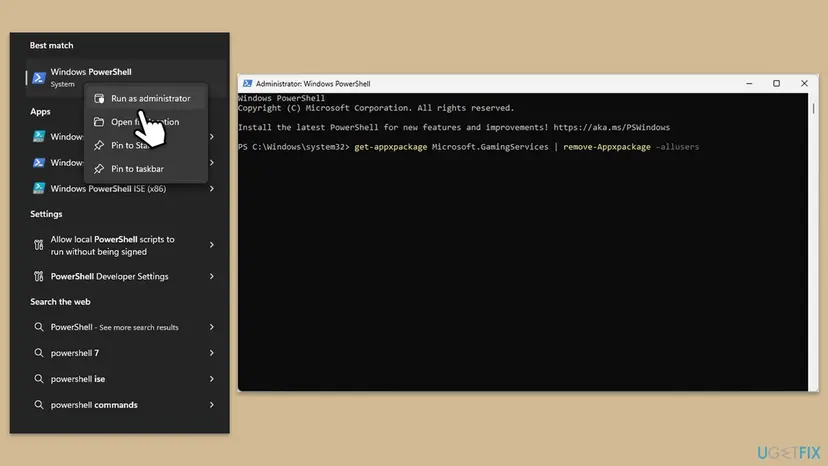
- The repair tool will not run: Xbox Support says that on Windows 22H2 or older it may need the local administrator account, and that the answer is to update Windows.
- Your games stay installed. They will not start until Gaming Services is back.
- The older version of this page also deleted two Gaming Services registry keys. We left that out: removing and reinstalling the package is enough in most cases, and registry edits carry their own risk.
It worked if: The repair tool reports no problem, or Gaming Services installs again, and the game installs or starts.
If not: Go to Fix 4 and repair the Xbox app itself.
Fix 4. Repair or reset the Xbox app
5 minutesLow riskThe Xbox app itself misbehaves: it crashes, shows missing content, or the Manage page does not open.
The check that raises 0x87e50029 runs inside the Xbox app. If the app's own files or settings are damaged, Repair rebuilds them without touching your games, and Reset starts the app clean.
- Close the Xbox app.
- Press Win + I and open Apps > Installed apps. On Windows 10 open Apps > Apps & features.
- Find Xbox, select the three dots and then Advanced options.
- Select Terminate, then Repair.
- Open the Xbox app and try the game. If it still fails, come back and select Reset, then sign in again.
- Do the same for Gaming Services if it is listed with Advanced options.
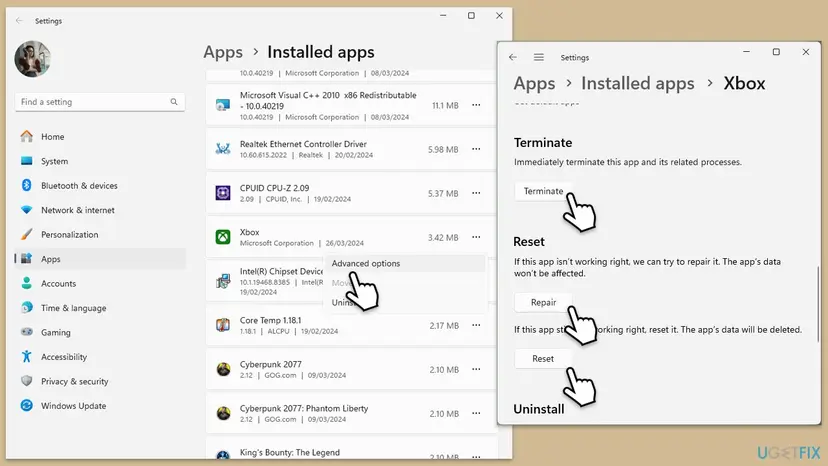
Reset signs you out of the Xbox app on this PC. Your games and Game Pass stay with your account. Every screen: How to repair or reset an app in Windows
It worked if: The Xbox app opens normally, and Manage > Files > Verify and repair works.
If not: Go to Fix 5 and update the Xbox app and Gaming Services.
Fix 5. Update the Xbox app, Gaming Services and the game in Microsoft Store
5 to 10 minutesLow riskThe Xbox app has not updated for a while, or a game update is waiting.
A game update that expects a newer Xbox app or Gaming Services can look like missing files. Updating all three at once removes that mismatch.
- Open Microsoft Store and select Library at the bottom left.
- Select Get updates and let every update install, including Xbox and Gaming Services.
- Close and open the Xbox app.
- In the Xbox app, select the game, then Manage > Files > Check for updates.
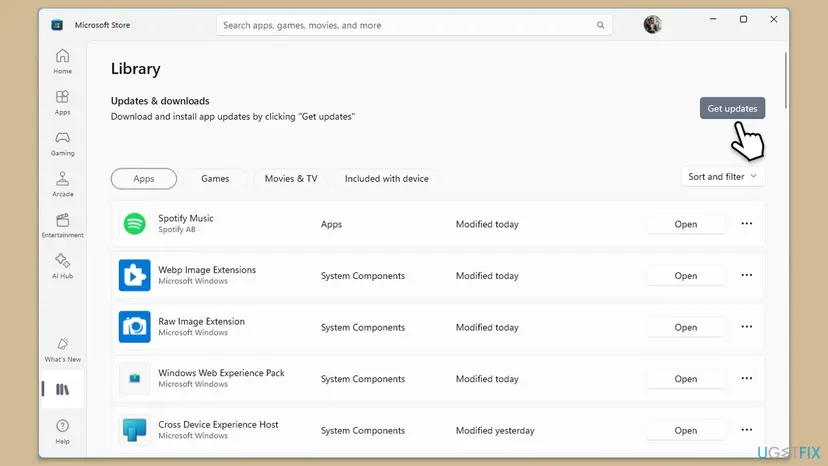
It worked if: Library shows no pending updates, and the game starts.
If not: If the Store cannot finish the updates, go to Fix 6.
Fix 6. Clear the Microsoft Store cache, then repair or reset the Store
5 to 10 minutesLow riskDownloads in the Xbox app or the Store stop, or you see 0x87E00029 and Fix 3 did not help.
Xbox PC games are delivered through the same download system as Microsoft Store. A stuck Store cache can leave a game half downloaded, which is what 0x87e50029 and 0x87E00029 report.
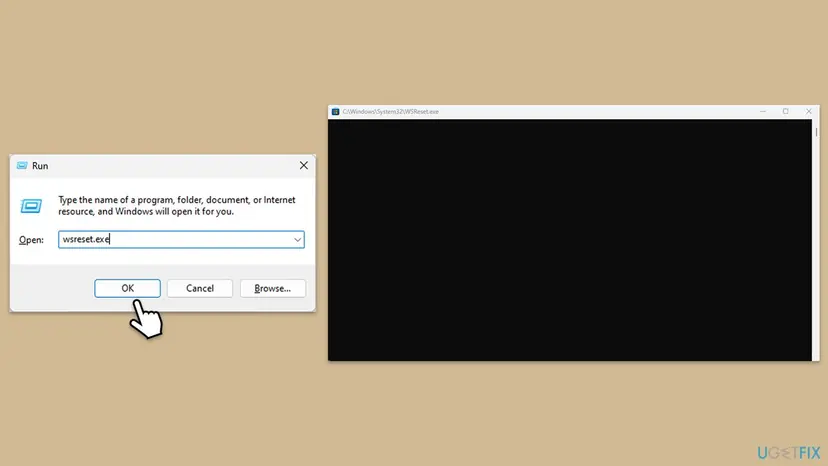
- Press Win + R, type
wsreset.exeand select OK. - Wait. A blank window opens, closes by itself, and Microsoft Store opens.
- If downloads still fail, open Settings > System > System components on Windows 11, or Settings > Apps > Apps & features on Windows 10.
- Next to Microsoft Store, select the three dots and Advanced options.
- Select Repair. If that does not help, select Reset and sign in to the Store again.
Every screen of the Store repair and reset: Reset the Microsoft Store
It worked if: The Store opens, Library > Get updates runs without errors, and the game installs.
If not: Go to Fix 7 and check the services that installs need.
Fix 7. Check that the Xbox and Store install services can start
5 minutesLow riskInstalls stay at Pending or stop at once, or a tuning tool has turned off Windows services.
Game installs and file checks run through background services. If Gaming Services or Microsoft Store Install Service is disabled, the Xbox app cannot repair or finish the game.
- Press Win + R, type
services.mscand press Enter. - Find Gaming Services and Microsoft Store Install Service. Their Startup Type must not be Disabled.
- Check Xbox Live Auth Manager, Xbox Live Game Save and Xbox Live Networking Service the same way.
- If one shows Disabled, double-click it, set Startup type to Manual, select Apply and then Start.
- Restart the PC and try the game.
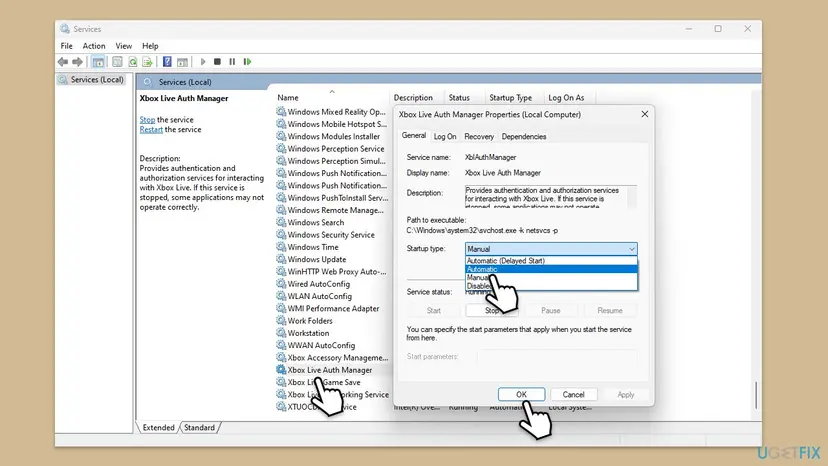
The old version of this page set these services to Automatic. Manual is their normal setting and is enough: they start when needed. Step by step: Check and restart Windows services
It worked if: No Xbox or Store service shows Disabled, and the game installs or starts.
If not: Go to Fix 8 and re-register Microsoft Store.
Fix 8. Re-register Microsoft Store with PowerShell
5 minutesLow riskThe Store and the Xbox app both fail after Fix 6, or the Store will not open at all.
Re-registering writes the Store's app registration again from its own installed files. It repairs the link between Windows and the Store that game downloads depend on, without removing any app.
- Right-click Start and select Terminal (Admin), or Windows PowerShell (Admin) on Windows 10. Select Yes.
- Paste the command below and press Enter. Red lines about apps that are in use can be ignored.
- Restart the PC, open Microsoft Store, then the Xbox app, and try the game.
Terminal (Admin): re-register Microsoft Store
Get-AppXPackage *WindowsStore* -AllUsers | Foreach {Add-AppxPackage -DisableDevelopmentMode -Register "$($_.InstallLocation)\AppXManifest.xml"}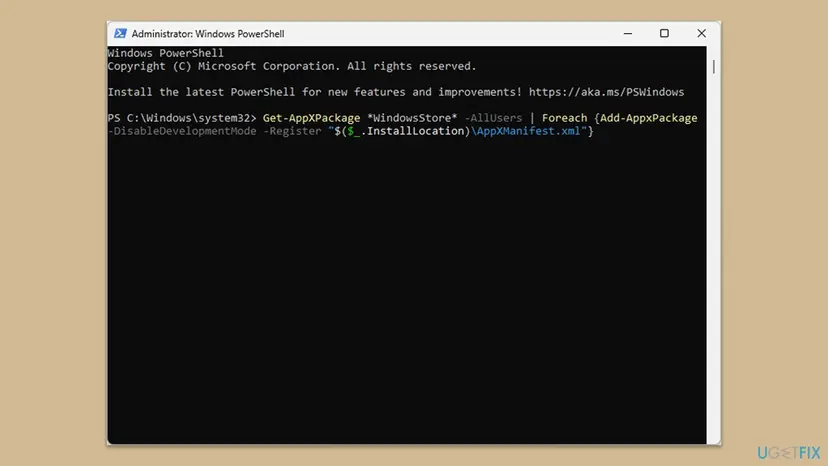
The same method for any other app, with screenshots: How to re-register Microsoft Store apps with PowerShell
It worked if: The Store opens, the Xbox app downloads again, and the game installs or starts.
If not: Read "If the error is still there" below.
If 0x87e50029 is still there
The Xbox app does not write a public log that explains 0x87e50029. Install failures such as 0x87E00029 do leave entries in Windows. Look there first, then check the drive.
- Make the error appear once more and note the time.
- Open Windows PowerShell and run
Get-AppxLog | Out-GridView. Look for red entries at that time and the game's package name. - In Event Viewer (
eventvwr.msc), open Applications and Services Logs > Microsoft > Windows > AppXDeployment-Server > Microsoft-Windows-AppXDeploymentServer/Operational for the same time. - Check the game's drive: open Command Prompt as administrator and run
chkdsk D: /scan, with your game drive's letter.
- When it may be hardware: the same game breaks again after a clean install, other big files on that drive are damaged, or chkdsk reports errors. Install the game on another drive to test.
- What to send to Xbox Support: the exact code, the game, when it appears (Play or install), your Windows build from Settings > System > About, and which fixes you tried.
- Game-specific reports: for Microsoft Flight Simulator 2024, the game's own forum has a bug report for this code from November 2024.
How to keep 0x87e50029 from coming back
- Let installs and updates finish. Do not shut down, sleep or disconnect the PC while the Xbox app shows a download in its queue.
- Keep enough free space on the game drive for the update plus some room to spare. A full drive leaves updates half done.
- Do not edit, move or clean files inside the game's install folder by hand or with cleanup tools.
- Keep the Xbox app, Gaming Services and Windows updated, through Microsoft Store > Library and Windows Update.
- Install games on an internal drive, or on an external one that stays connected.
Windows 10 left support on 14 October 2025. The Xbox app still runs there, but a PC that gets no Windows updates can fall behind what new games and Gaming Services expect.
Frequently asked questions
What does error code 0x87e50029 mean in the Xbox app?
It means that some files of the game are missing or corrupted. The Xbox app checks the game before it starts it, and this code appears when the installed copy is not complete. The app's message says so in plain words and names the fix: go to Installed, select the game, then More actions, Manage, Files and Verify and repair. It is not an account, network or Game Pass error. Your purchase and your saves in the cloud are not affected.
Is 0x87e00029 the same as 0x87e50029?
No. They differ by one digit and mean different things. The code 0x87e50029 is the Xbox app's code for missing or corrupted game files, shown when you start a game. The code 0x87E00029 appears while an install or update stops. A user report on the Microsoft Flight Simulator forum quotes it as Generic install failure, and we could not find a Microsoft definition for it. For 0x87E00029, start with Gaming Services (Fix 3) and Microsoft Store (Fix 6), because the game is not yet installed.
How do I fix Xbox error code 0x87e00029?
Repair the install path, not the game. Run the Gaming Services Repair Tool from the Xbox app's Support page, then reinstall Gaming Services if the code returns (Fix 3). Update the Xbox app and Gaming Services in Microsoft Store > Library (Fix 5). Clear the Store cache with wsreset.exe and repair the Store (Fix 6). Check that Gaming Services and Microsoft Store Install Service are not disabled (Fix 7). Then start the install again and leave the PC awake until it finishes.
How do I fix Minecraft error code 0x87e00029 or 0x87e50029?
The same way as for any Xbox PC game, with Minecraft's name. For 0x87e50029, open the Xbox app, select Minecraft, then Manage, Files and Verify and repair. For 0x87E00029 during an install, repair Gaming Services and the Store first. People also search for "error code 0029 minecraft dungeons": Minecraft Dungeons on PC Game Pass installs through the same Xbox app, so the same fixes apply. Copy local worlds before you uninstall Minecraft, because they live on the PC.
Why did 0x87e50029 appear right after I installed a game?
Because the install or the first update did not finish cleanly. The reader's question on this page is a typical case: Payday 3 installed through the Xbox app and then showed the code, and a restart did not help. A restart does not bring missing files back. Verify and repair (Fix 1) downloads only the files that are missing, so it is quicker than a full reinstall. If it fails, uninstall and install again with the PC awake for the whole download.
Will Verify and repair or a reinstall delete my saves?
Verify and repair does not touch your saves. It only compares and replaces the game's own files. A reinstall removes the game folder, and most Xbox PC games keep saves in the cloud with your Xbox account, so they come back after you sign in. Some games also keep local saves or mods. Before you uninstall, let the cloud sync finish by starting the game once if it opens, and copy any local save folder you care about.
Verify and repair is grey or missing. What now?
Check for updates first, on the same Manage > Files page. While an update is waiting or downloading, the repair option may not be available. If it is still grey, the game's install may not be registered properly, which happens when it sits on a drive that was disconnected. Uninstall the game and install it again (Fix 2). If the Manage page itself does not open, repair the Xbox app in Settings first (Fix 4).
I tried everything and the error is still there. What else can I do?
Find out where the failure is. Run Get-AppxLog in PowerShell right after the error, or read the AppXDeployment-Server log in Event Viewer for that time. Run chkdsk with the /scan switch on the game drive, and install the game on another drive as a test. If the same game breaks on two drives, contact Xbox Support or the game's maker with the code, the game, your Windows build and the fixes you tried. Game makers sometimes fix such cases in an update.
What if I searched this error in another language?
This page is in English and covers one error, 0x87e50029 in the Xbox app for PC, plus the similar code 0x87E00029. People reach it with short questions in Russian, Thai, Arabic, Portuguese, Spanish, French, Vietnamese, Japanese and other languages, such as "what do I do" or "how to fix". The answer is the same: in the Xbox app, open the game's Manage page, then Files, and select Verify and repair. If that fails, follow Fix 2 and Fix 3 above.
Sources
- Xbox Support: Gaming Services Repair Tool for PC (support.xbox.com)
- Microsoft Flight Simulator Forums: MSFS2024, error 0x87e50029 (user bug report, November 2024) (forums.flightsimulator.com)
- Microsoft Flight Simulator Forums: 0x80070006 The handle is invalid, 0x87E00029 Generic install failure (user report, May 2025) (forums.flightsimulator.com)
Did this fix work?
One click, no account. It tells the next reader which guides are worth their time.
Questions and experiences: fix Xbox app error 0x87e50029 in Windows
Still broken, or found a fix we did not cover? Ask here: members and our editors answer. Reading is open; writing needs a free account.
…