
How to fix ZIP or RAR files extracting slowly in Windows 11?

Prefer to fix it yourself? The manual steps follow.
- 9methods
- 5 to 30 minutes
- Intermediate
Applies to Windows 11 and Windows 10 PCs where unpacking ZIP or RAR archives takes far longer than it should
9 methods in this guide
I've been experiencing significant slowdowns when extracting ZIP files on my Windows 11 PC. Even small archives take an unusually long time to unzip, which wasn't an issue before. This problem started after a recent system update.
ZIP or RAR files that extract slowly in Windows 11 are usually held back by how you extract them, by antivirus scanning of every unpacked file, or by a slow or crowded drive, not by the archive itself. Start with the Extract command instead of dragging files out of the archive, then check in Task Manager what the PC is waiting for.
Unpack the archive with the Extract command into a new folder on your internal drive instead of dragging files out of the archive window (Fix 1). Then watch CPU and Disk in Task Manager to see what limits the speed (Fix 2). If both stay low, a security scan of each file is the likely delay, so add an exclusion for that one folder (Fix 4).
| Error | No error message: extraction of a ZIP or RAR file runs much slower than it used to, even for small archives |
|---|---|
| Where it appears | File Explorer Extract All, a drag and drop out of an archive window, or a third-party extractor such as 7-Zip or WinRAR |
| Main cause | Extraction that goes through a temporary folder, real-time scanning of every unpacked file, or a drive that is slow, nearly full or has errors |
| Fastest fix | Use Extract into a folder on the internal drive instead of drag and drop (Fix 1) |
| Also written as | winrar slow, 7-Zip slow, slow extraction speed, unzip takes forever, files extract slowly after an update |
| Affects | Windows 11 (25H2 and 26H2) and Windows 10 22H2, with the built-in extractor and with third-party tools |
| How to find the cause | Task Manager, Performance tab: Disk near full means the drive, high CPU means the processor, both low means something else is waiting (Fix 2) |
| Time to fix | 5 to 30 minutes for most readers; the drive checks in Fix 7 can take longer |
Facts checked on 16 October 2026. Steps written for Windows 11 (25H2 and 26H2) and Windows 10 22H2.
What slow ZIP and RAR extraction means and what usually limits the speed
Extraction is three jobs in a row. The program reads compressed data from the archive, the processor unpacks it, and every file is written to the destination drive. Whichever of the three is slowest sets the speed of the whole job, so the same archive can feel fast on one PC and slow on another.
There is no error code here, so the cause has to be found by watching the PC while it works. An archive with thousands of small files usually takes longer than one big file of the same total size, because each small file is created, written and often scanned on its own.
- What you see
- The progress bar crawls, or it stalls on small files and then jumps ahead
- What it is not
- A damaged archive. 7-Zip reports a damaged archive as Data Error or CRC Error; a slow archive finishes without one
- Where to look
- Task Manager > Performance, with the extraction running
- Tools involved
- The built-in Extract All in File Explorer, or an extractor you installed, such as 7-Zip or WinRAR
If the archive finishes and the files open, the data is fine. The fixes below change how, where and next to what you extract, not the archive.
Why ZIP and RAR extraction gets slow, from the cheapest cause to check to the hardest
Most slow cases come from the way the files are unpacked or from a security scan, and both are quick to test. Drive problems come next, and the Windows update is last because your own report is that the slowdown started after one, which is worth ruling out but rarely the whole story.
| Cause | What you see | Fix |
|---|---|---|
| Dragging files out of an archive window, which unpacks to a temporary folder first | The job seems to run twice: unpacking, then a copy | Fix 1 |
| The archive or the destination sits on a USB stick, network share or other slow location | Disk or network use is busy, CPU is low | Fix 1 and Fix 2 |
| The built-in extractor with a large archive or many files (users report this) | 7-Zip or WinRAR finishes the same archive sooner | Fix 3 |
| Real-time antivirus scanning each unpacked file | Disk and CPU stay low, many small files are slowest | Fix 4 |
| A hard disk drive that needs optimizing, a nearly full drive or file system errors | Disk is near full, the PC stutters during the job | Fix 5, Fix 6 and Fix 7 |
| A background program or service competing for the drive | Slow only on this PC, with other programs busy at the same time | Fix 8 |
| A pending update or driver that Windows has not installed yet | The slowdown started with an update | Fix 9 |
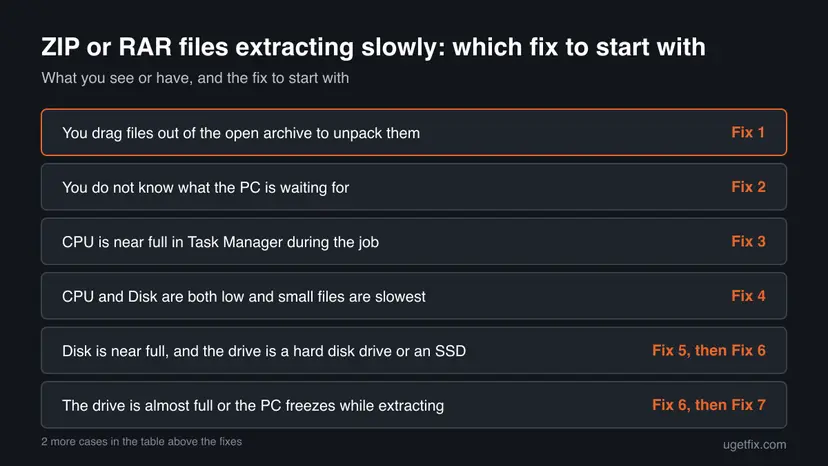
How to speed up ZIP and RAR extraction in Windows 11 and Windows 10
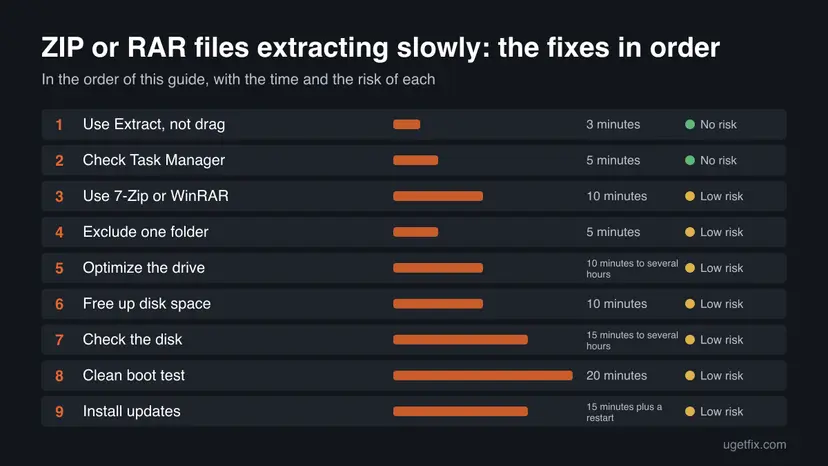
Run Fix 1 and Fix 2 first, because they take a few minutes and tell you where to go next. Fix 3 and Fix 4 cover the two most common causes after that. Fix 5 to Fix 9 deal with the drive, background programs and updates. You need an administrator account for Fix 4 to Fix 9.
| What you see or have | Start with |
|---|---|
| You drag files out of the open archive to unpack them | Fix 1 |
| You do not know what the PC is waiting for | Fix 2 |
| CPU is near full in Task Manager during the job | Fix 3 |
| CPU and Disk are both low and small files are slowest | Fix 4 |
| Disk is near full, and the drive is a hard disk drive or an SSD | Fix 5, then Fix 6 |
| The drive is almost full or the PC freezes while extracting | Fix 6, then Fix 7 |
| The slowdown began right after a Windows update | Fix 9 |
| Nothing above changed anything | Fix 8 |
Fix 1. Extract with the Extract command instead of dragging files out
3 minutesNo riskYou open the archive and drag files or folders into another window to unpack them.
7-Zip's FAQ explains that dragging out of an archive window makes the extractor unpack to a temporary folder first, and File Explorer copies the files to the drop target afterwards. That doubles the writing. The Extract command writes straight into the target folder.
- If the archive sits on a USB stick, a network share or a cloud folder, copy it to a new folder on your internal drive first, so every read is local.
- Right-click the archive. On Windows 11 select Show more options if your extractor is not in the short menu.
- Choose 7-Zip > Extract files or WinRAR > Extract files. With no extractor installed, choose Extract All (ZIP files).
- Set the destination to a new folder on the same internal drive and confirm with OK or Extract.
- Note how long it takes and compare it with your earlier attempt.
To speed up extracting ZIP files this way, note that 7-Zip names a second route that avoids temporary files: drag from one 7-Zip window to another 7-Zip window instead of into Explorer.
It worked if: Files appear in the destination folder as they are unpacked, and there is no second copy phase at the end.
If not: If it is still slow, find out what the PC is waiting for in Fix 2.
Fix 2. Find the bottleneck in Task Manager
5 minutesNo riskYou want to know whether the drive, the processor or something else is slowing the job before you try more fixes.
The three stages of extraction can each be the slow one, and each has a different fix. Task Manager shows the busy one while the job runs, so you spend time only on the fix that applies.
- Press Ctrl + Shift + Esc to open Task Manager and select Performance.
- Start the extraction again with the Extract command from Fix 1.
- Watch CPU and the Disk entries for the drive you extract to.
- Disk near full with a low CPU points to the drive: go to Fix 5, Fix 6 and Fix 7.
- CPU near full points to the unpacking itself: go to Fix 3.
- Both low while the job still crawls means something else is making it wait, such as a security scan: go to Fix 4.
- Select Processes and sort by Disk to see which other program is using the drive, then go to Fix 8.
It worked if: You can name the limit: drive, processor or neither.
If not: If the graphs jump around and tell you nothing, work through Fix 3 and Fix 4 in order.
Fix 3. Try 7-Zip or WinRAR instead of the built-in extractor
10 minutesLow riskCPU is high during extraction, or you only use the built-in Windows extractor with large archives.
Users report that 7-Zip and WinRAR unpack large archives faster than the built-in Windows tool. We found no Microsoft statement that confirms a speed difference, so treat it as a test: install one, time the same archive and keep it only if it is faster.
- Download the installer only from the maker's own website, for 7-Zip or for WinRAR.
- Choose the 64-bit version on 64-bit Windows. 7-Zip's FAQ says the 32-bit build cannot use a big dictionary, which some archives need.
- Run the installer and accept the default options.
- Right-click the archive, select Show more options on Windows 11, then 7-Zip > Extract files or WinRAR > Extract files.
- Extract into a folder on the internal drive and time it against the built-in tool.
Keep the tool current. 7-Zip's FAQ notes that 7-Zip 9.20 could not open RAR5 archives, while recent versions can. We list no hidden extraction speed setting for either tool, because the official pages we read name none.
It worked if: The same archive finishes sooner than with the built-in extractor.
If not: If it is not faster, the limit is not the extractor. Go to Fix 4 and then to the drive fixes.
Fix 4. Exclude the extraction folder from real-time scanning
5 minutesLow riskTask Manager shows low CPU and Disk use, or archives with many small files are the slowest.
Windows Security's real-time protection scans files and programs as they are accessed. Microsoft says an exclusion for a single folder is safer than turning protection off. Every unpacked file then skips that check, which helps most when there are many small files.
- Create a folder for unpacking, for example
C:\Unpack. - Open Windows Security > Virus & threat protection. Under Virus & threat protection settings select Manage settings.
- Scroll to Exclusions and select Add or remove exclusions, then Add an exclusion > Folder.
- Pick
C:\Unpack, extract the archive into it and time the job. - When you are done, return to Add or remove exclusions, select the folder and choose Remove.
Microsoft warns that excluded files are no longer checked by Microsoft Defender Antivirus in real-time. Use it only for archives from a source you trust, and remove it after the test. Exclusions apply to real-time scanning only, so scheduled scans and third-party antivirus products may still scan the folder.
With a third-party antivirus, use its own exclusion setting. For one short test only you can pause real-time protection with Turn off Microsoft Defender protection for a moment; Microsoft says it turns itself back on after a while.
It worked if: The job finishes clearly sooner inside the excluded folder than in a normal folder.
If not: If the speed does not change, scanning is not the delay. Remove the exclusion and continue with Fix 5.
Fix 5. Optimize the drive in Defragment and Optimize Drives
10 minutes to several hoursLow riskTask Manager shows the drive near full during extraction, especially on an older hard disk drive.
Microsoft says Windows normally optimizes drives by itself, but a drive that skipped its schedule can lag. A hard disk drive is defragmented, so its files lie together and are easier to read. An SSD is trimmed instead, which tells the drive where it can clean up.
- Select Search on the taskbar, type
defragand open Defragment and Optimize Drives. - Select the drive you extract to, usually C:.
- On a hard disk drive select Analyze first, then Optimize if it needs it.
- On an SSD select Optimize. Windows trims it, which is the SSD version of this step.
- Wait until the status shows the drive as OK, then extract again.
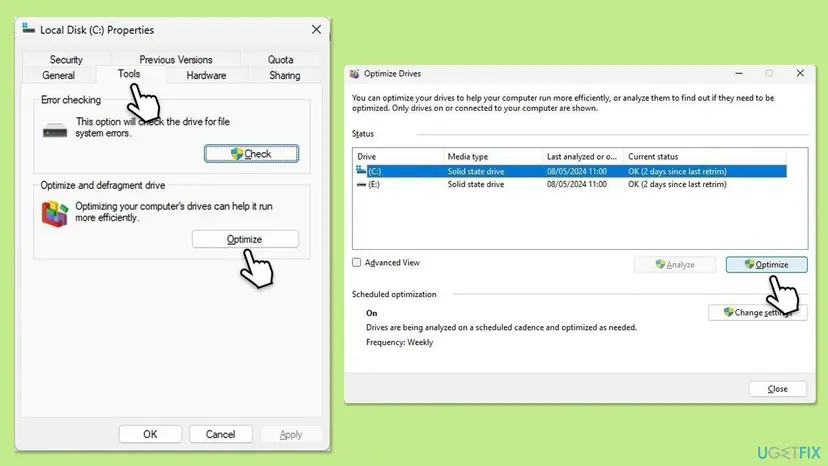
The same window can also be reached from drive Properties > Tools > Optimize.
It worked if: The drive shows OK with no fragmentation to fix, and extraction on a hard disk drive is quicker.
If not: If Analyze already showed the drive as fine or it is an SSD, go to Fix 6.
Fix 6. Free up disk space on the drive you extract to
10 minutesLow riskThe drive has little free space left, or Windows reports low disk space.
Unpacked files can be much larger than the archive, so a nearly full drive leaves little room to write them. Cleaning up temporary files and old update files also removes leftovers that pile up on the system drive.
Follow the published steps, then extract again:
- Open Storage settings. Select Start > Settings > System > Storage. The top of the page shows how full the drive is and what uses the space.
- Open Cleanup recommendations. Under Storage management, select Cleanup recommendations.
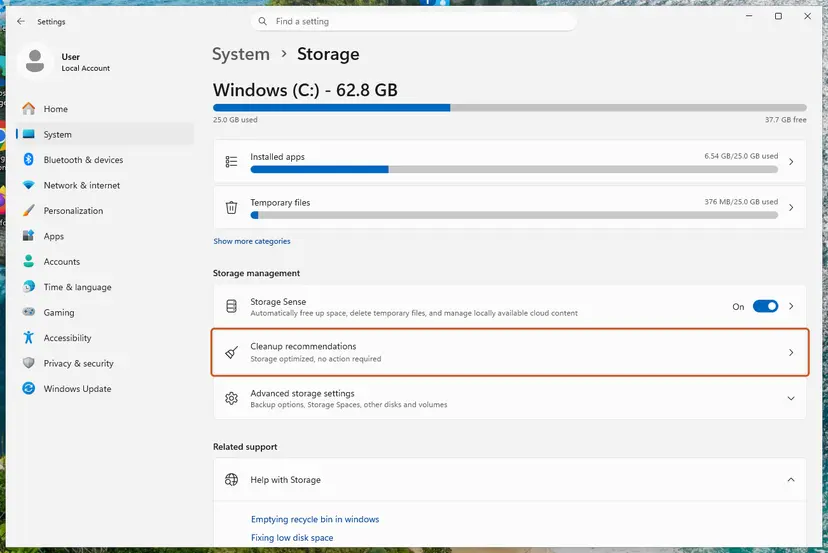
Settings, System, Storage: Cleanup recommendations is under Storage management. Screenshot: Windows 11 26H2. - Clean up what Windows suggests. Open each group (Temporary files, Large or unused files, Files synced to the cloud, Unused apps), check the items you do not need and select Clean up in that group.
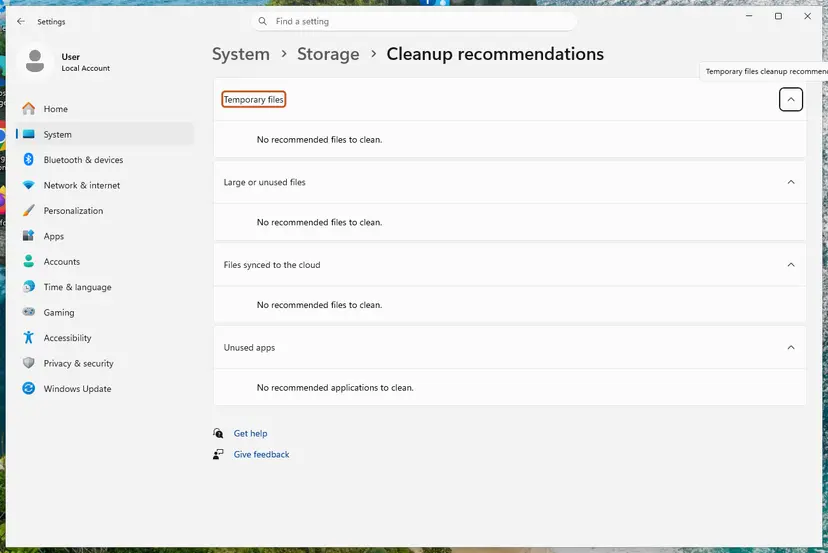
Cleanup recommendations groups the suggestions; on our test PC there was nothing to clean yet. Screenshot: Windows 11 26H2. - Delete more temporary files. Go back to Storage and select Temporary files. Windows lists the types it can remove with their size. Check the ones you do not need and remove them. Leave Downloads unchecked unless you have checked that folder.
- Turn on Storage Sense. Back on Storage, turn the Storage Sense switch on. Windows then deletes temporary files on its own when the drive runs low.
- Choose what Storage Sense cleans. Select Storage Sense to open its page. Check the box for cleaning temporary files, then choose when it runs and how long files may stay in the Recycle Bin and Downloads before they are deleted.
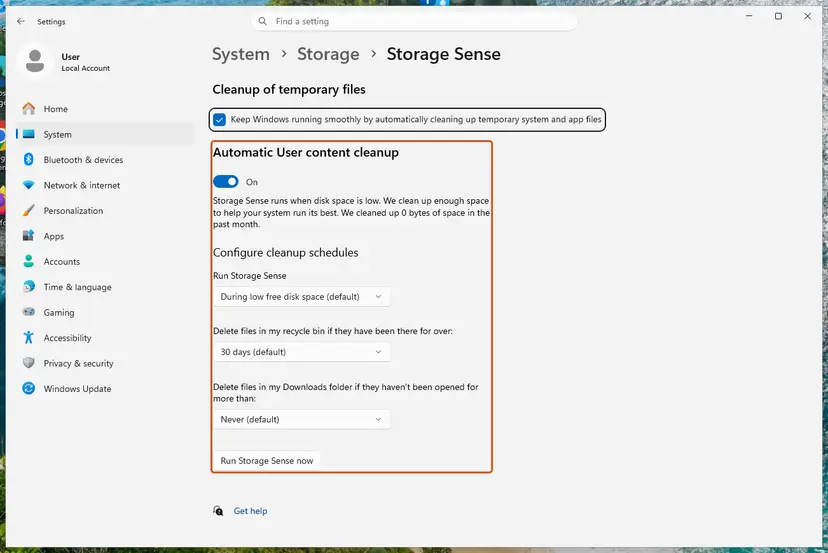
Storage Sense: schedules for the Recycle Bin and Downloads, and Run Storage Sense now. Screenshot: Windows 11 26H2. - Run it now. Select Run Storage Sense now at the bottom of the page.
- Clean up system files with Disk Cleanup. Type disk cleanup in the search box on the taskbar and open Disk Cleanup. Choose drive C: and select OK, then select Clean up system files and choose C: again.
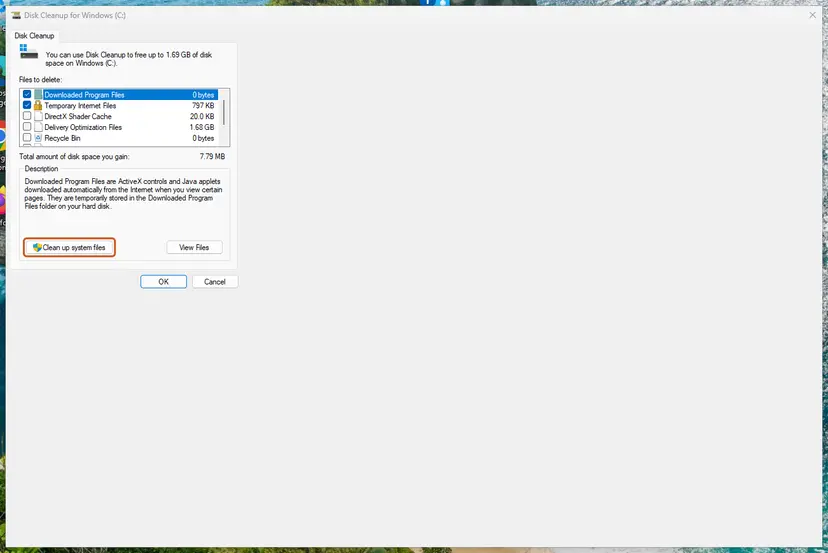
Disk Cleanup: Clean up system files adds Windows Update and other system files to the list. Screenshot: Windows 11 26H2. - Delete the files. Check the types of files you want to remove (select a name to see what it is), select OK, then Delete files.
These steps were written for Windows 11 (screenshots: 26H2). The full page with the other versions and what each result means: Free up disk space and delete temporary files
It worked if: The drive has several gigabytes more free space than before, and extraction no longer stalls near the end.
If not: If the drive was not nearly full, check it for errors in Fix 7.
Fix 7. Check the disk for file system errors
15 minutes to several hoursLow riskThe PC freezes while extracting, or files on the drive were lost or damaged before.
File system errors and bad sectors make the drive retry reads and writes, and that shows up as very slow extraction. Check Disk finds and repairs file system errors on the drive.
Run Check Disk as described here. The scan of the system drive runs at the next restart:
- Open Command Prompt as administrator. Type cmd in the search box on the taskbar, right-click Command Prompt and select Run as administrator. Select Yes when Windows asks for permission.
- Scan the drive without changing anything. Type the command below and press Enter. Replace C: with another drive letter to check that drive. This scan only reports; it does not fix anything.
chkdsk C: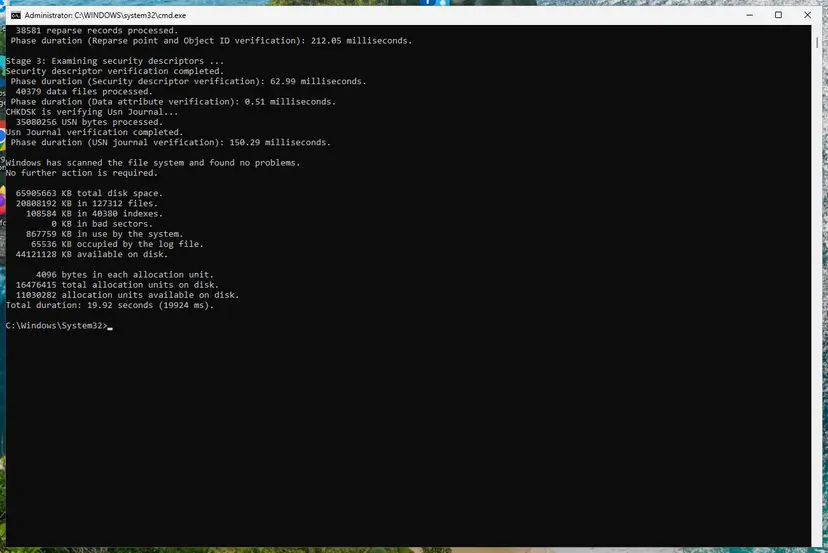
A clean result: no problems found and 0 KB in bad sectors. Screenshot: Windows 11 26H2. - If errors were found, run the repair. Run chkdsk with /f to fix file system errors. On the Windows drive (C:) chkdsk cannot lock the drive while Windows is running, so it offers to check it at the next restart.
chkdsk C: /f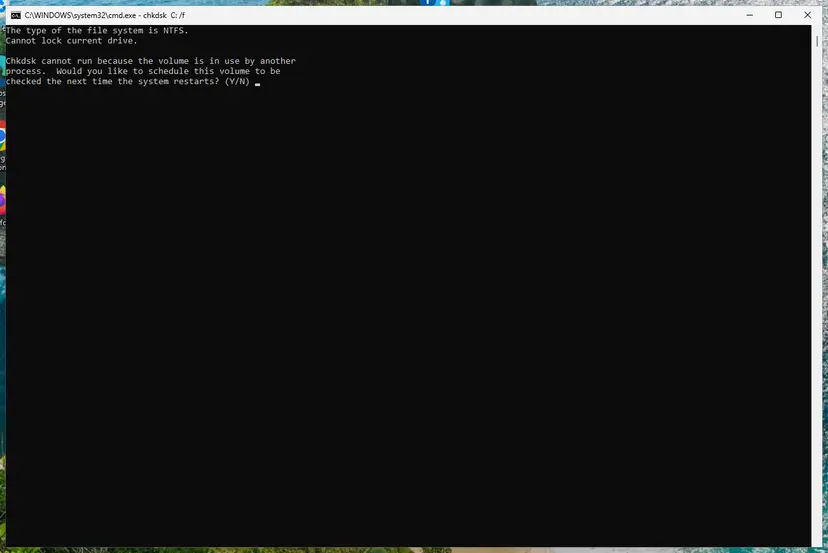
On the system drive chkdsk /f asks to run at the next restart. Screenshot: Windows 11 26H2. - Schedule the check and restart. Type Y and press Enter, then restart the PC. chkdsk runs before Windows starts. Do not turn the PC off while it runs.
- Read the result after the restart. The report of a check made at startup is not shown on the desktop. Open PowerShell and run the command below to see it, or open Event Viewer (eventvwr.msc) > Windows Logs > Application and filter by the sources Chkdsk and Wininit.
Get-WinEvent -FilterHashtable @{LogName='Application'} | Where-Object { $_.ProviderName -match 'wininit' } | Select-Object -First 1 | Format-List TimeCreated, Message
These steps were written for Windows 11 and Windows 10 (the steps are the same). The full page with the other versions and what each result means: Check a disk for errors (chkdsk)
It worked if: Check Disk reports that it found no problems or that it fixed the errors it found.
If not: If it reports bad sectors or repeats, back up your data and plan to replace the drive.
Fix 8. Run the extraction in a clean boot
20 minutesLow riskTask Manager shows another program using the drive, or the problem remains after Fix 1 to Fix 7.
A clean boot starts Windows with only Microsoft's services and no startup apps. If extraction is fast there, a background program was competing for the drive or scanning the files, and you can find it by turning items back on in halves.
Set up the clean boot, extract the same archive and return to normal startup afterwards:
- Open System Configuration. Select Search on the taskbar, type msconfig and select System Configuration from the results.
- Hide Microsoft services. On the Services tab, select the Hide all Microsoft services check box. Only services from other companies stay in the list.

With Hide all Microsoft services ticked, only third-party services stay in the list. Screenshot: Windows 11 26H2. - Disable the remaining services. Select Disable all, then select Apply.
- Open Task Manager. On the Startup tab of System Configuration, select Open Task Manager.

The Startup tab only links to Task Manager. Screenshot: Windows 11 26H2. - Disable the startup apps. On the Startup apps tab in Task Manager, select each item whose status is Enabled and select Disable. Write down or take a screenshot of the items you disable: you need the list to turn them back on.

Select an app, then Disable. Screenshot: Windows 11 26H2. - Confirm the changes. Close Task Manager. On the Startup tab of System Configuration, select OK.
- Restart and test. Restart the PC. Windows now starts in a clean boot environment: try again the thing that failed (run the app, install the update, uninstall the program).
These steps were written for Windows 11 25H2 and 26H2. The full page with the other versions and what each result means: How to perform a clean boot in Windows
It worked if: The archive extracts at normal speed in the clean boot, and you know a startup item is the cause.
If not: If it is still slow in the clean boot, return to normal startup and continue with Fix 9.
Fix 9. Install Windows updates and optional updates
15 minutes plus a restartLow riskThe slowdown started after an update, or Windows Update shows pending or optional updates.
Updates can carry fixes for file operations and for storage and chipset drivers, so a PC that stopped midway through an update or lacks a driver can behave slowly. Install everything pending before you blame the update.
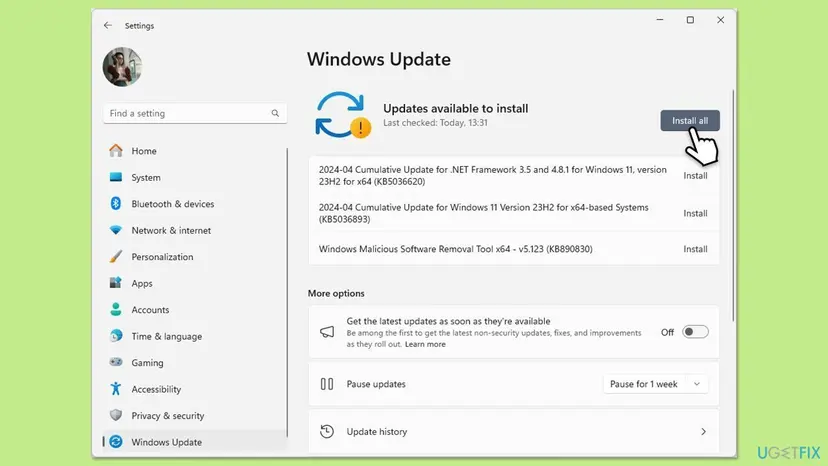
- Open Settings > Windows Update and select Check for updates.
- Install everything that is offered, including Install all if it appears.
- Select Advanced options > Optional updates and install the driver updates listed for storage or chipset devices.
- Restart the PC and run the extraction again.
If an update does not install, Install an update from the Microsoft Update Catalog shows how to install it by hand.
It worked if: Windows Update shows that your device is up to date and extraction is back to its normal speed.
If not: If it is still slow, read the last section for what to check and what to undo.
ZIP or RAR extraction is still slow: what to check next
If no fix helped, test the drive on its own: copy a large file of about the size of the archive between two folders. If the copy is just as slow, the drive is the limit and the archive is not at fault.
- Only one archive is slow: the archive may be very large or hold very many small files. Try another archive to compare.
- Slow only from a USB stick or share: copy the archive to the internal drive first, as in Fix 1.
- The extractor shows Data Error or CRC Error: the archive is damaged. That is a different problem from slow extraction.
- It began right after an update: How to uninstall a Windows update shows how to remove the last update as a test.
- Windows 10: support ended on 14 October 2025, so move to Windows 11 when the PC allows it.
The archive size and file count, the drive type (hard disk drive or SSD), the Task Manager readings from Fix 2 and the time before and after each fix. That is what anyone helping you will ask for.
Keep extraction fast: habits that avoid the slowdown
- Use Extract into a folder on the internal drive.
- Keep some free space on the system drive.
- Leave Windows' scheduled drive optimization on, and install updates.
- Drag large folders out of an open archive window.
- Turn off the antivirus to save time.
- Leave a folder exclusion in place after the test.
A short check after a large update also helps: extract one known archive and note the time. A change you can measure tells you early whether the update, the drive or a new program is the cause.
Frequently asked questions
Why is extracting files so slow in Windows 11?
Why does extracting take so long? Extraction reads the archive, unpacks it with the processor and writes every file to the drive, and the slowest of those three steps limits the speed. Common causes are dragging files out of the archive window, which unpacks to a temporary folder first, a security scan of each file, and a slow, full or failing drive. Open Task Manager during the job to see which one it is (Fix 2). The cheapest fix is the Extract command into a folder on the internal drive (Fix 1).
How to make WinRAR extract faster and increase the extract speed?
Use the Extract files command into a new folder on the internal drive, not a drag out of the archive window. Copy the archive off a USB stick or a share first. Then check whether real-time antivirus scanning is the delay with a folder exclusion (Fix 4). The official pages we read name no WinRAR setting that speeds up extraction, so the gains come from where and how you extract. Time one archive before and after each change.
Why is WinRAR slow only with some archives?
The archive itself matters. One with thousands of small files is slower than one big file, because each file is created and often scanned on its own. A very large archive also depends on the speed of the drive it sits on. Try another archive of similar size to compare, and copy the slow one to the internal drive before extracting. If one archive is slow in both WinRAR and 7-Zip, the archive is the cause.
How to speed up 7-Zip extraction?
Use 7-Zip > Extract files instead of dragging files out of the 7-Zip window. The FAQ of 7-Zip says drag and drop uses temp files because only Explorer knows the drop target. Drag from one 7-Zip window to another to avoid that. Use the 64-bit version on 64-bit Windows, keep 7-Zip current and extract to the internal drive. If CPU is not the limit, exclude the destination folder from scanning for a test (Fix 4).
Is the built-in Windows extractor slower than 7-Zip or WinRAR?
Users report that it is, mostly with large archives and archives with many files. We found no Microsoft statement that confirms a speed difference, so do not take it as a rule. Install one of the two tools, time the same archive with both and keep the tool only if it is faster on your PC (Fix 3). Download it only from the maker's own website.
Does turning off the antivirus make extraction faster, and is it safe?
It can help, but it is the riskier test. Windows Security's real-time protection scans files as they are opened, and Microsoft says a single-folder exclusion is safer than turning protection off. Pausing turns itself back on after a while, and files you open while it is off are not scanned. Prefer the folder exclusion in Fix 4, and remove it when the test is done.
Does defragmenting speed up extraction on an SSD?
No. Microsoft says a hard disk drive is defragmented and an SSD is trimmed, so Optimize only does a trim on an SSD. Windows does this automatically on a schedule. If you use an SSD and extraction is slow, look at Fix 4, Fix 6 and Fix 7 instead. A hard disk drive is where Fix 5 matters most.
WinRAR is not working in Windows 11: is that the same problem?
Not if WinRAR fails to open or shows an error message. This guide covers extraction that works but is slow. For a failure, note the exact message, because it names the problem, and check that you have the current version from the maker's website. If an archive reports Data Error or CRC Error, it is damaged. If WinRAR works but takes long, return to Fix 1 and Fix 2.
The slowdown started after an update. Should I uninstall it?
Not first. Install all pending and optional updates (Fix 9), since a half installed update or a missing storage driver can slow the drive. Try Fix 1 to Fix 4 next. Removing the last update is a last test, and How to uninstall a Windows update shows how. Reinstall it later, because updates carry security fixes.
Sources
- Microsoft Support: Virus and Threat Protection in the Windows Security app (support.microsoft.com)
- 7-Zip: Frequently Asked Questions (7-zip.org)
- Microsoft Support: Defragment / optimize your data drives in Windows (support.microsoft.com)
Did this fix work?
One click, no account. It tells the next reader which guides are worth their time.
Questions and experiences: fix ZIP or RAR files extracting slowly in Windows 11
Still broken, or found a fix we did not cover? Ask here: members and our editors answer. Reading is open; writing needs a free account.
…