
How to disable sleep mode in Windows 11 and 10 (and when you should not)

Prefer to fix it yourself? The manual steps follow.
- 5methods
- 2 to 10 minutes
- Easy
Applies to Windows 11 and Windows 10 desktops and laptops; the Control Panel steps also work on Windows 7
5 methods in this guide
Hello. Is there a way to disable Sleep Mode in Windows? My PC keeps going to sleep when I leave it for a longer time. Any tips would be appreciated.
Sleep mode is the low power state Windows enters after a set idle time. You can disable it safely: set Make my device sleep after to Never for both plugged in and on battery, and the PC stays awake until you choose otherwise. The only price is the power the PC uses while idle.
Open Settings > System > Power & battery (just Power on a desktop), expand Screen, sleep & hibernate timeouts and set Make my device sleep after to Never for plugged in and on battery. On Windows 10 the same choice is in Settings > System > Power & sleep. That is Method 1. Nothing breaks: the PC just uses more power while idle. If it still sleeps, check the lid, the power button and the hibernate timer in Methods 2 and 4.
| What it is | A Windows power state: the PC stops working and keeps your open work in memory, which stays powered, so it wakes in seconds. |
|---|---|
| Safe to disable | Yes. Setting the sleep timer to Never is a normal option in Settings. Nothing is removed, and you can still choose Sleep by hand. |
| What you gain | Downloads, backups, renders, remote access and long tasks keep running while you are away. |
| Side effect | The PC draws more power when idle, and a laptop on battery runs flat sooner. Microsoft recommends shorter timers to save energy. |
| Where the setting is | Windows 11: Settings > System > Power & battery > Screen, sleep & hibernate timeouts. Windows 10: Settings > System > Power & sleep. |
| Default timers | Microsoft's current Windows 11 defaults: sleep after 15 minutes plugged in and 10 on battery on S3 PCs, 5 and 3 minutes on modern standby PCs. |
| Command | powercfg /change standby-timeout-ac 0 and powercfg /change standby-timeout-dc 0 in an administrator Command Prompt or PowerShell. |
| Comes back | Only if you change it, switch to another power plan (each plan keeps its own timers) or your organisation sets it by policy. |
| Not the same as | The screen timer, the hibernate timer, and what the lid or power button does. Each is a separate setting. |
Facts checked on 15 October 2026. Steps written for Windows 11 25H2 and 26H2 and Windows 10 22H2, Settings, Control Panel Power Options and powercfg.
What sleep mode is, and what people confuse it with
Sleep is one of four things that can happen to an idle PC, and each has its own setting. Sleep keeps your open apps in memory and keeps that memory powered, so the PC wakes in a few seconds where you left it. While it sleeps, it does no work: downloads, uploads and scheduled jobs stop.
The reader in the question above sees exactly this: the PC sleeps when left alone for a while. That is the Make my device sleep after timer. Turning the screen off is a different timer, and hibernation is a third one.
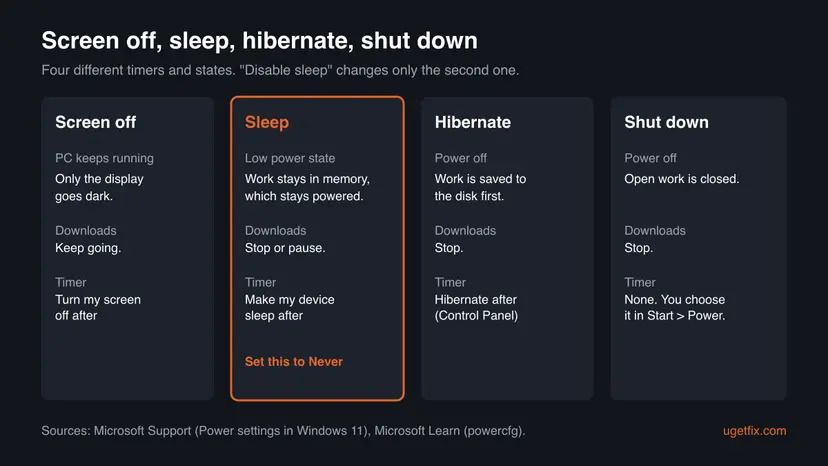
| State or setting | What it does | Where you change it |
|---|---|---|
| Screen off | Only the display goes dark. Apps and downloads keep running. | Turn my screen off after in Settings. |
| Sleep | Low power state. Work stays in memory. Nothing runs. | Make my device sleep after in Settings, or standby-timeout in powercfg. |
| Hibernate | Saves memory to the disk and powers off. | Hibernate after in Control Panel, or hibernate-timeout in powercfg. powercfg /hibernate off removes hibernation. |
| Lid and power button | Can send a laptop to sleep the moment you close it. | Control Panel > Power Options > Choose what closing the lid does. |
| Modern standby | A sleep state on many newer laptops that stays partly connected. | The same sleep timer. powercfg /availablesleepstates shows which states your PC has. |
What you gain and what it costs
Disabling sleep does not make Windows faster. It only decides whether the PC keeps working when nobody touches it. Microsoft lowered the default sleep timers in Windows 11 to cut idle power use, which tells you where the cost is.
| What happens | Source | |
|---|---|---|
| Long tasks | Downloads, game updates, backups, renders and file copies finish while you are away. | Sleep stops all work by design. |
| Remote access | The PC stays reachable for remote desktop, file sharing or a media server. | A sleeping PC answers nothing until it wakes. |
| Speed | No change. Windows does not run faster with sleep off. | No Microsoft page claims a speed gain. |
| Power and battery | The PC draws idle power around the clock. A laptop on battery runs down. | Microsoft Support: shorter sleep timers "reduce idle power use". |
| Screen wear | None from this change alone. The screen timer still turns the display off. | The screen timer is a separate setting. |
| Default it replaces | 15 minutes plugged in and 10 on battery on S3 PCs; 5 and 3 on modern standby PCs. | Microsoft Support, Power settings in Windows 11. |
You can set sleep to Never and still let the screen turn off after a few minutes. The PC keeps working and the display does not stay lit all night.
Who should disable sleep and who should keep it
For a desktop that runs jobs overnight, Never is a reasonable choice. For a laptop that lives on battery, a longer timer is usually better than no timer, because a forgotten laptop with sleep off empties its battery.
- Large downloads, game updates or backups fail because the PC sleeps halfway.
- You reach the PC remotely or it serves files or media to other devices.
- A render, an export or a long scan has to run unattended.
- The desktop is always on mains power and you turn it off yourself.
- The laptop runs on battery most of the day. Set the battery timer longer instead.
- You only want the screen to stay on. Change Turn my screen off after instead.
- You hoped for a faster PC. Sleep has no effect on speed.
- It is a work PC and the setting is greyed out. Your organisation controls it.
How to disable sleep mode in Windows
Methods go from the simplest setting to the most thorough. Method 1 is enough for most readers. Method 2 covers the hibernate timer and Windows 7, Method 3 does it with one command, Method 4 handles laptop lids and power buttons, and Method 5 is for a PC that sleeps anyway. Windows 10 steps are given too, although Windows 10 left support on 14 October 2025.
| Your case | Start with |
|---|---|
| You want the PC to stop going to sleep by itself. | Method 1. |
| You use Windows 7, or the PC hibernates after sleep is off. | Method 2. |
| You set up many PCs or prefer a command. | Method 3. |
| The laptop sleeps when you close the lid. | Method 4. |
| Sleep is set to Never and the PC still sleeps. | Method 5. |
Method 1. Set Make my device sleep after to Never in Settings
2 minutesNo riskEveryone on Windows 11 or Windows 10. This is the setting Microsoft documents for the sleep timer.
Windows starts sleep only from this idle timer. With the timer at Never, idle time no longer sends the PC to sleep, while Sleep in the Start menu still works when you want it.
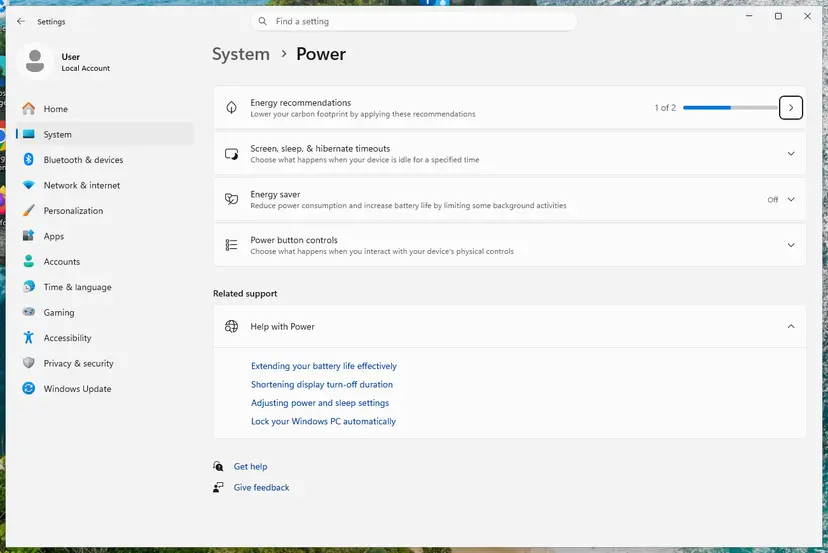
Windows 11:
- Press Win + I to open Settings.
- Select System, then Power & battery. On a PC without a battery the page is called Power.
- Expand Screen, sleep & hibernate timeouts.
- Set Make my device sleep after to Never for Plugged in.
- On a laptop, set it to Never for On battery too, or to a long time if you want some battery protection.
Windows 10: open Settings > System > Power & sleep. Under Sleep, set When plugged in, PC goes to sleep after to Never, and do the same for the battery line on a laptop.
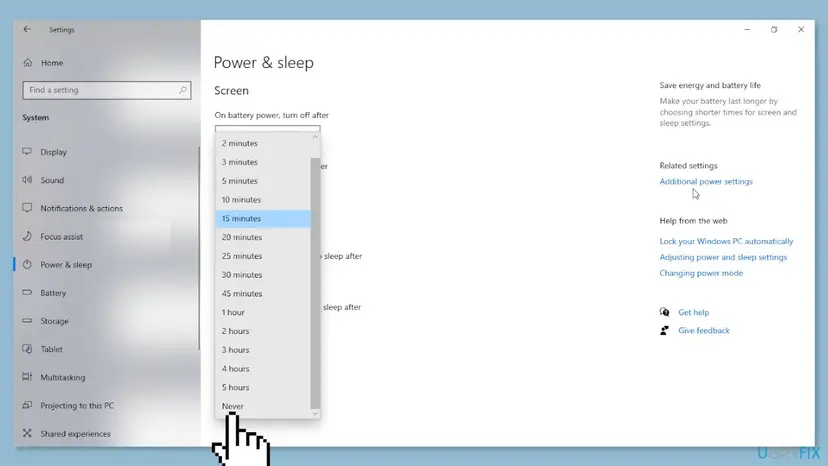
It worked if: The sleep line reads Never. Leave the PC idle longer than the old timer: the screen may turn off, but the PC is still running when you touch a key.
If not: If the PC still sleeps, set the same value in Control Panel with Method 2, which also shows the hibernate timer.
Method 2. Change the power plan in Control Panel (also Windows 7)
4 minutesNo riskYou are on Windows 7, Settings shows no sleep line, or the PC hibernates after you turned sleep off.
Control Panel edits the active power plan directly and shows settings that Settings hides, such as Hibernate after. A PC with sleep at Never can still hibernate on its own timer, so this method turns off both.
- Select the taskbar search box, type control panel and open it.
- Select Hardware and Sound (or System and Security), then Power Options.
- Next to the selected plan, select Change plan settings.
- Set Put the computer to sleep to Never and select Save changes.
- Select Change advanced power settings, expand Sleep, then Hibernate after, and set it to Never (or 0).
- Select OK.
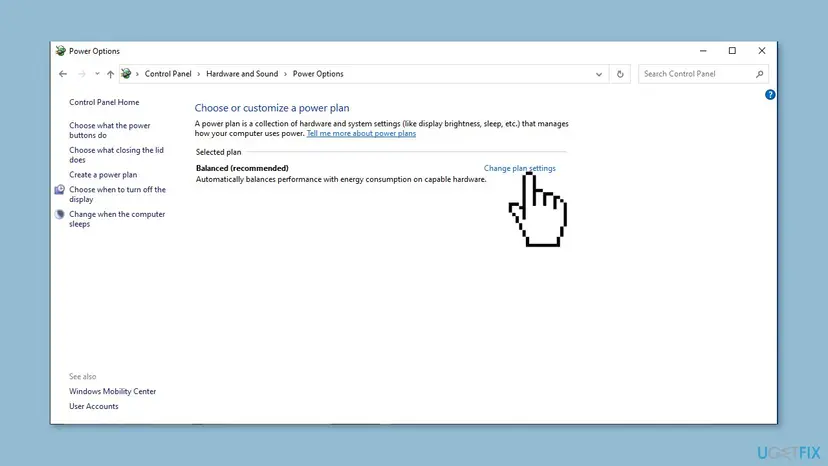
The steps are the same on Windows 7, which has no sleep line in Settings. Windows 7 no longer gets security updates, so treat this as a stopgap until you move to a supported version.
It worked if: Put the computer to sleep shows Never under the plan, and Hibernate after shows Never in the advanced settings.
If not: If the values return to a number, another plan may be active or a policy may set them. Go to Method 5.
Method 3. Turn off the sleep timer with powercfg in Command Prompt or PowerShell
2 minutesNo riskYou prefer a command, you set up several PCs, or Settings is locked or missing.
Microsoft documents powercfg /change as the way to modify a timer in the current power scheme, with the value in minutes. It sets the same timers as Methods 1 and 2, so the result shows up there too.
- Type cmd or powershell in the taskbar search box.
- Select Run as administrator and confirm with Yes. Step by step: How to run a program as administrator or in compatibility mode.
- Run the commands below. The first line is for plugged in, the second for battery.
- Open Settings as in Method 1 and check that the sleep line now reads Never.
powercfg /change standby-timeout-ac 0
powercfg /change standby-timeout-dc 0
powercfg /change hibernate-timeout-ac 0
powercfg /change hibernate-timeout-dc 0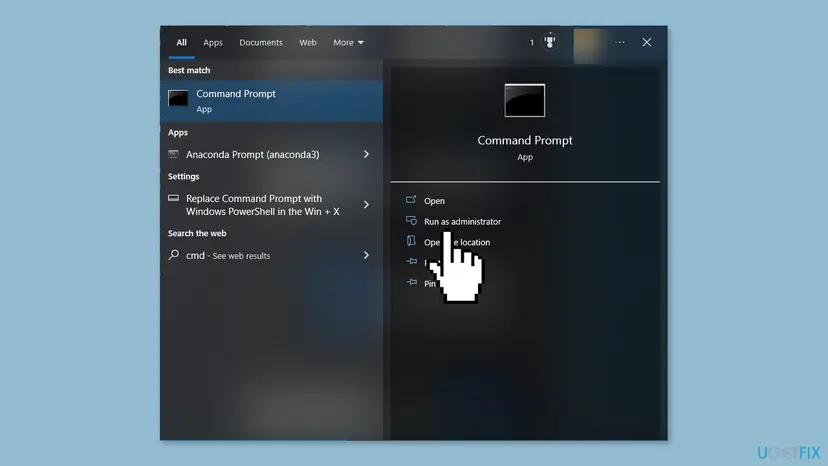
Many pages give powercfg -h off for this job. Microsoft documents it as the switch that disables the hibernate feature, not sleep. Your PC will still sleep on its timer. Use the standby-timeout lines above.
Microsoft's page gives the value in minutes and does not spell out what 0 means. In Settings a 0 shows as Never, which is why step 4 checks it there.
It worked if: The commands finish without a message, and Settings shows Never for sleep.
If not: If Settings shows another value, the commands changed a plan that is not active. Run powercfg /getactivescheme and see Method 5.
Method 4. Stop the laptop from sleeping when you close the lid or press the power button
3 minutesLow riskA laptop sleeps the moment you close the lid, or a desktop sleeps when someone presses the power button.
Lid and button actions do not use the idle timer, so Never in Methods 1 to 3 does not touch them. Microsoft keeps these choices in Control Panel under Choose what closing the lid does.
- Open Control Panel and go to Power Options.
- Select Choose what closing the lid does (on a desktop, Choose what the power buttons do).
- For When I close the lid, choose Do nothing under Plugged in.
- Change When I press the power button if you want that to stop sending the PC to sleep too.
- Select Save changes.
With Do nothing on battery, a closed laptop keeps running in a bag and can get hot and run flat. Set Do nothing only for Plugged in unless you really need it on battery.
It worked if: You can close the lid on a plugged in laptop with an external screen, and the laptop keeps running.
If not: If the laptop still sleeps with the lid closed, go to Method 5 and ask Windows what put it to sleep.
Method 5. If the PC still sleeps: find the setting or app that sends it to sleep
10 minutesNo riskEvery sleep setting reads Never and the PC still goes to sleep or hibernates.
Each power plan keeps its own timers, so a plan switch brings the old timer back. Microsoft's powercfg tool reports which plan is active and what really happened during each sleep, which replaces guessing.
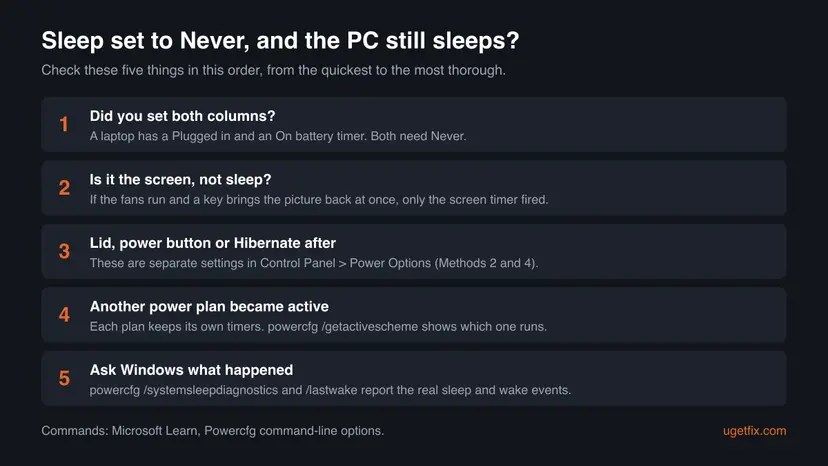
- Check that only the screen did not go off. If the fans run and a key brings the picture back at once, the PC did not sleep.
- Open an administrator Command Prompt and run
powercfg /getactiveschemeto see the active plan. - Run
powercfg /list. If the active plan is not the one you changed, repeat Method 1 or Method 3 now. - Run
powercfg /systemsleepdiagnostics. It saves an HTML report of the last three days in the current folder. - Open the report and look at when the PC went to sleep while you were away.
- If the PC wakes up on its own instead, run
powercfg /lastwakeandpowercfg /waketimersto see what woke it.
powercfg /getactivescheme
powercfg /list
powercfg /systemsleepdiagnostics
powercfg /lastwakeIf the sleep settings are greyed out or come back after a restart, a policy from your organisation sets them. Ask the IT team for an exception instead of fighting the policy. On Windows Pro you can see such settings in the Group Policy Editor: Open the Local Group Policy Editor.
It worked if: The active plan shows Never for sleep, and the diagnostics report shows no idle sleep after the change.
If not: If the report still shows sleep with all timers at Never, a policy or the PC maker's power tool may override Windows. Check the maker's own power app on laptops.
How to turn sleep mode back on
Every change in this guide is a normal setting, so undoing it is the same steps with a number instead of Never. Pick the timer you want rather than copying the old default: 30 minutes plugged in is common for a desktop.
| What you changed | How to put it back |
|---|---|
| Sleep timer in Settings (Method 1). | Choose a time for Make my device sleep after, plugged in and on battery. |
| Plan settings and Hibernate after (Method 2). | Set a time again, or select Restore default settings for this plan in Change plan settings. |
| powercfg timers (Method 3). | Run powercfg /change standby-timeout-ac 15 with the minutes you want, and the same with -dc. |
| Lid and power button (Method 4). | Set When I close the lid back to Sleep and select Save changes. |
Hibernation removed with powercfg /hibernate off. | Run powercfg /hibernate on in an administrator Command Prompt. |
Myths about sleep mode
Most copies of this guide on the web repeat the same tips. Here is what Microsoft's own pages support.
- "powercfg -h off disables sleep." It disables hibernation. Microsoft's powercfg page lists
/hibernate offas the switch that turns off the hibernate feature, and sleep keeps its timer. - "Turning off sleep makes the PC faster." Sleep only acts when the PC is idle. Nothing in Microsoft's documentation links it to speed while you work.
- "You need the registry to disable sleep." The timer has a supported switch in Settings and in powercfg. Registry values passed around online change other things, such as modern standby, and we could not confirm them in Microsoft's documentation.
- "Sleep set to Never keeps the screen on." The screen has its own timer. Set Turn my screen off after if you want the display on too.
- "Sleep damages the PC, so turn it off." Sleep is a standard power state. Microsoft recommends shorter sleep timers, not longer ones, to save energy.
Frequently asked questions
How do I disable sleep mode in Windows 7?
Use Control Panel, because Windows 7 has no Settings app for this. Open Control Panel > Hardware and Sound > Power Options, select Change plan settings next to your plan, set Put the computer to sleep to Never for each column and select Save changes. Then open Change advanced power settings and set Sleep > Hibernate after to Never. The powercfg /change standby-timeout-ac 0 command also works there. Windows 7 no longer receives security updates, so plan a move to a supported version.
Can I disable sleep mode in Windows 11 with the registry?
You can, but you do not need to, and we do not recommend it. The sleep timer has supported switches in Settings and in the powercfg command, which Microsoft documents. The registry values that circulate online, such as CsEnabled under HKEY_LOCAL_MACHINE\SYSTEM\CurrentControlSet\Control\Power or an Attributes value under PowerSettings, do other things, such as turning off modern standby or showing hidden power options. We could not confirm their effects in Microsoft's documentation. Use Method 1 or Method 3.
Is it bad to turn off sleep mode on my computer?
No. It is a normal setting and nothing breaks. The cost is power: the PC draws idle power for as long as it is on, and a laptop on battery runs down. Microsoft lowered the default sleep timers in Windows 11 to reduce idle energy use, so on a laptop a longer timer on battery is often the better choice. On a desktop that runs downloads or backups overnight, Never is fine, especially if the screen still turns off by itself.
Why does my PC still go to sleep after I set it to Never?
There are four usual reasons. Only one column was changed, for example plugged in but not battery. The screen turned off but the PC did not sleep. The laptop sleeps from the lid or the power button, which have their own setting. Or another power plan became active, with its own timers. Method 5 shows how to check: powercfg /getactivescheme names the active plan, and powercfg /systemsleepdiagnostics reports when the PC really slept. On a work PC, a policy may also reset the timer.
What is the difference between sleep and hibernate?
Sleep keeps your open work in memory and keeps that memory powered, so the PC wakes in a few seconds. Hibernate writes the contents of memory to the disk and powers off, so it uses no power but takes longer to resume. They have separate timers. Setting sleep to Never does not stop hibernation, which has its own Hibernate after timer in Control Panel and its own hibernate-timeout value in powercfg. powercfg /hibernate off removes hibernation entirely and leaves sleep as it was.
How do I stop the screen from turning off as well?
Change the screen timer, which is separate from sleep. In Windows 11 open Settings > System > Power & battery > Screen, sleep & hibernate timeouts and set Turn my screen off after to Never. In Windows 10 the line is under Settings > System > Power & sleep. The command is powercfg /change monitor-timeout-ac 0. Think before you do it: a screen that stays on all night uses power and shows whatever is open to anyone passing by. A screen timer with sleep off is usually enough.
What are the default sleep times in Windows 11?
Microsoft changed them to save energy. On PCs with S3 sleep the defaults are now 15 minutes plugged in and 10 minutes on battery, down from 30 and 15. On modern standby PCs, which are many newer laptops, they are 5 minutes plugged in and 3 minutes on battery, down from 10 and 4. Microsoft lists the screen timers too: 5 minutes plugged in and 3 on battery. Your PC maker may ship other values, and changing the setting yourself overrides them.
Can I keep my PC awake only during a download, without changing settings?
Windows has no built-in switch for a one-time stay-awake, but many apps ask Windows to stay awake while they work, through a power request. Microsoft documents powercfg /requests, which lists the apps and drivers that are currently keeping the PC awake. If your download app is not listed, it does not ask, and the PC will sleep on its timer. In that case set sleep to Never for the download and put the timer back afterwards with the steps in the undo table.
Does disabling sleep mode use a lot of electricity?
It depends on the PC, and Microsoft gives no figure for it. A PC that stays awake draws its idle power all the time, instead of the very low power of sleep. A desktop with a strong graphics card draws more at idle than a small laptop. If power matters, keep sleep on and set a longer timer, or let the screen turn off. Microsoft's own advice for saving power is shorter screen and sleep timers and the Best power efficiency power mode: Change the power mode.
Sources
- Microsoft Support: Power settings in Windows 11 (timers and new defaults) (support.microsoft.com)
- Microsoft Learn: Powercfg command-line options (learn.microsoft.com)
- Microsoft Support: Shut down, sleep, or hibernate your PC (lid and power button) (support.microsoft.com)
Did this fix work?
One click, no account. It tells the next reader which guides are worth their time.
Questions and experiences: disable sleep mode in Windows 11 and 10 (and when you should not)
Still broken, or found a fix we did not cover? Ask here: members and our editors answer. Reading is open; writing needs a free account.
…