
How to enable or disable the taskbar overflow menu in Windows 11

Prefer to fix it yourself? The manual steps follow.
- 5methods
- 2 to 10 minutes
- Easy
Applies to Windows 11 (all current versions); Windows 10 22H2 for the hidden icons area
5 methods in this guide
Hello. How can I revert to the previous taskbar behavior where all my open apps were readily visible with a single click, as opposed to the current setup where I have to navigate through a Taskbar Overflow Menu after an update?
Windows 11 has two overflow menus: the three dots button that holds apps when the taskbar is full, and the hidden icon menu next to the clock. Only the second one has an off switch, in Settings > Personalization > Taskbar. The app overflow menu cannot be disabled, but you can make it stop appearing by giving the taskbar more room.
Not the one for apps. Windows 11 has no setting that turns off the three dots app overflow menu: it appears by itself when the taskbar is full. The tray's Hidden icon menu can be turned off (Method 1). To stop apps overflowing, free taskbar width: show Search as an icon, turn off Widgets and Task view, unpin unused apps (Method 2), and set Combine taskbar buttons and hide labels to Always (Method 3).
| What it is | A menu behind a three dots button that holds the apps that no longer fit on a full taskbar. Microsoft introduced it in Windows 11 Insider build 25163 (July 2022). |
|---|---|
| Safe to disable | The app overflow menu cannot be disabled in Settings. The tray's Hidden icon menu (the overflow area by the clock) can be, safely. |
| What you gain | Every open app visible with one click, if the taskbar has room. No speed or memory gain: this is about layout only. |
| Side effect | Making room costs labels, the Search box or the Widgets button. Turning off the hidden icon menu hides tray icons you did not switch on. |
| When it appears | Only when the taskbar "has hit its maximum capacity" (Microsoft). It disappears again when apps are closed. |
| Where the switch is | Settings > Personalization > Taskbar > Other system tray icons > Hidden icon menu (tray only). |
| Created by | Windows Explorer, which draws the taskbar. No separate app or service. |
| Comes back | The app overflow returns whenever the taskbar fills up again. Settings you change here stay after restarts. |
Facts checked on 15 October 2026. Steps written for Windows 11 25H2 and 26H2 Settings > Personalization > Taskbar, with the Windows 10 22H2 equivalents named where they differ.
What the taskbar overflow menu is in Windows 11 (and the other overflow people mean)
Microsoft announced the new taskbar overflow on 20 July 2022 with Insider build 25163. In its words, the taskbar "will automatically transition into this new overflow state when it has hit its maximum capacity" and then offers "an entry point to an overflow menu that allows you to view all your overflowed apps in one space".
The menu supports pinned apps, jump lists and the extended right-click menu, and it closes when you click outside it or switch to an app. The old guide on this page, like many others, mixed it up with a second menu that Microsoft also calls an overflow area: the hidden icons in the system tray.
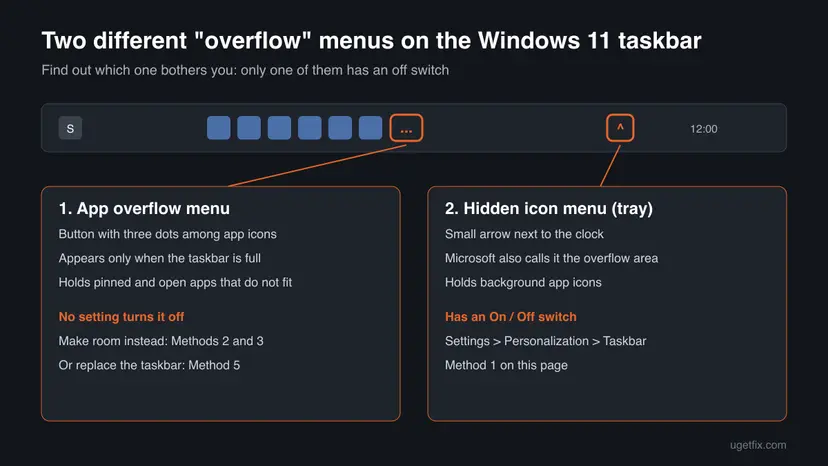
| Name | Where you see it | Can you turn it off? |
|---|---|---|
| App overflow menu | A three dots button at the end of the app icons, only when the taskbar is full. | No. There is no setting in Settings > Personalization > Taskbar. |
| Hidden icon menu (system tray overflow area) | An up arrow next to the clock and Quick Settings. | Yes: Hidden icon menu under Other system tray icons. |
| Combined app buttons | One button per app, with a stack of its windows when you hover. | Yes: Combine taskbar buttons and hide labels set to When taskbar is full or Never. |
| Taskbar corner overflow | The name older Windows 11 builds and guides use for the tray's hidden icons. | Same switch as the hidden icon menu, renamed in later versions. |
What you gain by changing the overflow behaviour and what it costs
Nothing here makes Windows faster. The overflow menu is part of Windows Explorer, which draws the taskbar whatever you choose, so there is no memory or processor saving to measure. What you gain is fewer clicks to reach an app, and that is worth something only if you often run more apps than fit.
| Change | What you gain | What it costs |
|---|---|---|
| Turn off the Hidden icon menu | No arrow by the clock; every tray icon you switched on is always visible. | Icons you left off are no longer reachable from the tray. |
| Search as an icon, Widgets and Task view off | Width for several more app buttons. | One more click or a shortcut: Win + S, Win + W, Win + Tab. |
| Combine taskbar buttons and hide labels: Always | One button per app, so far more apps fit before overflow. | No labels; with several windows of one app you hover to pick one. |
| Smaller taskbar buttons | More buttons in the same width. | Smaller click and touch targets. |
| Unpin rarely used apps | Room for the apps you actually have open. | Open those apps from Start instead. |
| A taskbar replacement tool | A Windows 10 style taskbar without the menu. | Third-party code in the shell; can break after a Windows update. |
How many apps fit before the three dots button appears depends on screen width, scaling, the buttons you show and whether labels are on. Microsoft publishes no fixed number, so we do not give one.
Who should change the overflow settings and who should leave them
The overflow menu exists for small or low resolution screens, where all apps never fit. On a laptop it is often the better trade. On a wide desktop monitor, making room usually removes it for good.
- You see the three dots button every day and lose time hunting for windows in it.
- You keep labels on (Never combine) and run many windows at once.
- The Search box, Widgets or Task view buttons take room you never use.
- You want every tray icon visible and no arrow by the clock.
- The button appears only now and then; the menu is then the quickest way to reach the extra apps.
- You hoped for better performance: nothing measurable changes.
- You rely on tray icons you have switched off; turning off the hidden icon menu hides them.
- The PC is managed by work or school; a taskbar replacement tool may be blocked or against policy.
How to disable the hidden icon menu and stop apps overflowing
The methods go from the one real switch to the most invasive change. Method 1 is for the tray arrow by the clock. Methods 2 and 3 stop the app overflow menu by giving the taskbar room. Method 4 is for an overflow button that is stuck, Method 5 replaces the taskbar. Windows 10 left support on 14 October 2025; its steps are named where they differ.
| Your case | Start with |
|---|---|
| The arrow next to the clock hides icons you want to see. | Method 1. |
| A three dots button appears among your app icons. | Method 2, then Method 3. |
| You turned labels on and the taskbar fills quickly. | Method 3. |
| The overflow button or menu is frozen or shows wrong apps. | Method 4. |
| You want the Windows 10 taskbar back whatever it costs. | Method 5. |
Method 1. Turn off the Hidden icon menu (the system tray overflow) in Settings
2 minutesLow riskYour "overflow" is the small arrow next to the clock, or you searched for the taskbar corner overflow.
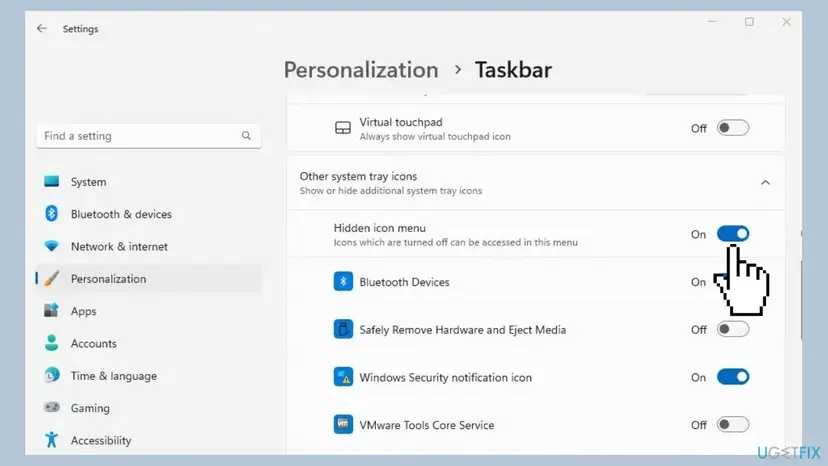
This is the only overflow that Windows 11 lets you switch off. Microsoft's taskbar page names the setting and calls it the overflow area, so the change is supported and undone the same way.
- Right-click an empty part of the taskbar and select Taskbar settings. You can also press Win + R, type
ms-settings:taskbarand press Enter. - Expand Other system tray icons.
- Turn On every app icon you want to keep visible next to the clock.
- Turn the Hidden icon menu switch to Off.
- To turn the menu back on later, set the same switch to On.
Windows 10 has no Hidden icon menu switch. Open Settings > Personalization > Taskbar, and under Notification area select Select which icons appear on the taskbar and turn On each icon you want visible.
It worked if: The up arrow next to the clock is gone and the icons you switched on stay in the tray.
If not: If you meant the three dots button among your apps, this switch does not touch it: go to Method 2.
Method 2. Free taskbar width so apps stop going into the overflow menu
3 minutesNo riskA three dots button appears among your app icons and you have the Search box, Widgets or Task view on the taskbar.
The app overflow appears only when the taskbar reaches maximum capacity. Every button you remove from the middle of the taskbar gives that width back to app buttons.
- Right-click the taskbar and select Taskbar settings.
- Under Taskbar items, open the Search list and choose Search icon only or Hide.
- Turn Task view and Widgets to Off if you do not click them.
- Right-click each pinned app you rarely open and select Unpin from taskbar.
- Open your usual set of apps and check whether the three dots button still appears.
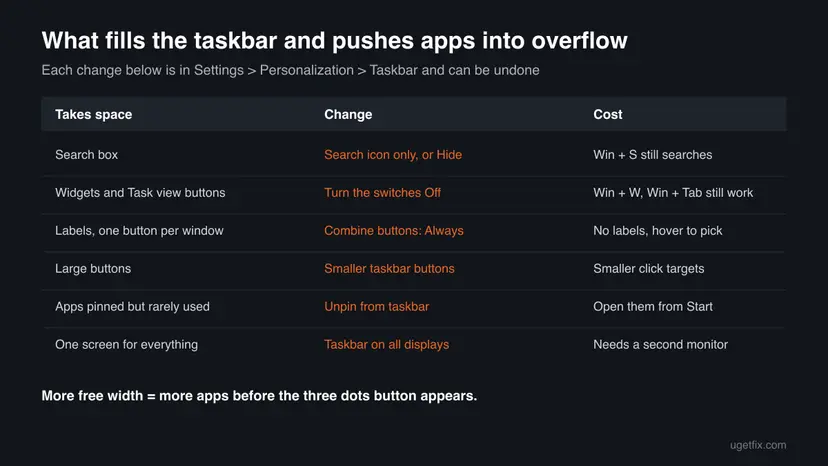
The features stay available without their buttons: Win + S opens Search, Win + W opens Widgets and Win + Tab opens Task view.
It worked if: All your open apps fit on the taskbar and the three dots button no longer shows.
If not: If the button still appears with your normal set of apps, go to Method 3.
Method 3. Combine taskbar buttons and use smaller taskbar buttons
3 minutesLow riskYou set the taskbar to show labels, or you run several windows of the same apps.
With labels on, each window takes a wide button and the taskbar fills fast. Combining gives each app one narrow button, so many more apps fit before the overflow state starts.
- Right-click the taskbar and select Taskbar settings.
- Expand Taskbar behaviors.
- Set Combine taskbar buttons and hide labels to Always. When taskbar is full is a middle way: labels until space runs out.
- If your version shows Show smaller taskbar buttons, choose the option that keeps buttons small.
- With a second monitor, also look at Show my taskbar on all displays and the combine option for other taskbars.
If you do not see Show smaller taskbar buttons, your Windows 11 version does not have it yet. We could not confirm from Microsoft in which update it arrived, so we do not name one.
It worked if: Each app has one button, and your open apps fit without the three dots button.
If not: If the overflow button stays even with few apps open, or the menu does not open, go to Method 4.
Method 4. Restart Windows Explorer when the overflow button is stuck
1 minuteNo riskThe three dots button stays after you closed apps, the menu will not open, or it shows apps that are already closed.
Windows Explorer draws the taskbar and its overflow menu. Restarting it redraws the taskbar from scratch, which clears a stale overflow state without restarting the PC.
- Press Ctrl + Shift + Esc to open Task Manager.
- Find Windows Explorer on the Processes page and select it.
- Select Restart task at the top. The taskbar disappears for a moment and comes back.
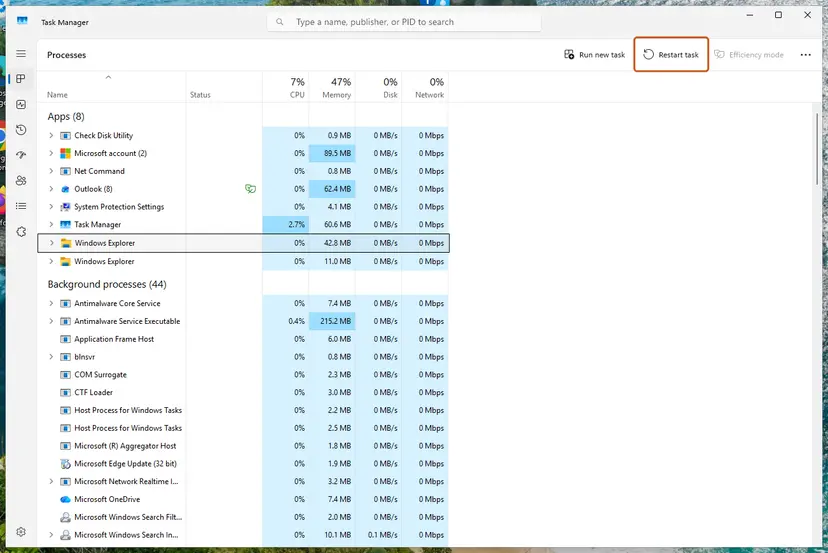
More ways, and what to do if the taskbar does not come back: Restart File Explorer
It worked if: The taskbar disappears for a moment and comes back with the correct apps, and the overflow button only shows when the taskbar is full.
If not: If it happens again after every update, restart the PC once, then repeat Methods 2 and 3.
Method 5. Replace the Windows 11 taskbar with a third-party tool (last resort)
10 minutesRead the warningYou need every window as a labelled button, the screen is too narrow for that, and you accept third-party code in the shell.
Windows has no setting for the app overflow, so only a tool that replaces or patches the taskbar can remove it. The old version of this guide named ExplorerPatcher, an open source project that offers a Windows 10 style taskbar.
These tools are not from Microsoft and change how Windows Explorer runs. A Windows feature update can break them and leave a blank or crashing taskbar. Create a restore point first, download only from the project's own page, and keep the uninstall steps at hand. We did not test any such tool for this guide.
- Create a restore point: press Win + R, type
SystemPropertiesProtectionand select Create. To roll back later: Undo recent changes with System Restore - Download the tool from its developer's own project page, not from a mirror site.
- Run the installer and allow the administrator prompt.
- Choose the Windows 10 style taskbar in the tool's own settings.
- To remove it, open Settings > Apps > Installed apps, find the tool and select Uninstall. Step by step: Uninstall a program or app in Windows
It worked if: A taskbar with labelled window buttons and no three dots overflow menu.
If not: If the taskbar is blank or Explorer keeps restarting, uninstall the tool from Installed apps, or roll back with the restore point.
How to put the taskbar overflow settings back
Every change on this page is a setting in Settings > Personalization > Taskbar or an uninstall, so nothing is lost when you go back. The app overflow menu itself never goes away, so there is nothing to turn back on: it returns whenever the taskbar fills up.
- Hidden icon menu: Other system tray icons > Hidden icon menu > On.
- Search, Widgets, Task view: set them back under Taskbar items. The Windows 11 default is a centred taskbar with these buttons shown.
- Combined buttons: Taskbar behaviors > Combine taskbar buttons and hide labels > Always is the default.
- Unpinned apps: find the app in Start, right-click it and select Pin to taskbar.
- Replacement tool: uninstall it in Settings > Apps > Installed apps, then restart Windows Explorer.
Myths about the Windows 11 taskbar overflow menu
- "The Hidden icon menu switch disables the overflow menu." It controls only the tray icons next to the clock. The three dots app overflow has no switch at all.
- "A registry tweak removes the app overflow." We found no Microsoft documented value for it. Tweaks copied from forums can stop working after an update, so we do not give one.
- "The overflow menu slows down the PC." It is drawn by Windows Explorer like the rest of the taskbar. Removing it frees no measurable memory or processor time.
- "The overflow menu is a bug from the latest update." It is a designed feature, announced by Microsoft in July 2022 for taskbars that run out of space.
- "Left alignment shows more apps." Alignment only moves the icons. The available width is the same, so the number of buttons that fit does not change.
Frequently asked questions
Can you disable the taskbar overflow menu in Windows 11?
Not the app overflow menu. Windows 11 has no setting, policy or switch for the three dots button that appears among app icons when the taskbar is full. What you can disable is the tray's Hidden icon menu, the arrow next to the clock, in Settings > Personalization > Taskbar > Other system tray icons. To stop the app overflow from appearing, make room: show Search as an icon, turn off Widgets and Task view, unpin apps you do not use and combine taskbar buttons. Only a third-party taskbar replacement removes the menu completely.
How do I remove the taskbar overflow menu?
You remove it by making sure the taskbar never gets full, because Windows shows the menu only at maximum capacity. Hide the Search box or set it to Search icon only, turn off Widgets and Task view, unpin rarely used apps and set Combine taskbar buttons and hide labels to Always. On a wide screen this is usually enough for everyday work. If you mean the arrow next to the clock, turn off Hidden icon menu instead (Method 1).
Why did the taskbar overflow menu appear after an update?
Microsoft added it to Windows 11 as a designed feature, first in Insider build 25163 in July 2022 and later in regular updates. Before that, the Windows 11 taskbar simply hid apps that did not fit. The menu now appears when the taskbar reaches its maximum capacity. A taskbar setting that adds width per app, such as turning labels on with Never combine, can make it appear sooner than before.
What is the taskbar corner overflow in Windows 11?
Taskbar corner overflow is the name older Windows 11 builds and many guides use for the tray icons near the clock. Current versions call the same area Other system tray icons, with a Hidden icon menu switch, and Microsoft calls it the overflow area. It decides which background app icons show in the tray and which go behind the up arrow. It has nothing to do with the three dots app overflow menu among your app buttons.
What do the three dots on the Windows 11 taskbar mean?
The three dots button among the app icons means the taskbar is full and some apps did not fit. Click it to open the overflow menu, which lists those apps. Pinned apps, jump lists and right-click menus work there as on the taskbar itself, and the menu closes when you click outside it or open an app. Close some apps or free taskbar width and the button goes away.
How do I show all tray icons in Windows 11?
Open Settings > Personalization > Taskbar and expand Other system tray icons. Turn On each app icon you want to see next to the clock, then turn the Hidden icon menu switch Off. You can also drag icons from the hidden area onto the visible tray and back, as Microsoft describes. On Windows 10 the equivalent is Select which icons appear on the taskbar, under Notification area, where you turn On each icon.
Does disabling the overflow menu make Windows faster?
No. The overflow menu and the hidden icon menu are parts of the taskbar that Windows Explorer draws anyway, so turning the tray menu off or keeping apps out of the overflow frees no memory and no processor time that you could measure. The only gain is fewer clicks to reach an app. If your PC feels slow, the cause is somewhere else, such as startup apps or a full disk.
Is there a registry key or Group Policy to disable the taskbar overflow?
We could not find one documented by Microsoft for the app overflow menu. Its taskbar support page lists no such option, and we do not publish undocumented registry values because they can stop working or cause side effects after an update. The tray's Hidden icon menu is an ordinary setting in Settings. A third-party taskbar replacement is the only way we know to remove the app overflow, with the risks described in Method 5.
Why does the taskbar overflow menu not work or stay empty?
Usually Windows Explorer, which draws the taskbar, is in a stale state after sleep, an update or a crash. Restart Windows Explorer from Task Manager (Method 4): the taskbar disappears for a moment and comes back with the correct apps. If the problem returns after each update, restart the PC once and check that the latest Windows update is installed. A taskbar replacement tool can also cause it.
Does Windows 10 have a taskbar overflow menu?
Not the same one. On Windows 10, when the taskbar fills up, buttons get smaller and eventually the taskbar scrolls, as Microsoft describes for the Never combine option. Windows 10 does have a hidden icons area in the notification area, controlled under Select which icons appear on the taskbar. Windows 10 left support on 14 October 2025, so newer taskbar changes reach only Windows 11.
Sources
- Microsoft Support: Customize the taskbar in Windows (Windows 11 and Windows 10 tabs) (support.microsoft.com)
- Windows Insider Blog: Announcing Windows 11 Insider Preview Build 25163 (taskbar overflow, 20 July 2022) (blogs.windows.com)
- Windows Latest: Windows 11 taskbar vs Windows 10, combine taskbar buttons and hide labels (June 2026) (windowslatest.com)
Did this fix work?
One click, no account. It tells the next reader which guides are worth their time.
Questions and experiences: enable or disable the taskbar overflow menu in Windows 11
Still broken, or found a fix we did not cover? Ask here: members and our editors answer. Reading is open; writing needs a free account.
…