
How to permanently disable Handsfree Telephony for a Bluetooth device in Windows 11 and 10

Prefer to fix it yourself? The manual steps follow.
- 5methods
- 5 to 15 minutes
- Easy
Applies to Windows 11 and Windows 10 with any Bluetooth headset or earbuds that have a microphone
5 methods in this guide
I need to disable Handsfree Telephony on Windows to make my headphones work in Microsoft Teams. Unfortunately, it keeps enabling itself, and I need to disable it manually every time, which is really annoying. How do I permanently disable Handsfree Telephony for a Bluetooth device?
Hands-free Telephony is the Bluetooth Hands-Free Profile: the mono mode Windows uses whenever an app opens your headset's microphone. Yes, you can turn it off for good, but the headset microphone then stops working on that PC. It keeps coming back because apps keep opening that microphone, so give them another microphone first, then untick the service.
Yes, but at a price: the headset's microphone stops working on that PC. Windows switches a headset to the mono hands-free mode whenever an app opens its microphone, so start with Method 1: make another microphone the default in Windows and in Teams or your game. If it still switches, disable the headset microphone (Method 2) or untick Hands-free Telephony in the device's Services tab (Method 3).
| What it is | The Bluetooth Hands-Free Profile (HFP): mono sound plus the headset's microphone, at 8 kHz or 16 kHz. |
|---|---|
| Safe to disable | Yes. Nothing in Windows breaks. Only the headset microphone, calls through the headset and some headset buttons are affected. |
| What you gain | The headset stays in stereo A2DP mode (SBC, AAC or aptX) during games, Teams meetings and voice chat. |
| Side effect | The headset microphone is gone on this PC. You need a laptop, webcam or USB microphone for calls. |
| Where the switch is | Device Properties > Services > Hands-free Telephony in Devices and Printers (control printers). |
| Why it comes back | An app opens the headset microphone, or the headset reconnects and Windows sets its services up again. |
| Comes back | Often, after the headset is reconnected or paired again. Methods 1 and 2 remove the reason it switches. |
| System-wide switch | Bluetooth Audio Gateway Service in services.msc and the BthHFAud driver (Method 5). Affects every headset. |
Facts checked on 15 October 2026. Steps written for Windows 11 25H2 and 26H2 and Windows 10 22H2, with Bluetooth Classic headphones and earbuds.
What Hands-free Telephony is and what it does
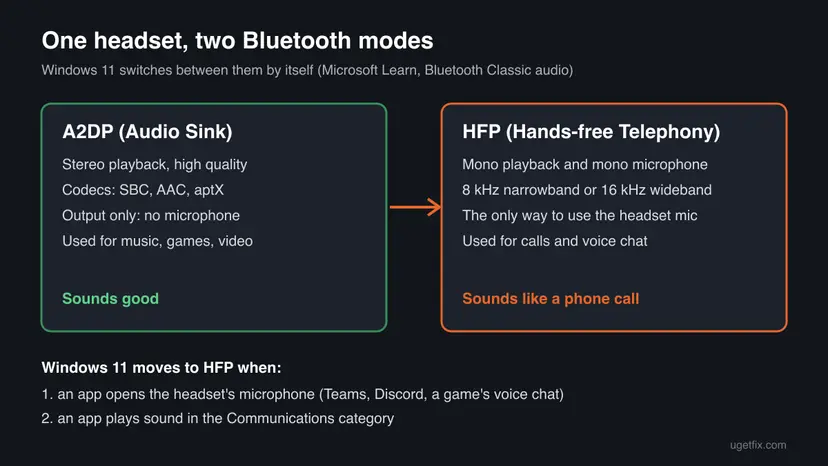
A Bluetooth Classic headset talks to Windows in two modes. Microsoft's driver documentation describes them plainly: the Advanced Audio Distribution Profile (A2DP) carries "high quality stereo audio playback", and the Hands-Free Profile (HFP) carries "concurrent monaural capture (microphone) and monaural playback". Hands-free Telephony is the name Windows gives HFP in the device's Services tab.
A2DP only sends sound to the headset. It cannot carry the microphone. So the moment anything needs the headset microphone, Windows has to leave stereo and use HFP, which runs at 8 kHz (narrowband) or 16 kHz (wideband). That is why music turns flat and muffled the second a call or voice chat starts.
| Name in Windows | Where you see it | What it is |
|---|---|---|
| Audio Sink | Device Properties > Services. | A2DP, the stereo playback mode. |
| Hands-free Telephony | Device Properties > Services. | HFP, mono sound plus microphone. |
| Remote Control | Device Properties > Services. | The play, pause and volume buttons (AVRCP). |
| {Device} Stereo and {Device} Hands-Free | Sound control panel, Windows 10. | Separate A2DP and HFP endpoints. Microsoft lists both names. |
| One output and one input for the headset | Sound control panel, Windows 11. | Windows 11 unifies A2DP and HFP into one endpoint each, so there is no separate Hands-Free line. |
| {Device} Hands-Free AG and Hands-Free AG Audio | Device Properties > Hardware. | The hands-free device functions Windows creates for the headset. |
| Bluetooth Audio Gateway Service | Services (services.msc). | Its description reads "Service supporting the audio gateway role of the Bluetooth Handsfree Profile." |
Why Hands-free Telephony keeps turning itself back on
Windows does not switch at random. Microsoft's documentation names the two triggers on Windows 11: an app opens the headset's input (microphone) endpoint, or an app plays sound in the Communications category. In all other cases the headset uses A2DP.
- Teams, Zoom, Discord and game voice chat open the default microphone. If the headset is that microphone, it drops to HFP for the whole call.
- Windows 10 behaves the same way with its separate endpoints: sound sent to the Hands-Free output, or a recording from the Hands-Free microphone, switches the device and discards the stereo stream.
- Reconnecting the headset can bring the service back. On Microsoft Q&A a user reported that unticking the service or disabling the hands-free device "reenables it once my headset reconnects".
Unticking the service treats the symptom. Taking the headset microphone away from your apps (Method 1) or from Windows (Method 2) removes the reason Windows switches at all.
What you gain and what it costs
The gain is sound quality, not speed. Nothing gets faster and no memory is freed. What changes is that the headset keeps playing in stereo through a call or a match, instead of falling to a mono phone line.
| What happens | Source | |
|---|---|---|
| Sound during calls and voice chat. | Stays in A2DP stereo. Windows 11 picks AAC or aptX when both sides support it, otherwise SBC. | Microsoft Learn, Bluetooth Classic audio. |
| Sound in HFP, for comparison. | Mono, 8 kHz narrowband or 16 kHz wideband. Some wideband headsets fall back to narrowband on some Bluetooth radios. | Microsoft Learn, Bluetooth Classic audio. |
| Headset microphone. | Gone on this PC. Windows cannot use a headset microphone without HFP. | Microsoft Learn: A2DP is output only. |
| Calls on the PC. | Need another microphone: the laptop's, a webcam's or a USB one. | Follows from the row above. |
| Headset buttons and volume. | One user on Microsoft Q&A reported lower maximum volume and a dead pause button after the system-wide switch. | A user report, not confirmed by Microsoft. |
| Your phone. | Not affected. The setting lives on this PC only. | The Services tab is per PC and per device. |
Who should disable it and who should leave it on
Turning the mode off only makes sense when you do not talk through the headset on this PC. If you do, the choice is between good sound with another microphone or the headset microphone with phone-quality sound. Windows cannot give you both over Bluetooth Classic.
- You have a separate microphone and want stereo sound in Teams, Discord or games.
- Sound turns muffled when a game or app starts, and you never use the headset microphone.
- You only listen on this PC and take calls on your phone.
- A game forces the headset into hands-free mode at start.
- The headset is your only microphone for meetings.
- You use the headset for phone calls routed through the PC, for example Phone Link.
- You share the PC with someone who calls through their headset (Method 5 affects every headset).
- Your headset is Bluetooth LE Audio. This page covers Bluetooth Classic headsets.
How to stop Hands-free Telephony, from the lightest switch to the strongest
Start with Method 1 and go down only if the headset still drops to mono. Methods 1 and 2 remove the reason for the switch, Methods 3 and 4 turn the mode off for one headset, and Method 5 turns it off for every headset. Steps are given for Windows 11 and Windows 10 22H2, although Windows 10 left support on 14 October 2025.
| Your case | Start with |
|---|---|
| You have another microphone and Teams or a game grabs the headset. | Method 1. |
| You never want the headset microphone on this PC. | Method 2, then Method 3. |
| You want the setting the old guides talk about. | Method 3. |
| Method 3 keeps coming back after a reconnect. | Method 4, then Method 5. |
| No headset on this PC should ever use hands-free. | Method 5. |
Method 1. Give Windows and your apps another microphone
5 minutesNo riskYou have a laptop, webcam or USB microphone and Teams, Discord or a game keeps switching the headset to mono.
Windows 11 moves to HFP when an app opens the headset's microphone. If no app chooses that microphone, the headset never has a reason to leave stereo, and nothing needs to be disabled.
- Press Win + R, type
mmsys.cpland press Enter to open the Sound window. - Open the Recording tab.
- Right-click your other microphone and select Set as Default Device.
- Right-click it again and select Set as Default Communication Device.
- Select OK.
- In Teams, Discord or the game, open its audio or device settings and pick the same microphone by name instead of "Default".
Some apps also choose the headset's hands-free output for calls. On Windows 10 pick {Device} Stereo, not {Device} Hands-Free, as the speaker in the app.
It worked if: The headset keeps stereo sound when you join a call or a voice channel, and the other microphone's level meter moves when you speak.
If not: If one app still grabs the headset microphone, go to Method 2 so no app can open it.
Method 2. Disable the headset microphone (the Hands-Free device) in Sound settings
3 minutesLow riskYou never use the headset microphone on this PC and want apps unable to choose it.
A disabled input endpoint cannot be opened, so no app can trigger the switch to HFP. On Windows 11 the headset has one unified input endpoint, so that is the line to disable; on Windows 10 it is the line named Hands-Free.
- Connect the headset.
- Press Win + R, type
mmsys.cpland press Enter. - Open the Recording tab.
- Find the headset. Windows 10 names it {Device} Hands-Free; Windows 11 shows one input for the headset.
- Right-click it and select Disable.
- Select OK.
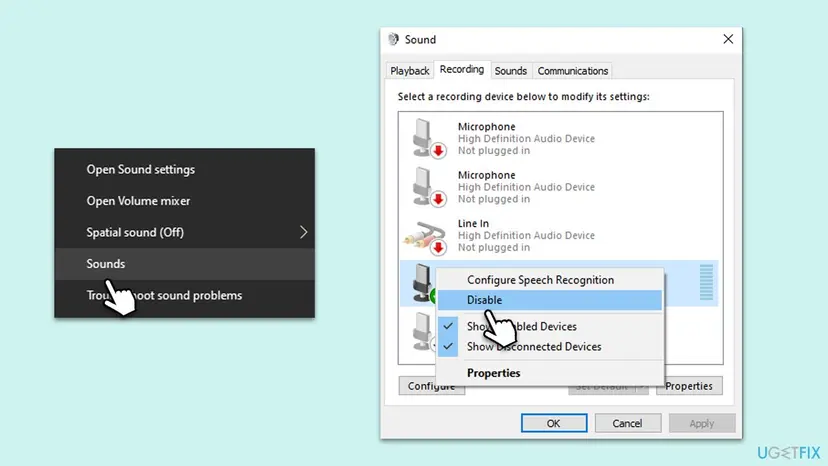
If the line disappears, right-click an empty part of the list and tick Show Disabled Devices. That is also where you enable it again.
It worked if: The headset input shows as Disabled, and apps no longer list the headset as a microphone.
If not: If the line is enabled again after the headset reconnects, add Method 3.
Method 3. Untick Hands-free Telephony in the headset's Services tab
3 minutesLow riskYou want the hands-free mode off for one headset, the way most guides describe.
This box tells Windows not to use the HFP service of this headset at all. The headset then offers only Audio Sink (stereo) and Remote Control to the PC, so there is nothing to switch to.
- Connect the headset.
- Press Win + R, type
control printersand press Enter to open Devices and Printers. - Right-click your headset and select Properties.
- Open the Services tab.
- Untick Hands-free Telephony. Leave Audio Sink and Remote Control ticked.
- Select Apply, then OK.
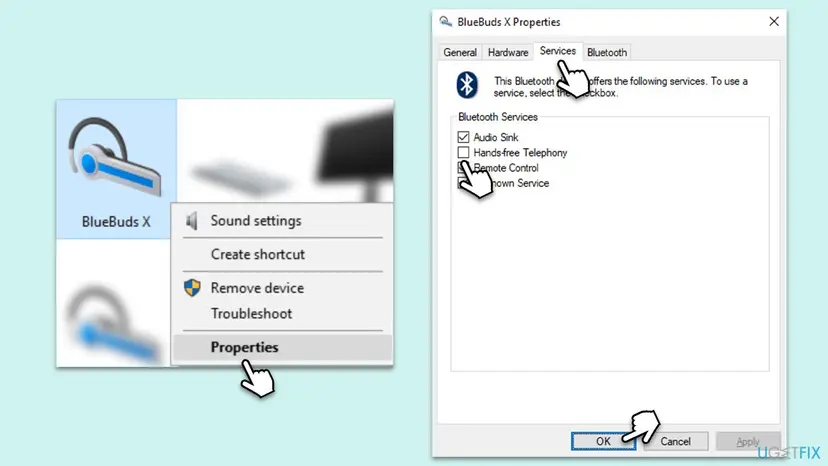
Some Windows 11 builds send Devices and Printers to Settings > Bluetooth & devices. We could not confirm which builds do this. If it happens, search the Start menu for Control Panel, set View by to Large icons and open Devices and Printers from there.
It worked if: The headset reconnects with stereo sound only, and the hands-free lines disappear from the Sound window.
If not: If the box is ticked again after the headset reconnects or is paired again, untick it once more and add Method 4.
Method 4. Disable the Hands-Free AG device in the Hardware tab
5 minutesLow riskMethod 3 does not stay, and you want the hands-free function of this headset off at driver level.
Windows creates separate device functions for a headset's hands-free side, listed as Hands-Free AG and Hands-Free AG Audio. Disabling them removes the hands-free path for this headset while the stereo function stays on.
- Open Devices and Printers as in Method 3 and open the headset's Properties.
- Open the Hardware tab.
- Select the line that ends in Hands-Free AG Audio and select Properties.
- Select Change settings, open the Driver tab and select Disable Device, then Yes.
- Do the same for the line that ends in Hands-Free AG.
- Leave the plain stereo device and AVRCP Target enabled.
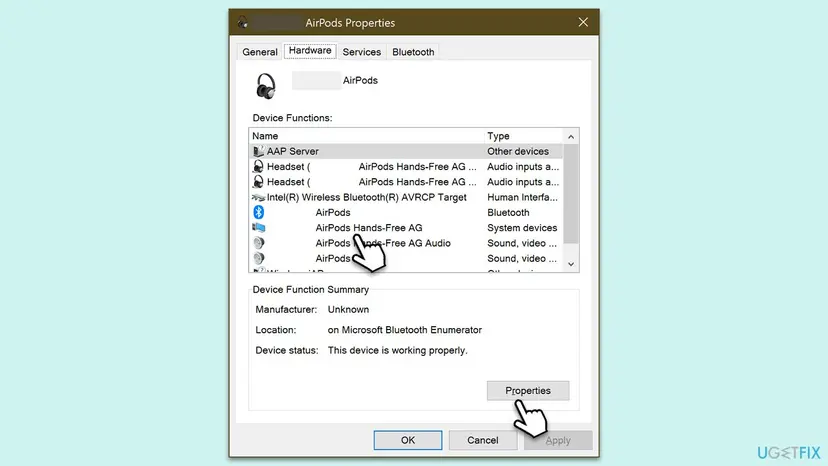
It worked if: The two hands-free lines show as disabled, and the headset stays in stereo in every app.
If not: If they are enabled again after a new pairing, go to Method 5, which works for the whole PC.
Method 5. Turn off the hands-free service and driver for every headset
5 minutesRead the warningNo Bluetooth headset on this PC should ever use hands-free, and the per-device switches keep coming back.
Methods 3 and 4 are stored per headset and are set up again on reconnect. The service and the driver are shared by every headset, so turning them off holds across reconnects and new pairings.
After this method, no Bluetooth headset can use its microphone on this PC, including headsets you pair later. Write down the current Startup type of the service before you change it, so you can set it back (see the undo table).
- Press Win + R, type
services.mscand press Enter. - Double-click Bluetooth Audio Gateway Service.
- Note the Startup type, then set it to Disabled.
- Select Stop, then Apply and OK.
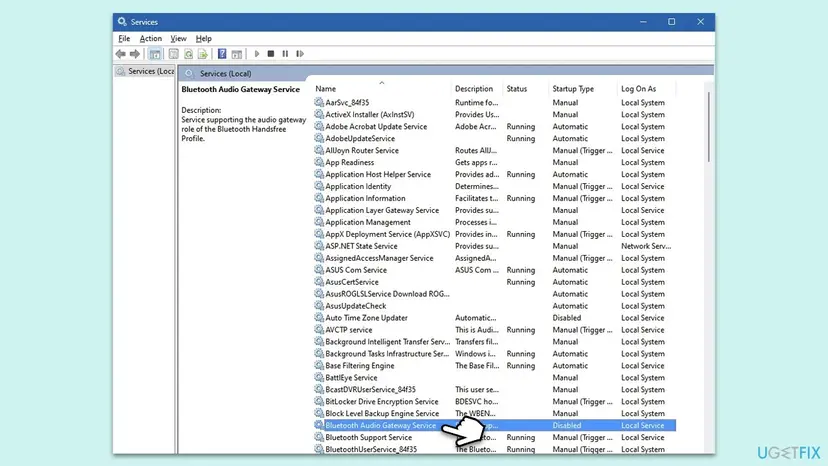
Opening and changing a service step by step: Check and restart Windows services. A Microsoft Community support specialist also gave a command that stops the hands-free audio driver from loading. Run it in PowerShell as administrator, then restart the PC:
Set-Service BthHFAud -StartupType Disabled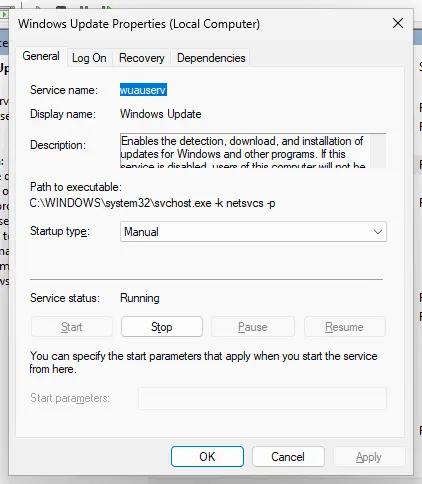
It worked if: After a restart no headset offers a hands-free microphone, and headsets play in stereo in every app.
If not: If a headset still switches, send feedback with Win + F, as Microsoft's support specialist advised, and keep Method 1 as your daily setup.
How to undo it and get the headset microphone back
Every switch on this page is reversible, and none of them deletes anything. Undo them in the reverse order of what you did, then disconnect and reconnect the headset so Windows sets up its services again.
| What you changed | How to put it back |
|---|---|
| Another default microphone (Method 1). | In mmsys.cpl > Recording, set the headset as Default Device and Default Communication Device, and pick it in the app. |
| Disabled headset microphone (Method 2). | Right-click the list, tick Show Disabled Devices, right-click the headset and select Enable. |
| Unticked Hands-free Telephony (Method 3). | Tick the box again in Properties > Services and select Apply. |
| Disabled Hands-Free AG devices (Method 4). | Open each one, Driver tab, Enable Device. |
| Disabled the service and driver (Method 5). | Set Bluetooth Audio Gateway Service back to the startup type you noted. For the driver, run Set-Service BthHFAud -StartupType Manual as administrator and restart. We could not confirm the driver's original startup type; Manual is our assumption. |
| Nothing works after undoing. | Remove the headset in Settings > Bluetooth & devices and pair it again. If it still fails, reinstall the Bluetooth driver: Update, roll back or reinstall a driver. |
Myths about Hands-free Telephony
- "Disabling it makes the headset stop working." The headset keeps playing in stereo through Audio Sink. Only its microphone and hands-free calls stop on this PC.
- "It is a phone service that dials out from your PC." It is a Bluetooth audio mode for the headset's microphone. It does not place calls by itself.
- "A new driver fixes the muffled sound." The drop in quality is how HFP works: mono and 8 or 16 kHz. A driver can bring wideband speech, not stereo with a microphone.
- "Disabling the Telephony service turns it off." The Services list also has a service named Telephony. We found no Microsoft source that links it to Bluetooth headsets, and the switch on this page is the Bluetooth Audio Gateway Service.
- "Disable Bluetooth to get rid of it." That disconnects the headset too. Microsoft notes that disabling the Bluetooth Support Service may cause installed Bluetooth devices "to fail to operate properly".
When the problem is the microphone, not the sound
If you turned hands-free off and now an app says the microphone is missing or busy, the app is still set to the headset. Pick the new microphone in the app's own settings, as in Method 1. For an app that reports the microphone as unavailable or in use, see the WhatsApp microphone unavailable guide, whose checks apply to Teams and Discord too.
Frequently asked questions
What is Handsfree Telephony in Windows?
Hands-free Telephony is Windows' name for the Bluetooth Hands-Free Profile (HFP) of a headset. It lets the PC use the headset's microphone, with mono sound in both directions at 8 kHz or 16 kHz. It appears as a box in the headset's Properties > Services tab next to Audio Sink, which is the stereo A2DP mode. Windows uses it automatically whenever an app opens the headset microphone.
What does Hands-free Telephony do?
It carries the headset's microphone to the PC and the call sound back to the headset. Microsoft's documentation explains that A2DP, the stereo mode, only sends sound to the headset and cannot carry a microphone. So Hands-free Telephony is the only way Windows can use a Bluetooth Classic headset microphone. The cost is quality: the sound turns mono and phone-like for as long as the microphone is open.
Why does Hands-free Telephony keep re-enabling itself?
Because an app keeps opening the headset microphone, or the headset reconnects and Windows sets its services up again. On Windows 11 Microsoft names two triggers: an app opens the microphone endpoint, or an app plays sound in the Communications category. Users on Microsoft Q&A report that the unticked box comes back after a reconnect. Setting another microphone as default (Method 1) removes the trigger.
Will my Bluetooth headphones stop working after disabling Hands-free Telephony?
No, they keep playing sound in stereo through Audio Sink. What stops is the headset microphone on this PC, so apps that used it will say no microphone is found. If the headphones go silent instead, an app or Windows is still sending sound to the hands-free output: pick the stereo output in the app, or tick the box again and pick another microphone (Method 1). One user reported lower volume after the system-wide switch.
How do I disable Hands-free Telephony for Microsoft Teams?
Give Teams another microphone first. In the Sound window (mmsys.cpl) set your laptop, webcam or USB microphone as the default and the default communication device. Then select it by name in Teams' device settings, not "Default". Teams then never opens the headset microphone and the headset stays in stereo. If Teams still grabs the headset, disable the headset microphone in the Recording tab (Method 2).
Why is there no Hands-Free device in the Recording tab on Windows 11?
Because Windows 11 merges the two modes. Microsoft's documentation says that on Windows 11 a headset that supports HFP gets a single output and a single input endpoint, instead of separate Stereo and Hands-Free lines as on Windows 10. So on Windows 11 you disable the headset's one input line in the Recording tab. That has the same effect: no app can open the microphone, so Windows has no reason to leave stereo.
Can I keep stereo sound and still use the headset microphone?
Not over Bluetooth Classic. Microsoft's documentation states that A2DP is output only and that microphone use requires HFP, which is mono. When the microphone is open, Windows resamples all sound to the hands-free rate. Your options are another microphone with the headset in stereo, or the headset microphone with phone-quality sound. Headsets with Bluetooth LE Audio work differently and are not covered here.
How do I permanently disable Bluetooth instead?
This page is about the hands-free mode, not about Bluetooth itself. To stop Bluetooth on a PC, turn it off in Settings > Bluetooth & devices. Microsoft's service guidance says the Bluetooth Support Service (bthserv) is "OK to disable if not used", but warns that installed Bluetooth devices may then fail to work. That also disconnects your headset, so it is not a way to fix hands-free sound.
Is the Telephony service in Windows 10 the same as Hands-free Telephony?
We found no source that says so. The Services list contains a service named Telephony, and Hands-free Telephony is a Bluetooth profile shown in a headset's Services tab. The service that serves the Bluetooth hands-free role describes itself as supporting "the audio gateway role of the Bluetooth Handsfree Profile", and it is named Bluetooth Audio Gateway Service. Leave the Telephony service alone for this problem.
Sources
- Microsoft Learn: Bluetooth Classic audio (A2DP, HFP, endpoint selection on Windows 10 and 11) (learn.microsoft.com)
- Microsoft Q&A: Permanent solution low quality audio hands-free telephony (answer by Microsoft Community support) (learn.microsoft.com)
- Microsoft Learn: Security guidelines for system services in Windows Server 2016 (Bluetooth Support Service) (learn.microsoft.com)
Did this fix work?
One click, no account. It tells the next reader which guides are worth their time.
Questions and experiences: permanently disable Handsfree Telephony for a Bluetooth device in Windows 11 and 10
Still broken, or found a fix we did not cover? Ask here: members and our editors answer. Reading is open; writing needs a free account.
…