
How to fix WhatsApp error "Your microphone is unavailable or in-use on another app" in Windows?

Prefer to fix it yourself? The manual steps follow.
- 9methods
- 2 to 20 minutes
- Easy
Applies to WhatsApp for Windows (Microsoft Store app) and WhatsApp Web in Chrome or Edge, on Windows 11 and Windows 10 laptops and desktop PCs
9 methods in this guide
- What the message means
- App or browser
- Causes, ranked
- Apps that hold the mic
- The fixes
- 1. Windows privacy switches
- 2. Free the microphone
- 3. Select and test the mic
- 4. Speaker unavailable
- 5. Turn off exclusive mode
- 6. WhatsApp Web in a browser
- 7. Update, repair or reset
- 8. Troubleshooter and services
- 9. Reinstall the audio driver
- Still not working
- Keep it working
- FAQ
Hello, I have noticed that for a few weeks now, my mic is not working on WhatsApp, and instead, I receive an error message "Your microphone is unavailable or in-use on another app." This is weird because I am not using it for anything else at the time when I attempt to use it on WhatsApp. Any advice, please? I'm running Windows 10 version 22H2.
"Your microphone is unavailable or in-use on another app" means WhatsApp asked Windows for the microphone and did not get it. Most often a Windows privacy switch is off or another program still holds the device. Open Settings > Privacy & security > Microphone first, then close other calling and recording apps.
On a laptop or PC, open Settings > Privacy & security > Microphone and turn on Microphone access, Let apps access your microphone and the WhatsApp switch (Fix 1). Then close every other program that can use the microphone, such as a meeting app, and quit and reopen WhatsApp (Fix 2). If you use WhatsApp Web in a browser, the permission lives in the browser instead: go to Fix 6.
| Error | Your microphone is unavailable or in-use on another app. WhatsApp could not open the microphone that Windows offers, so the call starts muted or does not start. |
|---|---|
| Where it appears | On the call screen of WhatsApp for Windows when you place or answer a voice or video call, and when you record a voice message. WhatsApp Web shows its own wording in the browser tab. |
| Main cause | A Windows microphone privacy switch is off for WhatsApp, or another program (a meeting app, a recorder, a virtual audio device) holds the microphone. |
| Fastest fix | Turn on the three microphone switches in Settings > Privacy & security > Microphone (Fix 1), then close other apps that use the microphone and restart WhatsApp (Fix 2). |
| Also written as | "Your microphone is unavailable. Click here to troubleshoot", "WhatsApp could not find a connected microphone", "Your speaker is unavailable or in-use on another app", microphone unavailable WhatsApp PC. |
| Affects | WhatsApp for Windows on Windows 11 and Windows 10 (WhatsApp requires Windows 10 64-bit version 1903 or newer) and WhatsApp Web in Chrome, Edge, Safari and Firefox. |
| WhatsApp's status | No known-issue notice. The WhatsApp Help Center lists it under general call problems: check permissions, test the microphone, and "make sure another app isn't using your microphone or audio device". |
| Not the cause | Your phone, your WhatsApp account or the person you call. The message is about the audio devices of this PC only. |
| Time to fix | About 2 minutes for the privacy switches. Up to 20 minutes if the app has to be reset or the sound driver reinstalled. |
| Where the cause shows | The microphone icon in the taskbar notification area (an app is using the microphone), Settings > System > Sound > Input (the device and its test) and Device Manager under Sound, video and game controllers. |
Facts checked on 14 October 2026. Steps written for WhatsApp for Windows and WhatsApp Web on Windows 11 (25H2 and 26H2) and Windows 10 22H2.
What "Your microphone is unavailable or in-use on another app" means in WhatsApp
WhatsApp does not talk to your microphone directly. It asks Windows for the input device, and Windows answers yes or no. The message appears when the answer is no, or when the device stops delivering sound in the middle of a call. WhatsApp cannot tell which of several reasons applies, so one sentence covers both: the microphone is "unavailable" or it is "in use".
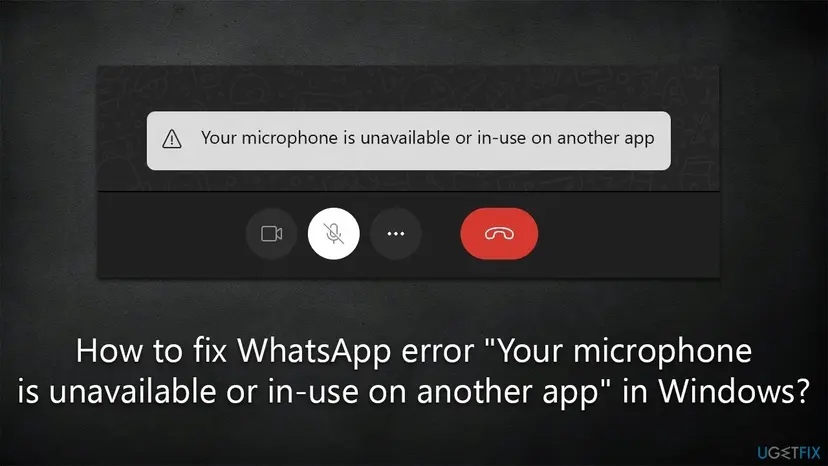
WhatsApp's help pages do not list the texts of these banners, so the spellings below are the ones readers type into Google after seeing them. They are close relatives. Each one names a slightly different point where the audio chain broke, and that decides where you start.
| Message | When it shows | What it tells you |
|---|---|---|
| Your microphone is unavailable or in-use on another app | When a call starts or is answered | Windows did not hand over the microphone: a privacy switch is off, or another program holds the device. |
| Your microphone is unavailable. Click here to troubleshoot | During a call that worked for a while | The microphone dropped out. Users report that the click opens the Windows troubleshooting settings. |
| WhatsApp could not find a connected microphone | Before or at the start of a call | Windows offers no usable input device: nothing is plugged in, the device is disabled, or the driver is missing. |
| Your speaker is unavailable or in-use on another app | When a call starts or audio should play | The same problem on the output side: no playback device, or the device is taken. |
| A WhatsApp Web notice that the camera or microphone may be in use by another app | In the browser tab of web.whatsapp.com | The browser could not open the device: a site permission, a Windows switch for desktop apps, or another program. |
The reader's question above is typical: nothing else was using the microphone. The banner also appears when Windows blocks the request with a privacy switch, and when the chosen device is disabled or gone. So an empty desktop does not rule the message out. It only moves you from Fix 2 to Fix 1 and Fix 3.
WhatsApp for Windows or WhatsApp Web: find out which one you use
There are two ways to run WhatsApp on a PC, and their microphone permissions sit in different places. WhatsApp for Windows is the app from the Microsoft Store with its own window and taskbar icon. WhatsApp Web is the page web.whatsapp.com inside Chrome, Edge or another browser. Fixing the wrong one changes nothing, which is why the same tip works for one reader and fails for the next.
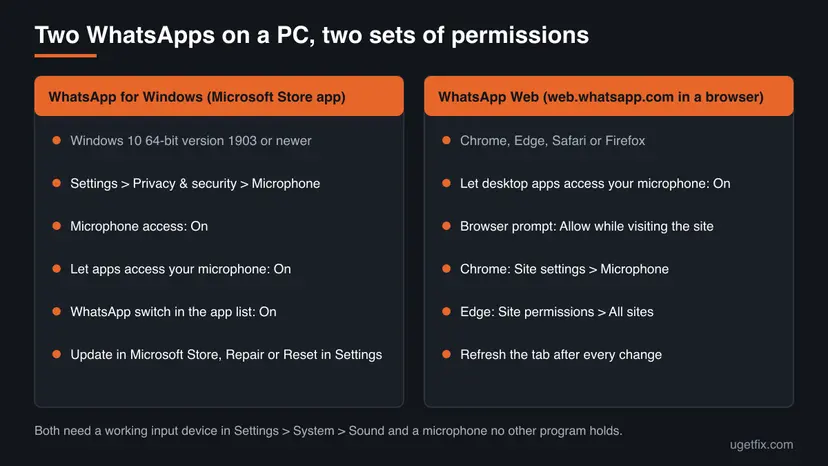
| WhatsApp for Windows | WhatsApp Web | |
|---|---|---|
| How you open it | From Start or the taskbar, installed from the Microsoft Store | A browser tab at web.whatsapp.com |
| What WhatsApp requires | Windows 10 64-bit version 1903 or newer, and access to the computer's microphone | Windows, Linux or macOS. WhatsApp says calling works best in Chrome, Edge, Safari and Firefox |
| Who grants the microphone | Windows: Microphone access, Let apps access your microphone and the WhatsApp switch | Windows: Let desktop apps access your microphone. Then the browser, per site |
| Calls | Voice and video calls, screen sharing | Voice and video calls. WhatsApp notes the feature is rolling out gradually and may not be available to you yet |
| Start with | Fix 1 | Fix 6 |
If the Store app fails, try a call from web.whatsapp.com, and the other way round. When one of them works, the microphone, the driver and Windows audio are fine, and you can skip Fixes 8 and 9.
What causes the microphone error in WhatsApp, from most to least common
Most often Windows itself says no: microphone access is off for the device, for apps in general or for WhatsApp alone. Less often another program really holds the microphone, or Windows has no working input device to offer. Rarely the WhatsApp installation or the sound driver is damaged.
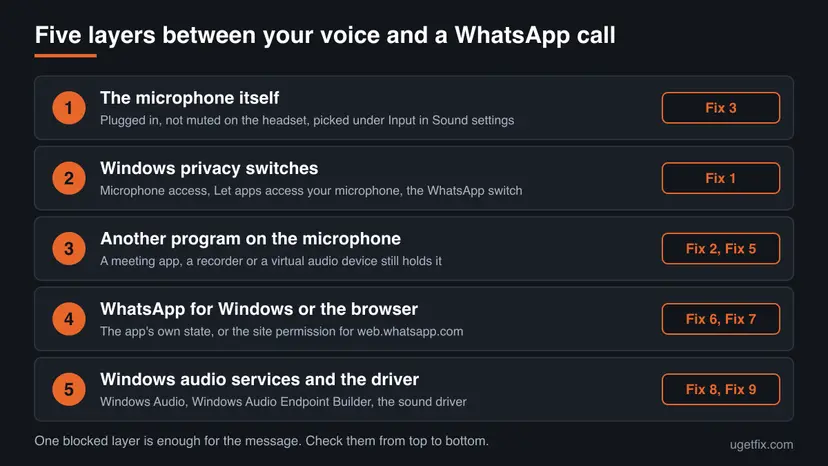
| Cause | How often | How to tell | Fix |
|---|---|---|---|
| A Windows microphone privacy switch is off. Microsoft notes this can happen after a Windows update. | Most often | The microphone works nowhere, or everywhere except in WhatsApp. The WhatsApp switch in Settings is off. | Fix 1 |
| Another program holds the microphone, or a virtual audio device sits in between. | Often | A microphone icon is in the taskbar notification area while WhatsApp is not in a call. A meeting app runs in the background. | Fix 2 |
| Windows has no usable input device: unplugged, disabled or the wrong one is selected. | Often | The message says a connected microphone could not be found. Settings > System > Sound > Input is empty or the test bar does not move. | Fix 3 |
| The output device is missing or taken. | Sometimes | The message names the speaker, not the microphone. | Fix 4 |
| A program takes the microphone in exclusive mode. | Sometimes | The microphone works at first and cuts out when another audio program starts. | Fix 5 |
The browser blocks web.whatsapp.com, or Windows blocks the browser. | WhatsApp Web only | The error is in a browser tab. The site is under "Not allowed" in the browser's microphone settings. | Fix 6 |
| The WhatsApp app is outdated or its local data is damaged. | Sometimes | WhatsApp Web works on the same PC and the Store app does not. | Fix 7 |
| Windows audio services are stuck, or the sound driver is broken. | Rarely | No app can record. The device is missing in Sound settings or marked in Device Manager. | Fix 8, then Fix 9 |
WhatsApp does not publish what each banner checks, and it has not posted a known-issue notice for this message. The ranking above follows the order of WhatsApp's and Microsoft's own troubleshooting pages and the cases users describe on Microsoft's Q&A site. It is not a measured statistic.
Which other apps commonly hold the microphone on a Windows PC
WhatsApp's own advice for calls on a computer is short: "Make sure another app isn't using your microphone or audio device. Don't use a virtual audio device." Windows gives you one reliable sign. According to Microsoft, a microphone icon appears in the notification area of the taskbar whenever an app is using the microphone.
| Kind of program | Examples | Why it matters |
|---|---|---|
| Meeting and calling apps | Microsoft Teams, Zoom, Discord, Google Meet in a browser tab | They keep the microphone during a meeting and often stay in the background after you close the window. |
| Recording and streaming tools | OBS Studio, Audacity, the Windows Sound Recorder, screen recorders | A recording that is running or paused keeps the input device open. |
| Virtual audio devices and voice changers | Voicemod, VB-Audio cables, noise removal tools that add their own "microphone" | WhatsApp says not to use a virtual audio device. They replace the real microphone with a software one. |
| Browser tabs with voice input | A second tab with a web meeting, voice search or dictation | The browser holds the microphone for that tab, also while you look at another tab. |
| Windows voice features | Windows dictation (voice typing) | Microsoft names dictation among the Windows features that depend on the desktop apps setting. |
- Normal sharing. By default several programs can record from one microphone at once, in what Microsoft's audio documentation calls shared mode. A second program alone does not have to break WhatsApp.
- The list in Settings. On the Microphone page, under the desktop apps setting, Windows lists the desktop apps it has detected using the microphone. It is a quick way to see what else has been recording.
The program names in the table are common examples of each kind. WhatsApp and Microsoft name the kinds, not a list of products. The Microsoft Q&A answer we cite mentions Zoom, Teams, Discord and browser tabs with voice input.
How to fix "Your microphone is unavailable" in WhatsApp on a laptop or PC
Fixes 1 to 5 are for WhatsApp for Windows, the app from the Microsoft Store, and they also repair the Windows side for WhatsApp Web. Fix 6 is for WhatsApp Web in a browser. Fixes 7 to 9 repair the app, the Windows audio services and the sound driver, and are needed only when the earlier ones did not help.
| What you see or have | Start with |
|---|---|
| Your microphone is unavailable or in-use on another app in the WhatsApp app, from the first second of the call. | Fix 1, then Fix 2 |
| Your microphone is unavailable. Click here to troubleshoot, or the microphone works for a few minutes and then cuts out. | Fix 2, then Fix 5 |
| WhatsApp could not find a connected microphone. | Fix 3 |
| Your speaker is unavailable or in-use on another app, or you cannot hear the other person. | Fix 4 |
The problem is in a browser tab at web.whatsapp.com. | Fix 6 |
| WhatsApp Web works on this PC, but the Store app does not. | Fix 7 |
| No program on the PC can record sound, or the microphone is missing in Sound settings. | Fix 3, then Fix 8 and Fix 9 |
Fix 1. Turn on microphone access for WhatsApp in Windows privacy settings
2 minutesNo riskYou use the WhatsApp app from the Microsoft Store and the banner appears as soon as a call starts.
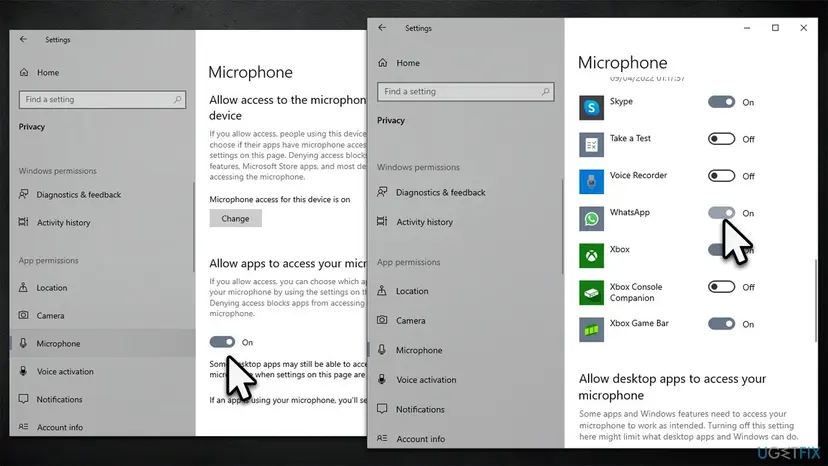
WhatsApp states that it needs access to your computer's microphone, and in Windows that access passes through three switches. If any one of them is off, Windows refuses the request and WhatsApp shows the banner, even though no other program is involved.
- Close the call in WhatsApp, but leave the app open.
- On Windows 11, select Start > Settings > Privacy & security, then Microphone under App permissions.
- Make sure Microphone access is turned on.
- Make sure Let apps access your microphone is turned on.
- In the list of apps below, find WhatsApp and turn its switch on. If it is already on, turn it off and on again.
- Scroll down and make sure Let desktop apps access your microphone is turned on as well.
- Quit WhatsApp, open it again and place a test call.
| Windows 11 | Windows 10 |
|---|---|
| Microphone access | Microphone access for this device, changed with the Change button |
| Let apps access your microphone | Allow apps to access your microphone |
| The app list with the WhatsApp switch | Choose which Microsoft Store apps can access your microphone, then WhatsApp |
| Let desktop apps access your microphone | Allow desktop apps to access your microphone |
- Why off and on again. WhatsApp's help page for calls on Windows lists "Turn your WhatsApp permissions off and on again" as a step of its own. The switch can show On while the app still holds an old refusal.
- WhatsApp is not in the list. Microsoft explains that an app missing from this list is likely a desktop app, and that such apps are governed by the desktop apps switch only. Turn that switch on, then update or reinstall WhatsApp with Fix 7.
- A microphone built into a webcam. Microsoft adds that you might also need to give apps permission to use the camera. Check the same three switches under Privacy & security > Camera.
On 23 September 2026 Microsoft announced that Windows Insiders in the Experimental channel can allow or block the microphone for each desktop app separately. On such a build, a browser or another desktop app can have its own switch on this page. Released versions of Windows 11 still have one switch for all desktop apps.
It worked if: The call starts with the microphone button active, the banner does not appear and the other person hears you.
If not: If all switches were already on, another program probably holds the microphone. Go to Fix 2.
Fix 2. Close the program that is using the microphone and restart WhatsApp
3 minutesLow riskThe privacy switches are on, or the microphone cuts out during a call that started fine.
WhatsApp's help page tells you to make sure another app is not using your microphone or audio device, and to force quit WhatsApp and open it again. Closing the other program releases the device, and a fresh start makes WhatsApp ask Windows for it once more.
- End the WhatsApp call.
- Look at the notification area at the right end of the taskbar. A microphone icon there means that some app is using the microphone right now.
- Close meeting and calling apps: Teams, Zoom, Discord and browser tabs with a web meeting. Check Show hidden icons on the taskbar too, because many of them keep running there.
- Stop any recording or streaming program, and turn off voice changers and other virtual audio devices.
- Press Ctrl + Shift + Esc to open Task Manager. Select a program that would not close and select End task.
- In the same list, select WhatsApp and select End task. This is the force quit that WhatsApp's help page asks for.
- Open WhatsApp again and place a test call.
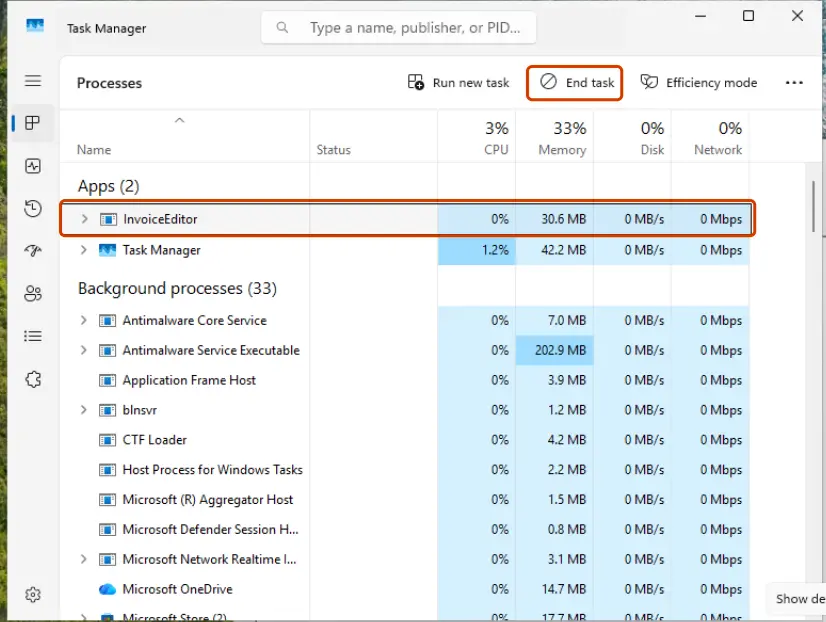
Ending a task closes that program at once, and anything unsaved in it is lost. Save your work in the other program first. The full procedure with pictures: Close a frozen app (Task Manager, Force Quit)
- A restart does the same in one step. Restarting the PC closes every background program and releases the microphone. If the call works right after a restart and fails later in the day, a program that starts with Windows is the cause. Find it here: Stop apps from opening at startup
- Battery saver and Bluetooth. WhatsApp's list for Windows includes "Turn off battery saver and bluetooth". Test one call with the laptop plugged in, Bluetooth off and the laptop's own microphone.
It worked if: The microphone icon in the notification area is gone before the call and returns only while WhatsApp is in the call.
If not: If no other program was using the microphone, check that Windows has a working input device with Fix 3.
Fix 3. Select and test the microphone in Windows Sound settings
5 minutesNo riskWhatsApp says it could not find a connected microphone, or you are not sure which microphone the laptop uses.
WhatsApp can only use an input device that Windows lists and has enabled. If the list is empty, the device is disabled, or a headset that is no longer connected is still the default, WhatsApp finds nothing to open. The Windows test shows in seconds whether the microphone itself works.
- Check the hardware first: plug the headset in firmly, and switch off the Mute button on the headset or its cable if it has one.
- On Windows 11, select Start > Settings > System > Sound.
- Under Input, go to Choose a device for speaking or recording and select the microphone you want to use.
- Select the arrow to the right of the device to open its properties page.
- Under Input settings, select Start test and speak normally, then select Stop test.
- Select Play to hear the recorded sample. If it is too quiet, raise the Input volume slider.
- Open WhatsApp, start a call and open the microphone and video settings on the call screen to check that the same microphone is chosen there.
On Windows 10 the page is Start > Settings > System > Sound as well. Under Input, pick the microphone in Choose your input device and speak: the bar under Test your microphone must move. Microsoft's wording is plain: if you see no change, the microphone is not picking up sound.
- If the microphone is not in the list, scroll down on the Windows 11 Sound page and, under Advanced, select More sound settings.
- Open the Recording tab.
- Select your microphone and select Properties.
- Next to Device usage, choose Use this device (enable) and select OK.
- Go back to the Sound page and repeat the test.
- Use a headset. WhatsApp recommends a headset for the best audio and warns that a separate external microphone and speakers might cause echo.
- Nothing under Input at all. Then Windows does not detect a microphone. That is a driver or hardware matter: go to Fix 8 and Fix 9.
It worked if: The test in Sound settings plays your voice back, and WhatsApp starts the call without the message about a missing microphone.
If not: If Windows records your voice but WhatsApp still shows the banner, turn off exclusive mode with Fix 5. If the banner names the speaker, go to Fix 4.
Fix 4. Fix "Your speaker is unavailable or in-use on another app"
5 minutesNo riskThe banner names the speaker and not the microphone, or you cannot hear the other person in WhatsApp calls.
WhatsApp requires an audio output device as well as a microphone for calls. The speaker banner is the same refusal on the playback side: Windows has no output device selected, the selected one is gone, or WhatsApp is routed to a different device than the rest of the system.
- On Windows 11, select Start > Settings > System > Sound.
- In the Output section, select the device you want to hear the call on. Selecting it also makes it the default.
- Play any sound, for example a video, to confirm that the device works outside WhatsApp.
- On the same page, select Volume mixer.
- Under Apps, find WhatsApp and make sure it is not muted and its slider is turned up.
- In the same row, confirm that the Output device for WhatsApp is the device you chose in step 2.
- Quit WhatsApp, open it again and place a test call.
On Windows 10, right-click the Volume icon on the taskbar and select Open Volume mixer for the app volume. For the default device, select Sounds, open the Playback tab, right-click your device and select Set as Default Device.
- A monitor as the output. Microsoft warns that an external monitor without speakers can be selected as the default output device. Then nothing is heard, and the fix is to pick the speakers or the headset in step 2.
- A Bluetooth headset. It has to be paired and connected before the call. If the banner appears only with the headset, test once with the laptop speakers, as in Fix 2.
It worked if: You hear the ringing tone and the other person through the device you selected, and the speaker banner is gone.
If not: If system sounds play but WhatsApp stays silent after these steps, or no program plays sound, restart the Windows audio services with Fix 8.
Fix 5. Turn off exclusive mode for the microphone
3 minutesLow riskThe microphone works for a while and cuts out, or it fails whenever another audio program is open.
Microsoft's audio documentation says a program that opens a device in exclusive mode has exclusive use of it, and that a request for exclusive control can preempt programs that share the device. With the option off, the microphone can only be shared, so no program can take it away from WhatsApp.
- Press Win + R, type the command below and press Enter. The classic Sound window opens.
- Open the Recording tab.
- Select the microphone you use for calls and select Properties.
- Open the Advanced tab.
- Clear the check box Allow applications to take exclusive control of this device.
- Select OK, close the Sound window and restart WhatsApp.
Run box (Win + R)
mmsys.cplYou can reach the same window without the command. On Windows 11 it is Settings > System > Sound > More sound settings. On Windows 10 open Control Panel, then Hardware and Sound, then Sound. For the speaker banner, repeat the steps on the Playback tab for your output device.
- The second check box. Give exclusive mode applications priority only matters while the first box is ticked. Once the first one is cleared, the device is used in shared mode only.
- What you give up. Some music production and audiophile programs ask for exclusive mode to get the lowest delay. If you use one, tick the box again after your WhatsApp calls. No restart is needed.
We could not confirm from WhatsApp's documentation whether WhatsApp for Windows uses shared or exclusive mode. The step is given by a Microsoft Q&A volunteer for exactly this WhatsApp message, and it matches how Microsoft describes exclusive mode. Treat it as a test that costs three minutes and is easy to reverse.
It worked if: The microphone stays active for the whole call, also when another audio program is opened during it.
If not: If the banner still appears, the app itself is the next suspect. Go to Fix 7. For WhatsApp Web, continue with Fix 6.
Fix 6. Allow the microphone for web.whatsapp.com in Chrome or Edge
5 minutesNo riskYou use WhatsApp Web in a browser tab and the microphone does not work for calls or voice messages there.
For WhatsApp Web, two gates stand before the microphone. Windows must allow desktop apps, which includes every browser, and the browser must allow the site. WhatsApp's help page asks for both: the browser gives web.whatsapp.com the permissions, and the system gives them to the browser.
- In Windows, open Settings > Privacy & security > Microphone and make sure Microphone access and Let desktop apps access your microphone are on. Browsers do not appear in the app list above them.
- In Chrome, select More (the three dots), then Settings.
- Select Privacy and security, then Site settings.
- Under Permissions, select Microphone.
- If
web.whatsapp.comis listed under Not allowed to use your camera or microphone, select the site's name and change the microphone permission to Allow. - On the same page, open the list at the top and select the microphone that Chrome should use by default.
- Go back to the WhatsApp Web tab, refresh the page and start the call. If Chrome asks, choose Allow while visiting the site.
| Answer | What it does |
|---|---|
| Allow while visiting the site | The site can use the microphone whenever you are on it. This is the choice for regular WhatsApp Web calls. |
| Allow this time | The site gets the microphone for this visit and asks again next time. |
| Never allow | The site is blocked and does not ask again. This is how most WhatsApp Web microphone problems begin, and steps 2 to 5 undo it. |
- Microsoft Edge. When the site asks for the microphone, select Allow in the dialog box. To change an earlier answer, Microsoft's steps are Settings and more > Settings > Privacy, search, and services > Site Permissions > All sites, then the website, then the Microphone list.
- Managed browsers. Google notes that on a work or school computer the administrator can set the camera and microphone settings, and you may not be able to change them.
- WhatsApp's own list for Web. Close and reopen the tab or refresh the page, upgrade the browser to a recent version, and do not use a virtual audio device.
- No call button at all. WhatsApp says that calling on WhatsApp Web is rolling out gradually and may not be available to you yet. That is not a microphone fault. Use WhatsApp for Windows for calls in the meantime.
It worked if: After the refresh the call starts with the microphone active, and a voice message records your voice.
If not: If the site is allowed and the microphone still fails in the browser, test it in Windows with Fix 3, then restart the audio services with Fix 8.
Fix 7. Update WhatsApp, then repair or reset the app
10 minutesRead the warningWhatsApp Web works on this PC but the Store app does not, or the app is old or was restored from a backup.
WhatsApp asks you to update to the latest version before anything else, because new versions carry the bug fixes. Repair checks the app's files without touching its data, and Reset returns the app to the state of a fresh installation.
- Open Microsoft Store and search for WhatsApp Messenger.
- If the button reads Update, select it and wait until it finishes. WhatsApp notes that updates may not be available in certain regions.
- Open WhatsApp and test a call. If the banner is still there, continue.
- Select Start > Settings > Apps > Installed apps. On Windows 10 it is Apps > Apps & features.
- Find WhatsApp, select the three dots next to it and select Advanced options. On Windows 10, select the app and then Advanced options under its name.
- Select Terminate to close the app and its background processes.
- Select Repair and test a call again. The app's data stays.
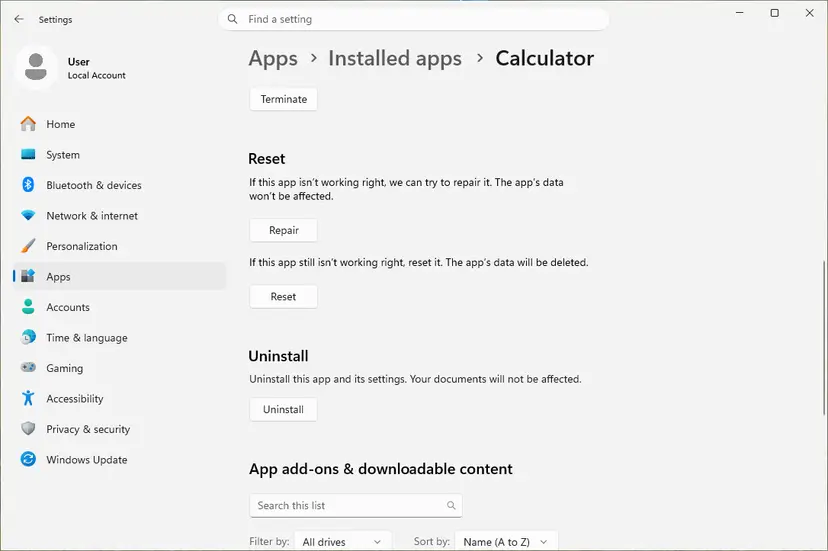
Reset deletes the app's data on this PC, including the sign-in. You have to link the computer to your phone again, so keep the phone with WhatsApp at hand. WhatsApp advises backing up your chat history on the phone before app changes. Use Repair first: it keeps the app's data.
- If Repair did not help, select Reset on the same page and confirm.
- Open WhatsApp and link the device with your phone again.
- When Windows or WhatsApp asks for microphone access on the first call, allow it.
- Check Settings > Privacy & security > Microphone once more: the WhatsApp switch must be on.
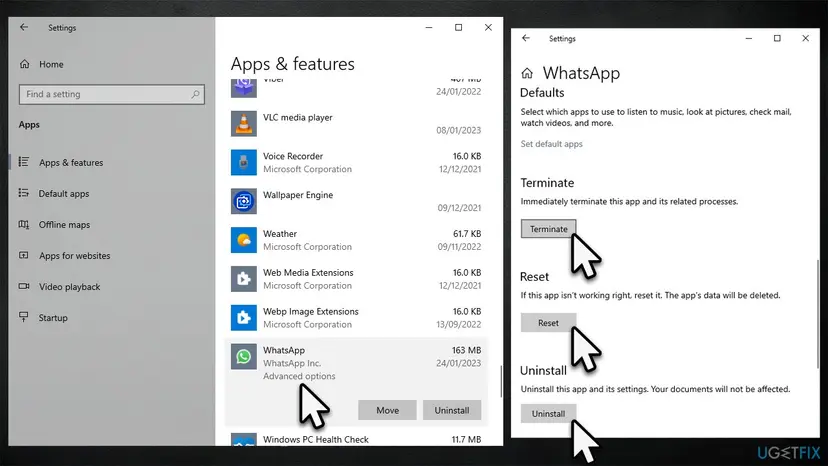
- Reinstall as the last step. Select Uninstall on the same page, restart the PC and install WhatsApp from the Microsoft Store again. Removing an app: Uninstall a program or app in Windows. Repair and Reset with all screens: How to repair or reset an app in Windows
- Unsupported Windows. WhatsApp for Windows needs Windows 10 64-bit version 1903 or newer. On an older or 32-bit system, WhatsApp points you to
web.whatsapp.comin a browser instead.
It worked if: After the update or the repair the call starts with a working microphone and no banner.
If not: If a freshly installed WhatsApp shows the same banner, the cause is below the app. Go to Fix 8.
Fix 8. Run the audio troubleshooter and restart the Windows audio services
5 minutesLow riskThe banner says to click to troubleshoot, or no program on the PC can record or play sound.
Every app, WhatsApp included, reaches the microphone and the speakers through the Windows audio services. When they hang, each app reports its own version of "device unavailable". The troubleshooter checks the usual settings, and a restart of the services clears a stuck audio session without a reboot.
- On Windows 11, select Start > Settings > System > Sound.
- Scroll down to Advanced. Next to Troubleshoot common sound problems, select Input devices for the microphone or Output devices for the speaker.
- Follow the troubleshooter and apply what it suggests. On Windows 11, Microsoft runs the audio troubleshooter in the Get Help app.
- On Windows 10, select Settings > Update & Security > Troubleshoot > Additional troubleshooters and run Recording Audio.
- Test a WhatsApp call. If nothing changed, restart the audio services with the steps below.
- Select Start, type
services.mscand press Enter. - Right-click Windows Audio and select Restart. If Windows asks about restarting other services too, select Yes.
- Right-click Windows Audio Endpoint Builder and select Restart.
- Close the Services window, quit WhatsApp and open it again.
- Place a test call.
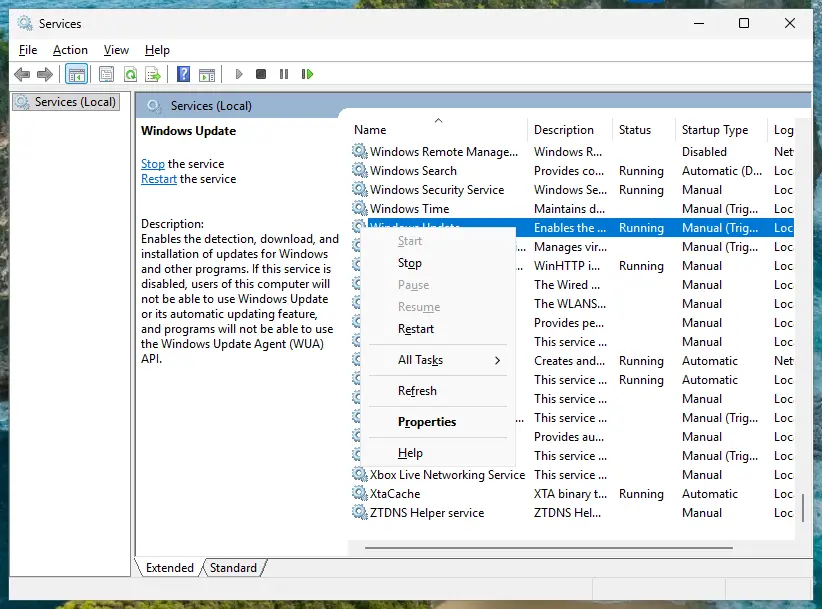
- Sound stops for a moment. While the services restart, every program on the PC goes silent for a few seconds. Do not do it during another call.
- Services step by step, with the startup types explained: Check and restart Windows services
A user on Microsoft's Q&A site reports that clicking the WhatsApp banner opened the Windows troubleshooting settings, where no troubleshooter for the microphone was obvious. The one that fits is Input devices on Windows 11 and Recording Audio on Windows 10, as in steps 2 and 4.
It worked if: The troubleshooter reports a fix, or after the service restart the input test in Sound settings works and WhatsApp connects with sound.
If not: If Windows still does not detect the microphone, reinstall the audio driver with Fix 9.
Fix 9. Reinstall the audio driver
15 minutesRead the warningWindows does not detect the microphone at all, or the audio device is missing or marked in Device Manager.
Microsoft's microphone page gives this as the step for the case where Windows is not detecting the headset, camera or microphone. Removing the audio device makes Windows set it up again from a clean driver, which brings back an input device that had disappeared from the list WhatsApp reads.
After the uninstall, speakers and microphone do not work until Windows installs the driver again at the next start. On most PCs that happens by itself. Before you begin, download the current audio driver from the support page of your laptop or sound card maker, so you can install it by hand if Windows does not.
- Right-click the Start button and select Device Manager.
- Expand Sound, video and game controllers.
- Right-click your audio device and select Uninstall device.
- Tick Attempt to remove the driver for this device and select Uninstall. On Windows 10 the box reads Delete the driver software for this device.
- Restart the computer. Windows tries to install the audio device and its driver again.
- If the device does not come back, open Device Manager, right-click Sound, video and game controllers and select Scan for hardware changes.
- Then right-click the audio device, select Update driver, or install the driver you downloaded from the maker.
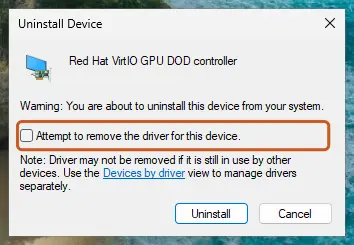
- Check for a disabled device first. If the audio device is listed with a down arrow, right-click it and select Enable device. Microsoft also suggests View > Show hidden devices when it is not listed at all.
- Open the privacy page again afterwards. Microsoft notes that after a Windows or driver change you may need to give apps permission to use the microphone again. Repeat Fix 1.
- Updating, rolling back and reinstalling a driver, with pictures: Update, roll back or reinstall a driver
It worked if: The microphone is listed again under Input in Sound settings, its test records your voice and the WhatsApp call starts without a banner.
If not: If the microphone fails in every program after a clean driver, the hardware is the likely cause. See the section below.
If WhatsApp still says the microphone is unavailable
WhatsApp for Windows does not offer a log file that you can read for this message, and WhatsApp publishes no error code for it. The evidence is in Windows. Three checks tell you in which layer the fault sits, and they are worth doing before you contact anyone.
| Check | Result | What it means |
|---|---|---|
| The input test in Settings > System > Sound | Your voice is not recorded | The microphone, its connection or the driver. WhatsApp is not involved. |
A call from web.whatsapp.com on the same PC | Works, while the Store app fails | The app's permission or installation: Fix 1 and Fix 7. |
| A call with a different headset or the laptop's own microphone | Works | The first headset, its plug or its Bluetooth connection. |
| A call right after a restart of the PC | Works, and fails later | A background program takes the microphone: Fix 2 and Fix 5. |
- When it is hardware. The Windows test stays flat with every driver, the microphone fails in every program, or it works only when you hold the plug at an angle. Google's help says it for all such cases: contact the maker of the microphone or the laptop.
- When the microphone works but the call does not connect. That is a network matter. WhatsApp asks for UDP and TCP ports 3478, 3480 and 3484 to be open for the Windows app, and 3478, 3480 and 443 for WhatsApp Web. On an office network, ask the administrator.
If you write to WhatsApp support or to the laptop maker, send the exact text of the banner and say whether you use the Store app or WhatsApp Web. Add the WhatsApp version, the Windows version shown by winver, the name of the microphone under Input and the results of the checks above.
How to keep the microphone available for WhatsApp calls
- Quit meeting apps fully after a meeting, also from the hidden icons on the taskbar.
- Use one headset for calls and select it under Input and Output in Sound settings before you call.
- Keep WhatsApp updated from the Microsoft Store, and keep the browser current if you use WhatsApp Web.
- Open the Microphone privacy page after a large Windows update and check the switches.
- Choose Allow while visiting the site when the browser asks for the microphone on web.whatsapp.com.
- Do not run a voice changer or another virtual audio device during WhatsApp calls.
- Do not answer the browser's microphone prompt with Never allow by reflex.
- Do not install driver updater programs for this. The laptop maker's audio driver and Windows Update are enough.
- Do not reset the app before you tried Repair and the privacy switches.
Windows 10 reached the end of support on 14 October 2025. WhatsApp still lists Windows 10 version 1903 and newer as supported, so the app keeps working there, but Windows itself no longer receives fixes. If the microphone problem began after a driver change on Windows 10, the maker's last Windows 10 driver is the one to keep.
Frequently asked questions
Why does WhatsApp say my microphone is unavailable on my laptop?
Because Windows did not give WhatsApp the microphone. On a laptop the usual reason is a privacy switch: Microphone access, Let apps access your microphone or the WhatsApp switch in Settings > Privacy & security > Microphone is off. The second reason is another program that still holds the microphone, such as a meeting app left running in the background. The third is the device itself: a headset that is no longer plugged in is still selected as the input, or the built-in microphone is disabled. Check them in that order, then quit WhatsApp and open it again.
How do I fix "WhatsApp could not find a connected microphone" on Windows 11 or Windows 10?
Give Windows a working input device. Open Settings > System > Sound and look under Input. Select your microphone under Choose a device for speaking or recording, open its properties and run the test with Start test. On Windows 10, pick it in Choose your input device and watch the bar under Test your microphone. If the list is empty, open More sound settings, the Recording tab, and enable the device in its Properties. A desktop PC without a headset or a webcam has no microphone at all. If Windows detects none on a laptop, reinstall the audio driver.
What does "Your microphone is unavailable. Click here to troubleshoot" mean in WhatsApp?
It means the microphone stopped delivering sound during a call. Users on Microsoft's Q&A site describe calls that work for one to five minutes and then mute, and say the click opens the Windows troubleshooting settings. The fitting troubleshooter is Input devices under Settings > System > Sound > Advanced on Windows 11, and Recording Audio on Windows 10. In practice, start by closing other programs that use the microphone, then turn off exclusive mode for the device on the Advanced tab of its properties. Both steps are described in Fix 2 and Fix 5.
How do I fix "Your speaker is unavailable or in-use on another app" in WhatsApp?
Select a working output device and make sure WhatsApp uses it. On Windows 11, open Settings > System > Sound and select your speakers or headset in the Output section. Then open Volume mixer on the same page and check that WhatsApp is not muted and that its Output device is the same one. Microsoft warns that an external monitor without speakers can become the default output, which silences everything. If no program plays sound, restart the services Windows Audio and Windows Audio Endpoint Builder. The full steps are in Fix 4.
Why is the microphone not working in WhatsApp Web?
Because the browser, not WhatsApp, decides about the microphone there. First, Windows must allow desktop apps: turn on Let desktop apps access your microphone in Settings > Privacy & security > Microphone. Second, the browser must allow the site. In Chrome, open Settings > Privacy and security > Site settings > Microphone and move web.whatsapp.com out of the not allowed list. In Edge, the list is under Privacy, search, and services > Site Permissions > All sites. Refresh the tab afterwards. WhatsApp also says that calling on WhatsApp Web is rolling out gradually, so a missing call button is not a microphone fault.
WhatsApp is not in the list of apps on the Windows Microphone page. What now?
Then Windows treats your WhatsApp as a desktop app, or the app's registration is damaged. Microsoft explains that an app you do not see in the list is likely a desktop app, and that such apps cannot be toggled one by one: they follow the switch Let desktop apps access your microphone. Turn that switch on first. Then update WhatsApp in the Microsoft Store and use Repair in its Advanced options. If it is still missing after a reinstall from the Store, the desktop apps switch is the one that counts.
Which apps can block the microphone for WhatsApp?
Any program that records sound can. The usual ones are meeting and calling apps such as Teams, Zoom and Discord, browser tabs with a web meeting, recording and streaming tools, and voice changers that install a virtual microphone. WhatsApp names the last group directly: do not use a virtual audio device. Windows shows a microphone icon in the notification area of the taskbar while an app is using the microphone, and the Microphone privacy page lists the desktop apps that have used it. Close what you find there, then restart WhatsApp.
Does WhatsApp for Windows work on Windows 10?
Yes. WhatsApp states that WhatsApp for Windows is supported on Windows 10 64-bit version 1903 and newer, and that covers Windows 10 22H2. A 32-bit installation or an older version is not supported, and WhatsApp points those users to web.whatsapp.com in a browser. Microsoft ended support for Windows 10 on 14 October 2025, so Windows no longer receives fixes, but the app and its calls keep working. The microphone settings are the same as on Windows 11, with slightly different names under Settings > Privacy > Microphone.
Sources
- Microsoft Support: Windows camera, microphone, and privacy (support.microsoft.com)
- Microsoft Support: Turn on app permissions for your microphone in Windows (support.microsoft.com)
- Microsoft Support: Fix microphone problems (support.microsoft.com)
Did this fix work?
One click, no account. It tells the next reader which guides are worth their time.
Questions and experiences: fix WhatsApp error "Your microphone is unavailable or in-use on another app" in Windows
Still broken, or found a fix we did not cover? Ask here: members and our editors answer. Reading is open; writing needs a free account.
…