
How to remove the red dot on the Discord icon (taskbar, tray, iPhone, Android and Mac)

Prefer to fix it yourself? The manual steps follow.
- 6methods
- 1 to 10 minutes
- Easy
Applies to Discord for Windows 11 and Windows 10 (taskbar and system tray icon), plus Discord for iPhone, Android and Mac
6 methods in this guide
Hello. Recently, I received an update to the Discord app, and now there is this annoying dot on the Discord icon on my taskbar. I first thought this was an indication of somebody mentioning me in one of the channels, but it is not the case. Is this a bug, or is there a way to fix this?
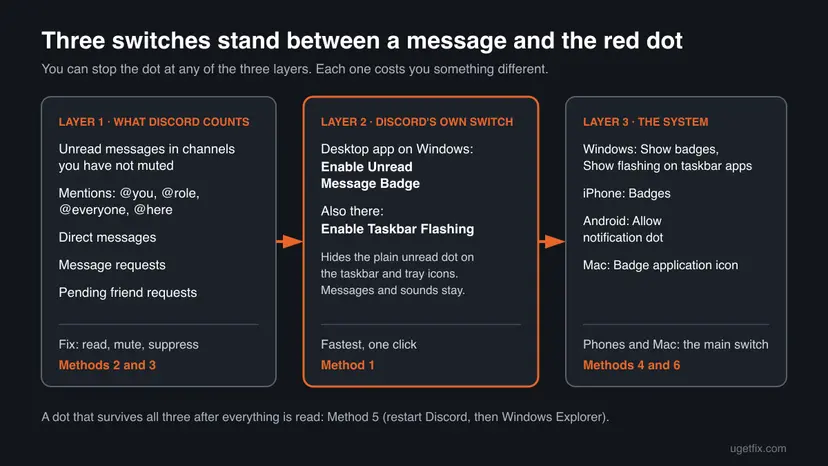
The red dot on the Discord icon is Discord's unread message badge: some channel, DM or request you have not opened yet. It is not a bug or a virus, and you can turn it off. On Windows, switch off Enable Unread Message Badge in Discord's notification settings; on a phone or Mac, turn off the app's badge in the system settings.
The red dot means Discord has messages you have not read, often in a busy server you never open, not a mention. It is safe to turn off. Method 1: open User Settings > Notifications and switch off Enable Unread Message Badge. To keep the badge for things that matter, mark everything read with Shift + Esc and mute the noisy servers instead (Methods 2 and 3). On iPhone, Android or Mac, turn off the badge in the system settings (Method 6).
| What it is | Discord's unread badge: a red dot (or a red number) drawn on its taskbar, tray, Dock or phone icon while anything is unread. |
|---|---|
| Safe to turn off | Yes. Messages, desktop notifications and sounds keep working. You only lose the at-a-glance hint that something is waiting. |
| What you gain | A quiet icon. No speed, battery or memory change that any source measures. |
| Side effect | You may miss a DM or mention you would have noticed by the dot, unless notifications stay on. |
| Where it shows | Windows taskbar button and system tray icon, the Mac Dock, the iPhone and Android home screen icon. |
| Main switch on Windows | User Settings > Notifications > Enable Unread Message Badge in the Discord app. |
| Main switch on a phone or Mac | iPhone: Badges. Android: Allow notification dot. Mac: Badge application icon. All in the system's notification settings for Discord. |
| Why it stays with nothing new | Unread messages in big servers you never open, message requests, pending friend requests, or @everyone pings in muted servers. |
| Comes back | Marking as read only lasts until the next message. Turning the badge off lasts until you turn it on again. |
Facts checked on 14 October 2026. Steps written for the Discord desktop app on Windows 11 25H2 and 26H2 and Windows 10 22H2, read against Discord's Help Center and Microsoft's taskbar documentation; iPhone, Android and Mac steps read against Apple and Google help pages.
What the red dot on the Discord icon means, and what it is not
Discord keeps a count of everything you have not read: messages in channels you have not muted, mentions, direct messages and requests. When that count is above zero, the desktop app paints a red mark on its own icon. In the app's settings the switch is described as showing "a red badge on the app icon when you have unread messages".
The surprise for most people is that a plain unread message is enough. You do not need to be mentioned. If you are in one large server with an active general chat, there is almost always something unread, so the dot almost never goes away. That is why readers think it is a bug: it is not, it is the count of a server they stopped reading.
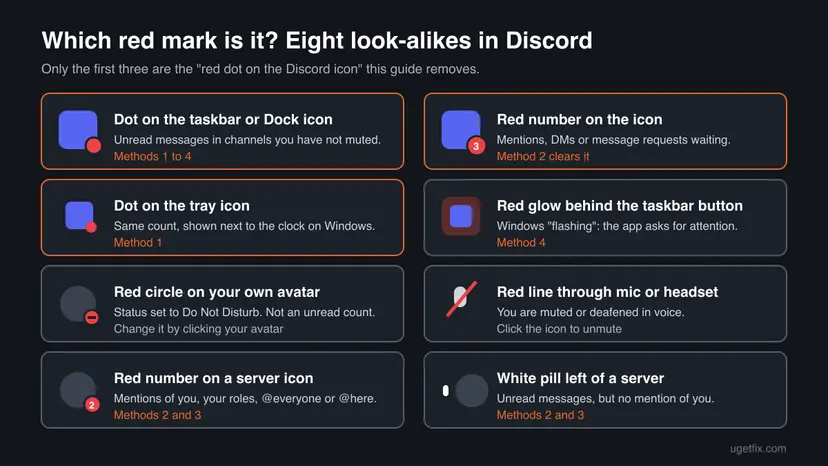
| What you see | Where | What it means | Where to change it |
|---|---|---|---|
| Small red dot | Discord's taskbar button or tray icon on Windows | Something is unread, often in a channel that does not notify you. | Method 1 hides it. Methods 2 and 3 clear the reason. |
| Red number | Taskbar, Dock or phone icon, and on server icons | Mentions of you, your role, @everyone or @here, DMs or message requests. | Method 2 (read them) or Method 3 (suppress the pings). |
| Red or orange glow behind the whole button | Windows 11 taskbar | Windows taskbar flashing: the app asked for your attention. | Click the button, or Method 4. |
| Red circle with a dash on your avatar | Bottom left corner, next to your name | Your status is Do Not Disturb. Discord says this also mutes desktop notifications. | Click your avatar and pick another status. |
| Red line through the mic or headset | User area at the bottom left | You are muted or deafened in voice chat. | Click the icon again. |
| Red dot on a phone app icon | iPhone or Android home screen | The phone's own badge for Discord's notifications. | Method 6. |
Windows lets a desktop program put a small overlay image of 16 x 16 pixels on the lower right corner of its taskbar button. Microsoft says these overlays are meant for things like "messenger status, or new mail". Discord's dot sits exactly there, and the tray icon gets the same dot.
Why the Discord red dot stays when you have no new messages
When you open Discord and see nothing new in your DMs, the count is coming from somewhere else. These are the sources we found in Discord's own documentation and in user reports, from the most common to the least.
- Unread channels you never visit. A white pill to the left of a server icon means unread messages there. Each one feeds the badge until you mark it read or mute it.
- Mentions in muted servers. Discord's Help Center is clear that muting a server or channel still lets mentions through: @username, @role, @everyone and @here all still count.
- Message requests. DMs from people who are not your friends go into a separate Message Requests folder on the Home tab. Discord says "All Message Requests will display a notification badge on the client." The folder only appears while a request is pending, so it is easy to miss.
- Pending friend requests. They wait under Friends > Pending. Users report that a waiting request keeps a red number on the icon until they accept or ignore it.
- Another device. If you read a message on your phone while the PC was asleep, the desktop app may show the old count until it reconnects. Users report this clears after a restart of the app (Method 5).
- A stuck overlay. Rarely, the dot stays after everything is read. Users on Windows 11 also describe a red glow that stayed after they marked all as read and turned off the badge. That is the taskbar flash, handled in Method 4.
Before you change any setting, press Ctrl + I in the desktop app. It opens the Inbox, where the Unreads tab lists messages from unmuted channels that you have not marked as read, and Mentions lists everything that pinged you. That tells you which of the causes above is yours.
Discord promotions are a separate case. The app sometimes marks a new tab or offer with its own dot inside the window. We could not confirm from Discord's documentation whether such promotions ever add to the badge on the taskbar or phone icon. If your dot appeared right after an app update and nothing is unread, Method 1 removes it either way.
What you gain and what it costs to remove the red dot
Removing the dot changes how Discord looks, not how it runs. No source we read claims that the badge uses noticeable memory, CPU or battery, and we measured none. What changes is how quickly you notice something that needs you. Each method trades that differently.
| Method | What you get | What it costs | How long it lasts |
|---|---|---|---|
| 1. Turn off Enable Unread Message Badge | No dot on the Windows taskbar or tray icon, whatever is unread. | No visual hint of unread messages outside the app. Notifications and sounds still come. | Until you turn it on again. |
| 2. Mark as read | The count drops to zero right now. | You skip messages you have not seen. You can still scroll up and read them. | Until the next message in an unmuted channel. |
| 3. Mute servers, Only @mentions, suppress pings | The dot only appears for what you choose to hear about. | You stop hearing about the muted server. With full mute, even mentions can go quiet in channel overrides. | Until you unmute, or until the mute time ends. |
| 4. Windows taskbar settings | Removes the taskbar glow, and possibly badges for all apps. | Affects every app, not only Discord. Outlook, Teams and others lose their badges too. | Until you change it back. |
| 5. Restart Discord and Explorer | Clears a stuck dot or glow. | A minute. Open File Explorer windows close. | Until the next real unread message. |
| 6. Phone or Mac badge switch | No dot on the home screen or Dock icon. | No unread hint outside the app on that device. | Until you turn it on again. |
Who should turn the red dot off, and who should keep it
The badge is useful when your Discord is small: a few friends, one or two servers. It becomes noise once you join large public servers, because there is always an unread message somewhere. Pick by situation.
- You are in several big community servers and only read them now and then.
- Discord runs all day on a work or streaming PC and the dot distracts you.
- You rely on desktop notifications and sounds for DMs anyway.
- The dot appeared after an update and you just want the old look back.
- You use Discord for a team, a class or a group that expects quick replies.
- You often have Discord minimised to the tray and the dot is your only hint.
- You turned off notification sounds and banners: the badge is then your last signal.
- The dot only bothers you because of one or two servers. Mute those instead.
The best setup for most people is a mix: mute or set to Only @mentions the servers you do not follow, and keep the badge on. Then the dot means something again. Turn the badge off completely only if that is still too much.
How to remove the red dot on the Discord icon
Methods 1 to 3 are done inside the Discord app and work the same on Windows 11 and Windows 10. Method 4 uses Windows' own taskbar settings, Method 5 clears a dot that is stuck, and Method 6 is for iPhone, Android and Mac. Windows 10 left support on 14 October 2025, but the Discord steps do not differ.
| Your case | Start with |
|---|---|
| You want the dot gone on the Windows taskbar and tray, now. | Method 1. |
| You want the dot to mean something again. | Method 2, then Method 3. |
| One busy server keeps the dot on all the time. | Method 3. |
| You see a red or orange glow behind the whole taskbar button. | Method 4. |
| The dot stays after everything is read and the badge is off. | Method 5. |
| The dot is on your iPhone, Android phone or Mac Dock. | Method 6. |
Method 1. Turn off Enable Unread Message Badge in Discord
1 minuteNo riskYou use the Discord desktop app on Windows and want the dot gone from the taskbar and tray.
This switch is the setting that draws the dot in the first place. With it off, Discord stops putting its unread overlay on the taskbar button and tray icon, while messages and notifications still arrive as before.
- Open Discord. If it is only in the tray, double-click its icon next to the clock.
- Click the gear icon, User Settings, at the bottom left next to your name.
- In the left column, under App Settings, select Notifications.
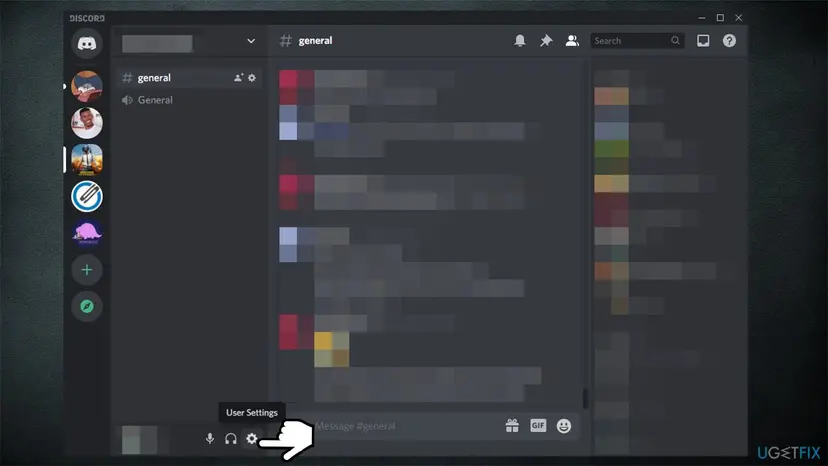
The gear next to your name opens User Settings. Recent versions may place it slightly differently, the label stays the same. - Turn off Enable Unread Message Badge.
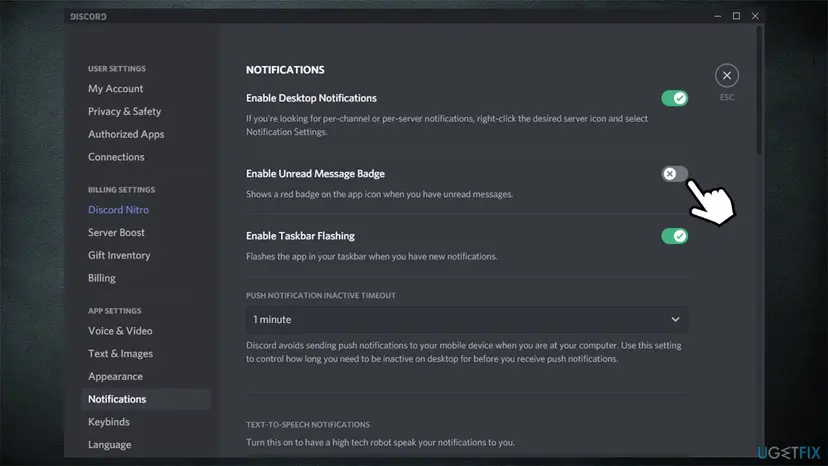
Enable Unread Message Badge, described as showing a red badge on the app icon when you have unread messages. Picture from an earlier Discord version. - Leave Enable Desktop Notifications on if you still want pop-ups for DMs and mentions.
- Press Esc or click the X to close the settings.
The change is saved at once, there is no button to confirm. Look at the taskbar: the dot should disappear within a second or two. The tray icon follows the same switch.
Users disagree on whether a red number for mentions and DMs still appears with this switch off. Some report that only the plain unread dot goes away, others that everything does. We could not confirm the current behaviour from Discord's documentation. If a number remains, Method 2 clears it.
It worked if: The Discord icon on the taskbar and in the tray shows no red dot, even while servers still have unread messages.
If not: If a red number stays, read or dismiss it with Method 2. If a red glow stays, use Method 4. If a plain dot stays, use Method 5.
Method 2. Mark everything as read, including message requests and friend requests
2 to 5 minutesNo riskYou want to keep the badge but reset it to zero, or a red number will not go away.
The badge simply mirrors Discord's unread count. Clearing the count clears the badge, and Discord has keyboard shortcuts and an Inbox button that clear whole servers at once instead of one channel at a time.
- Press Ctrl + I to open the Inbox. On the Unreads tab, select Mark Inbox As Read at the top right.
- Check the Mentions tab of the Inbox. Close each mention with its X. Discord also clears mentions there by itself after 7 days.
- For each server with a white pill or red number, right-click its icon and select Mark As Read. Or open the server and press Shift + Esc, Discord's shortcut for Mark Server Read.
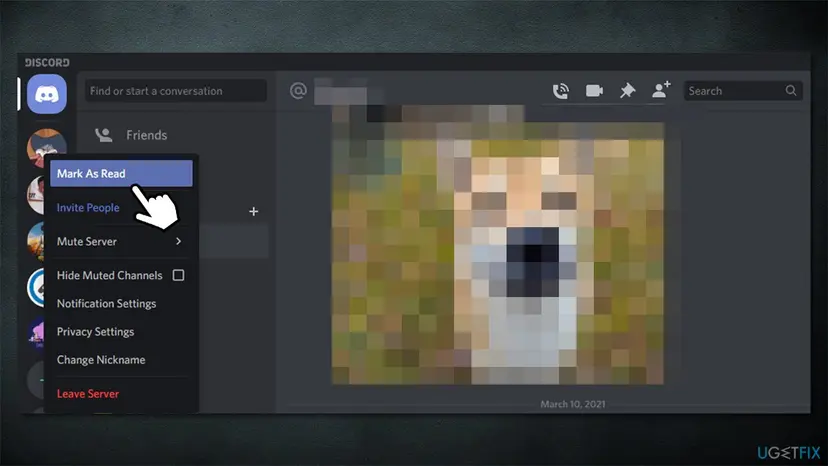
Right-click a server icon and select Mark As Read. Inside a channel, Esc marks only that channel read. - If your servers are in a folder, right-click the folder to mark all of its servers read at once, as users report.
- Select the Discord logo at the top left (Home). If a Message Requests folder is there, open it and accept or ignore each request. Check the Spam tab inside it too.
- On the Home screen, open Friends > Pending and accept or ignore each incoming request.
- Look at the taskbar icon again.
Discord lists its shortcuts in its Windows hotkeys article: Esc marks the open channel read, Shift + Esc marks the whole server read, and Ctrl + Shift + E marks the top message in the Inbox as read.
It worked if: No server shows a white pill or red number, the Inbox is empty, and the dot on the taskbar or phone icon is gone.
If not: If the dot is back within minutes, a busy server is refilling it: use Method 3. If the count is zero and the dot stays, use Method 5.
Method 3. Mute noisy servers and channels, or set them to Only @mentions
3 minutes per serverLow riskOne or two busy servers keep the dot lit, but you want the badge for everything else.
Discord says muting a channel or server "prevents unread indicators and notifications from appearing unless you are mentioned". A muted server stops feeding the badge, and the suppress switches stop mass pings from feeding it too.
- Right-click the server icon in the left column and select Notification Settings. You can also click the server name at the top left and pick it from the menu.
- Turn on Mute Server and choose a Mute duration, for example Until I turn it back on.
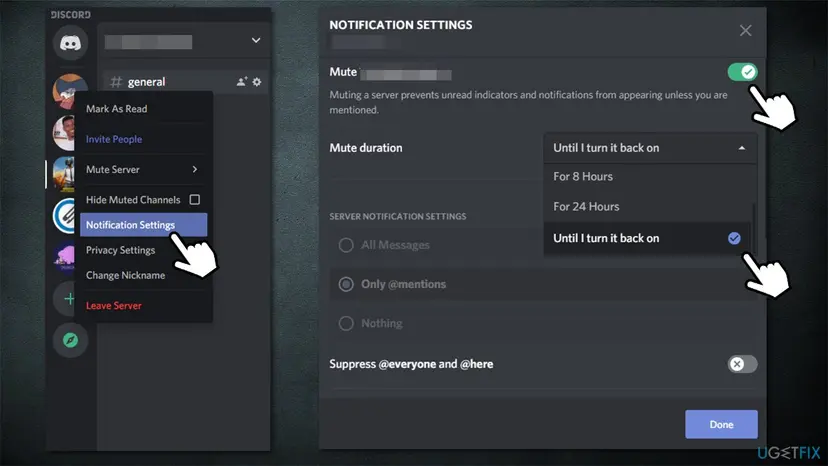
Mute the server and pick how long. Discord's mobile app offers 15 minutes, 1, 3, 8 or 24 hours, or until you turn it back on. - If you would rather not mute the whole server, select Only @mentions under Server Notification Settings.
- Turn on Suppress @everyone and @here and Suppress All Role @mentions. These pings get through a mute, so they are the most common reason a muted server still lights the dot.
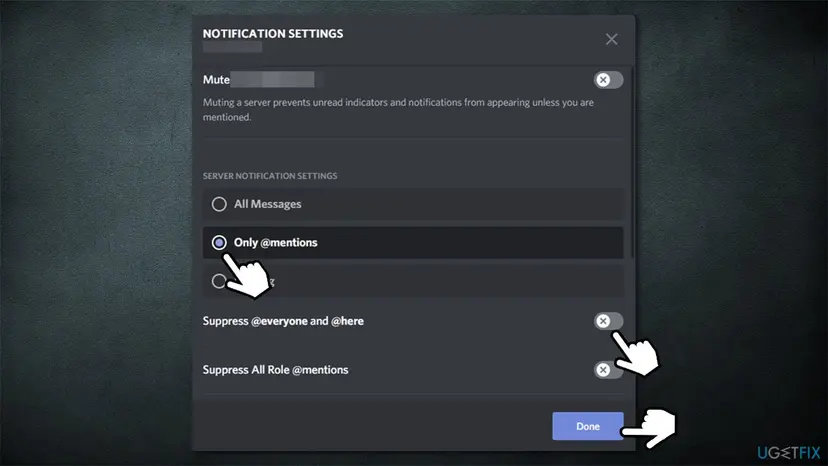
Only @mentions plus both suppress switches: only a direct @username ping still counts. - For single channels, open Notification Overrides in the same window and set the channel to Nothing or Mute. Or right-click the channel and select Notification Settings.
- Select Done if your version shows it, or close the window.
- Mark the server read once more (Method 2), so the old count is gone too.
In a channel override, Discord's Mute option is stricter than Nothing: Discord describes it as "Silence everything including @mentions". Use it only for channels where you truly never need to be reached.
It worked if: New messages in the muted server no longer bring back the dot, while DMs and direct mentions still do.
If not: If a muted server still triggers the dot, check that both suppress switches are on. If it still does, Method 1 is the only switch that ignores everything.
Method 4. Turn off the red taskbar glow and Windows taskbar badges
2 minutesLow riskYou see a red or orange highlight behind the whole Discord taskbar button, or you want Windows to hide badges.
The glow is not Discord's badge but Windows taskbar flashing, which Microsoft describes as apps flashing "to get your attention when they need it". Windows has its own switches for flashing and badges, separate from Discord's.
First the simple fix: click the glowing Discord button once. A flash normally stops when you bring the window to the front. If you want it to stop for good, turn it off in Discord and then in Windows.
- In Discord, open User Settings > Notifications and turn off Enable Taskbar Flashing.
- Right-click an empty part of the taskbar and select Taskbar settings.
- Windows 11: expand Taskbar behaviors and uncheck Show flashing on taskbar apps.
- Windows 11: in the same list, uncheck Show badges on taskbar apps if you also want Windows to stop showing badges.
- Windows 10: turn Show badges on taskbar buttons to Off.
- Windows 10 only: turning on Use small taskbar buttons also hides badges; Microsoft notes that badges are not shown on small buttons.
The Windows settings change the taskbar for all programs. Mail, Teams, Outlook and the Clock alarm badge go too. Microsoft documents them for badges in general; we could not confirm that Show badges hides the overlay that a desktop app like Discord draws. Test it, and turn it back on if it does nothing for Discord.
It worked if: The Discord button no longer turns red or orange when a message arrives, and badges are gone if you turned them off.
If not: If the glow stays after a click and both switches are off, close and restart Discord with Method 5.
Method 5. Restart Discord and Windows Explorer to clear a stuck red dot
2 minutesLow riskEverything is read, the badge is off or the count is zero, and the dot or glow is still on the icon.
The dot is an image that Discord hands to the taskbar and tray. If Discord stops updating it, the old image stays. Restarting Discord redraws it, and restarting Windows Explorer redraws the whole taskbar and tray.
- Right-click the Discord icon in the tray next to the clock and select Quit Discord. Closing the window with X only hides Discord in the tray, it does not quit it.
- If Discord does not quit, press Ctrl + Shift + Esc, select Discord in the list and choose End task.
- Start Discord again from the Start menu and wait until it loads your servers.
- If the dot is still there, restart Windows Explorer: in Task Manager select Windows Explorer and choose Restart task. The taskbar disappears for a moment and comes back.
- Look at the taskbar and tray icons again.
Ending Discord this way is safe: your messages live on Discord's servers, so nothing is lost. Step by step with screenshots: Close a frozen app (Task Manager, Force Quit). Restarting Explorer closes open File Explorer windows only, programs stay open: Restart File Explorer.
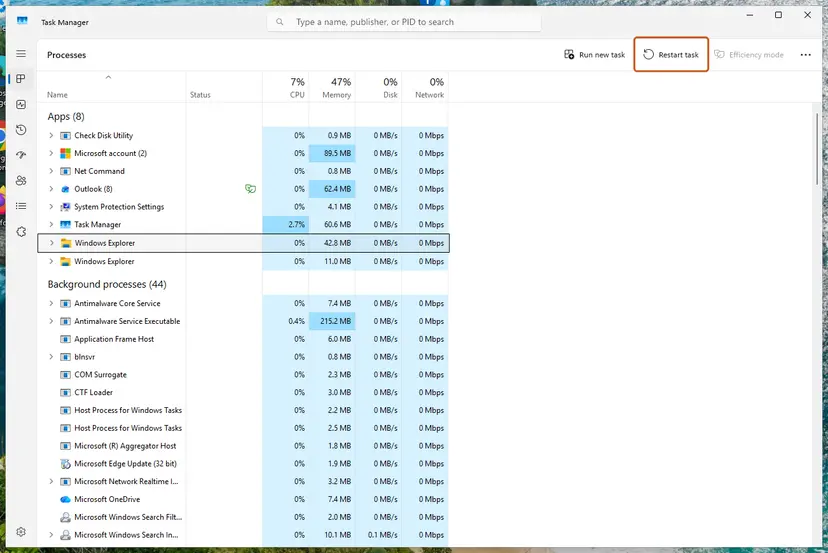
It worked if: Discord starts with a clean icon, and the dot comes back only when something new is unread.
If not: If the dot returns at once, something is still unread: open the Inbox with Ctrl + I (Method 2). If it is a phone or Mac, use Method 6.
Method 6. Turn off the Discord badge on iPhone, Android or Mac
1 minuteNo riskThe red dot or number is on Discord's icon on your phone's home screen or in the Mac Dock.
On phones and Macs the badge belongs to the operating system. Discord's own help says that once Discord sends a notification, your device's settings decide whether it shows as a banner, sound or badge.
- iPhone: open Settings > Notifications, tap Discord and turn off Badges. Banners and sounds stay as they are.
- Android: open Settings > Notifications > App notifications, tap Discord and turn off Allow notification dot. Menu names can differ by phone maker.
- Android, all apps at once: in Settings > Notifications, turn off Notification dot on app icon, as Google's help describes.
- Mac: open the Apple menu, then System Settings > Notifications, select Discord and turn off Badge application icon.
- To keep the badge but quiet one server, tap the server name in the Discord app, tap Notifications and choose Mute, Only @mentions or Nothing.
Users have long asked Discord for a badge that ignores muted servers on iPhone, and report that muted servers can still raise the count. The system switch above is the one setting that is certain to remove the dot on a phone.
It worked if: Discord's icon on the home screen or Dock has no red dot or number, while notifications still arrive if you left them on.
If not: If the dot stays on Android, check that you changed the Discord entry and not another app, then restart the phone. On iPhone, open Discord once so it can update the count.
The red dot is still on the Discord icon: what to check
If the dot survives the methods above, go through this short list. Each line is a cause we saw in Discord's documentation or in repeated user reports.
- You changed the setting on the wrong device. The desktop and mobile apps have separate notification settings, Discord says so itself. Turning off the badge on Windows does nothing for your phone.
- A new message request or friend request arrived. These come back with every new request, even after you cleared the old ones.
- The glow, not the dot. If the whole button is tinted, it is Windows flashing (Method 4), not the unread badge.
- An old Discord version. Quit Discord fully from the tray and start it again, so a pending update can install. Menus may move in a new version, but the setting names have stayed the same in the reports we read.
Reinstalling Discord is rarely needed for a badge. If you do it, your servers and messages come back after you sign in, because they are stored on Discord's side. Your local settings, including the badge switch, may reset.
How to undo it and get the red dot back
Everything in this guide is a switch. Nothing is deleted, so every change can be reversed in a few seconds. Messages you marked as read can still be scrolled to and read.
| What you changed | How to put it back |
|---|---|
| Turned off Enable Unread Message Badge | User Settings > Notifications, turn it on again. |
| Turned off Enable Taskbar Flashing | Same page, turn it on again. |
| Muted a server or channel | Right-click the server, Notification Settings, turn off Mute Server. A timed mute also ends by itself. If you muted from the Inbox, Discord says you have to unmute in the server itself. |
| Chose Only @mentions or Nothing | Select All Messages in the same window. |
| Turned on the suppress switches | Turn Suppress @everyone and @here and Suppress All Role @mentions off again. |
| Changed Windows taskbar settings | Taskbar settings, turn Show badges and Show flashing back on, and Use small taskbar buttons off on Windows 10. |
| Turned off the phone or Mac badge | iPhone Badges, Android Allow notification dot, Mac Badge application icon: turn it on again. |
| Ignored a friend or message request | Ask the person to send a new request. |
Myths about the red dot on Discord
- "The red dot means someone mentioned you." Not necessarily. A plain unread message in any unmuted channel is enough. Mentions usually show as a red number instead.
- "It is a bug from the latest update." The badge is a setting with its own switch. It looks new when an update turns it on or when you join a busy server.
- "A red circle on Discord means you are blocked or muted by someone." A red circle on your own avatar is your Do Not Disturb status, chosen by you. It says nothing about other people.
- "Muting a server removes it from the count completely." Discord says muted servers still pass on @username, @role, @everyone and @here. You also need the suppress switches.
- "The red dot is malware or a hacked account." It is a normal Discord feature. If you see logins you do not recognise, change your password and turn on two-factor authentication, but the dot itself is not a sign of that.
- "Turning off the badge also stops notifications." It does not. Desktop notifications, sounds and phone push notifications have their own switches.
One more claim we checked: that hiding the badge makes Discord lighter or faster. No source supports it, and the badge is a tiny image. Turn it off because it bothers you, not for speed.
Frequently asked questions
Why is there a red dot on my Discord icon?
Because Discord has something you have not read. The red dot is the unread message badge, and a plain unread message in any channel you have not muted is enough to show it. You do not have to be mentioned. Message requests and pending friend requests also count. Press Ctrl + I in the desktop app to open the Inbox and see what is unread. Clear it with Mark Inbox As Read and Shift + Esc, or turn the badge off in User Settings > Notifications.
How do I get rid of the red dot on the Discord icon on the taskbar?
Open Discord, click the gear icon for User Settings, select Notifications and turn off Enable Unread Message Badge. The dot on the taskbar button and in the tray disappears at once and stays away until you turn the switch back on. Messages and desktop notifications are not affected. If you see a red or orange glow behind the whole button instead of a dot, that is Windows taskbar flashing: turn off Enable Taskbar Flashing in Discord and Show flashing on taskbar apps in Windows 11 taskbar settings.
What does the red circle on the Discord icon mean?
On the app icon, a red circle or dot means unread messages, and a red circle with a number means mentions, DMs or requests waiting for you. A red circle on your own avatar inside Discord means something else: your status is set to Do Not Disturb. Discord says that status mutes all desktop notifications. A red circle with a line through the microphone or headset means you are muted or deafened in voice chat. Only the first two have anything to do with unread messages.
Why does Discord show a red dot but no message?
The unread message is usually in a server you do not look at, not in your DMs. Look for a white pill to the left of a server icon, a Message Requests folder on the Home tab, or a request under Friends > Pending. Discord says every message request shows a notification badge, and the folder only appears while one is pending. Mentions through @everyone or @here also count, even in muted servers. If nothing at all is unread, quit Discord from the tray and start it again.
Does muting a server remove the red dot?
Mostly, yes. Discord says muting a channel or server prevents unread indicators and notifications unless you are mentioned. Mentions include @everyone and @here, so a muted server with frequent mass pings still lights the dot. To stop that, open the server's Notification Settings and turn on Suppress @everyone and @here and Suppress All Role @mentions. A channel override set to Mute is stricter still: Discord describes it as silencing everything, @mentions included.
How do I remove the red dot on the Discord app on iPhone?
Open the iPhone Settings app, tap Notifications, tap Discord and turn off Badges. Apple describes this switch as the one that shows a badge on the app icon. Banners, sounds and lock screen alerts stay as they are, so you still get notified. Discord's iOS app has no badge switch of its own, its help says app-wide notification settings are managed in the iPhone's settings. To keep badges but quiet one server, mute it inside Discord.
How do I turn off the Discord notification dot on Android?
Open your phone's Settings, tap Notifications, then App notifications, tap Discord and turn off Allow notification dot. That is the path Discord's own mobile help gives. Google's help also describes a switch for all apps at once, Notification dot on app icon under Settings > Notifications. Names and menus can differ on Samsung, Xiaomi and other phones, so search for "notification dot" in Settings if you cannot find it.
How do I remove the red badge from Discord on a Mac?
Open the Apple menu, choose System Settings, select Notifications, then select Discord in the list of apps and turn off Badge application icon. Apple describes this option as letting an app show the number of notifications on its icon in the Dock. Discord's desktop app on Mac also has its own notification settings under User Settings > Notifications, where the unread badge switch lives on Windows. Either one removes the dot from the Dock.
Is the red dot on Discord a virus or a sign that my account was hacked?
No. The red dot is a normal Discord feature that shows unread messages, and it has its own switch in the settings. It often appears after an update or after you join a busy server, which is why it looks suspicious. If you are worried about your account for other reasons, such as messages you did not send, change your password and turn on two-factor authentication in User Settings. The badge itself is not a symptom of that.
Can I keep the red dot only for DMs and mentions?
Not with a single switch. Discord has no option to limit the taskbar badge to DMs and mentions, and users have asked for one in Discord's feedback forums for years. You can get close: mute every server you do not follow, set the rest to Only @mentions, and turn on Suppress @everyone and @here and Suppress All Role @mentions. Then only DMs, direct mentions and requests are left to light the dot.
Sources
- Microsoft Support: Customize the Taskbar in Windows (badges, flashing, small buttons) (support.microsoft.com)
- Microsoft Learn: ITaskbarList3::SetOverlayIcon (taskbar overlay icons) (learn.microsoft.com)
- Apple Support: Change notification settings on iPhone (support.apple.com)
Did this fix work?
One click, no account. It tells the next reader which guides are worth their time.
Questions and experiences: remove the red dot on the Discord icon (taskbar, tray, iPhone, Android and Mac)
Still broken, or found a fix we did not cover? Ask here: members and our editors answer. Reading is open; writing needs a free account.
…