
NVIDIA DXCache: safe to delete, but games rebuild it. What it is and how to clear it

Prefer to fix it yourself? The manual steps follow.
- 5methods
- 5 to 15 minutes
- Easy
Applies to Windows 11 and Windows 10 with NVIDIA GeForce, AMD Radeon or Intel Arc graphics
5 methods in this guide
I was analyzing my hard drive, and I saw that DXCache is taking up a lot of space within the NVIDIA folder. What is this folder, and can I delete its contents, seeing that it is cache-related?
DXCache is the folder where the NVIDIA graphics driver stores compiled DirectX shaders, so games do not compile them again at every start. Yes, it is safe to delete: nothing breaks and the driver rebuilds it, at the cost of a longer load or some stutter the first time you start each game. Delete it for disk space or to fix a crashing game, then cap its size.
Yes. DXCache holds only compiled shaders that the NVIDIA driver can make again, so deleting its contents harms nothing and frees the space at once. The price: each game compiles its shaders again on its next start, which means a longer load or some stutter once. Start with Method 1 (the DirectX Shader Cache box in Windows storage settings). If files are "in use", follow NVIDIA's own order in Method 2: set Shader Cache Size to Off, restart, delete, turn it back on.
| What it is | The NVIDIA driver's on-disk store of compiled DirectX shaders. GLCache and NV_Cache next to it are the same kind of cache. |
|---|---|
| Safe to delete | Yes, the contents. NVIDIA's own knowledge base tells you to delete them when a game crashes or shows artifacts. |
| What you gain | Disk space, at once. A fix only if the cache was damaged. No extra FPS on a healthy PC. |
| Side effect | The first start of each game is slower or stutters while shaders compile again. |
| Location | %USERPROFILE%\AppData\Local\NVIDIA\DXCache (NVIDIA's documented path). Users also report %USERPROFILE%\AppData\LocalLow\NVIDIA\PerDriverVersion\DXCache on some driver versions. |
| Created by | The NVIDIA graphics driver, each time a DirectX game or app compiles shaders. |
| Typical size | Up to the limit you set. NVIDIA's Driver Default is "currently 16GB" (knowledge base, May 2026). NVIDIA says demanding games may need several hundred megabytes each. |
| Comes back | Yes, as you play. A new driver also empties it by itself. |
| How to limit it | Shader Cache Size in the NVIDIA app or NVIDIA Control Panel (Method 5). |
Facts checked on 11 October 2026. Steps written for Windows 11 25H2 and 26H2 and Windows 10 22H2, with the NVIDIA app and the NVIDIA Control Panel.
What the NVIDIA DXCache folder is and who creates it
A shader is a small program that tells the graphics card how to draw a surface, a light or an effect. Games ship shaders in a general form, and the processor has to compile them for your exact card and driver. NVIDIA calls these compiles "a common cause of game-play stuttering".
The shader cache exists to do that work once. In NVIDIA's words, it "stores these compiled shaders so that subsequent runs of the same game do not need to perform the shader compilation". DXCache is the part of that cache for DirectX games. It is not a virus, not a log and not a leftover: the driver writes to it on purpose.
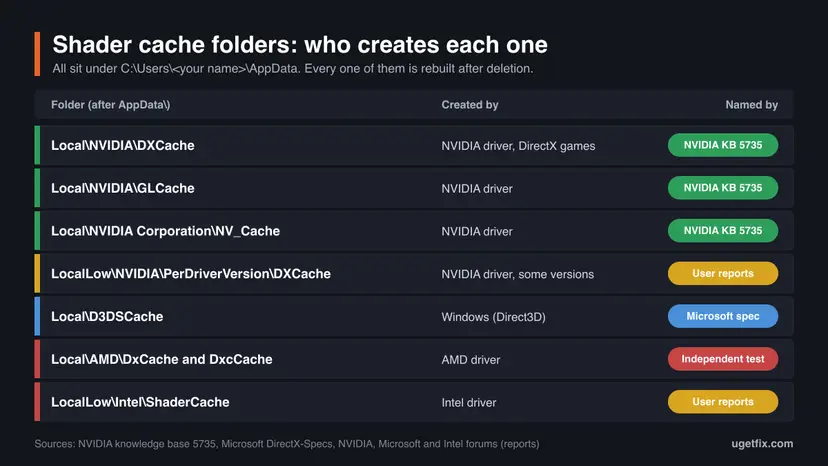
| Folder | Created by | What we know |
|---|---|---|
%USERPROFILE%\AppData\Local\NVIDIA\DXCache | NVIDIA driver. | Named in NVIDIA knowledge base article 5735, updated 25 May 2026. Delete the contents. |
%USERPROFILE%\AppData\Local\NVIDIA\GLCache | NVIDIA driver. | Named in the same NVIDIA article. Delete the contents. |
%USERPROFILE%\AppData\Local\NVIDIA Corporation\NV_Cache | NVIDIA driver. | Named in the same NVIDIA article. Delete the contents. |
%USERPROFILE%\AppData\LocalLow\NVIDIA\PerDriverVersion\DXCache | NVIDIA driver, on some versions. | Not in NVIDIA's documentation. Reported by users on NVIDIA's developer forum (February 2024) and on Microsoft Q&A (December 2024). |
D3DSCache in %USERPROFILE%\AppData\Local | Windows (Direct3D). | Microsoft's DirectX specification describes the D3DSCache component and its link to disk cleanup. It does not print the folder path: this is where users find it. |
%USERPROFILE%\AppData\Local\AMD\DxCache and DxcCache | AMD Radeon driver. | Not listed by AMD. An independent write-up found them next to DX9Cache, OglCache and VkCache. AMD's button for them is Reset Shader Cache. |
%USERPROFILE%\AppData\LocalLow\Intel\ShaderCache | Intel graphics driver. | Reported by users on Intel's community forum, some under Local\Intel instead. Intel does not document the path. |
NVIDIA does not publish which driver version stores DXCache where. Its May 2026 article names only the AppData\Local folders. A user on NVIDIA's GeForce forum described driver 566.36 writing to LocalLow\NVIDIA\PerDriverVersion. Check both places and clean the one that holds files.
What you gain and what it costs
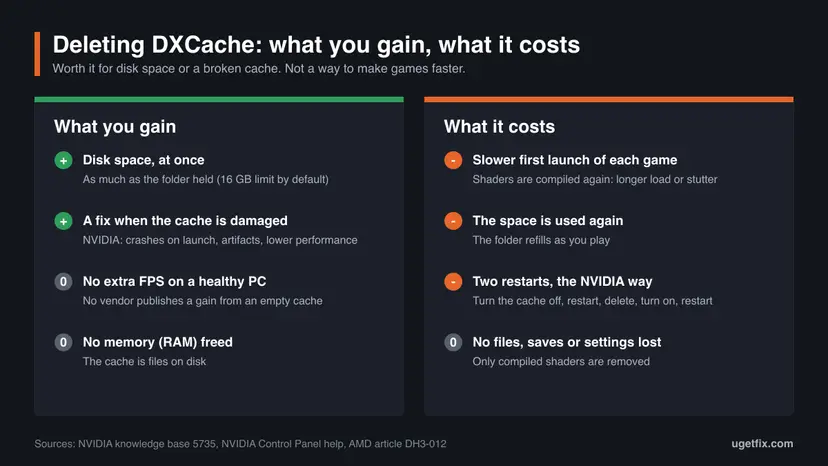
Deleting DXCache gives you back exactly the space the folder held, and it gives it back at once. That is the whole measurable gain on a PC that works well. We found no NVIDIA, AMD, Intel or Microsoft page that promises a higher frame rate from an empty shader cache.
| What happens | Source | |
|---|---|---|
| Disk space. | You get back the size of the folder. With the default setting the cache can reach NVIDIA's limit, "currently 16GB". | NVIDIA knowledge base 5735. |
| Crashes and artifacts. | Fixed only when the cache files were damaged. NVIDIA lists crashes on launch, lower performance and visual artifacts as signs. | NVIDIA knowledge base 5735. |
| Frame rate. | No gain on a healthy cache. Nothing measurable changes except disk space. | No vendor page claims one. |
| Memory (RAM). | Nothing a cleanup would free. The cache is files on a drive. | It is a disk cache by design. |
| First launch after deletion. | Each game compiles again: a longer loading screen or stutter during play, once per game. | NVIDIA Control Panel help. |
| Later. | The folder fills again as you play. The space is not saved for good unless you lower the limit. | NVIDIA Control Panel help. |
How long the rebuild takes depends on the game and the processor, and no vendor publishes a figure for it. NVIDIA only says that modern games need "tens of thousands of shader translations".
What happens after you delete DXCache
Nothing is lost that you made. Saves, game settings, driver settings and the games themselves are stored elsewhere. The only thing removed is work the processor can repeat.
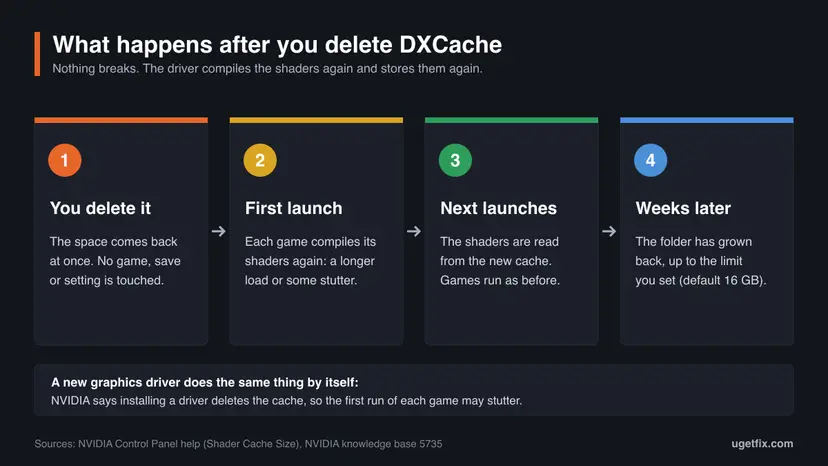
- Right away. The space is free. No restart is needed for that.
- First start of each game. Shaders compile again. Some games show a "Compiling shaders" bar, others stutter during play instead.
- Next starts. The game reads the new cache and runs as before.
- After a driver update. The same thing happens without you. NVIDIA: "Installing a new driver will delete the cache".
Who should delete DXCache and who should leave it
The cache is doing its job when it is large. Treat deletion as a repair or as a way to get space back today, and treat the size limit (Method 5) as the lasting answer.
- The system drive is nearly full and you need gigabytes now.
- A game crashes on launch, shows broken graphics or runs worse than before, and the driver is current.
- You removed several large games and want their shaders gone.
- You are about to lower Shader Cache Size and want a clean start.
- Games run well and the drive has room. You would only buy one slow start per game.
- You hope for more FPS. An empty cache does not raise the frame rate.
- You just installed a new NVIDIA driver. The installer has already emptied the cache.
- You planned to clear it every week as maintenance. Each clearing brings the stutter back.
How to delete DXCache and keep it small
The methods go from the safest built-in tool to the most thorough. Methods 1 to 3 are for NVIDIA cards, Method 4 is for AMD Radeon and Intel, and Method 5 stops the folder from growing back to the same size. Windows 10 22H2 steps are given too, although Windows 10 left support on 14 October 2025.
| Your case | Start with |
|---|---|
| You want space back and nothing else. | Method 1, then check the folder size. |
| The folder is still large, or a game crashes or shows artifacts. | Method 2. |
| Windows says a file is in use and will not delete it. | Method 2. If it still refuses, Method 3. |
| You have an AMD Radeon or Intel card. | Method 4. |
| The folder keeps growing back. | Method 5. |
Method 1. Clear the DirectX Shader Cache with Windows storage settings
3 minutesNo riskYou want the safest built-in cleanup and have not touched the NVIDIA folders yet.
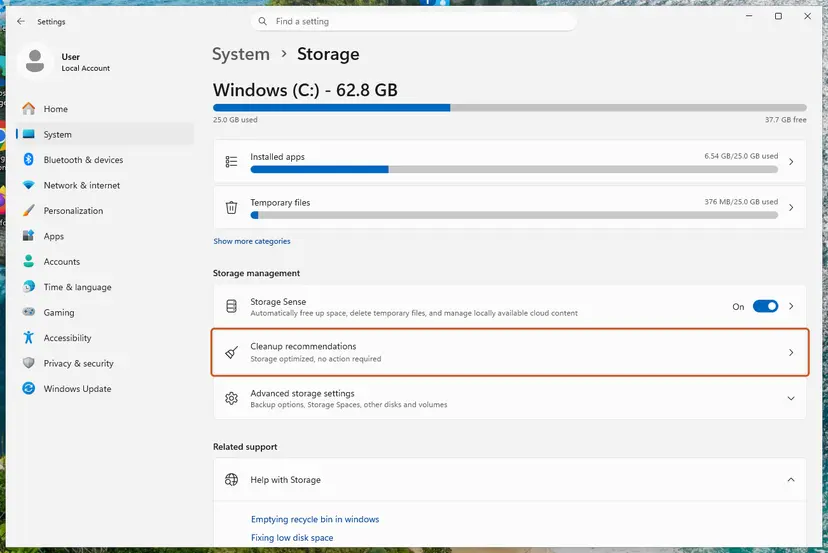
Windows keeps its own Direct3D shader cache (D3DSCache), and Microsoft built its cleanup into the storage tools. The same list shows other temporary files, so one pass often frees more than the shader cache alone.
- Press Win + I to open Settings.
- Open System > Storage.
- Select Temporary files and wait for the list to load.
- Tick DirectX Shader Cache.
- Untick Downloads if it is listed and you keep files there.
- Select Remove files.
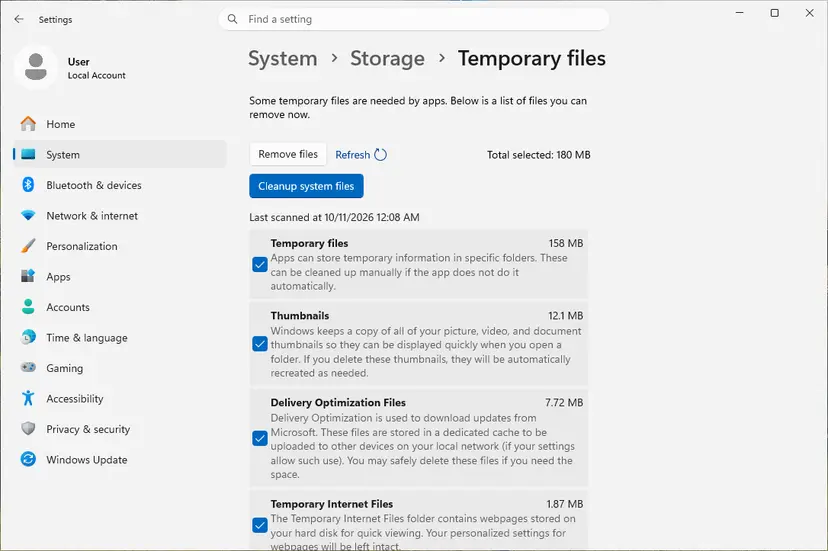
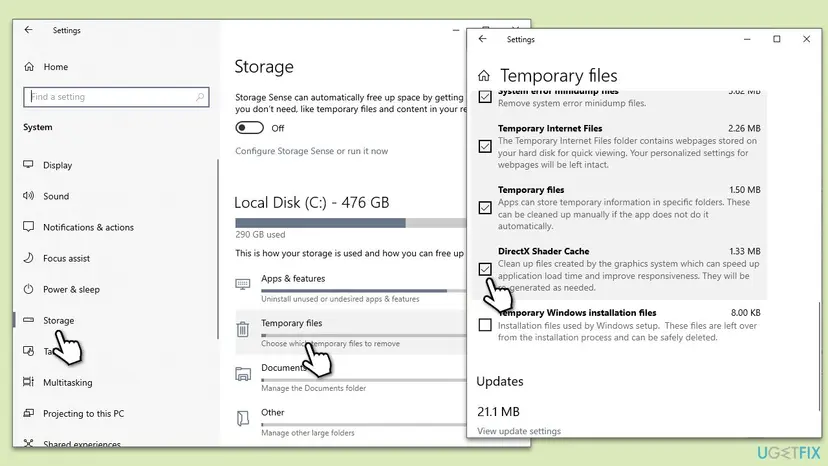
The older Disk Cleanup tool does the same on both Windows versions. Type disk cleanup in the taskbar search box, pick drive C:, tick DirectX Shader Cache, select OK and then Delete files. More ways to free space: Free up disk space and delete temporary files.
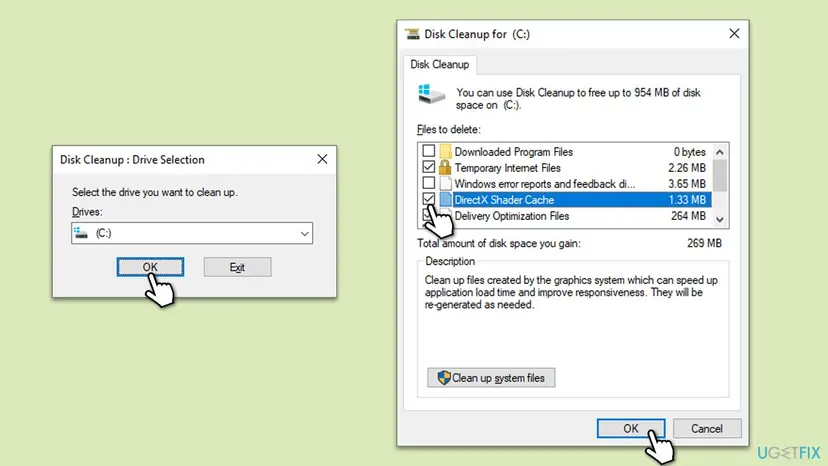
Microsoft's specification says disk cleanup clears the caches that the D3DSCache component manages. It does not say that the NVIDIA, AMD or Intel folders are emptied too. Open the NVIDIA folder afterwards and look at its size.
It worked if: The DirectX Shader Cache line drops to a few kilobytes and the drive shows more free space.
If not: If the NVIDIA DXCache folder is still large, go to Method 2, which is NVIDIA's own procedure.
Method 2. Delete the NVIDIA cache the way NVIDIA says: turn it off, restart, delete, turn it on
10 minutesLow riskDXCache is still large, a game crashes or shows artifacts, or Windows says the files are in use.
While the cache is on, Windows and running apps keep some cache files open, so they cannot be deleted. NVIDIA's knowledge base article 5735 turns the cache off first and restarts, so nothing holds the files when you delete them.
First turn the cache off.
- Open the NVIDIA app.
- Select Graphics in the left column.
- Select Global Settings at the top.
- Find Shader Cache Size and set it to Off. NVIDIA's April 2026 app news calls the same screen Shader Cache.
- Select Apply.
- Restart the PC.
Then delete the contents of the cache folders, not the folders themselves.
- Press Win + R, paste
%USERPROFILE%\AppData\Localand press Enter. - Open the NVIDIA folder, then DXCache. Press Ctrl + A, then Delete.
- Go back and do the same in GLCache.
- Go back to Local, open NVIDIA Corporation, then NV_Cache, and delete its contents.
- Press Win + R again and paste
%USERPROFILE%\AppData\LocalLow\NVIDIA\PerDriverVersion\DXCache. If the folder exists, empty it too. - Empty the Recycle Bin, or the space is not freed.
Last, turn the cache back on. Do not skip this part.
- Open the NVIDIA app and go to Graphics > Global Settings > Shader Cache Size.
- Set it back to Driver Default ("currently 16GB" according to NVIDIA) or to a smaller value from Method 5.
- Select Apply and restart the PC once more.
On a PC that still uses the NVIDIA Control Panel, the same setting is under Manage 3D settings, and the off value is named Disabled. NVIDIA added it in driver Release 495, so older drivers do not have it.
It worked if: The three folders are empty, and after the second restart new files appear in DXCache as soon as you start a game.
If not: If Windows still reports a file in use, go to Method 3 and delete from Safe Mode.
Method 3. Delete files that are "in use" from Safe Mode
10 minutesLow riskWindows refuses to delete some DXCache files even after Method 2.
On Microsoft Q&A a Microsoft support specialist explained that ApplicationFrameHost, TextInputHost and File Explorer keep the .bin and .toc files in DXCache open, because Windows draws its own interface with DirectX. The answer calls this normal and points to Safe Mode for cleaning the folder.
- Close every game and launcher.
- Start Windows in Safe Mode. Step by step: Start Windows or a Mac in Safe Mode.
- Press Win + R, paste
%USERPROFILE%\AppData\Local\NVIDIAand press Enter. - Empty DXCache and GLCache.
- Paste
%USERPROFILE%\AppData\LocalLow\NVIDIA\PerDriverVersion\DXCachein the Run box and empty that folder if it exists. - Restart the PC normally.
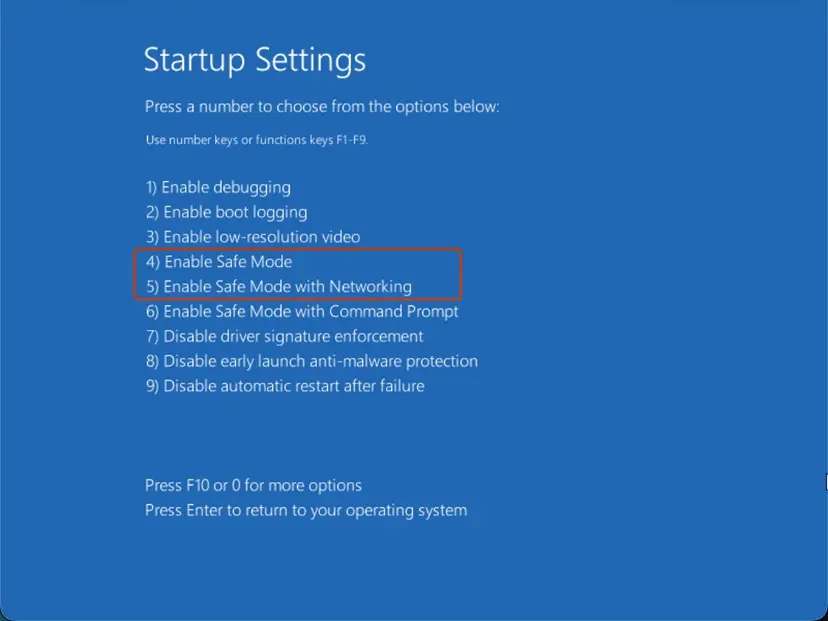
A few locked files are small. If two or three files stay and the rest is gone, you have your space back. Leave them: the driver replaces them when it needs to.
It worked if: The files that were locked are gone and the folder size is near zero before the first game starts.
If not: If files still cannot be deleted in Safe Mode, install the current NVIDIA driver, which empties the cache during setup: Update, roll back or reinstall a driver.
Method 4. AMD Radeon and Intel: reset the shader cache from the driver software
3 minutesNo riskYour card is an AMD Radeon and the folder you found is AMD\DxCache or DxcCache, or you have Intel graphics.
AMD gives its cache a button, so you do not have to touch the folders. AMD's article DH3-012 says: "Reset Shader Cache can be used to delete all stored shader cache files". The effect is the same as on NVIDIA: space back now, one slow start per game.
- Open AMD Software: Adrenalin Edition from the Start menu.
- Open the global graphics settings. AMD's article reaches them by typing Display in the search box of the app.
- Select Advanced to expand the list.
- Select Reset Shader Cache and confirm if the app asks.
AMD wrote those steps for Adrenalin 23.9.1, so the position of the button can differ in newer versions. Intel has no such button: an Intel moderator confirmed on Intel's forum in April 2026 that a shader cache size setting is not available. On Intel graphics use Method 1, or empty the ShaderCache folder that users report under %USERPROFILE%\AppData\LocalLow\Intel or %USERPROFILE%\AppData\Local\Intel.
It worked if: The DxCache and DxcCache folders under %USERPROFILE%\AppData\Local\AMD shrink, and games compile shaders again on their next start.
If not: If the button is missing, close all games, empty those folders by hand and skip any file that Windows reports as in use.
Method 5. Limit the size so the folder stops growing back
2 minutesNo riskYou deleted the cache before and it returned to the same size.
The driver keeps writing until it reaches its limit, and the default limit is large. A lower limit is the only lasting fix. NVIDIA explains that near the limit "the driver will remove older shaders from the cache to make space for newer shaders".
- Open the NVIDIA app and go to Graphics > Global Settings > Shader Cache Size. In the NVIDIA Control Panel, open Manage 3D settings instead.
- Choose a limit. The NVIDIA Control Panel help lists Disabled, Unlimited, 128 MB, 256 MB, 512 MB, 1 GB, 5 GB, 10 GB and 100 GB.
- Select Apply.
- Restart the PC.
| Value | Good for | Watch out |
|---|---|---|
| Driver Default. | Most PCs with free space. | "Currently 16GB", says NVIDIA. Larger sizes suit larger game libraries. |
| 5 GB or 10 GB. | A small system drive and a handful of games. | Old shaders are removed when the limit is reached. |
| 1 GB or less. | Very small drives, one or two light games. | NVIDIA warns that too small a limit removes shaders you still use and causes stutter. |
| Unlimited or 100 GB. | Large libraries on a large drive. | The folder can grow far past 16 GB. |
| Disabled or Off. | Only the cleanup in Method 2. | Every game compiles its shaders at every start. Do not leave it like this. |
NVIDIA's rule: set a limit "large enough to cover the set of games you normally use, but not too large that it exceeds your available hard drive disk space". We could not confirm that the NVIDIA app offers exactly the same list of values as the Control Panel help page.
It worked if: After some weeks of play the DXCache folder stays at or under the limit you chose.
If not: If games you play often start to stutter again, the limit is too small: raise it one step.
Keeping DXCache small, or moving it to another drive
Method 5 is the supported way to keep the folder small. Two more things help without any tweak: keep the NVIDIA driver current, because each driver installation empties the cache, and remove games you no longer play.
Moving the folder is a different matter. NVIDIA has no setting for the cache location. A developer asked for one on NVIDIA's developer forum in February 2024, and the thread has no answer from NVIDIA.
- What people do instead. They replace the DXCache folder with a directory junction that points to another drive. Microsoft documents the command as
mklink /j <link> <target>. - How it would look. With the cache set to Off and the old folder moved away:
mklink /j "%USERPROFILE%\AppData\Local\NVIDIA\DXCache" "D:\NVIDIA\DXCache". - What we could not confirm. Neither NVIDIA nor Microsoft documents a junction for this folder, and a driver update may recreate or ignore it. Treat it as an experiment.
- When it is not worth it. If the other drive is a slow hard disk, shaders load from the slow disk too. A 5 GB or 10 GB limit on the system drive is the simpler answer.
Since driver 595.97 the NVIDIA app has a beta feature, Auto Shader Compilation, which rebuilds DirectX 12 shaders after a driver update while the PC is idle. It is off by default. It shortens the slow first start after driver updates, it does not shrink the folder.
How to undo it and put everything back
There is nothing to restore after deleting the cache, and nothing worth backing up before. The files are rebuilt by playing. A copy of old cache files is of little use, because a new driver discards the cache anyway.
| What you changed | How to put it back |
|---|---|
| Deleted the contents of DXCache, GLCache or NV_Cache. | Start your games. The driver writes new files. |
| Set Shader Cache Size to Off or Disabled. | Set it to Driver Default, select Apply, restart. |
| Chose a smaller size limit. | Choose a larger value or Driver Default. The cache grows again as you play. |
| Used Reset Shader Cache in AMD Software. | Nothing to do. The cache refills by itself. |
| Created a junction to another drive. | Set the cache to Off, restart, remove the junction with rd followed by its path, create an empty DXCache folder, turn the cache on. |
| Deleted the DXCache folder itself, not only its contents. | Start a game and check that the folder is back. We could not confirm that every driver version recreates it. If it stays missing, reinstall the driver: Update, roll back or reinstall a driver. |
The one change that hurts when forgotten is Off. With the shader cache off, games compile shaders at every start, which NVIDIA names as a common cause of stutter. Check the setting after any cleanup.
Myths about DXCache and the shader cache
Most advice about this folder is copied from one video to the next. Here is what the vendors' own pages support and what they do not.
- "Deleting the cache raises FPS." No vendor page says so. NVIDIA recommends deletion only when the files are damaged, and a rebuilt cache does the same job as the old one.
- "DXCache is a virus or junk." It is written by the graphics driver in its own folder. A large size means many compiled shaders, nothing else.
- "Clear it every week." Each clearing forces every game to compile again. Regular clearing trades smooth starts for space that fills up again.
- "Turn the shader cache off to save resources." The opposite happens. Without a cache the processor compiles the same shaders at every start.
- "The DirectX Shader Cache in Disk Cleanup is the NVIDIA folder." They are two caches. Windows manages D3DSCache, the NVIDIA driver manages DXCache.
- "Unlimited is always best." It avoids evicting shaders, and it also lets the folder grow without a ceiling. On a small system drive that is the problem you came here with.
Frequently asked questions
What is DXCache in the NVIDIA folder and can I delete it?
DXCache is the NVIDIA driver's store of compiled DirectX shaders, and yes, you can delete what is in it. NVIDIA documents the folder under %USERPROFILE%\AppData\Local\NVIDIA and tells users to delete its contents when a game crashes on launch or shows visual artifacts. The driver creates the files again the next time a game runs. Expect a longer loading screen or some stutter on the first start of each game, and expect the folder to grow back.
What happens if you delete the DX cache?
You get the disk space back at once and nothing you made is touched. Saves, settings and the games themselves are stored elsewhere. On its next start each DirectX game compiles its shaders again, so it loads longer or stutters for a while, once. After that it runs as before. Over the following weeks the folder fills again, up to the limit set in Shader Cache Size, which NVIDIA says is currently 16 GB by default.
I can't delete the DXCache folder because files are in use. What should I do?
Turn the cache off first, as NVIDIA's own article does: in the NVIDIA app set Shader Cache Size to Off, select Apply and restart, then delete the contents and turn the setting back to Driver Default. The files are locked because Windows parts such as File Explorer and TextInputHost use DirectX and keep them open, which a Microsoft support specialist described as normal. If some files still refuse, delete them in Safe Mode, or leave those few small files alone.
Can I delete the AMD DxCache and DxcCache folders?
Yes. They are the AMD Radeon driver's shader cache, the same kind of data as NVIDIA's DXCache. The clean way is the Reset Shader Cache option under the advanced graphics settings of AMD Software, which AMD says deletes the stored shader cache files. If you empty the folders by hand, close your games first and skip files that Windows reports as in use. Games compile their shaders again on the next start, so the first launch is slower.
Is it safe to delete GLCache and NV_Cache in AppData Local NVIDIA as well?
Yes. NVIDIA's knowledge base article 5735 names all three: DXCache and GLCache in %USERPROFILE%\AppData\Local\NVIDIA, and NV_Cache in %USERPROFILE%\AppData\Local\NVIDIA Corporation. It tells you to delete the contents of each. Delete what is inside the folders and keep the folders themselves. Do not delete other folders next to them just because they are large: this guide covers only the cache folders that NVIDIA names.
Does the shader cache increase FPS, and should I disable it?
The cache does not raise the top frame rate, it removes pauses, so do not disable it. Compiling a shader takes processor time, and when that happens during play you see a stutter. With the cache on, the compile happens once and later runs read the result from disk. With the cache off, every start of every game compiles again. NVIDIA's help calls shader compiles a common cause of game-play stuttering, which is the reason the cache exists.
Why is my DXCache folder empty or missing?
There are three ordinary reasons. First, Shader Cache Size may be set to Off or Disabled, so nothing is written. Second, you may have just installed a driver, and NVIDIA says a driver installation deletes the cache. Third, your driver version may write somewhere else: users report %USERPROFILE%\AppData\LocalLow\NVIDIA\PerDriverVersion\DXCache on some versions, and NVIDIA does not document which. Start a DirectX game for a few minutes and look at both folders again.
How big can DXCache get, and how do I stop it growing?
It can grow to the limit set in Shader Cache Size. NVIDIA's knowledge base says Driver Default is currently 16 GB, and the Control Panel help lists values from 128 MB to 100 GB plus Unlimited. To stop the growth, choose a lower value such as 5 GB or 10 GB. The driver then removes the oldest shaders when the limit is near. Do not go too low: NVIDIA warns that a small limit removes shaders you still use.
Is the DirectX Shader Cache in Disk Cleanup the same thing as NVIDIA DXCache?
No, although both hold compiled shaders. The DirectX Shader Cache item in Disk Cleanup and in Windows storage settings belongs to Windows, which runs a Direct3D component called D3DSCache. DXCache belongs to the NVIDIA driver. Microsoft's specification says disk cleanup clears the caches that D3DSCache manages, and it does not mention vendor folders. Both are safe to clear, and both are rebuilt. If your goal is the NVIDIA folder, check its size after the Windows cleanup.
Do I need to clear the shader cache after every driver update?
No. NVIDIA's Control Panel help states that installing a new driver deletes the cache, so the update has already done it. That is also why the first run of each game after an update may stutter. Since driver 595.97 the NVIDIA app offers a beta feature, Auto Shader Compilation, that rebuilds DirectX 12 shaders while the PC is idle. It is off by default and is found under Graphics > Global Settings > Shader Cache.
Sources
- NVIDIA Control Panel help: Manage 3D Settings (reference), Shader Cache Size (nvidia.com)
- NVIDIA: NVIDIA app update with Auto Shader Compilation beta (15 April 2026) (nvidia.com)
- Microsoft Support: Free up drive space in Windows (support.microsoft.com)
Did this fix work?
One click, no account. It tells the next reader which guides are worth their time.
Questions and experiences: NVIDIA DXCache: safe to delete, but games rebuild it. What it is and how to clear it
Still broken, or found a fix we did not cover? Ask here: members and our editors answer. Reading is open; writing needs a free account.
…