
How to uninstall Advanced IP Scanner completely

Prefer to fix it yourself? The manual steps follow.
6 methods in this guide
Hello, guys. I have been using Advanced IP Scanner, but it seems to be dead now. I don't know what happened, but it does not work. The official website also seems dead, so I assume the software has been discontinued. How can I uninstall Advanced IP Scanner completely? Whenever I delete it via Programs and Features, it gets reinstalled.
Advanced IP Scanner is a free network scanner from Famatech Corp. Windows does not need it, so it is safe to remove. Close it, uninstall it in Settings, then delete its registry key and Temp folder to clear the saved scan history.
Advanced IP Scanner is a legitimate, still maintained network scanner by Famatech Corp, and removing it breaks nothing in Windows. Close it, open Settings > Apps > Installed apps, select More > Uninstall next to Advanced IP Scanner and confirm. If it is not listed, it is the portable version: delete the file. Then delete HKEY_CURRENT_USER\Software\Famatech\advanced_ip_scanner and the Temp folder Advanced IP Scanner 2 to clear its scan history.
| Program | Advanced IP Scanner, a free Windows tool that lists the devices on your local network and opens HTTP, FTP, RDP, Radmin and shared folder connections to them. Current version 2.5.4594.1. |
|---|---|
| Publisher | Famatech Corp., the maker of Radmin. Official site advanced-ip-scanner.com. |
| Safe to remove | Yes. It is not part of Windows and no other program needs it. You lose your Favorites list unless you save it first. |
| Leaves behind | The registry key HKEY_CURRENT_USER\Software\Famatech\advanced_ip_scanner with your settings and scan history, and the folder %LOCALAPPDATA%\Temp\Advanced IP Scanner 2. |
| Official removal tool | None. The program's own uninstaller runs from Installed apps or Programs and Features. |
| Installs besides itself | No service, driver or browser add-on is named in Famatech's help. Radmin and Radmin VPN are separate programs with their own entries. |
| Needs a restart | Not required. A restart before you check the leftovers is a good idea. |
| Time | About 10 minutes. |
| What stops working | Network scans, Wake-on-LAN, remote shut down and the quick Radmin, RDP and HTTP connections from its list. |
Facts checked on 15 October 2026. Steps written for Windows 11 (25H2 and 26H2) and Windows 10 22H2, read against Famatech's own help and download pages.
What Advanced IP Scanner is and whether you should remove it
Advanced IP Scanner is a free network scanner from Famatech Corp. You enter a range of IP addresses, click Scan, and it lists every computer and device it finds, with names and MAC addresses. Famatech's help lists Windows 11, 10, 8 and 7 as supported.
From the list you can open a shared folder, connect over HTTP, HTTPS, FTP, RDP or Radmin, ping or trace a device, send Wake-on-LAN, or shut a remote PC down when you have the rights. It is a tool for IT staff and home users who manage several machines.
| What you see | What it is | Where |
|---|---|---|
| Advanced IP Scanner in Installed apps. | The installed program. Publisher Famatech Corp. | Settings > Apps > Installed apps. |
advanced_ip_scanner.exe in Task Manager. | The running scanner, installed or portable. | Task Manager > Processes or Details. |
A file Advanced_IP_Scanner_2.5.4594.1.exe. | The setup file from Famatech's download page. | Usually your Downloads folder. |
Key Famatech\advanced_ip_scanner in the registry. | Settings, language and the list of ranges you scanned. | HKEY_CURRENT_USER\Software. |
The genuine program from Famatech is legitimate and is not a virus. Remove it if you no longer scan your network. Windows, your internet connection and your other programs keep working.
Incident responders at Hunt & Hackett report that ransomware groups such as Conti, REvil and Ryuk have used Advanced IP Scanner to map victims' networks. A copy you did not put there, on a work PC or at home, is a reason to scan the PC with Microsoft Defender and tell your IT team before you remove it.
The old belief that the program is dead is wrong. In October 2026 the official site is online and offers version 2.5.4594.1 for download.
Before you start: installed or portable, and what you lose
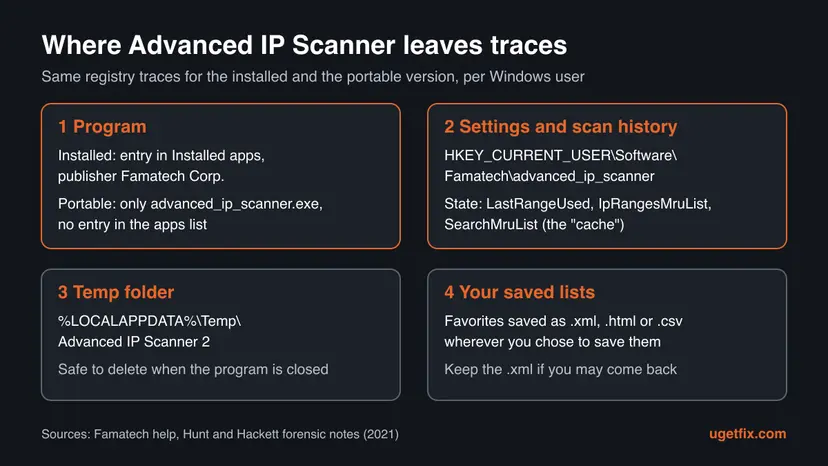
Advanced IP Scanner runs in two ways. The installed version has an entry in the list of apps and its own uninstaller. The portable version runs from a single file and has no entry at all, so there is nothing to uninstall: you delete the file.
Both versions write the same registry key for your Windows user, so the cleanup at the end is the same for both. Only the Favorites list is worth keeping, and only if you plan to scan again later.
| Data | Where it lives | How to keep it |
|---|---|---|
| Favorites list of computers. | Inside the program. | File > Save as to .xml. Only .xml can be loaded back with File > Load Favorites. |
| Scan history and last range. | Registry key ...\advanced_ip_scanner\State. | Not needed. A new scan rebuilds it. |
| Options (speed, resources, clients). | Registry key ...\advanced_ip_scanner. | Not worth keeping. They take a minute to set again. |
| Lists you saved earlier. | .xml, .html or .csv files where you saved them. | The uninstaller does not touch them. |
You need an administrator account for the installed version. Windows 10 left support on 14 October 2025. The steps still work there, and the differences are noted.
How to uninstall Advanced IP Scanner completely, step by step
Do the steps in order. Step 4 is only for the portable version. If the uninstall fails, go to the section "Advanced IP Scanner will not uninstall" below.
Step 1. Save your Favorites list of computers
2 minutesNo riskYou built a Favorites list and may install Advanced IP Scanner again, here or on another PC.
The Favorites list lives inside the program's settings. Famatech's help says it can be saved to a file and loaded back, but only from an .xml file.
- Open Advanced IP Scanner and select the Favorites tab.
- Select File > Save as.
- Choose the
.xmlformat, a folder such as Documents, and save. - To bring it back later, use File > Load Favorites in a new installation.
It worked if: An .xml file with your computers is in Documents.
If not: If the program will not open, skip this step. The list cannot be read from the registry by hand.
Step 2. Close Advanced IP Scanner and end its process
1 minuteNo riskAnyone who has used the scanner since the last restart, installed or portable.
A running scan holds the program file open, and the uninstaller then stops or leaves the file behind. The program also writes its scan history to the registry only when it closes.
- Let a running scan finish or stop it, then close the window.
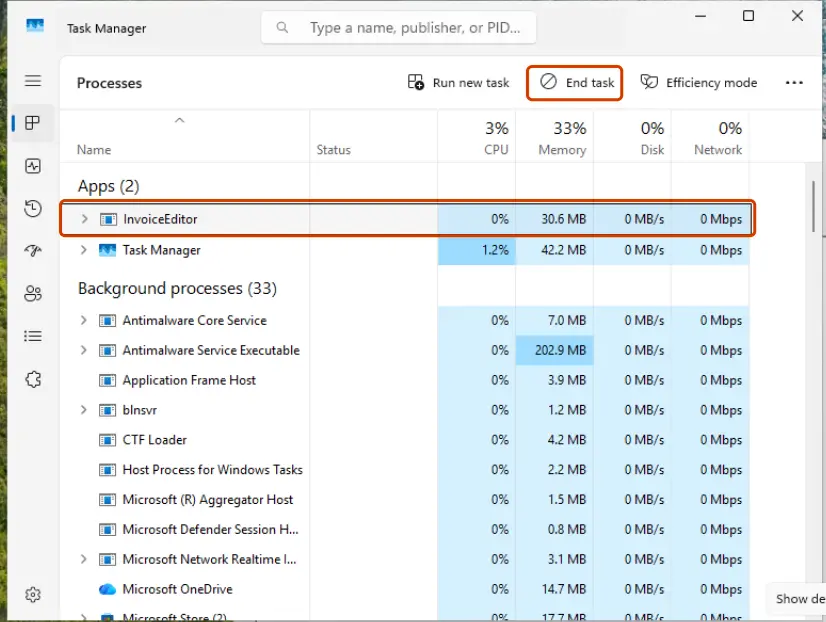
- Press Ctrl + Shift + Esc to open Task Manager.
- Find Advanced IP Scanner or
advanced_ip_scanner.exe, select it and click End task.
More ways to close a program that will not quit: Close a frozen app (Task Manager, Force Quit).
It worked if: Task Manager shows no Advanced IP Scanner process.
If not: Restart the PC, do not open the program, and go on with Step 3.
Step 3. Uninstall Advanced IP Scanner in Windows Settings
2 minutesLow riskAdvanced IP Scanner is in the list of installed apps.
This runs the program's own uninstaller, the way Microsoft recommends for any desktop program. It removes the program folder, the shortcuts and the apps list entry.
- Select Start > Settings > Apps > Installed apps. On Windows 10 the page is Apps & features.
- Type
Advanced IPin the search box above the list. - On Windows 11, select More (three dots) next to Advanced IP Scanner, then Uninstall. On Windows 10, select the entry, then Uninstall.
- Click Uninstall again to confirm, then Yes in the User Account Control prompt.
- Confirm in the program's own uninstall window and wait until it says the removal is complete.

If Settings will not remove it, use Control Panel: open Control Panel > Programs > Programs and Features, right-click Advanced IP Scanner and select Uninstall. Pictures of every Windows uninstall screen: Uninstall a program or app in Windows.
It worked if: A search for Advanced IP in Installed apps returns nothing, and the Start menu shortcut is gone.
If not: If there was no entry to begin with, go to Step 4. If the uninstaller fails, see "Advanced IP Scanner will not uninstall" below.
Step 4. Delete the portable copy of Advanced IP Scanner
3 minutesLow riskAdvanced IP Scanner runs on the PC but has no entry in Installed apps.
The portable version is never installed, so Windows has no uninstaller for it. Deleting the program file and the setup file is the whole removal.
- Start the program once more, then open Task Manager with Ctrl + Shift + Esc.
- Right-click Advanced IP Scanner and select Open file location. Note the folder.
- End the task, then delete the program file and its folder in File Explorer.
- Open your Downloads folder and delete any
Advanced_IP_Scannersetup file. - Empty the Recycle Bin.
If the folder is in %LOCALAPPDATA%\Temp, it is the working folder the program creates there. Delete it after the program is closed.
It worked if: The program no longer starts, and no advanced_ip_scanner.exe is left in the folder you noted.
If not: If the file cannot be deleted, restart and delete it before you open anything else.
Step 5. Clear the settings and scan history (the "cache")
3 minutesRead the warningYou want no trace of the program, or you only want to clear its history of scanned ranges.
Neither the uninstaller nor deleting a portable copy removes the registry key the program creates on first start. It holds your settings and every IP range and address you scanned or searched for.
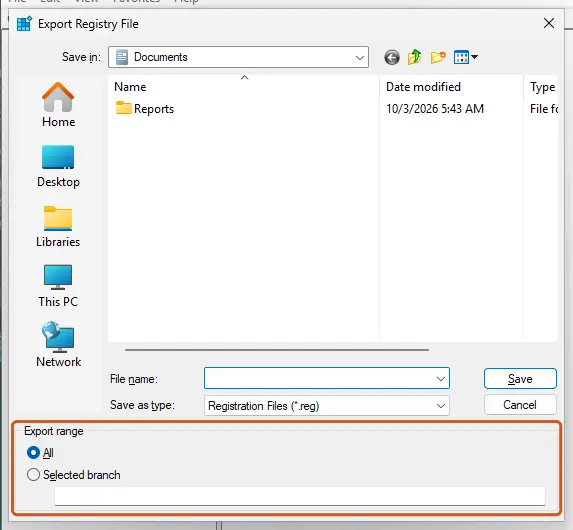
A wrong registry deletion can break other programs. Delete only the one key named below, and back it up first: Back up the registry before editing it.
- Press Win + R, type
regeditand press Enter. Click Yes in the User Account Control prompt. - Paste
HKEY_CURRENT_USER\Software\Famatech\advanced_ip_scannerinto the address bar and press Enter. - To clear only the history, open State and delete the values
LastRangeUsed,IpRangesMruListandSearchMruList. - To remove everything, right-click advanced_ip_scanner and select Delete, then Yes.
- Delete the Famatech key too, but only if it is empty and you do not use Radmin or Radmin VPN.
- Press Win + R, type
%LOCALAPPDATA%\Temp, press Enter and delete the folderAdvanced IP Scanner 2if it is there.
It worked if: Registry Editor no longer finds the advanced_ip_scanner key, and the Temp folder is gone.
If not: If the key comes back, the program is still running somewhere. End it in Task Manager and delete the key again.
Step 6. Restart and confirm Advanced IP Scanner is gone
3 minutesNo riskAnyone who finished the steps above and wants to be sure nothing is left.
A restart ends any copy still running and releases locked files. Only after it can you trust the checks below.
- Select Start > Power > Restart.
- Search for
Advanced IPin Installed apps and in the Start menu. - Go through the table in "How to confirm Advanced IP Scanner is gone" below.
It worked if: No entry, process, folder or registry key of Advanced IP Scanner is found.
If not: If it is back after the restart, read "It comes back after I remove it" below.
What Advanced IP Scanner leaves behind and where to find it
These are the traces named by Famatech's help and by the forensic notes of Hunt & Hackett. Each Windows user who ran the program has their own registry key.
| Where | What it is | Delete it? |
|---|---|---|
Registry key HKEY_CURRENT_USER\Software\Famatech\advanced_ip_scanner. | Settings: language (locale), first start time (locale_timestamp), view options. | Yes, after Step 3 or 4. |
Subkey ...\advanced_ip_scanner\State. | Scan history: LastRangeUsed, IpRangesMruList, SearchMruList, window size, last tab. | Yes. This is what people call the cache. |
Folder %LOCALAPPDATA%\Temp\Advanced IP Scanner 2. | The program's working folder in Temp. | Yes, when the program is closed. |
Setup file Advanced_IP_Scanner_2.5.4594.1.exe. | The installer you downloaded. | Yes, unless you want to install again. |
Your .xml, .html or .csv lists. | Favorites or results you saved yourself. | Your choice. The uninstaller leaves them. |
Key HKEY_CURRENT_USER\Software\Famatech. | The parent key, shared with other Famatech programs. | Only if empty and Radmin is not used. |
| Services, drivers, scheduled tasks. | None are named in Famatech's help. We could not confirm any. | Nothing to remove by hand. |
The old advice to search the whole registry for "Advanced IP Scanner" and delete every hit is risky. Windows keeps references to programs in many keys that are not the program's own. The keys in the table are enough.
Advanced IP Scanner will not uninstall: each failure and its way out
| What you see | Likely cause | Way out |
|---|---|---|
| Not in Installed apps, but the program runs. | It is the portable version. | Do Step 4. |
| The uninstaller says the file is in use. | A scan or a hidden copy is still running. | Do Step 2, or restart and uninstall before you open it. |
An error that unins000.exe is missing. | The program folder was deleted by hand before the uninstall. | Install the same version again from the official site, then uninstall it at once. |
| The entry stays in the list after the uninstall. | A broken uninstall record. | Restart. If it stays, reinstall and uninstall, or use Microsoft's troubleshooter below. |
| It comes back after I remove it. | Another Windows user, a second copy, or someone runs it on purpose. | See the paragraph below. |
The Windows uninstall entry stores the command it runs in a value called UninstallString. People search for unins000.exe with this program, which suggests that is the uninstaller's file name, but we could not confirm it from a Famatech source. Read it on your PC with this PowerShell command:
Get-ItemProperty HKLM:\Software\Microsoft\Windows\CurrentVersion\Uninstall\*, HKLM:\Software\WOW6432Node\Microsoft\Windows\CurrentVersion\Uninstall\*, HKCU:\Software\Microsoft\Windows\CurrentVersion\Uninstall\* | Where-Object DisplayName -like '*Advanced IP Scanner*' | Select-Object DisplayName, DisplayVersion, Publisher, InstallLocation, UninstallStringThe InstallLocation it prints is the program folder. If the folder still exists, you can run the uninstaller named in UninstallString from there directly.
- It comes back after I remove it. The genuine program does not reinstall itself. On a work PC, IT may deploy it again, so ask them. On your own PC, a copy you did not start is a warning sign: run a full scan with Microsoft Defender (How to scan for malware with Microsoft Defender) and change your passwords.
- Windows 10 reports an uninstall error. Microsoft offers its Program Install and Uninstall Troubleshooter on the page Uninstall or remove apps and programs in Windows.
- A file stays locked after a restart. Start Windows in Safe Mode and delete it there: Start Windows or a Mac in Safe Mode.
How to confirm Advanced IP Scanner is gone
| Check | How | Clean result |
|---|---|---|
| Apps list. | Settings > Apps > Installed apps, search Advanced IP. | No entry. |
| Processes. | Task Manager > Details. | No advanced_ip_scanner.exe. |
| Registry. | Registry Editor at HKEY_CURRENT_USER\Software\Famatech. | No advanced_ip_scanner key. |
| Temp folder. | Win + R, %LOCALAPPDATA%\Temp\Advanced IP Scanner 2. | Windows cannot find it. |
| Command. | Run the PowerShell command from the section above. | No output. |
If you need Advanced IP Scanner again
Download it only from advanced-ip-scanner.com. Security researchers have reported fake download pages for this tool that carry malware, so a search ad or a mirror site is not a safe source.
After the installation, load your saved Favorites with File > Load Favorites and pick the .xml file from Step 1. The settings start fresh, because the registry key was deleted in Step 5, so set the scan speed and your clients again under Settings > Options.
Frequently asked questions
What is Advanced IP Scanner?
Advanced IP Scanner is a free network scanner for Windows made by Famatech Corp, the company behind Radmin. It scans a range of IP addresses on your local or Wi-Fi network and lists the devices it finds, with their names and MAC addresses. From that list it can open shared folders, connect over HTTP, HTTPS, FTP, RDP or Radmin, send Wake-on-LAN and shut down remote computers when you have the rights. It is meant for IT staff and people who look after several PCs.
Is Advanced IP Scanner safe or a virus?
The genuine program from advanced-ip-scanner.com is legitimate software, not a virus. Some security tools still flag it, because attackers use it too: incident responders report that ransomware groups ran it to map networks before encrypting them. So the question is who put it there. If you or your IT team installed it, it is safe. If you find it on a PC where nobody installed it, scan with Microsoft Defender, tell your IT team and then remove it.
How do I clear or delete the Advanced IP Scanner cache?
The program has no cache button. What people call its cache is the scan history in the registry. Close the program, open Registry Editor and go to HKEY_CURRENT_USER\Software\Famatech\advanced_ip_scanner\State. Delete the values LastRangeUsed, IpRangesMruList and SearchMruList. Then delete the folder Advanced IP Scanner 2 in %LOCALAPPDATA%\Temp. The program writes history when it closes, so close it before you clear anything, or the values come back.
What is unins000.exe in Advanced IP Scanner?
It is the name people search for together with the program's uninstall command. Windows stores that command in the uninstall entry as UninstallString, and Settings runs it when you click Uninstall. We could not confirm the file name from a Famatech source, so read it on your PC with the PowerShell command in the section on failed uninstalls. If Windows says the file is missing, install the same version again and uninstall at once.
Why does Advanced IP Scanner come back after I uninstall it?
The genuine program has no feature that reinstalls it. A copy that returns comes from somewhere else: a second installation under another Windows user, a portable copy in a different folder, IT software that deploys it again on a work PC, or a person who runs it on purpose. Check every user account and folder. If none of these explains it, treat it as a security problem: run a full Microsoft Defender scan and ask for help from IT.
Is Advanced IP Scanner discontinued?
No. That belief comes from a time when the site was hard to reach, and it is out of date. On 15 October 2026 the official site advanced-ip-scanner.com is online, lists Windows 11, 10, 8 and 7 as supported and offers version 2.5.4594.1. If the program stops working on your PC, a new installation from that site usually helps more than looking for another download.
Does uninstalling Advanced IP Scanner remove Radmin?
No. Radmin Viewer, Radmin Server and Radmin VPN are separate Famatech programs with their own entries in Installed apps. Removing Advanced IP Scanner leaves them in place, and you only lose the shortcut that started a Radmin connection from the scan list. If you remove the Famatech registry key, delete only its advanced_ip_scanner subkey while you still use Radmin, because the parent key is shared.
Can I remove Advanced IP Scanner from Android or Mac with this guide?
No. This page is about the Windows program from Famatech. The apps called Advanced IP Scanner on Google Play and the App Store come from other developers. On Android, press and hold the app icon and select Uninstall. On a Mac, drag the app from Applications to the Trash. Their leftovers are not covered here, and we did not check them.
Sources
- Famatech: Advanced IP Scanner Help (features, Favorites save and load, supported Windows versions) (advanced-ip-scanner.com)
- Famatech: Advanced IP Scanner download page (current version 2.5.4594.1) (advanced-ip-scanner.com)
- Hunt & Hackett: Advanced IP Scanner, the preferred scanner in the A(P)T toolbox (registry keys, Temp folder, portable version) (huntandhackett.com)
Did this fix work?
One click, no account. It tells the next reader which guides are worth their time.
Questions and experiences: uninstall Advanced IP Scanner completely
Still broken, or found a fix we did not cover? Ask here: members and our editors answer. Reading is open; writing needs a free account.
…