How to fix
Remove red dot on Discord icon
on Windows
Eliminate the red dot on your Discord icon in Windows 10 or 11 with simple tweaks. Enjoy a clutter-free experience—expert-tested solutions await!


Why does How to remove red dot on Discord icon occur?
- Red dot indicates unread messages
- Users may be part of many channels
- The dot appears after an app update
- Misconception about the dot being a bug
- The red dot is visually prominent
Repairs Windows system files, removes malware, and restores a clean OS state — without reinstalling.
Hello. Recently, I received an update to the Discord app, and now there is this annoying dot on Discord icon on my taskbar. I first thought this is an indication of somebody mentioning me on one of the channels, but it is not the case. Is this a bug, or is there a way to fix this?
Discord, once branded as the VoIP[ref en-2] app for gamers, became much more popular and common over time since its release, and many communities adopted it. And there is no surprise there: the application is free, allows the creation of its own channels with an unlimited number of people, quick setup for voice communication during gaming, learning, working, and much more.
While the app was first released in 2015, there are still some misconceptions about its usability or functions. One of the more recent problems is very simple - users see a red dot on the Discord icon, which really attracts attention and makes people believe that their names have been mentioned in one of the channels or that there are new private messages available, which is not the case at all.
The mysterious red dot on Discord can appear on both the system tray and the taskbar icon. Initially, many believed that it must be some type of a bug[ref en-1] since it happened right after an update to the application.[ref en-3] The truth is, the red dot represents that there are new messages that have not been read yet.
The problem is that most users do not require such a function, as they might be a part of many channels with hundreds of people on them, which means that their red dot on Discord icon practically never disappears. Since the dot is red, it is very much visible and is relatively annoying to most.
Despite that, many wanted to remove red dot on Discord icon for good, they were not aware of how. In fact, it is rather surprising that the developers of the app would ship an update that would change how the notification highlights work without providing users with a way to fix it.
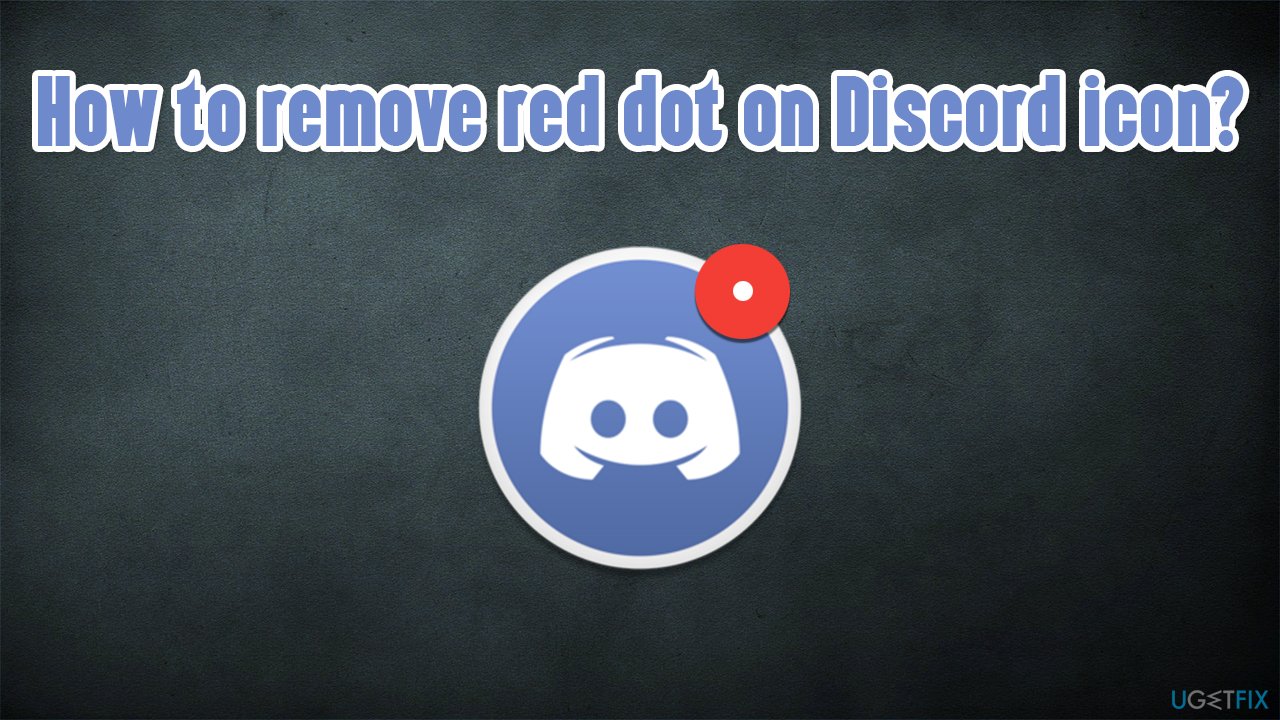
Below you will find precise steps on how to get rid of the notification highlight from the app. There are several options available, so pick the one the suits you best. It is also worth noting that there are two types of dots that Discord uses - one is shown at the top, and one at the bottom with a tiny number on it - it indicates how many messages are available.
Before you begin, we would recommend you a system maintenance tool [d1] - it can fix various Windows issues, such as missing DLLs, Blue Screen of Death errors, registry corruption, and remove malware from your system, which makes it a great complementary tool for your device.
Remove red dot from Discord icon on taskbar and system tray
All you have to do for this is access the settings of the Discord app:
- Open Discord and click User Settings next to your profile picture
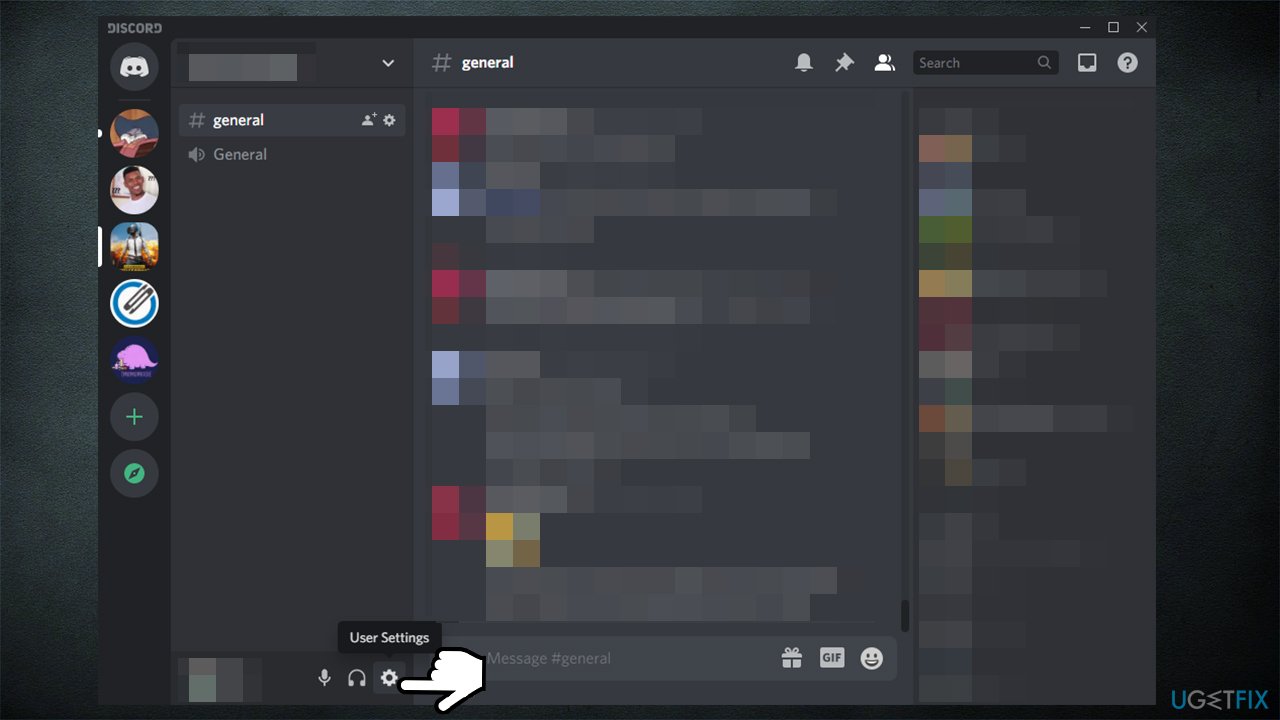
How to remove red dot on discord icon go to user settings - On the left, scroll down to the App Settings section and select Notifications
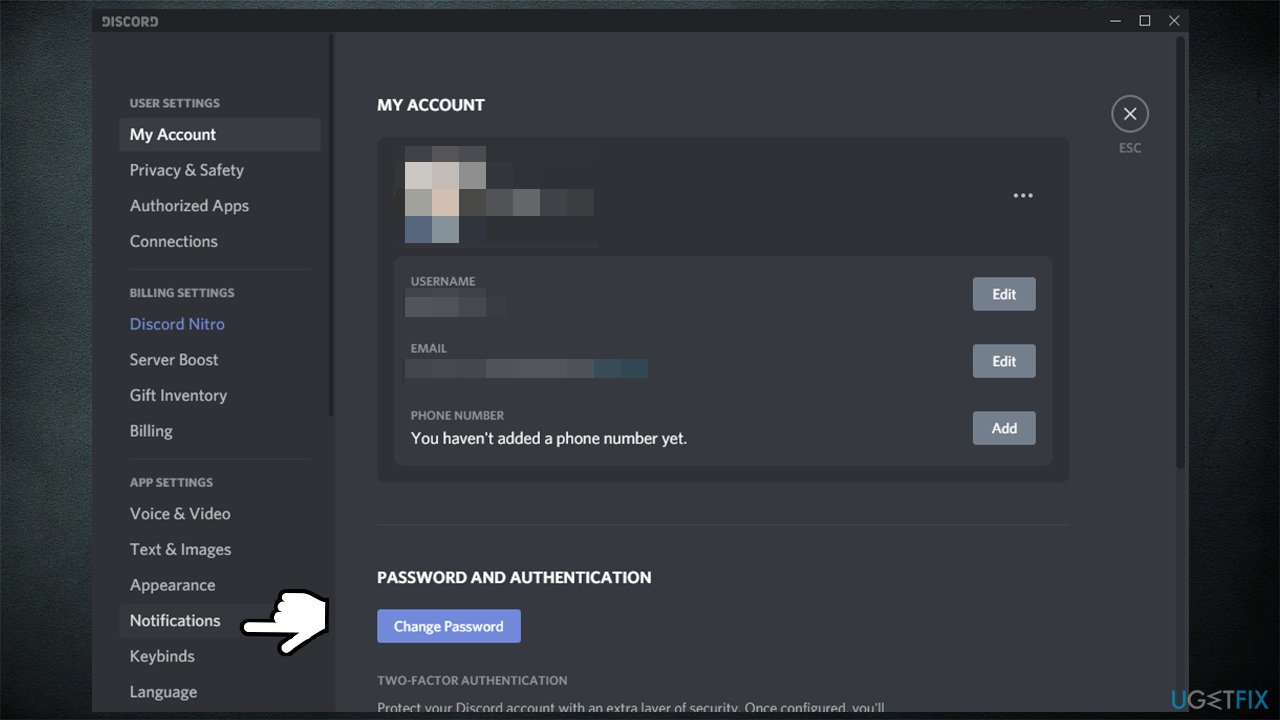
How to remove red dot on discord icon go to notifications section - On the right-side of the window, toggle the Enable Unread Message Badge switch to the left
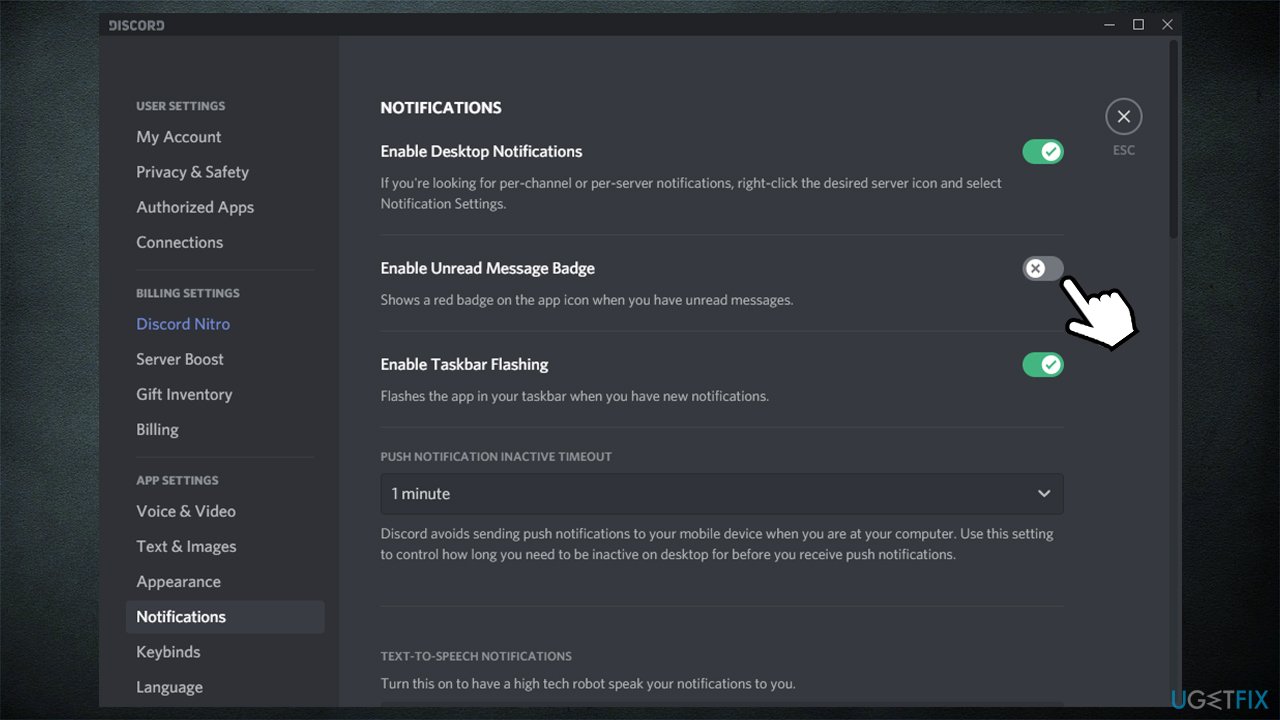
How to remove red dot on discord icon disable unread message badge - Click X to close down the settings.
Mark messages as read
You can also remove red dot on Discord by marking channels as read, although this will only last until somebody sends a message, so this is only practical for those who are in channels with low activity:
- Open Discord once again
- Right-click on the channel you got messages from
- Select Mark as Read.
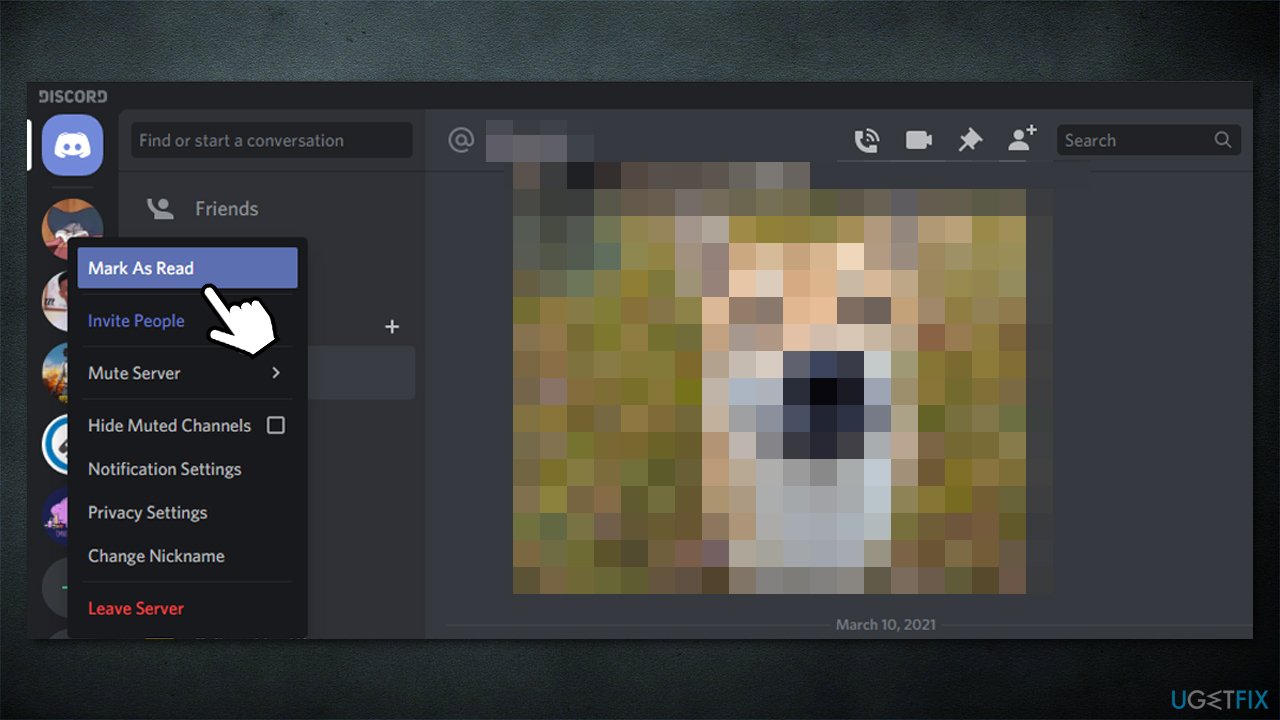
How to remove red dot on discord icon mark as read
Change notification settings on specific channels
- Open Discord and right-click on the channel you want to modify notification settings for
- Select Notification Settings
- Here, you can mute the channel by toggling the switch to the right next to Mute [channel name]. You can also select for how long you want to mute the channel for, e.g., for 15 mins or until you turn it back on
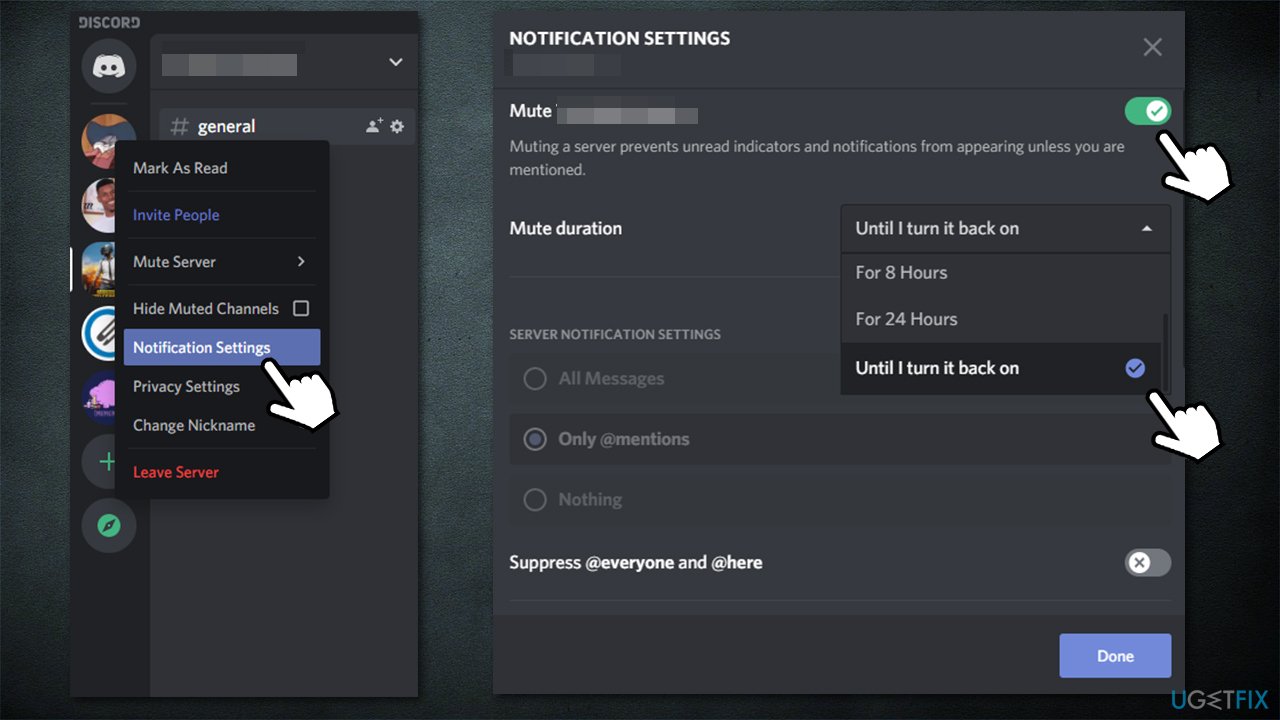
How to remove red dot on discord icon mute channel - To modify server notifications, you can select to receive messages from:
Everyone - All Messages
Only @ mentions - the badge will only shows up if your nickname is tagged
Nothing - There will be no notifications from the channel - You can also suppress @everyone, @here, and @mentions of roles
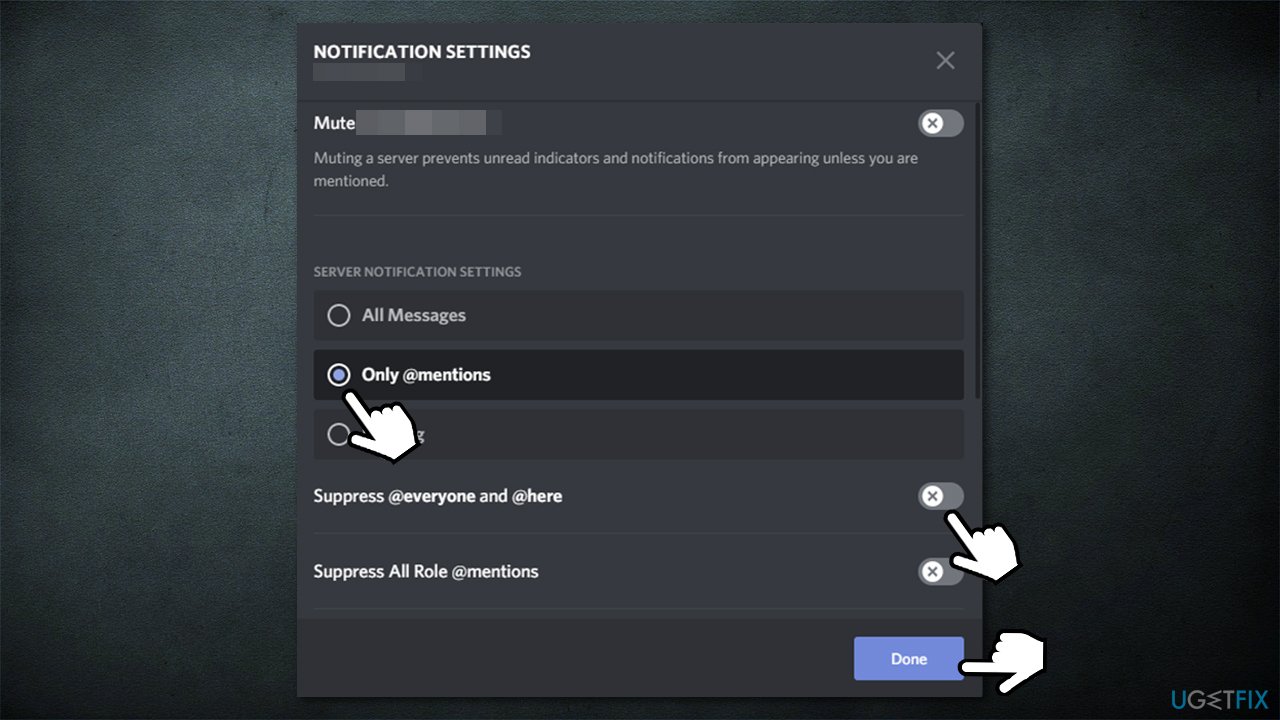
How to remove red dot on discord icon mute channel settings - Once you choose notification settings you desire, click Done.
This concludes our guide on how to fix red dot on Discord icon. If you are interested in other topics about this app, you can check them out here:
Bottom line
To remove the red dot on the Discord icon, users can check their unread messages, adjust notification settings, or leave channels with excessive activity. If these solutions do not work, consider reaching out to Discord support for further assistance.
Frequently asked questions
Right-click the Discord icon in the system tray, go to 'Notifications', and toggle off 'Show a badge on the taskbar'. This should remove the red dot indicating unread notifications.
No, the steps are the same; simply right-click the Discord icon and adjust the notification settings to eliminate the red dot on the taskbar.
Try restarting Discord or your computer, as this can refresh the application and remove any stuck notifications that might cause the red dot to appear.




Report an issue
What's wrong with this guide? We review every report and update or remove content.
Report received — thank you. We'll review and fix it.
You need a free account to submit a report.
Be the first to comment