
[Fix] AutoIt Error "Line 0: Error Opening the File" on Windows

Prefer to fix it yourself? The manual steps follow.
- 8methods
- 5 to 20 minutes
- Medium
Applies to Windows 11 and Windows 10 PCs that show an AutoIt Error box with Line 0 and Error opening the file at startup or every few minutes
8 methods in this guide
Hello. I need to know how to deal with the Line 0 error opening the file. The error message appears at every startup, and I am clueless about why this happens or how to solve it. Can you help me?
The "AutoIt Error, Line 0, Error opening the file" box means a program built with AutoIt starts with Windows and looks for a script file that is no longer there. Nothing is wrong with Windows itself. Find the startup entry that still names that file with Microsoft's free Autoruns tool and delete it, then run a full malware scan.
Write down the path in the box, for example C:\Users\Public\bin.au3. Run Autoruns from Microsoft Sysinternals as administrator, type the file or folder name into the filter, and delete every entry that points to it (Fix 1). Then delete the leftover folder and run a full Microsoft Defender scan. Uninstalling AutoIt rarely helps, because most of these programs carry their own copy of it.
| Error | A small window titled AutoIt Error with "Line 0 (File" and a path, then "Error: Error opening the file." and an OK button. |
|---|---|
| Where it appears | On the desktop after sign-in, and in many cases again every few minutes, with no program of yours open. |
| Main cause | A startup entry (a Run key, a scheduled task or a Startup folder shortcut) still starts an AutoIt program whose script file was deleted, often by an antivirus. |
| Fastest fix | Find the entry with Autoruns by the file name from the box and delete it (Fix 1), or delete the Run value by hand (Fix 2). |
| Also written as | autolt error line 0 (with a lower-case L), line 0 file error opening the file, AutoIt error unable to open the script file. |
| Typical file paths | C:\Users\Public\bin.au3, or a random folder and file in your user folder such as C:\Users\<name>\cedmw\gmqvh.bui. |
| Affects | Windows 11 and Windows 10. The box looks the same on both. |
| Vendor status | Not a bug in Windows or AutoIt. The AutoIt team says it cannot control the many programs written with its free language. |
| Time to fix | 5 minutes with Autoruns, up to 20 minutes with the malware scan. |
Facts checked on 15 October 2026. Steps written for Windows 11 (25H2 and 26H2) and Windows 10 22H2.
What AutoIt Error "Line 0: Error opening the file" means
AutoIt is a free scripting language for automating Windows. A program written in it reads a script file and runs it line by line. The box you see is how one such program reports that it could not open its script at all. In a report on Microsoft Q&A the full text reads:
AutoIt Error
Line 0 (File "C:\Users\Public\bin.au3"):
Error: Error opening the file.- AutoIt Error is the window title. Every AutoIt program uses it, whatever the program is called.
- Line 0 means no line of the script ran. The program stopped before it read anything.
- File and the path in quotes is the script it looked for. This path is your best clue: it tells you which entry to delete.
- Error opening the file means the file is missing, moved or locked, so it could not be opened.
The person on Microsoft Q&A checked: there was no bin.au3 on the PC. That is the usual picture. Something deleted the script, but the entry that starts the program at sign-in stayed behind. Remove that entry and the box stops.
The file name changes from PC to PC. Besides .au3 scripts, readers see odd extensions such as .bui in a folder with a random name, as in a 2018 thread on the AutoIt forum. The same steps apply to every spelling.
Why the AutoIt Line 0 error appears: causes ranked
AutoIt developers on their own forum said the program is likely a compiled script, an .exe that carries AutoIt inside, so you will often find no AutoIt installed at all. What matters is what starts it.
| How common | Cause | What you notice | Fix |
|---|---|---|---|
| Most often | An antivirus removed a malicious script, but its Run key or scheduled task is still there | The box appears at sign-in, the path is in C:\Users\Public or a random folder | Fix 1, Fix 4, Fix 5 |
| Often | A scheduled task restarts the launcher every few minutes | The box comes back again and again while you work | Fix 1 or Fix 3 |
| Sometimes | A real tool written in AutoIt was uninstalled or moved, and its startup shortcut stayed | The path names a program folder you recognise | Fix 2 or Fix 3 |
| Sometimes | The malicious program is still active and recreates its files | The entry or the folder comes back after you delete it | Fix 5, then Fix 7 |
| Rarely | Nothing you can find starts it | Autoruns shows no matching entry | Fix 6 and Fix 8 |
A script in C:\Users\Public or in a folder with a made-up name is not how normal software installs. On the AutoIt forum the reader found a running ndxdx.exe in the same random folder as the missing script. Do not stop at hiding the box: remove the launcher and scan the PC in Fix 5.
Where the program that shows the box is started from
Windows can start a program at sign-in from several places. Microsoft's support answer names the Run keys in the registry and the C:\Users\Public folder. The AutoIt team adds startup items and any file that mentions the script name. Autoruns covers all of them in one window.
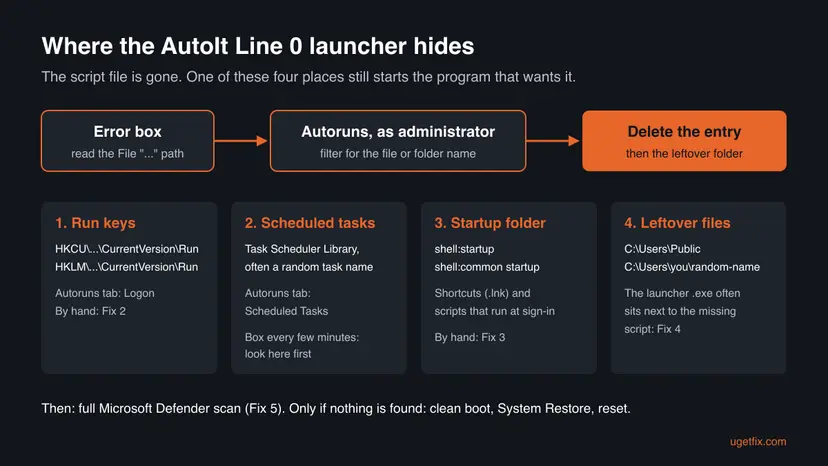
- Run keys:
HKEY_CURRENT_USER\Software\Microsoft\Windows\CurrentVersion\Runand the same path underHKEY_LOCAL_MACHINE. - Scheduled tasks: a task in Task Scheduler, often with a random or harmless-sounding name. A box that returns every few minutes almost always comes from here.
- Startup folders:
shell:startupfor your account andshell:common startupfor all users. - The files: the launcher
.exeand the rest of its folder, often next to where the missing script was.
How to fix AutoIt Error Line 0: Error opening the file
Fix 1 finds the entry wherever it is and works for most readers. Fixes 2 and 3 do the same by hand if you cannot run Autoruns. Fixes 4 and 5 clean up what the program left behind. Fixes 6 to 8 are for a box that survives all of that.
| What you see or have | Start with |
|---|---|
| The box shows a path, at startup or every few minutes | Fix 1 |
| You cannot download or run Autoruns | Fix 2, then Fix 3 |
| The path names a program you used to have | Fix 3 |
| The box is gone but the random folder is still on the disk | Fix 4 |
| The entry or the folder comes back after you delete it | Fix 5 |
| Autoruns finds nothing that matches | Fix 6 |
| The box started after a specific day or install | Fix 7 |
Fix 1. Find and delete the startup entry with Autoruns
5 to 10 minutesLow riskEveryone who sees the box. This is the quickest way to find the entry, wherever Windows keeps it.
Microsoft's Autoruns lists Run keys, scheduled tasks, startup folders and services in one window and can search them all. Typing the file or folder name from the box shows exactly the entry that still starts the missing script.
- Click OK on the box and write down the full path it shows, for example
C:\Users\Public\bin.au3. - Download Autoruns from Microsoft's Sysinternals page at
learn.microsoft.com/sysinternals/downloads/autoruns(version 14.3, about 3 MB). - Extract the ZIP file, right-click Autoruns64.exe and choose Run as administrator. Accept the licence.
- Wait until the scan finishes, then type the file name without its extension (
bin) or the random folder name (cedmw) into the filter box at the top. - Check the Logon and Scheduled Tasks tabs. Note each line whose command or path contains that name.
- Right-click each matching line and choose Delete. Clearing its check box only disables it.
- Clear the filter and also look for lines with
.au3orAutoIt3in the command. Delete those you did not set up yourself. - Restart the PC.
Select it and use Jump to Entry to open its registry key or task. Under Options > Scan Options you can turn on signature checks and VirusTotal results. Microsoft's own entries can be hidden with Hide Signed Microsoft Entries, which leaves the unusual ones.
It worked if: No line in Autoruns names the missing file any more, and the AutoIt Error box does not appear after the restart.
If not: If the box still appears, use Fix 2 and Fix 3 to check by hand. If the entry came back, go to Fix 5.
Fix 2. Remove the Run entry in Registry Editor
5 minutesRead the warningYou cannot use Autoruns, or Autoruns showed the entry under a Run key and you want to check it yourself.
Microsoft's support answer for this exact box points to the two Run keys: Windows reads them at every sign-in and starts whatever they list, including a launcher whose script is gone.
Deleting the wrong value can stop a real program from starting. Export the keys before you change them, so you can import them back. Step by step: Back up the registry before editing it.
- Press Win + R, type
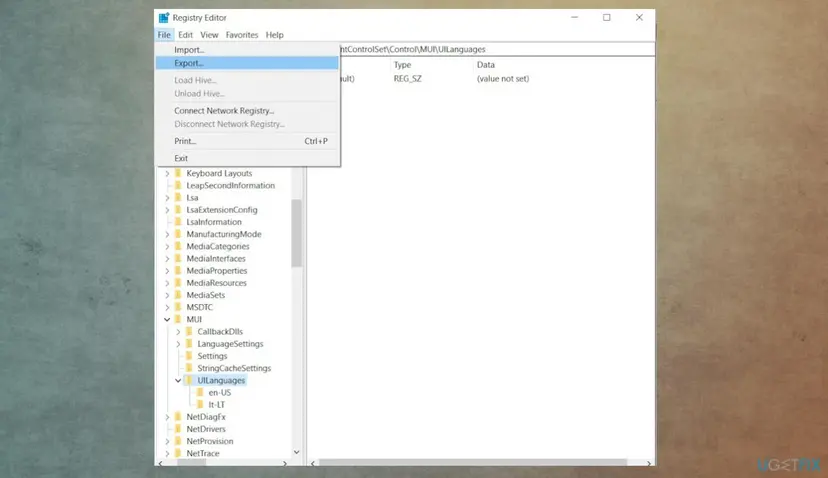
regeditand press Enter. Click Yes. - Click File > Export, choose Selected branch or All, name the file and click Save.
- Paste this path into the address bar at the top and press Enter:
HKEY_CURRENT_USER\Software\Microsoft\Windows\CurrentVersion\Run - In the Data column, look for a value that points to the path from the box, to
C:\Users\Public, or to an.exein a folder with a random name. - Right-click that value, choose Delete and click Yes.
- Repeat steps 4 and 5 for the same key for all users:
HKEY_LOCAL_MACHINE\SOFTWARE\Microsoft\Windows\CurrentVersion\Run - Close Registry Editor and restart the PC.
Judge a value by its Data, not its name. The earlier version of this page listed names like "Windows Update" or "Google Chrome" to delete. A launcher can borrow such a name, but your real Chrome or OneDrive may also be there, so delete only a value whose path matches the box.
It worked if: Neither Run key has a value that points to the missing script or its folder, and the box is gone after the restart.
If not: If the box comes back every few minutes, the starter is a scheduled task: go to Fix 3.
Fix 3. Check Task Scheduler, startup apps and the Startup folders
10 minutesLow riskThe box returns every few minutes, or the path names a program you once used.
A box that comes back while you work is started on a timer, which only a scheduled task does. A box only at sign-in may also come from a shortcut in a Startup folder or a startup app.
- Press Win, type Task Scheduler and open it. Click Task Scheduler Library.
- Click each task outside the Microsoft folder and open its Actions tab. Look for the path from the box, an
.exein a random folder, orC:\Users\Public. - Right-click a matching task and choose Delete, then click Yes.
- Press Ctrl + Shift + Esc. On Windows 11 open Startup apps, on Windows 10 the Startup tab. Right-click any unknown entry and choose Open file location to see where it lives.
- Select an entry that points to the leftover folder and click Disable.
- Press Win + R, type
shell:startupand press Enter. Delete any shortcut that points to the leftover folder. - Repeat step 6 with
shell:common startup, then restart.

It worked if: No task, startup app or shortcut points to the missing file, and the box no longer returns.
If not: If you found nothing here or in Fix 1, go to Fix 6 to narrow it down with a clean boot.
Fix 4. Delete the leftover folder and launcher
5 minutesLow riskAfter Fix 1, 2 or 3, when the folder from the box or a random folder in your user profile is still on the disk.
The launcher that shows the box often sits next to the missing script. Removing it means nothing is left that a forgotten entry could start again.
- Open File Explorer and click View > Show > Hidden items on Windows 11, or tick Hidden items on the View tab of Windows 10.
- Open the folder from the path in the box, for example
C:\Users\PublicorC:\Users\<your name>\<random folder>. - Look for
.au3files,.exefiles you did not install, and files with odd extensions or random names. - If Windows says a file is in use, press Ctrl + Shift + Esc, find the process with the same name on Processes or Details, and click End task.
- Delete the random folder, or the odd files in
C:\Users\Public, and empty the Recycle Bin. - Leave normal folders such as Public Documents and Public Downloads in place.
If you are not sure whether a file is safe to delete, do not guess. Right-click it, choose Scan with Microsoft Defender, and let the scan in Fix 5 decide.
It worked if: The random folder is gone, nothing in Task Manager runs from it, and it does not come back after a restart.
If not: If the folder or its files come back, a running program recreates them: do Fix 5 now.
Fix 5. Run a full and an offline Microsoft Defender scan
30 to 90 minutesLow riskEveryone with a path in C:\Users\Public or a random folder, and anyone whose entry or folder came back.
The pattern behind this box, a hidden script in an odd folder with a launcher that starts itself, matches malware that an antivirus removed only in part. A full scan finds what is left; the offline scan runs before Windows starts, so active malware cannot hide.
Microsoft's support answer for this box lists a full antivirus scan among its fixes. Run the full scan first:
- Open Windows Security. Select Start, type Windows Security and open the app.
- Open Virus & threat protection. Select Virus & threat protection. Under Current threats you see when the last scan ran, how long it took and how many files it checked.
- Run a quick scan. Select Quick scan. If Windows Security thinks a deeper scan is needed, it tells you when the quick scan is done.
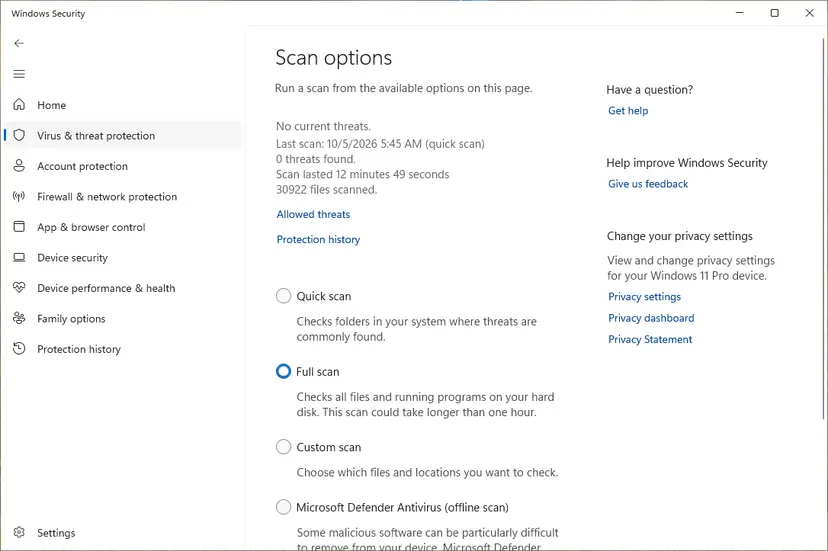
- Open Scan options. If the quick scan finds nothing and you still suspect an infection, select Scan options under Current threats.
- Run a full scan. Select Full scan and start it. It checks every file and program on the device, so it takes much longer than a quick scan. Leave the PC on until it ends.
- Or scan one folder. To check only a download or a USB drive, select Custom scan in Scan options and choose the folder. You can also right-click a file or folder in File Explorer and select Scan with Microsoft Defender. On Windows 11 you may have to select Show more options first.
- Read Protection history. Go back to the first page of Windows Security and select Protection history. Select a card to expand it and see the details.
These steps were written for Windows 11 25H2 and 26H2, Windows 10 22H2. The full page with the other versions and what each result means: How to scan for malware with Microsoft Defender
- Offline scan: on the same Scan options page, choose Microsoft Defender Antivirus (offline scan) and click Scan now. The PC restarts and scans before Windows loads.
- After both: open Protection history and remove or quarantine what was found, then repeat Fix 1 to delete the entry the removed program left.
It worked if: The scan finishes with no threats left, or with threats removed, and the box does not appear after the next restart.
If not: If you use another antivirus, run its full scan as well. If threats keep coming back, use Fix 7 or Fix 8.
Fix 6. Find the source with a clean boot
15 to 30 minutesLow riskAutoruns and the manual checks found nothing, yet the box still appears.
Microsoft's support answer starts with a clean boot. With only Microsoft services and no startup apps running, the box should stop. Turning items back on a few at a time shows which one starts it.
- Open System Configuration. Select Search on the taskbar, type msconfig and select System Configuration from the results.
- Hide Microsoft services. On the Services tab, select the Hide all Microsoft services check box. Only services from other companies stay in the list.
- Disable the remaining services. Select Disable all, then select Apply.
- Open Task Manager. On the Startup tab of System Configuration, select Open Task Manager.
- Disable the startup apps. On the Startup apps tab in Task Manager, select each item whose status is Enabled and select Disable. Write down or take a screenshot of the items you disable: you need the list to turn them back on.
- Confirm the changes. Close Task Manager. On the Startup tab of System Configuration, select OK.
- Restart and test. Restart the PC. Windows now starts in a clean boot environment: try again the thing that failed (run the app, install the update, uninstall the program).
These steps were written for Windows 11 25H2 and 26H2. The full page with the other versions and what each result means: How to perform a clean boot in Windows
When you find the item, delete it with Autoruns (Fix 1) rather than leaving it disabled. Then return to a normal start as the clean boot page explains.
It worked if: The box does not appear in a clean boot, and comes back only when one specific service or startup item is turned on.
If not: If the box still appears in a clean boot, go to Fix 7 or Fix 8.
Fix 7. Go back with System Restore
20 to 40 minutesRead the warningThe box started on a day you remember, after an install or a download, and you have a restore point from before.
The AutoIt developers advise tracking back what you installed lately and doing a system restore to before that date. It removes the programs and startup entries added since, without touching your documents.
System Restore removes programs, drivers and updates installed after the restore point. Your personal files stay, but back up anything important first: Back up your files (Windows Backup, File History, Time Machine).
Pick the newest restore point before the box first appeared.
- Open System Restore. Press Windows+R, type the command below and press Enter. You can also open Control Panel > Recovery > Open System Restore. If a first page opens, select Next.
rstrui.exe - Choose a restore point. Select a restore point from a time before the problem started. The Description often names the event, such as a driver or app install. If the one you need is missing, select Show more restore points (shown only when there are more).
- See what will change. Select Scan for affected programs. The upper list shows programs and drivers that will be removed; the lower list shows those that might come back and may need to be reinstalled. Select Close.
- Start the restore. Select Next, check the summary and select Finish. Windows restarts and applies the restore point. Do not turn the PC off.
- Check the result. After sign-in Windows reports whether the restore succeeded. Check whether the problem is gone.
These steps were written for Windows 11 and Windows 10 (the steps are the same). The full page with the other versions and what each result means: Undo recent changes with System Restore
It worked if: Windows reports that System Restore completed, and the box no longer appears.
If not: If there is no restore point from before, or the box returns, go to Fix 8.
Fix 8. Reset this PC and keep your files
1 to 2 hoursRead the warningLast resort: the box or the malware keeps coming back after every other fix.
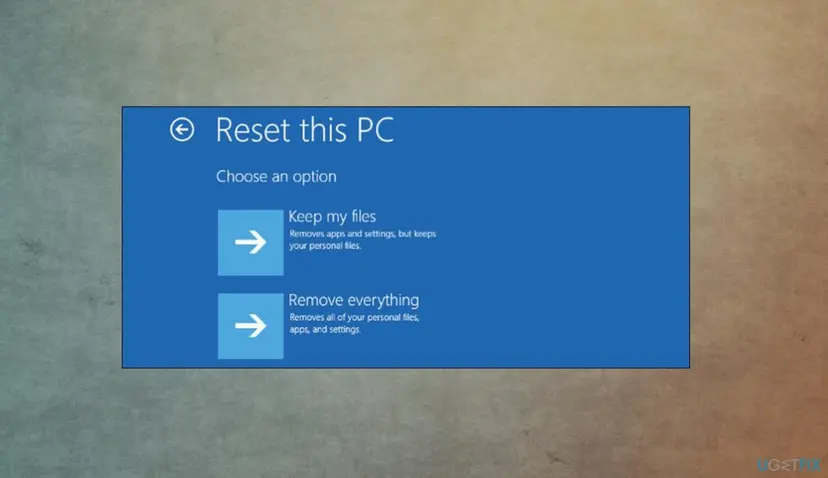
Microsoft's support answer ends with a fresh Windows install if nothing else works. Reset this PC with Keep my files reinstalls Windows and removes every program and startup entry, which takes the launcher with it.
Keep my files keeps documents, pictures and other personal files but removes all installed apps and their settings. Back up your files and note your app list and licence keys first: Back up your files (Windows Backup, File History, Time Machine).
- Press Win + I. On Windows 11 open System > Recovery, on Windows 10 Update & Security > Recovery.
- Next to Reset this PC, click Reset PC on Windows 11 or Get started on Windows 10.
- Choose Keep my files.
- Choose Cloud download or Local reinstall and follow the screens to the end.
It worked if: Windows starts fresh with your files in place, and no AutoIt Error box appears.
If not: For a full reinstall that keeps your apps too, see Reinstall Windows without losing files.
If the AutoIt Line 0 box still appears: what to check
The box itself does not say which program showed it. These places do.
- When the box is on screen, press Ctrl + Shift + Esc, open Details, add the Command line column (right-click a column header, Select columns) and look for the process that names the missing file.
- Right-click that process and choose Open file location. That folder is what Fix 4 should delete.
- Open Event Viewer > Applications and Services Logs > Microsoft > Windows > TaskScheduler > Operational. An entry at the minute the box appeared names the task that ran.
- Run Autoruns again and filter for the name of the process from step 1.
- To ask for help: post the exact path from the box, the process path from step 2 and a screenshot of Autoruns with the filter applied, on Microsoft Q&A or your antivirus maker's forum.
- Not hardware: a disk, memory or graphics fault does not produce this message. It is always a program asking for a missing file.
- Not Windows: neither Microsoft nor the AutoIt team ships a program that shows this box at startup.
A related case is a black command window that flashes up on its own; our guide to the cmd.exe window popping up in Windows uses the same tools.
How to keep the AutoIt Line 0 error from coming back
- After your antivirus removes a threat, check Autoruns for entries that point to the deleted files.
- Keep Microsoft Defender or your antivirus on, with real-time protection and updates.
- Download programs only from their makers' own sites and look at Startup apps now and then.
- Click OK again and again and ignore the box: the launcher may still be there.
- Delete Run values or tasks by their name alone without checking the path.
- Install AutoIt or download an .au3 file to make the box go away.
If you write AutoIt scripts yourself and get this box for your own script, the path is simply wrong: check that the shortcut or task points to the file where it really is.
Frequently asked questions
What is the AutoIt Error Line 0 message?
It is the message an AutoIt program shows when it cannot open the script file it was told to run. Line 0 means it stopped before running any line, and the path after File is the script it looked for. On most PCs that file is gone, because an antivirus or a cleanup removed it, while the entry that starts the program at sign-in stayed. Deleting that entry with Autoruns in Fix 1 stops the box. If the path is in C:\Users\Public or a random folder, also run the malware scan in Fix 5.
Is the AutoIt error a virus?
The box itself is not a virus, but it often points to one. AutoIt is a legitimate free language, and AutoIt programs are also used by malware authors, because a compiled script is one small exe. A script in C:\Users\Public or a folder with a random name, a box every few minutes and a running exe next to it are signs that a malicious program was removed only in part or is still there. Delete its entries and folder, then run a full and an offline Microsoft Defender scan, as in Fixes 1, 4 and 5.
Should I uninstall AutoIt to fix it?
Only if AutoIt is in your list of installed apps and you do not use it. In most cases it is not installed at all: the AutoIt developers explained that the program showing the box is likely a compiled script that carries AutoIt inside, so removing AutoIt changes nothing. The box goes away when the startup entry that runs the missing script is deleted. That is why this page starts with Autoruns instead of uninstalling.
What does Line 0 Error opening the file mean in C:\Users\Public\bin.au3?
It means a startup entry runs a program that wants the script bin.au3 in the Public user folder, and that script is not there. The person who reported this on Microsoft Q&A could not find the file either. C:\Users\Public is shared by all accounts and is not a place where normal apps keep startup scripts. Delete the entry with Autoruns by filtering for bin, remove any other odd files from that folder, and run a full Microsoft Defender scan.
Why does the AutoIt error pop up every few minutes?
Because a scheduled task starts the program on a timer, and each start fails with the same box. A Run key or Startup folder shortcut only starts it once at sign-in. Open the Scheduled Tasks tab in Autoruns, or Task Scheduler as in Fix 3, and delete the task whose action points to the missing file or its folder. Users who only clicked OK, or only ran an antivirus, report that the box kept coming back until the task was removed.
My antivirus found nothing. Why do I still see the box?
Because there is nothing left for it to find. Many antivirus programs delete the malicious script but leave the Run key or scheduled task that started it, since an entry pointing to a missing file is not itself harmful. The reader on the AutoIt forum had Bitdefender and Malwarebytes and still saw the box. A tool that lists startup entries, such as Autoruns in Fix 1, finds what the scanners leave.
How do I fix the AutoIt error on Windows 10?
The same way as on Windows 11. Autoruns, Registry Editor, Task Scheduler and Microsoft Defender work on both, and where a menu differs, this page gives both paths. On Windows 10, Task Manager shows startup apps on a Startup tab instead of a Startup apps page. Windows 10 left support on 14 October 2025, so without Extended Security Updates it no longer gets security fixes, which matters if malware was involved.
What about AutoIt Error "Unable to open the script file"?
That message comes from the same situation in a slightly different form: AutoIt is started with a script path that does not exist. The fix does not change. Note the path the box shows, search for it in Autoruns and delete the matching entry, then remove the leftover folder. If you run the script yourself, check that the shortcut points to the right folder.
What does this AutoIt error mean (qué significa este error)?
This page is in English. The AutoIt Error Line 0, Error opening the file box means that a program starts with Windows and looks for a script file that has been deleted. It is usually a leftover of a program, often malware, that an antivirus removed. To fix it, run Autoruns as administrator, type the file name from the message into the filter and delete the matching entry. Then delete the leftover folder and run a full Microsoft Defender scan.
Sources
- Microsoft Q&A: AutoIt Error Line 0 (File "C:\Users\Public\bin.au3"): Error: Error opening the file (Microsoft Community Support answer: clean boot, Run keys, residual files, antivirus scan) (learn.microsoft.com)
- Microsoft Learn: Autoruns v14.3 (Sysinternals; startup locations, Delete and disable, Hide Signed Microsoft Entries) (learn.microsoft.com)
- AutoIt Forums: AutoIt Error, Line 0 (answers by AutoIt moderators and developers: compiled script, check startup items, system restore) (autoitscript.com)
Did this fix work?
One click, no account. It tells the next reader which guides are worth their time.
Questions and experiences: [Fix] AutoIt Error "Line 0: Error Opening the File" on Windows
Still broken, or found a fix we did not cover? Ask here: members and our editors answer. Reading is open; writing needs a free account.
…