
[Fix] Can't cancel download of apps after pressing Cancel button in Windows

Prefer to fix it yourself? The manual steps follow.
- 8methods
- 1 to 15 minutes
- Easy
Applies to Microsoft Store app downloads and updates on Windows 11 and Windows 10; games installed through the Store or the Xbox app on PC
8 methods in this guide
- Why Cancel is ignored
- Causes, most common first
- Automatic app updates
- The fixes
- 1. Cancel in the Library
- 2. Pause, Terminate, cancel
- 3. Restart the install service
- 4. Pause automatic app updates
- 5. Reset the Store cache
- 6. Remove what installed anyway
- 7. Limit download bandwidth
- 8. Cancel a game in the Xbox app
- Still will not stop
- Prevent unwanted downloads
- FAQ
Hi, I have a problem where I can't cancel a download from Microsoft Store when I press the "Cancel Download" button. Instead, it just continues, completely ignoring my actions. How do I fix this?
To stop a download in Microsoft Store, open Library, find the app in the list of downloads and updates, and choose Cancel download from its menu. When Cancel is ignored, pause the item, close the Store with Terminate in Settings and cancel it after you reopen the Store. Downloads that come back on their own are usually automatic app updates.
Open Microsoft Store, select Library, find the download and choose Cancel download from the three dots next to it (Fix 1). If the progress keeps moving, select Pause, end the Store with Terminate in Settings, reopen it and cancel the paused item (Fix 2). If updates keep starting by themselves, pause automatic app updates in the Store settings (Fix 4). A restart pauses a download but does not cancel it.
| Error | No error code. The Cancel download button in Microsoft Store does nothing, the progress bar keeps moving, or the item stays at Pending and cannot be removed from the list. |
|---|---|
| Where it appears | Microsoft Store > Library, in the list of downloads and updates, and on the app's own page in the Store. Games can also sit in the Xbox app's install queue. |
| Main cause | The download runs in the background, not in the Store window: the Microsoft Store Install Service (InstallService) and Delivery Optimization keep it going after the window stops listening. |
| Fastest fix | Pause the item, end the Store with Terminate in Settings, reopen it and cancel the paused item (Fix 2). For updates that start by themselves, pause app updates (Fix 4). |
| Also searched as | how to stop download in Microsoft Store, how to cancel download in Microsoft Store Windows 11, Microsoft Store can't cancel download, Microsoft Store stuck on Pending, cara membatalkan download di Microsoft Store. |
| Affects | Microsoft Store on Windows 11 and Windows 10. Windows 10 lost support on 14 October 2025, so its Store gets fewer fixes. |
| Microsoft's status | Not listed as a known issue. Since 2025 Microsoft makes app updates automatic: the Store lets you pause them, but no longer turn them off. |
| Not the cause | Your internet speed alone, Windows Update or a virus. A slow line makes the download long, but Cancel should still work on it. |
| Time to fix | Under a minute for Fix 1 and Fix 2. About 5 minutes to restart the service or reset the Store cache. |
| Where the cause shows | Services (services.msc): the status of Microsoft Store Install Service. PowerShell as administrator: Get-DeliveryOptimizationStatus lists the files still being fetched. |
Facts checked on 14 October 2026. Steps written for Microsoft Store on Windows 11 (25H2 and 26H2) and Windows 10 22H2.
What it means when Microsoft Store ignores Cancel
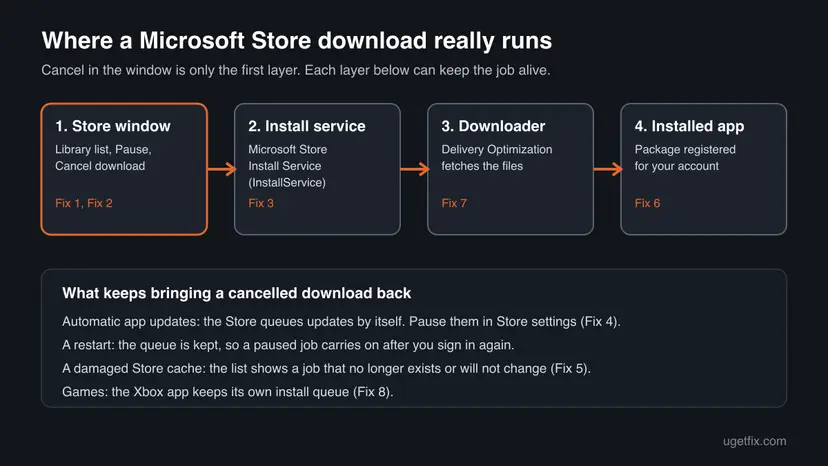
Microsoft Store is only the window you look at. When you press Get or Install, the Store hands the job to the Microsoft Store Install Service (service name InstallService), and the files themselves are fetched by Delivery Optimization, the downloader Windows uses for Windows Update and Store apps. The window then shows the progress that the service reports back.
So a Cancel that does nothing means the window lost touch with the job. The service keeps downloading, the window shows the old state, and every press of the button goes nowhere. Closing the window with the X does not help either: the background job does not need the window.
| What you see | Where | What it means |
|---|---|---|
| The progress bar keeps moving after Cancel download | Library, the app's page | The background job is alive and the window lost touch with it. Fix 2. |
| The item stays at Pending and no button reacts | Library | The job is queued but the install service does not take it. Fix 3. |
| A cancelled app returns to the list by itself | Library | It is an automatic update, or the Store cache holds an old queue. Fix 4 or Fix 5. |
| The app is already in Start after you cancelled | Start menu, Installed apps | The install finished before the cancel reached it. Fix 6. |
| A game sits in a queue with X buttons | Xbox app on PC | The Xbox app runs its own queue. Fix 8. |
Why a Microsoft Store download keeps going: the causes, most common first
Most cases are not a fault at all but a misunderstanding of what the Store queues by itself. The ranking below is ours, from the reports on Microsoft Q&A and from how the Store works. Microsoft does not publish one.
| How often | Cause | What to do |
|---|---|---|
| Most often | You looked for Cancel in the wrong place: the button is in Library or on the app's page, not in the Start menu or on the taskbar | Fix 1 |
| Often | The Store window hangs while the install service keeps working, so the button does nothing | Fix 2 |
| Often | It is an automatic app update: the Store starts a new one as soon as you cancel the old one | Fix 4 |
| Less often | The install service is stuck, so the item stays Pending and ignores every button | Fix 3 |
| Less often | The Store's own cache is damaged and keeps showing a job that no longer runs | Fix 5 |
| Rarely | The app finished installing before the cancel arrived, so there is nothing left to cancel | Fix 6 |
| Rarely | A big game is downloading through the Xbox app, which has its own queue | Fix 8 |
Restarting the PC stops the download for a while, but the queue is kept. Users on Microsoft Q&A describe resuming a paused Store download after a shutdown as a built-in feature. Cancel the item first, then restart.
Automatic app updates: the downloads you never started
Many readers who search for how to stop a download in Microsoft Store did not start one. The Store updates every app it installed, plus some parts of Windows that come as Store apps, and these updates appear in the same list as your own downloads.
- What Microsoft says
- App updates are being made automatic "to keep your PC secure", and "You still have the option to pause updates if needed." (Microsoft Support, Get updates for apps and games in Microsoft Store)
- What changed in 2025
- The Store setting that turned app updates off was replaced by a pause. Windows Central reported in October 2025 that the pause lasts up to 5 weeks.
- What still works for good
- The policy Turn off Automatic Download and Install of updates in Windows Components > Store, documented by Microsoft Learn. It needs the Pro, Enterprise or Education edition.
- What does not stop updates
- Blocking the Store app itself. Microsoft Learn says Store apps "keep updating automatically, by default" even when the Store app is turned off.
- Bandwidth limits
- The Delivery Optimization limits apply only to automatic downloads. A download you start yourself in the Store ignores them, as Microsoft Support states.
So if the list fills again after every cancel, Fix 4 is the real answer, and cancelling item by item will not hold. If the items are updates of apps you do not use at all, uninstalling those apps (Fix 6) is the only permanent end to their updates.
How to stop or cancel a download in Microsoft Store
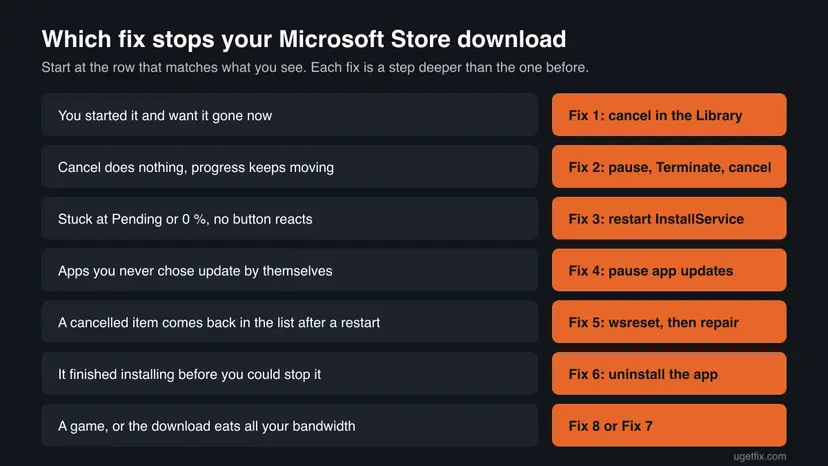
Fixes 1 and 2 stop the download in front of you and solve most cases in a minute. Fixes 3 to 5 repair the Store when the item will not move. Fix 6 removes what installed anyway, and Fixes 7 and 8 are for bandwidth and for games.
| What you see or want | Start with |
|---|---|
| You started a download by mistake and want it gone now. | Fix 1 |
| You press Cancel download and the progress keeps moving. | Fix 2 |
| The item stays at Pending or 0 % and no button reacts. | Fix 3 |
| Apps you never chose keep downloading updates. | Fix 4 |
| A cancelled item returns to the list after a restart. | Fix 5 |
| The app was installed before you could stop it. | Fix 6 |
| Store downloads slow down the internet for everyone at home. | Fix 7 |
| A game is downloading through the Xbox app. | Fix 8 |
Fix 1. Cancel the download from the Library or the app's page
30 secondsNo riskYou started a download or an update and the Store still responds to clicks.
The Store has no Cancel in the Start menu, on the taskbar or in the notification. The only working buttons are next to the item itself, in the Library list or on the app's page, which is why many readers never find them.
- Select Start, type Microsoft Store and open it.
- Select Library at the bottom of the left bar. On Windows 10, select See more (the three dots) and then Downloads and updates.
- Find the app in the list. A running download shows a progress bar and a Pause button.
- Select the three dots (More options) next to the item and select Cancel download. Some Store versions show an X next to Pause instead.
- Wait a few seconds and check that the item has left the list or shows Get or Install again.
The same buttons appear on the app's own page. Search for the app in the Store and open it: while it downloads, the place of the Get button shows the progress with a pause and a cancel button. Users on Microsoft Q&A report that hovering over the app in the search results shows the same two buttons.
Microsoft does not document the Cancel button itself, and the Store is updated often. The labels above are the ones users report for the current Store. If your Library looks different, look for the three dots or an X next to the item with the progress bar.
It worked if: The progress bar disappears and the app shows Get, Install or Open again, depending on how far it got.
If not: If the bar keeps moving or the button does nothing, go to Fix 2. If the item is gone but comes back later, go to Fix 4.
Fix 2. Pause, end the Store with Terminate, then cancel the paused item
2 minutesNo riskCancel download does nothing and the progress keeps moving, or the Store window hangs.
A paused job stops talking to the network, and Terminate ends the Store and its related processes. When the Store opens again it reads the queue fresh, finds the job paused and lets you cancel it. A Microsoft Q&A advisor gives the same order: pause, close, reopen, cancel.
- In Microsoft Store > Library, select Pause next to the download. If Pause does not react either, skip this step.
- Close the Store window with the X in its corner.
- Windows 11: select Start > Settings > System > System components. Next to Microsoft Store, select the three dots and Advanced options. If the Store is not listed there, find it in Settings > Apps > Installed apps.
- Windows 10: select Start > Settings > Apps > Apps & features, select Microsoft Store and then Advanced options.
- Under Terminate, select Terminate. Windows describes it as: immediately terminate this component and its related processes.
- Open Microsoft Store again and go to Library.
- The item now shows as paused. Select the three dots next to it and Cancel download.
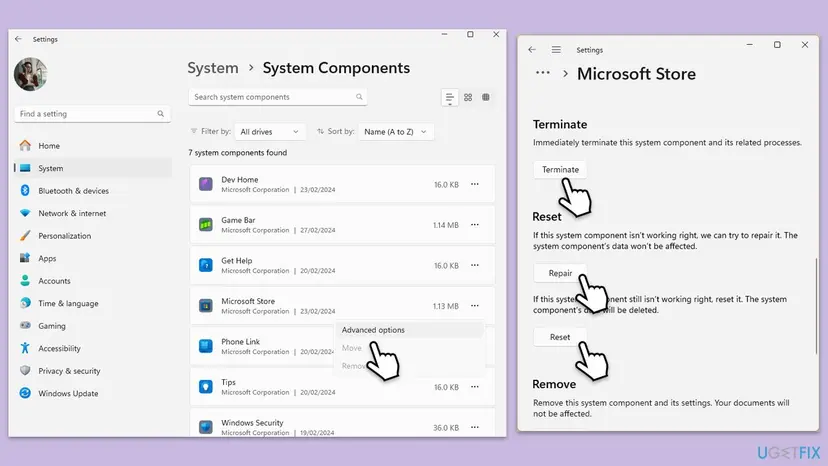
Users on Reddit report one more step that helped them: sign out of the Store (your profile picture > Sign out), end it with Terminate, sign back in and cancel then. We could not confirm why it helps, so treat it as a report and try it only when the steps above fail.
It worked if: After the reopen, the item is paused and Cancel download removes it from the list.
If not: If the item stays at Pending or the Store hangs again on opening, go to Fix 3.
Fix 3. Restart the Microsoft Store Install Service
3 minutesLow riskThe item stays at Pending or 0 %, no button reacts, and Fix 2 did not move it.
The install service runs the queue that the Store window only displays. Microsoft lists it as Microsoft Store Install Service (InstallService) with the startup type Manual, so Windows starts it on demand. A restart drops the job it holds and lets the Store hand it over again, this time with a working cancel.
- Open Services. Press Windows+R, type the command below and press Enter. You can also type Services in the search box on the taskbar and open the app.
services.msc - Find the service. The list is sorted by Name. Click any row and type the first letter of the service to jump to it. Check the Status column (Running or empty) and the Startup Type column.
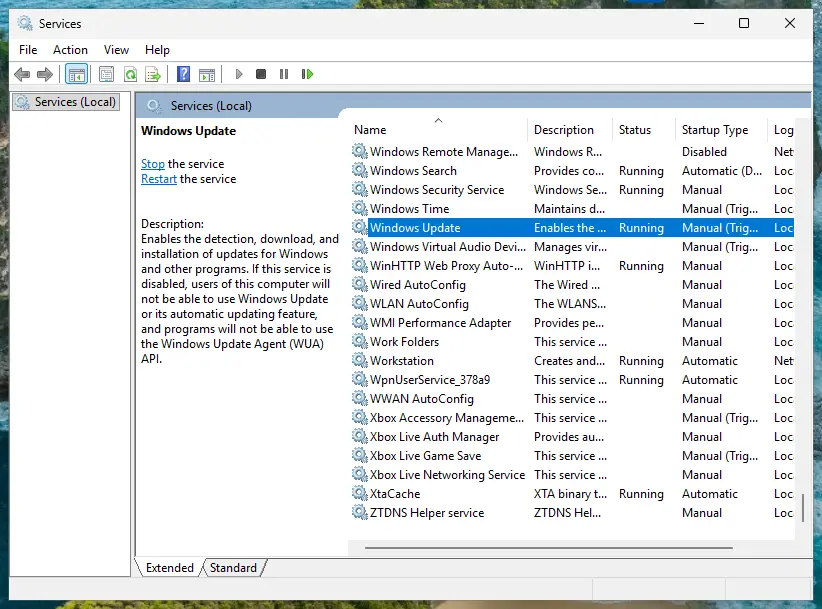
Status and Startup Type of each service are shown in the list. Screenshot: Windows 11 26H2.
These steps were written for Windows 11 and Windows 10 (the steps are the same). The full page with the other versions and what each result means: Check and restart Windows services
- In the list, find Microsoft Store Install Service and right-click it.
- Select Stop and wait until the status is empty. Leave the Services window open.
- Open Microsoft Store > Library and cancel the item (Fix 1). With the service stopped, it cannot run.
- Back in Services, right-click Microsoft Store Install Service and select Start. Leave Startup Type at Manual.
Setting the service to Disabled stops downloads, but it also stops the Store from installing anything, including the next app you want. If you set it to Disabled earlier, set it back to Manual. The full Services steps are in Check and restart Windows services.
It worked if: The item leaves the Library list, and new downloads start and cancel normally after the service runs again.
If not: If the item returns after a restart of the PC, go to Fix 5. If what returns is an update of an app you have, go to Fix 4.
Fix 4. Pause automatic app updates in the Store settings
1 minuteLow riskApps you did not choose keep downloading, or a cancelled update starts again later.
An update you cancel is queued again at the Store's next check, because app updates are automatic. Pausing them stops the new downloads at the source. Microsoft's own page still says to make sure App updates is on; the switch now offers a pause instead of off.
- Open Microsoft Store.
- Select your Profile picture at the top and then Settings (Microsoft calls it Store Settings).
- Find App updates. Choose how long to pause updates; the Store offers 1 to 5 weeks.
- Go to Library and cancel the updates that are already running (Fix 1 or Fix 2).
When the pause ends, the Store downloads all waiting updates at once. Set a reminder if you want to pause again, and keep in mind that skipped updates also skip security fixes.
Open the Local Group Policy Editor (Open the Local Group Policy Editor) and go to Computer Configuration > Administrative Templates > Windows Components > Store. Set Turn off Automatic Download and Install of updates to Enabled and restart the PC. Microsoft Learn documents this policy; Windows 11 Home has no editor for it.
It worked if: The Library list stops filling with updates you did not start, and a cancelled update stays cancelled.
If not: If updates still start while paused, the PC may be managed by work or school settings. Check Settings > Accounts > Access work or school, or go to Fix 5.
Fix 5. Clear the Store cache with wsreset, then repair or reset the Store
5 minutesLow riskThe list shows a download that never changes, or a cancelled item returns after a restart.
The Store keeps its own record of what it showed you. When that record is damaged, the Library keeps showing a job that the install service no longer runs, and every Cancel goes to a job that does not exist. wsreset.exe clears that cache without removing your apps.
Run wsreset.exe first. A blank window opens, closes by itself and the Store starts again. Only if the item is still there, repair the Store app, and reset it as the last step: a reset signs you out of the Store, but your apps and purchases stay.
- Press Win + R, type
wsreset.exeand select OK. - Wait until the blank window closes and Microsoft Store opens. Do not close the window yourself.
- Open Library and cancel the item if it is still listed.
- If it still will not move, repair and then reset the Store: Reset the Microsoft Store
It worked if: The Library list is rebuilt, the stuck item is gone or can be cancelled, and it does not return after a restart.
If not: If the item returns even after a reset, check whether the app is already installed (Fix 6). If the Store itself will not open after a reset, repair it with How to repair or reset an app in Windows.
Fix 6. Uninstall the app that installed before you could stop it
3 minutesLow riskThe app is in Start or in Installed apps, or a half-installed app shows a broken tile.
Once the package is registered for your account, there is no download left to cancel. Microsoft has no command that cancels a queued Store download: winget and Get-AppxPackage see only what is already installed, so for them the answer is to uninstall it.
- Select Start > Settings > Apps > Installed apps (Windows 10: Apps & features).
- Find the app, select the three dots next to it and Uninstall, then confirm.
- If the app is not in the list or Uninstall fails, open Windows PowerShell from Start, the normal way, not as administrator.
- Find the package with a part of its name between the asterisks. Copy the line PackageFullName from the result.
- Remove it with the full name you copied, then restart the PC.
Find the package, then remove it (PowerShell):
Get-AppxPackage -Name '*PartOfTheName*'
Remove-AppxPackage -Package 'PackageFullName_from_the_line_above'
With winget, winget uninstall --name "App name" does the same. Microsoft Learn notes that winget may show a Microsoft Store agreement while it searches; accept it or add --source winget for apps that came from there. All the ways to remove a program: Uninstall a program or app in Windows
If the removal or a new install then stops with Package failed updates, dependency or conflict validation, a framework the app needs is missing or a second copy is in the way: see error 0x80073CF3.
It worked if: The app is gone from Start and from Installed apps, and the Library shows it with an Install button only.
If not: If it comes back after the next Store check, it is reinstalled by a work or school policy, or it is part of Windows. Read the section below about when it is not your choice.
Fix 7. Limit how much bandwidth Store downloads use
3 minutesNo riskYou want automatic Store downloads to stop slowing down the internet, rather than cancel each one.
Delivery Optimization fetches Store apps and Windows updates, and Microsoft lets you cap its speed. The cap applies only to automatic downloads: Microsoft Support says a download you start yourself in the Store ignores it.
- Windows 11: select Start > Settings > Windows Update > Advanced options > Delivery Optimization, then Advanced options.
- Windows 10: select Start > Settings > Update & Security > Delivery Optimization > Advanced options.
- Under Download options, choose Absolute bandwidth and enter a limit in Mbps, or choose Percentage of measured bandwidth.
- Set the limit for background downloads. Leave foreground downloads free if you still want your own downloads at full speed.
- Optional: open Activity monitor on the Delivery Optimization page to see how much was downloaded this month.
To see what Delivery Optimization is fetching right now, open Windows PowerShell as administrator and run Get-DeliveryOptimizationStatus. Microsoft Learn uses this command to watch a Store download while it runs. An empty result means nothing is being downloaded.
Delivery Optimization empties its cache by itself after a while. To free the space at once, open Disk Cleanup, tick Delivery Optimization Files and select OK, then Delete Files, as Microsoft Support describes.
It worked if: Automatic downloads still finish, but other devices at home keep a usable connection while they run.
If not: If the options are greyed out with the note that some settings are managed by your organization, your IT admin sets them. Use Fix 4 to pause the updates instead.
Fix 8. Cancel a game in the Xbox app queue
1 minuteLow riskA game from the Store or PC Game Pass is downloading and the Store shows no working button.
Games on PC often install through the Xbox app, and Microsoft lists Xbox Game Pass downloads as a separate Delivery Optimization client. The Xbox app keeps its own queue, so the cancel has to happen there.
- Open the Xbox app on the PC.
- Open the install queue: Xbox Support calls it Show Queue.
- Select Cancel installation (the X icon) next to the game.
- Go to My Library. If the game is there with an uninstall option, uninstall it to remove the part that was already downloaded.
A game that is half installed can block the next install with its own errors. If the Xbox app later fails with 0x80073CF6 or similar codes, Xbox Support suggests repairing or resetting the game in Settings > Apps > Installed apps first, then cancelling and reinstalling it.
It worked if: The game leaves the queue, and the drive space it was using returns once the leftovers are uninstalled.
If not: If the game stays in the queue, end the Xbox app and Microsoft Store as in Fix 2, then cancel again. If the queue still holds it, go to Fix 3.
If the download still will not stop: what to check and what to send
When none of the fixes holds, find out which layer is still working. Two quick checks show it, and both are useful to Microsoft support if you contact them.
- Services: open
services.mscand look at Microsoft Store Install Service. If it is Running while the Store shows nothing in progress, the service holds a job the window does not show. - Delivery Optimization: run
Get-DeliveryOptimizationStatusin Windows PowerShell as administrator. Entries there mean files are still being fetched. - Work or school: Settings > Accounts > Access work or school. A connected organization can install and update Store apps without the Store app, as Microsoft Learn notes for Intune.
- Another account: sign in with a second Windows account. If its Store cancels normally, the problem is in your profile, not in Windows.
Some Store apps are parts of Windows and update with it, and apps sent by an organization come back after removal. Neither is a fault on your PC. Microsoft support can be reached from the Get Help app, with the name of the app and the results of the checks above.
Old guides suggest resetting Windows Update components or reinstalling the Store with PowerShell for this problem. We left both out: neither touches the Store's download queue, and removing the Store package can leave you without a Store at all.
How to avoid unwanted Microsoft Store downloads
- Cancel from Library before you restart or shut down, because the queue survives a restart.
- Pause app updates before a trip on a mobile or metered connection, and resume them afterwards.
- Uninstall Store apps you never use: an app that is not installed gets no updates.
- Set a background bandwidth limit in Delivery Optimization if Store updates slow down your home network.
- Do not set Microsoft Store Install Service to Disabled: the Store then installs nothing at all.
- Do not remove the Store package with PowerShell to stop downloads.
- Do not delete files in
C:\Program Files\WindowsAppsby hand: Windows manages that folder. - Do not rely on a restart to cancel a download.
Frequently asked questions
How do I stop a download in Microsoft Store?
Open Microsoft Store, select Library and find the app with the progress bar. Select Pause to stop it for now, or the three dots next to it and Cancel download to stop it for good. The same buttons appear on the app's own page while it downloads. If the button does nothing, pause the item, close the Store with Terminate in Settings > System > System components > Microsoft Store > Advanced options, reopen it and cancel the paused item. A restart only pauses the download.
How do I cancel a download in Microsoft Store on Windows 11?
On Windows 11, the downloads are listed in Microsoft Store > Library. Select the three dots next to the item and Cancel download, or the X next to Pause if your Store version shows one. On Windows 10, the same list is under See more > Downloads and updates. If the item will not leave the list, the steps in Fix 2 and Fix 3 end the Store and its install service first, so the cancel can take effect.
Why can't I cancel a download on Microsoft Store?
Because the download does not run in the Store window. The Microsoft Store Install Service and Delivery Optimization do the work in the background, and the window only shows their progress. When the window hangs or loses touch with the job, the Cancel button sends nothing. Ending the Store with Terminate and opening it again usually restores the link. If the item is an automatic update, the Store may also queue it again after you cancel it, which looks like a cancel that failed.
Why does Microsoft Store keep downloading apps by itself?
Because app updates are automatic. Microsoft Support says it is making app updates automatic to keep PCs secure, and the Store setting that turned them off now only pauses them, for up to 5 weeks according to Windows Central. Some apps are also parts of Windows that update through the Store. On Pro, Enterprise and Education editions, the policy Turn off Automatic Download and Install of updates under Windows Components > Store stops them. On Home, pausing is the only switch.
Does restarting the PC cancel a Microsoft Store download?
No. A restart interrupts the download, but the Store keeps its queue and continues after you sign in again. Users on Microsoft Q&A describe resuming a paused download after a shutdown as a long-standing Store feature. To get rid of the download, cancel it in Library first. If the Cancel button does not work, use Fix 2 or Fix 3 before you restart, so the queue no longer holds the item when Windows starts again.
Is there a command to cancel a Microsoft Store download?
We found no documented command that cancels a queued Store download. The tools Microsoft documents work on installed packages: Get-AppxPackage lists them, Remove-AppxPackage removes them, and winget uninstall removes apps by name or ID. They are the answer once the app has installed. For a download still in progress, stopping the Microsoft Store Install Service in Services (Fix 3) is the closest to a command line stop, and the Store's own Cancel then removes the item.
What does Pending mean in the Microsoft Store download list?
Pending means the Store has queued the item but the install service has not started it yet. Items wait behind other downloads, so a long list of updates can keep a new app at Pending for a while. If the item stays Pending when nothing else downloads, the install service is stuck: restart it as in Fix 3. If the whole list is stuck, clearing the Store cache with wsreset (Fix 5) rebuilds it.
Will cancelling a download delete my apps or purchases?
No. Cancelling removes only the item that is downloading. Apps you already own stay installed, and everything you bought stays in your Microsoft account, ready to install again from Library. A cancelled update leaves the older version of the app in place. Resetting the Store in Fix 5 signs you out of the Store, so you sign in again, but it does not uninstall apps or remove purchases.
Where do cancelled Microsoft Store downloads go, and how do I free the space?
The pieces fetched by Delivery Optimization stay in its cache for a while. Microsoft Support says the cache is cleared automatically after a short time or when it takes too much disk space. To free it at once, open Disk Cleanup, tick Delivery Optimization Files and delete them. A half-installed game in the Xbox app is different: uninstall it from My Library or from Installed apps to get its space back.
Cara membatalkan download di Microsoft Store?
This page is in English, but the steps are the same in every language of Windows. Open Microsoft Store and select Library (Pustaka in the Indonesian version). Find the app with the progress bar, select the three dots next to it and the cancel option. If the button does nothing, pause the item, close the Store with Terminate in Settings, open the Store again and cancel the paused item, as in Fix 2.
Sources
- Microsoft Support: Get updates for apps and games in Microsoft Store (automatic app updates, pause) (support.microsoft.com)
- Microsoft Support: Turn on automatic app updates (Profile > Store Settings > App updates) (support.microsoft.com)
- Microsoft Support: Fix problems with apps from Microsoft Store (Library, Downloads and updates on Windows 10) (support.microsoft.com)
Did this fix work?
One click, no account. It tells the next reader which guides are worth their time.
Questions and experiences: [Fix] Can't cancel download of apps after pressing Cancel button in Windows
Still broken, or found a fix we did not cover? Ask here: members and our editors answer. Reading is open; writing needs a free account.
…