
[Fix] Can't disable HDR in Windows

Prefer to fix it yourself? The manual steps follow.
- 7methods
- 1 to 20 minutes
- Easy to moderate
Applies to Desktops and laptops on Windows 11 and Windows 10 with an HDR-capable monitor or TV connected by HDMI, DisplayPort or USB-C
7 methods in this guide
Hello. I was trying to set up my new LG monitor when I enabled HDR mode in Windows settings. The monitor screen immediately turned black with no signal. When I went back to settings, the option to disable or enable HDR was missing. How do I fix this?
When HDR leaves a monitor black with no signal, you cannot reach the switch that would turn it off again. Windows has a keyboard shortcut for exactly this: Win + Alt + B turns HDR on or off without seeing the screen. If that fails, turn HDR off from another screen or reset the saved HDR value in the registry.
Press Win + Alt + B once and wait a few seconds: Microsoft lists it as the shortcut that turns HDR on or off (Fix 1). If the monitor stays black, open Settings > System > Display on a screen that still works, select the HDR monitor and turn HDR off (Fix 2). If no screen works, set AdvancedColorEnabled to 0 in the registry and restart (Fix 3).
| Error | No message from Windows. The HDR monitor shows its own "No signal" screen, or the HDR switch in Settings is missing, greyed out or says Not supported. |
|---|---|
| Where it appears | Right after you turn on HDR in Settings > System > Display (Windows 10: Windows HD Color settings > Use HDR), and again after every restart, because Windows remembers the setting per monitor. |
| Main cause | The monitor, the cable or the port cannot carry the HDR signal Windows now sends, so the monitor shows nothing and you cannot reach the switch. |
| Fastest fix | Win + Alt + B, the Windows shortcut that turns HDR on or off (Fix 1). |
| Where Windows saves it | HKEY_LOCAL_MACHINE\SYSTEM\CurrentControlSet\Control\GraphicsDrivers\MonitorDataStore, one subkey per monitor, value AdvancedColorEnabled. |
| Also written as | How to turn off HDR in Windows 10, disable HDR Windows 11, HDR greyed out, HDR won't turn off, can't turn off HDR. |
| Affects | Windows 11 and Windows 10 version 2004 or later, with any HDR10-capable monitor or TV. Users report it most with external monitors on laptops and USB-C hubs. |
| Vendor status | Not a listed Windows bug. Microsoft documents the shortcut, the HDR settings and the cable and refresh rate limits, but no fix version. |
| Time to fix | 1 minute for the shortcut, 5 minutes from another screen, 15 to 20 minutes for the registry from Safe Mode. |
Facts checked on 15 October 2026. Steps written for Windows 11 (25H2 and 26H2) and Windows 10 22H2.
What it means when you can't disable HDR in Windows
HDR (high dynamic range) in Windows sends a brighter, wider colour signal to an HDR10-capable monitor or TV. When you switch it on, Windows changes the signal at once and saves the choice for that one monitor. If the monitor, cable or port cannot handle the new signal, the monitor shows its own "No signal" screen and you can no longer see the HDR switch to undo it.
Unlike a resolution change, the HDR switch does not ask whether to keep the new setting and does not roll back by itself. That is why readers end up stuck: the setting that broke the picture can only be changed on the picture that is now gone.
| What you see | What it means |
|---|---|
| The HDR monitor shows "No signal" right after you turned HDR on | The monitor or the link cannot take the HDR signal. Windows still thinks the monitor is fine. |
| The HDR switch is gone from Settings for that monitor | Windows no longer sees the monitor as active, or the desktop is duplicated, which Microsoft says does not support HDR. |
| The switch is visible but cannot be turned on or off | On a laptop on battery, Windows turns HDR off by default and locks the switch until you plug in. |
| Display capabilities say Not supported next to HDR | The driver or the monitor does not report HDR10 support, often because the displays are duplicated. |
| HDR comes back after every restart | The saved value for that monitor is still set to on. |
Each monitor has its own subkey under MonitorDataStore in the registry with a value named AdvancedColorEnabled. As long as it says HDR is on, Windows switches HDR on again for that monitor every time it connects. Fix 3 resets it.
Why you can't turn off HDR, most common cause first
The order below follows Microsoft's HDR troubleshooting and the reports in Microsoft's Q&A thread on this exact problem, which has more than 40 "same question" votes. Each cause points to the fix that matches it.
| How often | Cause | How to spot it | Fix |
|---|---|---|---|
| Most often | The monitor gets no usable picture in HDR, so you cannot reach the switch | Black screen or "No signal" right after you turned HDR on | Fix 1, Fix 2 |
| Often | Windows saved HDR as on for that monitor and switches it on again | Black screen returns after a restart or a replug | Fix 3 |
| Often | The cable, the HDMI version or the refresh rate cannot carry 4K HDR | Works without HDR, fails with it; you use HDMI or a USB-C hub | Fix 5 |
| Sometimes | Duplicated displays or a laptop on battery hide or lock the switch | Switch missing, greyed out or Not supported | Fix 4 |
| Sometimes | An old or generic display driver | Colour faults, or AdvancedColorSupported missing in dxdiag | Fix 6 |
| Rarely | A recent change broke the display setup and nothing else helps | Everything above failed | Fix 7 |
How to disable HDR in Windows when you can't
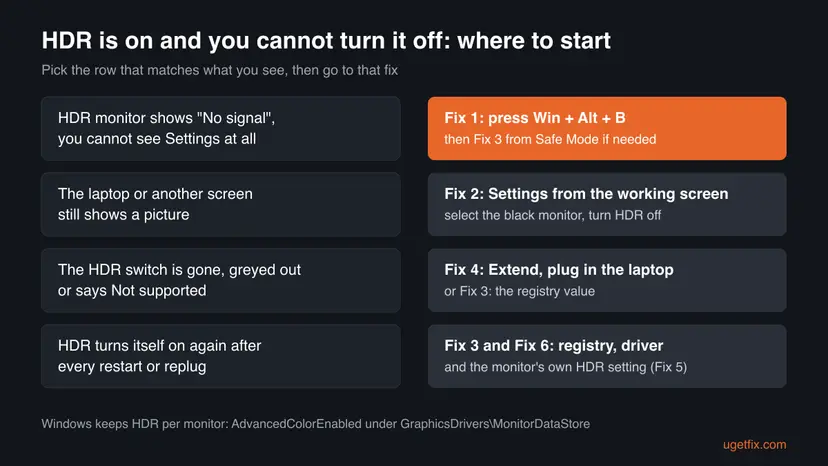
Fix 1 works blind and takes a minute. Fix 2 needs any screen that still shows a picture. Fix 3 is for a monitor that turns black again after every restart. Fixes 4 to 6 deal with a missing switch, the cable and the driver, and Fix 7 is the last resort.
| What you see or what your PC has | Start with |
|---|---|
| The HDR monitor is black and it is your only screen | Fix 1 |
| A laptop screen or another monitor still works | Fix 2 |
| HDR switches on again after every restart | Fix 3 |
| The HDR switch is missing, greyed out or says Not supported | Fix 4 |
| HDR works on DisplayPort but not on HDMI, or only at a lower refresh rate | Fix 5 |
| Colours look wrong or dxdiag shows no AdvancedColorSupported | Fix 6 |
Fix 1. Press Win + Alt + B to turn HDR off without seeing the screen
1 minuteNo riskEveryone, and above all readers whose only monitor went black the moment HDR came on.
Microsoft's list of Windows keyboard shortcuts says Win + Alt + B turns high dynamic range on or off. It works without any visible menu, so a black screen does not stop you.
- Leave the black monitor connected and switched on.
- Press Win + Alt + B once, all three keys at the same time.
- Wait 5 to 10 seconds. The monitor may flash or show its input message while the signal changes.
- If nothing happens, press Win + Ctrl + Shift + B. Microsoft lists it as the shortcut that wakes a blank or black screen by restarting the graphics driver.
- Press Win + Alt + B once more and wait again.
The shortcut is a toggle. Pressing it twice in a row turns HDR off and straight back on. Give the monitor 10 seconds before you press again.
It worked if: The monitor shows the desktop again, and Settings > System > Display shows HDR switched off for that monitor.
If not: If you have a second screen, use Fix 2. If the HDR monitor is your only screen, go to Fix 3.
Fix 2. Turn off HDR in Settings from a screen that still works
5 minutesNo riskLaptops with an external monitor, and desktops with two monitors where one still shows a picture.
Microsoft's HDR steps always start by choosing the HDR-capable display at the top of the Display page. The switch belongs to that monitor, so you can turn it off from any other screen.
- If only the laptop screen is black too, press Win + P and then Enter a few times until a picture comes back, or close and open the lid.
- On the screen that works, select Start, type settings and open Settings > System > Display.
- At the top, select the box with the number of the HDR monitor, even though it shows nothing.
- On Windows 11, select HDR and turn the HDR switch off (in some builds it is called Use HDR).
- On Windows 10, select Windows HD Color settings and turn Use HDR off.
- If the HDR monitor is not listed at all, unplug it for 10 seconds, plug it back in and select Detect under Multiple displays.
A desktop with only the HDR monitor can borrow a picture another way. Connect it to a second, older monitor or a TV, or plug the HDR monitor into another port with a different cable. Windows treats each connection as its own display, often without HDR, which gives you a screen to turn HDR off on.
It worked if: The HDR monitor wakes up a few seconds after you turn the switch off, and it stays on after a restart.
If not: If the switch is missing for that monitor, go to Fix 4. If it turns black again after a restart, reset the saved value in Fix 3.
Fix 3. Reset the saved HDR value AdvancedColorEnabled in the registry
15 to 20 minutesRead the warningThe HDR switch is gone, the monitor is black again after every restart, or Fixes 1 and 2 did not help.
Windows stores HDR per monitor in AdvancedColorEnabled under MonitorDataStore. In Microsoft's Q&A thread on this problem, the answer more than 100 users marked helpful sets it to 0 and restarts, which gives the monitor its picture back.
A wrong edit in the registry can stop display settings from loading. Export the MonitorDataStore key first, so you can restore it with a double click. Step by step: Back up the registry before editing it.
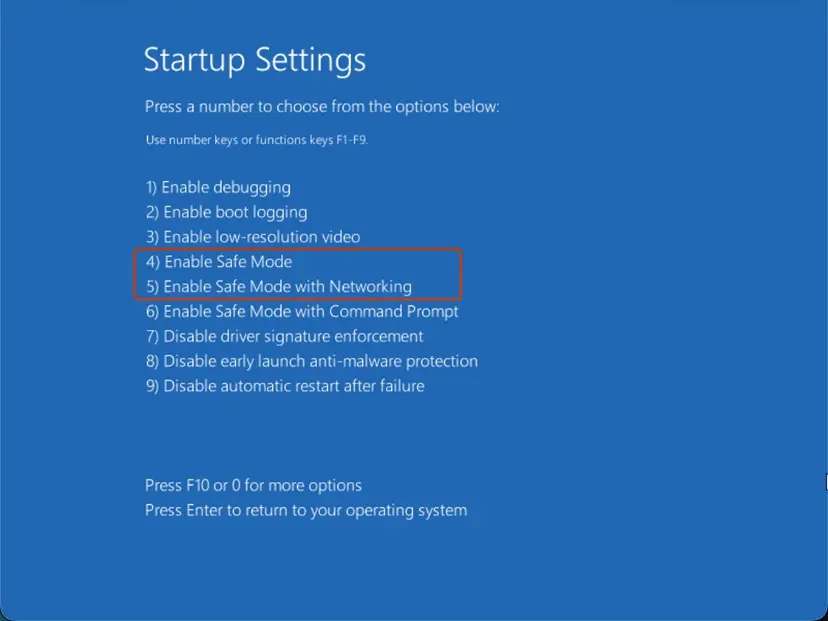
You need a picture to do this. Use the laptop screen, another monitor, or start Windows in Safe Mode. Safe Mode loads a minimal set of drivers, which often brings the picture back on the HDR monitor; we could not confirm this for every monitor. Step by step: Start Windows or a Mac in Safe Mode.
- Press Win + R, type
regeditand press Enter. Select Yes at the prompt. - Go to
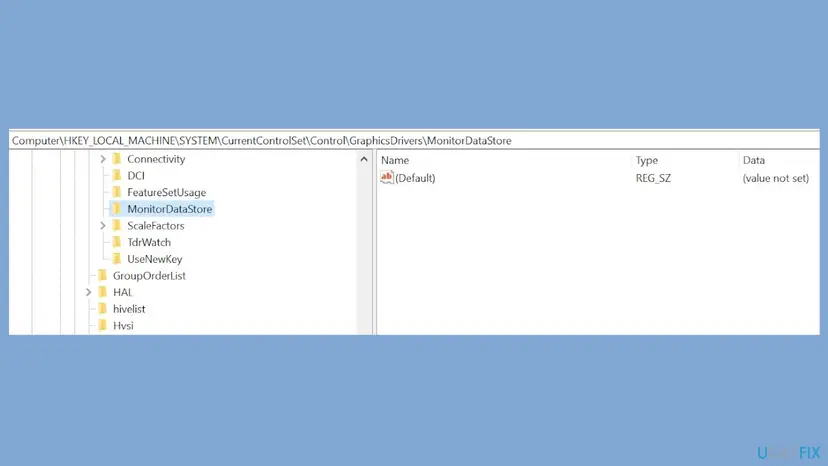
HKEY_LOCAL_MACHINE\SYSTEM\CurrentControlSet\Control\GraphicsDrivers\MonitorDataStore. - Expand MonitorDataStore. Each subkey is one monitor; its name starts with a short code for the monitor's maker.
- Select a subkey and look for AdvancedColorEnabled on the right.
- Double-click AdvancedColorEnabled, set Value data to
0and select OK. Do this in every subkey that has the value set to 1. - Close Registry Editor and restart Windows normally.
- When the monitor shows a picture, check Settings > System > Display > HDR is off before you change anything else.
It worked if: After the restart the monitor shows the desktop in normal (SDR) mode and HDR stays off.
If not: If AdvancedColorEnabled is missing or already 0, the switch may be hidden for another reason. Check Fix 4, then the cable in Fix 5.
Fix 4. Bring back a missing or greyed out HDR switch
5 minutesNo riskThe monitor works, but the HDR switch is gone, greyed out or says Not supported.
Microsoft names two Windows reasons for a hidden or locked switch: duplicated displays, which do not support HDR, and the laptop power setting that turns HDR off on battery.
- On a laptop, plug in the charger. Microsoft says HDR-capable laptops turn HDR off on battery by default and the switch cannot be changed until you plug in.
- Open Settings > System > Display. If the displays are duplicated, select Extend these displays near the top (Windows 10: under Multiple displays).
- Select the HDR monitor at the top of the Display page and check the HDR switch again.
- To check what Windows sees, press Win + R, type
dxdiagand select OK, then Yes. - Select Save All Information, save the text file and open it.
- Find Advanced Color. AdvancedColorSupported means the driver and monitor support HDR10, AdvancedColorEnabled means HDR is on right now.
- Monitor Capabilities: HDR Supported with BT2020RGB or BT2020YCC and Eotf2084Supported means the monitor reports HDR10 correctly.
- HDR Not Supported means the monitor or the link is missing at least one HDR10 requirement, so Windows hides the switch on purpose. Check Fix 5 and Fix 6.
It worked if: The HDR switch is back and you can turn it off, or dxdiag tells you the monitor does not report HDR support.
If not: If dxdiag shows HDR is not supported, check the cable and the monitor's settings in Fix 5.
Fix 5. Check the cable, the port, the refresh rate and the monitor's own HDR setting
10 minutesNo riskHDR breaks the picture on HDMI or through a hub, or you want HDR to work after all.
Microsoft's HDR troubleshooting points at the link: the monitor's own HDR setting must be on, DisplayPort is preferred over HDMI, and HDMI may need 30 Hz or 1080p to carry HDR.
- Open the monitor's on-screen menu and make sure its HDR or deep colour input setting is on. The name varies by maker; the manual on the maker's site has it.
- If the monitor and PC both have DisplayPort, connect with DisplayPort instead of HDMI.
- Connect straight to the PC, without a USB-C hub, dock or adapter, for one test.
- If HDMI is the only option, open Settings > System > Display > Advanced display and set Choose a refresh rate to 30 Hz if it is offered.
- Or select Display adapter properties, then List All Modes on the Adapter tab, and pick 1920 by 1080, 60 Hertz.
- Turn HDR on again only after the monitor shows a picture in the new setup.
In the Microsoft Q&A thread, the reader's LG monitor worked with a Mac on the same cable. That rules out a broken monitor and points back at the Windows HDR setting, so Fixes 1 to 3 come first.
It worked if: The monitor shows HDR content without losing the signal, or at least works in SDR with HDR off.
If not: Update the graphics driver in Fix 6.
Fix 6. Update or reinstall the graphics driver
10 to 20 minutesLow riskThe switch is missing, colours look wrong, or HDR keeps failing on a link that should carry it.
Microsoft asks for the latest WDDM graphics driver for HDR problems. The driver decides whether AdvancedColorSupported is reported at all, so an old or generic one hides the switch.
- Download the current driver from the PC maker's support page for a laptop, or from NVIDIA, AMD or Intel for a desktop card.
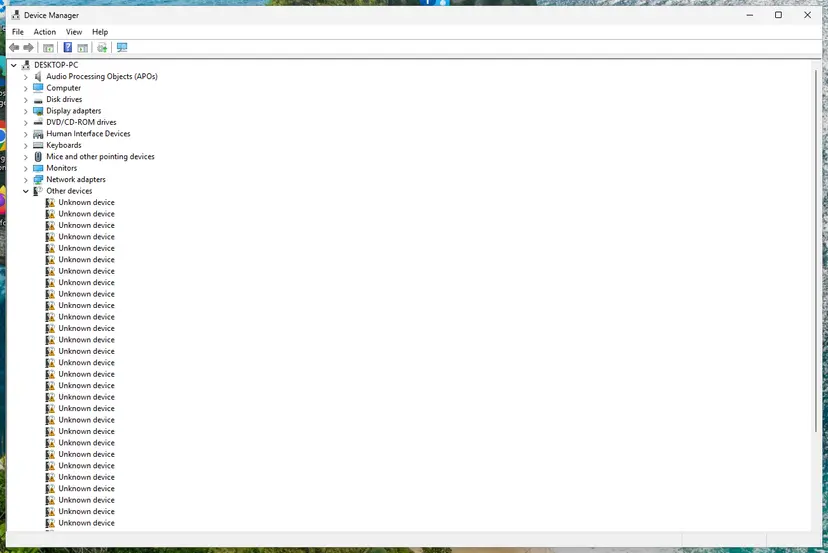
- Right-click Start and select Device Manager, then expand Display adapters.
- Run the downloaded installer, or right-click the card, select Update driver and then Search automatically for drivers.
- Also open Settings > Windows Update > Advanced options > Optional updates and install any display driver listed (Windows 10: Settings > Update & Security).
- Restart the PC and check the HDR switch.
Update, roll back and clean reinstall, with every screen: Update, roll back or reinstall a driver.
It worked if: dxdiag shows AdvancedColorSupported, and the HDR switch appears and turns off normally.
If not: Use System Restore in Fix 7, or read the still broken section.
Fix 7. Use System Restore to go back before HDR was turned on
20 to 40 minutesLow riskA restore point exists from before the problem and nothing above worked.
System Restore returns the registry, including the saved monitor settings, to an earlier point. It is slow and removes newer drivers, so it comes last.
- Press Win + R, type
rstruiand press Enter. - Select Next and pick a restore point from before you turned HDR on.
- Select Scan for affected programs to see which apps and drivers will be removed.
- Select Finish and let the PC restart.
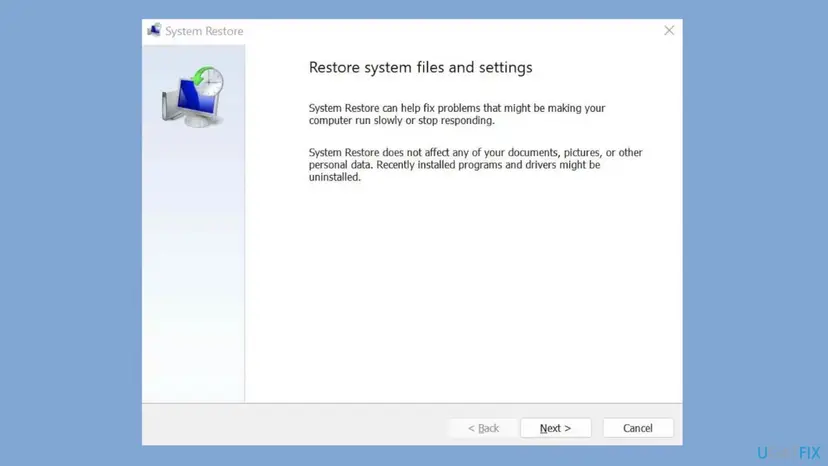
With screens for every step, and how to start it from recovery when you have no picture: Undo recent changes with System Restore.
It worked if: Windows starts with the display settings from the restore point and the monitor shows a picture without HDR.
If not: Read the still broken section below.
Still broken: when HDR is not the real problem
If the monitor stays black with HDR off, AdvancedColorEnabled at 0 and a current driver, look past the HDR setting. Check these signs in order.
- The monitor is black on every PC and every cable. The monitor itself or its power board is faulty. Contact the maker's support.
- The monitor works on a Mac or a console but not on this PC. The problem is still in Windows or the graphics card. Repeat Fix 3 in Safe Mode and Fix 6 with a clean driver install.
- Only one port fails. The port or the hub cannot carry the signal. Use another port or connect without the hub.
- Windows 10. Windows 10 left support on 14 October 2025, so new graphics drivers for it may stop coming.
For support, save the dxdiag text file from Fix 4. It holds the Advanced Color and Monitor Capabilities lines that show what Windows and the monitor agree on. Add the monitor model, the cable type and your Windows version from winver.
How to turn on HDR without losing the picture next time
Most readers hit this the first time they try HDR on a new monitor. A few checks before you flip the switch keep the picture on screen.
- Turn on the monitor's own HDR or deep colour setting before you turn on HDR in Windows.
- Use DisplayPort or a certified high speed HDMI cable for 4K HDR.
- Keep a second screen connected the first time you turn HDR on.
- Remember Win + Alt + B turns HDR off again without a menu.
- Do not turn HDR on through a USB-C hub you have not tested with HDR.
- Do not press the HDR shortcut several times in a row.
- Do not delete whole subkeys under MonitorDataStore; change only AdvancedColorEnabled.
Frequently asked questions
How do I turn off HDR in Windows 10?
Open Settings > System > Display, select the HDR monitor under Rearrange your displays, then select Windows HD Color settings and turn Use HDR off. Microsoft notes this needs Windows 10 version 2004 or later. If the monitor is black and you cannot see Settings, press Win + Alt + B, the Windows shortcut that turns HDR on or off. Windows 10 left support on 14 October 2025, but the HDR settings still work the same way.
How do I disable HDR on Windows 11?
Open Settings > System > Display, select the HDR-capable monitor at the top, select HDR and turn the switch off. On a laptop, the switch is locked while the laptop runs on battery with the default power settings, so plug it in first. The keyboard shortcut Win + Alt + B does the same in one step and works even when the HDR monitor shows no picture.
Is there a keyboard shortcut to turn HDR on or off?
Yes. Microsoft's list of Windows keyboard shortcuts gives Win + Alt + B to turn high dynamic range on or off. Press all three keys once and wait 5 to 10 seconds for the monitor to switch. It is a toggle, so pressing it twice in a row puts HDR straight back on. If the screen stays black, Win + Ctrl + Shift + B restarts the graphics driver, after which you can try the HDR shortcut again.
Why won't HDR turn off in Windows?
Usually it is not that HDR refuses to turn off, but that you cannot reach the switch. The HDR monitor shows no signal, so you cannot see Settings on it. Windows also saves HDR per monitor in the AdvancedColorEnabled registry value, so the problem returns after every restart. Turn it off with Win + Alt + B, from another screen, or by setting that value to 0 as in Fix 3.
Why is the HDR option greyed out or missing?
Microsoft gives two Windows reasons. On HDR laptops the default power settings turn HDR off on battery, and the switch cannot be changed until you plug in. When displays are duplicated, HDR is not supported and the switch does not appear, so select Extend these displays. If it is still missing, dxdiag shows whether the driver and monitor report AdvancedColorSupported at all, as Fix 4 explains.
My monitor shows no signal after I enabled HDR. Is it broken?
Almost certainly not. The monitor cannot show the HDR signal Windows now sends over that cable and port, and Windows does not roll the change back by itself. In the Microsoft Q&A thread on this problem, the same monitor worked with a Mac. Turn HDR off with Fix 1, 2 or 3, then check the cable and the monitor's HDR setting in Fix 5 before you try HDR again.
Why won't HDR turn on in Windows 11?
This page is mainly about turning HDR off, but the checks are the same. Make sure the monitor's own HDR setting is on, the displays are extended, a laptop is plugged in and the graphics driver is current. In dxdiag, Monitor Capabilities must say HDR Supported with Eotf2084Supported. If it says HDR Not Supported, the monitor or the link misses an HDR10 requirement and Windows hides the switch on purpose.
Is it safe to edit AdvancedColorEnabled in the registry?
Yes, if you change only that one value and back up the key first. Setting AdvancedColorEnabled to 0 under MonitorDataStore simply tells Windows the monitor's HDR is off. Do not delete whole subkeys or other values there. Export the MonitorDataStore key with Back up the registry before editing it so you can restore it with a double click if anything looks wrong after the restart.
Should I keep HDR on or off on my PC?
Keep it on only if your monitor is certified for HDR and HDR games or videos look better on it. Microsoft notes that many HDR displays are made mainly for films, and that normal desktop apps can look too dark or washed out in HDR. If the desktop looks wrong, try the SDR content brightness slider first. If you rarely watch HDR content, leaving HDR off avoids these problems.
Sources
- Microsoft Support: HDR settings in Windows (support.microsoft.com)
- Microsoft Support: Keyboard shortcuts in Windows (support.microsoft.com)
- Microsoft Q&A: Can't disable HDR, monitor doesn't receive any signal (user reports) (learn.microsoft.com)
Did this fix work?
One click, no account. It tells the next reader which guides are worth their time.
Questions and experiences: [Fix] Can't disable HDR in Windows
Still broken, or found a fix we did not cover? Ask here: members and our editors answer. Reading is open; writing needs a free account.
…