
[Fix] Can't install Cross Device Experience Host in Windows?

Prefer to fix it yourself? The manual steps follow.
- 7methods
- 5 to 20 minutes
- Easy
Applies to Windows 11 PCs with Settings > Bluetooth & devices > Mobile devices; Android phones and tablets linked to the PC
7 methods in this guide
Microsoft recently rolled out a feature called Cross Device Experience Host, which is supposed to allow a different way to connect your phone to the PC. Although it's available on my PC, I've been struggling to install it despite several attempts. Could you provide some solutions on how to get it working?
Cross Device Experience Host is the Microsoft Store package that runs the Mobile devices feature in Windows 11. When it sticks on Pending or says it is unable to apply an update, the Store download is what fails. Start it again from Settings, then install it with winget if the Store will not.
Cross Device Experience Host is a small Microsoft Store app that Windows 11 downloads when you turn on Allow this PC to access your mobile devices. If it stays on Pending, open Manage devices, then check the download in Microsoft Store (Fix 1). If the Store still fails, install it with winget install 9NTXGKQ8P7N0 in an administrator Command Prompt (Fix 2).
| Error | The Mobile devices toggle stays on Pending, or a window says "Cross Device Experience Host needs an update, but we're unable to apply the update right now." |
|---|---|
| Where it appears | Windows 11 Settings > Bluetooth & devices > Mobile devices, right after you turn on Allow this PC to access your mobile devices or select Manage devices. |
| Main cause | Microsoft Store does not finish downloading or updating the package, so the Mobile devices app has nothing to start. |
| Fastest fix | Turn the toggle on, open Manage devices and let the Store download finish (Fix 1). Otherwise winget install 9NTXGKQ8P7N0 (Fix 2). |
| Also written as | Cross-Device Experience Host, cross device host, Mobile devices, CrossDeviceService.exe, Store ID 9NTXGKQ8P7N0. |
| Affects | Windows 11. We could not confirm from Microsoft that the package runs on Windows 10, which left support on 14 October 2025. |
| What it enables | Using an Android phone or tablet as a webcam, the Resume alerts on the taskbar, and other links between phone and PC that need the phone listed under Mobile devices. |
| Microsoft's status | No known issue is listed. Microsoft Q&A has a long thread of users stuck on Pending since March 2024; the winget command is the answer most found helpful there. |
| Time to fix | 2 to 5 minutes for Fix 1 and Fix 2. About 15 minutes if you reset the Store or reinstall the package. |
Facts checked on 15 October 2026. Steps written for Windows 11 (25H2 and 26H2) and Windows 10 22H2.
What Cross Device Experience Host is and what the install error means
Cross Device Experience Host is a Microsoft app delivered through Microsoft Store, with the Store ID 9NTXGKQ8P7N0. Windows 11 uses it for the Mobile devices page in Settings. In Task Manager its process shows as Mobile devices, file name CrossDeviceService.exe, with Microsoft Windows as the publisher.
It lets the PC use content and features of a linked Android phone or tablet. The best known ones are using the phone's camera as a webcam, and Resume, which puts an app from your phone on the PC taskbar so you can continue there. Microsoft's Resume page requires the phone to be listed under Mobile devices.
| What you see | What it means |
|---|---|
| The toggle is on, but Pending stays under it | Windows asked the Store to download the package and the download never started or never finished. |
| "Cross Device Experience Host needs an update, but we're unable to apply the update right now." | The package is there, but the Store cannot install a newer version that the Mobile devices app requires. |
| The Store download fails or will not cancel | The Store itself, its cache or the drive it installs to is the problem. |
| No Mobile devices page at all | The PC runs Windows 10, or this Windows 11 build has not received the feature yet. |
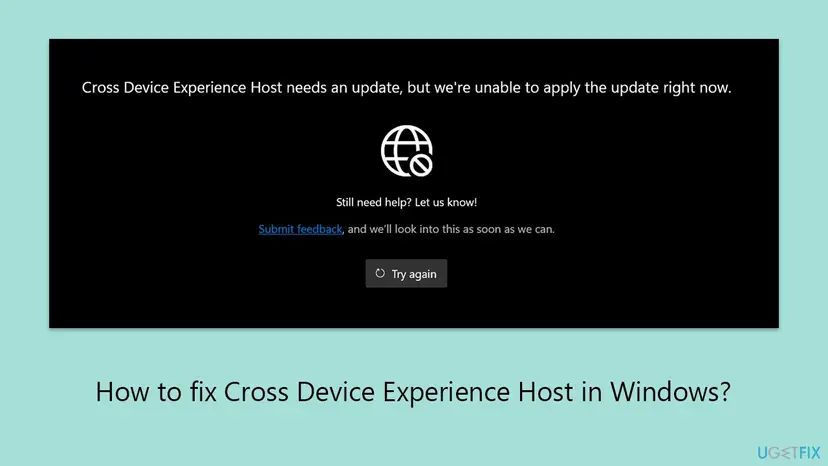
Under the message the window shows "Still need help? Let us know!" with a Submit feedback link and a Try again button. Try again only repeats the same Store request, so it rarely helps until the Store side is fixed.
Why Cross Device Experience Host will not install, most likely first
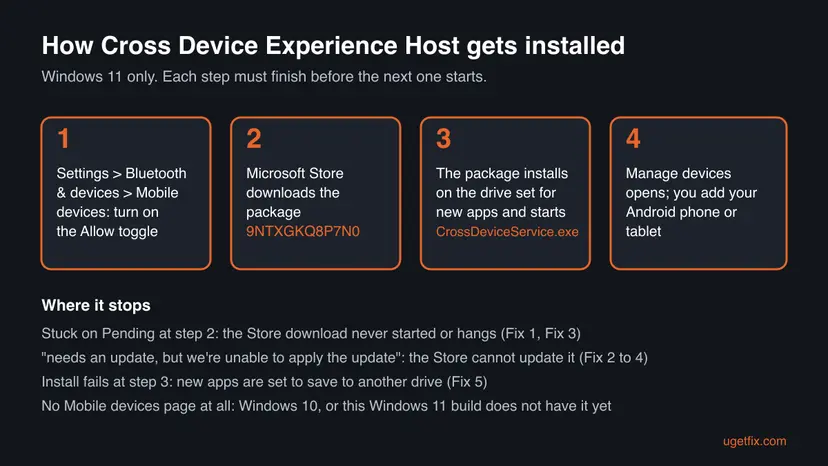
- Most often: the Store download never runs. Turning on the toggle only queues the package. Users on Microsoft Q&A report that it started only after they opened Manage devices and chose to add a device (Fix 1).
- Often: the Store will not install or update this one package, while other apps work. Installing it directly with winget skips the Store's own download screen (Fix 2).
- Sometimes: the Store's cache or its update queue is stuck. A download that will not cancel or restart points here (Fix 3).
- Sometimes: a damaged or half-updated copy is already installed. winget then says the package is installed and no upgrade is available, yet Settings still asks for an update (Fix 4).
- Rarely: new apps are set to save to another drive, or system files or a background program get in the way (Fix 5, Fix 6, Fix 7).
How to install Cross Device Experience Host when it will not install
Start with Fix 1 if the toggle shows Pending. Start with Fix 2 if the update message appears. Use Fix 4 when winget says the package is already installed but Settings still wants an update.
| What you see or what your PC has | Start with |
|---|---|
| The toggle is on and shows Pending | Fix 1 |
| "needs an update, but we're unable to apply the update right now" | Fix 2 |
| The Store download hangs, fails or will not cancel | Fix 3 |
| winget says "No available upgrade found" but Settings still asks | Fix 4 |
| New apps are set to save to a drive other than C: | Fix 5 |
| Other Store apps fail to install too | Fix 3, then Fix 6 |
| Nothing above helped | Fix 7 |
Fix 1. Turn on Mobile devices and start the download from Manage devices
5 minutesNo riskThe toggle shows Pending, or you have not opened Manage devices yet.
The toggle only asks for the package. Opening Manage devices and adding a device is the point where Windows asks Microsoft Store for the Cross Device Experience Host update, so the download really starts.
- Press Win + I and open Bluetooth & devices > Mobile devices.
- Turn on Allow this PC to access your mobile devices.
- Select Manage devices under the toggle and sign in with your Microsoft account if asked.
- Select Add device if the window offers it.
- Open Microsoft Store, select Library (or Downloads) and check that Cross Device Experience Host is downloading. Leave the Store open until it finishes.
- Go back to Mobile devices and select Manage devices again.
Microsoft does not publish a page for this install step. The order above is what users on Microsoft Q&A report as working. Labels in the Manage devices window may change between builds.
It worked if: Pending disappears, and Manage devices opens a window that lists your phone or offers to add one.
If not: If the Store shows no download, or the update message appears, install the package directly with Fix 2.
Fix 2. Install Cross Device Experience Host with winget
3 minutesNo riskThe Store does not download it, or you see "needs an update, but we're unable to apply the update right now".
winget, the Windows Package Manager, fetches the same Store package by its ID and installs it without the Store's download page. That is the answer most users found helpful in the Microsoft Q&A thread on this problem.
- Select Start, type
cmd, right-click Command Prompt and select Run as administrator. - Type
winget install 9NTXGKQ8P7N0and press Enter. - If winget asks you to accept the Store's source agreements, type Y and press Enter.
- Wait until it says the package was installed, then restart the PC.
- Open Settings > Bluetooth & devices > Mobile devices and select Manage devices.
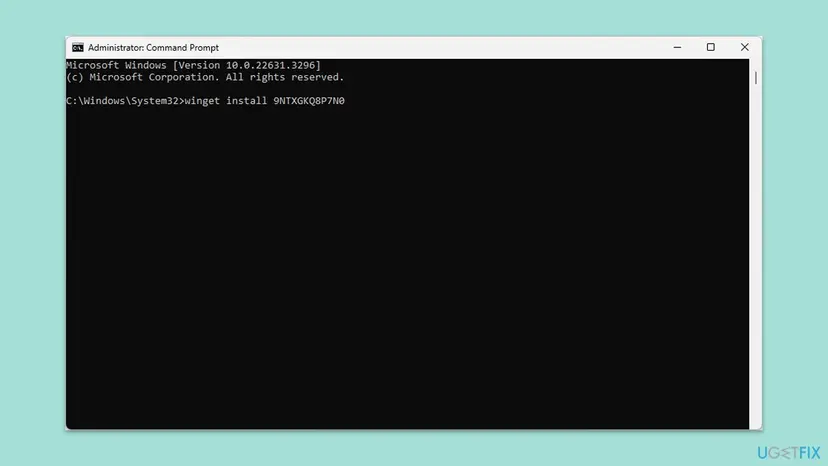
This is also the safe way to download Cross Device Experience Host for Windows 11 by hand. The ID points to Microsoft's own Store listing, so you do not need an installer from any other website.
If winget answers "Found an existing package already installed. Trying to upgrade the installed package" and then "No available upgrade found", the package is on the PC already. The broken part is the installed copy: go to Fix 4.
It worked if: winget reports a successful install, and Manage devices opens without the update message.
If not: If winget fails with a Store error, clear and repair the Store with Fix 3.
Fix 3. Update the package in Microsoft Store and reset the Store cache
10 minutesLow riskThe download hangs, fails, will not cancel, or other Store apps fail to update too.
Cross Device Experience Host only arrives through Microsoft Store. When the Store's cache or app is damaged, every attempt from Settings or winget hits the same wall, so the Store has to work first.
- Open Microsoft Store, select Library and then Get updates.
- If Cross Device Experience Host is in the list and hangs, cancel it, close the Store and open it again.
- If it still hangs, clear the Store cache: press Win + R, type
wsreset.exeand select OK. Wait until the Store opens by itself. - Select Get updates again and let the package finish.
- If the Store still fails, repair or reset it with the full procedure below.

Repair and reset of the Store app, step by step: Reset the Microsoft Store. A reset signs you out of the Store, so keep your Microsoft account password ready.
It worked if: Library shows Cross Device Experience Host as up to date, and Mobile devices no longer shows Pending.
If not: If the Store works but this one package will not update, reinstall it with Fix 4.
Fix 4. Remove the broken copy and install Cross Device Experience Host again
5 minutesLow riskwinget says the package is installed and up to date, yet Settings still says it needs an update.
A half-updated copy can block every new update, because the Store sees a package and stops. Removing it and installing it fresh gives the Mobile devices app a clean, current copy.
- Select Start, type
PowerShell, right-click Windows PowerShell and select Run as administrator. - Check what is installed:
Get-AppxPackage -AllUsers *crossdevice*. Note the Name and Version lines. - Remove it:
Get-AppxPackage -AllUsers *crossdevice* | Remove-AppxPackage. - Restart the PC.
- Install it again with
winget install 9NTXGKQ8P7N0(as in Fix 2), or turn the Mobile devices toggle off and on and select Manage devices.
Nothing on the phone. The phone, webcam and Resume links to this PC stop until the package is back, and you may have to add the phone again under Manage devices.
It worked if: The first command shows nothing after removal, and after the reinstall Manage devices opens without the update message.
If not: If the reinstall fails at the very end, check where new apps are saved with Fix 5.
Fix 5. Save new apps to the Windows drive
3 minutesNo riskYou changed where new apps are saved, or a second drive is set for apps.
Store packages install to the drive set under New apps will save to. A system component such as this one can fail when that drive is a second disk, a removable drive or a drive that is not always present.
- Press Win + I and open System > Storage.
- Under Storage management, select Advanced storage settings.
- Select Where new content is saved.
- Under New apps will save to, choose the drive where Windows is installed, usually Local Disk (C:).
- Run Fix 2 again.
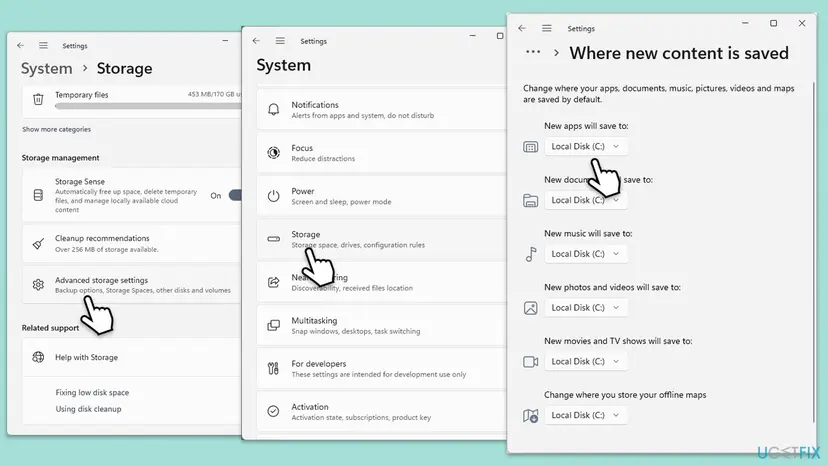
It worked if: New apps will save to shows the Windows drive, and the package installs.
If not: If other Store apps fail too, repair Windows system files with Fix 6.
Fix 6. Repair Windows system files with SFC and DISM
15 to 30 minutesNo riskSeveral Store apps fail to install or update, not only this one.
The Store installs packages through Windows' own app deployment parts. If their files are damaged, every package fails, and SFC and DISM replace damaged files with good copies.
Run both tools in an administrator window, then restart and try Fix 2 again. Step by step: Run DISM and SFC to repair Windows system files.
- Open an elevated command window. Right-click Start and select Terminal (Admin), or type cmd in the search box, right-click Command Prompt and select Run as administrator. Select Yes when Windows asks for permission.
- Run DISM first. Type the command below and press Enter. DISM downloads clean copies of damaged components from Windows Update, so it can take several minutes. Wait until it says The operation completed successfully.
DISM.exe /Online /Cleanup-Image /RestoreHealth - Run System File Checker. In the same window, type the command below and press Enter. Do not close the window until the verification reaches 100%.
sfc /scannow - Read the result and restart. Compare the last message with the table below this guide, then restart the PC so that repaired files are loaded.
These steps were written for Windows 11 24H2 and 25H2. The full page with the other versions and what each result means: Run DISM and SFC to repair Windows system files
It worked if: SFC reports that it found and repaired files, or that it found no problems, and the package installs after a restart.
If not: If it still fails, test without other programs in a clean boot with Fix 7.
Fix 7. Install it in a clean boot
15 minutes plus restartsLow riskAll fixes above failed, or a security, VPN or system tweaking program is installed.
A clean boot starts Windows with only Microsoft's services. If the package installs then, another program blocked the Store download, and you can find which one by turning items back on in halves.
- Open System Configuration. Select Search on the taskbar, type msconfig and select System Configuration from the results.
- Hide Microsoft services. On the Services tab, select the Hide all Microsoft services check box. Only services from other companies stay in the list.

With Hide all Microsoft services ticked, only third-party services stay in the list. Screenshot: Windows 11 26H2. - Disable the remaining services. Select Disable all, then select Apply.
- Open Task Manager. On the Startup tab of System Configuration, select Open Task Manager.

The Startup tab only links to Task Manager. Screenshot: Windows 11 26H2. - Disable the startup apps. On the Startup apps tab in Task Manager, select each item whose status is Enabled and select Disable. Write down or take a screenshot of the items you disable: you need the list to turn them back on.

Select an app, then Disable. Screenshot: Windows 11 26H2. - Confirm the changes. Close Task Manager. On the Startup tab of System Configuration, select OK.
- Restart and test. Restart the PC. Windows now starts in a clean boot environment: try again the thing that failed (run the app, install the update, uninstall the program).
These steps were written for Windows 11 25H2 and 26H2. The full page with the other versions and what each result means: How to perform a clean boot in Windows
In the clean boot, run Fix 2. When it has installed, return to a normal startup, as the procedure explains. Do not leave the PC in a clean boot.
It worked if: The package installs in the clean boot and keeps working after a normal start.
If not: Collect the details under "Still not installing" below and send them through Feedback Hub.
Cross Device Experience Host still will not install: what to check
- Is it Windows 11? Mobile devices and Resume need Windows 11. On Windows 10 use Phone Link instead.
- Is the PC managed by work or school? An administrator can block Store apps. Ask them before you change anything.
- Is the clock right? A wrong date or time stops the Store from connecting: How to fix the date and time in Windows.
- What does winget say? The exact error line after
winget install 9NTXGKQ8P7N0is the most useful detail you can give.
To report it, open Feedback Hub or select Submit feedback in the update message. Give your Windows version and build from Settings > System > About, the winget output, and which fixes you tried. That is what Microsoft Q&A will ask for too.
How to keep Cross Device Experience Host working
- Let Microsoft Store update apps on its own, and run Library > Get updates after a big Windows update.
- Keep New apps will save to on the Windows drive.
- Get the package only from Microsoft Store or with winget and its Store ID.
- Do not download a "Cross Device Experience Host installer" from other websites. Microsoft does not publish one.
- Do not remove the package with PowerShell unless you plan to install it again or do not need the phone features.
- Do not disable Microsoft Store services to stop updates; the package cannot be updated without them.
Frequently asked questions
What is Cross Device Experience Host?
It is a Microsoft app from Microsoft Store that connects Windows 11 to a linked Android phone or tablet. It powers the Mobile devices page in Settings, and in Task Manager it appears as Mobile devices with the file CrossDeviceService.exe. It is what lets you use the phone's camera as a webcam and see Resume alerts on the taskbar. It is a genuine Microsoft component, not malware, when it comes from the Store.
Do I need Cross Device Experience Host?
Only if you want the PC to use your Android phone or tablet through the Mobile devices page, for example as a webcam, or to continue apps from the phone with Resume. If you never turned on Allow this PC to access your mobile devices, you have no use for it. Windows works normally without it. Phone Link is a separate app and keeps working on its own.
Where do I download Cross Device Experience Host?
From Microsoft Store only. Turn on Mobile devices in Settings and Windows asks the Store for it, or run winget install 9NTXGKQ8P7N0 in an administrator Command Prompt, as in Fix 2. The ID is the package's Microsoft Store ID, so winget installs the same file the Store would. Microsoft does not offer a separate installer, so a download from another website is not the real package and should be avoided.
Can I install Cross Device Experience Host on Windows 10?
We could not confirm from Microsoft that it runs on Windows 10, and the Mobile devices page it serves is a Windows 11 feature. Microsoft's Resume page also requires Windows 11. On Windows 10 the way to link an Android phone is the Phone Link app. Windows 10 left support on 14 October 2025, so new phone features are unlikely to reach it.
How do I uninstall Cross Device Experience Host?
First turn off Allow this PC to access your mobile devices in Settings > Bluetooth & devices > Mobile devices. Then open PowerShell as administrator and run Get-AppxPackage -AllUsers *crossdevice* | Remove-AppxPackage. The phone webcam and Resume stop working until you install it again with winget. To only stop it from starting with Windows, disable Mobile devices in the Startup apps list of Task Manager instead.
What is CrossDeviceService.exe?
It is the program of Cross Device Experience Host. Task Manager lists it as Mobile devices under Startup apps, with Microsoft Windows as the publisher. It runs so the PC can reach your linked phone. Disabling it in Startup apps only stops it from starting with Windows; the feature can still start it when you open Mobile devices. If you doubt the file is genuine, run a Microsoft Defender scan.
Why does winget say no available upgrade while Settings asks for an update?
Because winget compares versions with the Store and finds nothing newer, while the copy on your PC is damaged or not fully registered. Microsoft Q&A users report exactly this pair of messages. Remove the package with PowerShell and install it fresh, as in Fix 4. If the Store still offers no working copy after that, send the details through Feedback Hub.
Is Cross Device Experience Host the same as Phone Link?
No. Phone Link is a separate app for messages, calls, photos and notifications from your phone. Cross Device Experience Host serves the Mobile devices page in Settings and features such as the phone webcam and Resume. Both use the Link to Windows app on the phone, and Microsoft's Resume page says the phone must be linked with it and listed under Mobile devices.
What does the Pending status mean under the Mobile devices toggle?
It means Windows has asked Microsoft Store for Cross Device Experience Host and is waiting for it. If it stays there, the Store download has not started or is stuck. Open Manage devices and check Library in the Store, as in Fix 1. If nothing is downloading, install the package with winget instead.
Sources
- Microsoft Support: Cross-device Resume Feature (requirements: Windows 11, Android 10, Link to Windows, phone listed under Mobile devices) (support.microsoft.com)
- Microsoft Q&A: New Cross Device Experience Host won't install for me, stuck on pending (winget answer and user reports, 2024) (learn.microsoft.com)
- WindowsDigitals: What is Mobile devices (CrossDeviceService.exe)? (process, webcam use, removal and reinstall) (windowsdigitals.com)
Did this fix work?
One click, no account. It tells the next reader which guides are worth their time.
Questions and experiences: [Fix] Can't install Cross Device Experience Host in Windows
Still broken, or found a fix we did not cover? Ask here: members and our editors answer. Reading is open; writing needs a free account.
…