
Microsoft Office SDX Helper high CPU and disk usage: what it is and how to fix it

Prefer to fix it yourself? The manual steps follow.
- 7methods
- 10 to 30 minutes
- Easy
Applies to Microsoft 365 Apps (Click-to-Run) with the Office Feature Updates task, on Windows 11 and Windows 10
7 methods in this guide
Hello. I noticed that Microsoft Office SDX Helper sometimes uses up to 70% of my CPU when I am not even using Office. It makes my PC heat up, and I cannot find a solution, because it keeps coming back every time I end the task. Any suggestions would be appreciated.
Microsoft Office SDX Helper is sdxhelper.exe, a genuine Microsoft 365 process that a scheduled task starts about every four hours to download updates for features such as Copilot. A short burst of CPU or disk use is normal. If it stays high or keeps coming back, check the file first, then update and repair Office.
SDX Helper belongs to Microsoft 365 and is safe when it runs from the Microsoft Office folder and is signed by Microsoft. Short bursts after an update or at sign-in are normal. For long, repeated spikes, confirm the file is genuine (Fix 1), install the latest Office update (Fix 2), then run Quick Repair and Online Repair, which is what Microsoft itself advises (Fix 3). Never delete or rename the file.
| Error | No error message. Task Manager shows Microsoft Office SDX Helper high in the CPU or Disk column, sometimes with loud fans. In the Details tab it is sdxhelper.exe. |
|---|---|
| Where it appears | Task Manager and Resource Monitor on Windows 11 and Windows 10 PCs with Microsoft 365 Apps, often while no Office app is open. |
| Main cause | The Office Feature Updates task runs it about every 4 hours to fetch updates for connected experiences. It turns into a problem when Office is out of date or damaged and the helper keeps working or crashing. |
| Fastest fix | Check the file location and signature (Fix 1), then File > Account > Update Options > Update Now (Fix 2). If it stays high, Online Repair (Fix 3). |
| Also written as | sdxhelper.exe, SDXHelper.exe, Microsoft SDX Helper, Office SDX Helper, sdx helper. Not the same as sdx-helper.exe with a hyphen. |
| What is normal | Microsoft: runs in the user's context, polls Office services in the background, does not run on battery power and does not poll on metered connections. |
| Affects | Microsoft 365 Apps (Click-to-Run) build 16.0.11220 and later. Microsoft says the task does not apply to Office 2016, Office 2019 or Office LTSC 2021 perpetual versions. |
| Microsoft's status | No current known-issue notice found on 14 October 2026. Microsoft's only article on the task is now archived (last updated 28 May 2025). |
| Do not | Delete or rename sdxhelper.exe, or delete the OfficeFileCache folder by hand. The first does not hold; the second can lose unsaved cloud edits. |
| Time to fix | 2 minutes to check, 10 to 30 minutes for an update and a repair. |
Facts checked on 14 October 2026. Steps written for Windows 11 (25H2 and 26H2) and Windows 10 22H2, with Microsoft 365 steps read from Microsoft Support and Microsoft Learn on 14 October 2026.
What Microsoft Office SDX Helper (sdxhelper.exe) is
Microsoft Office SDX Helper is the name Task Manager shows for sdxhelper.exe, a small program installed with Microsoft 365 Apps. It has no window. Microsoft's article on the Office Feature Updates task explains its job: the task checks for updates to the connected experiences in Word, Excel and PowerPoint, such as Copilot, and calls SDXHelper.exe in the background to do it.
Those updates arrive as signed .appx packages. Microsoft says the task downloads the newest package when one is available, checks its digital signature, and installs it silently without restarting Office. The new version is used the next time you open that feature. So SDX Helper is an updater for parts of Office that live partly in the cloud, not for Office as a whole. The full Office updates come from a different task.
- Process name
- Microsoft Office SDX Helper (Processes tab),
sdxhelper.exe(Details tab) - Started by
- Two scheduled tasks in Task Scheduler Library > Microsoft > Office: Office Feature Updates and Office Feature Updates Logon
- How often
- About every 4 hours, plus at sign-in, according to Microsoft
- Runs as
- Your own user account, not SYSTEM
- Usual location
C:\Program Files\Microsoft Office\root\Office16\sdxhelper.exe, or aVFS\ProgramFilesCommonX64orX86folder under the samerootfolder- Introduced
- Office ProPlus (now Microsoft 365 Apps) build 16.0.11220 and later
- What SDX stands for
- Microsoft does not spell it out in its documentation. A Microsoft Community moderator in 2019 linked it to a secure download manager.
Microsoft writes that the Office Feature Updates task does not apply to the perpetual versions Office 2016, Office 2019 and Office LTSC 2021. If you see SDX Helper on such a PC, the copy of Office is most likely a Microsoft 365 Click-to-Run install that came with the PC. File > Account > About shows which one you have.
How much CPU and disk SDX Helper should use: what is normal and what is not
Microsoft does not publish a CPU or disk figure for SDX Helper. What it does say: the task polls Office services in the background, it does not cause Office performance problems at startup, it does not run while a laptop is on battery, and it does not poll on metered or low-cost networks. A download and an install of a package will use some disk and CPU for a short time. That is the expected pattern.
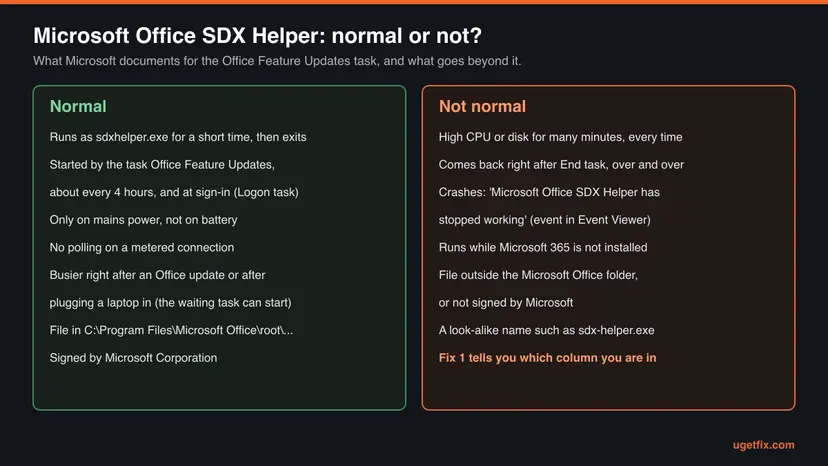
| What you see | What it most likely means |
|---|---|
| A spike for a few seconds or a minute, then it is gone | Normal. The task ran, checked for packages and closed. |
| Busy right after an Office update or right after you sign in | Normal. The Office Feature Updates Logon task runs at sign-in. |
| Busy right after you plug a laptop in | Likely normal. The task waits for mains power, so a run that was skipped on battery can start now. |
| Many minutes of high CPU or disk, at every run | Not normal. A damaged or outdated install is the usual reason: Fix 2 and Fix 3. |
| It comes back seconds after End task | The task or another Office process starts it again. Ending it is not a fix. |
| Microsoft Office SDX Helper has stopped working messages | The helper crashes and restarts. Update and repair Office, Fix 2 and Fix 3. |
| The file is outside the Microsoft Office folder or not signed | Not SDX Helper. Treat it as possible malware: Fix 6. |
Task Manager shows CPU as a share of all processor threads. On a 4-thread laptop, one busy thread already shows as 25%. A reader's 70% is a real load, but 5% on a 16-thread desktop is barely one core. Judge by how long it lasts, not only by the number.
Why SDX Helper uses high CPU or disk, from most to least common
Microsoft names only one fix for high CPU from SDXHelper.exe: repair the Office installation. That tells you where Microsoft sees the cause. The rest of the list comes from what the task does and from reports on Microsoft Q&A, said as reports.
| Cause | How common | Sign | Fix |
|---|---|---|---|
| Office is behind on updates, so packages pile up and the helper works longer | Most common | Update Options shows updates waiting, or Office has not updated in weeks | Fix 2 |
| Damaged Office program files, so the helper fails and retries | Common | Spikes at every run, crash messages, other Office oddities | Fix 3 |
| A normal run that looks alarming | Common | Short spikes after updates, at sign-in or on plugging in | Fix 1, nothing to fix |
| The task itself keeps firing on a broken install | Less common | Spikes stop when the task is paused | Fix 4 as a test, then Fix 3 or Fix 7 |
| A damaged Office Document Cache keeps Office background work busy | Rare, not tied to SDX Helper by Microsoft | OneDrive or SharePoint files stuck in upload as well | Fix 5 |
| Malware named like the helper | Rare | Wrong folder, no Microsoft signature, a name such as sdx-helper.exe | Fix 6 |
- Users on Microsoft Q&A reported 70% CPU in the background in 2019, a steady 15% the same year, and 100% for about ten seconds each time a laptop charger was connected in 2022.
- The 2022 reader checked the file: it was in
C:\Program Files\Microsoft Office\root\Office16, version 16.0.12026.20320, with Microsoft signatures. So a genuine file can still cause a heavy spike. - Several readers renamed the file and saw it return within days. An IT provider reported that the tasks were turned back on and the file restored.
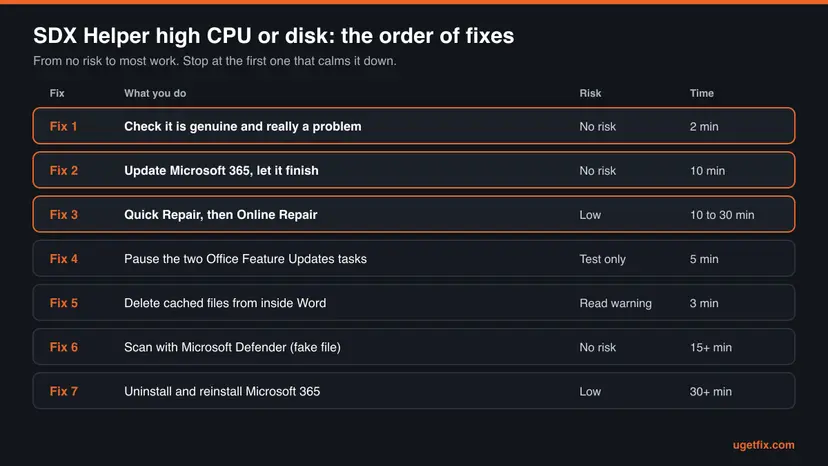
How to fix Microsoft Office SDX Helper high CPU and disk usage
Start with Fix 1 even if you are sure the process is genuine: it takes two minutes and tells you whether the rest of the page applies. Fixes 2 and 3 solve most cases. Fix 4 is a test, not a permanent setting.
| What you see or have | Start with |
|---|---|
| You saw a high number once and do not know if it is a problem | Fix 1 |
| Long spikes every few hours on a genuine, signed file | Fix 2, then Fix 3 |
| Microsoft Office SDX Helper has stopped working messages | Fix 3 |
| You need the PC quiet today, for a meeting or a game | Fix 4, and undo it afterwards |
| Files from OneDrive or SharePoint also stuck in upload | Fix 5 |
The file is outside the Microsoft Office folder, unsigned or named sdx-helper.exe | Fix 6 |
| Nothing above helped, or Office is badly broken | Fix 7 |
Fix 1. Check that sdxhelper.exe is genuine and really the problem
2 minutesNo riskEveryone, before changing anything on the PC.
Malware sometimes takes the name of a known Microsoft process. A genuine, signed file in the Office folder means the fixes below apply; anything else means Fix 6. It also shows whether the spike is long enough to matter.
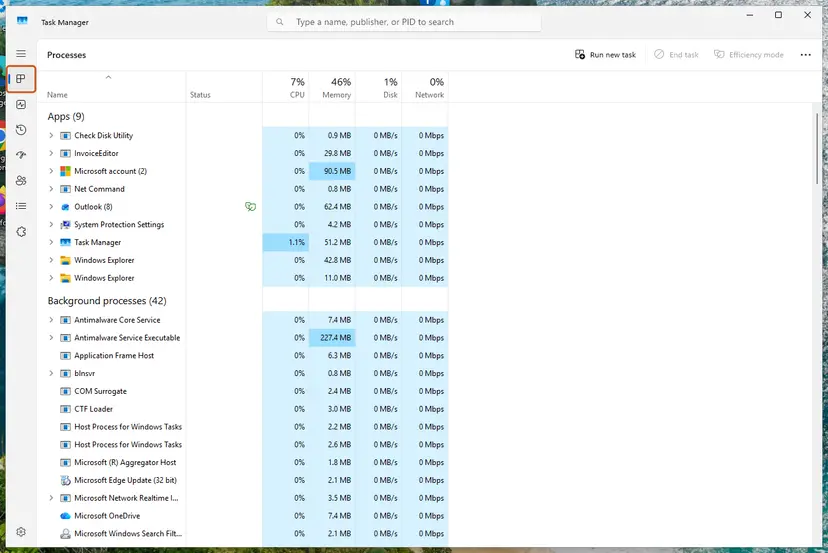
- Press Ctrl + Shift + Esc to open Task Manager. On the Processes page, select the CPU or Disk column to sort it.
- Find Microsoft Office SDX Helper and note how long it stays at the top. A minute or less is a normal run (see the table above).
- Open the Details page, right-click
sdxhelper.exeand select Open file location. File Explorer opens the folder that holds it. - Check the folder. A genuine copy is under
C:\Program Files\Microsoft Office\rootorC:\Program Files (x86)\Microsoft Office\root, inOffice16or in aVFS\ProgramFilesCommonX64orX86subfolder. - Right-click
sdxhelper.exein File Explorer, select Properties and open the Digital Signatures tab. The signer must be Microsoft Corporation. - Press Win + R, type
resmonand press Enter. On the Disk tab, sort Processes with Disk Activity by Total (B/sec) to see how much SDX Helper reads and writes.
The same check in PowerShell while the helper is running (no administrator rights needed, it runs as you):
Get-Process sdxhelper | ForEach-Object { Get-AuthenticodeSignature $_.Path } | Format-List Path, Status, SignerCertificate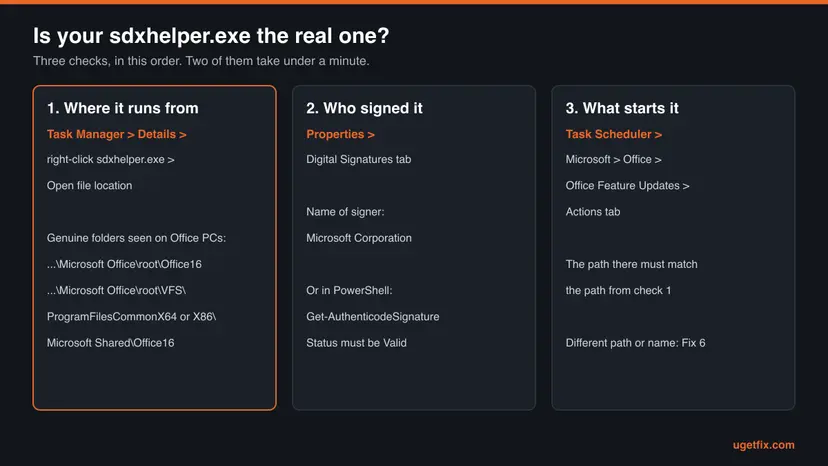
In PowerShell, Status must read Valid and the certificate subject must name Microsoft Corporation. Microsoft documents that an unsigned file returns blank signature fields. If Get-Process finds nothing, the helper is not running at that moment, which is itself the normal state.
It worked if: The file sits in a Microsoft Office folder, the signature is from Microsoft Corporation and Valid, and you know whether the spikes last seconds or many minutes.
If not: Wrong folder, no signature or an odd name: go straight to Fix 6. Genuine but busy for many minutes: continue with Fix 2.
Fix 2. Install the latest Microsoft 365 update and let it finish
10 minutesNo riskAnyone with a genuine sdxhelper.exe whose spikes last long or repeat.
SDX Helper delivers feature packages that are built for the current Office version. Microsoft says delayed updates leave connected experiences out of date, so an install that is far behind gives the helper more to do and older code to do it with. An update replaces the helper itself too.
- Open any Microsoft 365 app, for example Word, and create a blank document.
- Select File > Account. In classic Outlook it is File > Office Account.
- Under Product Information, select Update Options > Update Now. If you only see Enable Updates, select it first.
- Wait for the You're up to date! or Updates were installed window and close it.
- Restart Windows, then leave the PC on mains power and online for half an hour so the next run of the task can finish its downloads.
- Watch Task Manager again. A run or two can still be busy straight after the update, as new packages arrive.
Microsoft explains that only an About button means a volume licence install or updates managed by your organization through Group Policy. On a work or school PC, ask the IT desk instead of changing anything. On Office 2016 or 2019, note that Microsoft ended support for both on 14 October 2025.
It worked if: The update finishes, and after the first runs SDX Helper appears only for short bursts every few hours.
If not: Spikes still last long, or the update itself fails: repair Office with Fix 3.
Fix 3. Repair Office: Quick Repair first, then Online Repair
10 to 30 minutesLow riskSpikes continue after the update, or you see SDX Helper crash messages.
This is the one fix Microsoft names in its own article: if SDXHelper.exe causes high CPU usage, repair the Office installation. A repair replaces damaged program files, including the helper and the task definitions, so the helper stops failing and starting over.
- Save your work and close every Office app, Outlook and Teams included.
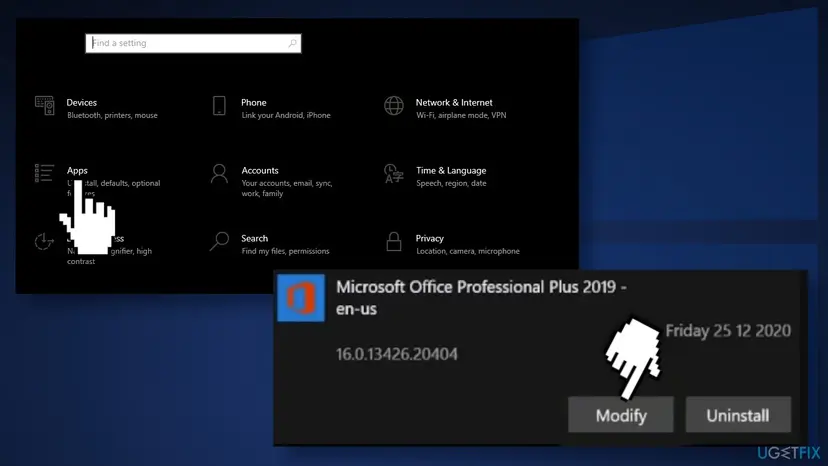
- Windows 11: right-click Start and select Installed apps. Find your Microsoft 365 product, select the three dots and select Modify.
- Windows 10: right-click Start and select Apps and Features. Select your Microsoft 365 product and select Modify.
- In How would you like to repair your Office programs, choose Quick Repair and Repair. It works offline and only replaces damaged files.
- Restart Windows and watch SDX Helper through a few runs, or about a day of normal use.
- Still busy? Open the same window and choose Online Repair and Repair. Microsoft recommends it to make sure everything is fixed; it needs the internet and takes longer.
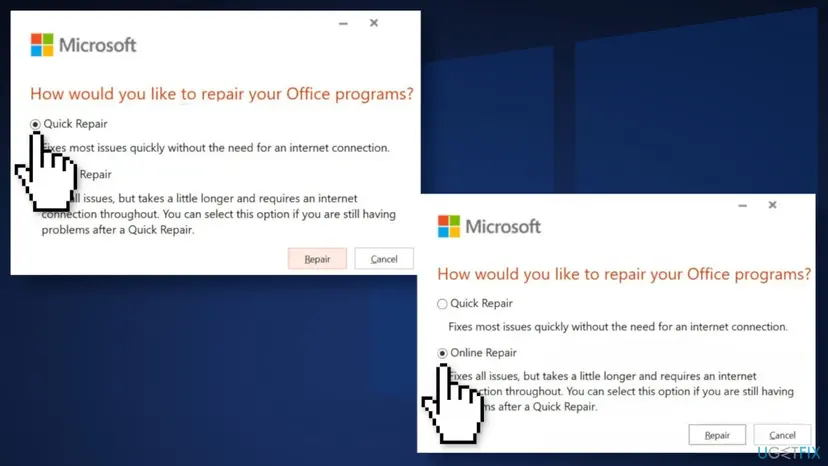
The repair covers the whole suite even if only one app misbehaves. If your Office is an older MSI-based install, the same Modify button opens Change your installation with a single Repair option. Step by step with both Windows versions: How to repair Microsoft 365 or Office
It worked if: After the repair and a restart, SDX Helper shows up briefly every few hours and no longer crashes.
If not: If it is still busy for long periods, use Fix 4 to confirm the task is what starts it, then decide between Fix 5 and Fix 7.
Fix 4. Pause the Office Feature Updates tasks as a test
5 minutesRead the warningYou need a quiet PC now, or want proof that the task is the trigger.
SDX Helper only runs when one of the two Office Feature Updates tasks starts it. Disabling both shows within a few hours whether they are behind the load. Microsoft confirms this works but does not recommend leaving it that way.
Microsoft: blocked updates leave connected experiences out of date, and some features, such as Copilot, will have functional issues. They are then updated only with regular Office updates. No files or settings are lost. Write down today's date and turn both tasks back on after the test.
- Select Start, type
Task Schedulerand open Task Scheduler. - In the left pane, expand Task Scheduler Library > Microsoft and select Office.
- Select Office Feature Updates and open the Actions tab at the bottom. Note the path of
sdxhelper.exe: it should match the folder from Fix 1. - Right-click Office Feature Updates and select Disable.
- Right-click Office Feature Updates Logon and select Disable.
- End Microsoft Office SDX Helper in Task Manager once and watch for a few hours of normal use.
- When the test is over, right-click each task and select Enable.
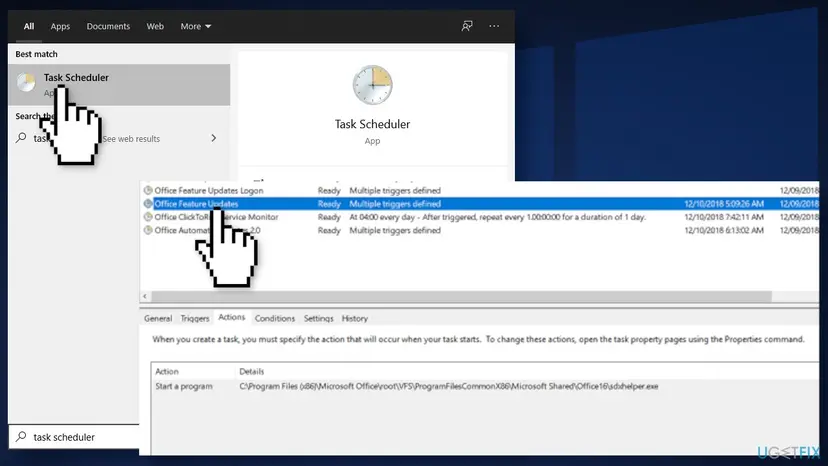
Select Office Feature Updates and open the Triggers tab. In 2019 an administrator found it set to 02:10, 06:10, 10:10, 14:10, 18:10 and 22:10, which matches Microsoft's every four hours. If your spikes come at those times, the task is the trigger.
Or from an administrator Terminal (run the Enable lines to undo):
schtasks /Change /TN "\Microsoft\Office\Office Feature Updates" /Disable
schtasks /Change /TN "\Microsoft\Office\Office Feature Updates Logon" /Disable

schtasks /Change /TN "\Microsoft\Office\Office Feature Updates" /Enable
schtasks /Change /TN "\Microsoft\Office\Office Feature Updates Logon" /Enable
If SDX Helper still appears with both tasks off, something else starts it, and a repair or reinstall (Fix 3 or Fix 7) is the next step. An administrator on Super User reported in 2019 that some Office updates turned the tasks back on, so check them after each major update if you keep them off on purpose.
It worked if: With the tasks disabled, SDX Helper no longer appears. After you enable them again, it returns only in short bursts.
If not: It still appears with the tasks off: run Online Repair (Fix 3) or reinstall (Fix 7). It is calm while off but heavy once back on: go to Fix 7.
Fix 5. Delete the Office Document Cache from inside Word
3 minutesRead the warningYou also have OneDrive or SharePoint files stuck in upload, or other sync errors.
Microsoft does not tie the Document Cache to SDX Helper, and we did not find a case where it was the cause. It is here because a damaged cache keeps Office background work busy and many guides suggest it. Microsoft says deleting the cache the supported way is not dangerous.
Changes to OneDrive or SharePoint files that have not finished uploading live in this cache. Since Version 2512, Office asks separately before it deletes those; select Delete only if you are sure. Microsoft warns that deleting %LOCALAPPDATA%\Microsoft\Office\16.0\OfficeFileCache by hand can crash Office and cause unrecoverable data loss.
- Open each cloud document you edited recently and wait until the save status shows it is saved.
- In Word, Excel or PowerPoint, select File > Options > Save.
- Scroll to Cache Settings and select Delete cached files, then confirm.
- If a second dialog lists files with pending uploads, select Cancel unless you are sure those changes can go.
- Restart Windows. Office rebuilds the cache and syncs your files again.
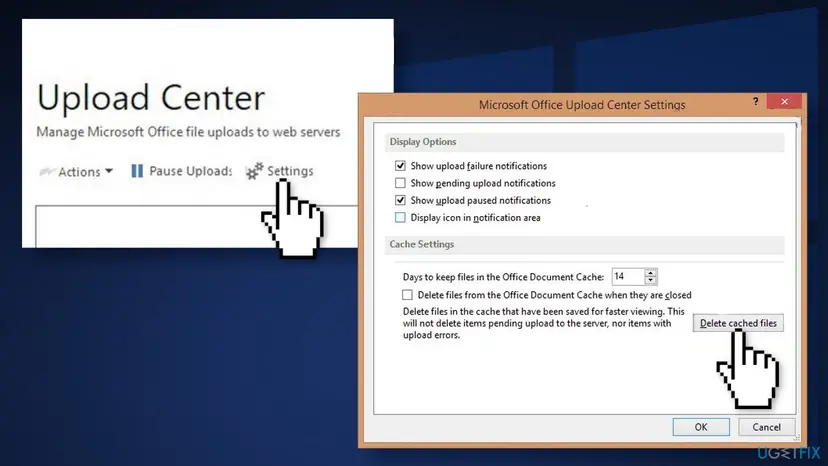
It worked if: Cloud files open and sync normally, and SDX Helper no longer stays busy alongside the sync.
If not: Nothing changed: the cache was not the cause. Go back to Fix 3 and run Online Repair if you skipped it, or go to Fix 7.
Fix 6. Scan with Microsoft Defender if the file is not the genuine one
15 minutes or moreNo riskFix 1 found sdxhelper.exe in the wrong folder, unsigned, or a look-alike name.
A genuine SDX Helper is always signed by Microsoft and lives under the Microsoft Office folder. A copy elsewhere, or a name such as sdx-helper.exe, is not part of Office and needs a malware scan, not an Office fix.
- Open Windows Security. Select Start, type Windows Security and open the app.
- Open Virus & threat protection. Select Virus & threat protection. Under Current threats you see when the last scan ran, how long it took and how many files it checked.
- Run a quick scan. Select Quick scan. If Windows Security thinks a deeper scan is needed, it tells you when the quick scan is done.
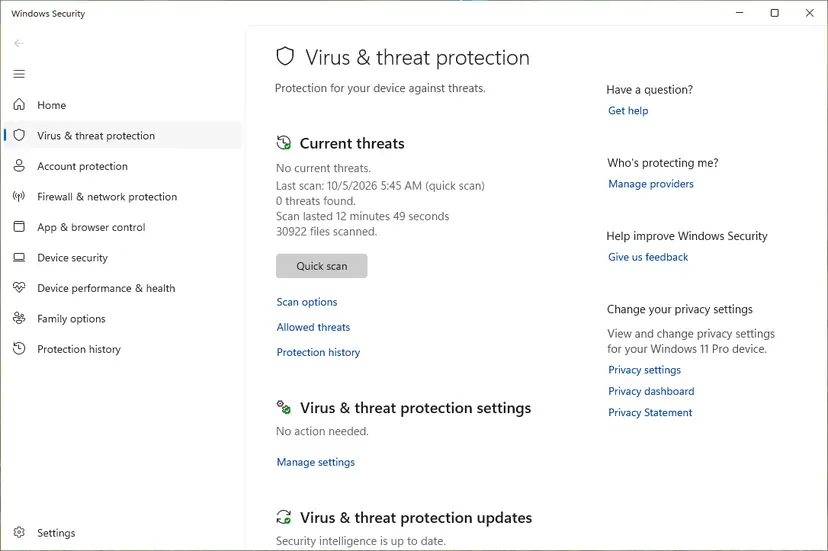
Quick scan and Scan options sit under Current threats. Screenshot: Windows 11 26H2. - Open Scan options. If the quick scan finds nothing and you still suspect an infection, select Scan options under Current threats.
- Run a full scan. Select Full scan and start it. It checks every file and program on the device, so it takes much longer than a quick scan. Leave the PC on until it ends.
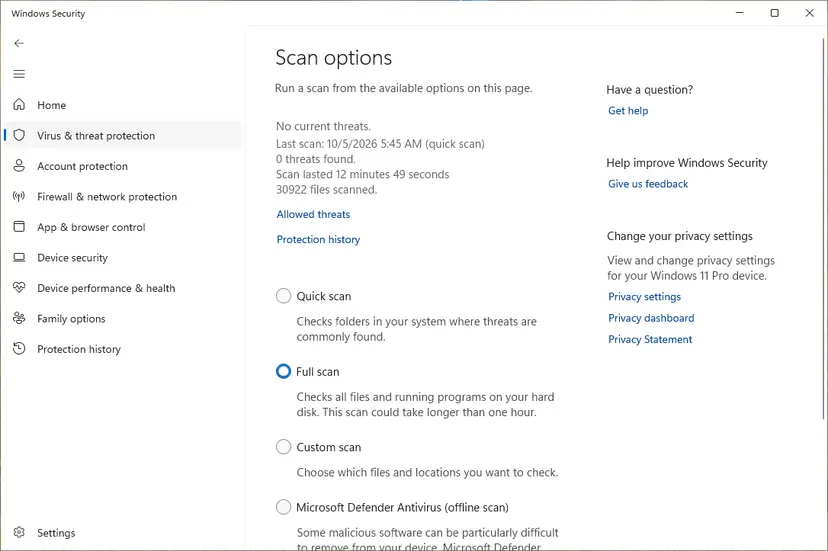
Scan options: Quick scan, Full scan, Custom scan and the offline scan. Screenshot: Windows 11 26H2.
These steps were written for Windows 11 25H2 and 26H2, Windows 10 22H2. The full page with the other versions and what each result means: How to scan for malware with Microsoft Defender
Scan the folder that Open file location showed as well, with Scan with Microsoft Defender from its right-click menu. Do not delete files from Program Files\Microsoft Office yourself. If Defender quarantines something there, run Online Repair (Fix 3) afterwards so Office restores its own files.
A volunteer answer on Microsoft Q&A in 2024 said sdx-helper.exe, with a hyphen, does not belong to Office. We found no Microsoft file of that name either. Treat it as unknown until a scan says otherwise.
It worked if: Defender reports no threats, or it removes the fake file and only the genuine, signed SDX Helper remains.
If not: Defender finds threats it cannot remove: run a Microsoft Defender Offline scan from the same Scan options page, then repair Office with Fix 3.
Fix 7. Uninstall and reinstall Microsoft 365
30 minutes or moreLow riskFixes 2 to 5 did not help, or Office is damaged in other ways.
A clean install writes a fresh helper, fresh task definitions and fresh feature packages. Microsoft says uninstalling Microsoft 365 removes only the apps, not the documents you created with them.
- Make sure you know the Microsoft account that holds your subscription, and that cloud files have finished syncing.
- Open Control Panel > Programs > Programs and features, select your Microsoft 365 product and select Uninstall.
- If it is not listed there, you may have the Microsoft Store version: uninstall it from Settings > Apps > Installed apps instead.
- If the normal uninstall fails, use Microsoft's uninstall troubleshooter from the link on Microsoft's uninstall page. It cannot remove Office 2024.
- Restart Windows.
- Sign in at the Microsoft 365 account page and install Microsoft 365 again, then run Update Now once (Fix 2).

Step by step for the Windows side: Uninstall a program or app in Windows. Do not delete Office folders under Program Files or AppData by hand after the uninstall, as older guides suggested; Microsoft's manual removal page is the only safe way when the tools fail.
It worked if: After the reinstall and the first update, SDX Helper appears only for short runs every few hours.
If not: The problem returns on a fresh install: collect the details in the next section and contact Microsoft support.
If SDX Helper still uses too much CPU or disk: what to collect and who to ask
A genuine helper that stays heavy after an update, an Online Repair and a reinstall is rare, and it is Microsoft's problem to solve. Collect these details first, so support does not start from zero.
| What to collect | Where |
|---|---|
| Office version, build and channel | Any Office app: File > Account > About |
| When the spikes start and how long they last | Task Manager, Resource Monitor (Disk and CPU tabs) |
| Last run time and result of both tasks | Task Scheduler, Office Feature Updates: Last Run Time and Last Run Result columns, History tab |
| Crash records of the helper | Event Viewer > Windows Logs > Application: Application Error entries that name sdxhelper.exe |
| Path and signature of the file | Fix 1 or the PowerShell line in Fix 1 |
- Home users: Microsoft Support through the Get Help app, signed in with the account that holds the subscription.
- Work or school PCs: your IT desk. An administrator can see whether policies block the content delivery addresses Microsoft lists for the task, ID 46 and 47 in Microsoft 365 URLs and IP address ranges.
- If the PC is also slow without SDX Helper, look beyond Office: a How to perform a clean boot in Windows shows whether another program fights with it.
What not to do about SDX Helper: deleting, renaming or blocking the file
The most repeated advice online, renaming or deleting sdxhelper.exe, does not hold. Readers on Microsoft Q&A who renamed it saw it back within days, because Office updates and repairs put their own files back. Meanwhile Office reports missing files and repairs fail.
- Keep Office updated and run Online Repair when the helper misbehaves.
- Pause both tasks for a test, and turn them back on afterwards.
- Delete the Office cache only from File > Options > Save.
- Scan a copy that is outside the Office folder or unsigned.
- Delete or rename
sdxhelper.exein the Office folder. - Block it in the firewall or set its priority to Low as a permanent fix.
- Delete
OfficeFileCacheor Office folders inAppDataby hand. - Uninstall Office only to stop the helper, if you use Office.
Microsoft notes that firewalls that block its content delivery network also block these feature updates. That does not stop the task from starting, and features such as Copilot fall behind. It is not a fix for CPU or disk use.
How to keep SDX Helper quiet from now on
- Leave Office updates on (File > Account > Update Options > Enable Updates). A current Office gives the helper the least work.
- Leave the PC on mains power and online now and then. The task skips runs on battery and on metered connections, and catches up later in one go.
- After a big Office update, expect one or two busier runs. That is not a reason to act.
- If you paused the tasks for a test, turn them back on. A paused task means features fall behind and arrive in larger batches.
- Run Quick Repair when any Office app starts acting oddly. Damaged files show up in the helper first because it runs often.
- On Windows 10, which Microsoft stopped supporting on 14 October 2025, plan the move to Windows 11, since Office support on Windows 10 is limited too.
Sister guide for another Microsoft 365 problem with the same repair steps: Something went wrong error tag 7q6ch in Microsoft Office.
Frequently asked questions
What is Microsoft Office SDX Helper in Task Manager?
It is sdxhelper.exe, a background program of Microsoft 365 Apps. The scheduled task Office Feature Updates starts it about every four hours, and Office Feature Updates Logon starts it at sign-in. It checks for and installs updates to connected experiences such as Copilot in Word, Excel and PowerPoint, then exits. It has no window, so Task Manager is the only place most people ever see it. It runs under your own account, not as a Windows service.
Is sdxhelper.exe a virus or safe?
The genuine file is safe: it is signed by Microsoft Corporation and sits under C:\Program Files\Microsoft Office\root or the Program Files (x86) equivalent. A file with the same name in any other folder, a copy without a valid Microsoft signature, or a look-alike such as sdx-helper.exe is not part of Office. Fix 1 shows the two-minute check, and Fix 6 shows the scan for anything that fails it. Antivirus software does not normally flag the genuine file.
How do I disable Microsoft Office SDX Helper?
Disable the two tasks that start it, Office Feature Updates and Office Feature Updates Logon, in Task Scheduler Library > Microsoft > Office (Fix 4). Microsoft confirms this blocks the updates but does not recommend it: connected experiences fall behind, and features such as Copilot can stop working properly. Use it as a test or for a short time and turn the tasks back on. The same answer applies to the Russian query about how to turn it off (как отключить).
Can I delete Microsoft Office SDX Helper?
No. Deleting or renaming sdxhelper.exe is the advice most often repeated online, and it does not last: readers who did it saw the file return after Office updated or repaired itself, and in between Office can report missing files. If you no longer use Office at all, uninstall Microsoft 365 properly, which removes the helper and its tasks together. The Korean searches about deleting it (삭제) get the same answer.
Why does SDX Helper use so much disk?
Each run can download and unpack a feature package, which reads and writes to the disk for a short time. On a hard disk or a nearly full SSD that shows up as high disk use in Task Manager. Long or constant disk activity is not normal: update Office (Fix 2), then repair it (Fix 3). Resource Monitor's Disk tab shows which files the helper is writing, which helps support if the problem stays.
Why does SDX Helper use network bandwidth?
It downloads updated .appx packages for connected experiences from Microsoft's content delivery network. Microsoft says it does not poll on metered or low-cost connections, so marking a mobile hotspot as metered in Windows Settings stops it there. Bandwidth use should come in short bursts. If it downloads constantly, the helper is probably failing and retrying, which an Online Repair (Fix 3) usually stops.
Does SDX Helper run when Office is closed?
Yes. The task is scheduled by Windows, not by Word or Excel, so it runs whether or not any Office app is open. That is why many people first notice it while only a browser is open. Microsoft states that it polls Office services in the background and installs updates without needing Office to restart; the update is used the next time you open that feature.
What does 'Microsoft Office SDX Helper has stopped working' mean?
The helper crashed during a run. Windows then shows a message, and Event Viewer records an Application Error that names sdxhelper.exe. Repeated crashes usually point to damaged or outdated Office files: update Office (Fix 2), then run Online Repair (Fix 3). In 2019 many such crashes were reported on Windows 7 after an Office update; Windows 7 no longer gets Microsoft 365 updates at all.
What does 'Application or service Microsoft Office SDX Helper could not be shut down' mean?
An installer, usually an Office or Windows update, tried to close SDX Helper before replacing files and could not. Close all Office apps, end Microsoft Office SDX Helper in Task Manager, and select retry in the installer; a restart of Windows also releases the file. We could not find a Microsoft article for this exact message, so if it repeats with every update, run Online Repair (Fix 3).
Does SDX Helper come with Office 2016 or Office 2019?
Microsoft says the Office Feature Updates task does not apply to the perpetual versions Office 2016, Office 2019 and Office LTSC 2021. If SDX Helper runs on a PC that you think has Office 2016, check File > Account > About: preinstalled Microsoft 365 often shows the same 16.0 version number. Note that Microsoft ended support for Office 2016 and Office 2019 on 14 October 2025.
Sources
- Microsoft Learn (archived): The Office Feature Updates task (learn.microsoft.com)
- Microsoft Support: Repair an Office application (support.microsoft.com)
- Microsoft Support: How to update Microsoft 365 or Office for Windows (support.microsoft.com)
Did this fix work?
One click, no account. It tells the next reader which guides are worth their time.
Questions and experiences: Microsoft Office SDX Helper high CPU and disk usage: what it is and how to fix it
Still broken, or found a fix we did not cover? Ask here: members and our editors answer. Reading is open; writing needs a free account.
…