
[Fix] Protection definition update failed error code: 2147023293

Prefer to fix it yourself? The manual steps follow.
- 7methods
- 5 to 45 minutes
- Intermediate
Applies to Microsoft Defender Antivirus (Windows Security) security intelligence updates, KB2267602, on Windows 11 and Windows 10
7 methods in this guide
Hello. I have tried to install Windows updates, but the process fails and I receive this message: "Protection definition update failed error code: 2147023293." How do I fix this?
Protection definition update failed with error code 2147023293 means Microsoft Defender downloaded new security intelligence but could not install it. The code is 0x80070643, Fatal error during installation. Most often the definition cache or the Defender platform is damaged, so start by clearing the cache and updating from an administrator Command Prompt.
Error 2147023293 (shown as -2147023293, or 0x80070643 in Windows Update) means the Defender definition package failed to install. Open Command Prompt as administrator, go to %ProgramFiles%\Windows Defender and run Microsoft's two commands that clear the cache and update again (Fix 1). If it still fails, install the mpam-fe.exe package from Microsoft by hand (Fix 2), then reset the Defender platform (Fix 3).
| Error | Protection definition update failed, error code -2147023293 (often written without the minus). |
|---|---|
| Where it appears | Windows Security > Virus & threat protection > Protection updates after Check for updates, and in Windows Update history next to the security intelligence update KB2267602. |
| Main cause | A damaged definition cache or Defender platform, so the new security intelligence package cannot install. |
| Fastest fix | MpCmdRun.exe -removedefinitions -dynamicsignatures, then MpCmdRun.exe -SignatureUpdate, from %ProgramFiles%\Windows Defender (Fix 1). |
| Also written as | 2147023293, -2147023293, 0x80070643, 80070643, Fatal error during installation, Windows error 1603. |
| Affects | Microsoft Defender Antivirus on Windows 11 and Windows 10. Microsoft Q&A reports of this exact code start in February 2022. |
| Current versions | On 15 October 2026 Microsoft listed security intelligence 1.461.41.0, engine 1.1.26090.9 and platform 4.18.26090.9. |
| Vendor status | No open known issue. Microsoft publishes a manual package and documents the platform reset for Defender that will not update. |
| Time to fix | 5 minutes for Fix 1, 10 to 45 minutes if you need the reset or the platform update. |
Facts checked on 15 October 2026. Steps written for Windows 11 (25H2 and 26H2) and Windows 10 22H2.
What Protection definition update failed error code 2147023293 means
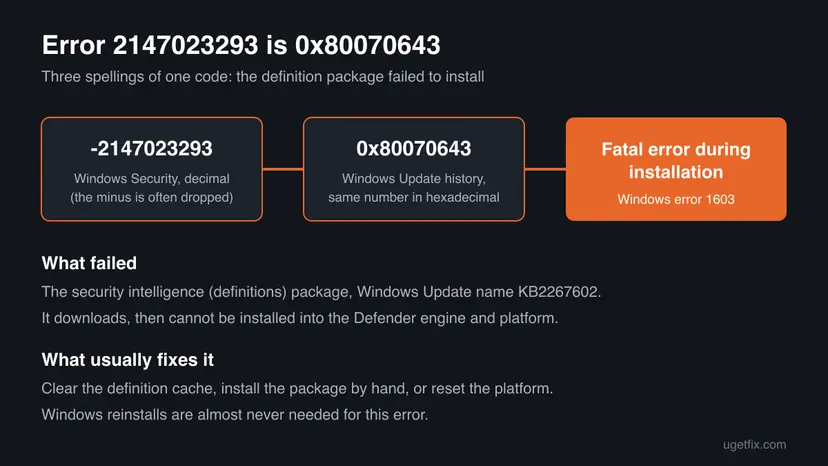
Protection definitions are what Microsoft now calls security intelligence: the list of known threats Microsoft Defender compares files with. Microsoft releases new ones several times a day. When Defender gets a package but cannot install it, Windows Security shows Protection definition update failed and a line such as Error code: -2147023293.
The number -2147023293 is the decimal form of 0x80070643. Windows Update shows the same failure in hexadecimal next to Security Intelligence Update for Microsoft Defender Antivirus - KB2267602. Windows' own text for 0x80070643 is Fatal error during installation, which is Windows error 1603.
- Not a download problem. The package arrived. The install step failed, so a faster connection does not help.
- Not a Windows feature update. The old guide and many readers think a normal Windows update failed. It is the Defender definitions, which Windows Update also delivers.
- Other codes you may see: users on Microsoft Q&A also report -2147023278 and -2147023083 for the same message. The fixes below are the same.
Partly. Defender keeps the last definitions that did install, so it still finds older threats. It misses everything released since. Check Version created on in Protection updates: if the date is days or weeks old, fix this today.
What causes error 2147023293, from most to least common
Most often the cached definitions are damaged, so the new package cannot be merged with them. Less often the Defender engine or platform files are broken after an earlier failed update, which also shows as version 0.0.0.0. Rarely another antivirus, a damaged Windows Update or damaged system files are behind it.
| Cause | How often | How to tell | Fix |
|---|---|---|---|
| Damaged definition cache | Most often | Defender runs, only the update fails. | Fix 1, Fix 2 |
| Engine or platform files damaged | Often | Protection updates shows version 0.0.0.0, or mpam-fe.exe runs and changes nothing. | Fix 3, Fix 4 |
| Another antivirus or its leftovers | Sometimes | Windows Security names another program, or one was installed before. | Fix 5 |
| Windows Update itself is broken | Sometimes | Other updates fail too, not only KB2267602. | Fix 6 |
| Damaged Windows system files | Rarely | Other Windows parts fail as well. | Fix 7 |
How to fix Protection definition update failed error code 2147023293
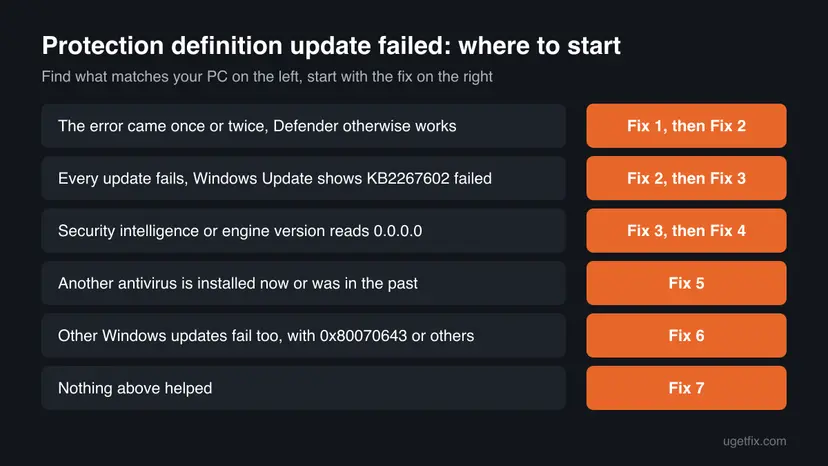
Fixes 1 and 2 take five minutes each and solve most cases. Fixes 3 and 4 repair Defender itself when the definitions have nothing to install into. Fixes 5 to 7 are for a PC where something else blocks Defender or Windows Update.
| What you see or what your PC has | Start with |
|---|---|
| The error came once or twice, Defender otherwise works | Fix 1, then Fix 2 |
| Every update fails, Windows Update shows KB2267602 failed | Fix 2, then Fix 3 |
| Security intelligence or engine version reads 0.0.0.0 | Fix 3, then Fix 4 |
| Another antivirus is installed now or was in the past | Fix 5 |
| Other Windows updates fail too, with 0x80070643 or others | Fix 6 |
| Nothing above helped | Fix 7 |
Fix 1. Clear the Defender definition cache and update again with MpCmdRun
5 minutesNo riskEveryone with error 2147023293. It is Microsoft's own first step for a definition update that fails.
Microsoft says a manually triggered update can address problems with automatic updates, and gives two commands that clear the current cache first. A damaged cached package is the most common reason the install step fails.
- Select Start, type cmd, right-click Command Prompt and select Run as administrator.
- Go to the Defender folder.
MpCmdRun.exeis not in the PATH, so the commands fail without this step.cd /d "%ProgramFiles%\Windows Defender" - Clear the dynamic definitions from the cache.
MpCmdRun.exe -removedefinitions -dynamicsignatures - Download and install the latest definitions.
MpCmdRun.exe -SignatureUpdate - Open Windows Security > Virus & threat protection > Protection updates and select Check for updates.
It worked if: The command ends without an error code, and Protection updates shows a security intelligence version close to the one Microsoft lists, with today's date.
If not: If -SignatureUpdate reports a failure or the error comes back, install the package by hand with Fix 2.
Fix 2. Install the latest security intelligence package from Microsoft by hand
5 to 10 minutesNo riskFix 1 failed, or Windows Update keeps showing KB2267602 as failed.
Microsoft publishes the full definitions as one file that installs without Windows Update. It skips the delta packages and the update queue that fail with 0x80070643.
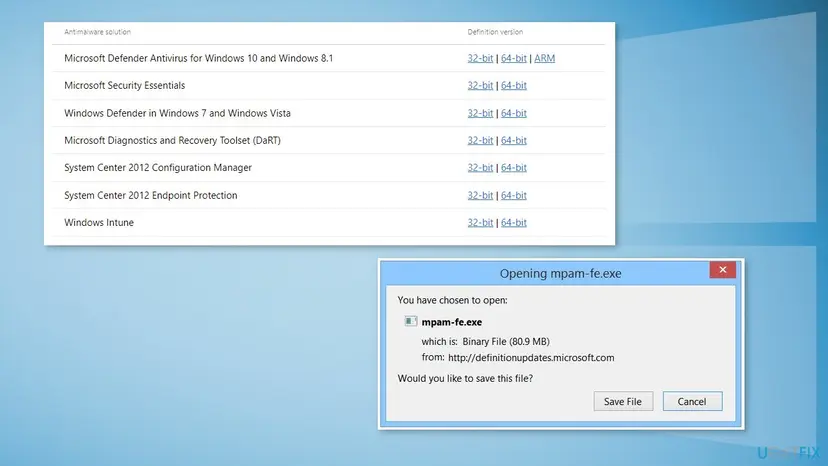
- Open Microsoft's page Latest security intelligence updates for Microsoft Defender Antivirus (link in the sources).
- In the table, find Microsoft Defender Antivirus for Windows 11, Windows 10, Windows 8.1, and Windows Server.
- Select 64-bit on 64-bit Windows, ARM on an ARM PC, or 32-bit on 32-bit Windows.
- Run the downloaded file. Microsoft names it
mpam-fe.exeormpam-feX64.exeand says you simply launch it. It shows no window. - Wait a minute, then open Protection updates and read the version and date.
Users on Microsoft Q&A report exactly this when the engine is damaged: the package has nothing to install into. Then reset the platform with Fix 3.
It worked if: Protection updates shows the version Microsoft lists on its page, or a newer one, and the next automatic update installs without the error.
If not: If the version does not change or reads 0.0.0.0, reset Defender with Fix 3.
Fix 3. Reset the Defender engine, definitions and platform with Microsoft's commands
10 minutesLow riskFixes 1 and 2 failed, or Protection updates shows version 0.0.0.0.
A failed earlier update can leave the engine half replaced, and then every new definition package fails to install. Microsoft's repair removes the definitions and engine, returns the platform to the copy that ships with Windows and downloads everything fresh.
- Open Command Prompt as administrator, as in Fix 1.
- Go to the Defender folder.
cd /d "%ProgramFiles%\Windows Defender" - Remove the security intelligence and the engine.
MpCmdRun.exe -RemoveDefinitions -All - Reset the platform.
MpCmdRun.exe -ResetPlatform - Switch Defender on again.
MpCmdRun.exe -WdEnable - Download fresh definitions straight from Microsoft.
MpCmdRun.exe -SignatureUpdate -MMPC - Restart the PC and check Protection updates.
Microsoft's own command first looks for the newest folder under %ProgramData%\Microsoft\Windows Defender\Platform\ and falls back to %ProgramFiles%\Windows Defender. We use the fallback because it exists on every PC. For a Defender that reads 0.0.0.0 everywhere, see our guide Security Intelligence version 0.0.0.0.
It worked if: -SignatureUpdate -MMPC ends without an error, and Protection updates shows a real version with today's date.
If not: If the update still fails, install the platform update by hand with Fix 4.
Fix 4. Install the Defender platform update KB4052623 from the Microsoft Update Catalog
10 to 15 minutesLow riskThe reset ran, but the engine still reads 0.0.0.0 or every definition update still fails.
The platform holds the Defender service and the engine loader. In the accepted answer of the Microsoft Q&A thread on this exact error code, a user fixed it by installing the platform update KB4052623 by hand and then updating from the new platform folder.
- Open the Microsoft Update Catalog at
catalog.update.microsoft.comand search for KB4052623. - Pick the newest Update for Microsoft Defender Antivirus antimalware platform entry and select Download.
- Save the files the download window lists to one folder, then run the
.exefiles. One that does not fit your PC says it is not compatible, which is normal. - Open
C:\ProgramData\Microsoft\Windows Defender\Platform\(type the path, the folder is hidden) and note the newest version folder. - In an administrator Command Prompt, go to that folder and update. Replace the folder name with the one you found.
cd /d "C:\ProgramData\Microsoft\Windows Defender\Platform\<version folder>" MpCmdRun.exe -SignatureUpdate - Restart and check Protection updates.
We could not confirm the exact file names of the current platform release. Pick the .exe that matches your Windows (x64, x86 or ARM64). An installer for the wrong platform changes nothing.
It worked if: A new folder under Platform, a real engine version, and a definitions update that ends without 2147023293.
If not: If no new folder appears or the update still fails, check for another antivirus with Fix 5.
Fix 5. Check that Defender is the active antivirus and its services run
10 to 30 minutesLow riskAnother antivirus is installed now or was before, even a trial that came with the PC, or Windows Security says the threat service has stopped.
Microsoft's repair steps say to uninstall non-Microsoft antivirus software when Defender is your main antivirus. A second product, or its leftover drivers, can keep Defender's services from installing updates.
- Open Windows Security > Virus & threat protection. If another program is named as your antivirus, decide which one you want to keep.
- Right-click Start and select Terminal (Admin). On Windows 10 select Windows PowerShell (Admin).
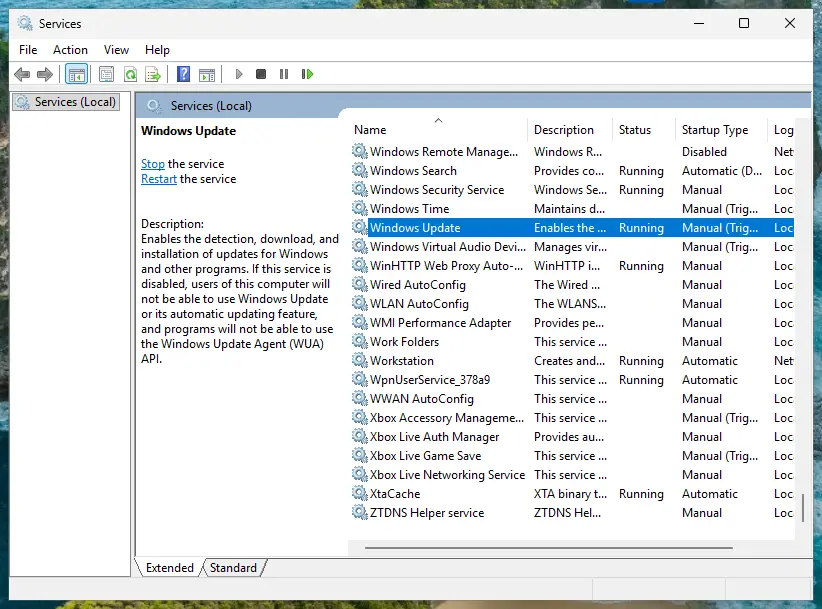
- List the Defender services with Microsoft's command.
Get-Service WinDefend, WdBoot, WdFilter, WdNisSvc, WdNisDrv, SecurityHealthService, wscsvc | Format-Table -Auto DisplayName, Name, StartType, Status - Microsoft expects
WinDefendandwscsvcAutomatic and Running,WdFilterBoot and Running,WdNisSvcManual and Running, andWdBootstopped after start-up. - If you want Defender back, uninstall the other antivirus, run its maker's removal tool, restart and run Fix 1 again.
- Uninstall from the Start menu. Select Start > All apps and find the app. Right-click it (or press and hold) and select Uninstall.
- Or uninstall in Settings. Select Start > Settings > Apps > Installed apps. Find the app, select More (the three dots) > Uninstall, and confirm.
- Or uninstall from Control Panel. Some programs can only be removed here. Type Control Panel in the search box on the taskbar and open it, then select Programs > Programs and Features. Right-click the program and select Uninstall or Uninstall/Change, then follow the program's own uninstaller.
- Restart if the uninstaller asks. Some programs finish removing their files only after a restart.
These steps were written for Windows 11 24H2 and 25H2. The full page with the other versions and what each result means: Uninstall a program or app in Windows
It worked if: Windows Security names Microsoft Defender Antivirus as active, WinDefend is running, and Fix 1 installs the definitions.
If not: If Defender is active and running but updates still fail, repair Windows Update with Fix 6.
Fix 6. Repair Windows Update when other updates fail too
15 to 20 minutesLow riskWindows Update fails for other updates as well, not only for KB2267602.
Automatic definition updates come through Windows Update. Microsoft's definitions page points to the Windows Update troubleshooter when Windows Update has problems. A reset of its components clears a stuck download queue.
Run the troubleshooter first: Run the Windows Update troubleshooter
- Open Command Prompt as administrator. Type cmd in the search box, right-click Command Prompt and select Run as administrator. Select Yes when Windows asks for permission.
- Stop the update services. Type the commands below and press Enter after each one. If Windows says that other services depend on Cryptographic Services, it stops them too. A message that a service is not started is fine.
net stop wuauserv
net stop bits
net stop cryptsvc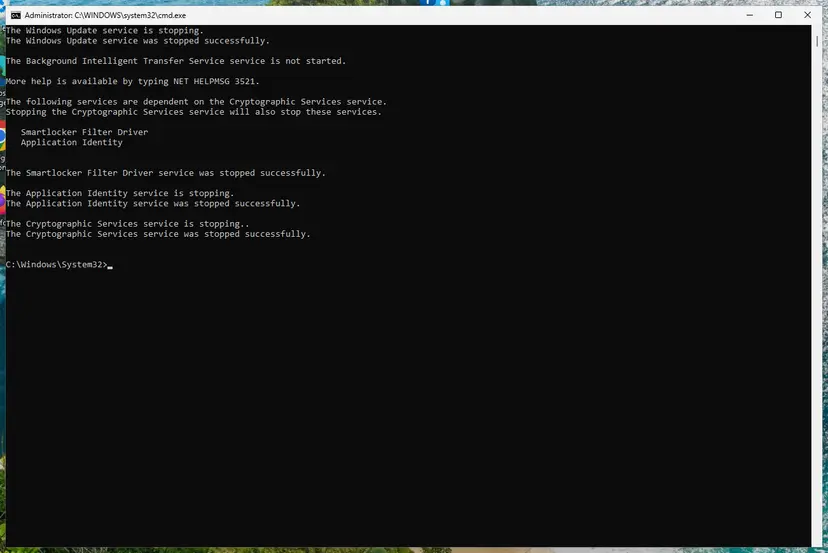
The update services are stopped. Screenshot: Windows 11 26H2. - Delete the download queue files. This clears the list of downloads that the Background Intelligent Transfer Service keeps. If Windows says it cannot find the files, continue.
del "%ALLUSERSPROFILE%\Application Data\Microsoft\Network\Downloader\qmgr*.dat" - Rename the update cache folders. Renaming keeps a copy in case you need it; Windows creates new, empty folders when the services start again. If you get Access is denied, a service is still running: repeat the previous step.
ren %systemroot%\SoftwareDistribution SoftwareDistribution.old
ren %systemroot%\System32\catroot2 catroot2.old
Both folders now end in .old. Screenshot: Windows 11 26H2. - Start the services again. Type the commands below and press Enter after each one. The requested service has already been started is fine: Windows started it on its own.
net start cryptsvc
net start bits
net start wuauserv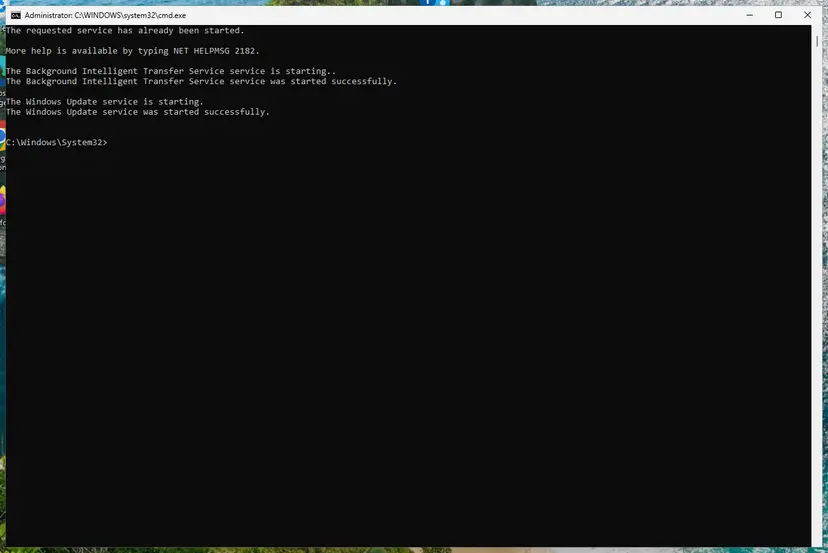
BITS and Windows Update are running again. Screenshot: Windows 11 26H2. - Restart and check for updates. Restart the PC. Then select Start > Settings > Windows Update > Check for updates. The first check can take longer than usual because everything is downloaded again.
These steps were written for Windows 11 and Windows 10 (the steps are the same). The full page with the other versions and what each result means: Reset Windows Update components
- Restart the PC.
- Open Settings > Windows Update and select Check for updates.
- Open Windows Security > Protection updates and check the version and date.
It worked if: Windows Update installs KB2267602 and other updates without 0x80070643.
If not: If updates still fail, repair the system files with Fix 7.
Fix 7. Repair Windows system files, then repair Windows in place
20 to 90 minutesLow riskFixes 1 to 6 did not help, and other Windows parts fail as well.
Defender and Windows Update rely on the component store and system files. DISM and SFC repair damaged files, and a repair install replaces Windows while keeping your apps and files. Users on Microsoft Q&A report that SFC often finds nothing for this error, so this is the last step.
- Open an elevated command window. Right-click Start and select Terminal (Admin), or type cmd in the search box, right-click Command Prompt and select Run as administrator. Select Yes when Windows asks for permission.

Search for cmd and choose Run as administrator. Screenshot: Windows 11 26H2. - Run DISM first. Type the command below and press Enter. DISM downloads clean copies of damaged components from Windows Update, so it can take several minutes. Wait until it says The operation completed successfully.
DISM.exe /Online /Cleanup-Image /RestoreHealth
DISM /RestoreHealth running. Screenshot: Windows 11 26H2. - Run System File Checker. In the same window, type the command below and press Enter. Do not close the window until the verification reaches 100%.
sfc /scannow
sfc /scannow at 100%. Screenshot: Windows 11 26H2. - Read the result and restart. Compare the last message with the table below this guide, then restart the PC so that repaired files are loaded.

The result line tells you what SFC did. Screenshot: Windows 11 26H2.
These steps were written for Windows 11 24H2 and 25H2. The full page with the other versions and what each result means: Run DISM and SFC to repair Windows system files
- Restart and run Fix 1 again.
- If it still fails on Windows 11, open Settings > System > Recovery and select Reinstall now next to Fix problems using Windows Update.
- Keep the PC plugged in and online until it restarts into Windows, then run Fix 1.
Routes for Windows 10 and other options: Reinstall Windows without losing files. Windows 10 left support on 14 October 2025. Microsoft still lists Defender definitions for it, but Windows itself gets no fixes without Extended Security Updates.
It worked if: SFC reports no integrity violations or repaired files, and after the repair the definition update installs.
If not: If a freshly repaired Windows still fails, collect the logs in the next section and contact Microsoft support.
If the definition update still fails: the logs to read and what to send
When nothing helps, stop changing settings and collect evidence. Defender writes failed updates into its event log, and MpCmdRun writes every command it ran.
| Where | What to look for |
|---|---|
| Event Viewer: Applications and Services Logs > Microsoft > Windows > Windows Defender > Operational | Update failure events with the error code, and events 5001 (real-time protection disabled) and 5007 (configuration changed). Microsoft says an unexpected 5007 might be the result of malware. |
| Settings > Windows Update > Update history | KB2267602 entries marked failed, with 0x80070643 and the date of each try. |
MpCmdRun.log in your Temp folder | The time and result of every MpCmdRun command, including the failed -SignatureUpdate. |
- What to send to Microsoft support: a screenshot of Protection updates, the output of the services command in Fix 5, the Windows build from
winverand the failed update events. - If Defender keeps switching itself off, run a full malware scan once it updates again: How to scan for malware with Microsoft Defender
- Is it hardware? Almost never. Suspect the drive only if SFC finds new damage after every repair: Check a disk for errors (chkdsk)
How to keep Defender definition updates from failing again
- Let Windows Update install Defender updates and restart when it asks.
- Use one antivirus at a time, and remove a trial completely when you stop using it.
- Keep Tamper Protection on, as Microsoft's repair steps check.
- Look at Protection updates once a month: the date should be recent.
- Do not delete files in the Defender folders by hand. Use
MpCmdRun.exe -ResetPlatforminstead. - Do not run "debloat" or privacy tools that disable Defender, unless another antivirus protects the PC.
- Do not shut down the PC with the power button while an update installs.
- Do not download definition files from any site other than Microsoft.
Frequently asked questions
What does Protection definition update failed mean?
It means Microsoft Defender could not install a new set of security intelligence, the definitions it uses to recognise threats. The download usually worked, but the install step failed, and Windows Security shows an error code such as -2147023293. Defender keeps working with the last definitions that installed, so it misses newer threats. Clear the cache and update with MpCmdRun (Fix 1), or install the mpam-fe.exe package from Microsoft by hand (Fix 2).
What is error code 2147023293 or -2147023293?
It is the decimal form of 0x80070643. Windows Security shows the decimal number, often with a minus sign, and Windows Update history shows the hexadecimal one. Windows' own text for 0x80070643 is Fatal error during installation, which is Windows error 1603. For this message it means the definition package did not install into Defender. The fixes on this page apply to every spelling of the code.
How do I fix Protection definition update failed on Windows 11?
The steps are the same on Windows 11 and Windows 10. Open Command Prompt as administrator, run cd /d "%ProgramFiles%\Windows Defender", then MpCmdRun.exe -removedefinitions -dynamicsignatures and MpCmdRun.exe -SignatureUpdate (Fix 1). If that fails, run the mpam-fe.exe package from Microsoft's definitions page (Fix 2). If the version shows 0.0.0.0, reset the platform with Microsoft's commands (Fix 3). Windows 11 only differs in menu names, for example Terminal (Admin).
Does this error also happen on Windows 10?
Yes. The first reports on Microsoft Q&A came from Windows 10 PCs in 2022, and the fixes on this page work there with the same commands. On Windows 10, open Windows PowerShell (Admin) where this page says Terminal (Admin). Keep in mind that Windows 10 left support on 14 October 2025. Microsoft still publishes Defender definitions for it, but Windows itself gets no fixes without Extended Security Updates.
Is KB2267602 failing with 0x80070643 the same problem?
Yes. KB2267602 is the Windows Update name of the Defender security intelligence update. When it fails with 0x80070643, Windows Security shows the same failure as Protection definition update failed, error code -2147023293. Retrying through Windows Update often fails again with the same code. Install the definitions directly instead, with MpCmdRun (Fix 1) or the mpam-fe.exe package (Fix 2). If other updates also fail, repair Windows Update (Fix 6).
Can I fix it without resetting or reinstalling Windows?
Yes, in almost every case. The old advice to reset the PC or run a repair upgrade is far more than this error needs. The definitions live in Defender's own folders, and Microsoft's commands clear and rebuild them in minutes (Fixes 1 to 3). Only if Windows Update and system files are damaged too should you repair Windows in place, which keeps your apps and files (Fix 7). Back up your files before any repair install.
Is my PC unprotected while the definition update fails?
Not fully, but it is behind. Defender keeps using the last definitions that installed, so it still detects older threats. It does not know threats released since. Open Windows Security, Virus & threat protection, Protection updates, and read the date under Version created on. If it is more than a day or two old, fix the update before you open unknown attachments or downloads.
Should I reinstall the Windows Security app with Get-AppxPackage?
Usually not. The old guide suggested re-registering the Windows Security app with a Get-AppxPackage SecHealthUI command. That repairs the Windows Security window, not the Defender engine or its definitions, and the window only shows what the Defender service reports. Users on Microsoft Q&A also report that the command gives errors on some PCs. Use it only if the window itself is blank or will not open, and fix the definitions with Fixes 1 to 3.
This page is about which error, exactly?
This page is about one message in Microsoft Defender: Protection definition update failed, with error code 2147023293 or 0x80070643. Searches such as fix update definition, error definition update or meaning update error brought some readers here. If your message names another code, the first three fixes still help with most Defender definition errors, but search that code on its own for its specific cause.
Sources
- Microsoft Security Intelligence: Latest security intelligence updates for Microsoft Defender Antivirus (versions of 15 October 2026, MpCmdRun cache commands, mpam-fe.exe) (microsoft.com)
- Microsoft Learn: Troubleshoot Microsoft Defender Antivirus service startup problems (services, events, MpCmdRun reset) (learn.microsoft.com)
- Microsoft Q&A (user reports and accepted answer): Protection definition update failed error code: 2147023293 (learn.microsoft.com)
Did this fix work?
One click, no account. It tells the next reader which guides are worth their time.
Questions and experiences: [Fix] Protection definition update failed error code: 2147023293
Still broken, or found a fix we did not cover? Ask here: members and our editors answer. Reading is open; writing needs a free account.
…