
How to fix 0x0000000d error in Windows?

Prefer to fix it yourself? The manual steps follow.
- 6methods
- 5 to 30 minutes
- Intermediate
Applies to Windows 11 and Windows 10 PCs that add a printer, connect to a shared printer or install a device driver
6 methods in this guide
I receive this 0x0000000d error on my Windows device and I cannot use a wireless network or connect to the printer. The error pop-up occurs, but it doesn't tell me what I should do next. It sometimes says that the print troubleshooter is needed, but I cannot find the cause or a solution for this. Help!
Error 0x0000000d is Windows system error 13, ERROR_INVALID_DATA: "The data is invalid". You see it mostly when you add a shared printer or install a driver, and Windows rejects the driver data it was given. Install the right 64-bit driver on your own PC first, then connect to the printer again.
Yes, it can be fixed. 0x0000000d is Windows error 13, "The data is invalid": Windows got a driver or printer data it cannot use. For a shared printer, install the printer maker's 64-bit driver on your PC first and then connect (Fix 1). If that fails, remove the printer and its driver package and add it again (Fix 2). For an audio or other driver setup, use the PC maker's driver in Device Manager (Fix 4).
| Error | 0x0000000d, Windows system error 13, ERROR_INVALID_DATA: "The data is invalid". With a printer it is usually shown as Windows cannot connect to the printer. Operation failed with error 0x0000000D. |
|---|---|
| Where it appears | In the Connect to Printer box when you add a shared printer, in the Add Printer wizard while a driver installs, and in a device maker's driver installer (users report it with audio drivers). |
| Main cause | The driver data does not fit your PC: a driver offered by the host PC that is the wrong type for your Windows, a damaged driver package, or an installer made for other hardware. |
| Fastest fix | Install the printer maker's current 64-bit driver on your PC, then add the shared printer again (Fix 1). |
| Also written as | 0x00000d, 0x000000d, 0x0000000D, 0xD, error 13. Not the same as 0xC000000D, 0x8000000D or 0x87E0000D. |
| Affects | Windows 11 and Windows 10. Users report it back to Windows XP, Vista and Windows 7, mostly with shared printers. |
| Microsoft's status | No Microsoft article covers this code for printers. Microsoft lists it only as system error 13. Stop code 0x0000000D on a blue screen is a separate bug check that Microsoft calls very infrequent. |
| Needs an administrator | Fix 1, Fix 2, Fix 3, Fix 4 and Fix 6 do. |
| Where the cause is logged | Event Viewer: Applications and Services Logs > Microsoft > Windows > PrintService, logs Admin and Operational. |
| Time to fix | 5 to 10 minutes for a driver installed first, up to 30 minutes with a full driver reinstall and a system file check. |
Facts checked on 15 October 2026. Steps written for Windows 11 (25H2 and 26H2) and Windows 10 22H2.
What error 0x0000000d means
0x0000000d is the hexadecimal way to write the number 13. In Microsoft's list of Windows system error codes, 13 is ERROR_INVALID_DATA, and its text is "The data is invalid". A program asked Windows to accept some data, and Windows refused it as wrong or damaged.
With printers, that data is almost always a driver. When you connect to a printer that another PC shares, Windows copies the driver from that PC and checks it. A driver for another Windows type, or a damaged package, fails that check and the connection stops with error 0x0000000d.
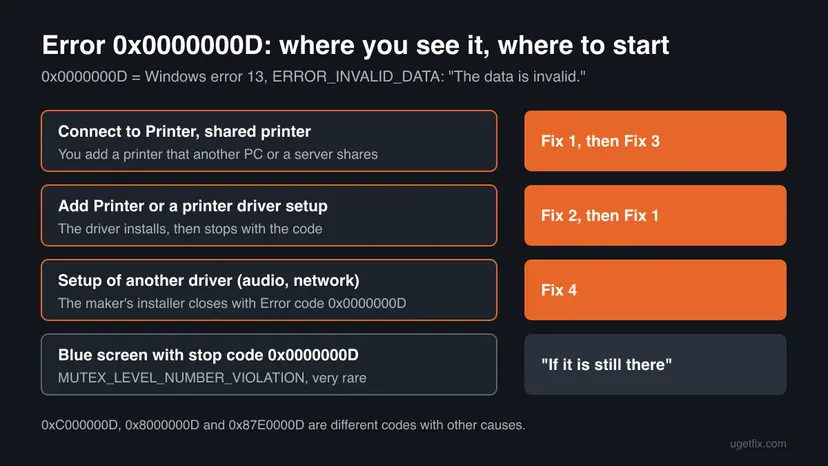
| What you see | When | What it points to |
|---|---|---|
| Connect to Printer: "Windows cannot connect to the printer. Operation failed with error 0x0000000D." | You add a printer that another PC or a print server shares | The driver the host offers does not suit your PC. Fix 1, Fix 3. |
| Add Printer wizard stops with error 0x0000000d | A printer driver is being installed | A damaged or half-removed driver package. Fix 2. |
| A driver installer closes with "Error code 0x0000000D" | You install an audio, network or other device driver | The package does not match your hardware or Windows. Fix 4. |
| A blue screen with stop code 0x0000000D | Windows crashes and restarts | Bug check MUTEX_LEVEL_NUMBER_VIOLATION, very rare. See "If error 0x0000000d is still there". |
Windows writes it with eight digits after 0x, but people search 0x00000d, 0x000000d or 0xD. Leading zeros do not change a number, so these are all error 13. Codes with other digits in front, such as 0xC000000D or 0x8000000D, are different errors.
Why Windows shows error 0x0000000d: causes, ranked
Microsoft gives no single cause for this code. The ranking below follows from what error 13 means and from what users report on Microsoft's forums and printer forums. Common and cheap causes come first.
| # | Cause | How to recognise it | Fix |
|---|---|---|---|
| 1 | The host offers a driver your PC cannot use: an old 32-bit only driver, or one for an older Windows | The error appears in Connect to Printer, and the host is an older PC or runs 32-bit Windows | Fix 1, Fix 3 |
| 2 | The printer's driver package on your PC is damaged or half removed | The printer worked before, or a driver update or a reinstall failed halfway | Fix 2 |
| 3 | A device driver installer made for other hardware or another Windows | An audio or other driver setup closes with the code on a PC the package was not built for | Fix 4 |
| 4 | Print components or system files of Windows are damaged | Every printer fails, or the Print Spooler stops again and again | Fix 5, Fix 6 |
The earlier version of this page suggested turning the firewall off. A blocked network gives other errors, because Windows never gets as far as checking the driver. Turning on File and printer sharing is the right switch, as in Fix 3.
How to fix error 0x0000000d: six fixes in order
Start with the fix that matches where you see the code, and stop when it works. Fix 1 to Fix 3 are for printers, Fix 4 is for other device drivers, and Fix 5 and Fix 6 repair Windows itself.
| What you see or have | Start with |
|---|---|
| Connect to Printer fails when you add a printer another PC shares | Fix 1 |
| The Add Printer wizard or a printer driver setup stops with the code | Fix 2 |
| Fix 1 and Fix 2 failed, the host is an old or 32-bit PC | Fix 3 |
| An audio, network or other driver installer shows the code | Fix 4 |
| Every printer fails, or the Print Spooler keeps stopping | Fix 5 and Fix 6 |
Fix 1. Install the printer driver on your PC first, then connect to the shared printer
10 minutesLow riskYou add a printer that another PC or a print server shares. Needs an administrator account.
When you connect, Windows takes the driver from the host and checks it. If the host only has a driver for 32-bit or older Windows, that data is invalid for your PC, which is exactly error 13. With the right driver already installed, Windows uses your own copy instead.
- On your PC, press Win + I, open System > About and check System type. It is almost always a 64-bit operating system.
- Find the exact model name of the printer on its label or panel.
- Download the current driver for that model and your Windows version from the printer maker's support website.
- Run the installer as administrator. If it asks how the printer is connected, choose the option that installs the driver only, or cancel at the connection step.
- Restart the PC.
- Add the shared printer again by its share path
\\ComputerName\PrinterShareName, as in Fix 3 step 1 to 4.
Where you can, use the same driver version on the host and on your PC. If the host runs 32-bit Windows, an administrator can also install the 64-bit driver on the host, so it can offer both types.
Running a maker's installer as administrator: How to run a program as administrator or in compatibility mode
It worked if: The printer is added without the message, and a test page prints.
If not: If the error comes back with the driver already installed, the local package is damaged: go to Fix 2.
Fix 2. Remove the printer and its driver package, then add it again
10 to 15 minutesLow riskThe Add Printer wizard or a driver update stops with the code, or Fix 1 did not help. Needs an administrator account.
A damaged or half-removed driver package stays in Windows and is offered again on every attempt, so the same invalid data fails every time. Removing the whole package, not only the printer, lets Windows start from a clean copy.
- Open Settings > Bluetooth & devices > Printers & scanners, select the printer and select Remove.
- Type services in the search box on the taskbar, open Services, right-click Print Spooler and select Restart.
- Press Win + R, type
printui /s /t2and press Enter. The Drivers tab of the print server properties opens. - Select the driver of your printer model and select Remove.
- Choose Remove driver and driver package and select OK.
- Restart the PC.
- Install the current driver from the maker's website, as in Fix 1, and add the printer again.
The Print Spooler restart in step 2, with every option of the Services window: Check and restart Windows services
It worked if: The old driver is gone from the Drivers tab, the printer installs again and prints a test page.
If not: If the driver cannot be removed because it is in use, stop the Print Spooler, remove it and start the spooler again. If a shared printer still fails, go to Fix 3.
Fix 3. Add the shared printer through a local port
10 minutesLow riskFix 1 and Fix 2 did not help with a shared printer, often with an old or 32-bit host. Needs an administrator account.
A normal connection asks the host for its driver. A local port that points to the share path only sends print jobs there, while the driver comes from your own PC. The host's invalid driver data is never used.
- On both PCs, open Settings > Network & internet > Advanced network settings > Advanced sharing settings and turn on Network discovery and File and printer sharing.
- On the host, open the printer's Printer properties, open the Sharing tab and write down the Share name.
- On your PC, open File Explorer, type
\\ComputerNamein the address bar and press Enter. The printer should be listed. - Open Settings > Bluetooth & devices > Printers & scanners, select Add device, then Add manually.
- Choose Add a local printer or network printer with manual settings and select Next.
- Select Create a new port, choose Local Port, select Next and enter
\\ComputerName\PrinterShareNameas the port name. - Pick the maker and model in the driver list, or select Have Disk and point to the driver you downloaded in Fix 1.
- Finish the wizard and print a test page.
Open Settings > Devices > Printers & scanners, select Add a printer or scanner, then The printer that I want isn't listed. For sharing, open Settings > Network & internet > Status > Network and sharing center > Change advanced sharing settings.
It worked if: The printer appears with your own driver and prints through the host.
If not: If \\ComputerName does not open at all, the problem is the network, not the driver: check that both PCs are on the same network and try the host's IP address, as in Fix 5 of our printer error 0x00000003 guide.
Fix 4. For an audio or other device driver: install the PC maker's driver in Device Manager
10 to 20 minutesLow riskA driver installer for sound, network or another device closes with "Error code 0x0000000D". Needs an administrator account.
A setup program refuses a driver package that does not match the hardware or the Windows version it finds. The driver from your PC or motherboard maker is built for your exact board, and Device Manager can install it without the setup program.
- Find the model of your PC, laptop or motherboard. Press Win + R, type
msinfo32and read System Manufacturer and System Model. - Download the driver for that model and your Windows version from the PC or motherboard maker's support page, not a generic package.
- Unpack the download into a folder if it is an archive.
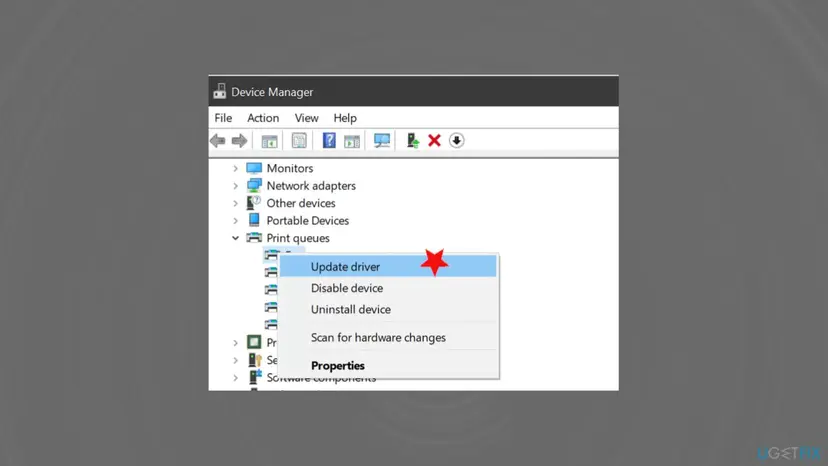
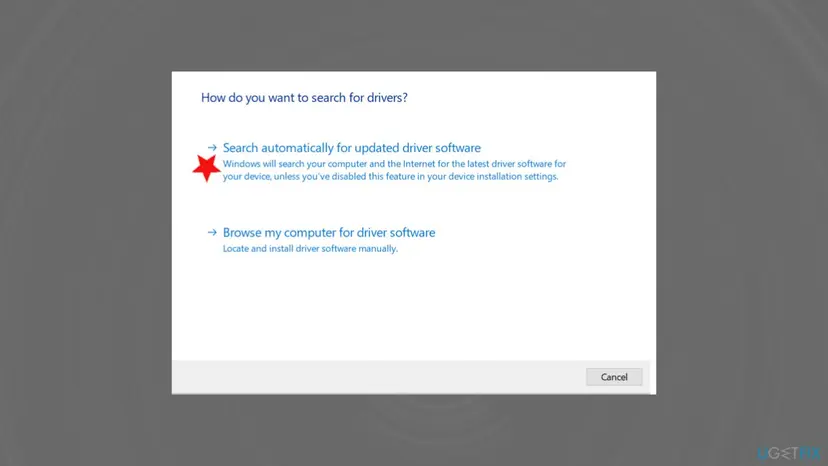
- Right-click Start, open Device Manager, expand the category (for example Sound, video and game controllers), right-click the device and select Update driver.
- Select Browse my computer for drivers and point to the unpacked folder.
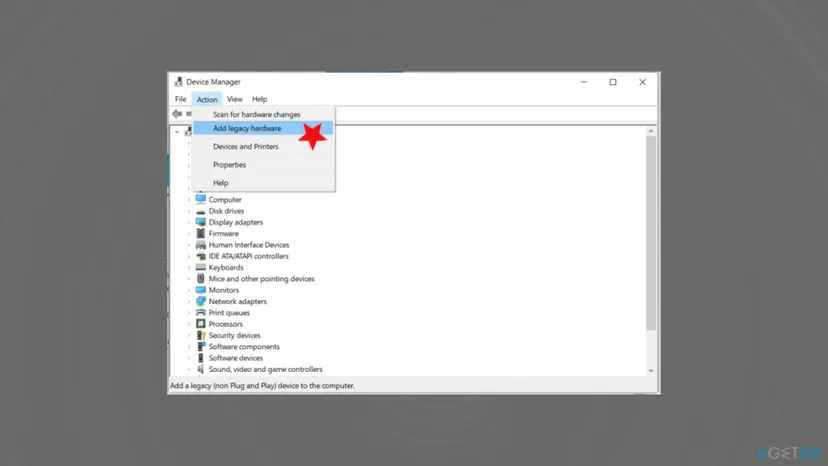
If the device is not listed at all, Microsoft forum staff suggest adding it by hand. In Device Manager, select Action > Add legacy hardware, choose Install the hardware that I manually select from a list (Advanced), pick the category and the maker, or select Have Disk and point to the driver folder.
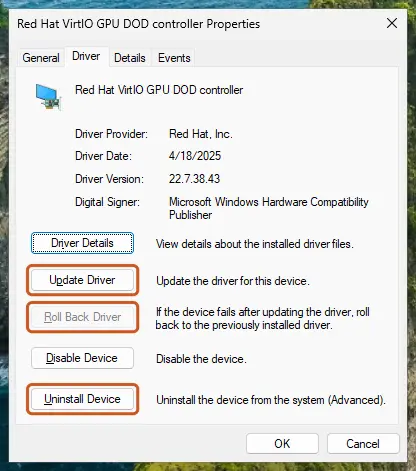
Every way to update, roll back or reinstall a driver: Update, roll back or reinstall a driver
It worked if: The device shows no warning sign in Device Manager, and the Driver tab lists the maker's driver.
If not: If the maker has no driver for your Windows version, check Settings > Windows Update > Advanced options > Optional updates for a driver, then go to Fix 5.
Fix 5. Run the printer troubleshooter and install Windows updates
10 to 30 minutesNo riskFix 1 to Fix 4 did not help, or every printer fails. Updates need an administrator account.
The troubleshooter checks the Print Spooler and the printer setup and repairs what it can. Windows Update also offers printer and device drivers as optional updates, and those packages are tested for your Windows version.
- Open Settings > System > Troubleshoot > Other troubleshooters.
- Select Run next to Printer and follow the questions. Newer builds may open the Get Help app for this.
- Open Settings > Windows Update and select Check for updates.
- Open Advanced options > Optional updates and install any driver offered for the printer or device.
- If the printer is shared, update the host too, then restart both PCs.
If an update does not install from Settings, fetch it by hand: Install an update from the Microsoft Update Catalog
It worked if: The troubleshooter reports a repair, or the printer or device works after the restart.
If not: If the Print Spooler still stops or every printer fails, repair system files with Fix 6.
Fix 6. Repair Windows system files with DISM and SFC
15 to 30 minutesNo riskEvery printer fails, drivers cannot be removed, or you saw a blue screen. Needs an administrator account.
The Print Spooler and the driver install components are part of Windows. If their files are damaged, Windows can reject even a good driver as invalid. DISM repairs the Windows image and SFC then restores damaged system files from it.
- Open an elevated command window. Right-click Start and select Terminal (Admin), or type cmd in the search box, right-click Command Prompt and select Run as administrator. Select Yes when Windows asks for permission.

Search for cmd and choose Run as administrator. Screenshot: Windows 11 26H2. - Run DISM first. Type the command below and press Enter. DISM downloads clean copies of damaged components from Windows Update, so it can take several minutes. Wait until it says The operation completed successfully.
DISM.exe /Online /Cleanup-Image /RestoreHealth
DISM /RestoreHealth running. Screenshot: Windows 11 26H2. - Run System File Checker. In the same window, type the command below and press Enter. Do not close the window until the verification reaches 100%.
sfc /scannow
sfc /scannow at 100%. Screenshot: Windows 11 26H2. - Read the result and restart. Compare the last message with the table below this guide, then restart the PC so that repaired files are loaded.

The result line tells you what SFC did. Screenshot: Windows 11 26H2.
These steps were written for Windows 11 24H2 and 25H2. The full page with the other versions and what each result means: Run DISM and SFC to repair Windows system files
It worked if: SFC reports that it found and repaired files, or found no problems, and the printer or driver installs after a restart.
If not: Read the PrintService log as described under "If error 0x0000000d is still there".
If error 0x0000000d is still there: read the log
The message box does not say which driver or file was invalid. The print service often writes it in its own event log, together with the printer and the driver name.
- Type event viewer in the search box on the taskbar and open Event Viewer.
- Open Applications and Services Logs > Microsoft > Windows > PrintService.
- Select Admin and look for errors at the time of your last attempt.
- Right-click Operational, select Enable Log, try once more and read the new entries.
| Test | Result | What it means |
|---|---|---|
| Add the same shared printer on another 64-bit PC | It fails there too | The host's driver is the problem: Fix 1 or Fix 3 |
| Add the Microsoft Print to PDF printer or another printer | It works | Only this printer's driver is broken: Fix 2 |
| Every printer and driver fails | Nothing installs | Windows components: Fix 6, then a repair install |
On a blue screen, 0x0000000D is bug check MUTEX_LEVEL_NUMBER_VIOLATION, and Microsoft says it appears very infrequently. It comes from a driver or the Windows kernel, not from a printer setting. Install Windows updates, update or roll back any driver installed just before the crashes, and run Fix 6. If it repeats, give the memory dump to the PC maker's support.
- What to send to support or to the IT department: the exact message, the time, the printer or device model, the share path, both PCs' Windows versions and system types, and the PrintService events.
- If even a new Windows user account fails, back up your files and consider a repair install that keeps them: Reinstall Windows without losing files
How to keep error 0x0000000d from coming back
- Download drivers from the printer, PC or motherboard maker for your exact model and Windows version.
- Install the 64-bit driver on a host that shares a printer with 64-bit PCs.
- Remove old printers and their driver packages on the Drivers tab before you add the printer again.
- Install Windows updates on the host and on every PC that prints.
- Do not turn off the firewall to make sharing work. Turn on File and printer sharing instead.
- Do not use third-party driver updater programs. They can install a package made for other hardware.
- Do not delete files in
C:\Windows\System32\spool\driversby hand.
Windows 10 support ended on 14 October 2025, so a Windows 10 PC gets no further fixes for its print components. If the error keeps returning there, moving to Windows 11 is the lasting fix.
Frequently asked questions
What is error code 0x0000000d?
It is Windows system error 13, ERROR_INVALID_DATA, and Microsoft's text for it is "The data is invalid". Windows received data it could not use. With printers and devices, that data is nearly always a driver: one built for another Windows type, or a damaged package. The code does not say which driver it was. Start with Fix 1 for a shared printer, Fix 2 for a printer setup and Fix 4 for any other device driver.
Are 0x00000d, 0x000000d and 0x0000000d the same error?
Yes. Windows writes the code with eight digits after 0x, but leading zeros do not change a number. So 0x00000d, 0x000000d, 0x0000000D, 0xD and error 13 are the same error, "The data is invalid". Where you see it still matters: in Connect to Printer it is about the shared driver, in a driver setup it is about that package, and on a blue screen it is a separate crash code.
Is 0x8000000d or 0xc000000d the same as 0x0000000d?
No. Only the last digit is shared. Error code 0x8000000d is a different code that users report from apps such as the Xbox app sign-in, and 0xC000000D is a boot error that comes with the message Your PC/device needs to be repaired. Users report 0x87e0000d with Xbox and game downloads, while 0xd000000d and 0x300000d are other codes again. The fixes on this page do not apply to them. Search for the full code exactly as it is on your screen.
Is 0x000000d4 the same error?
No. 0x000000D4 has the extra digit 4 at the end, so it is a different number and a different code, with its own meaning and causes. This page covers 0x0000000D only: Windows error 13 in printer and driver setups, and the rare bug check 0xD. Read the code on your screen digit by digit before you choose a guide.
What does 0x0000007f 0x0000000d on a blue screen mean?
In that line the stop code is 0x0000007F, and 0x0000000D is only one of the extra numbers that Windows prints after it. Those numbers describe the crash for developers; they do not make it error 13. So this page is not the right one for that blue screen. Note the full stop code, install Windows updates, update any driver installed just before the crashes and run Fix 6 as a first check.
Is 0x0000000d a blue screen of death?
Usually not. The earlier version of this page called it a BSOD, but most readers see it in a printer or driver window, where it is Windows error 13. A blue screen with stop code 0x0000000D does exist: Microsoft calls it MUTEX_LEVEL_NUMBER_VIOLATION and says it appears very infrequently. If your PC crashed to a blue screen, read "If error 0x0000000d is still there".
Why does the error stop me from using the wireless network and the printer?
A shared printer is reached over the network, so the error appears when you connect to it and it can look like a network fault. Error 13 itself is about data, not about the connection. If File Explorer opens \\ComputerName and lists the printer, the network works and the driver is the problem, so go to Fix 1. If the host does not open at all, check the network first.
Should I turn off Windows Firewall to fix error 0x0000000d?
No. Turning the firewall off leaves the PC open and does not fix invalid driver data. If sharing is blocked, turn on Network discovery and File and printer sharing in the advanced sharing settings, as in Fix 3 step 1. The firewall then allows printer sharing on that network type and stays on for everything else.
Does error 0x0000000d mean my printer is broken?
No. The code comes from Windows on your PC, before any page is sent to the printer. A printer with a jam, empty ink or a hardware fault shows its own messages on its panel and in the print queue. If another PC prints to the same printer without trouble, the printer is fine and the driver on your PC is the problem.
What does "lỗi 0x0000000d" mean?
"Lỗi" is Vietnamese for "error", so it is the same error 0x0000000d that this page covers, Windows error 13, "The data is invalid". The steps here are written in English for Windows 11 and Windows 10, and the menu names match the English version of Windows. On a Vietnamese Windows the menus sit in the same places with translated names.
Sources
- Microsoft Learn: System Error Codes (0-499), ERROR_INVALID_DATA (learn.microsoft.com)
- Microsoft Learn: Bug Check 0xD MUTEX_LEVEL_NUMBER_VIOLATION (learn.microsoft.com)
- Microsoft Q&A: Realtek driver install fails with error code 0x0000000D (Portuguese) (learn.microsoft.com)
Did this fix work?
One click, no account. It tells the next reader which guides are worth their time.
Questions and experiences: fix 0x0000000d error in Windows
Still broken, or found a fix we did not cover? Ask here: members and our editors answer. Reading is open; writing needs a free account.
…