
How to fix printer error 0x00000003 in Windows?

Prefer to fix it yourself? The manual steps follow.
- 7methods
- 2 to 30 minutes
- Intermediate
Applies to Windows 11 and Windows 10 PCs that add, connect to or print to a local or shared printer
7 methods in this guide
When trying to access my printer as I usually do, I ran into error 0x00000003. Everything was working just fine yesterday.
Printer error 0x00000003 is Windows system error 3: "The system cannot find the path specified." Windows looked for a folder, a driver file or a printer share and did not find it. Restart the Print Spooler and empty its queue folder first, then check the printer's share path and add it again.
Yes, it can be fixed. The code is Windows error 3, ERROR_PATH_NOT_FOUND: a path the printer needs is missing. Restart the Print Spooler service and delete the files in %WINDIR%\system32\spool\PRINTERS (Fix 1). If the printer is shared by another PC, open \\ComputerName in File Explorer and add the printer by its exact share path (Fix 2). If that fails, remove the printer and its driver package and add it again (Fix 3).
| Error | 0x00000003, Windows system error 3, ERROR_PATH_NOT_FOUND: "The system cannot find the path specified." Often shown as Windows cannot connect to the printer. Operation failed with error 0x00000003. |
|---|---|
| Where it appears | In the Connect to Printer box when you add a shared printer, in the Add Printer wizard while a driver installs, and in Printer properties as "Operation could not be completed (error 0x00000003)". |
| Main cause | A path is missing: stale data in the Print Spooler, a wrong or unreachable share path \\ComputerName\PrinterShareName, or a half-removed driver package. |
| Fastest fix | Restart the Print Spooler and empty %WINDIR%\system32\spool\PRINTERS (Fix 1), then add the printer by its exact share path (Fix 2). |
| Also written as | 0x0000003, 0x000003, 0x000000003, 0000003, error 3, "error 0x0000003". Not the same as 0x000003e3, which is a different code. |
| Affects | Windows 11 and Windows 10. Reports go back to Windows Vista, Windows 7 and Windows Server print servers. |
| Microsoft's status | No Microsoft article covers this code for printers. Microsoft lists it only in its system error codes, and its shared printer guide covers the paths that break. |
| Needs an administrator | Fix 1, Fix 3, Fix 4 and Fix 7 do. Fix 2 and Fix 5 mostly do not. |
| Where the cause is logged | Event Viewer: Applications and Services Logs > Microsoft > Windows > PrintService, logs Admin and Operational. |
| Time to fix | 2 minutes for the spooler, 10 minutes for the share path, up to 30 minutes for a driver reinstall and a system file check. |
Facts checked on 15 October 2026. Steps written for Windows 11 (25H2 and 26H2) and Windows 10 22H2.
What printer error 0x00000003 means
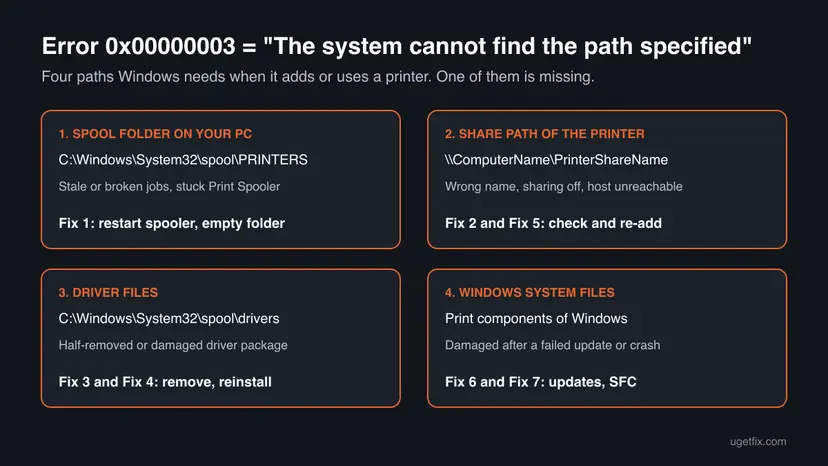
0x00000003 is the hexadecimal way to write Windows system error 3. Microsoft's list of system error codes names it ERROR_PATH_NOT_FOUND. Its text is one line: "The system cannot find the path specified." A path is the address of a folder or file, on your own disk or on another computer.
So the message does not say that the printer is broken. It says that Windows asked for a folder or a share while it set up or used the printer, and that place was not there. Its close relative, error 2, means the folder was found but a file inside it was not.
| What you see | When | What it points to |
|---|---|---|
| Connect to Printer: "Windows cannot connect to the printer. Operation failed with error 0x00000003." | You add a printer that another PC or a print server shares | The share path or the driver path on the host. Start with Fix 1 and Fix 2. |
| Add Printer wizard stops with error 0x00000003 | A driver is being installed for a local or network printer | The driver package or its folder. Fix 3 and Fix 4. |
| "Operation could not be completed (error 0x00000003)" | You open Printer properties or Printing preferences | The driver of that printer cannot find its own files. Fix 3. |
The correct form has eight digits after 0x. People also type 0x0000003, 0x000003, 0x000000003 or 0000003. Leading zeros do not change a number, so these are all error 3. The same number also turns up in games, blue screens and Windows Update. This page is about printers only.
Why Windows shows error 0x00000003 for a printer: causes, ranked
Microsoft gives no single cause for this code with printers. The ranking below follows from what the code means, from Microsoft's checklist for shared printers and from what users report. The common and cheap causes come first.
| # | Cause | How to recognise it | Fix |
|---|---|---|---|
| 1 | The Print Spooler holds stale jobs or old data about the printer | The printer worked yesterday and nothing was changed on purpose | Fix 1 |
| 2 | The share path is wrong or the host cannot be reached: a renamed PC or share, sharing switched off, another network | \\ComputerName does not open in File Explorer, or the share name differs | Fix 2, Fix 5 |
| 3 | The driver package on your PC is half removed or damaged, so its folder or files are gone | The error appears in Printer properties, or after a driver update or a failed reinstall | Fix 3 |
| 4 | Your account may not install the driver the host offers | An administrator can add the printer, a standard user gets the error | Fix 4 |
| 5 | Windows print components are damaged | Every printer fails, or the Print Spooler stops again and again | Fix 6, Fix 7 |
The error comes from Windows before any page reaches the printer. A printer that is out of ink or jammed shows its own messages on its panel and in the print queue.
How to fix printer error 0x00000003: seven fixes in order
Start at Fix 1 and stop when the printer works. Fix 1 to Fix 3 solve most cases. Fix 4 and Fix 5 are for shared printers, and Fix 6 and Fix 7 repair Windows itself.
| What you see or have | Start with |
|---|---|
| The printer worked before and stopped without any change | Fix 1 |
| The printer is shared by another PC or a print server | Fix 2 |
| The error appears in Printer properties or after a driver update | Fix 3 |
| An administrator can add the printer, your account cannot | Fix 4 |
\\ComputerName does not open but the host is on and shared | Fix 5 |
| Every printer fails, or the Print Spooler keeps stopping | Fix 6 and Fix 7 |
Fix 1. Restart the Print Spooler and empty its queue folder
2 minutesLow riskFor everyone, as the first step. It needs an administrator account.
The Print Spooler service keeps every queued job and each printer connection in memory and in the PRINTERS folder. When it holds a job or a connection that points to a place that is gone, each new attempt can fail with the same path error. A clean start removes that stale data.
The files in the queue folder are documents waiting to print. They are deleted, so print them again afterwards. Printers, drivers and settings stay.
- Type services in the search box on the taskbar and open Services.
- Right-click Print Spooler and select Stop. Leave the window open.
- Press Win + R, type
%WINDIR%\system32\spool\PRINTERSand press Enter. - Delete all files in the folder. Do not delete the folder itself.
- Go back to Services, right-click Print Spooler and select Start.
- Double-click Print Spooler and check that Startup type is Automatic.
- Try the printer again.
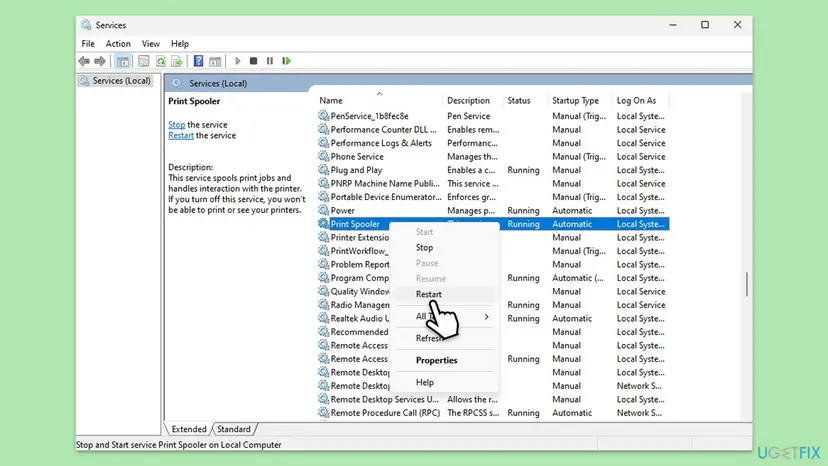
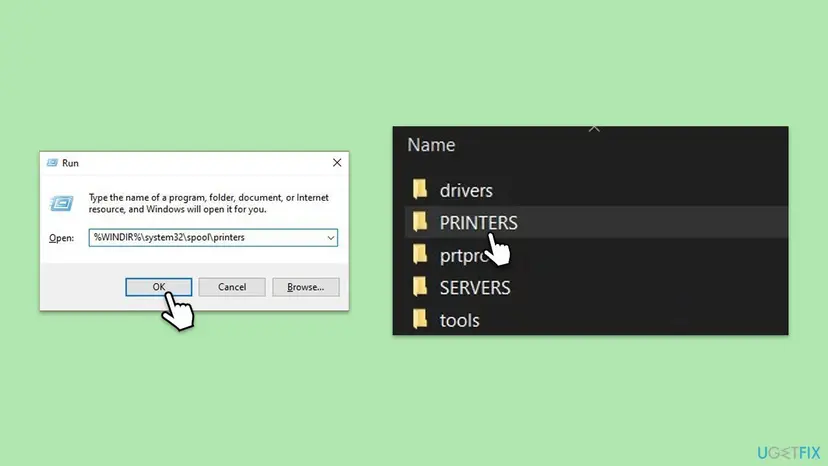
If the folder will not open, that is a clue in itself: the spool folder is missing or damaged, so go to Fix 7. The Services window in general: Check and restart Windows services
It worked if: The Print Spooler shows Running, the queue is empty and the printer accepts a test page.
If not: If the error comes back and the printer is shared by another PC, go to Fix 2. If it is your own printer, go to Fix 3.
Fix 2. Check the printer's share path and add it again by its exact name
5 to 10 minutesNo riskThe printer is shared by another PC or a print server. No administrator needed, except for the sharing switches.
A shared printer is reached by a path of two names: \\ComputerName\PrinterShareName. If the host was renamed, the share name changed or sharing is off, that path no longer exists, which is exactly what error 3 says. Microsoft's guide for shared printers starts with these checks.
- On the host PC, open Settings > Bluetooth & devices > Printers & scanners, select the printer and select Printer properties.
- On the Sharing tab, tick Share this printer, write down the Share name exactly and select OK.
- On both PCs, open Settings > Network & internet > Advanced network settings > Advanced sharing settings and turn on Network discovery and File and printer sharing.
- On your PC, open File Explorer, type
\\ComputerNamein the address bar and press Enter. The host's printer should be listed. - If the old printer is in your list, select it under Printers & scanners, select Remove and restart the PC.
- Select Add device, then Add manually when the printer is not listed.
- Choose Select a shared printer by name, enter
\\ComputerName\PrinterShareNameand follow the instructions.
On the host, open Settings > Devices > Printers & scanners, select the printer, then Manage > Printer properties. For sharing, open Settings > Network & internet > Status > Network and sharing center > Change advanced sharing settings and turn both switches on under Private. To add, select Add a printer or scanner, then The printer that I want isn't listed.
Microsoft says to use the same Microsoft account or local account on both PCs, or to enter the host's user name and password when asked. If \\ComputerName asks for a password you do not know, ask whoever owns the host.
It worked if: The host opens in File Explorer, the printer is added and a test page prints.
If not: If \\ComputerName does not open at all, go to Fix 5. If it opens and only adding the printer fails, go to Fix 3.
Fix 3. Remove the printer and its driver package, then add it again
10 to 15 minutesLow riskThe error appears in Printer properties, after a driver update, or Fix 1 and Fix 2 did not help. Needs an administrator.
Each printer driver lives in its own folder under C:\Windows\System32\spool\drivers. A driver that was removed only half, or updated with an error, still points Windows to a folder that is gone. Removing the whole driver package clears those pointers, and a fresh install creates the folders again.
- Open Settings > Bluetooth & devices > Printers & scanners, select the printer and select Remove.
- Press Win + R, type
printui /s /t2and press Enter. The Drivers tab of the print server properties opens. - Select the driver of your printer model and select Remove.
- Choose Remove driver and driver package and select OK.
- If Windows says the driver is in use, restart the Print Spooler as in Fix 1 and remove it again.
- Restart the PC.
- Install the current driver from the printer maker's website, or add the printer again as in Fix 2 so the host supplies it.
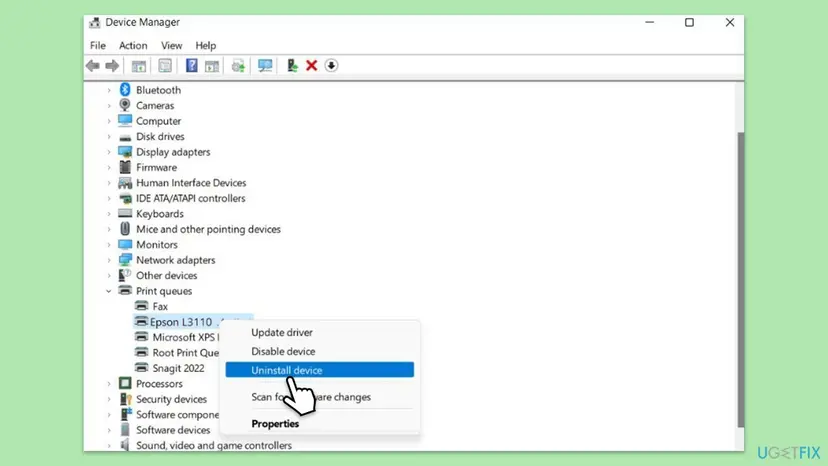
Every way to update, roll back or reinstall a driver: Update, roll back or reinstall a driver
It worked if: The old driver is gone from the Drivers tab, the printer installs again and Printer properties opens without the error.
If not: If only your account fails while an administrator can add the printer, go to Fix 4. If the driver cannot be removed, go to Fix 7.
Fix 4. Install the driver with an administrator account before you connect
10 minutesLow riskA standard user gets the error and an administrator does not, or the PC belongs to a company. Needs an administrator.
Adding a shared printer usually copies its driver from the host to your PC. When your account may not install drivers, that copy stops halfway and the driver folder Windows expects is never made. With the driver already in place, Windows only has to link to the printer.
- Sign in to the PC with an administrator account.
- Install the printer maker's current driver for the model. Use the same driver version as the host where you can.
- Add the printer as in Fix 2 while you are still signed in as administrator.
- Sign out and sign back in with the standard account.
- Add the printer again by its share path. No driver has to be installed now.
- At work: printer drivers are often managed by the IT department. Give them the exact message and the share path.
- Do not change Point and Print security settings to let any user install drivers. Ask an administrator to install the driver once instead.
- Running a maker's installer as administrator: How to run a program as administrator or in compatibility mode
It worked if: The standard account adds the printer without the error and can print.
If not: If the administrator gets error 0x00000003 too, the host or the network is the problem: go to Fix 5.
Fix 5. Make sure your PC finds the host by name, or use its IP address
5 to 10 minutesNo risk\\ComputerName does not open, but the host is switched on and shares the printer. No administrator needed for the test.
The share path starts with the host's name. If your PC cannot turn that name into an address, the whole path counts as not found. Microsoft's guide says to fix network or name resolution problems before anything else.
- Check that both PCs use the same network. With a guest Wi-Fi, a second router or a range extender they may not.
- On the host, open Command Prompt and type
ipconfig. Write down its IPv4 Address. - On your PC, open File Explorer and type
\\followed by that address, for example\\192.168.1.20. - If the host opens by address but not by name, open Command Prompt on your PC and run
ipconfig /flushdns. - Try
\\ComputerNameagain. If it still fails, add the printer with the address:\\192.168.1.20\PrinterShareName.
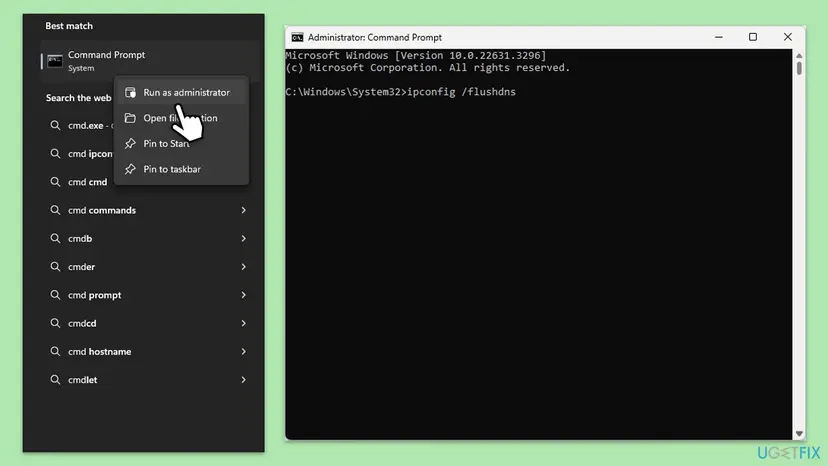
A home router may give the host a new address after a restart. The address route is a test and a stopgap, not a lasting fix. If the network itself misbehaves, reset it: Reset the network and flush DNS
It worked if: The host opens in File Explorer and the printer is added without the error.
If not: If the host does not open even by address, its sharing or firewall settings block it: repeat step 3 of Fix 2 on the host. Otherwise go to Fix 6.
Fix 6. Run the printer troubleshooter and install Windows updates
10 to 30 minutesNo riskFix 1 to Fix 5 did not help, or every printer fails. Updates need an administrator.
The troubleshooter checks the Print Spooler and the printer's setup and repairs what it can on its own. Updates replace print components that a failed update or a crash left in a broken state, on your PC and on the host.
- Open Settings > System > Troubleshoot > Other troubleshooters.
- Select Run next to Printer and follow the questions. Newer builds may open the Get Help app for this.
- Open Settings > Windows Update and select Check for updates.
- Install everything offered, including optional driver updates for the printer.
- Do the same on the host if the printer is shared, then restart both PCs.
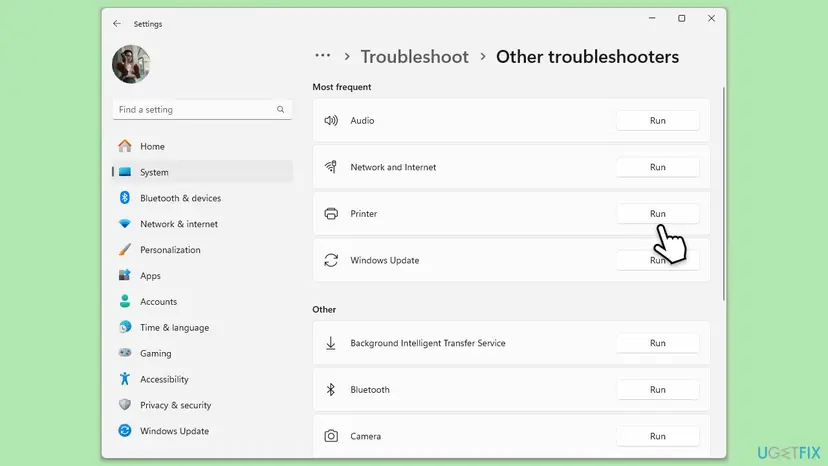
If an update does not install from Settings, fetch it by hand: Install an update from the Microsoft Update Catalog
It worked if: The troubleshooter reports a repair, or the printer works after the restart.
If not: If the Print Spooler still stops or every printer fails, repair system files with Fix 7.
Fix 7. Repair Windows system files with DISM and SFC
15 to 30 minutesNo riskEvery printer fails, the spool folder will not open, or a driver cannot be removed. Needs an administrator.
The Print Spooler and the spool folders are part of Windows. If those files or folders are damaged, every printer path can fail. DISM repairs the Windows image and SFC then restores damaged system files from it.
- Open an elevated command window. Right-click Start and select Terminal (Admin), or type cmd in the search box, right-click Command Prompt and select Run as administrator. Select Yes when Windows asks for permission.

Search for cmd and choose Run as administrator. Screenshot: Windows 11 26H2. - Run DISM first. Type the command below and press Enter. DISM downloads clean copies of damaged components from Windows Update, so it can take several minutes. Wait until it says The operation completed successfully.
DISM.exe /Online /Cleanup-Image /RestoreHealth
DISM /RestoreHealth running. Screenshot: Windows 11 26H2. - Run System File Checker. In the same window, type the command below and press Enter. Do not close the window until the verification reaches 100%.
sfc /scannow
sfc /scannow at 100%. Screenshot: Windows 11 26H2. - Read the result and restart. Compare the last message with the table below this guide, then restart the PC so that repaired files are loaded.

The result line tells you what SFC did. Screenshot: Windows 11 26H2.
These steps were written for Windows 11 24H2 and 25H2. The full page with the other versions and what each result means: Run DISM and SFC to repair Windows system files
It worked if: SFC reports that it found and repaired files, or found no problems, and the printer works after a restart.
If not: Read the PrintService log as described under "If the error is still there".
If error 0x00000003 is still there: read the log
The message box does not say which path is missing. The print service often writes it in its own event log, together with the printer and the driver it was working on.
- Type event viewer in the search box on the taskbar and open Event Viewer.
- Open Applications and Services Logs > Microsoft > Windows > PrintService.
- Select Admin and look for errors at the time of your last attempt.
- Right-click Operational, select Enable Log, try the printer once more and read the new entries.
| Test | Result | What it means |
|---|---|---|
| Add the same printer on another PC | It fails there too | The host or its share is the problem. Work on the host. |
| Add another printer, or the Microsoft Print to PDF printer | It works | Only this printer's driver is broken: Fix 3 |
| Try with an administrator account | It works | Driver installation rights: Fix 4 |
- What to send to support or to the IT department: the exact message, the time, the printer model, the share path, your Windows version and the PrintService events.
- If even a new Windows user account fails, back up your files and consider a repair install that keeps them: Reinstall Windows without losing files
How to keep error 0x00000003 from coming back
- Keep the host's name and the printer's share name the same once other PCs use them.
- Remove printers in Printers & scanners and their drivers on the Drivers tab, not by deleting folders.
- Install Windows updates on the host and on every PC that prints.
- Let an administrator install the printer driver before standard users connect.
- Do not delete anything in
spool\driversby hand. - Do not switch off the firewall to make sharing work. Turn on File and printer sharing instead.
- Do not use registry cleaners on a PC with printing trouble. They can remove the keys the spooler needs.
Windows 10 support ended on 14 October 2025, so a Windows 10 PC gets no further fixes for its print components. If the error keeps returning there, moving to Windows 11 is the lasting fix.
Frequently asked questions
What is error 0x00000003?
It is Windows system error 3, ERROR_PATH_NOT_FOUND. Microsoft's text for it is "The system cannot find the path specified." With a printer it means that Windows looked for a folder, a driver or a printer share and did not find it. The code does not say which path. The usual ones are the Print Spooler's queue folder, the share path of a network printer and the folder of the printer driver. Fix 1 to Fix 3 cover these in order.
Is 0x0000003 or 0x000003 the same error as 0x00000003?
Yes. Windows writes the code with eight digits after 0x, but leading zeros do not change a number. So 0x0000003, 0x000003, 0x000000003, 0000003 and error 3 are all the same error, "The system cannot find the path specified." Only the meaning of the number is fixed. Where it appears matters: in a game, a blue screen or Windows Update, error 3 has its own causes, and this page covers printers.
Is printer error 0x00000003 the same as 0x000003e3?
No. 0x000003e3 is a different code, Windows error 995, and it means that an operation was cut off before it finished, often while a shared printer is added. The fixes overlap, since both start with the Print Spooler, but the causes differ. We have a separate guide for it: How to fix printing error 0x000003e3. If your message says "Operation could not be completed (error 0x000003e3)", use that guide.
Why did the printer work yesterday and show 0x00000003 today?
Usually because something on the path changed without your action. A Windows update may have replaced a driver, the host PC may have been renamed or restarted with a new address, or a print job may have stuck in the spooler. Start with Fix 1, which clears the spooler. If the printer is shared, check in File Explorer that \\ComputerName still opens (Fix 2). Both take a few minutes and solve most of these cases.
Does the error mean my printer is broken?
No. The code comes from Windows on your PC, before any page is sent to the printer. A printer with a hardware fault, a paper jam or empty ink shows its own messages on its panel and in the print queue. If another PC prints to the same printer without trouble, the printer is fine and the fault is on your PC. If every PC fails, look at the host that shares it.
Can I just delete the folders in C:\Windows\System32\spool?
Only the files inside the PRINTERS folder, and only while the Print Spooler is stopped, as in Fix 1. Those files are waiting print jobs. Do not delete the drivers folder or the folders in it: that is where installed printer drivers live, and deleting them by hand creates the very missing path that error 0x00000003 reports. Remove drivers on the Drivers tab instead, as in Fix 3.
Should I change the printer's Security tab permissions?
Usually not. The earlier version of this guide suggested it, but the Security tab decides who may print and manage documents on a printer that is already installed. It does not create the folders or the share path that this error is about. If an administrator can add the printer and your account cannot, the cleaner fix is that an administrator installs the driver once (Fix 4).
Does resetting TCP/IP and Winsock fix 0x00000003?
Only when the PC cannot find the host on the network. Clearing the name cache with ipconfig /flushdns is the useful part, and Fix 5 uses it together with a test by IP address. A full reset of TCP/IP and Winsock also removes your network settings, so keep it for real network faults, not for a local printer: Reset the network and flush DNS
Does error 0x00000003 appear on Windows 7 and Windows 10?
Yes. Users report it on Windows Vista, Windows 7, Windows 10 and Windows 11, and on Windows Server print servers. The meaning is the same on all of them. The steps on this page are written for Windows 11 and Windows 10 22H2. Windows 7 has the same Services window, spool folder and printui command, but not the Settings pages. Windows 10 support ended on 14 October 2025.
Sources
- Microsoft Learn: System Error Codes (0-499), ERROR_PATH_NOT_FOUND (learn.microsoft.com)
- Microsoft Support: Fix shared printer connection problems in Windows (support.microsoft.com)
Did this fix work?
One click, no account. It tells the next reader which guides are worth their time.
Questions and experiences: fix printer error 0x00000003 in Windows
Still broken, or found a fix we did not cover? Ask here: members and our editors answer. Reading is open; writing needs a free account.
…