
How to fix printing error 0x000003e3?

Prefer to fix it yourself? The manual steps follow.
- 7methods
- 5 to 30 minutes
- Intermediate
Applies to Windows 11 and Windows 10 PCs that connect to a printer shared by another PC or a print server, or that show the code when a document is sent to print
7 methods in this guide
- What the error means
- Causes, ranked
- Windows 11 and Windows 10
- The fixes
- 1. Clean up and restart spooler
- 2. Reach the host by IP address
- 3. Driver plus local port
- 4. Replace the printer driver
- 5. Print to the printer's IP
- 6. Repair Windows printing
- 7. Uninstall an update as a test
- Still there: log and host
- Advice we checked
- Undo the changes
- Keep it from coming back
- FAQ
Hi, I've got a printer connected via the network, and I never had any issues with using it until a few days ago when it suddenly stopped working. Every time, I receive a printing error 0x000003e3. My laptop is running Windows 10 and is connected to the network via WiFi.
Error 0x000003e3 is Windows error 995, an aborted operation: your PC started to connect to a shared printer or to print, and the work was cut off before it finished. Remove the half-made printer and restart the Print Spooler first. If the error returns, install the driver yourself and attach the printer through a local port named after the share, as Microsoft's support advised for this code.
Yes, it can be fixed. The code means the connection to the shared printer was aborted partway, most often while the driver was fetched from the other computer. Remove the failed printer and restart the Print Spooler (Fix 1). Then open the host by its IP address (Fix 2). If Connect still fails, install the driver yourself and add a local port named \\ComputerName\PrinterShareName (Fix 3).
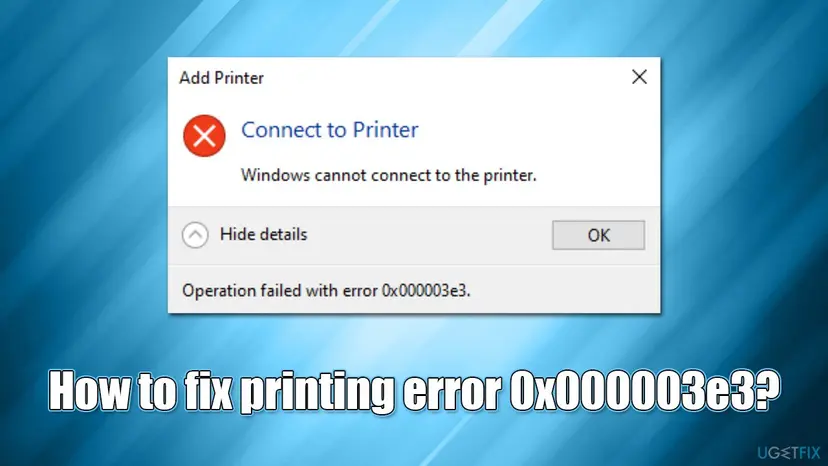
| Error | Windows cannot connect to the printer. Operation failed with error 0x000003e3. The number is Windows system error 995, ERROR_OPERATION_ABORTED: "The I/O operation has been aborted because of either a thread exit or an application request." |
|---|---|
| Where it appears | In the Connect to Printer box when you add a printer that another PC or a print server shares. Less often as Operation could not be completed (error 0x000003e3) when a document or a test page is sent to print. |
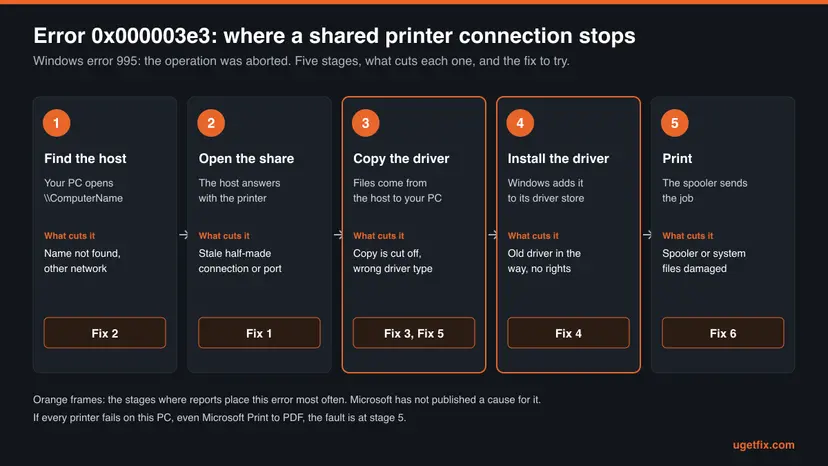
| Main cause | The connection is cut off before it completes. Reports place the cut at the moment the driver is copied from the host and installed. Microsoft has not published a cause for this code. |
| Fastest fix | Remove the failed printer, restart the Print Spooler and empty %WINDIR%\system32\spool\PRINTERS (Fix 1), then connect through a local port named after the share (Fix 3). |
| Also written as | 0x00003e3, 0x0003e3, 0x3E3, 3e3, error 995, "printer error 3e3", "Operation could not be completed (error 0x000003e3)". Leading zeros do not change the number. |
| Affects | Windows 11 and Windows 10. The oldest reports are from Windows 7 clients that connect to printers shared by Windows Vista and Windows XP. |
| Microsoft's status | No Microsoft article covers this code for printers. The one answer by Microsoft staff, from 2011, tells you to install the driver locally and print through a local port. Fix 3 follows it. |
| Needs an administrator | Fix 2 does not. Fix 1 and Fix 3 to Fix 7 need an administrator account for at least one step, because they restart a service or install a driver. |
| Where the cause is logged | Event Viewer: Applications and Services Logs > Microsoft > Windows > PrintService, logs Admin and Operational. |
| Time to fix | 5 minutes for Fix 1 and Fix 2, 10 to 15 minutes for the local port or a clean driver, up to 30 minutes for the system file check. |
Facts checked on 14 October 2026. Steps written for Windows 11 (25H2 and 26H2) and Windows 10 22H2.
What "Operation failed with error 0x000003e3" means
0x000003e3 is hexadecimal for 995. Microsoft's list of system error codes names error 995 ERROR_OPERATION_ABORTED and gives it one line of text: "The I/O operation has been aborted because of either a thread exit or an application request". In plain words: something was being read, written or sent, and it was stopped before it ended.
The code does not say that the printer is broken, out of ink or switched off. It says that a piece of work inside Windows printing was abandoned. In the Connect to Printer box that work is the connection to a printer on another computer. In the print message it is the document on its way through the Print Spooler.
| What you see | When | What it tells you |
|---|---|---|
| Connect to Printer: "Windows cannot connect to the printer. Operation failed with error 0x000003e3." | You add a printer shared by another PC or a print server, by a double-click in File Explorer, in the Add Printer wizard, or through a sign-in script | The connection was started and then aborted. This is the main case of this page: Fix 1 to Fix 5. |
| "Operation could not be completed (error 0x000003e3)." Some reports add the text of error 995 below it. | You print a document or a test page to a printer that is already installed, shared or connected by USB | The job was aborted inside Windows. If every printer fails, even Microsoft Print to PDF, go straight to Fix 6. |
| The same digits inside a longer code, such as 0x800703e3 | Windows Update or another program | The same error 995 reported by a different component. It has nothing to do with printers and this page does not cover it. |
The full form has eight digits after 0x. People also type 0x00003e3, 0x0003e3, 0x3E3 or only 3e3, and some pages write error 995. All of these are the same code. A Dutch "fout 0x000003e3" and a Portuguese "erro 0x00003e3" are the same message in another language of Windows.
Why Windows cannot connect to the printer: causes of 0x000003e3, ranked
Microsoft has published no cause for this code on printers. The ranking below is built from three things: what error 995 means, what Microsoft documents about how a shared printer is connected, and what administrators and Microsoft's own support staff reported in the threads listed under Sources. Where a row rests on reports only, the last column says so.
| # | Cause | How to recognise it | Fix | Rests on |
|---|---|---|---|---|
| 1 | An earlier attempt left a half-made printer, an orphaned port or stuck jobs, and the spooler repeats the failure | The printer worked on this PC before, or an offline copy of it is in your printer list | Fix 1 | The 2011 answer by a Microsoft support engineer, which starts with this cleanup |
| 2 | The copy of the driver from the host is cut off, so the connection is abandoned | \\ComputerName opens and shows the printer, and only Connect fails | Fix 3 | The same Microsoft answer, which avoids the copy altogether. The mechanism itself is not confirmed by Microsoft. |
| 3 | Your PC reaches the host badly by name | The host opens slowly or not at all by name, and at once by IP address | Fix 2 | A user's report in Microsoft's thread. Microsoft's guide does say to fix name problems first. |
| 4 | A driver for this model is already on your PC and it is damaged, old or of another type than the host's | Other printers on the same host connect, this model does not | Fix 4 | Microsoft's advisors and its notes on mismatched driver files |
| 5 | Windows print components on your PC are damaged | Every printer fails with the code, even Microsoft Print to PDF, often after an interrupted update or a restored system image | Fix 6 | Two reports, one on Microsoft's Tech Community |
| 6 | A Windows update on the host or on your PC | Several PCs lost the printer in the same days and nothing else changed | Fix 7 | Administrators' reports from 2020. No Microsoft notice names this code. |
Point and Print is the Windows name for what happens when you select Connect. Microsoft describes it this way: all necessary files and configuration information are automatically downloaded from the print server to the client. That is why a connection can open the host without trouble and still be aborted a few seconds later.
Since the Windows updates of 10 August 2021, only administrators may install a printer driver through Point and Print. Forum posts tell you to set RestrictDriverInstallationToAdministrators to 0. Microsoft says this value makes devices vulnerable. Enter an administrator name and password when Windows asks, or use Fix 3, which needs no such change.
Error 0x000003e3 on Windows 11 and Windows 10: what differs
The error and its fixes are the same on both systems. The menus differ, and Windows 11 has two settings that Windows 10 does not have.
| Topic | Windows 11 (25H2, 26H2) | Windows 10 22H2 |
|---|---|---|
| Where printers are | Settings > Bluetooth & devices > Printers & scanners | Settings > Devices > Printers & scanners |
| Add a shared printer by hand | Add device, then Add manually. Microsoft's newer text calls the link Add a new device manually. | Add a printer or scanner, then The printer that I want isn't listed |
| Remove a printer | Select the printer, then Remove | Select the printer, then Remove device |
| Sharing switches | Settings > Network & internet > Advanced network settings > Advanced sharing settings | Settings > Network & internet > Status > Network and sharing center > Change advanced sharing settings |
| Driver installation by standard users | Blocked by default since the updates of 10 August 2021 | The same |
| Windows protected print mode | Exists. When it is on, printers with third-party drivers are uninstalled and cannot be used. | Does not exist |
| Support | Supported | Ended on 14 October 2025: no further fixes for the print components |
Open Settings > Bluetooth & devices > Printers & scanners and scroll to Printer preferences. If Windows protected print mode is on, Microsoft says the drivers of other makers are deleted from the driver store and cannot be used. A shared printer that needs such a driver cannot connect then. We could not confirm which code Windows shows in that case.
- ARM PCs. Microsoft notes that some ARM PCs, Copilot+ PCs among them, cannot add a printer with the manufacturer's installer. Check Settings > System > About: an ARM-based processor is named next to System type.
- 32-bit and 64-bit. Microsoft's print server guide says a server must hold additional drivers for client computers with a different processor architecture. A host that offers only its own type has nothing to give a PC of another type.
- Windows 7 and older hosts. The oldest threads about this code are Windows 7 PCs that connect to Windows Vista and Windows XP hosts. Fix 3 was written for exactly that pairing and still applies.
How to fix error 0x000003e3: seven fixes in order
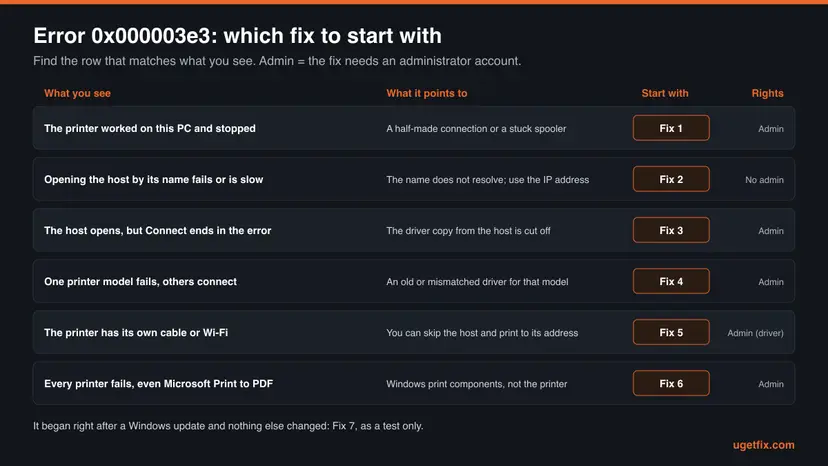
Fix 1 and Fix 2 cost five minutes and change nothing that matters. Fix 3 is the route Microsoft's support gave for this code. Fix 4 and Fix 5 deal with the driver and with printers that have their own network link. Fix 6 and Fix 7 are for the case where printing as a whole is broken.
| What you see or have | Start with |
|---|---|
| The printer worked on this PC and stopped, or an offline copy of it is in the list | Fix 1 |
\\ComputerName opens slowly, not at all, or only sometimes | Fix 2 |
| The host opens and shows the printer, and Connect ends in the error | Fix 3 |
| Other printers of the same host connect, one model does not | Fix 4 |
| The printer has its own Ethernet or Wi-Fi connection | Fix 5 |
| The message is Operation could not be completed and every printer fails, even Microsoft Print to PDF | Fix 6 |
| Several PCs lost the printer right after Windows updates | Fix 7, on the host first |
| Every PC fails for one printer and the host itself prints | "If the error is still there": the host's drivers |
Fix 1. Remove the half-made printer and restart the Print Spooler
5 minutesLow riskFor everyone, as the first step. It needs an administrator account.
An aborted connection can leave three things behind: an offline copy of the printer, a port that belongs to it and jobs that wait in the queue. The answer by Microsoft's support engineer begins with removing exactly these and restarting. Microsoft's general printer guide lists clearing and resetting the spooler as a standard step.
The files in the queue folder are documents that wait to be printed. They are deleted, so print them again afterwards. Your other printers, your drivers and your settings stay.
- Open Settings > Bluetooth & devices > Printers & scanners. On Windows 10: Settings > Devices > Printers & scanners.
- Select every copy of the shared printer, working or offline, and select Remove. Windows 10 calls the button Remove device.
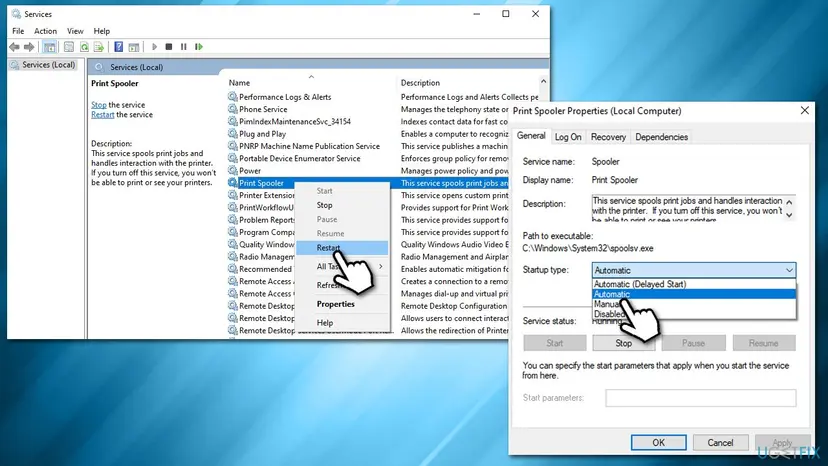
- In the search box on the taskbar, type services and open Services. Select the Standard tab at the bottom.
- Double-click Print Spooler, select Stop, then OK. Leave the window open.
- In the search box on the taskbar, enter
%WINDIR%\system32\spool\printersand open the PRINTERS folder from the results. - Delete all files in that folder. Do not delete the folder.
- Back in Services, double-click Print Spooler, set Startup type to Automatic, select Start, then OK.
- Open Printer properties of any printer that is left and select the Ports tab. Delete ports of the removed printer whose Description is Client Side Rendering Provider: select the port, select Delete Port, then Apply.
- Restart the PC and add the printer again.

- To add the printer again: select Add device, then Add manually, choose Select a shared printer by name and enter
\\ComputerName\PrinterShareName. - Step 8 comes from the 2011 answer, written for Windows 7. If your Ports tab shows no such port, skip the step.
- The Services window in general, with the meaning of each startup type: Check and restart Windows services
It worked if: The printer is added without the Connect to Printer box, and a test page prints.
If not: If the same message returns at once, check how your PC reaches the host with Fix 2.
Fix 2. Open the host by its IP address and connect from there
5 minutesNo riskThe host opens slowly or not at all by its name. No administrator needed, except for the sharing switches.
A shared printer is addressed by the name of the computer that shares it. When that name is found late or by a wrong route, the connection can start and then fall over. One user in Microsoft's thread about this code reports that opening the host by IP address let the driver install without the error.
- On the host PC, press Win + R, type
cmdand press Enter. Typeipconfigand press Enter. - Write down the IPv4 address of the adapter that is connected to your network, for example 192.168.1.20.
- On your PC, open File Explorer, type
\\ComputerNamein the address bar with the host's real name and press Enter. - Now type the address in the same way, for example
\\192.168.1.20, and press Enter. - If the window opens and lists the printer, double-click the printer, or right-click it and select Connect.
- If you prefer the wizard: select Add device, Add manually, Select a shared printer by name and enter
\\192.168.1.20\PrinterShareName. - If neither the name nor the address opens, turn on Network discovery and File and printer sharing on both PCs. The path is in the table above, under Sharing switches.
| By name | By IP address | What it means |
|---|---|---|
| Opens | Opens | The network path is fine. The fault is in the driver step: Fix 3. |
| Fails or is slow | Opens | The name is the problem. Connect by address now, and let whoever runs the network repair name resolution. |
| Fails | Fails | The PCs do not see each other: another network, a guest Wi-Fi, sharing switched off, or the host is asleep. |
| Asks for a password | Asks for a password | Enter a user name and password that exist on the host. Microsoft's guide says to use the same account on both PCs or the host's own. |
Most home routers hand out addresses for a limited time. A printer connection made by IP address stops working when the host gets another one. Reserve the address for the host in the router, or go back to the name once it resolves.
This fix rests on one report and on the meaning of the code, not on a Microsoft statement. It is here because it takes five minutes and changes nothing on either PC.
It worked if: The host opens by address, the driver installs and the printer appears in your list.
If not: If the host opens both ways and Connect still ends in 0x000003e3, stop using Connect and go to Fix 3.
Fix 3. Install the driver yourself and connect through a local port named after the share
10 to 15 minutesLow riskThe host opens and shows the printer, and Connect ends in the error. Needs an administrator.
This is the accepted answer of a Microsoft support engineer to this exact error. You install the driver on your PC from the manufacturer's files, so nothing has to be copied from the host. Then you point that printer at the share through a local port. The step that gets aborted is never run.
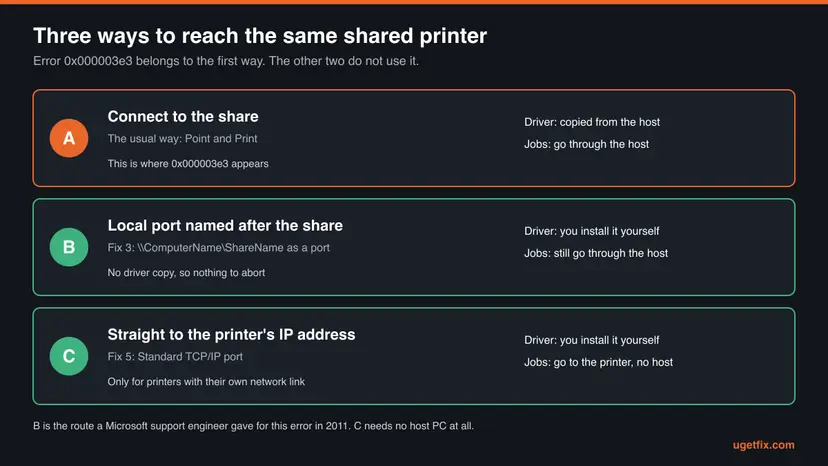
Part 1: install the driver on a port that is not in use. Download the driver for the exact model from the printer manufacturer first, in the version for your system type.
- Open Settings > Bluetooth & devices > Printers & scanners, select Add device, then Add manually. On Windows 10: Add a printer or scanner, then The printer that I want isn't listed.
- Choose Add a local printer or network printer with manual settings and select Next.
- Choose Use an existing port, pick LPT1: (Printer Port) in the list and select Next.
- Select Have Disk and open the
.inffile of the driver you downloaded. Without a download, select Windows Update, wait for the list and pick the manufacturer and the model. - Accept the printer name or type a new one, and select Next.
- Choose Do not share this printer and select Next.
- Do not print a test page yet: nothing is connected to LPT1. Select Finish.
Part 2: point the printer at the share.
- Under Printers & scanners, select the printer you just added and select Printer properties.
- Open the Ports tab and select Add Port.
- Select Local Port, then New Port.
- In the box for the port name, enter
\\ComputerName\PrinterShareNamewith the host's name and the printer's share name, and select OK. - Close the port list. The new port is ticked, and its Description reads Local Port. Select Apply.
- Open the General tab and select Print Test Page.
- The share name is not the printer's display name. Read it on the host: Printer properties > Sharing, field Share name.
- A share name without spaces is easier. An administrator who has given this advice for many years recommends it for the local port method.
- "Access is denied" at the port name: one reader of Microsoft's thread reports it, and the thread holds no answer. Open the host in File Explorer under the same account first, so that Windows is signed in to it.
- If the host's name was the problem in Fix 2, use the IP address in the port name as well.
The steps and labels of Part 2 are those of Microsoft's answer from 2011, written for Windows 7. The Ports tab belongs to the older printer windows that Windows 10 and Windows 11 still use. We could not check each label against a current Microsoft page.
It worked if: The test page comes out of the shared printer, and the Ports tab shows a Local Port with the share path.
If not: If the driver itself will not install, clear the old one with Fix 4. If the test page gives the code again, the fault is not in the connection: go to Fix 6.
Fix 4. Remove the old driver of this printer and install the right one
10 to 15 minutesLow riskOne printer model fails while others connect, or the driver in Fix 3 would not install. Needs an administrator.
When a driver for the model is already on your PC, Windows compares it with the host's copy during the connection. Microsoft notes that driver files of the same name that differ between client and server cause trouble in Point and Print, and it advises the same driver version on both. A clean driver takes that comparison out of the way.
- Remove the printer under Printers & scanners, as in Fix 1.
- On the same page, open Print server properties under Related settings. Or press Win + R and run the command below these steps.
- Open the Drivers tab, select the driver that belongs to the printer model and select Remove.
- Choose to remove the driver together with its driver package, and confirm.
- If Windows says the driver is in use, restart the Print Spooler as in Fix 1 and remove the driver right after the service has started.
- Press Win + R, type
appwiz.cpland press Enter. Uninstall the printer manufacturer's own software for this model if it is listed. - Restart the PC. Use Restart, not Shut down.
- Install the manufacturer's current driver for the exact model and your system type. Then connect to the share again, or go through Fix 3.
Run box: the print server properties of your own PC, on the Drivers tab
rundll32 printui.dll,PrintUIEntry /s /t2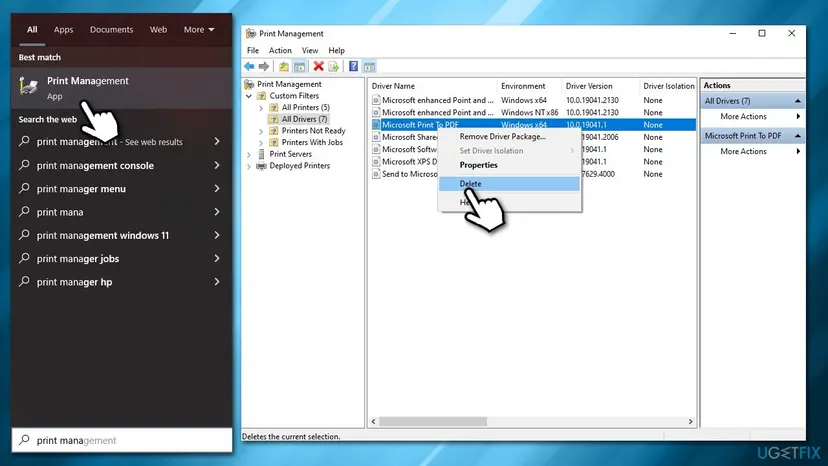
| Your PC | What the host must offer | If it does not |
|---|---|---|
| 64-bit Windows on an Intel or AMD processor | An x64 driver. A 64-bit host has it. | Nothing to do |
| 32-bit Windows 10 | An x86 driver in addition to its own | The host's administrator adds it under Additional Drivers, or you install your own driver with Fix 3 |
| Windows 11 on an ARM-based processor | A driver for ARM | Use Fix 3 with a driver from Windows Update, or Fix 5 |
Since 10 August 2021 a standard user cannot install a printer driver through Point and Print. Microsoft's own ways around it are an administrator name and password at the prompt, or a driver that an administrator installed beforehand. Microsoft's page does not say which error a standard user sees when no prompt appears.
We could not confirm from Microsoft that a wrong driver type shows exactly this code. Device Manager offers a second way to update or reinstall a driver: Update, roll back or reinstall a driver
It worked if: The old driver is gone from the Drivers tab, the new one installs and the printer connects.
If not: If the printer has its own network connection, leave the host out with Fix 5. If not, read the print log as described under "If the error is still there".
Fix 5. Skip the host: print straight to the printer's IP address
10 minutesLow riskThe printer has its own Ethernet or Wi-Fi connection. The driver needs an administrator.
The error belongs to the connection between your PC and the computer that shares the printer. A printer with its own network address needs no such computer: your PC keeps its own driver and its own queue and sends the job to the printer. A user with a neighbouring connection error, 0x0000007e, on a Windows 7 PC reports solving it this way.
- Find the printer's IP address on its control panel or on its printed network configuration page. The manual of the printer says where.
- If you did not do Fix 3, install the driver first with Part 1 of Fix 3.
- Select the printer under Printers & scanners and select Printer properties.
- Open the Ports tab, select Add Port, then Standard TCP/IP Port, then New Port.
- Select Next, enter the printer's IP address, select Next again and close the wizard.
- Make sure the new port is ticked in the list and select Apply.
- Open the General tab and select Print Test Page.
The same by PowerShell, opened as administrator: a TCP/IP port and a printer on it
Add-PrinterPort -Name "IP_192.168.1.50" -PrinterHostAddress "192.168.1.50"
Add-Printer -Name "Office printer" -DriverName "Name of the installed driver" -PortName "IP_192.168.1.50"- The driver name in the second command must be written exactly as the Drivers tab of Fix 4 shows it.
- At work, ask first. A print server often counts pages or holds jobs until you sign in at the printer. Printing around it may be against the rules.
- The address must stay the same. If the router gives the printer another address, the port points nowhere. Reserve the address in the router.
- A USB printer on another PC has no address of its own. For it, the share is the only way, so Fix 3 is your route.
It worked if: The test page prints, and the printer keeps working when the old host PC is switched off.
If not: If the printer does not answer at its address, check its network settings. If the test page gives the code again, go to Fix 6.
Fix 6. Every printer fails: test with Microsoft Print to PDF, then repair Windows printing
15 to 30 minutesNo riskThe message is "Operation could not be completed" and it comes with every printer. Needs an administrator.
When a document cannot be printed to any printer, the printers are not the cause. In the oldest long thread about this code, an administrator found that a PC failed on software printers too after an interrupted Windows update. A 2026 report on Microsoft's Tech Community describes the same on a restored system image.
- Open any document, select Print and choose Microsoft Print to PDF as the printer. Save the file when Windows asks.
- If this works, Windows printing is healthy and the fault is with one printer: go back to Fix 1, Fix 3 and Fix 4.
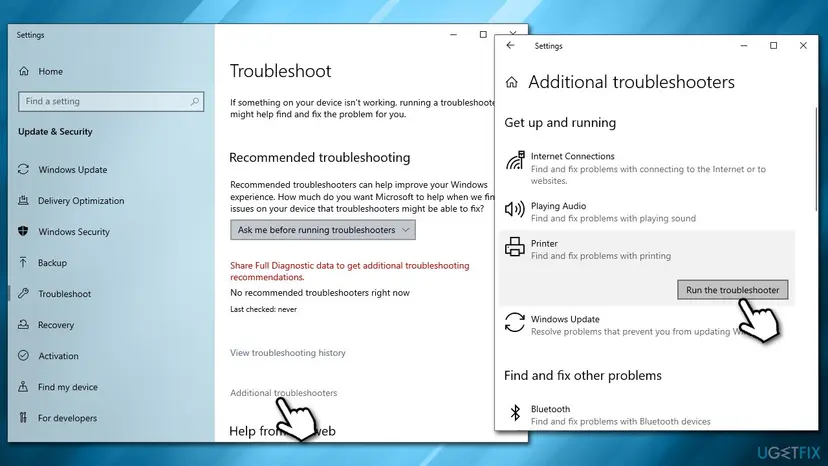
- If it fails with the same code, open the Get Help app from the Start menu, enter printer troubleshooter and follow its questions.
- Open Command Prompt as administrator and run the first command below. Wait until it reports that the operation completed.
- Run the second command in the same window and wait until the verification reaches 100%.
- Restart the PC and repeat the test of step 1.
Commands, one after the other
DISM.exe /Online /Cleanup-image /Restorehealth
sfc /scannow
- What each command does and how to read the result: Run DISM and SFC to repair Windows system files
- If Print to PDF works and a USB printer does not, reinstall that printer's driver as in Fix 4. Unplug the cable before you remove the driver and plug it in again after the new driver is installed.
- We do not know how the two reports ended. Neither thread states which step cured the PC. A reply in the Tech Community thread suggests the same order as above and a clean boot as the next test.
It worked if: Microsoft Print to PDF saves a file, and your printer prints a test page.
If not: If the system file check finds nothing and all printers still fail, see "If the error is still there" for the log and for the repair install.
Fix 7. If it began with a Windows update: uninstall that update as a test
15 to 20 minutesRead the warningSeveral PCs lost the printer in the same days, right after updates, and nothing above helped. Needs an administrator.
Administrators have reported this code right after cumulative updates, and one thread from April 2020 ended when the latest update was removed from the PC that shared the printer. Microsoft has published no known issue that names 0x000003e3, so treat this as a test that proves or clears the update, not as a cure.
A cumulative update carries security fixes. Without it the PC is less protected until the next update is installed. Note the KB number before you remove it, test the printer at once and install updates again within days, with or without success.
- Decide where to test. If every PC fails, test on the host that shares the printer. If one PC fails, test on that PC.
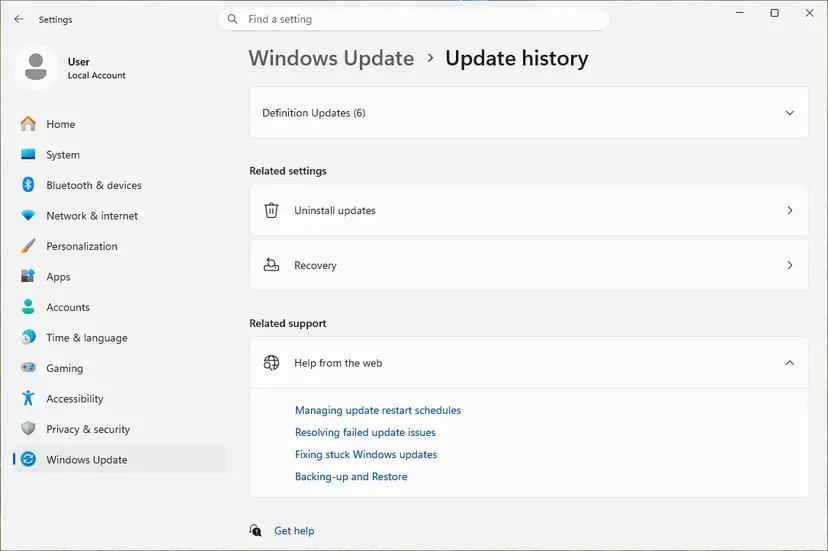
- Open Settings > Windows Update > Update history and note the KB number and the date of the newest update. On Windows 10: Settings > Update & Security > Windows Update > View update history.
- Select Uninstall updates. On Windows 11 it is under Related settings.
- Select Uninstall next to the update you noted and confirm.
- Restart the PC and add the printer again, or print a test page.
- If the printer works, pause updates for a short time and use Fix 3 or Fix 5 as your lasting route. Then let Windows update again.
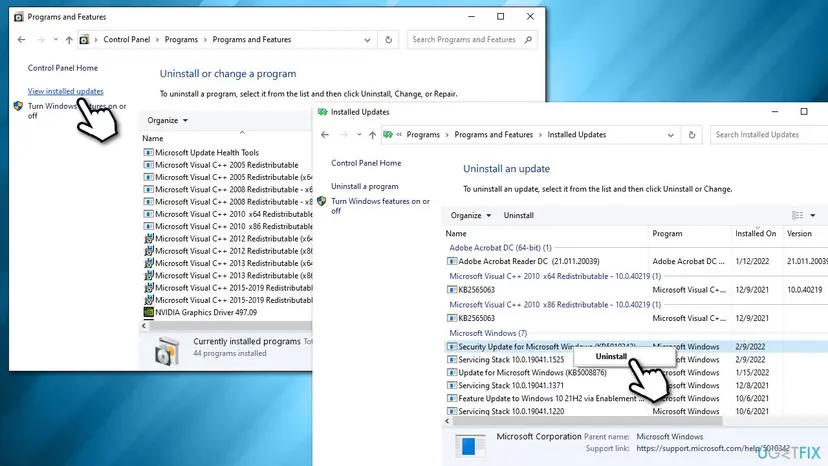
The earlier version of this guide put this step first and called a faulty update the usual reason. We found no Microsoft source for that, so it is now the last fix. All ways to remove an update, and what to do when Windows refuses: How to uninstall a Windows update
It worked if: The printer connects or prints again after the restart, which proves that the update was involved.
If not: If nothing changed, the update is cleared: install it again and collect the facts listed under "If the error is still there".
If the error is still there: read the print log and test the host
The message box shows a code and no reason. The print service keeps its own event logs, and four short tests show on which side the fault lies.
- Type event viewer in the search box on the taskbar and open Event Viewer.
- Open Applications and Services Logs > Microsoft > Windows > PrintService.
- Select Admin and look for errors at the time of your last attempt.
- Right-click Operational and select Enable Log. It is off by default.
- Try to add the printer or to print once more, then read the new entries in both logs.
| Test | Result | What it means |
|---|---|---|
| Add the same printer on another PC | It fails there too | The host or its driver is the cause. Work on the host. |
| Print a test page on the host itself | It fails | The printer is not working on the host. Repair it there before any client. |
| Add another printer from the same host | It connects | The driver of the first model is the cause: Fix 4 |
| Add the printer signed in as an administrator on your PC | It connects | Driver installation rights. Let the administrator install the driver once. |
When every PC fails, the work is on the host. Restart its Print Spooler as in Fix 1 and print a test page there. Then look at the drivers it offers: Microsoft's print server guide describes the box Additional Drivers, reached from the Sharing tab of the printer, where an administrator ticks the processor types the host should serve.
- What to send to the administrator or to support: the exact message, the time, the name and Windows version of your PC, the host name and share name, the results of the four tests and the PrintService events.
- When it is the system and not the printer: every printer fails, Fix 6 finds nothing, and the fault began with a failed update or a restored image. Windows can be reinstalled over itself with your files and apps kept: Reinstall Windows without losing files
- Another code in the same box? Connect to Printer shows other codes for other faults, for example printer error 0x00000006, where your PC cannot open the printer on the host at all.
- It is not ink, paper or the cable to the printer. Those show their own messages on the printer or on the host. This code is about work that Windows gave up.
Fixes for 0x000003e3 you will read elsewhere: what is confirmed
Many pages about this code repeat the same list. We traced each piece to its origin. Three of them do not hold for this error, and one is risky.
| Advice | Where it comes from | Our reading |
|---|---|---|
Copy mscms.dll from C:\Windows\System32 into the spool drivers folder | Microsoft KB 982728. It is about error 0x0000007e on Windows 7 and Windows Server 2008 R2, where the spooler looked for Mscms.dll in the wrong folder. Microsoft's cure was a hotfix. | A fix for another code on old systems. We found no Microsoft source that ties it to 0x000003e3 or to Windows 10 and 11. Not a step on this page. |
Delete the Providers key under HKEY_LOCAL_MACHINE\SOFTWARE\Microsoft\Windows NT\CurrentVersion\Print | The earlier version of this guide, and forum posts that delete whole branches of the print registry | Too broad. The key holds the settings of the print providers, among them Client Side Rendering Print Provider, where Windows keeps shared printer connections. Removed from this page. |
| Delete the driver Microsoft Print To PDF in Print Management | The earlier version of this guide | No source connects that driver to the error. Fix 4 removes the driver of the printer that fails. |
Set RestrictDriverInstallationToAdministrators to 0 | Microsoft KB5005652 lists a temporary 0 as one way to install drivers | Microsoft warns that 0 makes devices vulnerable. Fix 3 reaches the same goal without it. |
| Uninstall the latest Windows update | Administrators' reports | Kept as Fix 7, as a test, because the reports are real and the step can be undone. |
Printers that came from a print server may have to be added again. If printing broke after the deletion, restore the key from a backup or use a restore point from before the change: Undo recent changes with System Restore
How to undo the changes made on this page
Fix 2 and Fix 6 leave nothing to undo. The other fixes add or remove printers, ports and drivers, and one removes an update.
| Change | Made in | How to undo it |
|---|---|---|
| Printer removed, queue folder emptied | Fix 1 | Add the printer again. Deleted jobs cannot be brought back: print the documents again. |
| Printer added on a local port or a TCP/IP port | Fix 3, Fix 5 | Select it under Printers & scanners and select Remove |
| Port added | Fix 3, Fix 5 | On the Ports tab of any printer, select the port and select Delete Port. A port in use by a printer cannot be deleted. |
| Driver removed | Fix 4 | Install the manufacturer's driver again, or connect to the share so that the host supplies it |
| Windows update removed, updates paused | Fix 7 | Open Settings > Windows Update, resume updates and select Check for updates |
No fix here changes a security policy or a firewall rule. The one step that does lower protection, removing an update, is a test with a fixed end. Install updates again when the test is over.
How to keep error 0x000003e3 from coming back
- Keep the same printer driver version on the host and on the PCs. Microsoft recommends this for Point and Print.
- Install Windows updates on the host and on the PCs in the same week, not on one side only.
- Let Windows finish installing updates before you switch a PC off.
- Give the host a reserved IP address in the router and a share name without spaces.
- At home, connect to a network printer by its own address. Then no host PC is needed.
- Do not pull the power cord while Windows installs updates. One reported case of this code began exactly so.
- Do not copy files into
spool\driversby hand and do not delete keys under the print registry. - Do not leave
RestrictDriverInstallationToAdministratorsat 0 to make a printer connect. - Do not restore an old system image over a working Windows only to bring one printer back.
A local port named after the share, as in Fix 3, is a lasting setup and not a workaround to remove later. It has one cost: the driver on your PC is yours to keep current, because the host no longer hands out a new one.
- When the host gets a new printer driver, update the same driver on each PC that uses a local port.
- After a host is renamed or replaced, edit or recreate the local port: its name holds the old path.
Frequently asked questions
What does error 0x000003e3 mean?
It is Windows system error 995, ERROR_OPERATION_ABORTED. Microsoft's text for it is "The I/O operation has been aborted because of either a thread exit or an application request". With a printer it means that Windows started a piece of work, the connection to a shared printer or a print job, and gave it up before the end. The code does not name the reason. Reports point most often to the moment when the driver is copied from the computer that shares the printer.
Is 0x00003e3 the same error as 0x000003e3?
Yes. The spellings 0x00003e3, 0x0003e3, 0x3E3 and plain 3e3 all stand for the same number, because zeros in front of a number do not change it. Windows itself prints eight digits after 0x. The decimal form is 995. A Dutch search for "fout 0x000003e3" and a Portuguese one for "erro 0x00003e3" are about the same message too. A longer code such as 0x800703e3 is different: it is the same error 995 reported by Windows Update, and it has nothing to do with printers.
Why do I see "Operation could not be completed (error 0x000003e3)" when I print?
Because the same error can stop a print job as well as a connection. The box with Operation failed appears when you add a shared printer. The box with Operation could not be completed appears when a document or a test page is sent to a printer that is already installed. Test with Microsoft Print to PDF: if that fails too, Windows printing itself is damaged and Fix 6 applies. If only one printer fails, remove it and reinstall its driver with Fix 1 and Fix 4.
Should I copy mscms.dll into the spool drivers folder to fix 0x000003e3?
We do not recommend it for this code. The advice comes from Microsoft's KB 982728, which describes another error, 0x0000007e, on Windows 7 and Windows Server 2008 R2. There the spooler looked for Mscms.dll outside the system32 folder, and Microsoft's cure was a hotfix, not a copied file. We found no Microsoft source that connects the file to 0x000003e3 or to Windows 10 and Windows 11. If your code is 0x0000007e, that article is the one to read.
Is it safe to delete the Providers key in the registry, as older guides say?
No, not the whole key. The earlier version of this guide deleted Providers under HKEY_LOCAL_MACHINE\SOFTWARE\Microsoft\Windows NT\CurrentVersion\Print. That key holds the settings of the print providers Windows uses, including Client Side Rendering Print Provider, where connections to shared printers are stored. Deleting all of it removes far more than one stale entry, and no Microsoft source names it as a fix for this code. We removed the step. Fix 1 clears a failed connection without the registry.
Does error 0x000003e3 depend on the printer brand, such as Brother, HP, Canon or Epson?
No. The code comes from Windows, not from the printer, and the reports we read name HP, Canon, Epson and Samsung models alike. We found nothing that is special to Brother printers. The brand matters in one way only: the driver. A driver that is old, damaged or of another type than your PC needs is one of the ranked causes, and the cure is the manufacturer's current driver for the exact model. Fix 4 removes the old one first, and Fix 3 installs the new one without the host.
Did a Windows update cause error 0x000003e3?
It can, but nothing proves that it usually does. Administrators reported the code after cumulative updates in 2020, and one of those threads ended when the latest update was removed from the PC that shared the printer. Microsoft has published no known issue that names this code. That is why this page keeps the removal of an update as the last fix and as a test. If the printer works without the update, use a local port or the printer's own address and update Windows again.
Is the fix different on Windows 11 and Windows 10?
The fixes are the same and the menus differ. Windows 11 keeps printers under Bluetooth & devices, Windows 10 under Devices, and the buttons for adding and removing a printer have other names. Windows 11 also has Windows protected print mode, which blocks printers that need a third-party driver while it is on. Windows 10 22H2 left support on 14 October 2025, so its print components get no further fixes. The table near the top of this page lists each path for both systems.
What can I do about 0x000003e3 without an administrator password?
One fix is fully yours: Fix 2. Open the host by its name and by its IP address in File Explorer and try to connect from there. That costs five minutes and needs no rights, unless the driver is not yet on your PC. Everything else restarts a service or installs a driver. Write down the exact message, the time, the host and share name and whether a colleague's PC connects, and ask the administrator to install the driver once.
Sources
- Microsoft Learn: System Error Codes (500-999), ERROR_OPERATION_ABORTED 995 (0x3E3) (learn.microsoft.com)
- Microsoft Q&A: error 0x000003e3 when trying to install network printer (accepted answer by a Microsoft Answers support engineer, 2011, and users' reports) (learn.microsoft.com)
- Microsoft Support: Fix shared printer connection problems in Windows (support.microsoft.com)
Did this fix work?
One click, no account. It tells the next reader which guides are worth their time.
Questions and experiences: fix printing error 0x000003e3
Still broken, or found a fix we did not cover? Ask here: members and our editors answer. Reading is open; writing needs a free account.
…