
How to fix AMD driver error 182 in Windows?

Prefer to fix it yourself? The manual steps follow.
- 7methods
- 10 to 40 minutes
- Easy
Applies to Windows 11, Windows 10; AMD Radeon graphics cards, AMD processors with Radeon graphics, laptops and handheld PCs with AMD graphics
7 methods in this guide
One of the newest games I've purchased had poor performance on my PC, so I decided to update my drivers, as they often help to tackle some performance issues. I am using the AMD Radeon Software Installer for this and never had problems. However, I received error 182 when trying to install it this time. I am using a Radeon RX 5600 XT and running Windows 10.
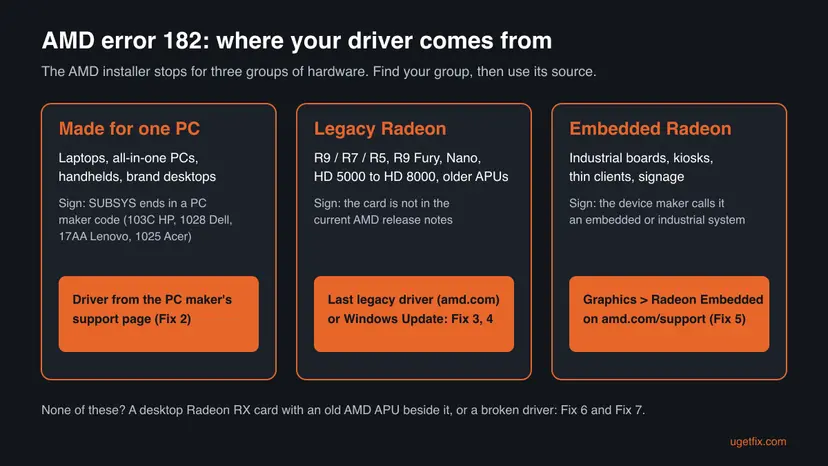
AMD error 182 is not a crash or a broken download: the AMD Software Installer stopped on purpose because it found AMD graphics that the generic AMD package does not support. That is a laptop, handheld or brand PC with customized graphics, an older legacy Radeon, or embedded graphics. Find out which group your graphics belongs to first, then take the driver from the right source.
Error 182 means the AMD Software Installer will not install on this graphics hardware. Open Device Manager, check the Hardware Ids of your AMD graphics (Fix 1). On a laptop, handheld or brand PC, install the graphics driver from the PC maker's support page (Fix 2). On an older Radeon, download its final legacy driver from amd.com or use Windows Update (Fix 3 and 4). Running the same installer again will not help.
| Error | Error 182 - AMD Software Installer detected AMD graphics hardware in your system configuration that is not supported. |
|---|---|
| Where it appears | In the AMD Software Installer window, right after it scans your PC, before any driver files are installed. Both the Auto-Detect and Install tool and a full AMD Software: Adrenalin Edition package can show it. |
| Main cause | The AMD graphics belong to a group the generic AMD package does not cover: customized graphics for OEM systems, legacy Radeon graphics, or embedded Radeon graphics (AMD article GPU-KB182). |
| Fastest fix | Laptop, handheld or brand PC: the graphics driver from the PC maker's support page (Fix 2). Older Radeon: its final driver from the AMD product selector (Fix 3). |
| Also written as | AMD error 182, error 182 AMD Software, AMD driver error 182, Radeon error 182, AMD Adrenalin error 182, and in other languages erreur 182, erro 182, hata 182, Fehler 182. |
| Affects | Windows 11 and Windows 10 PCs with AMD Radeon graphics or an AMD processor with Radeon graphics. |
| Vendor status | Expected behaviour, not a bug. AMD documents it in support article GPU-KB182 (updated 9 February 2026) and lists the legacy graphics there. |
| Installer log | C:\Program Files\AMD\CIM\Log\Install.log |
| Time to fix | 10 minutes to find your graphics group, 15 to 30 minutes to install the right driver. |
Facts checked on 15 October 2026. Steps written for Windows 11 (25H2 and 26H2) and Windows 10 22H2; steps checked against AMD support articles GPU-KB182, GPU-56 and GPU-55.
What AMD error 182 means
The full message in the AMD Software Installer reads: Error 182 - AMD Software Installer detected AMD graphics hardware in your system configuration that is not supported. The installer read the hardware ID of your graphics, compared it with the list of products this package supports, did not find it and stopped before it changed anything.
So the message is a refusal, not damage. Your current driver keeps working, and nothing is half-installed. The answer is never to force the same package, but to get the package that was made for your graphics.
- Older installers showed a shorter text for the same code: "AMD Installer cannot properly identify the AMD graphics hardware". The meaning and the fixes are the same.
- error 182 amd software, error 182 amd adrenalin and amd driver error 182 all describe this one installer message. AMD Software: Adrenalin Edition is the name of the package.
- AMD Software installer cannot continue due to an operating system issue is a different message about the Windows version, not about the graphics. Check that you run Windows 11 21H2 or later, or Windows 10 64-bit 1809 or later.
- Oops, something went wrong in AMD's installer is a general failure, not error 182. Read the log named in "Still broken" below.
What causes AMD error 182, most common first
AMD lists the three hardware groups in article GPU-KB182 but not how often each one happens. The order below follows who searches for the error: most are laptop and handheld owners and people with an older Radeon card.
| Cause | How often | Start with |
|---|---|---|
| Customized AMD graphics in an OEM system: a laptop, an all-in-one PC, a handheld gaming PC or a brand desktop from HP, Dell, Lenovo, Acer and others. | Most often | Fix 1, then Fix 2 |
| Legacy Radeon graphics: Radeon R9, R7 and R5 cards, R9 Fury and Nano, HD 5000 to HD 8000, and A-Series, Athlon, Sempron and E-Series APUs with Radeon R2 to R7 graphics. | Often | Fix 3, then Fix 4 |
| Very old graphics on Windows 10 (Radeon HD 4000 and older, and the oldest A, E, C and Z-Series APUs) that AMD supports only through Windows Update. | Sometimes | Fix 4 |
| Embedded AMD Radeon graphics in industrial boards, kiosks and thin clients. | Rarely | Fix 5 |
| A supported Radeon card in a PC that also has older AMD graphics, such as a legacy APU. We could not confirm with AMD that this alone triggers error 182; users report it. | Rarely | Fix 6 |
| The graphics are supported but Windows shows only Microsoft Basic Display Adapter or a broken older driver, so the hardware is not read correctly. | Rarely | Fix 7 |
The reader's Radeon RX 5600 XT is a current desktop card, so if it is a retail card in a home-built PC, error 182 points to the last two rows. If it sits in a brand PC from HP, Dell or Lenovo, it can count as customized OEM graphics, and Fix 2 comes first.
How to fix AMD error 182
Fix 1 tells you which group your graphics belongs to; Fixes 2 to 5 are the right driver source for each group. Fixes 6 and 7 are for supported cards that still get the error.
| What you have | Start with |
|---|---|
| You do not know who made your graphics or which model it is. | Fix 1 |
| A laptop, all-in-one PC, handheld such as ROG Ally or Legion Go, or a brand desktop. | Fix 2 |
| A Radeon R9, R7, R5 or HD card, or an AMD A-Series, Athlon or E-Series APU. | Fix 3 |
| Windows 10 with Radeon HD 4000 or older, or an old A, E, C or Z-Series APU. | Fix 4 |
| An industrial PC, kiosk, thin client or signage player. | Fix 5 |
| A desktop Radeon RX card next to older AMD graphics on the processor. | Fix 6 |
| Device Manager shows Microsoft Basic Display Adapter, or the card is clearly supported. | Fix 7 |
Fix 1. Find out which AMD graphics you have and who made it
5 minutesNo riskEveryone, unless you already know the exact model and whether it came in a laptop or brand PC.
Error 182 depends only on which product group your graphics belongs to. The hardware ID tells you the model and the maker, and so where the right driver comes from.
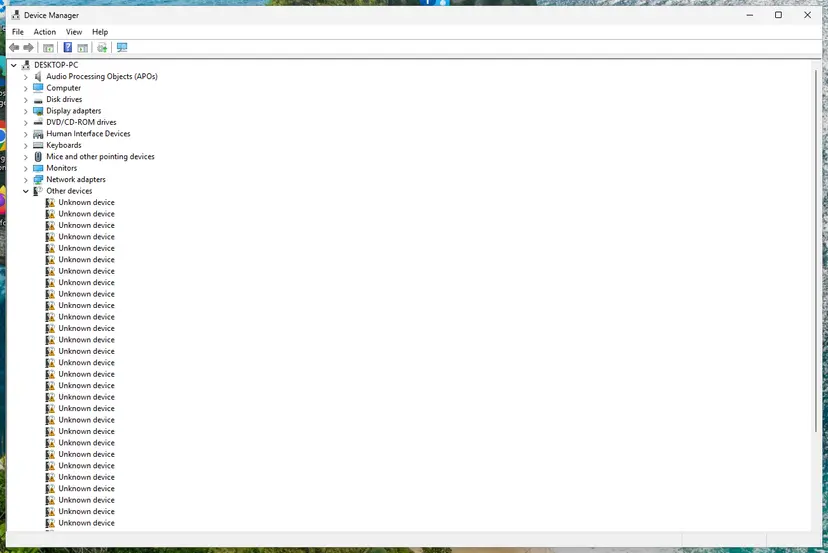
- Right-click Start and select Device Manager.
- Expand Display adapters. You see your AMD graphics by name, or Microsoft Basic Display Adapter if no AMD driver is installed.
- Right-click that entry, select Properties and open the Details tab.
- In the Property list choose Hardware Ids.
- Read the first line, for example
PCI\VEN_1002&DEV_67FF&SUBSYS_0B041002&REV_CF.DEV_gives the model; the last four characters afterSUBSYS_give the maker. - Match those four characters:
1002AMD,103CHP,1028Dell,17AALenovo,1025Acer,104DSony,1179Toshiba. Card makers include1DA2Sapphire,148CPowerColor,1682XFX,1458Gigabyte,1462MSI and1043ASUSTeK.
If the code points to a PC maker such as HP, Dell, Lenovo or Acer, your graphics were made for that PC: go to Fix 2. If it is a card maker or AMD and the model is a Radeon R or HD series, go to Fix 3. AMD's article GPU-55 suggests the Device Hunt site to turn the DEV_ number into a model name.
It worked if: You know the model of your graphics and whether it came from AMD, a card maker or a PC maker.
If not: If the Hardware Ids property is empty or the device is not listed at all, the graphics are not detected: read "Still broken" below.
Fix 2. Install the graphics driver from your laptop, handheld or PC maker
15 minutesLow riskA laptop, an all-in-one PC, a handheld gaming PC or a brand desktop, or a SUBSYS code of a PC maker in Fix 1.
AMD says customized AMD graphics in OEM systems are one of the three causes of error 182. These products carry vendor-specific features, and AMD writes that their custom drivers are available only from the manufacturer.
- Find the exact model of the PC. It is on the label under a laptop or on the back of a desktop, or in Settings > System > About.
- Open the support or drivers page of the maker (HP, Dell, Lenovo, Acer, ASUS, MSI and so on) and enter the model or serial number.
- Choose your Windows version and open the Graphics or Video section.
- Download the AMD graphics driver listed for your model. If two are listed, take the newest one.
- Run it, follow the maker's installer and restart the PC when it asks.
- Open Device Manager > Display adapters again: the AMD graphics should be listed by name, without a warning sign.
People search for error 182 on handhelds such as the ROG Ally and the Legion Go. Their graphics are made for that one device, so the driver comes from the device maker's support page or its own update app. After you install the maker's driver, the AMD installer may still show error 182; that is expected, and you do not need it.
It worked if: The maker's package installs without an error number and the AMD graphics appear by name in Device Manager.
If not: If the maker's newest driver is very old and you need a newer one for a game, ask the maker's support. AMD sends you there for customized graphics. If the PC is not an OEM system, go to Fix 3.
Fix 3. Download the final legacy driver for an older Radeon
20 minutesLow riskA Radeon R9, R7 or R5 card, R9 Fury or Nano, Radeon HD 5000 to HD 8000, or an AMD A-Series, Athlon, Sempron or E-Series APU with Radeon R2 to R7 graphics.
AMD moved these products to a legacy support model. The current AMD package does not support them, so it stops with error 182, but a final driver package for each of them is still on amd.com.
- Open AMD Drivers and Support. Do not use the Auto-Detect tool for this card; use the product selector on the same page.
- Choose Graphics, then the series and the exact model of your card or APU, and select Submit.
- Select your operating system to see the drivers listed for it.
- If the newest entry still fails, select Previous Drivers near the bottom of the page and take the last package listed for your Windows version.
- Run the package and install with the default options, then restart.
A legacy package is the last one AMD made for that hardware. New games may need features it does not have, and no later AMD package will install on that card. That is a limit of the hardware, not something a repair can change.
It worked if: The legacy package installs without error 182 and Device Manager shows your Radeon by name.
If not: If no package is listed for your Windows version, use Fix 4 and let Windows Update provide the driver.
Fix 4. Let Windows Update install the AMD graphics driver
15 minutesLow riskWindows 10 with Radeon HD 4000, HD 3000, HD 2000 or older, or the oldest A4, A6, A8-3000, E-Series, C-Series and Z-Series APUs. Also a fallback when Fix 2 and Fix 3 offer nothing.
For these products AMD makes no installer at all. AMD writes that on Windows 10 their graphics driver comes only from Microsoft through Windows Update, for the HD 2000 to HD 4000 series as driver version 8.970.100.9001.
- Open Settings > Windows Update (Windows 10: Settings > Update & Security > Windows Update) and select Check for updates.
- Install what it finds and restart.
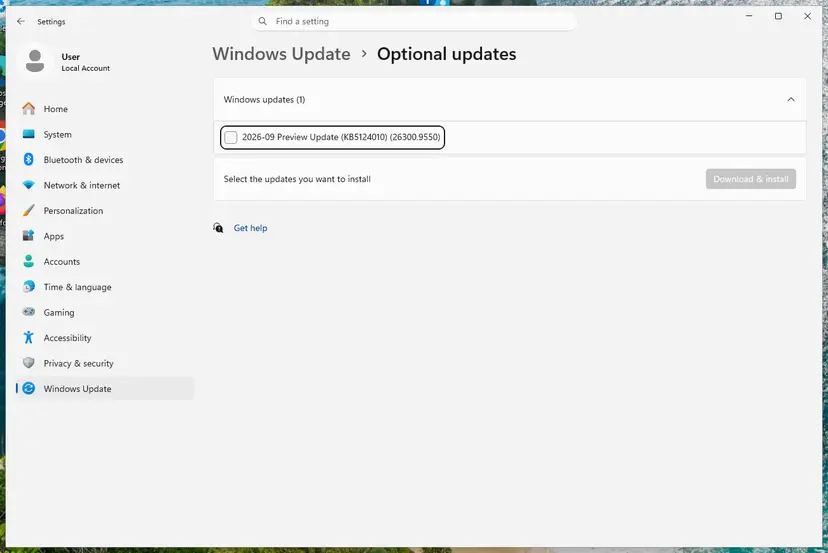
- Go back and open Advanced options > Optional updates (Windows 10: View optional updates).
- Open Driver updates, tick the AMD or display driver if it is listed and select Download & install.
- Restart, then check the driver version in Device Manager > Display adapters > your graphics > Properties > Driver.
Step by step with all screens: Update, roll back or reinstall a driver
It worked if: Windows installs a display driver and the AMD graphics appear by name in Device Manager instead of Microsoft Basic Display Adapter.
If not: If Windows Update offers no driver, the PC maker (Fix 2) is the only other source. Very old graphics may have no Windows 11 driver at all.
Fix 5. Use the Radeon Embedded driver for embedded graphics
15 minutesLow riskAn industrial PC, kiosk, thin client, digital signage player or another device its maker calls an embedded system.
Embedded Radeon graphics are a separate AMD product line with their own drivers. The consumer AMD Software package does not cover them, which is why it stops with error 182.
- Open AMD Drivers and Support.
- In the product selector choose Graphics > Radeon Embedded.
- Pick your embedded product and Windows version and download the driver.
- Install it and restart.
If you do not know the embedded model, the Hardware Ids from Fix 1 and the device maker's documentation name it. On many embedded systems the device maker also provides the driver, and its version is the safer choice.
It worked if: The embedded driver installs and the device's graphics are listed by name in Device Manager.
If not: Ask the device maker for the validated graphics driver, and send AMD the installer log as "Still broken" below describes.
Fix 6. Install the package for your card when older AMD graphics sit beside it
20 minutesLow riskA desktop with a current Radeon RX card and older AMD graphics on the processor, for example an A-Series APU, where both show in Device Manager.
The message speaks of graphics hardware "in your system configuration", so the installer checks every AMD graphics device it finds. Users report that an unsupported second AMD device stops the package even when the main card is supported. We could not confirm this case with AMD.
- In Device Manager > Display adapters check whether two AMD entries are listed, and which one is the legacy one (Fix 1 and the list in Fix 3).
- Download the package for your Radeon RX card from the product selector at AMD Drivers and Support, not with the Auto-Detect tool.
- Run the package. If it still stops with error 182, right-click the older AMD graphics in Device Manager and select Disable device, then Yes.
- Run the package again and restart when it is done.
- Install the legacy driver for the older graphics if you still need them (Fix 3), or leave them disabled if the monitor is on the Radeon RX card. Enable device brings them back.
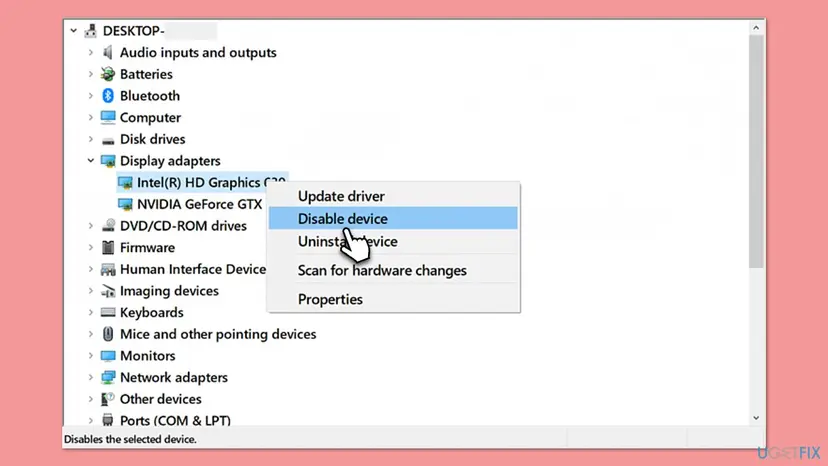
Do not disable the graphics your monitor is plugged into, or the screen goes dark until you restart. Disable only the older AMD graphics, and only when the monitor cable sits in the Radeon RX card.
It worked if: The AMD Software package installs for the Radeon RX card without error 182.
If not: If the error stays with the older graphics disabled, the RX card itself is the cause: check Fix 2 for a brand PC, then Fix 7.
Fix 7. Remove the broken driver and install the right package again
30 minutesRead the warningYour graphics are clearly supported, but Device Manager shows Microsoft Basic Display Adapter, a yellow warning sign, or an old driver that did not install fully.
A broken or half-removed driver can leave the graphics reported in a way the installer does not recognise. Removing it lets Windows and the installer read the hardware fresh.
This removes your AMD Software settings, game profiles and tuning. Download the right package first (Fix 2, 3 or 5), because the screen runs at a low resolution until it is installed.
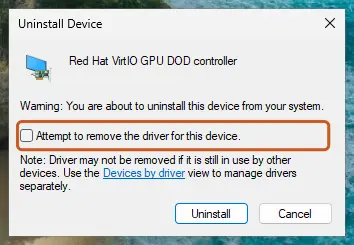
- In Device Manager > Display adapters right-click your AMD graphics and select Uninstall device.
- Tick Attempt to remove the driver for this device and select Uninstall.
- Restart the PC.
- Run the package you downloaded for your exact graphics group and restart again when it finishes.
For a deeper removal of every AMD graphics part, AMD Cleanup Utility in Safe Mode is described in Fix 2 of our AMDRSServ.exe System Error guide.
If the screen stays black after the restart, start Windows in Safe Mode and install the package from there: Start Windows or a Mac in Safe Mode
It worked if: After the new install, the graphics are listed by name in Device Manager and the AMD installer no longer reports error 182.
If not: Send AMD the installer log as "Still broken" below describes.
If AMD error 182 is still there: the log and what to send AMD
The AMD Software Installer writes what it detected to a log file. AMD asks for this file in every service request about error 182.
| What to check | Where | What it tells you |
|---|---|---|
| Installer log | C:\Program Files\AMD\CIM\Log\Install.log | The hardware the installer found and why it stopped. Attach it to the AMD request. |
| Hardware ID | Device Manager > Display adapters > your graphics > Properties > Details > Hardware Ids | The model (DEV_) and the maker (last four characters of SUBSYS_). |
| Driver in use | Device Manager > your graphics > Properties > Driver | Driver Version and Driver Date; Microsoft Basic Display Adapter means no AMD driver. |
- Open AMD's Online Service Request form.
- Type
Error 182in the Subject field. - In Description give your graphics model, the PC maker and model, the Windows version and what you tried.
- Attach
Install.logand select Submit.
If Display adapters shows no AMD device at all, or only an unknown device after every driver, the graphics are not detected. Check that a desktop card is seated and has its power cables, and that the monitor is plugged into the card. On a laptop the PC maker's support is the next step.
How to avoid AMD error 182 next time
- Update laptop, handheld and brand PC graphics from the PC maker's support page or update app.
- Use the AMD product selector for your exact model when you know it.
- Keep a copy of the last legacy package for an older Radeon card.
- Read the release notes of a new AMD package: they list the supported products.
- Run the same AMD package again and again after error 182.
- Edit driver files or force a package onto hardware AMD does not list.
- Download drivers from driver sites other than AMD, Microsoft or your PC maker.
- Disable the graphics your monitor is connected to.
Windows 10 left Microsoft support on 14 October 2025. AMD's Auto-Detect and Install tool still lists Windows 10 64-bit version 1809 and later, but on an older PC with legacy graphics the driver you have now may be the last one it gets.
Frequently asked questions
How do I fix AMD error 182?
Find out which kind of AMD graphics you have, then use the driver made for it. Open Device Manager, check the Hardware Ids of your graphics and read the maker code at the end of SUBSYS. A laptop, handheld or brand PC gets its graphics driver from the PC maker. An older Radeon R or HD card gets its final legacy driver from the AMD product selector. Very old graphics on Windows 10 get their driver through Windows Update. Running the same AMD installer again does not change the result.
Why does the AMD Software Installer say my graphics hardware is not supported?
Because the package you started does not include your graphics. AMD names three groups: customized AMD graphics in OEM systems such as laptops and brand PCs, legacy Radeon graphics such as the R9, R7, R5 and HD series, and embedded Radeon graphics. The installer checks the hardware ID before it installs anything and stops with error 182 when the ID belongs to one of these groups. Your graphics may still work perfectly; they just need another driver package.
Is AMD error 182 a sign that my graphics card is broken?
No. Error 182 appears after the installer has detected your AMD graphics and read its hardware ID, so the hardware answered. The error says the package does not support that hardware. A dead or unseated card shows differently: it is missing from Device Manager, or only an unknown device or Microsoft Basic Display Adapter stays there after every driver. If your graphics are listed by name, the problem is the driver source, not the card.
How do I fix error 182 on an ROG Ally or Legion Go?
Use the graphics driver from the device maker, not the generic AMD package. Handheld gaming PCs carry graphics customized for that one device, which matches AMD's group of customized OEM graphics. Open the support page of the maker, enter the model, and install the graphics driver listed for it, or use the maker's own update app. After that, the AMD installer may still show error 182 if you run it again. That is expected and does not mean the maker's driver failed.
I have a Radeon RX card and still get error 182. Why?
Current Radeon RX cards are supported by the AMD package, so look at what else is in the PC. If the card sits in a brand desktop or a laptop, its graphics may be customized by the PC maker, and the maker's driver is the one to use (Fix 2). If an older AMD APU sits beside the card, users report that the second device stops the installer (Fix 6). If Windows shows Microsoft Basic Display Adapter, remove the broken driver first (Fix 7).
Does AMD error 182 happen on Windows 11 and Windows 10?
Yes. The installer checks the graphics hardware, not the Windows version, so the message and the fixes are the same on Windows 11 and Windows 10. AMD's Auto-Detect and Install tool works on Windows 11 version 21H2 and later and on Windows 10 64-bit version 1809 and later. The one difference: for the oldest Radeon HD cards and APUs, AMD says the driver on Windows 10 comes only through Windows Update. Windows 10 itself left Microsoft support on 14 October 2025.
Can I force the AMD driver to install anyway?
We do not recommend it, and this guide does not show how. Forcing a package onto hardware AMD does not list means editing driver files, which breaks the driver's signature checks and can leave Windows with a black screen or no driver at all. The products behind error 182 have a proper driver from the PC maker, the AMD legacy page, the Radeon Embedded page or Windows Update. If none of them has what you need, ask the PC maker or AMD support.
Where is the AMD installer log for error 182?
AMD gives the path as C:\Program Files\AMD\CIM\Log\Install.log. Open the folder in File Explorer and open the file with Notepad to see which hardware the installer found. When you contact AMD Customer Care through its online service request form, type Error 182 in the Subject field, describe your PC and what you tried, and attach this log file. AMD asks for it in its own article about error 182.
What do erreur 182, erro 182 and hata 182 AMD mean?
They are the same error in French, Portuguese and Turkish, and searches in Persian, German and Japanese ask the same question. The AMD Software Installer shows error 182 in the language of Windows, but the number and the meaning stay the same in every language: the installer found AMD graphics that this package does not support. The fixes on this page work the same way whatever language Windows uses. This page is in English only.
Sources
Did this fix work?
One click, no account. It tells the next reader which guides are worth their time.
Questions and experiences: fix AMD driver error 182 in Windows
Still broken, or found a fix we did not cover? Ask here: members and our editors answer. Reading is open; writing needs a free account.
…