
How to fix "An error occurred while applying security information" in Windows?

Prefer to fix it yourself? The manual steps follow.
- 6methods
- 2 to 20 minutes
- Intermediate
Applies to Windows 11 and Windows 10, all editions with NTFS drives
6 methods in this guide
Hello. I tried to change the security settings of a file in Windows, but I received the "An error occurred while applying security information to:" message. How do I fix this?
"An error occurred while applying security information to" appears when you change permissions in the Security tab and Windows cannot write them to some files inside the folder. Most often another account owns those files. Take ownership of the folder first, then set the permissions again.
Windows changed the permissions of the folder, but not of some files inside it, because your account is not their owner or a program has them open. Select Cancel, open Properties > Security > Advanced, change the Owner to Administrators with Replace owner on subcontainers and objects ticked (Fix 1), then apply the permissions again. If the path is C:\ or C:\Windows, stop: those rights should stay as they are.
| Error | "An error occurred while applying security information to:" followed by a file path and a reason, most often "Access is denied." The window title is Error Applying Security. |
|---|---|
| Where it appears | After you select Apply or OK in Properties > Security or Advanced Security Settings for a folder, file or drive. One window can appear for every file that fails. |
| Main cause | The files inside belong to another account (SYSTEM, TrustedInstaller or a user of another PC), so you may not change their permissions until you own them. |
| Fastest fix | Change the owner to Administrators with Replace owner on subcontainers and objects ticked, then set the permissions again (Fix 1). |
| Also written as | "Error applying security", "An error occurred applying security information to", "An error occurred when applying security information to", and with the reason "Failed to enumerate objects in the container. Access is denied." |
| Affects | Windows 11 (25H2, 26H2) and Windows 10 (22H2), Home and Pro. Windows 10 left support on 14 October 2025; the window and the fixes are the same. |
| Vendor status | Not a bug. It is how NTFS permissions work: Microsoft's icacls command has /c precisely to keep going when single files fail. |
| Not the same as | "You require permission from SYSTEM to make changes", which appears when you delete or move an item, not when you change its permissions. |
| Time to fix | 2 to 5 minutes for one folder. A whole data drive with many files can take longer. |
Facts checked on 15 October 2026. Steps written for Windows 11 25H2 and 26H2 and Windows 10 22H2.
What "An error occurred while applying security information to" means
You opened Properties > Security, added a user or ticked Full control, and selected Apply. Windows then walks through every file and subfolder to write the new permissions. Each item it cannot change produces this window:
Error Applying Security
An error occurred while applying security information to:
D:\Projects\report.docx
Access is denied.- The path tells you which item failed. It is often a file deep inside the folder, not the folder you started with.
- The last line is the reason. "Access is denied." means you may not change that item's permissions. "The process cannot access the file because it is being used by another process" means a program has it open.
- Continue skips the item and tries the next one. Cancel stops, but the items already processed keep their new permissions.
- Failed to enumerate objects in the container. Access is denied. is the same problem one level up: Windows could not even list a folder's contents. Users on Microsoft's forum get a flood of these after trying to take ownership of the whole
C:drive.
Being an administrator is not enough. An administrator may take ownership of any item, but may change its permissions only after becoming the owner or when the existing rights allow it. That is why the order matters: owner first, permissions second.
Why "Error applying security" appears: the causes, most common first
Most often the files inside the folder have another owner. Less often their permissions no longer follow the folder, or a program keeps them open. Rarely the drive itself has errors. And sometimes the message is a warning you should listen to, because the target is Windows itself.
| Cause | Typical case | Fix |
|---|---|---|
| Another account owns the files inside. You changed the folder, but not its contents. | A disk from another PC, a folder copied from an old Windows, files created by a service or another user | Fix 1 or Fix 2 |
| The files do not inherit from the folder, or an explicit Deny entry blocks you. | The owner was already changed, but the same files still fail | Fix 3 |
| A program or service has the file open. | Antivirus, backup, sync or database folders; "being used by another process" | Fix 4, then Fix 5 |
| The file system on the drive is damaged. | An old or external disk, every fix fails on the same files | Fix 6 |
| The target is the Windows you are running. | C:\ itself, C:\Windows, C:\Program Files, "Failed to enumerate objects" on drive C: | Select Cancel |
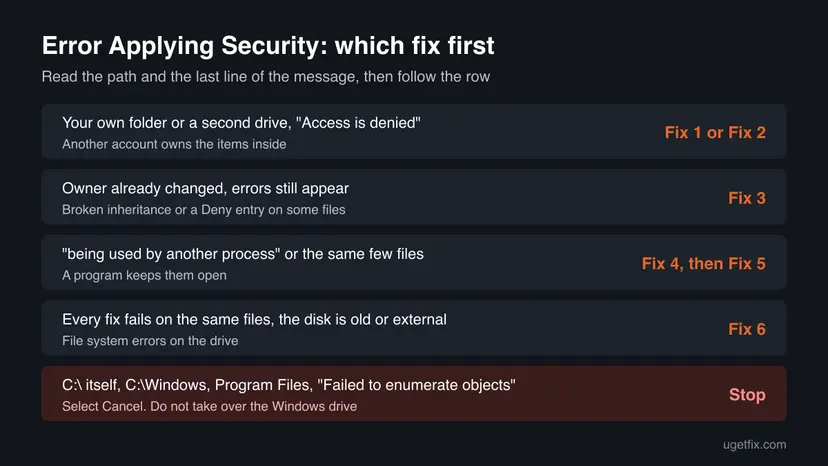
If the errors come while you change C:\, C:\Windows, C:\Program Files or WindowsApps, select Cancel and stop. Windows keeps those rights on purpose, and replacing them can break updates, Store apps and sign-in. If you lost access to your own files, fix the one folder with your files instead.
How to fix "An error occurred while applying security information"
Read the path in the message and its last line first, then pick a start in the table. Fix 1 helps most readers, because most of them change a folder whose contents belong to another account.
| What you see or have | Start with |
|---|---|
| "Access is denied." on files in your own folder, a second drive or a disk from another PC. | Fix 1 |
| The same, but thousands of files, or you prefer commands. | Fix 2 |
| You already changed the owner, and the same files still fail. | Fix 3 |
| "being used by another process", or the failing files belong to a program you use. | Fix 4, then Fix 5 |
| Every fix fails on the same files, on an old or external disk. | Fix 6 |
The path is C:\, C:\Windows or C:\Program Files, or you see "Failed to enumerate objects" on C:. | Select Cancel, read the warning above |
Fix 1. Take ownership in Advanced Security Settings, then set the permissions again
5 minutesLow riskThe message says "Access is denied." for files in a folder you use, on a second drive or a disk from another PC.
Windows lets the owner of an item change its permissions. When the folder is yours but the files inside belong to another account, every one of them fails. Changing the owner of the whole tree first removes the cause for all of them at once.
- In the Error Applying Security window, select Cancel.
- Right-click the folder and select Properties. Open the Security tab and select Advanced.
- Next to Owner, select Change. Type
Administrators, select Check Names, then OK. - Tick Replace owner on subcontainers and objects, then select Apply. Wait until Windows finishes and select OK.
- Close Properties and open it again, so it reads the new owner.
- In the Security tab select Edit, choose the user or group you wanted to add, tick the rights under Allow and select Apply.
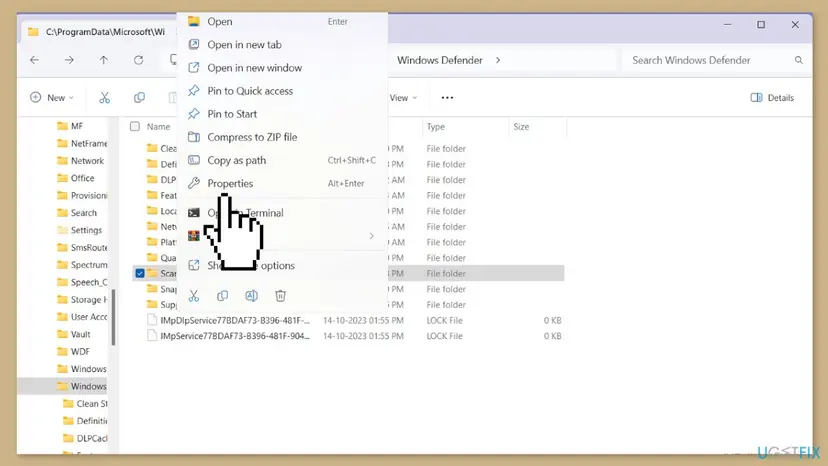
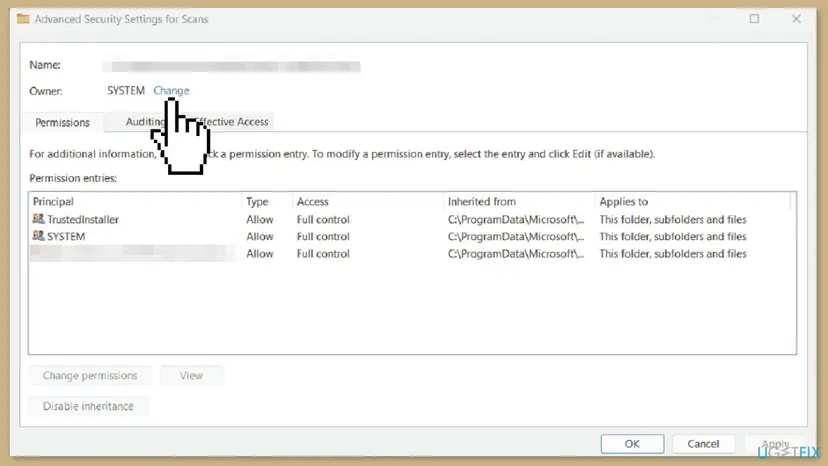
Choose Administrators rather than your own name. Every administrator account on the PC then has the same access, and the folder still works if you later sign in with another account.
It worked if: Applying the permissions finishes without an Error Applying Security window.
If not: If the owner change itself shows errors, use Fix 2, which skips the failing files and lists them. If the owner is already right, go to Fix 3.
Fix 2. Take ownership and grant full control with takeown and icacls
2 to 10 minutesRead the warningThe folder holds thousands of files, you get dozens of windows, or Fix 1 stopped halfway.
The commands do the same as Fix 1, but they do not stop at each failure. Microsoft documents /c for icacls as continuing even if file errors occur, while still showing the error. You get one list of the files that failed instead of a window for each.
These commands change the rights of every file under the path. Run them on one folder of your own data, never on C:\, C:\Windows, C:\Program Files or a whole system drive. Copy any files you cannot lose to another disk first.
- Copy the full path of the folder from the address bar of File Explorer.
- Select Start, type
cmd, right-click Command Prompt and select Run as administrator. Select Yes. - Run the first command below with your own path in quotes. It makes the Administrators group the owner of everything in the folder.
- Run the second command. It gives the Administrators group full access (
F) to every file and subfolder (/t). - Read the last line, for example Successfully processed 1520 files; Failed processing 0 files.
- Open Properties > Security and add the user or rights you wanted in the first place.
Take ownership, then grant full control (replace the path):
takeown /f "D:\Projects" /a /r /d y
icacls "D:\Projects" /grant *S-1-5-32-544:F /t /c*S-1-5-32-544is the fixed ID of the Administrators group. Microsoft'sicaclspage notes that a numeric ID needs the*in front. It works in every language of Windows./grantadds rights to the ones that are there. It does not remove any existing entry.
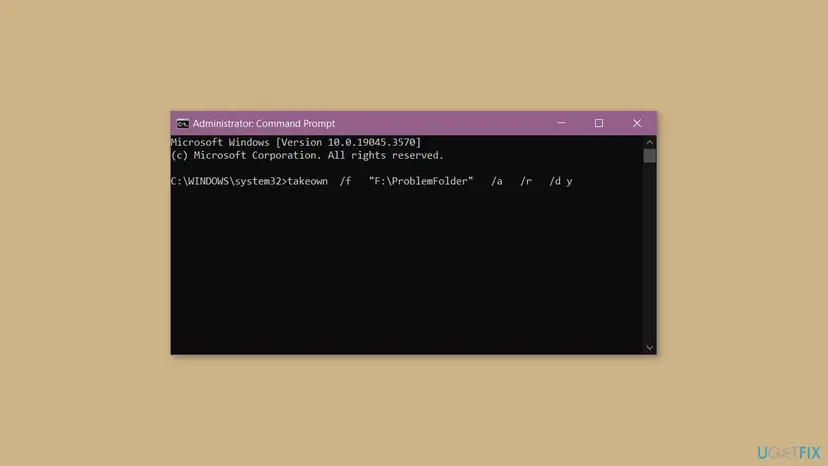
If your real goal is to delete a folder that Windows protects, the sister guide You require permission from SYSTEM to make changes covers that case, including Windows.old and Store app folders.
It worked if: Both commands end with Failed processing 0 files, and the Security tab now accepts your change.
If not: If some files report Access is denied even here, go to Fix 3. If they report that they are being used, go to Fix 4.
Fix 3. Reset the permissions to the ones inherited from the parent folder
5 minutesRead the warningYou already own the folder, but the same files still fail, or someone added Deny entries in the past.
Files that do not inherit from their folder keep their own list of rights, and an explicit Deny wins over your Allow. Microsoft's icacls /reset replaces the rights of every matching file with the default inherited ones, so the folder's rights reach all files again.
Any special rights given to single files inside the folder are removed. If other people or programs need such rights, note them first: icacls "D:\Projects\*" /save D:\acl-backup.txt /t stores them, and icacls "D:\Projects" /restore D:\acl-backup.txt puts them back.
- Open Command Prompt as administrator, as in Fix 2.
- Run the command below with your own path.
/tcovers all subfolders and/ckeeps going when one file fails. - Check the last line for Failed processing 0 files.
- Or do the same in File Explorer: Properties > Security > Advanced, select Enable inheritance if it is shown, tick Replace all child object permission entries with inheritable permission entries from this object and select Apply.
- Set the permissions you wanted on the folder once more.
Reset to inherited permissions (replace the path):
icacls "D:\Projects" /reset /t /cIt worked if: The files show Inherited from the folder in Advanced Security Settings, and new permissions apply without errors.
If not: If only a handful of files still fail, a program probably holds them. Go to Fix 4.
Fix 4. Close the program that has the files open
5 minutesLow riskThe last line says the file is being used by another process, or the failing files belong to an antivirus, a backup, a sync or a database program.
A program that holds a file open can block changes to it. Its files then fail every time, whatever owner and rights you set.
- Press Win + R, type
resmonand press Enter to open Resource Monitor. - Open the CPU tab and type the file or folder name from the message into the search box of Associated Handles.
- Read the program name in the Image column.
- Close that program, or pause its sync or backup, then apply the permissions again.
- If the Image column shows
System,svchost.exeorMsMpEng.exe, do not end it. Restart the PC and try once more, or use Fix 5.
It worked if: Resource Monitor finds no handle any more, and the permissions apply without the window.
If not: If a service opens the files again right after a restart, go to Fix 5.
Fix 5. Apply the permissions in Safe Mode
10 minutesLow riskA service starts again on its own and keeps the files open, or you cannot tell which program holds them.
Safe Mode starts Windows with only basic drivers and services, so most programs that keep files open do not run. The owner and rights stay the same, so do Fix 1 or Fix 2 there.
- Hold Shift while you select Restart in the Start menu.
- Select Troubleshoot > Advanced options > Startup Settings > Restart.
- Press 4 or F4 for Enable Safe Mode.
- Sign in and repeat Fix 1, or run the commands from Fix 2.
- Restart the PC normally.
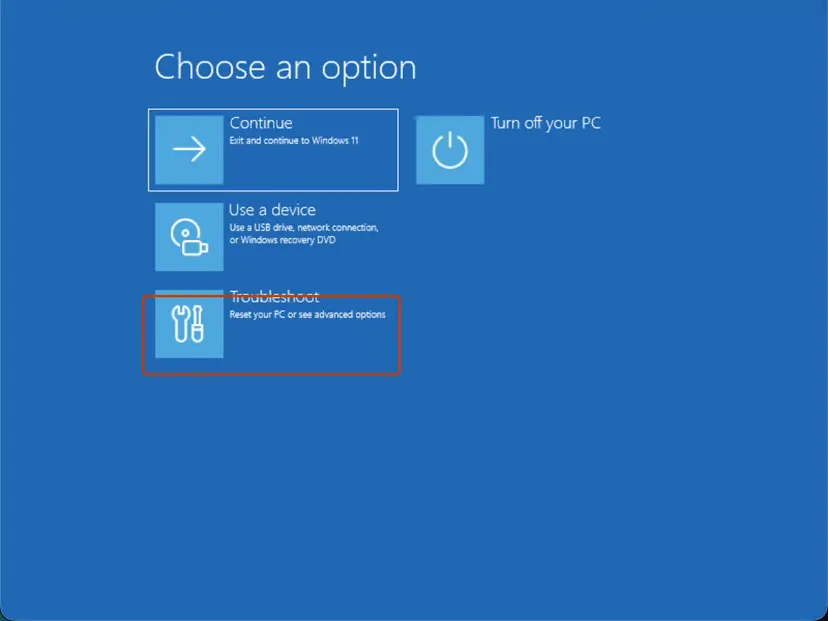
Full steps, also for a PC that does not start: Start Windows or a Mac in Safe Mode.
It worked if: In Safe Mode the permissions apply to all files, and they stay after a normal restart.
If not: If the same files fail even in Safe Mode, check the drive with Fix 6.
Fix 6. Check the drive for file system errors
10 minutes to an hourLow riskEvery fix fails on the same files, the disk is old or external, or it was unplugged without being ejected.
Permissions are stored in the file system. When that part of a disk is damaged, Windows cannot write new rights to the affected files, and no change of owner helps until the disk is repaired.
- Open Command Prompt as administrator. Type cmd in the search box on the taskbar, right-click Command Prompt and select Run as administrator. Select Yes when Windows asks for permission.
- Scan the drive without changing anything. Type the command below and press Enter. Replace C: with another drive letter to check that drive. This scan only reports; it does not fix anything.
chkdsk C: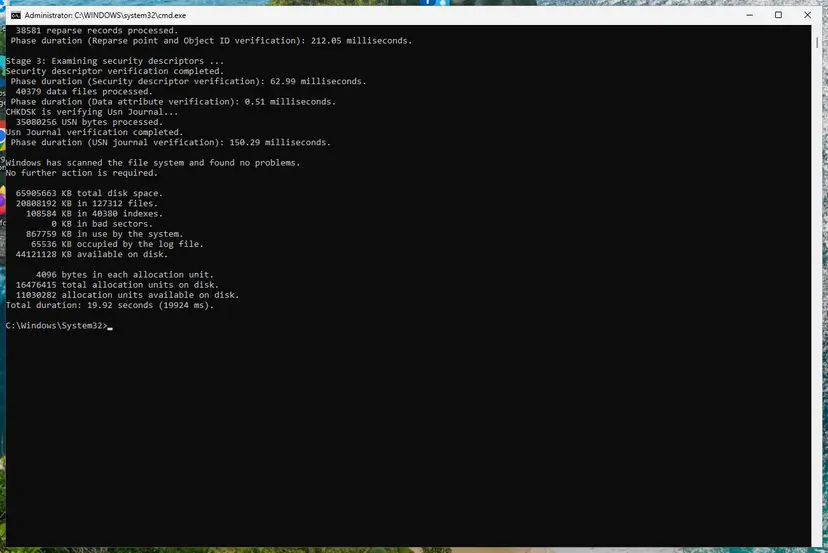
A clean result: no problems found and 0 KB in bad sectors. Screenshot: Windows 11 26H2. - If errors were found, run the repair. Run chkdsk with /f to fix file system errors. On the Windows drive (C:) chkdsk cannot lock the drive while Windows is running, so it offers to check it at the next restart.
chkdsk C: /f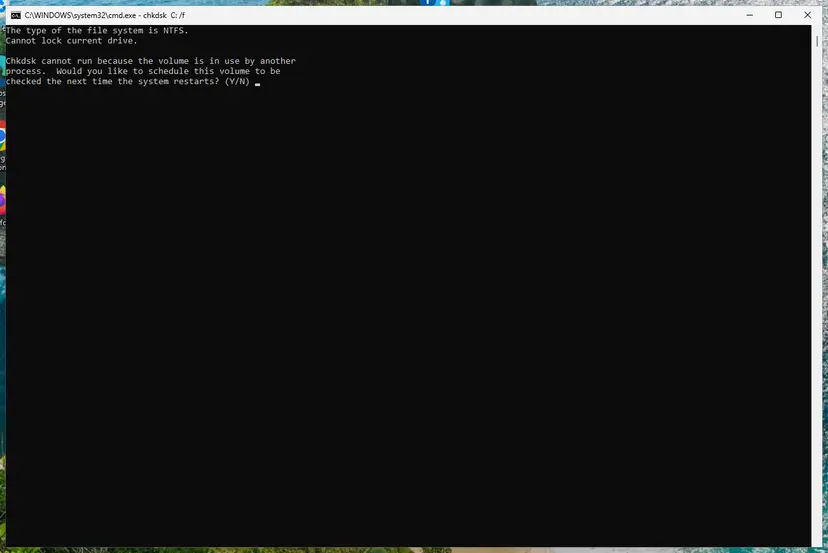
On the system drive chkdsk /f asks to run at the next restart. Screenshot: Windows 11 26H2.
These steps were written for Windows 11 and Windows 10 (the steps are the same). The full page with the other versions and what each result means: Check a disk for errors (chkdsk)
It worked if: chkdsk reports that it found no problems or that it fixed them, and the permissions then apply.
If not: If chkdsk reports bad sectors, copy your files off that disk first, then read the next section.
If "An error occurred while applying security information" still appears
- See the rights of one failing file. Run
icacls "full path of the file". Microsoft's codes:Ffull,Mmodify,Rread,(I)inherited. ADENYline or a missing Administrators line shows what still blocks you. - The drive is not NTFS. FAT32 and exFAT memory cards and USB sticks keep no file permissions at all. If the Security tab is missing, the message is not your problem; copy the files instead.
- A network share. On a folder on another PC or a NAS, the server decides. Change the rights there, or ask whoever runs it.
- Work or school PC. An IT department may lock permissions on purpose. Ask them before you try Fix 2 or Fix 3.
- The disk fails. If chkdsk finds bad sectors or the disk clicks and slows down, save your data first. No permission fix helps a failing disk.
If many windows came up while you changed C:\ and you selected Continue through them, some Windows files now have new rights. Restart and check that updates and apps work. If they do not, run Run DISM and SFC to repair Windows system files, and use Undo recent changes with System Restore to go back to a point before the change.
How to avoid the error applying security next time
- Change the owner before the permissions. On any folder copied from another PC, take ownership first, then add users.
- Change one data folder, never a whole system drive. The rights of
C:\and its Windows folders are set by Windows. - Keep inheritance on. Set rights on the top folder and let the files inherit them, rather than giving single files their own rights.
- Close sync and backup programs before a large permission change.
- Format a reused disk from an old PC instead of fixing its rights file by file, after you copy what you need.
Frequently asked questions
What does "An error occurred while applying security information to" mean?
It means Windows could not write the new permissions to the file named in the message. You changed rights in the Security tab, and Windows tried to pass them to every item inside the folder. For that one item it was refused, and the last line says why, most often "Access is denied." The rest of the folder may already have the new rights. Usually the item belongs to another account, so take ownership of the folder first (Fix 1) and apply the rights again.
How do I fix "Error applying security: Access is denied"?
Make Administrators the owner of the folder and everything in it, then set the permissions again. In File Explorer that is Properties > Security > Advanced > Change next to Owner, with Replace owner on subcontainers and objects ticked (Fix 1). By command it is takeown /f "path" /a /r /d y followed by icacls "path" /grant *S-1-5-32-544:F /t /c (Fix 2). If the same files still fail after that, reset them to inherited rights with icacls "path" /reset /t /c (Fix 3).
Should I select Continue or Cancel?
Select Cancel if the path is on drive C: inside Windows, Program Files or the drive root, and leave those rights alone. For your own data folder, either is fine: Continue skips the failing file and goes on with the rest, Cancel stops. Neither undoes what was already changed. If dozens of windows keep coming, select Cancel, take ownership first with Fix 1 or Fix 2, and then apply the permissions again. That is quicker than clicking through each window.
What does "Failed to enumerate objects in the container. Access is denied." mean?
It is the same error one level higher: Windows could not even list the contents of a folder, so it could not pass the rights down. Users on Microsoft's forum see it in a long series of windows after trying to take ownership of the whole C: drive. On drive C: that is a sign to stop and select Cancel. On a data folder, take ownership with Fix 2: takeown with /r /d y goes into folders that you cannot list.
Why do I get this error when I am the administrator?
Because an administrator can take ownership of anything, but cannot change the permissions of everything. Windows checks the rights on each file. If a file is owned by SYSTEM, TrustedInstaller or a user from another PC, and its rights do not include you, your change is refused. Once Administrators is the owner, the change goes through. Turning on the hidden Administrator account does not help, because it is in the same Administrators group, and it leaves a powerful account switched on.
Does the Read-only box cause this error?
We could not confirm that. The Read-only box on a folder's General tab does not control permissions, and the old advice to clear it does not reach the cause of this message. If a single file is marked read only, clearing it lets you edit that file, but the permission error comes from the owner and the rights. Start with Fix 1 instead.
Should I lower User Account Control to fix it?
No. Setting Admin Approval Mode to Disabled in Local Security Policy, as some old guides suggest, weakens the protection of the whole PC and does not change who owns the files. The error comes from the owner and rights of single files, which Fix 1 and Fix 2 change directly. Keep User Account Control on and select Yes when Windows asks for permission.
Can I take ownership of my whole C: drive to stop the error?
No. That is the step that causes the "Failed to enumerate objects" flood in the first place. Drive C: holds files owned by SYSTEM and TrustedInstaller on purpose, and replacing their owner or rights can break Windows Update, Store apps and sign-in. If you lost access to your own documents, fix the rights on your user folder or the one folder with your files. If you already changed C:, read the box in the section above.
Is it the same on Windows 10 and Windows 11?
Yes. The Error Applying Security window, the Security tab, takeown and icacls are the same on Windows 11 25H2 and 26H2 and on Windows 10 22H2. Microsoft lists icacls for both. Windows 10 left support on 14 October 2025, but the fixes on this page still work there. Only one path differs: on Windows 10, Safe Mode is reached from Settings > Update & Security > Recovery as well as with Shift + Restart.
This page did not match my error. What else could it be?
This page is about the Security tab message when you change file or folder permissions. If you see "You require permission from SYSTEM" while deleting, see the guide linked in Fix 2. "Application attempted to perform an operation not allowed by the security policy" is a .NET program error, and "Error getting file security" or "file or directory not found" come from other tools; they need their own fix. If it gives you the same error after every fix here, read the section on what to check next.
Sources
- Microsoft Learn: icacls command (/grant, /reset, /save, /restore, /t, /c, SIDs with an asterisk, F, M, R and (I)) (learn.microsoft.com)
- Microsoft Q&A: Error Applying Security, Failed to enumerate objects in the container, Access is denied, when taking ownership of the local disk (used for what users report) (learn.microsoft.com)
- Super User: Error applying security access is denied (the dialog text as a user reported it) (superuser.com)
Did this fix work?
One click, no account. It tells the next reader which guides are worth their time.
Questions and experiences: fix "An error occurred while applying security information" in Windows
Still broken, or found a fix we did not cover? Ask here: members and our editors answer. Reading is open; writing needs a free account.
…