
How to fix ArmouryCrate.UserSessionHelper.exe - Application Error in Windows?

Prefer to fix it yourself? The manual steps follow.
- 8methods
- 5 to 30 minutes
- Easy
Applies to Windows 11, Windows 10; ASUS Armoury Crate on ROG and TUF laptops and desktops, ROG, TUF and Prime motherboards
8 methods in this guide
Hi. I keep getting "ArmouryCrate.UserSessionHelper.exe - Application Error" on my Windows laptop (Asus). I have the latest updates installed and everything was working fine until recently. Now I keep getting the error constantly. Any tips?
ArmouryCrate.UserSessionHelper.exe is the ARMOURY CRATE User Session Helper, a background part of the ASUS Armoury Crate service, and its Application Error means this ASUS helper crashed, not Windows. Update Armoury Crate first; if the window comes back, remove it with the ASUS Uninstall Tool and install it again.
The window comes from the ASUS Armoury Crate service, not from Windows, so Windows updates and SFC rarely change it. Open Armoury Crate, go to Settings > Update Center, select Update All and restart (Fix 1). If the error comes back, run the official Armoury Crate Uninstall Tool, restart, and install again with ArmouryCrateInstallTool (Fix 2). If you do not use any Armoury Crate feature, you can leave it uninstalled (Fix 4).
| Error | ArmouryCrate.UserSessionHelper.exe - Application Error, a Windows crash window for the ASUS Armoury Crate user session helper, usually with "The memory could not be read" or "could not be written". |
|---|---|
| Where it appears | At sign-in, when Armoury Crate starts, or when you shut down the PC. Task Manager shows the process as ARMOURY CRATE User Session Helper. |
| Main cause | A damaged or half-updated Armoury Crate installation, where the service and its helper no longer match. |
| Fastest fix | Install all updates in Armoury Crate > Settings > Update Center and restart (Fix 1). |
| The file | Part of the ASUS ARMOURY CRATE Service; it sits in that service's folder. It is not a Windows file. |
| Also written as | armoury crate user session helper, armory crate user session helper, armourycrate.usersessionhelper, armoury crate user session, user session helper window. |
| Affects | ASUS ROG and TUF laptops and desktops, and PCs with ROG, TUF or Prime motherboards, on Windows 11 and Windows 10 1903 or later (as ASUS lists for Armoury Crate). |
| Vendor status | ASUS has no page for this exact error. Its Armoury Crate FAQ gives one answer for service errors: restart, and if the problem stays, reinstall Armoury Crate. |
| Time to fix | 5 minutes for Fix 1, about 20 minutes for a clean reinstall (Fix 2). |
Facts checked on 15 October 2026. Steps written for Windows 11 (25H2 and 26H2) and Windows 10 22H2, ASUS Armoury Crate.
What the ArmouryCrate.UserSessionHelper.exe Application Error means
ArmouryCrate.UserSessionHelper.exe - Application Error is the title Windows puts on a crash window when this one ASUS program tries to use memory it has no access to. Windows stops the helper and keeps running. A typical message, as a user on Microsoft Q&A posted it from an ROG Strix G15 in January 2024, reads:
ArmouryCrate.UserSessionHelper.exe - Application Error
The instruction at 0x00007FF83A893A32 referenced memory at 0x0000000000000000. The memory could not be read.
The two addresses change from PC to PC and do not point to a fix. Some readers see "The memory could not be written" instead. Both versions mean the same thing: the helper hit a bug, most often because its own files are damaged or do not match the rest of Armoury Crate. It is not a sign that your RAM is faulty.
- armoury crate user session helper and armory crate user session helper are the names Task Manager shows for the same process.
- armourycrate.usersessionhelper.exe and armourycrate.usersessionhelper are its file name.
- user session helper window is how many readers describe the crash window or the process name.
- helper.exe application error is the general form of the same window; on an ASUS PC it is almost always this helper or another Armoury Crate part.
What is ARMOURY CRATE User Session Helper, and is it safe?
Armoury Crate is the ASUS app for lighting, fan profiles, performance modes and ASUS peripherals. It comes preinstalled on ROG and TUF gaming laptops and desktops, and ROG, TUF and Prime motherboards offer to install it the first time Windows starts. Behind the app runs the ARMOURY CRATE Service, and the User Session Helper is the part of that service that runs inside your signed-in session.
- Process name in Task Manager
- ARMOURY CRATE User Session Helper
- File name
ArmouryCrate.UserSessionHelper.exe- Location
- Inside the folder of the ARMOURY CRATE Service, which ASUS installs with Armoury Crate. We could not confirm the full path for every Armoury Crate version.
- Installed by
- Armoury Crate, from the ASUS support site or preinstalled
- Needed for Windows?
- No. Only Armoury Crate features depend on it.
In the ASUS service folder, on a PC with Armoury Crate, the file is the genuine ASUS helper and is safe. A user who reported its CPU use on the ROG forum noted that Microsoft Defender did not flag it. A file with this name on a PC that never had ASUS software, or in a Temp or user folder, is not the ASUS helper and should be scanned (Fix 6).
What causes the ArmouryCrate.UserSessionHelper.exe error, most common first
ASUS does not publish a cause for this exact window. The order below follows the ASUS advice for Armoury Crate service errors and the cases users posted on Microsoft Q&A and the ROG forum.
| Cause | How often | Start with |
|---|---|---|
| An Armoury Crate component update that left the service and its helper on different versions. | Most often | Fix 1 |
| A damaged Armoury Crate installation, often left behind by an earlier reinstall without the Uninstall Tool. | Often | Fix 2 |
| An install that never finishes: Armoury Crate downloads parts, asks for a restart, and starts over. | Sometimes | Fix 3 |
| You do not need Armoury Crate, but its service keeps starting the helper. | Sometimes | Fix 4 |
| A known bug where the helper uses a lot of CPU in the background. | Sometimes | Fix 5 |
| A fake file with the same name, a bad change to Windows, or damaged Windows files. | Rarely | Fix 6, Fix 7 and Fix 8 |
The user on Microsoft Q&A had already run sfc /scannow, three DISM commands, a clean boot and Windows Memory Diagnostic. None of them found a problem or stopped the window. The answer that user accepted was the ASUS Uninstall Tool and a new install, which is Fix 2 here.
How to fix the ArmouryCrate.UserSessionHelper.exe Application Error
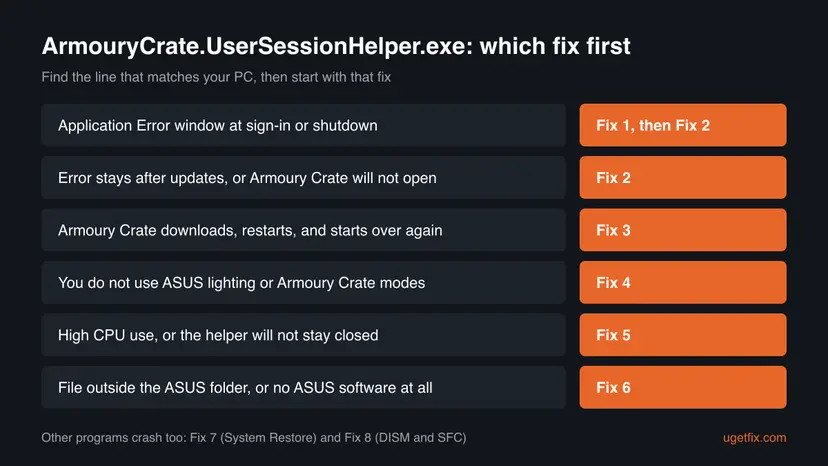
Fixes 1 and 2 repair Armoury Crate itself and solve most cases. Fix 3 is for an install that loops, Fix 4 for readers who do not need Armoury Crate, and Fix 5 for high CPU use. Fixes 6 to 8 are checks and general repairs for the few cases that remain.
| What you see or have | Start with |
|---|---|
| "ArmouryCrate.UserSessionHelper.exe - Application Error" at sign-in, shutdown or when Armoury Crate opens. | Fix 1, then Fix 2 |
| The window stays after updating, or Armoury Crate will not open at all. | Fix 2 |
| Armoury Crate downloads parts, asks for a restart, and does the same after every restart. | Fix 3 |
| You do not use ASUS lighting, fan profiles or Armoury Crate modes. | Fix 4 |
| ARMOURY CRATE User Session Helper uses a lot of CPU, or comes back after you end it. | Fix 5 |
| The file runs from outside the ASUS service folder, or the PC has no ASUS software. | Fix 6 |
| The error started on a known day, or other programs crash too. | Fix 7, then Fix 8 |
Fix 1. Restart, then update Armoury Crate and all its components
5 minutesLow riskEveryone who sees the window, as long as Armoury Crate still opens.
The helper belongs to the Armoury Crate service, and ASUS replaces the service and its parts through the Armoury Crate Update Center, not through Windows Update. A full update puts the helper and the service on matching versions again.
- Close the error window with OK and restart the PC once, as ASUS advises for any Armoury Crate service error.
- Open Armoury Crate from the Start menu.
- Select the gear icon at the bottom left to open Settings, then open the Update Center tab.
- Select Check for Update and wait for the list.
- Select Update All, or Update next to each item, including any service entry.
- Restart the PC when the updates finish, even if Armoury Crate does not ask.
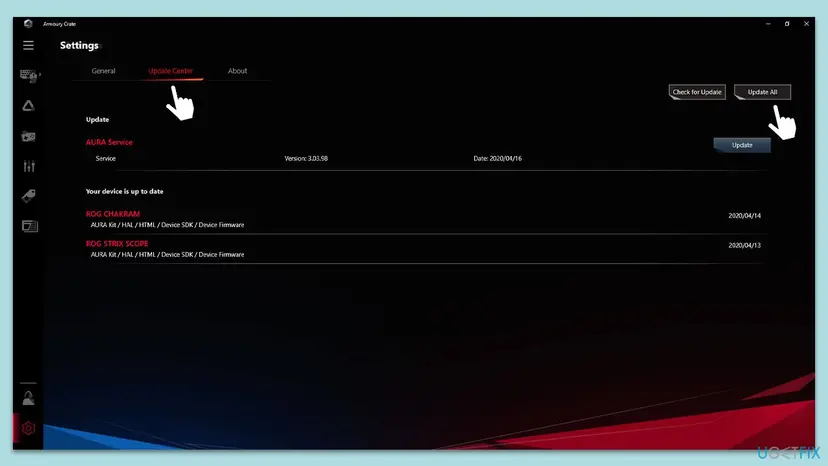
It worked if: After the restart no ArmouryCrate.UserSessionHelper.exe window appears, and Armoury Crate shows that your devices are up to date.
If not: If Armoury Crate will not open, finds no update, or the window comes back, go to Fix 2.
Fix 2. Remove Armoury Crate with the ASUS Uninstall Tool, then install it again
20 minutesRead the warningFix 1 did not help, Armoury Crate does not open, or you see other Armoury Crate service errors.
ASUS says to use its Uninstall Tool before every new install, because the normal Windows uninstall leaves services behind. The tool removes all Armoury Crate apps and services, so the new install writes one matching set of files, including the helper.
The Uninstall Tool removes your Armoury Crate lighting profiles, fan settings and scenario profiles. Write down or photograph any custom values first. Until Armoury Crate is installed again, you cannot change lighting or device settings through it.
- Open the Armoury Crate support page and open the Driver & Utility tab.
- Choose Windows 10 64-bit as the operating system, as ASUS says (the tool also runs on Windows 11), and download Armoury Crate Uninstall Tool. Download ArmouryCrateInstallTool.zip from the same page now.
- Unzip
Armoury_Crate_Uninstall_Tool.zipand double-click Armoury Crate Uninstall Tool.exe, then select Uninstall. - Restart the PC when the tool finishes. ASUS says the restart completes the removal.
- Unzip
ArmouryCrateInstallTool.zipand double-click ArmouryCrateInstaller.exe. - Choose Armoury Crate (and Aura Creator only if you use it) and select Start.
- When the install is done, open Armoury Crate and run Update Center once more (Fix 1, steps 3 to 6).
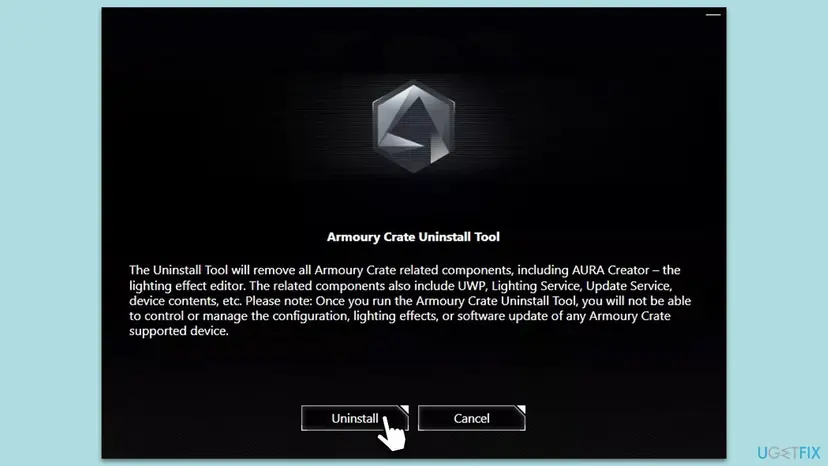
If the tool says the uninstall failed, restart and run it again; ASUS says the second run should succeed. If it fails twice, it leaves a log named ACUTLog_ plus the date and time in its own folder. Send that file to ASUS support.
It worked if: Armoury Crate opens, shows your devices, and the ArmouryCrate.UserSessionHelper.exe window no longer appears after a restart.
If not: If the installer keeps downloading and asking for restarts, go to Fix 3. If the error returns on a fresh install and you do not need Armoury Crate, go to Fix 4.
Fix 3. Make an Armoury Crate install that loops finish
20 minutesLow riskArmoury Crate asks for permissions, downloads its parts, wants a restart, and then does the same thing again after every restart.
A loop like this means the service parts never finish installing, so the helper keeps starting from a broken set of files. ASUS lists four conditions an install needs; any one of them missing can stop it halfway.
- Make sure the internet connection is stable and turn off any VPN for the install, as ASUS asks.
- Check that your antivirus or optimizer software is not blocking Armoury Crate processes. Allow them rather than turning protection off.
- Close any Android emulator or other virtual platform. ASUS says not to install while one runs.
- Run the Armoury Crate Uninstall Tool and restart (Fix 2, steps 1 to 4), even if you used it before.
- Run ArmouryCrateInstaller.exe again and let it finish without interrupting it.
If the install still fails, ASUS asks for a log. Download Armoury Crate Lite Log Tool from the same support page, run LogToolLite.exe, check Enable Log, run the installer again until it fails, then select Package Log and wait for Done. Send the file that starts with LogToolLiteLog_ to ASUS support.
How to check that the connection is stable: How to check your internet connection in Windows
It worked if: The installer finishes once, Armoury Crate opens after one restart, and it no longer asks to download its parts again.
If not: If it still loops, send the log to ASUS and use Fix 4 in the meantime.
Fix 4. Leave Armoury Crate uninstalled if you do not use it
10 minutesLow riskThe error came back after a clean install, and you do not use ASUS lighting, fan profiles or Armoury Crate modes.
The User Session Helper exists only for Armoury Crate. Without the Armoury Crate service it is not installed, so it cannot crash. Windows runs normally without it.
- Run the Armoury Crate Uninstall Tool and restart, as in Fix 2, steps 1 to 4.
- Do not run the install tool afterwards.
- On a ROG, TUF or Prime motherboard, ASUS may invite you to install Armoury Crate again at start-up. Decline the invitation.
- Open Task Manager with Ctrl + Shift + Esc and check that no ARMOURY CRATE process is listed.
What you lose depends on the PC. On ROG and TUF laptops, Armoury Crate also switches performance and GPU modes and controls keyboard lighting. On a desktop with an ASUS motherboard, you lose Aura Sync lighting and fan control through Armoury Crate. You can install it again later with Fix 2, steps 5 to 7.
It worked if: No ArmouryCrate.UserSessionHelper.exe window and no ARMOURY CRATE processes in Task Manager.
If not: If a message about a missing ASUS file appears instead, run the Uninstall Tool once more and restart.
Fix 5. Calm a User Session Helper that uses a lot of CPU or will not stay closed
10 minutesLow riskThere is no crash window, but ARMOURY CRATE User Session Helper uses a lot of CPU, or comes back every time you end it.
The Armoury Crate service starts the helper again whenever it stops, so ending it in Task Manager does not last. A ROG forum user reported it at about 20 % CPU on Armoury Crate service 3.1.5 and called it an ASUS bug; a newer service version or a restart of the service is what changes it.
- Press Ctrl + Shift + Esc to open Task Manager and find ARMOURY CRATE User Session Helper under Processes. Note its CPU use.
- Do not end it again and again. Update Armoury Crate first (Fix 1) and restart.
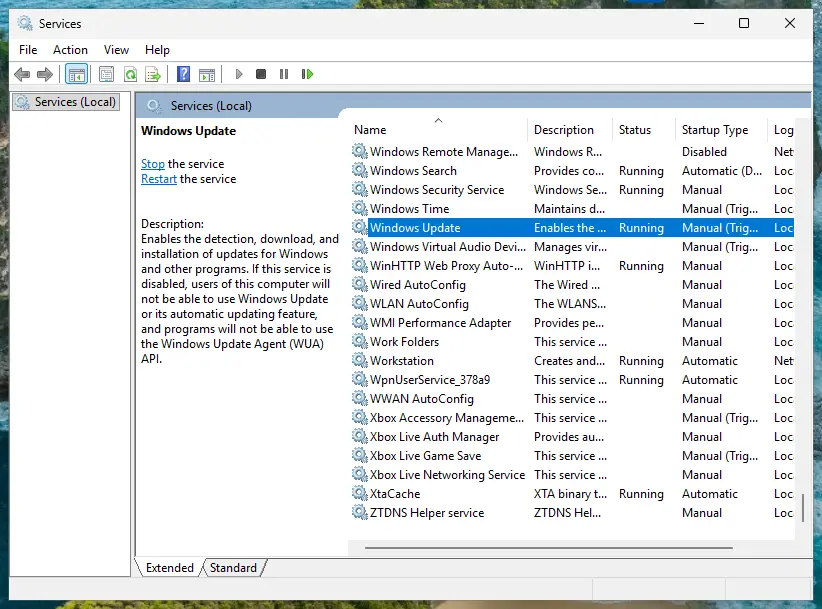
- If the CPU use stays high, press Win + R, type
services.mscand press Enter. - Find ARMOURY CRATE Service, right-click it and select Restart.
- Check Task Manager again after a minute.
Restarting a service, with pictures: Check and restart Windows services
It worked if: The helper settles at a low CPU use, and it stays running quietly in the background without a crash window.
If not: If the CPU use stays high after updating, reinstall cleanly (Fix 2) or, if you do not need Armoury Crate, remove it (Fix 4).
Fix 6. Check that ArmouryCrate.UserSessionHelper.exe is the real ASUS file and scan it
10 minutesNo riskYou are not sure the file belongs to ASUS, or you never installed any ASUS software.
Malware can use the name of a known helper. The genuine file sits in the ARMOURY CRATE Service folder and is signed by ASUS; a copy anywhere else is not the ASUS helper.
- Press Ctrl + Shift + Esc to open Task Manager and open the Details tab.
- Right-click ArmouryCrate.UserSessionHelper.exe and select Open file location. The folder should belong to the ARMOURY CRATE Service, under an ASUS folder.
- Right-click the file, select Properties and open the Digital Signatures tab. The signer should be an ASUSTeK company name.
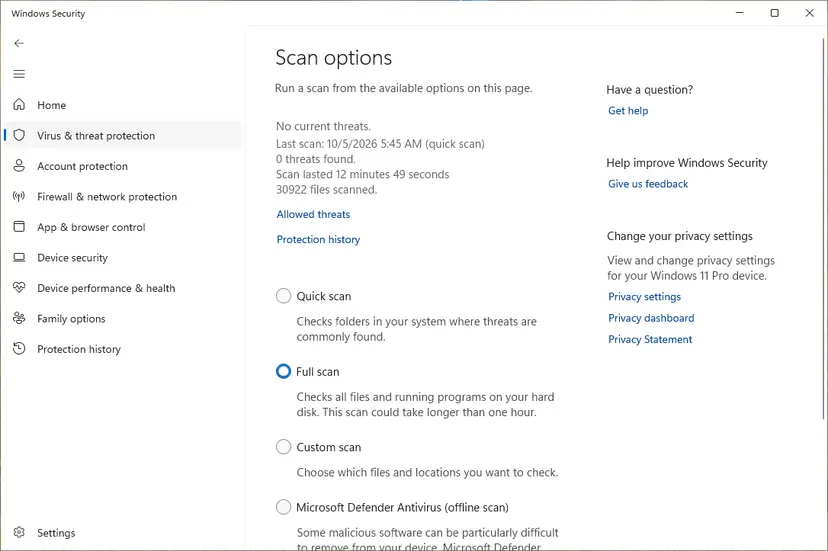
- If the folder or the signer is different, or the PC has no ASUS software, run a full scan with Microsoft Defender.
Microsoft Defender full scan, step by step: How to scan for malware with Microsoft Defender
It worked if: The file sits in the ASUS service folder with an ASUS signature, or Defender found and removed the fake copy.
If not: If the genuine file still crashes, go to Fix 7.
Fix 7. Return Windows to a restore point from before the error
20 minutesLow riskThe error began on a known day, after an ASUS update, a driver or a BIOS change, and you have a restore point from before it.
A restore point brings back programs, drivers and services as they were on that day, including the older Armoury Crate service. Your documents and photos are not touched.
- Press Win + R, type
rstruiand press Enter. - Select Next, then pick a restore point dated before the first ArmouryCrate.UserSessionHelper.exe window.
- Select Scan for affected programs to see which ASUS parts change, then Next and Finish.
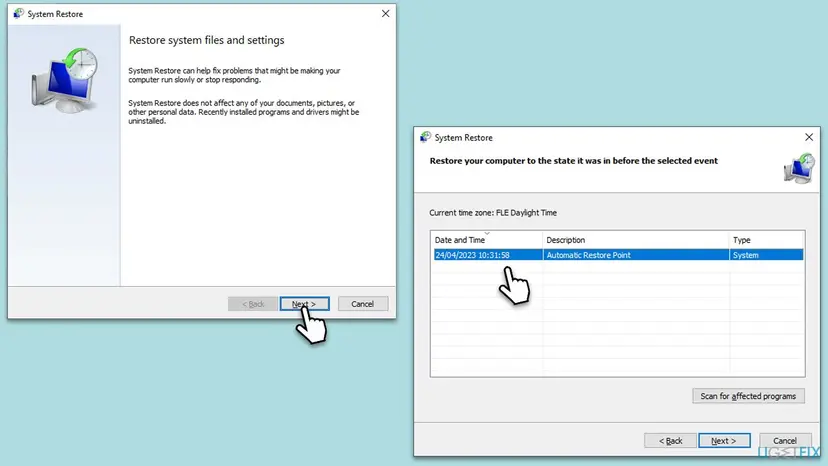
Full steps: Undo recent changes with System Restore. Armoury Crate may install the same update again afterwards, so run Fix 1 once the PC is back.
It worked if: Windows restarts and the ArmouryCrate.UserSessionHelper.exe window is gone.
If not: If there is no restore point from before the error, go to Fix 8.
Fix 8. Repair Windows system files with DISM and SFC
20 minutesNo riskOther programs crash too, or Fixes 1 to 7 did not help.
This error is an ASUS program fault, so a Windows repair rarely changes it; in the Microsoft Q&A case it did not. It is here for PCs where several programs fail, which points to damaged Windows files.
- Open Terminal or Command Prompt as administrator.
- Run DISM, then SFC, as the procedure below shows, and restart.
- Install Armoury Crate once more (Fix 2).
Step by step: Run DISM and SFC to repair Windows system files
It worked if: SFC reports no problems or repaired files, and Armoury Crate installs and runs without the crash window.
If not: Collect the evidence in "Still broken" below and contact ASUS support.
If the ArmouryCrate.UserSessionHelper.exe error is still there: where to look and what to send
The crash window shows only the file name and two memory addresses. These places hold the details ASUS support needs:
| What to check | Where | What it tells you |
|---|---|---|
| Crash history | Press Win + R, type perfmon /rel and press Enter (Reliability Monitor) | Each red cross for ArmouryCrate.UserSessionHelper.exe is one crash, with the date, so you see whether it began with an update. |
| Crash details | Event Viewer: Windows Logs > Application, source Application Error, event ID 1000 | Faulting application name and version, exception code and the faulting module. |
| Install log | Armoury Crate Lite Log Tool, file LogToolLiteLog_ with date and time | Why the install stops or loops (Fix 3). |
| Uninstall log | The Armoury Crate Uninstall Tool folder, file ACUTLog_ with date and time | Why the removal failed, if it did. |
Send ASUS the exact window text, the Armoury Crate version from Settings > About, your PC or motherboard model, the Windows version and what you already tried.
"The memory could not be read" is a program bug, not a RAM test result. If the PC also freezes, restarts or shows blue screens with Armoury Crate removed, the cause lies elsewhere. Then test the memory with How to test your RAM with Windows Memory Diagnostic and check temperatures.
How to keep the ArmouryCrate.UserSessionHelper.exe error from coming back
- Install Armoury Crate updates from its own Update Center and restart afterwards.
- Use the Armoury Crate Uninstall Tool and a restart before every reinstall, as ASUS asks.
- Keep a restore point before large ASUS updates or BIOS changes.
- Download Armoury Crate only from the ASUS support site.
- Let your antivirus allow Armoury Crate processes instead of blocking them.
- Do not download ArmouryCrate.UserSessionHelper.exe from file or DLL sites. It comes only with Armoury Crate.
- Do not delete files in the ASUS service folder by hand.
- Do not turn off Microsoft Defender to stop the window.
- Do not end the helper in Task Manager again and again; the service restarts it.
Frequently asked questions
What is ARMOURY CRATE User Session Helper?
It is a background part of the ASUS Armoury Crate service, the software that controls lighting, fans, performance modes and ASUS peripherals. The file is ArmouryCrate.UserSessionHelper.exe, and it runs inside your signed-in Windows session so the service can work with your account. It is not a Windows file, and Windows runs fine without it. If you remove Armoury Crate with the ASUS Uninstall Tool, the helper goes with it. Readers who search "bu ne", "bu nedir", "co to je" or "а шо це" are asking the same thing: this is the answer.
Is ArmouryCrate.UserSessionHelper.exe a virus?
No, not when it sits in the ARMOURY CRATE Service folder on a PC with ASUS software and carries an ASUS signature in its Properties. The crash window is an ASUS bug, not a sign of infection, and Microsoft Defender does not flag the genuine file. A file with this name on a PC without any ASUS software, or in a Temp or user folder, is not the ASUS helper. Scan it with Microsoft Defender as Fix 6 shows. This also answers "это не вирус?": no, the genuine file is not a virus.
Why did the error start suddenly?
Because Armoury Crate updates its service and components in the background, and an update can leave the helper and the service on different versions. One user on Microsoft Q&A saw it start after only opening the BIOS setup, with no change made. After that, Armoury Crate kept downloading and asking for restarts. Whatever started it, the same steps apply: update Armoury Crate (Fix 1), or remove it with the Uninstall Tool and install it again (Fix 2).
Can I end ARMOURY CRATE User Session Helper in Task Manager?
You can, but it comes back. The Armoury Crate service starts the helper again, and users report that it will not stay closed. Ending it also stops Armoury Crate features until the next start. If it uses a lot of CPU, update Armoury Crate and restart the ARMOURY CRATE Service in Services (Fix 5). If you do not want it at all, remove Armoury Crate with the ASUS Uninstall Tool (Fix 4) instead of ending the process every day.
Can I uninstall Armoury Crate to stop the error?
Yes. Run the official Armoury Crate Uninstall Tool and restart, and the helper is gone with the service (Fix 4). You lose ASUS lighting control, fan profiles and, on laptops, the Armoury Crate switches for performance and GPU modes. Use the ASUS tool rather than only Settings > Apps, because ASUS says the normal uninstall leaves services behind. You can install Armoury Crate again at any time with ArmouryCrateInstallTool.
Can I download ArmouryCrate.UserSessionHelper.exe to replace a broken one?
Do not. The file comes only with Armoury Crate, and a copy from a download site may be outdated, unsigned or harmful. It also needs the matching ARMOURY CRATE Service and the other files in its folder. When the helper is damaged or missing, remove Armoury Crate with the Uninstall Tool and install it again from the ASUS support site (Fix 2). That puts back the helper and everything it works with.
Can I replace Armoury Crate with G-Helper?
G-Helper is an unofficial, open-source tool that some ASUS laptop owners use instead of Armoury Crate to switch performance modes. It is not made or supported by ASUS, and we have not tested it for this guide. If you try it, remove Armoury Crate with the ASUS Uninstall Tool first, so the User Session Helper and the ASUS services are gone, and download the tool only from its official project page.
Does the fix differ on Windows 10?
No. ASUS lists Windows 10 version 1903 or later and Windows 11 as supported for Armoury Crate, and the helper, the Uninstall Tool and the fixes are the same on both. Windows 10 left Microsoft support on 14 October 2025, so a Windows 10 PC gets no new Windows security fixes. Windows 10 22H2 still meets the Armoury Crate requirement, but moving to Windows 11 is the safer choice where the PC allows it.
Is ArmouryCrate.UserSessionHelper.exe the same as DefenderSessionHelper.exe?
No. This page covers only the ASUS file, ArmouryCrate.UserSessionHelper.exe, which belongs to Armoury Crate. DefenderSessionHelper.exe is a different name, and we did not research it for this guide, so we cannot tell you what it is. To check any unknown process, open its file location from Task Manager and read the signer on the Digital Signatures tab, as Fix 6 shows, then scan it with Microsoft Defender if the signer is not one you expect.
Sources
- ASUS: [ASUS Armoury Crate] Armoury Crate FAQ (install, Uninstall Tool, troubleshooting, service error) (asus.com)
- Microsoft Q&A: ArmouryCrate.UserSessionHelper.exe Application Error on an ROG Strix G15 (user report and accepted answer) (learn.microsoft.com)
- ASUS ROG Forum: ARMOURY CRATE User Session Helper Problem (CPU use, component versions) (rog-forum.asus.com)
Did this fix work?
One click, no account. It tells the next reader which guides are worth their time.
Questions and experiences: fix ArmouryCrate.UserSessionHelper.exe - Application Error in Windows
Still broken, or found a fix we did not cover? Ask here: members and our editors answer. Reading is open; writing needs a free account.
…