
How to fix Assertion failed: C++ Runtime Library Expression vulcan_ error?

Prefer to fix it yourself? The manual steps follow.
- 5methods
- 2 to 40 minutes
- Easy
Applies to Windows 11 and Windows 10 PCs with Adobe Creative Cloud, Photoshop, Premiere Pro, Acrobat or another Adobe app installed now or in the past
5 methods in this guide
Hi. Every time I start or restart my Windows 10, I receive an error titled "Microsoft Visual C++ Runtime Library," and it says "Assertion failed! Expression vulcan_", and this is rather annoying. I am not sure what any of this is and why this is happening. If you could provide some solutions, it would be great!
The Microsoft Visual C++ Runtime Library box with Assertion failed! and Expression: vulcan_ comes from Adobe Creative Cloud, not from Windows. A background helper called CCXProcess crashes in its Vulcan messaging code, often right after you sign in. Turn off its startup entry first, then update or clean up Creative Cloud.
The box is raised by Adobe's Creative Cloud Experience helper, CCXProcess.exe, when its Vulcan messaging library fails a check. Turn off the CCXProcess startup entry in Task Manager and restart (Fix 1). If you use Creative Cloud every day, update or reinstall it instead (Fix 2). If Adobe is already uninstalled, remove its leftovers with Adobe's Creative Cloud Cleaner tool (Fix 5).
| Error | Microsoft Visual C++ Runtime Library: "Assertion failed!" with Program: ...\node-vulcanjs\build\Release\VulcanMessageLib.node, File: ...\vulcanadapter.cc and "Expression: vulcan_". |
|---|---|
| Where it appears | Usually a few seconds after you sign in to Windows. Less often when Photoshop or another Adobe app opens. The app itself often keeps working behind the box. |
| Main cause | A failed internal check in Adobe's Creative Cloud Experience process (CCXProcess.exe), which starts with Windows. Microsoft's runtime only displays the box. |
| Fastest fix | Set the CCXProcess entry in Task Manager > Startup apps to Disabled and restart (Fix 1). |
| Also written as | vulcan_ error, Expression: vulcan_, assertion failed vulcan, vulcanadapter.cc error, VulcanAdapter.cc assertion failed, node-vulcanjs assertion failed, Line 390, Line 412, Line 457 or Line 460. |
| Affects | Windows 11 and Windows 10 with Creative Cloud, including PCs where the Adobe apps were removed but the background service stayed. |
| Vendor status | Reported on Adobe's community since 2018. We found no Adobe article that names this exact message or a version that fixed it. |
| Time to fix | 2 minutes for the startup switch. 20 to 40 minutes for a reinstall or a clean-up with Adobe's Cleaner tool. |
Facts checked on 15 October 2026. Steps written for Windows 11 (25H2 and 26H2) and Windows 10 22H2, with the Adobe Creative Cloud desktop app.
What Assertion failed! Expression: vulcan_ means in the Microsoft Visual C++ Runtime Library box
An assertion is a check that a programmer writes into the code: "at this point, this must be true". When the check fails in a program built with Microsoft Visual C++, the Visual C++ runtime shows a box titled Microsoft Visual C++ Runtime Library with the words Assertion failed!. The title names Microsoft, but the failed check belongs to the program named in the box.
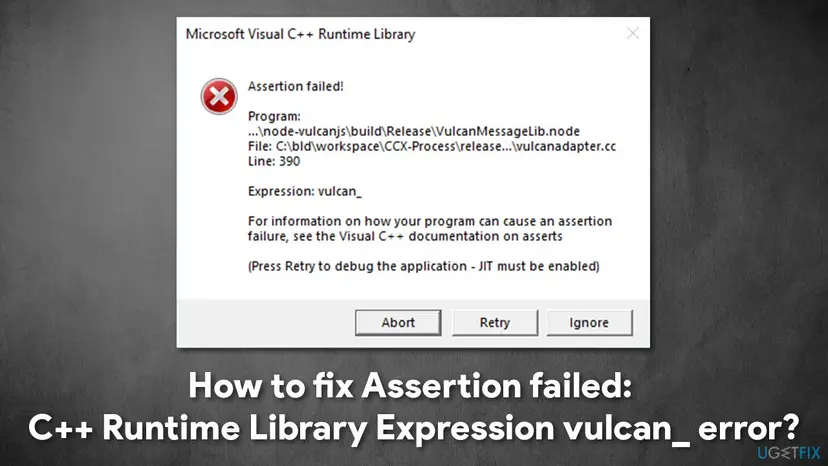
- Title
- Microsoft Visual C++ Runtime Library
- First line
- Assertion failed!
- Program
...\node-vulcanjs\build\Release\VulcanMessageLib.node(older versions:VulcanJS.Node)- File
C:\bld\workspace\CCX-Process\release...\vulcanadapter.cc- Line
- 390, 412, 457 or 460, depending on the Adobe version
- Expression
- Expression: vulcan_
- Last lines
- For information on how your program can cause an assertion failure, see the Visual C++ documentation on asserts. (Press Retry to debug the application - JIT must be enabled)
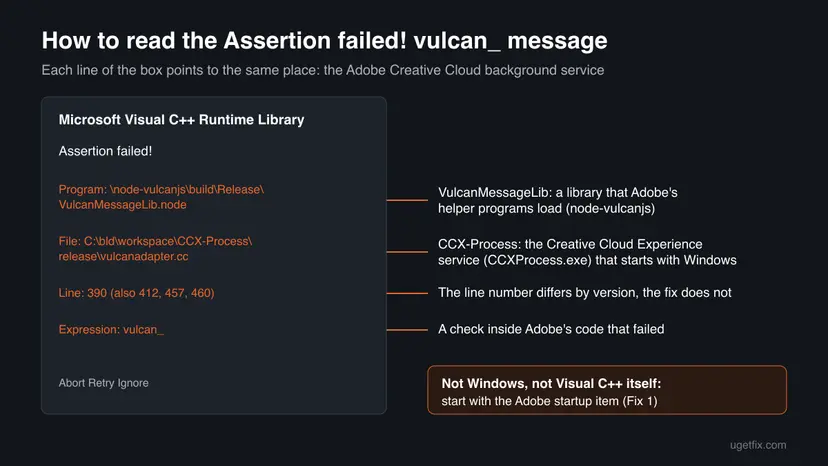
node-vulcanjs and VulcanMessageLib.node are parts of Adobe's helper programs, and CCX-Process in the File line is the build folder of CCXProcess.exe, the Creative Cloud Experience service. vulcan_ is the name of the value the check tested. None of these names is a Windows file, a virus or a game.
What causes the vulcan_ error, from most to least common
Most often the Creative Cloud Experience helper starts with Windows and its Vulcan code fails before Creative Cloud is fully up. Less often the Creative Cloud installation itself is damaged or was moved to another drive. Rarely the cause is a damaged Visual C++ runtime, or a helper left behind after Adobe was uninstalled.
| Cause | How often | How to tell | Fix |
|---|---|---|---|
| CCXProcess.exe starts at sign-in and fails its check. | Most often | The box appears every time you start or restart Windows, before you open any Adobe app. | Fix 1 |
| The Creative Cloud desktop app is outdated, damaged or installed on a non-default drive. | Often | The box appears when Photoshop, Premiere Pro or Creative Cloud opens, and returns after Fix 1. | Fix 2 |
| The Visual C++ Redistributable packages are damaged. | Sometimes | Other programs also show Visual C++ runtime errors. | Fix 3 |
| You need Creative Cloud running but want the box gone now. | Sometimes | Fix 1 helped, but the box returns when Creative Cloud starts its helper again. | Fix 4 |
| Adobe apps were uninstalled, but the background service and its folder stayed. | Rarely | No Adobe app is in Installed apps, yet the box still names CCX-Process. | Fix 5 |
System file scans and a Windows reset are often listed for this box. They repair Windows files, and the failing code is not a Windows file. Removing older Visual C++ packages is also no help: Adobe apps and many other programs still use them.
How to fix the Assertion failed vulcan_ error
Fix 1 removes the box for most readers in two minutes and changes nothing in your Adobe apps. Fix 2 repairs Creative Cloud for people who use it every day. Fixes 3 to 5 cover a damaged Visual C++ runtime, a quick workaround and the leftovers of an uninstalled Adobe app.
| What you see or have | Start with |
|---|---|
| The box appears every time Windows starts. | Fix 1 |
| The box appears when Photoshop or another Adobe app opens. | Fix 2 |
| Other programs also show Microsoft Visual C++ Runtime Library errors. | Fix 3 |
| You need Creative Cloud and Libraries running and want the box gone today. | Fix 4 |
| You already uninstalled Adobe, and the box still appears. | Fix 5 |
Fix 1. Stop the Adobe CCXProcess helper from starting with Windows
2 minutesNo riskThe box appears each time you sign in to Windows, before you open any Adobe app.
The box comes from CCXProcess.exe, which Windows starts at sign-in. If it does not start, its Vulcan check never runs, and Photoshop and the other Adobe apps still open normally when you start them yourself.
- Click Abort in the error box to close it.
- Press Ctrl + Shift + Esc to open Task Manager.
- Open Startup apps (Windows 11) or the Startup tab (Windows 10).
- Find CCXProcess or another entry with the Creative Cloud logo. Right-click it and select Disable.
- Restart Windows and wait a minute after sign-in.
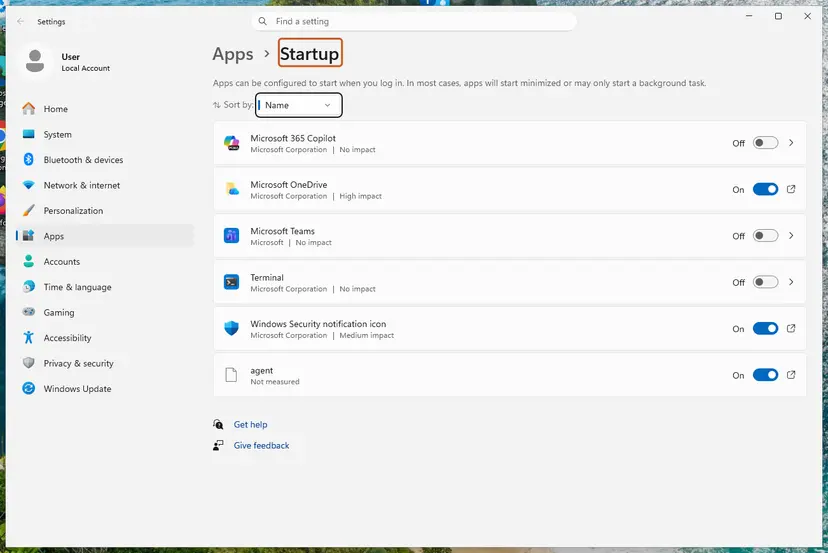
The Settings route works too. Step by step, with screenshots: Stop apps from opening at startup. On Microsoft Q&A, users who disabled the Adobe startup entry report that the box stopped, and one found it listed as CCXProcess.exe.
CCXProcess runs Creative Cloud features such as tutorials and content in the apps. With it off, your Adobe apps still start and save files. You can turn the entry back on at any time from the same list.
It worked if: Windows starts and no Microsoft Visual C++ Runtime Library box appears after sign-in.
If not: If the box now appears when you open an Adobe app, go to Fix 2. If it still appears at startup, use Fix 4.
Fix 2. Update or reinstall the Creative Cloud desktop app on drive C
20 to 30 minutesLow riskYou use Creative Cloud daily, or the box appears when an Adobe app opens.
The failing helper is installed and updated by the Creative Cloud desktop app. A fresh copy replaces damaged helper files, and one user on Adobe's community reports the error left after Creative Cloud was moved back to drive C and repaired.
- Open the Creative Cloud desktop app and install any update it offers for itself and for your apps.
- Restart Windows. If the box is gone, stop here.
- If not, sync or save any cloud files you are still editing, then close all Adobe apps.
- Uninstall your Adobe apps first, then Adobe Creative Cloud, from Settings > Apps > Installed apps (Windows 11) or Apps & features (Windows 10).
- Restart Windows, download Creative Cloud from Adobe's website and install it to the default location on drive C.
- Sign in and install your apps again from the Creative Cloud app.
The uninstall itself, with screenshots: Uninstall a program or app in Windows.
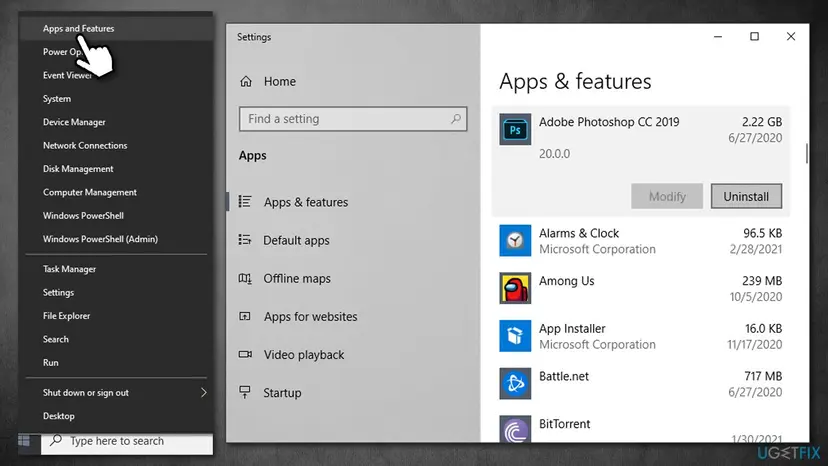
It worked if: Creative Cloud opens, your apps start, and the box no longer appears at sign-in or app start.
If not: If other programs also show Visual C++ errors, go to Fix 3. Otherwise try Fix 4 or Fix 5.
Fix 3. Repair the Microsoft Visual C++ Redistributable packages
10 minutesNo riskOther programs also show Microsoft Visual C++ Runtime Library errors, or Fixes 1 and 2 did not help.
Adobe's helper runs on Microsoft's Visual C++ runtime. The answer marked correct on Adobe's community thread points to the latest runtime, and a damaged package can make a helper misbehave. It is the less likely cause here, so it comes after the Adobe fixes.
- Open Programs and Features. Type control panel in the search box on the taskbar and select Control Panel. Select Programs > Programs and Features.
- Find the installed versions. Look for the entries that start with Microsoft Visual C++. Each one shows a year and an architecture, x64 or x86. Several entries side by side are normal: older versions stay installed next to newer ones.
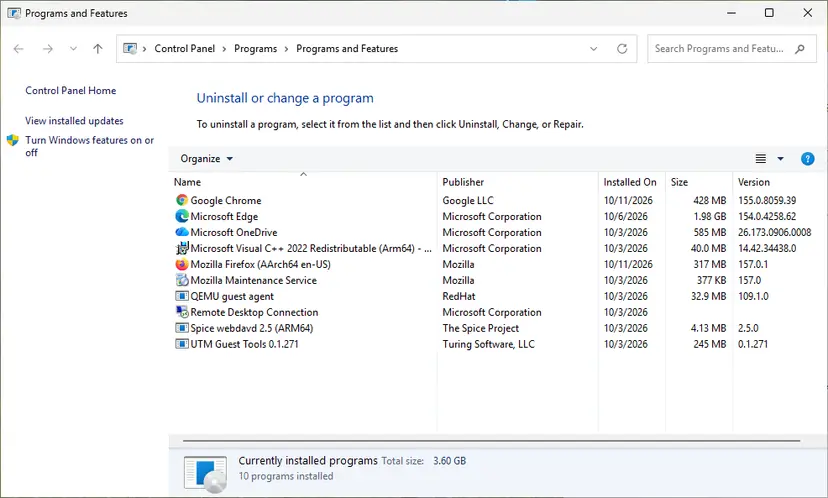
Each Visual C++ version is its own entry in Programs and Features. Screenshot: Windows 11 26H2. - Repair each Visual C++ entry. Right-click an entry and select Change, then select Repair in the window that opens. Do the same for every Microsoft Visual C++ entry.
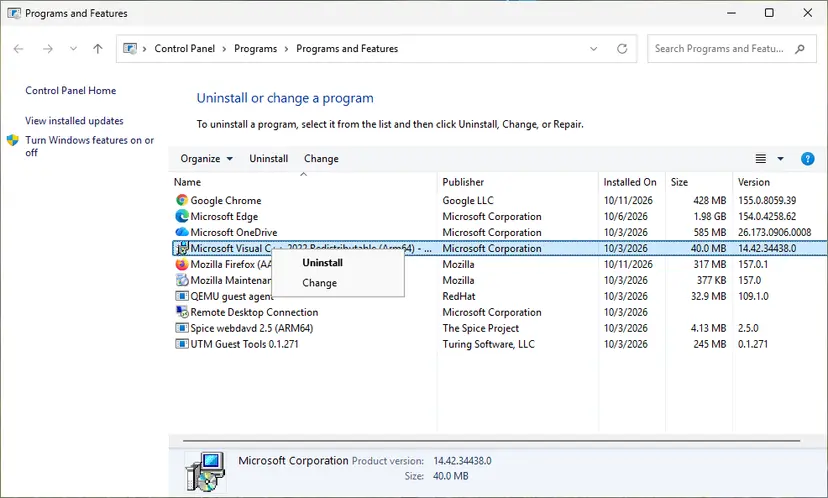
Right-click the entry and select Change to reach the repair option. Screenshot: Windows 11 26H2.
These steps were written for Windows 11 25H2 and 26H2, Windows 10 22H2. The full page with the other versions and what each result means: How to repair Microsoft Visual C++ Redistributable and .NET Framework
- In Programs and Features, repair each Microsoft Visual C++ Redistributable entry with Change > Repair, x64 and x86.
- If Visual C++ 2013 x86 is missing, install it from Microsoft. One Adobe community user reports that the 32-bit 2013 package ended the box on a 64-bit PC.
- Restart Windows.
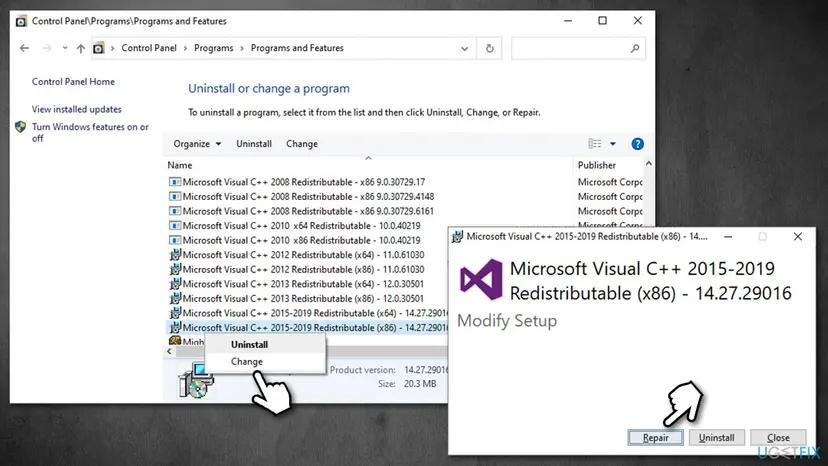
Full steps for all packages and downloads: How to repair Microsoft Visual C++ Redistributable and .NET Framework. Keep the older packages; do not remove them.
It worked if: Each package ends with Setup Successful, and the box is gone after the restart.
If not: Several users report the box stays after a Visual C++ reinstall. Move on to Fix 4.
Fix 4. Rename CCXProcess.exe so the failing helper cannot start
5 minutesLow riskYou want the box gone now and Fix 1 did not hold, because Creative Cloud starts the helper again.
Renaming the file stops CCXProcess from running at all, so its Vulcan check cannot fail. It is a workaround: a Creative Cloud update may put the file back, and Creative Cloud content features may not work.
- Press Ctrl + Shift + Esc to open Task Manager and open Processes.
- Right-click CCXProcess (it may sit under an Adobe group) and select Open file location.
- Back in Task Manager, right-click CCXProcess again and select End task.
- In File Explorer, select
CCXProcess.exe, press F2 and rename it toCCXProcess.exe.off. Confirm the administrator prompt. - Restart Windows.
How to end a process safely: Close a frozen app (Task Manager, Force Quit). In our old screenshots the file sat in C:\Program Files (x86)\Adobe\Adobe Creative Cloud Experience. The folder can differ by version, so use Open file location rather than typing the path.
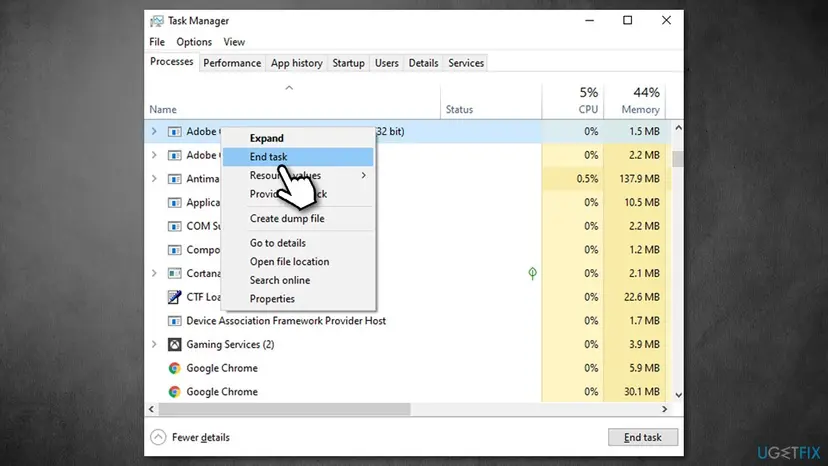
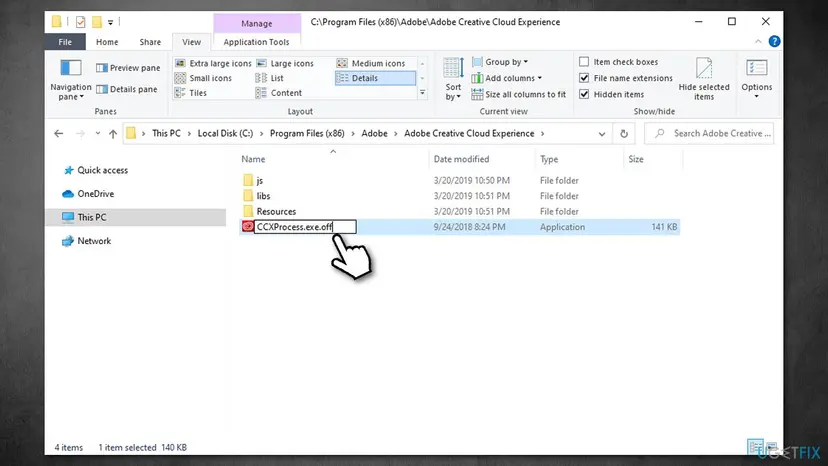
It worked if: No CCXProcess appears in Task Manager after the restart, and the box is gone.
If not: If the file returns after an update, rename it again or use Fix 2. If Adobe is no longer installed, use Fix 5.
Fix 5. Clean up Creative Cloud with Adobe's Creative Cloud Cleaner tool
30 to 40 minutesRead the warningThe box stays after you uninstalled Adobe, or a reinstall in Fix 2 failed.
Adobe made the Cleaner tool for damaged installations and for removing older Adobe software completely. It removes the background services that an ordinary uninstall leaves behind, including the helper that raises this box.
Adobe says the Cleaner tool is for experienced users and asks you to back up first. Local cloud sync data, plug-ins, presets and old installers can be lost. Adobe only offers downloads of the two most recent versions of its apps.
- Close all Adobe apps and the Creative Cloud desktop app.
- Copy the folders
C:\Users\<username>\AppData\Local\Adobe\AdobeSync\CoreSyncandC:\Users\<username>\AppData\Roaming\Adobe\CoreSyncto a safe place. - Save your third-party plug-ins, presets, workspaces and any old Adobe installers you still need.
- In Task Manager, end the remaining Adobe processes, such as Creative Cloud, Creative Cloud Libraries Synchronizer, Creative Cloud Interprocess Service, armsvc.exe and AGS Service.
- Download and run the Cleaner tool from Adobe's page Download and run the Creative Cloud Cleaner tool, and remove Creative Cloud.
- Restart Windows. Install Creative Cloud again only if you still need it.
Adobe also offers a Log Collector tool. Run it before the Cleaner tool if you may need to contact Adobe support later.
It worked if: No Adobe background process is left in Task Manager, and Windows starts without the box.
If not: See the section below on what to check and what to send to Adobe support.
If the vulcan_ box still appears: what to check and what to send
First make sure the box you see is still the same one. Read the Program and File lines. If they no longer mention node-vulcanjs, vulcanadapter.cc or CCX-Process, a different program raised a different assertion, and the fixes above do not apply.
- Find which process raised it: with the box open, look in Task Manager for an Adobe or Node.js process. Its Open file location shows the program folder.
- What to send to Adobe support: the full text of the box including the Line number, your Creative Cloud version, your Windows version and the Log Collector archive.
- When it is not your PC: the box appears on a fresh Creative Cloud install on drive C, with current Visual C++ packages. Then it is an Adobe bug to report, not a setting to change.
- When it is not hardware: an assertion is a software check. No RAM test or disk check is needed for this box.
Windows 10 left support on 14 October 2025. The fixes here work on Windows 10 22H2, but Adobe apps will need Windows 11 sooner or later.
How to keep the vulcan_ error from coming back
- Keep Creative Cloud and its apps updated from the Creative Cloud desktop app.
- Install Creative Cloud in its default place on drive C.
- When you stop using Adobe, uninstall the apps first, then Creative Cloud, and remove leftovers with the Cleaner tool.
- Leave unused Adobe entries switched off in Startup apps. It also shortens startup.
- Keep the Visual C++ Redistributable packages; do not remove old ones to tidy up.
These habits keep the helper either working or fully removed. The box tends to show up in the middle state: a helper that starts with Windows while its program is outdated, moved or half removed.
Frequently asked questions
What does Expression: vulcan_ mean?
It is the condition that failed inside Adobe's code. Programmers add checks called assertions, and vulcan_ is the name of the value the check tested in the file vulcanadapter.cc. When that value was not ready, the Microsoft Visual C++ runtime showed the Assertion failed! box. You cannot change the value yourself. What you can change is whether the Adobe helper that runs this code starts with Windows, and whether its files are current. Fix 1 and Fix 2 do exactly that.
Is the vulcan_ error a virus?
No, the paths in the box point to Adobe's own Creative Cloud Experience helper, CCXProcess.exe, and its node-vulcanjs library. It is a bug in a legitimate background program. If you have never installed any Adobe app and still see the box, check the file with Open file location in Task Manager and run a malware scan. Step by step: How to scan for malware with Microsoft Defender. A genuine Adobe file sits in an Adobe folder under Program Files.
Can I just click Ignore?
Yes, nothing is damaged by clicking Ignore or Abort. Abort closes the failing helper, Ignore lets it continue past the check, and Retry only helps a programmer with a debugger. The box is annoying rather than harmful: Photoshop and your other apps keep working. The catch is that it returns at every sign-in until you stop the helper from starting (Fix 1) or repair Creative Cloud (Fix 2). Those take a few minutes and remove the box for good in most cases.
Why does the vulcan_ box appear after I uninstalled Adobe?
Removing Photoshop or Acrobat does not always remove the Creative Cloud desktop app and its background helpers. CCXProcess can stay behind and keep starting with Windows, now without the files it expects. Users on Microsoft Q&A report exactly this. Check Installed apps for Adobe Creative Cloud and uninstall it. If nothing Adobe is listed but the box remains, run Adobe's Creative Cloud Cleaner tool as Fix 5 describes, after backing up what you need.
Does the line number matter, such as Line 390, 412 or 460?
No, not for the fix. The number is the line in vulcanadapter.cc where the check sits, and it changes when Adobe updates the code. Reports on Adobe's community and Microsoft Q&A show Lines 390, 412, 457 and 460 with the same Expression: vulcan_ and the same cause. Treat them all as one error. The line number is useful only when you report the bug to Adobe support, together with your Creative Cloud version.
Is this related to VulcanJS or the node vulcanjs package?
Only by name. The box shows node-vulcanjs because Adobe's helper loads a library from a folder of that name, and its File line points to Adobe's own build folder, CCX-Process. A web framework called VulcanJS is a separate project and does not produce this Visual C++ box. If you see an assertion while developing with that framework, its own documentation applies. This page is about the Adobe Creative Cloud box on Windows.
Will turning off CCXProcess break Photoshop or Premiere Pro?
In the reports we read, no. The apps open, edit and save files with the startup entry disabled. CCXProcess serves Creative Cloud experience content, such as in-app tutorials and some library features. If something you use stops working, turn the entry back on in Task Manager under Startup apps and use Fix 2 instead. Renaming the file in Fix 4 goes further than disabling it, so expect more Creative Cloud content features to stop.
Should I reset Windows or run SFC for this error?
We do not advise it. System File Checker and DISM repair Windows files, and a Windows reset reinstalls Windows. The failing check sits in an Adobe program, which those tools do not repair. A reset removes your programs and settings and may not even remove the cause, because Creative Cloud comes back when you reinstall it. The Adobe-specific fixes on this page are faster and aim at the real source.
What is the vulcan error message, and is there another vulcan error?
On Windows PCs the common vulcan error message is this Adobe box with Assertion failed! and Expression: vulcan_. Do not confuse it with Vulkan, spelled with a k, which is a graphics interface used by games and graphics drivers. Vulkan errors appear in games and name the Vulkan runtime or a graphics card. If your message says Vulkan rather than vulcan_, the fixes on this page do not apply.
Sources
- Adobe Help Center: Prepare to run the Creative Cloud Cleaner tool (helpx.adobe.com)
- Adobe Community: Program node-vulcanjs build Release VulcanJS.Node, vulcanadapter.cc assertion (Photoshop) (community.adobe.com)
- Microsoft Q&A: Microsoft Visual C++ Runtime Library (vulcanadapter.cc, Line:460) (learn.microsoft.com)
Did this fix work?
One click, no account. It tells the next reader which guides are worth their time.
Questions and experiences: fix Assertion failed: C++ Runtime Library Expression vulcan_ error
Still broken, or found a fix we did not cover? Ask here: members and our editors answer. Reading is open; writing needs a free account.
…