
How to fix "Bootstrapper has stopped working" error in Windows?

Prefer to fix it yourself? The manual steps follow.
- 7methods
- 10 to 45 minutes
- Intermediate
Applies to Setup of Office 2010, Office 2013 and other Windows Installer (MSI) based Office versions on Windows 11, Windows 10 and Windows 7; the message "This package can only be run from a bootstrapper" for any program
7 methods in this guide
Hello. I tried to install Microsoft Office but I received the "Microsoft Setup Bootstrapper has stopped working" error. How do I solve this?
"Microsoft Setup Bootstrapper has stopped working" means that the setup program of an older Office, usually Office 2010 or Office 2013, crashed while it installed, removed or repaired Office. It is a setup crash, not a licence problem. Start by clearing the compatibility settings of setup.exe and running it as administrator from a local folder.
Copy the Office setup files to a local folder, clear any compatibility mode on setup.exe and run it as administrator (Fix 1). If it still crashes, export and delete the AppCompatFlags registry key (Fix 2) and check that the Task Scheduler service runs (Fix 3). If you see This package can only be run from a bootstrapper instead, run the setup .exe, not the .msi (Fix 7).
| Error | Microsoft Setup Bootstrapper has stopped working, with the line A problem caused the program to stop working correctly. |
|---|---|
| Where it appears | A Windows crash window right after you start Office setup, choose Uninstall or Change in Control Panel, or open an Office app that starts configuring itself. |
| Main cause | Something on the PC makes the old Office setup.exe crash: compatibility data in the AppCompatFlags key, a disabled Task Scheduler service, leftovers of an earlier Office or a security program. |
| Fastest fix | Clear the compatibility settings of setup.exe and run it as administrator (Fix 1), then the AppCompatFlags key (Fix 2). |
| Also written as | Microsoft bootstrapper has stopped working, Bootstrapper stopped working, Microsoft Setup Bootstrapper dejó de funcionar, setup boots-trapper had stopped working. |
| Affects | Reports cover Office 2010 and Office 2013 setup on Windows 7, Windows 8 and Windows 10. The same old setup can crash on Windows 11. |
| Microsoft's status | No Microsoft support article for this message. Office 2013 support ended on 11 April 2023 and Office 2010 support on 13 October 2020, so no fix will come. |
| Where the cause is logged | Event Viewer > Windows Logs > Application, an Error that names setup.exe, and the setup logs in the %temp% folder of the account that ran setup. |
| Not the same error | This package can only be run from a bootstrapper is a block, not a crash: an .msi file was opened on its own. See Fix 7. |
| Time to fix | 5 to 10 minutes for Fix 1 to Fix 3. 30 to 45 minutes when old Office must be removed first. |
Facts checked on 15 October 2026. Steps written for Windows 11 (25H2 and 26H2) and Windows 10 22H2, with notes for Windows 7, read against Microsoft's documentation and Microsoft Q&A reports.
What "Microsoft Setup Bootstrapper has stopped working" means
The window is Windows' standard crash message. It names the program that crashed, and here that program is the Office setup program. In the reports we read on Microsoft Q&A, it is the setup.exe of Office 2010 or Office 2013, during installation, removal or repair.
Microsoft Setup Bootstrapper has stopped working. A problem caused the program to stop working correctly. Windows will close the program and notify you if a solution is available.
- Installing: setup crashes before or just after the first screen. This is the case in the reader's question above.
- Uninstalling: you select an Office entry in Programs and Features and the crash window opens instead of the setup wizard. One Microsoft Q&A thread starts this way with an Office 2010 beta.
- Opening an Office app: a Super User report describes the crash when Office Professional Plus 2013 programs were started on Windows 7.
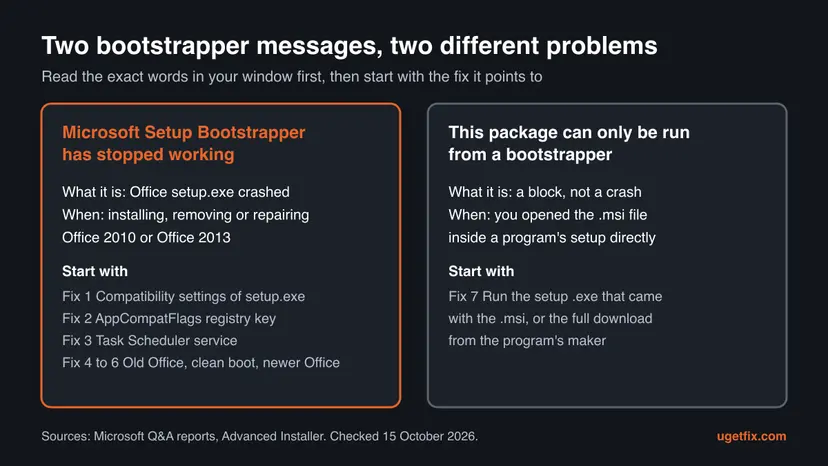
People also search it as Microsoft bootstrapper has stopped working, Bootstrapper stopped working and, in Spanish, Microsoft Setup Bootstrapper dejó de funcionar. The words differ, the crash is the same.
What Microsoft Setup Bootstrapper and bootstrapper.exe are
A bootstrapper is the small program you start first. It checks the PC, then starts the real installer, often a Windows Installer package (.msi). Office 2010 and Office 2013 work this way: setup.exe reads the setup files and starts the .msi packages, and Windows shows it as Microsoft Setup Bootstrapper when it crashes.
| Name you see | What it is | Where it comes from |
|---|---|---|
| Microsoft Setup Bootstrapper | The setup program of an older Office | setup.exe on the Office disc or in the downloaded Office folder |
bootstrapper.exe | A file name many installers use for their first stage | The folder of the program you are installing, or a temporary folder |
| This package can only be run from a bootstrapper | An .msi that refuses to start without its own setup .exe | Installers built with tools such as InstallShield or Advanced Installer |
Right-click the file, select Properties and open Digital Signatures. A signature of the program's maker is a good sign. If the file has no signature and runs from a place you do not recognise, scan the PC: How to scan for malware with Microsoft Defender.
What makes Office setup crash, from the most common cause to the rare one
Microsoft has no article that lists the causes. The ranking below comes from the answers that helped most readers on Microsoft Q&A and Super User. It is an order of likelihood, not a statistic.
| How often | Cause | Typical sign | Fix |
|---|---|---|---|
| Most often | Compatibility data that Windows keeps for setup.exe, under the AppCompatFlags key | Setup crashes at once, every time, on a PC that ran older setups before. | Fix 1, Fix 2 |
| Often | The Task Scheduler service is disabled or does not start | Scheduled tasks do not run either. The Start value of the Schedule service is 4. | Fix 3 |
| Often | Leftovers of an earlier or half-installed Office | Another Office version was on the PC, or an earlier setup or removal stopped halfway. | Fix 4 |
| Less often | A security program or another background program that hooks into setup | Setup works in a clean boot, or after a short pause of the protection. | Fix 5 |
| Rarely | An Office version that is too old for this Windows | Office 2010 or 2013 on Windows 11, where nothing else helps. | Fix 6 |
Some websites add damaged system files or the Windows Update service as causes. No Microsoft page or helpful report ties them to this crash, so this guide leaves them out.
How to fix Microsoft Setup Bootstrapper has stopped working
Fix 1 to Fix 3 are quick and solve most reports. Fix 4 removes old Office, Fix 5 tests without background programs, and Fix 6 is the way out when an old Office will not install on a new Windows. Fix 7 is only for the message This package can only be run from a bootstrapper.
| What you see or have | Start with |
|---|---|
| Office 2010 or 2013 setup crashes at once, every time | Fix 1, then Fix 2 |
| You used a PC tuning or cleaning tool, or scheduled tasks do not run | Fix 3 |
| The crash comes when you uninstall or change Office in Control Panel | Fix 4 |
| A third-party antivirus or many startup programs are on the PC | Fix 5 |
| Office 2010 or 2013 on Windows 11, and Fix 1 to Fix 5 did not help | Fix 6 |
| The message says This package can only be run from a bootstrapper | Fix 7 |
Fix 1. Clear the compatibility settings of setup.exe and run it as administrator
5 minutesLow riskEveryone, first, before any registry change.
Windows stores the compatibility mode of a program in the AppCompatFlags key, and the fix most readers found helpful on Microsoft Q&A clears that key. Clearing the setting on setup.exe is the gentle version of the same repair.
- Copy the whole Office folder from the disc, USB drive or download to a local folder, for example
C:\OfficeSetup. - Open that folder in File Explorer, right-click setup.exe and select Properties.
- Open the Compatibility tab. If Run this program in compatibility mode for is ticked, clear it.
- Select Change settings for all users and clear the same box there, if it is ticked.
- Select OK. Right-click setup.exe again and select Run as administrator, then Yes.
- If no compatibility mode was set and you install Office 2010 on Windows 10 or 11, try once with the box ticked and Windows 7 selected.
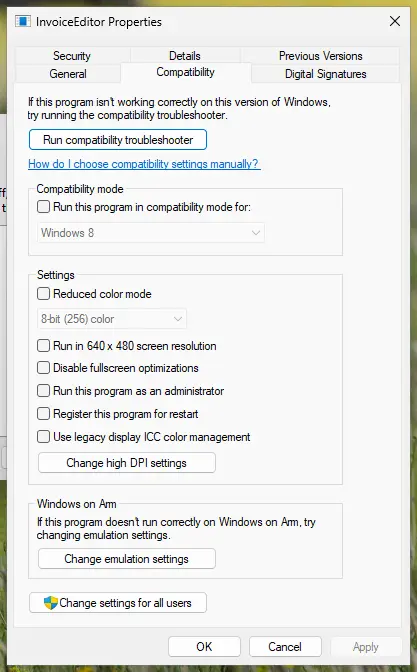
Step by step, with the compatibility troubleshooter as a last step: How to run a program as administrator or in compatibility mode.
It worked if: The Office setup window opens and asks for the product key or shows the license terms, with no crash window.
If not: If the crash window comes back, clear the whole compatibility store with Fix 2.
Fix 2. Export and delete the AppCompatFlags registry key
10 minutesRead the warningSetup still crashes after Fix 1, on Windows 7, 8, 10 or 11.
This is the answer on Microsoft Q&A that more than 600 people marked as helpful for the Office 2013 bootstrapper crash. The key holds the compatibility data Windows applies to programs, and stale entries there can break the old setup.
Deleting AppCompatFlags removes the compatibility settings of every program on the PC, not only Office. Export the key before you delete it, so you can put it back with a double-click: Back up the registry before editing it.
- Press Win + R, type
regeditand select OK. Select Yes when Windows asks for permission. - Paste
HKEY_LOCAL_MACHINE\SOFTWARE\Microsoft\Windows NT\CurrentVersion\AppCompatFlagsinto the address bar and press Enter. - Select File > Export, keep Selected branch, name the file
AppCompatFlags-backupand save it on the desktop. - Right-click AppCompatFlags in the left pane and select Delete, then Yes.
- Close Registry Editor, restart the PC and run Office setup again.

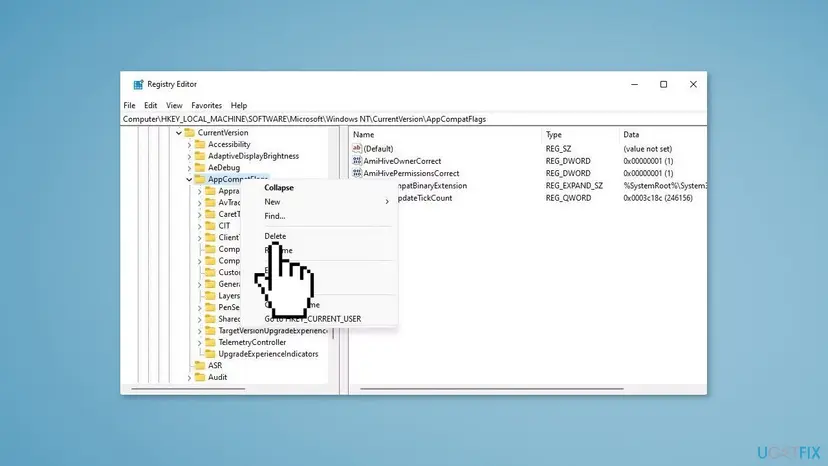
The same backup in one command, in an elevated Command Prompt
reg export "HKLM\SOFTWARE\Microsoft\Windows NT\CurrentVersion\AppCompatFlags" "%USERPROFILE%\Desktop\AppCompatFlags-backup.reg"It worked if: After the restart, setup.exe opens its first screen and runs to the end without the crash window.
If not: Double-click AppCompatFlags-backup.reg to restore the key if another program misbehaves, then check Task Scheduler with Fix 3.
Fix 3. Make sure the Task Scheduler service is running
5 to 10 minutesRead the warningSetup still crashes, or a tuning, cleaning or privacy tool has changed services on this PC.
The accepted Super User answer for the Office 2013 crash on Windows 7 fixed it by resetting the Start value of the Schedule service. Users report that the old setup crashes while Task Scheduler is disabled.
- Press Win + R, type
services.mscand press Enter. - Find Task Scheduler. Its Status should be Running and its Startup Type should be Automatic.
- If you are not sure, check it in an elevated Command Prompt.
STATEshould sayRUNNINGandSTART_TYPEshould sayAUTO_START.sc query Schedule sc qc Schedule - If both are fine, skip the rest of this fix and go to Fix 4.
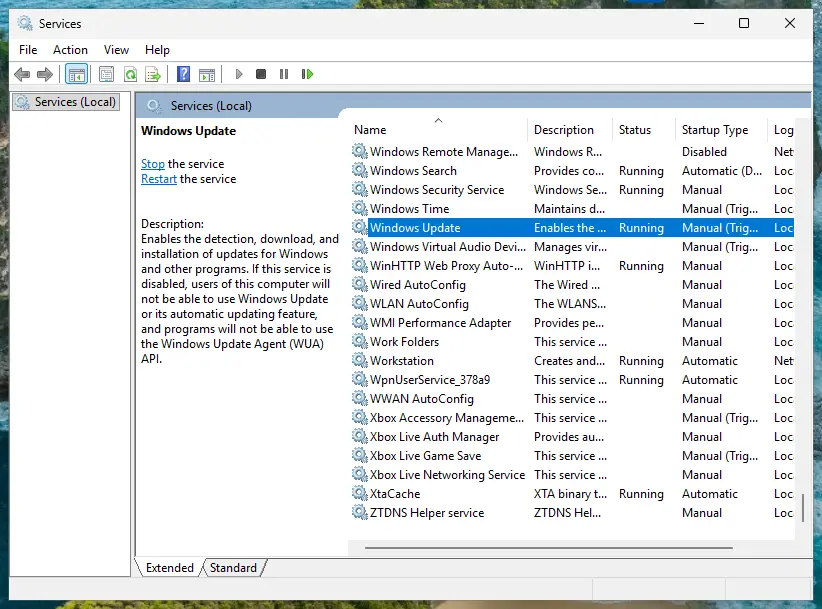
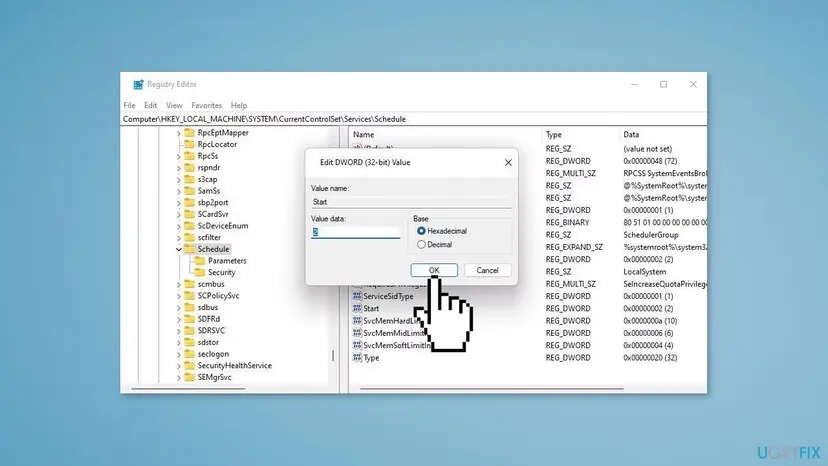
Only change the value below if the service is disabled. Export the Schedule key first, as in Back up the registry before editing it. A wrong value can stop services from starting.
- Open Registry Editor and go to
HKEY_LOCAL_MACHINE\SYSTEM\CurrentControlSet\Services\Schedule. - Double-click Start in the right pane.
- If Value data is
4, change it to2and select OK. Microsoft documents 2 as a service started during system startup and 4 as a service that cannot be started. - Close Registry Editor and restart the PC.
- Check in Services that Task Scheduler now shows Running, then run Office setup again.
It worked if: Task Scheduler shows Running after the restart, and Office setup no longer crashes.
If not: If the service was already running, the cause is elsewhere. Remove the old Office with Fix 4.
Fix 4. Remove the old or half-installed Office first
20 to 45 minutesRead the warningAnother Office was on the PC, a setup stopped halfway, or the crash comes when you uninstall Office.
The accepted answer on Microsoft Q&A for the Office 2013 crash starts by removing the older Office and the traces of the new one, then reinstalling. When setup crashes during removal, its own uninstaller cannot help, so other tools must do it.
Uninstalling removes the Office apps, not your documents. Keep the disc or download and the product key, because you need both to install again. Copy custom templates and Outlook data files if you need them: Back up your files (Windows Backup, File History, Time Machine).
| Your Office | Tool that removes it |
|---|---|
| Office 2010, Office 2013, or any Office installed from a disc with setup.exe | On Windows 10, the Program Install and Uninstall troubleshooter. Otherwise Microsoft's page Manually uninstall Office, which covers Office 2007 to 2019. |
| Microsoft 365, Office 2021, 2019 or 2016 (Click-to-Run) | Microsoft's uninstall troubleshooter on the page Uninstall Microsoft 365 or Office from a PC. It needs Windows 10 or later and cannot remove Office 2024. |
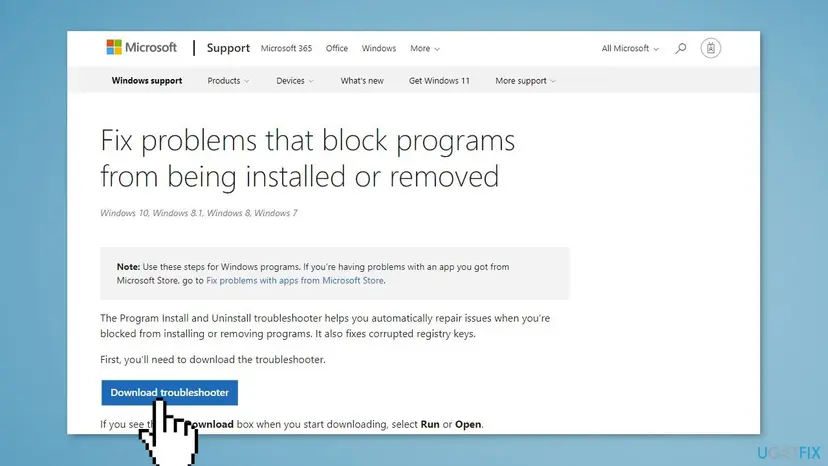
- On Windows 10, open Microsoft's page Fix problems that block programs from being installed or removed, select the Windows 10 tab and Download troubleshooter.
- Open
MicrosoftProgram_Install_and_Uninstall.meta.diagcab, select Next, then Uninstalling. - Pick your Office from the list, select Next and choose Yes, try uninstall.
- On Windows 11 this troubleshooter is no longer offered. Follow Manually uninstall Office for your version instead.
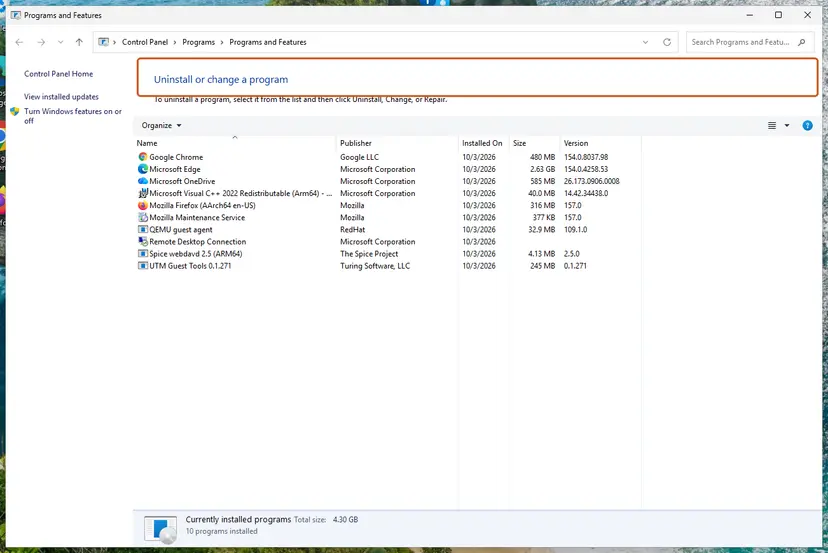
- Restart the PC and check Control Panel > Programs > Programs and Features. No Office entry should be left.
- Run the new Office setup.exe as administrator, as in Fix 1.
It worked if: Programs and Features lists no Office, and the new setup runs without the crash window.
If not: If the new setup still crashes on a clean PC, test it without background programs in Fix 5.
Fix 5. Run setup in a clean boot, with security software paused for one try
15 minutesLow riskA third-party antivirus, a tuning tool or many startup programs run on the PC.
The accepted answer on Microsoft Q&A lists a clean boot as a step for the Office 2013 crash, and a Super User answer removed the antivirus first. A clean boot starts Windows without other companies' services, so nothing can hook into setup.
- Start Windows in a clean boot. The steps are in the library: How to perform a clean boot in Windows.
- Pause the real-time protection of your security program for this one try: Turn off Microsoft Defender protection for a moment.
- Run Office setup.exe as administrator from the local folder.
- Turn the protection back on as soon as setup ends, whatever the result.
- Undo the clean boot as the procedure describes and restart.

If Office installs only in the clean boot, turn the services back on in small groups to find the one that breaks setup. If it is the security program, ask its maker about the Office installer. Do not leave the protection off.
It worked if: Setup runs to the end in the clean boot, and Office opens after a normal restart.
If not: If setup crashes even in a clean boot, the old Office itself may not fit this Windows. Go to Fix 6.
Fix 6. Install a supported Office instead of Office 2010 or 2013
20 to 40 minutesLow riskOffice 2010 or 2013 will not install on Windows 10 or 11 after Fix 1 to Fix 5, and you have a newer licence or subscription.
Microsoft ended support for Office 2013 on 11 April 2023 and for Office 2010 on 13 October 2020, so no setup fix will come. Microsoft 365, Office 2021 and Office 2024 install with Click-to-Run, which does not use the old bootstrapper.
- Remove what is left of the old Office with Fix 4.
- Open Microsoft's page Download and install or reinstall Microsoft 365 or Office 2024 and follow the link to sign in.
- Sign in with the Microsoft account that owns the subscription or the newer Office.
- Select Install and run the downloaded setup file.
- Wait for You're all set, then open Word and activate.
| Office | Support ended | Supported on Windows 11 |
|---|---|---|
| Office 2010 | 13 October 2020 | No |
| Office 2013 | 11 April 2023 | No |
| Office 2016 and Office 2019 | 14 October 2025 | No |
| Office 2021 and Office 2024 | In support | Yes |
If the new setup fails with a download error code, our guide to Office error 30182-1011 covers the offline installer.
It worked if: The Office apps appear in the Start menu and open without any setup crash.
If not: If you must keep Office 2013 for a reason, read the crash details as described under Still crashing below.
Fix 7. Run the setup .exe when the message says This package can only be run from a bootstrapper
5 minutesNo riskYou see This package can only be run from a bootstrapper, in any program's installer.
This message means the .msi was opened on its own, while its maker requires its setup .exe to start it. Advanced Installer explains that it appears when the .msi is taken out of the setup .exe or found in a temporary folder.
- Look in the same folder as the .msi file for setup.exe or a program file with the product's name.
- Right-click that .exe and select Run as administrator.
- If you found the .msi in
%temp%or in%programdata%\Package Cache, do not run it from there. Download the full installer again from the program's maker. - Unpack a .zip download completely before you start setup. Do not run setup from inside the archive.
- If an uninstall or update shows the message, uninstall the program from Settings > Apps > Installed apps instead of running its .msi.
For administrators who deploy the .msi silently: Advanced Installer says that an InstallShield .msi accepts the property ISSETUPDRIVEN=1. For other packages, a verbose log shows which launch condition blocks it.
For IT staff only, in an elevated Command Prompt
msiexec /i YourPackage.msi ISSETUPDRIVEN=1
msiexec /i YourPackage.msi /l*v C:\Temp\setup.log
It worked if: The program's own setup window opens and the installation continues without the message.
If not: Ask the program's maker for the full installer. With a verbose log, search it for return value 3 to find the step that stops.
If Office setup is still crashing: where the real cause is written
The crash window gives no reason. Windows and Office setup each keep a record, and both are worth reading before you ask for help.
- Press Win + R, type
eventvwr.mscand press Enter. - Open Windows Logs > Application and select Filter Current Log in the right pane. Tick Error and select OK.
- Find the Error at the time of the crash whose details name
setup.exe. Note the Faulting module name and the Exception code. - Press Win + R, type
%temp%and press Enter. Sort by Date modified, newest first. - Open the newest setup log files written at the time of the crash and read the last lines before they stop.
- A faulting module from a security or tuning program points to Fix 5.
- A faulting module from Windows, such as
ntdll.dll, tells little on its own. Try Fix 2 and Fix 4 again in that order. - On a work PC, send the Event Viewer details, the setup log and the Office version to your IT department.
Microsoft no longer gives support for these versions, so Microsoft support cannot fix their setup. This is not a hardware fault and not an activation error: it is setup itself that crashes.
How to avoid the bootstrapper crash the next time you install Office
Most reports start with an old setup on a PC that a tuning tool has changed, or with leftovers of an earlier Office. These habits avoid both.
- Copy the setup files to a local folder and run setup.exe as administrator.
- Remove the old Office with Microsoft's tools before you install another version.
- Keep the Task Scheduler service on Automatic.
- Export a registry key before you delete it.
- Move to a supported Office before you move to a new Windows.
- Run an .msi from a temporary folder or from inside a .zip file.
- Let a cleaning or tuning tool disable Windows services.
- Set a compatibility mode on setup.exe and forget it there.
- Leave security software paused after a test.
- Download a separate Setup Bootstrapper file from a third-party site.
Frequently asked questions
What is Microsoft Setup Bootstrapper?
It is the setup program of an older Office, the setup.exe on the disc or in the download folder. It checks the PC and then starts the Windows Installer packages that install Office. Windows shows the name Microsoft Setup Bootstrapper when that program crashes. It is not a virus and not a separate program you need to install. If you see a file with a similar name in an odd place, check its digital signature in Properties.
How do I fix Microsoft Setup Bootstrapper has stopped working on Windows 7?
The same fixes apply on Windows 7, and most reports come from Windows 7 with Office 2013. Clear the compatibility mode of setup.exe and run it as administrator, then export and delete the AppCompatFlags key, then check that the Task Scheduler service starts automatically. The Super User answer that solved it on Windows 7 reset the Start value of the Schedule service. Keep in mind that Windows 7 support ended on 14 January 2020 and Microsoft 365 apps are not supported on it.
Can I still install Office 2013 or Office 2010 on Windows 10 or Windows 11?
Setup can still run, and the reports we read show Office 2013 setup on Windows 10. But Microsoft ended support for Office 2013 on 11 April 2023 and for Office 2010 on 13 October 2020. There are no fixes and no security updates for them any more. If the bootstrapper crash stays after Fix 1 to Fix 5, the practical answer is a supported Office, such as Microsoft 365 or Office 2024, installed with Click-to-Run.
What does This package can only be run from a bootstrapper mean?
It means you started an .msi file directly, while the program's maker wants its setup .exe to start it. The .msi checks for that and stops. It often happens when the .msi was found in a temporary folder or taken out of the setup file. Run the setup .exe from the same download, or download the full installer again. The message is the same whatever the wording you search, such as this program can only be run from a bootstrapper.
Is bootstrapper.exe a virus?
Usually not. Many installers name their first stage bootstrapper.exe, and game launchers and developer tools use the word too. Check the file: right-click it, select Properties and open Digital Signatures. A valid signature from the program's maker is reassuring. A file without a signature that starts on its own from a random folder deserves a malware scan with Microsoft Defender. Never download a standalone bootstrapper file from a download site to fix Office.
Is it safe to delete the AppCompatFlags registry key?
It is safe if you export it first, which is why Fix 2 starts with a backup. The key holds compatibility data that Windows keeps for programs, such as a compatibility mode you set on an old program. Deleting it resets those settings, so an old program may need its compatibility mode set again. If something misbehaves, double-click the exported .reg file to put the key back.
Why does the bootstrapper error appear when I open Word or Excel?
An Office app can start setup in the background to finish its configuration or repair itself, and that setup can crash with the same window. A Super User report describes exactly this with Office Professional Plus 2013 on Windows 7. The fixes are the same: Fix 2 and Fix 3 first, then a repair or a clean reinstall of Office with Fix 4.
Where can I download Microsoft Setup Bootstrapper?
There is no separate download, and you do not need one. The bootstrapper is the setup.exe that comes with your Office, on the disc or in the files you downloaded with your product key. A file offered under that name on another website is not from Microsoft and may be unsafe. For a supported Office, download setup from your Microsoft account, as Fix 6 describes.
I see a bootstrapper error in a game or another program. Does this guide apply?
Only partly. Messages such as TP bootstrapper not working, Eraser setup bootstrapper or a bootstrapper crash handler come from other programs that use the same word for their first stage. Fix 1 and Fix 5 still help with many installers: clear compatibility mode, run as administrator, test in a clean boot. For anything else, use the program maker's own support, because the cause is in their software, not in Office.
Sources
- Microsoft Q&A: Office 2013, installation error, bootstrapper has stopped working (learn.microsoft.com)
- Microsoft Q&A: Microsoft Setup Bootstrapper has stopped working (Office 2010 uninstall) (learn.microsoft.com)
- Microsoft Support: Fix problems that block programs from being installed or removed (support.microsoft.com)
Did this fix work?
One click, no account. It tells the next reader which guides are worth their time.
Questions and experiences: fix "Bootstrapper has stopped working" error in Windows
Still broken, or found a fix we did not cover? Ask here: members and our editors answer. Reading is open; writing needs a free account.
…