
How to fix "Camera is being used by another application" error in Windows 24H2?

Prefer to fix it yourself? The manual steps follow.
- 7methods
- 5 to 30 minutes
- Easy
Applies to Windows 11 24H2 and later, Windows 10 22H2; built-in laptop cameras and USB webcams in the Camera app, Teams, Zoom, Discord and browsers
7 methods in this guide
Since I installed the latest Windows 11 update (24H2), my integrated laptop camera no longer works and I'm getting a message saying "Camera being used by another application." I am not sure what application is using it. I thought that restarting my PC would solve the problem, but it didn't.
"Camera is being used by another application" means one program already holds the webcam, and Windows normally lets only one app use it. On Windows 11 24H2, quit every camera app and restart first. Then turn on the setting that lets several apps share the camera, and install the latest update, which fixed a built-in camera that stopped working.
Another app or a background process holds the camera. Quit Teams, Zoom, Discord, OBS and browser calls from the tray, end them in Task Manager and restart Windows (Fix 1). On 24H2 with the May 2026 update or later, turn on Allow multiple apps to use camera at the same time (Fix 2). If a built-in camera stopped after an update, install KB5124010 or any newer update (Fix 3).
| Error | "Camera is being used by another application", "Your camera is in use by another application" or, in the Camera app, Close other apps with It looks like another app is using the camera already. |
|---|---|
| Where it appears | In the Windows Camera app, and as a camera warning in Teams, Zoom, Skype, Discord or a browser when it tries to start the webcam. |
| Main cause | Another app or process opened the camera first. Without the multiple apps option, Windows gives one app the camera at a time. |
| Fastest fix | Quit camera apps from the tray, end them in Task Manager and restart (Fix 1). |
| Also written as | camera reserved by another app, camera in use by another app, camera already in use, Camera unavailable, close other apps that might be using your camera; with the code 0xA00F4243 (0xC00D3704). |
| Affects | Windows 11 24H2 and later, and Windows 10; built-in and USB webcams. |
| Microsoft's status | The multiple apps camera option arrived for 24H2 and 25H2 in KB5089573 (May 26, 2026). KB5124010 (September 22, 2026) fixed a built-in camera that stopped working in the Camera app and other apps. |
| 24H2 support | Microsoft says 24H2 Home and Pro reach end of support in October 2026, and KB5124010 was its final preview update. |
| Time to fix | 5 minutes for closing apps and a restart, up to 30 minutes for a driver rollback or a clean boot. |
Facts checked on 16 October 2026. Steps written for Windows 11 24H2, 25H2 and 26H2, and Windows 10 22H2.
What "Camera is being used by another application" means on Windows 24H2
The message says that the webcam is open in some other program, so the app you started cannot get a picture. Each app words it its own way. Teams and many desktop apps show Camera is being used by another application or Your camera is in use by another application.
The Windows Camera app shows the heading Close other apps and the line It looks like another app is using the camera already. It may add the code 0xA00F4243 (0xC00D3704), which means the same thing and has its own guide to webcam error 0xA00F4243 (0xC00D3704).
| What you see | Where | What it tells you |
|---|---|---|
| Camera is being used by another application | Teams, desktop apps | Another program has the camera open. |
| Close other apps. It looks like another app is using the camera already. | Windows Camera app | The same cause; the code may be 0xA00F4243. |
| Camera unavailable, close other apps that might be using your camera | Call and meeting apps | The same cause, worded as advice. |
| Your camera is being used by other apps | Zoom | The same cause; Zoom cannot open the camera. |
Windows normally hands the camera to one app at a time. Since the May 26, 2026 update (KB5089573), Windows 11 24H2 and 25H2 can let several apps share one camera, which removes this message for apps that support it.
Why the camera is in use by another application after 24H2
Most often a call app you closed is still running in the tray, or a browser tab still has a call open. Often a camera tool, virtual camera or call app starts with Windows and grabs the camera first. Less often the update left a driver or the camera stuck after sleep. Rarely the camera access switches block the app.
| Cause | How often | How to tell | Fix |
|---|---|---|---|
| A call, browser or streaming app still holds the camera. | Most often | The camera worked earlier today, or a call app sits in the tray. | Fix 1 |
| Two apps need the camera at the same time. | Often | You want Teams and OBS, or a call and a recording, together. | Fix 2 |
| A Windows bug stopped the built-in camera. | Sometimes | The built-in camera fails in every app since a recent update. | Fix 3 |
| The driver or camera hangs after sleep. | Sometimes | No app is open and the error came after the PC woke up. | Fix 4 |
| The new driver does not suit your camera. | Sometimes | The error started right after a driver or feature update. | Fix 5 |
| Camera access is switched off for the app. | Rarely | Only Teams, Zoom or a browser fails, the Camera app works. | Fix 6 |
| A background program opens the camera at startup. | Rarely | The error is there right after every restart. | Fix 7 |
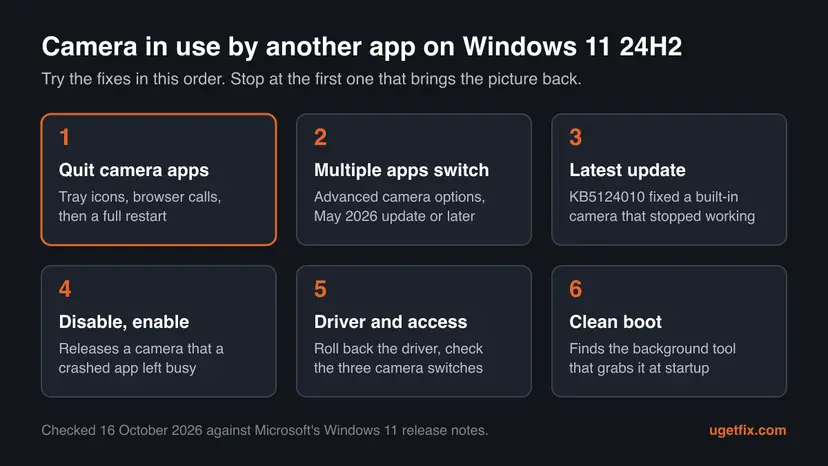
How to fix "Camera is being used by another application" on Windows 24H2
Fix 1 ends the error for most readers. Fixes 2 and 3 are specific to Windows 11 24H2 and its 2026 updates. Fixes 4 to 7 release a stuck camera, repair the driver and find a hidden program.
| What you see or have | Start with |
|---|---|
| A call app, browser call or streaming tool was open today. | Fix 1 |
| You need the camera in two apps at once, for example a call and OBS. | Fix 2 |
| A built-in laptop camera stopped in every app after an update. | Fix 3 |
| No app is open and the error came after sleep. | Fix 4 |
| The error started right after a driver update. | Fix 5 |
| Only Teams, Zoom or a browser fails. | Fix 6 |
| The error is there after every restart. | Fix 7 |
Fix 1. Quit every app that may use the camera and restart Windows
5 minutesNo riskEveryone, first. Especially when Teams, Zoom, Discord, OBS or a browser call was open today.
The message means one program holds the camera. Call apps often keep running in the tray after you close their window, and a restart ends anything you could not find. Waking the PC from sleep does not do this.
- Quit Teams, Zoom, Skype, Discord, OBS and any camera or virtual camera tool. In the tray near the clock, right-click each icon and select Quit or Exit.
- Close browser tabs that had a video call or a webcam test.
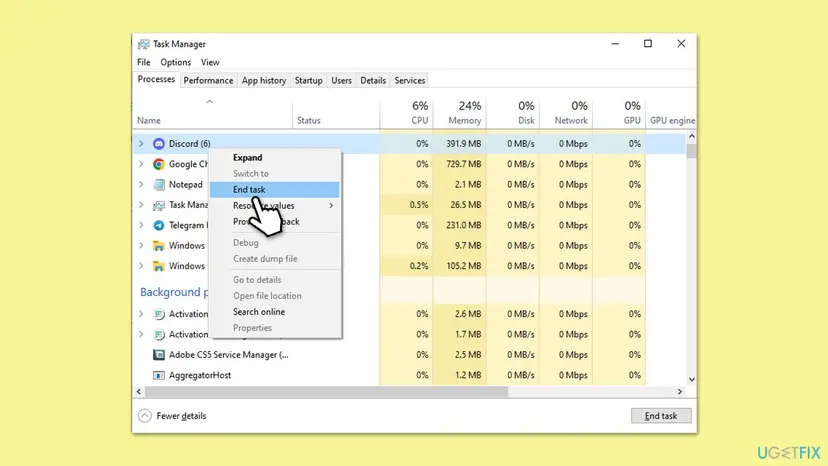
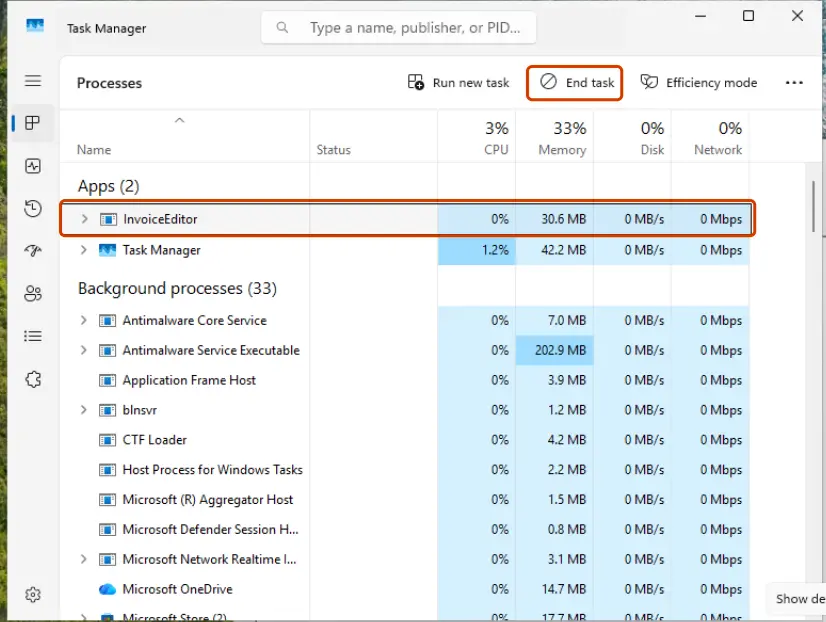
- Press Ctrl + Shift + Esc to open Task Manager. Under Apps and Background processes, select any app that may use the camera and select End task.
- Restart Windows with Start > Power > Restart.
- Open Start > Camera before any other app and check the picture.
It worked if: The Camera app shows a live picture, and your call app opens the camera without the message.
If not: If you need the camera in two apps at once, go to Fix 2. If no app was open, go to Fix 3.
Fix 2. Turn on Allow multiple apps to use camera at the same time
3 minutesNo riskWindows 11 24H2 or 25H2 with the May 26, 2026 update (KB5089573) or later, and you want the camera in two apps at once.
Microsoft's Multi-App Camera feature lets several apps get the camera stream at the same time, instead of one app taking it. With it on, the second app no longer finds the camera taken.
- Open Start > Settings > Bluetooth & devices > Cameras.
- Under Connected cameras, select your camera. Windows starts it and shows a preview.
- Open Advanced camera options.
- Turn on Allow multiple apps to use camera at the same time.
- Open the two apps again and start the camera in each.
Microsoft delivered the feature in a gradual rollout, so it reaches PCs over time. Install the latest update in Fix 3 and check again. KB5124010 (September 22, 2026) improved how this option is kept, so if it turned itself off before, update and turn it on again.
The same update added Basic Camera mode, which Microsoft describes as simplified camera functionality for troubleshooting when the camera does not work correctly. On a work PC, an admin can set either mode in Group Policy under Computer Configuration > Administrative Templates > Windows Components > Camera > Configure Camera Options.
It worked if: Both apps show the camera picture, and neither says the camera is in use.
If not: If the option is missing or the error stays, go to Fix 3.
Fix 3. Install the latest Windows 11 update with the camera fix
15 minutesLow riskA built-in laptop camera stopped working in every app after a recent update, or Fix 2 has no switch.
Microsoft's September 22, 2026 update KB5124010 addresses an issue where the built-in camera might stop working in the Camera app and other apps. Later monthly updates carry the same fix.
- Open Start > Settings > Windows Update and select Check for updates.
- Install the cumulative update offered. KB5124010 was a preview, so it may sit under optional updates; any later monthly update includes it.
- Restart and test the camera in the Camera app.
If Windows Update fails, download the update from the Microsoft Update Catalog: Install an update from the Microsoft Update Catalog
Microsoft says Windows 11 24H2 Home and Pro reach end of support in October 2026. Moving to a newer version through Windows Update keeps camera fixes coming; your files and apps stay.
It worked if: After the restart the built-in camera opens in the Camera app and in your call app.
If not: If the camera still reads as busy, go to Fix 4.
Fix 4. Disable and enable the camera to release it
5 minutesLow riskNo app is open, but the camera still reads as busy, often after the PC woke from sleep.
Disabling the camera closes every connection to it, including one a crashed app left behind. Enabling it starts the camera fresh. Microsoft notes that administrator access is needed.
- Open Settings > Bluetooth & devices > Cameras.
- Under Connected cameras, select your camera, select Disable, then Yes.
- Under Disabled cameras, select it and select Enable.
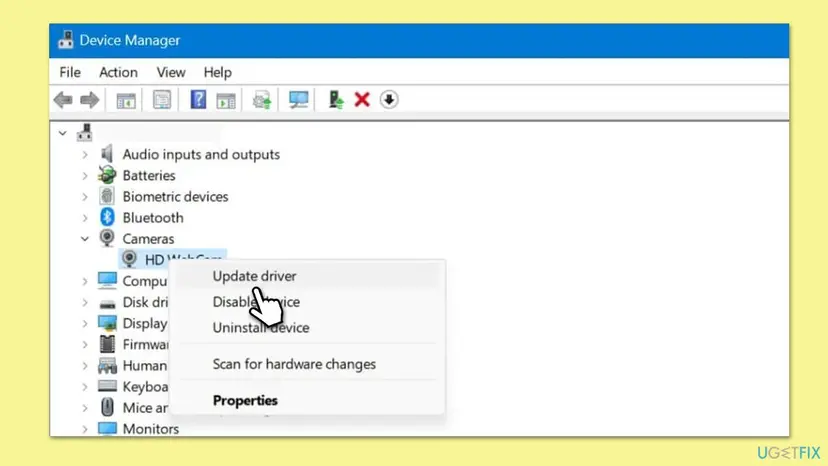
- On Windows 10, or if Settings has no button: right-click Start, open Device Manager, expand Cameras, right-click the camera and select Disable device, then Enable device.
- Open the Camera app.
On some devices, disabling one camera disables several, and Windows shows a warning. Some cameras need a restart before the change takes effect.
It worked if: The camera disappears and comes back, and the Camera app shows a picture.
If not: If the error started after a driver update, go to Fix 5. If it is back after every restart, go to Fix 7.
Fix 5. Roll back or reinstall the camera driver
15 minutesLow riskThe error began right after a driver or feature update, or the camera shows a warning sign in Device Manager.
A driver that does not suit your camera can leave it locked or busy. Rolling back returns the driver that worked before the update; a reinstall replaces a damaged one.
- Right-click Start and select Device Manager. Expand Cameras.
- Right-click the camera, select Properties and open the Driver tab.
- If Roll Back Driver is available, select it, choose a reason and select Yes. Restart and test.
- If not, select Uninstall Device, tick Attempt to remove the driver for this device and select Uninstall.
- Restart. Windows installs the camera again; if not, select Action > Scan for hardware changes.
- If the error stays, install the camera driver for your exact model from the laptop or webcam maker.
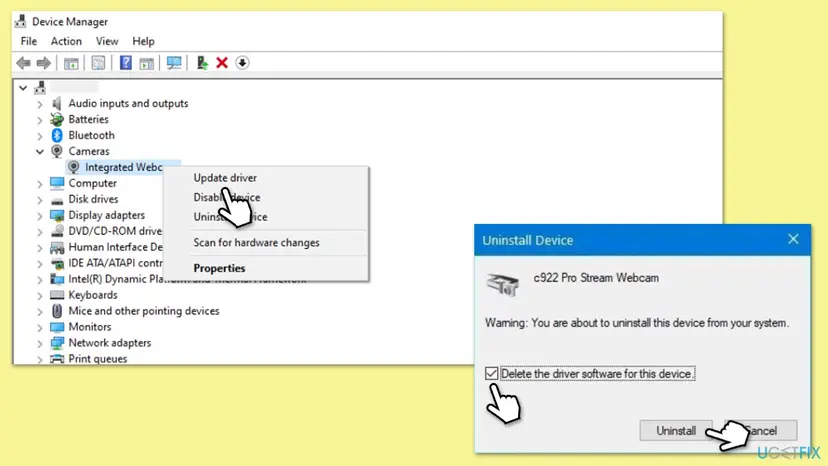
Full steps with Windows 11 screenshots: Update, roll back or reinstall a driver
It worked if: The camera is listed under Cameras without a warning sign and opens in every app.
If not: If only some apps still fail, go to Fix 6.
Fix 6. Check that apps and desktop apps may use the camera
3 minutesNo riskTeams, Zoom or a browser reports the camera as in use or unavailable while the Camera app works.
A blocked app can report the camera as taken. A feature update can change these switches, and desktop apps such as Teams, Zoom and browsers depend on one separate switch.
- Open Start > Settings > Privacy & security > Camera.
- Turn on Camera access.
- Turn on Let apps access your camera and switch on the apps you use.
- Turn on Let desktop apps access your camera.
- Open the app again and start the camera.
On Windows 10 the switches are in Settings > Privacy > Camera. If camera access is greyed out, an administrator has turned it off.
It worked if: The app gets the camera and shows a picture.
If not: If every switch is on and the error comes back after each restart, go to Fix 7.
Fix 7. Find the background program with a clean boot
20 minutesLow riskThe error is there right after every restart, and you closed every app you know of.
A clean boot starts Windows with Microsoft services only. If the camera then works, a program from another company opens it at startup, and turning items back on in groups shows which.
Start Windows with Microsoft services only and test the camera: How to perform a clean boot in Windows

- Run the clean boot as the procedure says and restart.
- Open Start > Camera before anything else and check the picture.
- Note whether the message is gone, then read the list below.
- The camera works now: turn services and startup apps back on in small groups and test after each restart. The group that brings the error back holds the program.
- Suspects: webcam utilities, virtual camera tools, call apps set to start with Windows, screen recorders.
- When you find it: stop it from starting with Windows, or update or remove it. Then undo the clean boot.
It worked if: In a clean boot the camera opens without the message, and you know which program to deal with.
If not: Read "If the camera is still in use by another application" below.
If the camera is still in use by another application
Write down the exact message and any code. If the Camera app shows 0xA00F4243, the 0xA00F4243 guide linked above adds USB hub and Camera app repair steps. Then run three short tests to tell software from hardware.
- Start Windows in safe mode and open the Camera app once, to rule out every other program: Start Windows or a Mac in Safe Mode
- Check that the laptop has no camera shutter or camera key turned off.
- For a USB webcam, try it on another PC.
- When it is hardware: the camera vanishes from Device Manager even after Scan for hardware changes, or a USB webcam fails on a second PC too.
- What to send to support: the full message, the camera name and driver version from Device Manager, and the Windows version and build from Settings > System > About.
- Who to ask: for a built-in camera, the laptop maker; for a USB webcam, its maker; on a work PC, your IT admin.
How to keep the camera from being taken again
- Quit call apps from the tray when a call ends, not just close the window.
- Turn on the multiple apps camera option if you often use two camera apps.
- Keep Windows 11 updated, and move off 24H2 Home or Pro before support ends.
- Restart, not just wake from sleep, when the camera acts up.
- Do not let several call apps and virtual camera tools start with Windows.
- Do not install driver updater programs from unknown sites.
- Do not leave a clean boot in place after the test.
Windows 10 left support on 14 October 2025, so it gets no new camera features such as the multiple apps option. Fixes 1 and 4 to 7 still work on Windows 10 22H2.
Frequently asked questions
Why does Windows say my camera is being used by another application?
Because another program opened the camera first. Without the multiple apps option, Windows lets one app use the camera at a time, so the second app gets the message. The program is often a call app still running in the tray, a browser tab with a call, or a camera tool that starts with Windows. Quit them and restart Windows (Fix 1). On Windows 11 24H2 with the May 2026 update or later, you can also let several apps share the camera (Fix 2).
How can I see which app is using my camera?
Start with the usual programs: Teams, Zoom, Skype, Discord, OBS, virtual camera tools and browser tabs. Check the tray near the clock, because call apps keep running there after you close the window. In Task Manager, look under Apps and Background processes. If you still cannot find it, a clean boot shows whether a program from another company opens the camera at startup, and turning items back on in groups points to the one (Fix 7).
Can two apps use the camera at the same time on Windows 11?
Yes, on Windows 11 24H2 or 25H2 with the May 26, 2026 update (KB5089573) or later. Open Settings > Bluetooth & devices > Cameras, select your camera, open Advanced camera options and turn on Allow multiple apps to use camera at the same time. Microsoft built it so that, for example, a sign language interpreter and the audience can get the same stream. The rollout is gradual, so the switch may appear later on some PCs.
Did the 24H2 update cause the camera in use error?
We found no Microsoft known issue that names this message for 24H2. Microsoft did fix a related bug: KB5124010 of September 22, 2026 addresses an issue where the built-in camera might stop working in the Camera app and other apps. Users report that the error began right after the feature update, and in those cases the driver rollback (Fix 5) or the latest update (Fix 3) is the best next step.
How do I fix camera reserved by another app?
Camera reserved by another app is the Camera app's name for the same problem, usually shown with the code 0xA00F4243 (0xC00D3704). Quit every camera app, end it in Task Manager and restart (Fix 1). If no app is open, disable and enable the camera in Settings > Bluetooth & devices > Cameras (Fix 4). The separate guide to 0xA00F4243 linked above covers that code in more depth, including USB hubs and repairing the Camera app.
Teams says my camera is in use by another application. What do I do?
Quit every other app that can use the camera, including Zoom, the Camera app, OBS and browser calls, then restart Teams. Teams itself may also still run in the tray from an earlier call, so quit it from the tray and start it again. If Teams fails while the Camera app works, check Let desktop apps access your camera in Privacy & security > Camera (Fix 6). To keep another app open during a Teams call, turn on the multiple apps option (Fix 2).
Zoom says my camera is being used by other apps. How do I fix it?
The cause is the same: another app opened the camera before Zoom. Leave any Teams, Meet or browser call, quit camera tools from the tray, then start the video in Zoom again. If that is not enough, restart Windows and open Zoom first. On Windows 11 24H2 with the May 2026 update or later, the multiple apps option in Fix 2 lets Zoom and another app use the camera together.
What does "This device is being used by another application" mean?
The wording is the same, but Windows also shows it for audio devices, such as speakers or a headset that another app holds in exclusive mode. If the message is about your camera, this page fits: free the camera as in Fix 1. If it is about sound, the cause is an app that took exclusive control of the audio device, and the fixes are in the sound settings, not here.
My phone says the camera is being used by another app. Does this page help?
No, this page is about Windows PCs. Android phones show a similar message, but their settings and fixes are different, and none of the steps here apply to a phone. On a Windows laptop or desktop with Windows 11 24H2 or later, or Windows 10, the fixes above are the right ones.
Sources
- Microsoft Support: KB5089573 (OS Builds 26200.8524 and 26100.8524) Preview, May 26, 2026 (Multi-App Camera and Basic Camera mode, Group Policy path) (support.microsoft.com)
- Microsoft Support: KB5124010 (OS Builds 26300.9550, 26200.9550 and 26100.9550) Preview, September 22, 2026 (built-in camera fix, multiple apps option, final 24H2 preview, 24H2 Home and Pro end of support) (support.microsoft.com)
- Microsoft Support: Manage cameras with Camera settings in Windows 11 (Connected cameras, disable and enable a camera) (support.microsoft.com)
Did this fix work?
One click, no account. It tells the next reader which guides are worth their time.
Questions and experiences: fix "Camera is being used by another application" error in Windows 24H2
Still broken, or found a fix we did not cover? Ask here: members and our editors answer. Reading is open; writing needs a free account.
…