
How to fix "Can't create files" error in Windows Installation Assistant?

Prefer to fix it yourself? The manual steps follow.
- 8methods
- 5 to 45 minutes
- Beginner to intermediate
Applies to Windows 11 Installation Assistant (Windows11InstallationAssistant.exe) on x64 PCs running Windows 10 version 2004 or later or Windows 11
8 methods in this guide
- What the error means
- Why it appears
- Where the cause is written
- The fixes
- 1. Remove the stuck copy
- 2. Run as administrator
- 3. Use the ISO instead
- 4. Reset folder permissions
- 5. Use a new admin account
- 6. Reset Internet zone settings
- 7. Free space, clear leftovers
- 8. Test without the antivirus
- If it is still there
- Keep it from coming back
- FAQ
So I attempted to update Windows using the Windows Installation Assistant, but I got the "Can't create files. Please check if you have permissions to write to the installation folder" error. Could somebody help me update properly?
"Can't create files" means the Windows 11 Installation Assistant could not unpack itself into its own folder, C:\Program Files (x86)\WindowsInstallationAssistant, before any download began. It is a permission or leftover problem on that folder, not a fault in Windows 11. Close any stuck copy, delete the leftover folder and run a fresh download as administrator first.
End any running Windows10UpgraderApp.exe in Task Manager, delete the leftover C:\Program Files (x86)\WindowsInstallationAssistant folder, then right-click a fresh download of the assistant and select Run as administrator (Fix 1 and Fix 2). If you only want Windows 11, mount Microsoft's ISO and run setup.exe instead (Fix 3): it never uses that folder.
| Error | Can't create files. Please check if you have permission to write to the installation folder. in a small window titled Error with an OK button. |
|---|---|
| Where it appears | A few seconds after you start Windows11InstallationAssistant.exe, before the compatibility check, the license terms or any download progress. |
| Main cause | The assistant cannot write to C:\Program Files (x86)\WindowsInstallationAssistant, where it installs itself and starts Windows10UpgraderApp.exe. Most often an earlier copy is still running or left a locked folder behind. |
| Fastest fix | End the old process, delete the folder and run a new download as administrator (Fix 1 and Fix 2). Or skip the assistant with the ISO (Fix 3). |
| Also written as | "Can't create files. Please check permissions to write to the installation folder", "permissions" in plural, "cant create files", "Windows 11 can't create files". The same tool is also called the Windows Update Assistant. |
| Affects | The Windows 11 Installation Assistant on x64 PCs. Microsoft requires Windows 10 version 2004 or later, a Windows 10 or 11 licence, 9 GB of free space and an administrator. It does not run on Arm PCs. |
| Microsoft's status | No known issue and no fix in an update. We read Microsoft's download page on 15 October 2026: the current release is Windows 11 version 26H2, and the page says you need to be an administrator to run the tool. |
| Where the cause is written | Nowhere on screen. Process Monitor from Microsoft Sysinternals shows the exact path that returns ACCESS DENIED. Setup logs in C:\$WINDOWS.~BT\Sources\Panther exist only after Setup has started. |
| Time to fix | 5 minutes for Fix 1 and Fix 2. 10 to 20 minutes for Fix 4 to Fix 8. One to two hours for the upgrade itself after any of them. |
| This page | This uGetFix page covers the Installation Assistant message only. Other "cannot create file" errors in other programs have different causes. |
Facts checked on 15 October 2026. Steps written for Steps written for Windows 10 22H2 and Windows 11 25H2 and 26H2, against Microsoft's download page for the Windows 11 26H2 Installation Assistant.
What "Can't create files. Please check if you have permission to write to the installation folder" means
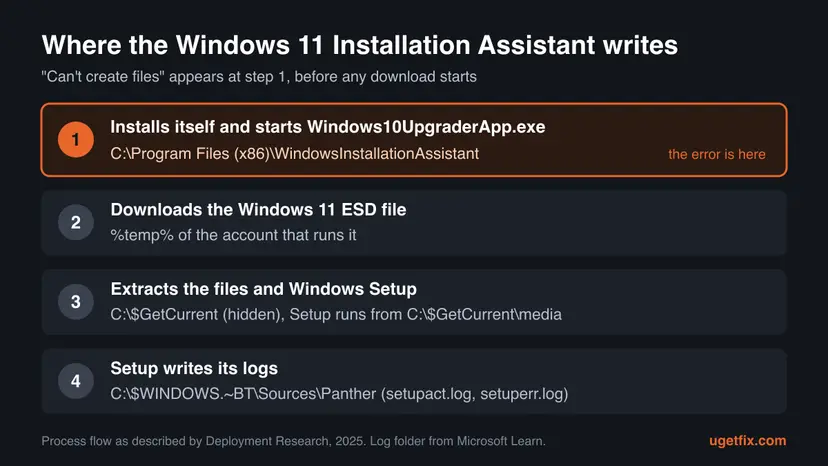
The file you download from Microsoft, Windows11InstallationAssistant.exe, is only a starter. Deployment Research, which took the tool apart in 2025, describes what it does first: it installs itself into C:\Program Files (x86)\WindowsInstallationAssistant and launches Windows10UpgraderApp.exe from there. The "installation folder" in the message is that folder, not your Windows drive in general.
| Part of the message | What it refers to | What it tells you |
|---|---|---|
| Can't create files | The assistant failed to copy or unpack its own program files. | The download of Windows 11 has not started, so your data and your current Windows are untouched. |
| Please check if you have permission | Windows refused the write, or a file of the same name is in use. | A missing permission and a locked file give the same message. Fix 1 handles the lock, Fix 2 and Fix 4 the permission. |
| the installation folder | C:\Program Files (x86)\WindowsInstallationAssistant, a protected folder that only administrators can change. | A standard account, a broken folder permission or a leftover copy of the tool will stop it here. |
The reader in the Microsoft Q&A thread on this error noticed that the old Windows 10 tool kept its files in a plain folder on drive C. The Windows 11 tool puts the program in Program Files (x86) and extracts Windows 11 to the hidden folder C:\$GetCurrent, so its files are harder to find and to clean up.
Why the Windows 11 Installation Assistant can't create files
Microsoft has not published a cause for this message. The ranking below joins what the tool is known to do with what users report on Microsoft Q&A and with the answers of its volunteer moderators. Each cause points to a fix.
| Cause | How often | How to tell | Fix |
|---|---|---|---|
| An earlier run froze or was closed, and its process or folder is still there. | Most often reported | You started the assistant before. Windows10UpgraderApp.exe is in Task Manager, or the folder already exists. | Fix 1 |
| The tool was started without administrator rights. | Often | You double-clicked the file, or your account type in Settings is Standard user. | Fix 2 |
| The permissions or the owner of the assistant's folder are broken. | Sometimes | The folder will not delete, or it says you need permission even as an administrator. | Fix 4 |
| Your user profile carries locked down settings, such as Internet zone restrictions. | Sometimes, mostly on older or tuned PCs | A new local administrator account runs the tool without the error. | Fix 5, Fix 6 |
| Too little free space or leftovers of an earlier upgrade. | Less often | Less than 9 GB free on drive C, or a C:\$GetCurrent folder from a past attempt. | Fix 7 |
| A third-party security program blocks writes to Program Files. | Rarely | The program's log or quarantine lists the assistant. | Fix 8 |
In the Microsoft Q&A thread the assistant froze at 0 %, the user ended it, and the next start gave this error. A moderator pointed to the Program Files (x86) folder. A tool that was killed halfway often leaves a running process or a half-written folder behind.
Where to see which file the assistant can't create
The assistant does not say which file failed. It stops before Windows Setup starts, so the usual Setup logs in C:\$WINDOWS.~BT\Sources\Panther are empty or missing for this error. Microsoft's Process Monitor records every file access with its result and shows the exact path.
- Download Process Monitor from Microsoft's Sysinternals page and unzip it.
- Right-click
Procmon64.exeand select Run as administrator. Accept the license. - Press Ctrl + L to open the filter. Choose Process Name, is, type
Windows10UpgraderApp.exe, select Include and Add. - Add a second line the same way for
Windows11InstallationAssistant.exe, then a line Result, contains,DENIED, Include. Select OK. - Start the Installation Assistant and wait for the error.
- Read the Path column of the lines with ACCESS DENIED. Press Ctrl + E to stop the capture.
| What the Path column shows | What it means | Go to |
|---|---|---|
C:\Program Files (x86)\WindowsInstallationAssistant\... | The folder or a file in it is locked or has wrong permissions. | Fix 1, then Fix 4 |
A path in your AppData\Local\Temp folder | Your temp folder is full or blocked for this account. | Fix 7, then Fix 5 |
C:\$GetCurrent\... | Leftovers of an earlier upgrade are in the way. | Fix 7 |
| No ACCESS DENIED lines at all | A lock or a security program is more likely than a permission. | Fix 1, then Fix 8 |
If Setup did start and failed later, the problem is a different one. Read setuperr.log first and setupact.log second, as Microsoft advises, and see our guide to Windows Setup that cannot start because another instance is running when that message appears instead.
How to fix "Can't create files" in the Windows 11 Installation Assistant
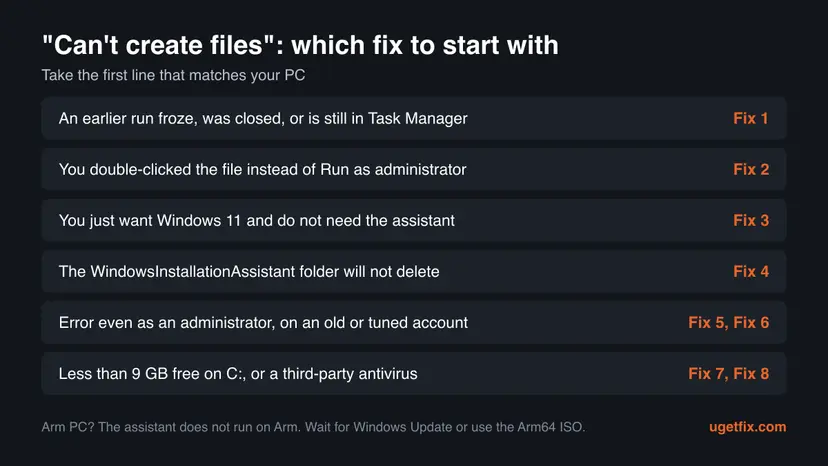
Fix 1 and Fix 2 solve the common cases in a few minutes and change nothing outside the assistant's own folder. Fix 3 skips the assistant for readers who only want Windows 11. Fix 4 to Fix 6 deal with permissions and account settings, Fix 7 with space and leftovers, and Fix 8 tests a security program.
| What you see or have | Start with |
|---|---|
| You ran the assistant before, it froze, or you closed it halfway. | Fix 1 |
| You double-clicked the downloaded file, or your account is a standard user. | Fix 2 |
| You only want Windows 11 and do not care which tool installs it. | Fix 3 |
| The WindowsInstallationAssistant folder cannot be deleted, even as an administrator. | Fix 4 |
| You are an administrator and the error stays on a fresh download. | Fix 5 |
Less than 9 GB is free on drive C, or a $GetCurrent folder is there. | Fix 7 |
| A security program other than Microsoft Defender is installed. | Fix 8 |
Fix 1. Close the stuck Installation Assistant and delete its leftover folder
5 minutesLow riskYou started the assistant before, and it froze, crashed or was closed before it finished.
The assistant installs itself into its own folder and keeps Windows10UpgraderApp.exe running from there. A copy that is still running holds its files open, so the new copy cannot overwrite them and reports that it can't create files.
- Press Ctrl + Shift + Esc to open Task Manager. Select More details if you see only a short list.
- Open the Details tab. Find
Windows10UpgraderApp.exeandWindows11InstallationAssistant.exe, select each one and select End task. - Press Win + I, open Apps > Installed apps (on Windows 10 Apps > Apps & features). If Windows 11 Installation Assistant is listed, uninstall it: Uninstall a program or app in Windows.
- Open File Explorer, go to
C:\Program Files (x86)and delete the WindowsInstallationAssistant folder if it is still there. Select Continue when Windows asks for administrator permission. - Restart the PC. A restart also releases files that a crashed process kept locked.
- Download the assistant again from Microsoft's Download Windows 11 page and continue with Fix 2.
A Microsoft Q&A volunteer moderator confirms that uninstalling the Installation Assistant does not affect Windows itself. It removes only the tool.
It worked if: The WindowsInstallationAssistant folder is gone, and the new download shows the compatibility check instead of the error.
If not: If the folder cannot be deleted, go to Fix 4. If it is deleted and the error still comes back, go to Fix 2.
Fix 2. Run the new download as administrator from an administrator account
2 minutesNo riskYou double-clicked the file, or you are not sure that your account is an administrator.
Microsoft's download page states that you need to be an administrator to run this tool. Only administrators can write to Program Files (x86), and a double-click from a standard account cannot create the assistant's folder there.
- Press Win + I and open Accounts > Your info. Under your name it must say Administrator.
- If it says Standard user, sign in with an administrator account, or ask the owner of the PC to change your account type.
- Open your Downloads folder and find
Windows11InstallationAssistant.exe. - Right-click it and select Run as administrator. Step by step: How to run a program as administrator or in compatibility mode.
- Select Yes in the User Account Control prompt and wait for the assistant to check your PC.
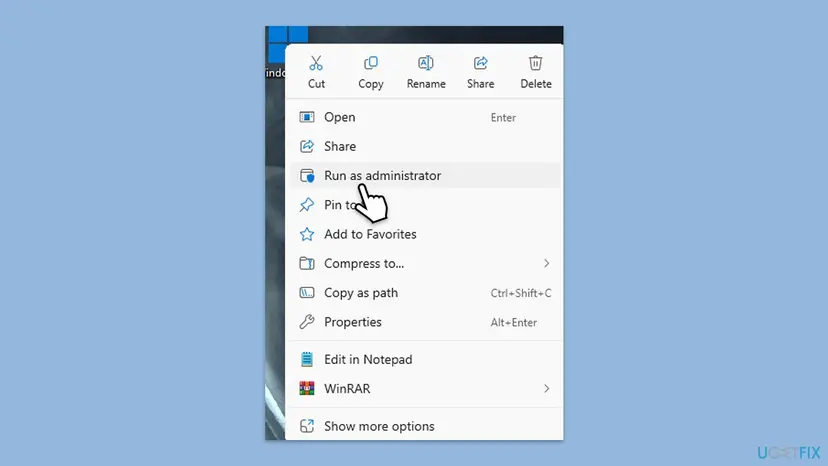
If the assistant asks you to run the PC Health Check app first, let it. Deployment Research notes that the assistant looks for the result of that check before it continues.
It worked if: The assistant shows the license terms with Accept and Install, then the download progress.
If not: If you are an administrator and the error still appears, go to Fix 3 to skip the assistant, or Fix 4 to repair the folder.
Fix 3. Upgrade from the Windows 11 ISO with setup.exe instead
1 to 2 hours, mostly download and installLow riskYou only want Windows 11 on this PC and do not need the assistant itself.
Mounting the ISO and running setup.exe starts the same Windows 11 Setup without installing anything into Program Files (x86). The volunteer moderator in the Q&A thread suggested this route, and Microsoft's page documents it as an upgrade of your current system.
- Back up the files you cannot lose: Back up your files (Windows Backup, File History, Time Machine).
- Open Microsoft's Download Windows 11 page. Under Download Windows 11 Disk Image (ISO) for x64 devices, select the edition, then your language, then 64-bit Download.
- Right-click the ISO file and select Mount. On Windows 10, if Mount is missing, set Opens with to Windows Explorer in the file's Properties first.
- Open the new drive in File Explorer and double-click
setup.exe. - Follow Setup. On Choose what to keep, select Keep personal files and apps, then Install.
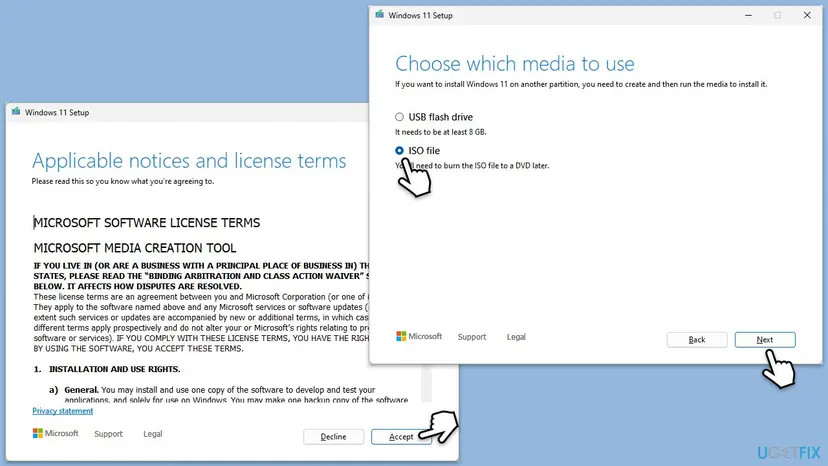
The Q&A moderator notes one rare case: if Nothing is the only choice under Choose what to keep, Setup would do a clean install. Cancel Setup in that case and read the section on what to do when the error stays.
It worked if: Setup checks for updates, shows Ready to install with Keep personal files and apps, and restarts the PC a few times.
If not: If Setup itself stops with a code, read setuperr.log in C:\$WINDOWS.~BT\Sources\Panther. If you need the assistant to work, go on with Fix 4.
Fix 4. Reset the permissions of the assistant's folder only
5 minutesLow riskThe WindowsInstallationAssistant folder cannot be deleted, or Process Monitor shows ACCESS DENIED inside it.
A folder whose owner or permission list was changed by an old tool or a cleanup program keeps refusing writes, even to administrators. Microsoft documents icacls /reset as replacing the permissions with the default ones inherited from the parent folder.
- Right-click Start and select Terminal (Admin), on Windows 10 Windows PowerShell (Admin). Select Yes.
- Make the Administrators group the owner of the folder and everything in it:
takeown /f "C:\Program Files (x86)\WindowsInstallationAssistant" /a /r /d y - Give the folder back its default, inherited permissions:
icacls "C:\Program Files (x86)\WindowsInstallationAssistant" /reset /t /c /q - Delete the folder in File Explorer, restart the PC and run a fresh download as administrator, as in Fix 2.
Some guides suggest icacls C:\ /grant Everyone:F /T. That gives every user and every program full control of all files on the drive and cannot be undone cleanly. Change only the assistant's folder, as above.
It worked if: Both commands end with a line about successfully processed files, and the folder deletes without a permission prompt.
If not: If takeown reports that the folder is in use, restart and run the commands before you open any other program. Then go to Fix 5.
Fix 5. Run the assistant from a new local administrator account
10 minutesNo riskYou are an administrator, the folder is clean, and the error still appears on a fresh download.
The accepted answer in the Microsoft Q&A thread traces the error to locked down settings of the user profile and advises a new local administrator account. A new profile starts with default settings, so it shows whether your own profile is the cause.
- Create a local account and make it an administrator: Create a new user account to test a problem.
- Sign out and sign in to the new account. The first sign-in takes a few minutes.
- Download the assistant again in that account and start it with Run as administrator.
- When the upgrade is done, sign in to your own account again. You can remove the extra account later in Settings > Accounts > Other users.
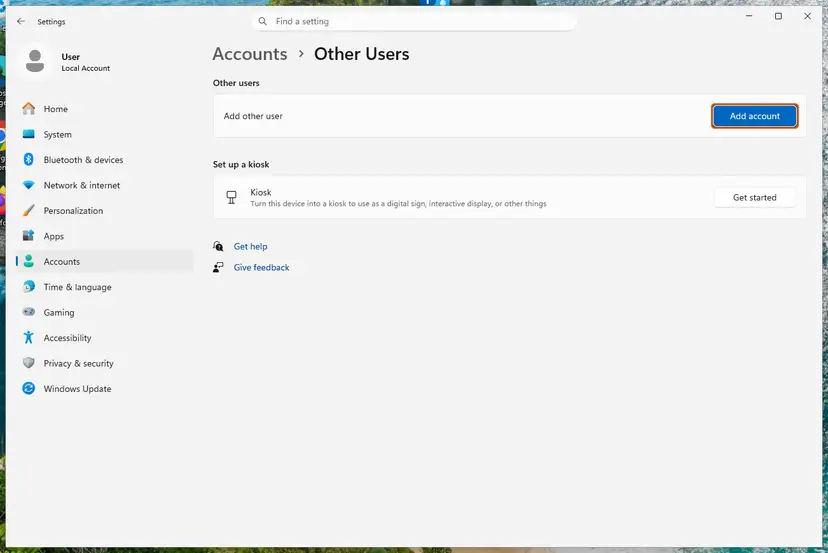
It worked if: The assistant runs in the new account and shows its license terms instead of the error.
If not: If the new account gets the same error, your profile is not the cause. Go to Fix 7. If only your own account fails, Fix 6 may repair it.
Fix 6. Reset the Internet zone security settings
5 minutesLow riskA new account works but your own does not, or the PC was hardened with security tweaks or old Internet Explorer settings.
The Q&A moderator's accepted answer names locked down Internet zone settings, such as disabled Active scripting, as the likely source. These settings belong to each user, which fits a fault that disappears in a new account.
- Press Win + R, type
inetcpl.cpland press Enter to open Internet Properties. - Open the Security tab and select Reset all zones to default level, then Apply.
- Select the Internet zone and select Custom level....
- Under Scripting, set Active scripting to Enable and select OK, then Yes.
- Select OK, restart the PC and run the assistant as administrator.
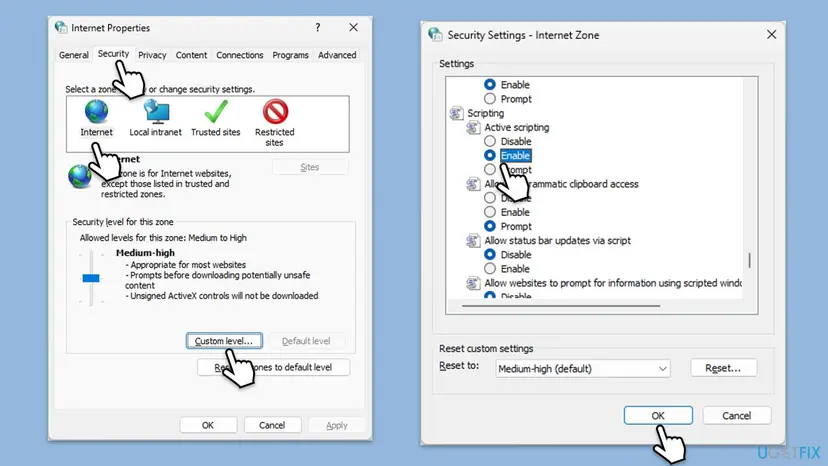
We could not confirm in Microsoft's documentation which zone setting the assistant needs. On a work or school PC these settings are set by policy and you cannot change them: ask your IT department.
It worked if: After the restart, the assistant starts its compatibility check in your own account.
If not: If the settings are greyed out, a policy controls them. Use the new account from Fix 5 or the ISO from Fix 3.
Fix 7. Free 9 GB on drive C and remove leftovers of earlier attempts
10 to 20 minutesLow riskDrive C has less than 9 GB free, or an earlier upgrade attempt left a C:\$GetCurrent folder.
Microsoft requires 9 GB of free space for the download. The assistant downloads into the temp folder of your account and extracts Windows 11 into C:\$GetCurrent, so a full drive or half-written leftovers there break its writes.
- Close the assistant and end its processes as in Fix 1.
- Press Win + R, type
%temp%and press Enter. Select all with Ctrl + A and press Delete. Skip files that are in use. - In File Explorer, type
C:\$GetCurrentin the address bar. If it opens, go back toC:\and delete that folder. - Run Disk Cleanup, select Clean up system files, and check Temporary files and Temporary Windows installation files. Step by step: Free up disk space and delete temporary files.
- Check that drive C has at least 9 GB free in This PC, then run the assistant as administrator.
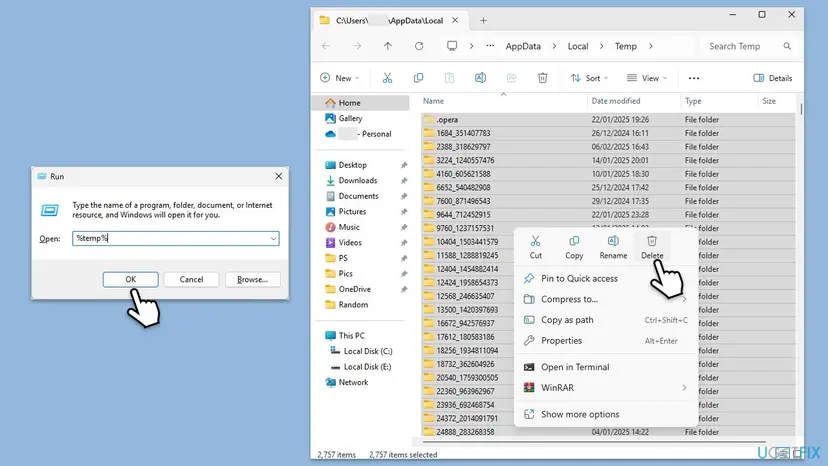
It worked if: Drive C shows 9 GB or more free, C:\$GetCurrent is gone, and the assistant starts its download.
If not: If the error stays with enough space and clean folders, go to Fix 8.
Fix 8. Pause a third-party security program for one test
5 minutesLow riskA security program other than Microsoft Defender is installed, or Fix 1 to Fix 7 changed nothing.
Some security programs guard Program Files against new executables. If yours treats the assistant's unpacking as suspicious, it blocks the write and the assistant can only report that it can't create files.
- Download the assistant only from Microsoft's page, so you test a genuine file.
- Open your security program and check its quarantine or log for
Windows10UpgraderApp.exeorWindows11InstallationAssistant.exe. Restore it if it is there. - Pause real-time protection for 10 minutes. For Microsoft Defender: Turn off Microsoft Defender protection for a moment. For other programs, use the pause option in their own window.
- Run the assistant as administrator and wait until the download has started.
- Turn protection back on at once, or let the pause end by itself.
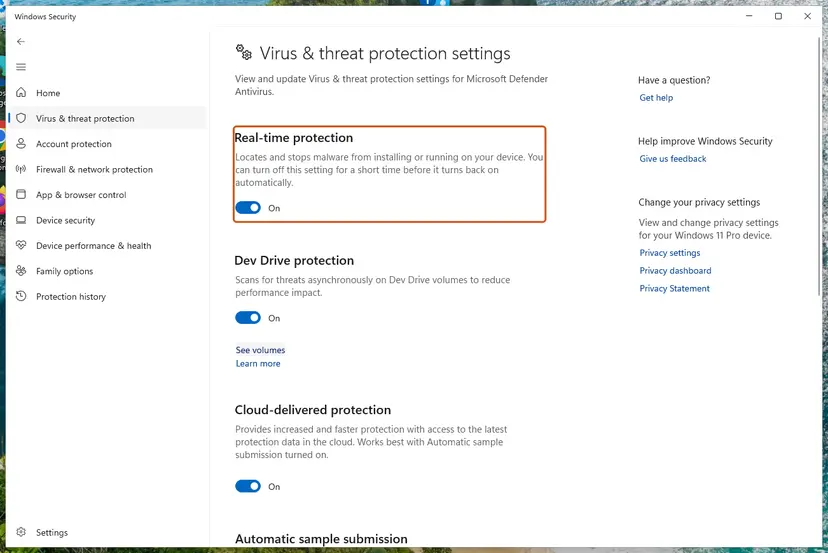
It worked if: With protection paused, the assistant shows its license terms and starts to download.
If not: If it worked, add the assistant's folder as an exclusion in that program, then turn protection on again. If nothing changed, read the next section.
If the Installation Assistant still can't create files
When a clean folder, an administrator account and enough space do not help, use the ISO route from Fix 3. It installs the same Windows 11 version and is not affected by this error. Run Process Monitor as in the section on where the cause is written, so you know which path fails.
| What you find | What to do |
|---|---|
| The PC has an Arm processor (Snapdragon) | The assistant does not run on Arm PCs. Wait for Windows Update to offer Windows 11, or use the Arm64 ISO from Microsoft's separate page. |
| Windows 10 older than version 2004 | Microsoft requires version 2004 or later. Update Windows 10 first in Settings > Update & Security > Windows Update. |
| A work or school PC | Policies may block the assistant on purpose. Ask the IT department, which usually upgrades such PCs centrally. |
| ACCESS DENIED on a path outside the assistant's folders | That path's permissions are broken. Ask for help with the exact path from Process Monitor, rather than changing the whole drive. |
| The error appears with every tool, including Setup from the ISO | Check the drive for errors with Check a disk for errors (chkdsk) and back up your files before anything else. |
- What to send to support: the exact message, your Windows version from
winver, your account type and whether a new account works. - Add the Process Monitor lines with ACCESS DENIED. Save them with File > Save as a CSV file.
- Say which fixes you tried and what changed after each one.
This message is about writing to a folder, not about failing hardware. Suspect the drive only when other programs also fail to save files, chkdsk reports bad sectors, or File Explorer freezes when you open drive C.
How to keep "Can't create files" from coming back
- Download the assistant fresh from Microsoft's page each time you need it, and start it with Run as administrator.
- Let the assistant finish, or cancel it from its own window, so it can clean up.
- Keep at least 9 GB free on drive C before a feature update.
- Uninstall the assistant when the upgrade is done. Windows stays as it is.
- Do not end
Windows10UpgraderApp.exein Task Manager while it downloads unless it is clearly frozen. - Do not change permissions or the owner of Program Files or drive C as a whole.
- Do not run two upgrade tools at once, such as the assistant and Setup from an ISO.
- Do not use cleanup tools that lock or delete folders in Program Files.
Windows 10 left support on 14 October 2025. If your PC meets the Windows 11 requirements, finish the upgrade with Fix 3 if the assistant keeps failing. The current release on Microsoft's page is Windows 11 version 26H2.
Once Windows 11 runs, monthly updates come through Windows Update. If a later update fails with its own code, read our guide to Windows Update error 0x80888002, which covers upgrades that Windows Update refuses.
Frequently asked questions
What does "Can't create files. Please check if you have permission to write to the installation folder" mean?
It means the Windows 11 Installation Assistant could not copy its own program files into its folder, C:\Program Files (x86)\WindowsInstallationAssistant. That happens before the compatibility check and before any download, so nothing on your PC has changed. The usual reasons are a copy of the assistant that is still running from an earlier attempt, a start without administrator rights, or broken permissions on that one folder. End the old process, delete the folder and run a fresh download as administrator.
Why do I get this error when I am already an administrator?
Because being an administrator is not enough when the folder is locked or its permissions are wrong. A copy of Windows10UpgraderApp.exe that is still running keeps its files open, and a new copy cannot overwrite them. A folder whose owner was changed refuses writes even to administrators. Also, a double-click starts the file without full rights until you confirm User Account Control. Use Fix 1 for the lock, right-click and Run as administrator, and Fix 4 for the permissions.
Where does the Windows 11 Installation Assistant put its files?
In several places. The program installs itself into C:\Program Files (x86)\WindowsInstallationAssistant and runs Windows10UpgraderApp.exe from there. It downloads the Windows 11 ESD file into the temp folder of your account, %temp%. It then extracts Windows 11 into the hidden folder C:\$GetCurrent and starts Setup from C:\$GetCurrent\media. Setup itself writes its logs into C:\$WINDOWS.~BT\Sources\Panther. This flow comes from Deployment Research, which examined the tool in 2025.
Is it safe to delete the WindowsInstallationAssistant and $GetCurrent folders?
Yes, when no upgrade is running. Both folders belong to the assistant, not to Windows. A Microsoft Q&A moderator confirms that uninstalling the assistant does not affect the installed Windows. End Windows10UpgraderApp.exe in Task Manager first, then delete the folders. Do not delete C:\Windows.old or C:\$WINDOWS.~BT while an upgrade waits for a restart. After a finished upgrade, Disk Cleanup removes those with Previous Windows installations.
Should I run icacls C:\ /grant Everyone:F as some guides suggest?
No. That command gives every user and every program full control over every file on drive C, including Windows itself. It weakens the protection that keeps malware and other accounts out of system folders, and there is no clean way to undo it on a whole drive. The error is about one folder. Reset only that folder with icacls "C:\Program Files (x86)\WindowsInstallationAssistant" /reset /t /c /q, which Microsoft documents as restoring the default inherited permissions.
Can I upgrade to Windows 11 without the Installation Assistant?
Yes, in two ways. If your PC qualifies, open Settings, then Windows Update, and select Check for updates: Windows 11 may be offered there. Or download the Windows 11 ISO from Microsoft's page, right-click it, select Mount and run setup.exe. Microsoft describes the mounted ISO as an upgrade of your current system. Choose Keep personal files and apps. The Media Creation Tool can also save the ISO or make a USB stick for another PC.
Will I lose my files if I use the ISO instead of the assistant?
Not when Setup shows Keep personal files and apps and you choose it. That is the same kind of upgrade the assistant does: your files, apps and most settings stay. A Microsoft Q&A moderator notes a rare case where Nothing is the only choice under Choose what to keep. That would be a clean install, so cancel Setup then. Back up your files before any upgrade, whichever tool you use.
Does the Installation Assistant work on every PC?
No. Microsoft's download page says it runs only on x64 processors and not on Arm-based PCs. It needs Windows 10 version 2004 or later, a Windows 10 or Windows 11 licence, 9 GB of free space and an administrator account. It also checks that the PC meets the Windows 11 requirements, using the PC Health Check app. On Arm PCs, wait for Windows Update or use the Arm64 ISO from Microsoft's separate page.
Is this the same as other "cannot create file" or "unable to create file" errors?
Usually not. Many programs show a message with those words, and each has its own cause. This page covers only the Windows 11 Installation Assistant message about the installation folder. If you see "Setup was unable to create the directory" in a game or app installer, the target folder and the cure are different, although running the installer as administrator and checking free space help there too.
It still does not work after every fix. What now?
Use the ISO route in Fix 3. It installs the same Windows 11 version and does not use the folder that fails, so this error cannot block it. If you want to know what failed, run Process Monitor with the filter from the section on where the cause is written and look for ACCESS DENIED. On a work or school PC, ask the IT department, because policies may block the assistant on purpose. If Setup from the ISO also fails, its own code and logs will point to the cause.
Sources
- Microsoft: Download Windows 11 (Installation Assistant requirements, current release 26H2, mounting the ISO) (microsoft.com)
- Microsoft Q&A: Can't update to Windows 11, "Can't create files. Please check if you have permissions to write to the installation folder" (learn.microsoft.com)
- Microsoft Q&A: Can I uninstall Windows 11 Installation Assistant after upgrading? (learn.microsoft.com)
Did this fix work?
One click, no account. It tells the next reader which guides are worth their time.
Questions and experiences: fix "Can't create files" error in Windows Installation Assistant
Still broken, or found a fix we did not cover? Ask here: members and our editors answer. Reading is open; writing needs a free account.
…