
0xc00d36fa "Can't play" error in Windows 11 and 10: how to fix it

Prefer to fix it yourself? The manual steps follow.
- 8methods
- 2 to 30 minutes
- Easy
Applies to Media Player, Movies & TV and other Windows players that show error 0xc00d36fa on Windows 11 and Windows 10
8 methods in this guide
I get a 0xC00D36FA error with the message "Can't play," and it does not play any audio. This usually happens after sleep or hibernation, although it can happen at any time as well. Any tips on how to fix this would be great.
Error 0xc00d36fa appears when a Windows player such as Media Player or Movies & TV cannot open a sound output, so it refuses to play. The file is fine: Windows has no working speakers or headphones to send the sound to. Reconnect and select your output first, then restart the audio services.
0xc00d36fa says the player could not create an audio output, which Windows shows as We can't find an audio device. Plug in or turn on your speakers or headphones and select them in the sound output list on the taskbar (Fix 1). If the error came after sleep or hibernation, restart the Windows Audio and Windows Audio Endpoint Builder services (Fix 2). If the device is missing, enable it or reinstall the audio driver.
| Error | Can't play with "We can't find an audio device" and the code 0xc00d36fa |
|---|---|
| Where it appears | Media Player, Movies & TV, the old Groove Music and other apps that play sound through Windows Media Foundation, the moment you press play |
| Main cause | No usable sound output: speakers or headphones unplugged, disabled, not selected, or lost after sleep; less often a broken audio driver |
| Fastest fix | Connect the speakers or headphones and select them as the output (Fix 1), then restart the audio services (Fix 2) |
| Also written as | 0xC00D36FA, 0xc00d36fa error, Can't play 0xc00d36fa, we can't find an audio device, 0xc00d36fa music error |
| Code name | MF_E_CANNOT_CREATE_SINK in the Windows SDK header mferror.h: Media Foundation could not create the media sink, here the audio output |
| Affects | Windows 11 (25H2, 26H2) and Windows 10 22H2, desktops and laptops, with built-in, USB, HDMI and Bluetooth audio |
| Vendor status | Not a known Windows bug with a fix version; Microsoft treats it as a general sound problem and lists the same checks for it |
| Time to fix | 2 minutes for a disconnected or unselected device, up to 30 minutes when the driver has to be reinstalled |
Facts checked on 15 October 2026. Steps written for Windows 11 (25H2 and 26H2) and Windows 10 22H2.
What error 0xc00d36fa means and where it appears
The message the player shows reads, word for word: Can't play. We can't find an audio device. Make sure headphones or speakers are connected. For more info, search your device for "Manage audio devices." Under it is the code 0xc00d36fa.
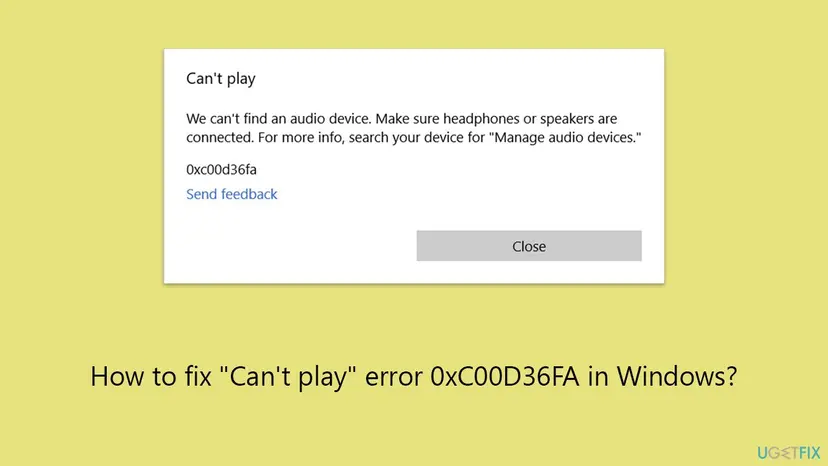
The code comes from Windows Media Foundation, the part of Windows that apps such as Media Player use to play music and video. In the Windows SDK header mferror.h, 0xC00D36FA is MF_E_CANNOT_CREATE_SINK: the player tried to create its output, called a media sink, and failed. For sound, the sink is your speakers or headphones, so the player reports that it cannot find an audio device.
- Not a file problem
- The same file plays once a sound output works; you do not need a new codec or another copy of the file
- Not only one app
- Other apps on the PC usually have no sound either, or the speaker icon on the taskbar shows a red x
- Related codes
0xC00D4E85is listed in the same header asMF_E_AUDIO_PLAYBACK_DEVICE_IN_USE, the device is busy (Fix 4);0xc00d36b4and0xc00d36cbcome from the same family but point to the file, not the sound output
What causes the Can't play error 0xc00d36fa, from most to least common
Most often there is simply no active output: the headphones were unplugged, the Bluetooth speaker went to sleep, or the monitor picked as the output has no speakers. Next comes the audio stack losing the device after sleep or hibernation, which is what the reader above describes. A disabled device, an app holding the device for itself and a broken driver are less common, and a hardware fault is rare.
| Cause | How common | What you see | Fix |
|---|---|---|---|
| No speakers or headphones connected, or the wrong output selected | Most cases | The output list is empty or shows a monitor or a device that is off | Fix 1 |
| The audio services lost the device after sleep or hibernation | Common on laptops | Sound worked before the PC went to sleep; a restart brings it back | Fix 2 |
| The output is disabled in Windows | Common | No audio output devices are found in Settings, or the device is grey in the Sound window | Fix 3 |
| Another app holds the device in exclusive mode, or a format it cannot play | Less common | The error appears while a game, a call or a music app is open | Fix 4 |
| A damaged or missing audio driver | Less common | A yellow mark or no audio device under Sound, video and game controllers | Fix 5 |
| A driver or Windows update replaced the audio driver | Less common | It started right after an update | Fix 6 |
| A broken jack, cable, USB port or audio chip | Rare | No sound from any device in any port | Still broken, below |
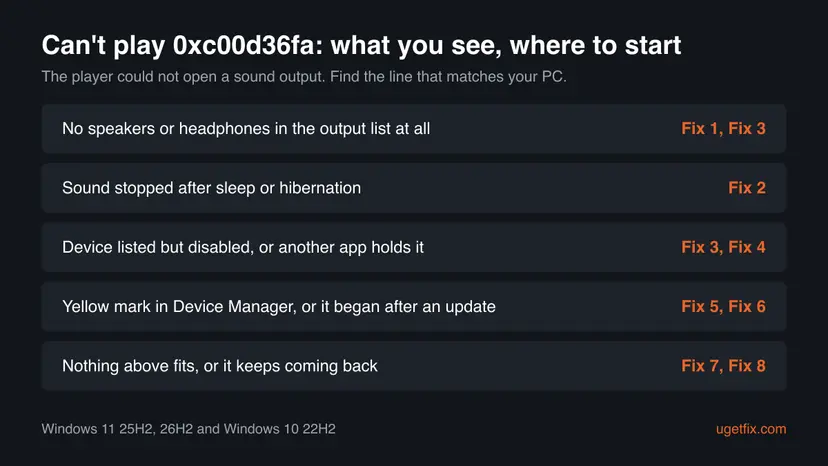
How to fix the Can't play error 0xc00d36fa in Windows 11 and 10
Fix 1 and Fix 2 take a few minutes and solve most cases, including the one that follows sleep. Fixes 3 and 4 are for a device that Windows sees but cannot use. Fixes 5 and 6 repair the audio driver, and Fixes 7 and 8 are Microsoft's general sound checks.
| What you see | Start with |
|---|---|
| No speakers or headphones are connected, or the output list shows a monitor | Fix 1 |
| Sound stopped after the PC woke from sleep or hibernation | Fix 2 |
| Settings says No audio output devices are found | Fix 3, then Fix 5 |
| The error appears only while another app plays sound | Fix 4 |
| A yellow mark or no audio device in Device Manager | Fix 5 |
| It started right after a driver or Windows update | Fix 6 |
| Nothing above fits, or it keeps coming back | Fix 7, then Fix 8 |
Fix 1. Connect your speakers or headphones and select them as the sound output
2 minutesNo riskEveryone, and above all readers who unplugged headphones, use a Bluetooth speaker or play through a monitor.
The error literally says the player found no audio device. Microsoft's first step for any sound problem is to check the connection and that the right output is selected, and it warns that a monitor without built-in speakers gives no sound when it is the default.
- Plug the speakers or headphones in fully, turn them on, and turn Bluetooth devices on and connect them.
- Windows 11: select the speaker icon on the taskbar, then the arrow to the right of the volume slider (its tooltip says Select a sound output).
- Windows 10: select the speaker icon on the taskbar, then the device name above the slider to open the list.
- Select the speakers or headphones you want to hear, not a monitor or a TV that is off.
- Check that the volume is not muted, then press play in the player again.
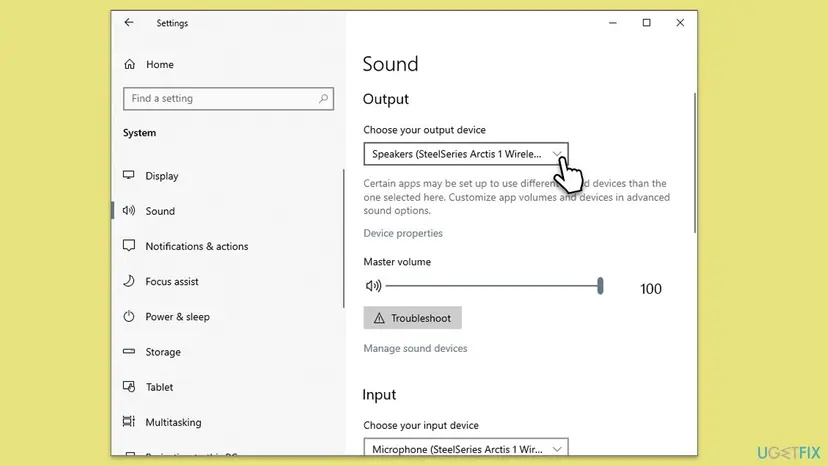
The same list is in Settings > System > Sound > Output on Windows 11. Selecting a device there also makes it the default, as Microsoft notes. For a 3.5 mm plug, use the green jack or the one marked with a headphone symbol; pink is the microphone input.
It worked if: The player plays with sound and the error does not come back.
If not: If the list is empty, or the device is there but still silent, restart the audio services in Fix 2.
Fix 2. Restart the Windows Audio and Windows Audio Endpoint Builder services
3 minutesNo riskReaders whose sound stops after sleep or hibernation, or at random, while the device is still connected.
Windows Audio manages sound for programs and Windows Audio Endpoint Builder manages the audio devices. If they lose track of the device after the PC wakes up, players see no output and show 0xc00d36fa. Microsoft lists restarting both as a sound fix.
- Press Win + R, type
services.mscand press Enter. - Find Windows Audio Endpoint Builder, right-click it and select Restart; confirm with Yes if Windows asks to restart the dependent service too.
- Find Windows Audio, right-click it and select Restart. If it shows no status, select Start instead.
- Double-click each of the two services and check that Startup type is Automatic.
- Close Services and press play in the player again.
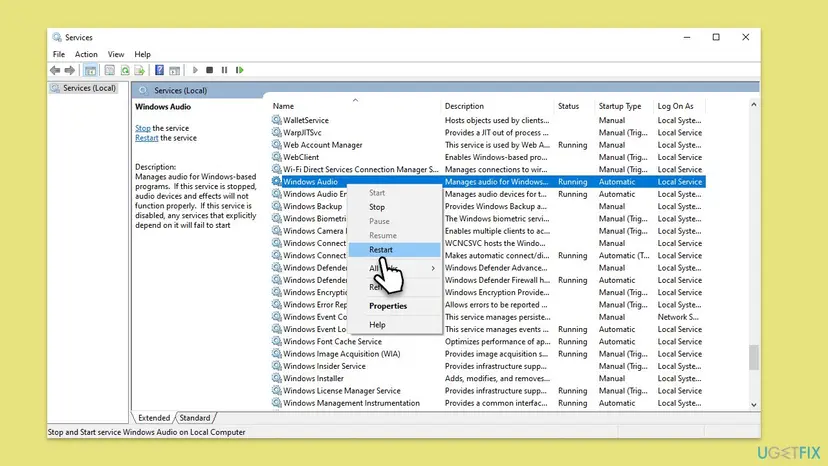
Step by step with screenshots: Check and restart Windows services. A full restart of Windows does the same thing and also reloads the audio driver, so try it if the services will not restart.
It worked if: The speaker icon loses its red x and the player plays with sound.
If not: If the error returns after every sleep, update the audio driver in Fix 5. If the device is still missing, go to Fix 3.
Fix 3. Enable a disabled speaker or headphone output in the Sound window
3 minutesNo riskReaders who see No audio output devices are found in Settings, or a grey device in the Sound window.
A disabled output is hidden from every list, so the player has nothing to open. Microsoft's check is that each device's Device usage is set to Use this device (enable).
- Press Win + R, type
mmsys.cpland press Enter to open the Sound window. - On the Playback tab, right-click an empty area and tick Show Disabled Devices and Show Disconnected Devices.
- If your speakers or headphones appear grey, right-click them and select Enable.
- Right-click them again and select Set as Default Device.
- Select Properties, check that Device usage says Use this device (enable), and select OK.
- Play the file again.
On Windows 11 the same window opens from Settings > System > Sound > More sound settings. If the device is not in the list even with disabled and disconnected devices shown, Windows has no driver for it: go to Fix 5.
It worked if: A green tick marks your device on the Playback tab and the level bar moves when you play the file.
If not: If it is enabled but the error appears only with some apps open, go to Fix 4.
Fix 4. Stop other apps from taking the device and change the default format
5 minutesLow riskReaders who get the error while a game, a call, a DAW or a music app is open, or only with one output.
An app can take a device in exclusive mode, and then no other player can open it. The related code 0xC00D4E85 is named MF_E_AUDIO_PLAYBACK_DEVICE_IN_USE. Microsoft also suggests trying another default format when a device will not play.
- Close the other apps that play sound, then try the player again.
- Press Win + R, type
mmsys.cpland press Enter. - On the Playback tab, select your default device and select Properties.
- On the Advanced tab, clear Allow applications to take exclusive control of this device.
- Under Default Format, pick another setting, such as 24 bit, 48000 Hz, and select Apply.
- Select Test; if you hear sound, select OK and play the file. If not, try one more format.
Studio and some audiophile players use exclusive mode for bit-perfect sound. If you use one, turn the option back on after the test and close that app before you use Media Player.
It worked if: The player plays even while the other app is open, or the test tone plays in the new format.
If not: If no format plays a test tone, the driver is the problem: go to Fix 5.
Fix 5. Reinstall the audio driver or switch to Microsoft's High Definition Audio Device driver
10 minutesLow riskReaders with a yellow mark or no audio device in Device Manager, or with an error that returns after every sleep.
A damaged driver cannot give Windows a working output, so every player fails. Microsoft's order is: update the driver, uninstall it so Windows installs it again on restart, then try the generic driver that comes with Windows.
- Right-click Start and select Device Manager.
- Expand Sound, video and game controllers; right-click your sound card (for example Realtek(R) Audio) and select Update driver > Search automatically for drivers.
- If nothing changes, right-click it again, select Uninstall device, tick Attempt to remove the driver for this device and select Uninstall.
- Save your work and restart the PC: Windows installs the driver again.
- If the error stays, select Update driver > Browse my computer for drivers > Let me pick from a list of available drivers on my computer.
- Select High Definition Audio Device, select Next, restart and test.
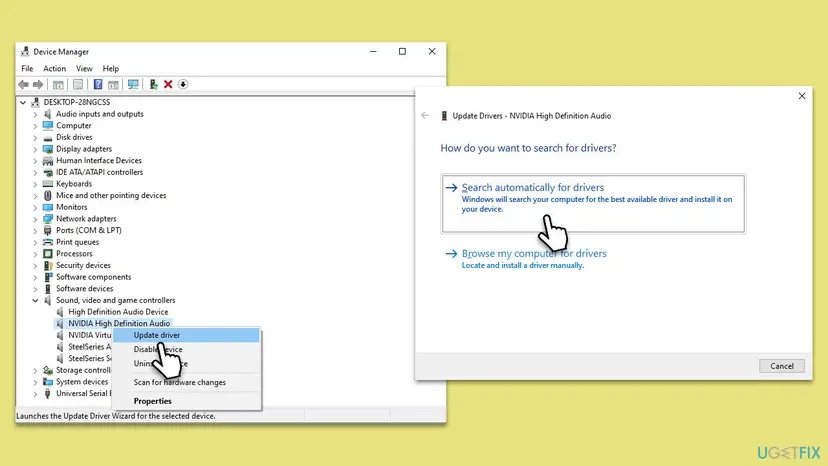
If the generic driver works but you miss the maker's audio app, download the audio driver for your exact laptop or motherboard model from its maker's support page. Full steps: Update, roll back or reinstall a driver.
It worked if: After the restart your speakers or headphones appear in the output list and the player plays.
If not: If it broke right after an update, roll back in Fix 6.
Fix 6. Roll back the audio driver or restore Windows if the error began after an update
15 to 45 minutesRead the warningReaders whose sound worked until a driver or Windows update installed.
An update can bring an audio driver that does not fit your hardware. Microsoft's advice for sound that broke after Windows Update is to roll back the audio driver first, and to use a restore point if that is not possible.
- In Device Manager, expand Sound, video and game controllers, right-click your sound card and select Properties.
- On the Driver tab, select Roll Back Driver, choose a reason and select Yes.
- Restart the PC and test the player.
- If Roll Back Driver is grey, use a restore point from before the update.
Programs and drivers installed after the restore point are removed; your personal files are not touched. Write down what you installed recently so you can install it again.
- Open System Restore. Press Windows+R, type the command below and press Enter. You can also open Control Panel > Recovery > Open System Restore. If a first page opens, select Next.
rstrui.exe - Choose a restore point. Select a restore point from a time before the problem started. The Description often names the event, such as a driver or app install. If the one you need is missing, select Show more restore points (shown only when there are more).
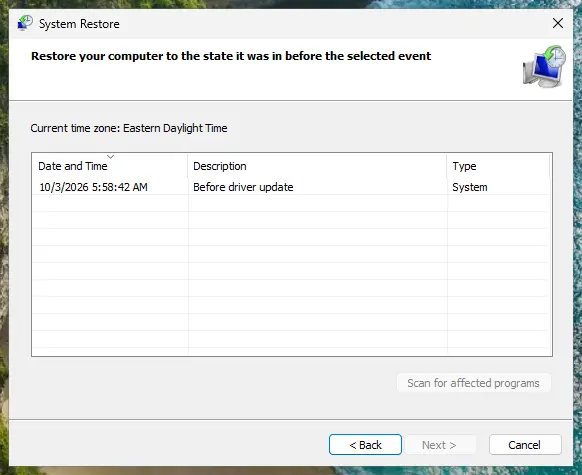
Pick a restore point from before the problem started. Screenshot: Windows 11 26H2. - See what will change. Select Scan for affected programs. The upper list shows programs and drivers that will be removed; the lower list shows those that might come back and may need to be reinstalled. Select Close.
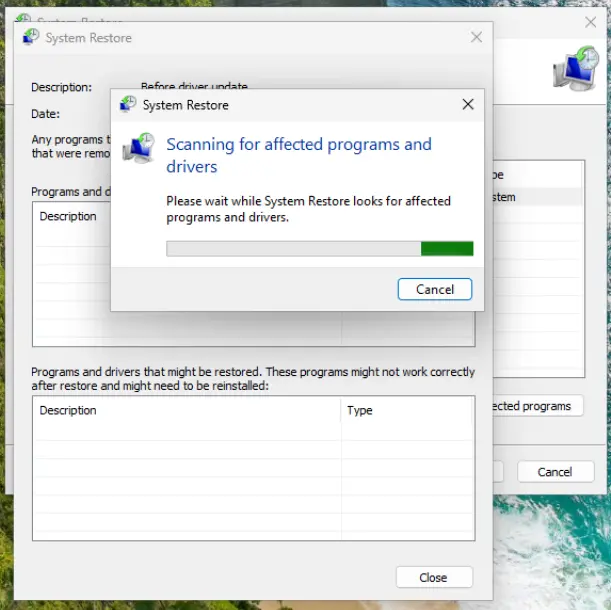
The scan lists programs and drivers the restore removes or brings back. Screenshot: Windows 11 26H2. - Start the restore. Select Next, check the summary and select Finish. Windows restarts and applies the restore point. Do not turn the PC off.
- Check the result. After sign-in Windows reports whether the restore succeeded. Check whether the problem is gone.
These steps were written for Windows 11 and Windows 10 (the steps are the same). The full page with the other versions and what each result means: Undo recent changes with System Restore
It worked if: Sound works again with the older driver and the player stops showing 0xc00d36fa.
If not: If there is no restore point or nothing changes, run the audio troubleshooter in Fix 7.
Fix 7. Run the Windows audio troubleshooter
5 minutesNo riskReaders who tried the fixes above and want Windows to check the services, the device and its settings at once.
Microsoft's audio troubleshooter checks the audio services, muted and disabled devices and the default output in one pass. It finds settings you may have missed, but it cannot repair a broken jack or chip.
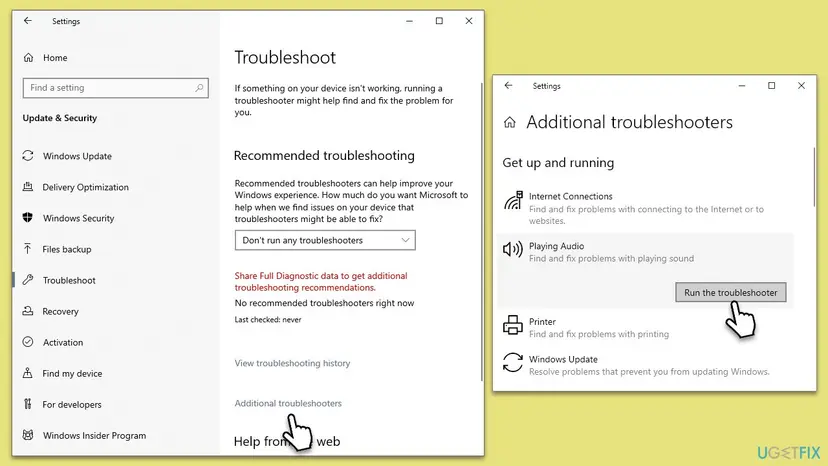
- Windows 11: select Start > Settings > System > Troubleshoot > Other troubleshooters.
- Find Audio and select Run; the troubleshooter opens in the Get Help app.
- Windows 10: open Settings > Update & Security > Troubleshoot > Additional troubleshooters, select Playing Audio and Run the troubleshooter.
- Choose your speakers or headphones when it asks which device to check.
- Apply what it suggests and play the file again.
It worked if: The troubleshooter reports a fixed problem, or confirms the device is enabled and selected.
If not: If it finds nothing, turn off audio enhancements in Fix 8.
Fix 8. Turn off audio enhancements for your speakers or headphones
3 minutesNo riskReaders with Realtek, Dolby, Nahimic or similar sound effects, whose output exists but will not play.
Enhancements are extra processing added by the driver. Microsoft notes that they can cause audio issues, and a faulty effect can stop the output from opening for players.
- Windows 11: select Start > Settings > System > Sound and select your device under Output.
- Scroll to Advanced settings and set Audio enhancements to Off.
- Windows 10: press Win + R, type
mmsys.cpl, select your default device on the Playback tab and select Properties. - On the Enhancements tab, tick Disable all enhancements or Disable all sound effects, then select OK.
- Play the file again.
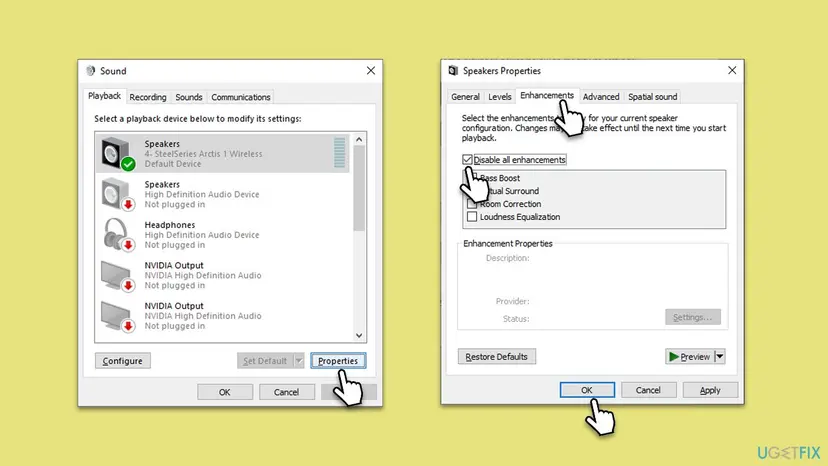
It worked if: The player plays without the error; the sound may be a little flatter without the effects.
If not: If nothing works, see Still broken below.
Still getting 0xc00d36fa: what to check next and when it is hardware
0xc00d36fa itself does not write a log, but Windows records what happened to the device. Open Event Viewer > Windows Logs > System and look for errors from the audio driver or device at the time sound stopped. In Device Manager, the Events tab of the sound card's Properties shows when it was installed or failed to start.
- Headphones or a speaker work on a phone but not on the PC: the PC's jack, port or audio chip. Try another port and the rear jack of a desktop.
- No device works and Device Manager has no sound card at all: the audio chip may be turned off in the BIOS or UEFI, or it has failed. Ask the PC maker.
- It works in a clean boot but not in a normal start: another program holds or changes the device. Step by step: How to perform a clean boot in Windows.
- It works after every restart and breaks after every sleep: look for a newer audio and chipset driver from the PC maker.
Give the PC model, the audio device name in Device Manager, how the speakers or headphones connect (jack, USB, HDMI, Bluetooth), the exact message with the code, and whether it started after sleep or an update.
How to keep the Can't play error from coming back
- Connect and turn on your speakers or headphones before you open the player.
- Set your usual device as the default output once, so Windows does not switch to a monitor.
- Get audio drivers from Windows Update or from your PC or motherboard maker's support page.
- Restart Windows now and then instead of only using sleep for weeks.
- Install audio drivers or driver updater programs from download sites.
- Disable audio devices you might use later; disable only ones you are sure you never need.
- Leave apps that use exclusive mode open in the background while you play media.
Windows 10 left support on 14 October 2025. The fixes here still work on Windows 10 22H2, but a PC that stays on it gets no new audio fixes through Windows Update.
Frequently asked questions
What is error 0xc00d36fa?
It is a Windows Media Foundation error that means the player could not create its output. In the Windows SDK it is named MF_E_CANNOT_CREATE_SINK. For music and video, the output is your speakers or headphones, so the player says We can't find an audio device. The file you are playing is not damaged. Once Windows has a working sound output, the same file plays (Fix 1 and Fix 2).
How do I fix 0xc00d36fa on Windows 11?
Select the speaker icon on the taskbar, open the output list with the arrow next to the volume slider and select your speakers or headphones (Fix 1). If the list is empty, restart the Windows Audio and Windows Audio Endpoint Builder services (Fix 2). Then enable the device in the Sound window (Fix 3) and, if it is still missing, reinstall the audio driver (Fix 5). Windows 11 also has the audio troubleshooter in the Get Help app (Fix 7).
How do I fix 0xc00d36fa on Windows 10?
The fixes are the same on Windows 10 22H2, with the Windows 10 paths given in each step. Start with the output list on the taskbar (Fix 1) and the audio services (Fix 2). The troubleshooter is under Settings > Update & Security > Troubleshoot > Additional troubleshooters > Playing Audio. Note that Windows 10 left support on 14 October 2025, so new audio fixes through Windows Update come only to Windows 11.
Why does 0xc00d36fa happen after sleep or hibernation?
When the PC wakes, the audio driver and the audio services must find the device again. If one of them does not, Windows has no output and the player shows 0xc00d36fa. Restarting Windows Audio Endpoint Builder and Windows Audio fixes it right away (Fix 2). If it happens after every sleep, install the newest audio and chipset drivers from your PC maker (Fix 5); a full restart instead of sleep also avoids it.
Why do I get 0xc00d36fa with music in Windows 10?
Music apps such as Media Player and the old Groove Music play through Media Foundation, so they show 0xc00d36fa when no sound output is available. The cause is the device, not the song: headphones unplugged, a disabled output or a busy device. Select or reconnect your output (Fix 1), restart the audio services (Fix 2) and close apps that may hold the device in exclusive mode (Fix 4).
What are 0xc00d36b4 and 0xc00d36cb?
They are other Media Foundation codes that start with 0xC00D, but they are not about the sound device. Users see them with files the player cannot read, for example an unsupported format or a damaged file, so the fixes on this page do not apply. We could not confirm the exact meaning of each from an official Microsoft page today. Try the file in another player first; if it plays there, the format is the problem.
What is error 0xc00d4e85?
In the Windows SDK it is named MF_E_AUDIO_PLAYBACK_DEVICE_IN_USE: the audio device exists, but another app is using it in a way that blocks the player. Close other apps that play sound and clear Allow applications to take exclusive control of this device on the Advanced tab of the device's properties (Fix 4). It is close to 0xc00d36fa, where the device cannot be opened at all.
Does 0xc00d36fa mean my speakers or sound card are broken?
Rarely. In most cases the device is only unplugged, disabled, not selected or lost after sleep, and Fixes 1 to 3 bring it back in minutes. Suspect hardware when no headphones or speakers work in any port, when Device Manager shows no sound card even after a restart, or when the same headphones work on another device but never on this PC. Then see Still broken.
Can I fix 0xc00d36fa with a USB sound card or USB headphones?
Often yes, as a test or a workaround. A USB headset or USB sound card brings its own audio device and driver, so Windows gets a new output even when the built-in sound is broken. Plug it in, select it in the output list (Fix 1) and play the file. If that works, the built-in audio driver or chip is the problem, so reinstall its driver (Fix 5) or contact the PC maker.
Is this guide available in my language?
This guide is in English only. The fix is the same in every language of Windows: connect and select your speakers or headphones (Fix 1), restart the Windows Audio services (Fix 2), enable the device (Fix 3) and reinstall the audio driver (Fix 5). The names of buttons and menus are translated in your Windows, but they are in the same places.
Sources
- Microsoft Support: Fix sound or audio problems in Windows (support.microsoft.com)
- The Windows Club: Can't play, Error 0xc00d36fa, We can't find an audio device (thewindowsclub.com)
Did this fix work?
One click, no account. It tells the next reader which guides are worth their time.
Questions and experiences: 0xc00d36fa "Can't play" error in Windows 11 and 10: how to fix it
Still broken, or found a fix we did not cover? Ask here: members and our editors answer. Reading is open; writing needs a free account.
…