
How to fix Couldn't start Files on Demand error code 0xffffffea in OneDrive?

Prefer to fix it yourself? The manual steps follow.
- 8methods
- 2 to 30 minutes
- Intermediate
Applies to The OneDrive sync app on Windows 11 and Windows 10 22H2, personal and work or school accounts; also Windows Server session hosts with Citrix, RDS or FSLogix profiles
8 methods in this guide
Hi, I can't use OneDrive because of the error "Couldn't start Files on Demand. Please restart your computer and try again. Error codes: 0xffffffea." How do I bypass this? I need to use OneDrive for work, and this is really problematic for me.
"Couldn't start Files on Demand" with error code 0xffffffea means OneDrive opened, but the Windows part that shows online-only files did not start. Your files are safe online. Microsoft names legacy antivirus filters as the usual blocker, so restart first, then update Windows, OneDrive and your security software.
Nothing is deleted. Windows could not start the Files On-Demand service that lets OneDrive show online-only files. Restart the PC with Restart, not Shut down (Fix 1). If the error returns, install Windows and OneDrive updates (Fix 2) and update or test your antivirus and backup software, which Microsoft names as the usual blocker (Fix 3). Then check the Cloud Files driver in the registry (Fix 4).
| Error | Couldn't start Files on Demand. "Please restart your computer and try again. Error codes: 0xffffffea" in a Microsoft OneDrive window with Learn more and Close. |
|---|---|
| Where it appears | Right after you sign in to Windows and OneDrive starts, or when you open an online-only file in your OneDrive folder. |
| Main cause | The Files On-Demand service is blocked from starting. Microsoft names legacy filters in some antivirus software; the Windows Cloud Files filter driver (CldFlt) not loading has the same effect. |
| Fastest fix | A full Restart (Fix 1), then Windows, OneDrive and antivirus updates (Fixes 2 and 3). |
| Also written as | 0xFFFFFFEA, "couldnt start files on demand", "OneDrive couldn't start". The same title appears with other codes, because Microsoft's dialog shows "Error codes: <error code>". |
| Affects | OneDrive on Windows 11 and Windows 10, and Windows Server 2019 session hosts with Citrix and FSLogix, where admins report it at random logins. |
| Vendor status | Microsoft lists "Couldn't start Files on Demand" on its OneDrive error codes page with update and antivirus steps, but does not explain 0xffffffea itself (checked 15 October 2026). |
| Your files | Safe in OneDrive online. You can open them on onedrive.com while the PC is being fixed. |
| Time to fix | 2 minutes for a restart, 10 to 20 minutes for updates and the driver check, more for a reset and resync. |
Facts checked on 15 October 2026. Steps written for Windows 11 (25H2 and 26H2) and Windows 10 22H2 with the OneDrive sync app.
What "Couldn't start Files on Demand" error code 0xffffffea means
Files On-Demand is the OneDrive feature that shows every file in your OneDrive folder without storing all of them on the disk. Files marked online-only are downloaded the moment you open them. For that, OneDrive needs a Windows component to be running before it starts. When that component does not answer, OneDrive shows this window and gives up on online-only files for the session.
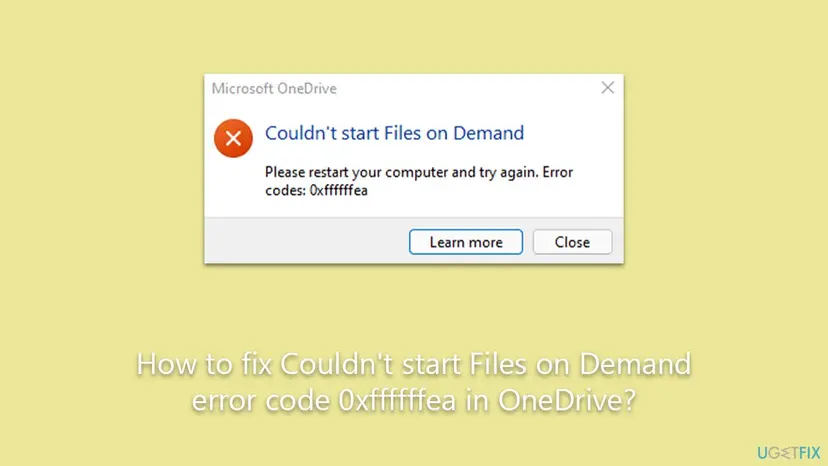
The code itself is not a Windows error you can look up. Read as a signed 32-bit number, 0xffffffea is simply -22. Microsoft does not document what -22 stands for inside OneDrive, and we could not confirm it, so do not trust pages that give it a precise meaning. What Microsoft does document is the message, and that is what the fixes below follow.
| What you see | When | What it tells you |
|---|---|---|
Couldn't start Files on Demand with Error codes: 0xffffffea | Just after sign-in, when OneDrive starts | Windows did not let the Files On-Demand service start at all. |
| The same window, then OneDrive offers no files or only the files already downloaded | For the rest of the session | Online-only files cannot be fetched until the next successful start. |
| "OneDrive cannot connect to Windows. Files On-Demand requires a connection to Windows" | After a Windows update or a new filter driver | A close relative of this error, with the same causes, documented by Microsoft for Windows 10 version 2004. |
| The error on some logins only, on a Windows Server with Citrix and FSLogix | At random, 1 to 9 out of 10 logins in one report | A profile or session timing issue; see the section for session hosts. |
It is not a full OneDrive, a deleted file, a virus or a problem with your internet connection. The block happens on your PC before OneDrive ever talks to the cloud.
What causes OneDrive error 0xffffffea, most common first
Microsoft's error code page says the message "may be because the Files on Demand service is being blocked from starting by legacy filters on some antivirus software". A legacy filter is an old style of file system driver. Antivirus, backup and encryption tools install such drivers so they can see every file that is opened, and an old one can stand in front of the Windows Cloud Files driver.
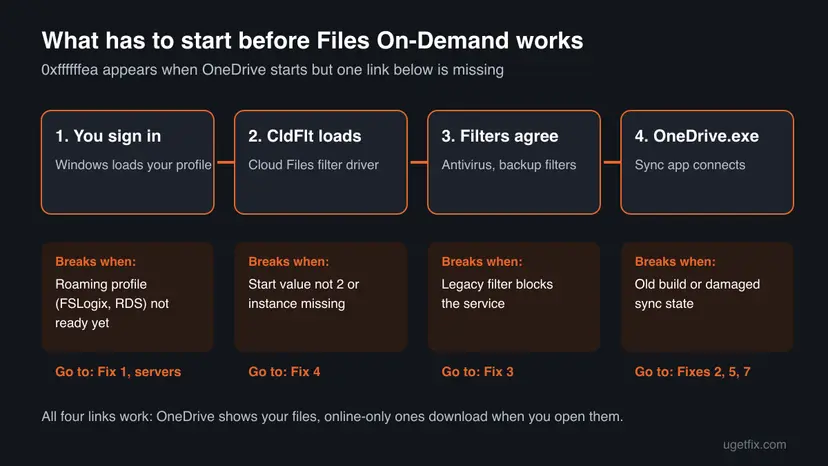
| How often | Cause | Signs | Fix |
|---|---|---|---|
| Most often | A one-time start problem after an update, sleep or Fast Startup | The error came once, after an update or after the PC was switched off and on | Fix 1 |
| Often | An antivirus, backup or encryption tool with a legacy filter | The error started after you installed or updated such a tool, and comes back at every sign-in | Fixes 2 and 3 |
| Often | The Windows Cloud Files filter driver (CldFlt) is not set to start, or its instance entry is missing | Every sign-in fails even after updates; Microsoft's 2020 fix for this case was a registry value | Fix 4 |
| Less often | Damaged OneDrive settings or an old OneDrive build | OneDrive behaves oddly in other ways too | Fixes 2, 5 and 7 |
| Session hosts | Roaming profiles (FSLogix, Citrix, RDS) that are not ready when OneDrive starts | Random logins fail on a server, never on a normal PC | Section for session hosts |
In 2020 Microsoft confirmed that after the Windows 10 version 2004 update, "some older devices or devices with certain older apps installed that use legacy file system filter drivers" could not use Files On-Demand. It was resolved in update KB4565503, and Microsoft's manual workaround was the CldFlt registry value used in Fix 4.
How to fix Couldn't start Files on Demand error code 0xffffffea
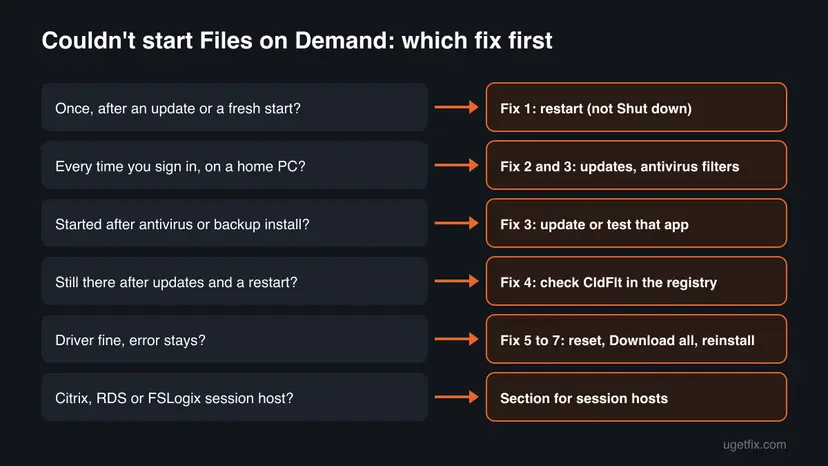
Fixes 1 to 3 follow Microsoft's own steps for this message and solve it for most home PCs. Fix 4 repairs the driver setting Microsoft used for the same failure in 2020. Fixes 5 to 8 are for errors that survive all that. Use the table to start at the right place.
| What you see or have | Start with |
|---|---|
| The error came once, after an update or after switching the PC on | Fix 1 |
| The error comes at every sign-in on a home or office PC | Fix 2, then Fix 3 |
| It began after installing or updating antivirus, backup or encryption software | Fix 3 |
| Updates are installed and a restart does not help | Fix 4 |
| You need your files today and nothing has worked yet | Fix 6, or open onedrive.com |
| Windows Server with Citrix, RDS or FSLogix, failing at random logins | The section for session hosts |
Fix 1. Restart Windows fully, not Shut down, and let OneDrive start
2 minutesNo riskEveryone, first: the dialog itself asks for it, and it takes two minutes.
The Files On-Demand service and the Cloud Files driver start with Windows. A full restart starts them again in a clean order; Shut down with Fast Startup can bring back the old kernel session, including a driver that failed to start.
- Select Close in the OneDrive window and save your open work.
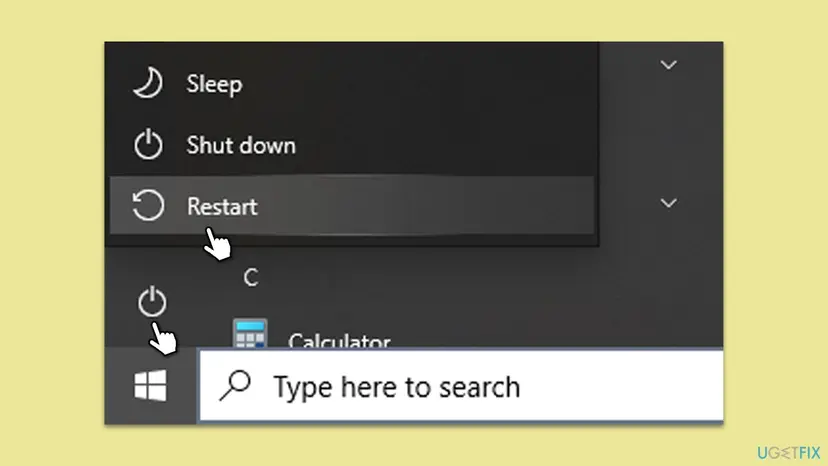
- Select Start, then the Power button, then Restart. Do not use Shut down.
- Sign in to Windows and wait a minute before you open anything, so OneDrive can start on its own.
- Look for the OneDrive cloud in the notification area at the right end of the taskbar. If it is hidden, select the Show hidden icons arrow.
- Open your OneDrive folder in File Explorer and double-click a file with the blue cloud icon.
It worked if: No OneDrive window at sign-in, the cloud icon is white or blue, and the online-only file downloads and opens.
If not: If the error comes back at the next sign-in, it is not a one-time glitch: go to Fix 2.
Fix 2. Install Windows, Office and OneDrive updates
10 to 20 minutesLow riskThe error returns after a restart, or the PC has not been updated for a while.
This is Microsoft's Solution 1 for this exact message. The 2020 Files On-Demand failure caused by legacy filters was fixed by a Windows update (KB4565503), and OneDrive release notes list reliability fixes in most builds.
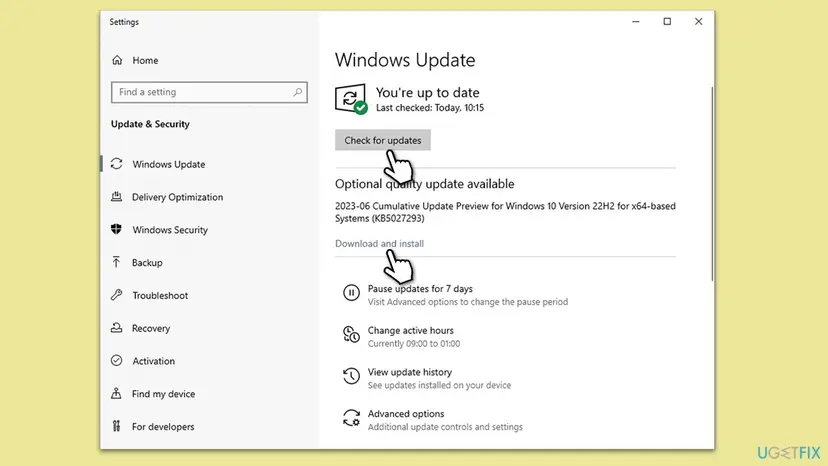
- Open Settings > Windows Update (on Windows 10: Settings > Update & Security > Windows Update) and select Check for updates.
- Install everything offered, including optional quality updates, and restart when asked.
- If you use Microsoft 365 apps, open Word, select File > Account > Update Options > Update Now.
- Select the OneDrive cloud, the gear icon, then Settings, and open the About tab. Note the build next to OneDrive version.
- From the About tab, open the OneDrive release notes link. If the latest release at the top of that page has a higher number than yours, select Download OneDrive for Windows there and run the installer.
- Restart the PC once more and check whether the window still appears.
Windows 10 reached the end of support on 14 October 2025. Windows 10 22H2 still gets OneDrive updates, but older Windows 10 versions do not, so update Windows to 22H2 or Windows 11 first.
It worked if: Windows Update says you are up to date, the About tab shows a build equal to the latest release, and OneDrive starts without the error.
If not: If you are up to date and the window still appears at sign-in, go to Fix 3.
Fix 3. Update or test the antivirus, backup and encryption software
15 minutesLow riskThe error appears at every sign-in, or it started after you installed or updated security, backup, encryption or another cloud sync tool.
Microsoft's Solution 2 for this message: updating the antivirus "may update the filters that cause this issue". The filter is part of the product, so only the product's own update or removal changes it.
- Open Settings > Apps > Installed apps (on Windows 10: Apps & features) and note every antivirus, backup, disk imaging, encryption and cloud sync program.
- Update each one from inside the program or from its publisher's site. A major version jump matters more than a definitions update, because the filter driver is part of the program.
- Restart the PC and check whether OneDrive starts without the error.
- If it still fails, start Windows with only Microsoft services to test them all at once: How to perform a clean boot in Windows.
- If OneDrive starts cleanly in the clean boot, turn the other services back on in small groups and restart each time, until the error returns. The last group holds the blocking program.
- Update that program, ask its publisher about OneDrive Files On-Demand, or replace it. Then return Windows to a normal start.
- Open System Configuration. Select Search on the taskbar, type msconfig and select System Configuration from the results.
- Hide Microsoft services. On the Services tab, select the Hide all Microsoft services check box. Only services from other companies stay in the list.
- Disable the remaining services. Select Disable all, then select Apply.
These steps were written for Windows 11 25H2 and 26H2. The full page with the other versions and what each result means: How to perform a clean boot in Windows
Turning off an antivirus is not a fix. If you pause it for one test, turn it back on right away: Turn off Microsoft Defender protection for a moment. A user on Microsoft Q&A also named a disk imaging tool among the triggers; treat any such program the same way.
It worked if: OneDrive starts cleanly in the clean boot, you find the program that blocks it, and after updating that program the error stays away in a normal start.
If not: If the error appears even in a clean boot, no third-party program is to blame: go to Fix 4.
Fix 4. Check and repair the Cloud Files filter driver (CldFlt) in the registry
10 minutes and a restartLow riskThe error survives updates and a clean boot, or a tuning or debloat tool was run on the PC.
Files On-Demand runs on the Windows Cloud Files filter driver, cldflt.sys. Microsoft's manual workaround for the 2020 legacy filter failure was to restore the driver's DefaultInstance value, and its OneDrive admin documentation requires the driver's Start value to be 2 (automatic).
Reading the values changes nothing. Writing them changes the system part of the registry and needs an administrator account. Back up the registry first: Back up the registry before editing it. Change only what is shown here. On a work or school PC, ask your IT department first.
- Select Start, type cmd, right-click Command Prompt and select Run as administrator. Select Yes in the User Account Control box.
- Read the start value of the driver:
reg query HKLM\SYSTEM\CurrentControlSet\Services\CldFlt /v Start - Look at the line with Start and REG_DWORD.
0x2is the value Microsoft documents. Any other number means the driver is not loaded at startup. - If it is not
0x2, set it:reg add HKLM\SYSTEM\CurrentControlSet\Services\CldFlt /v Start /t REG_DWORD /d 2 /f - Add the instance value from Microsoft's workaround. It does no harm if the value is already there, because
/fsimply writes the same text again:reg add HKLM\System\CurrentControlSet\Services\Cldflt\instances /f /v DefaultInstance /t REG_SZ /d "CldFlt" - Restart the PC. The driver reads these values only when Windows starts.
- Select the OneDrive cloud, the gear icon, then Settings. Open Sync and back up, expand Advanced settings and check that Files On-Demand is set to Free up disk space, which is the on-demand mode. Repeat for each OneDrive account you use.
The same driver check, with how to confirm the driver is running, is explained in our guide to OneDrive error 0x8007017C. Microsoft's 2020 article spells out the last step because the troubleshooter it shipped could switch Files On-Demand off. If you use both a personal and a work or school account in OneDrive, Microsoft says to check the setting for each account.
It worked if: reg query shows 0x2, OneDrive starts after the restart without the window, and online-only files open.
If not: If both values were already correct, or the error returns, reset OneDrive (Fix 5). If the Start value changes back by itself, a program or a company policy is changing it: see "If error 0xffffffea is still there".
Fix 5. Reset OneDrive
5 minutes, then a full syncLow riskWindows, the antivirus and the driver are fine, but OneDrive still fails to start Files On-Demand.
A reset rebuilds OneDrive's local settings and sync connections without touching your files. It is also what a Microsoft support agent suggested first in the Microsoft Q&A thread on 0xffffffea.
Microsoft says a reset does not delete files or data; OneDrive resyncs everything afterwards. If you chose to sync only some folders, choose them again after the reset, and allow time for a large OneDrive to finish syncing.
- Open the Run box. Press the Windows key and R at the same time.
- Reset the Microsoft Store cache. Type the command below and select OK. A blank Command Prompt window opens and closes, then the Microsoft Store opens. Close it. This is the first step in Microsoft's instructions. If OneDrive still does not sync, continue.
wsreset.exe - Run the OneDrive reset command. Press the Windows key and R again. Copy the command below, paste it into the box and select OK.
%localappdata%\Microsoft\OneDrive\onedrive.exe /reset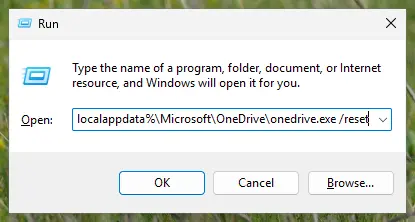
Type the reset command in the Run box and select OK. Screenshot: Windows 11 26H2. - If Windows cannot find it, try the second path. If you see a message that starts with Windows cannot find, open the Run box again and use this command instead.
C:\Program Files\Microsoft OneDrive\onedrive.exe /reset - If that fails too, try the third path. If you still see Windows cannot find, use this command. If none of the three works, the OneDrive sync app is not installed on this PC.
C:\Program Files (x86)\Microsoft OneDrive\onedrive.exe /reset - Start OneDrive again. Select Start, type OneDrive in the search box and select the OneDrive desktop app. OneDrive then starts a full sync.
These steps were written for Windows 11 25H2 and 26H2, Windows 10 22H2. The full page with the other versions and what each result means: How to reset OneDrive in Windows
It worked if: The OneDrive cloud disappears, comes back after a minute or two, syncs, and no error window appears at the next sign-in.
If not: If the window returns after a restart, go to Fix 6 to keep working, then Fix 7.
Fix 6. Use Download all files for a while, then switch Files On-Demand back
5 minutes plus download timeRead the warningYou need OneDrive to work today, and the disk has room for your whole OneDrive.
With Download all files, OneDrive keeps every file on the disk and stops needing the on-demand service. Microsoft offers the same choice for the related "OneDrive cannot connect to Windows" error, and its steps for code 0x8007016a switch Files On-Demand off and on around a reset.
Your whole OneDrive is downloaded. If it is larger than the free space on drive C:, the disk fills up and Windows and other apps can fail to save. Compare the storage shown in OneDrive Settings with the free space in This PC first: Free up disk space and delete temporary files.
- Select the OneDrive cloud in the notification area, then the gear icon, then Settings.
- Open the Sync and back up tab and expand Advanced settings.
- Under Files On-Demand, select Download all files and confirm.
- Leave the PC on and connected until the download is finished.
- When the cause is fixed, return to the same place and select Free up disk space to make files online-only again.
If you need only a few files, you can skip all of this: open onedrive.com in a browser, sign in, select the files and select Download. Microsoft notes that files downloaded this way are not synced, so save edited copies back by uploading them.
It worked if: OneDrive downloads everything, the icons turn into green check marks, and the files open without the on-demand service.
If not: If OneDrive will not start at all, or the download stops with errors, reinstall it (Fix 7).
Fix 7. Unlink, uninstall and reinstall the OneDrive app
15 minutes, then a full syncLow riskA reset did not help, or the reset commands are not found.
A reinstall replaces every OneDrive program file and creates the sync connection from scratch. Your files stay online, so uninstalling the app does not delete them.
- Select the OneDrive cloud, the gear icon, then Settings, and open the Account tab.
- Select Unlink this PC, then Unlink account.
- Uninstall Microsoft OneDrive in Settings > Apps > Installed apps. Step by step: Uninstall a program or app in Windows.
- Restart the PC.
- Download the OneDrive sync app from Microsoft's Download OneDrive page and run it.
- Sign in, keep the same OneDrive folder location when asked, and wait for the sync to finish.
Some guides tell you to delete the OneDrive folders under AppData and in your user folder. Do not delete the folder that holds your files: files that exist only on this PC and were never synced would be lost. Unlinking and uninstalling is enough.
It worked if: OneDrive installs, signs in, syncs your folder again, and starts without the error at the next sign-in.
If not: If a fresh install still shows 0xffffffea, repair Windows system files (Fix 8).
Fix 8. Repair Windows system files with DISM and SFC
20 minutesLow riskEverything above failed and the error appears even in a clean boot with a fresh OneDrive.
The Cloud Files driver is part of Windows, not of OneDrive, so reinstalling OneDrive cannot replace it. DISM and SFC check Windows' own files and restore damaged ones.
- Open an elevated command window. Right-click Start and select Terminal (Admin), or type cmd in the search box, right-click Command Prompt and select Run as administrator. Select Yes when Windows asks for permission.

Search for cmd and choose Run as administrator. Screenshot: Windows 11 26H2. - Run DISM first. Type the command below and press Enter. DISM downloads clean copies of damaged components from Windows Update, so it can take several minutes. Wait until it says The operation completed successfully.
DISM.exe /Online /Cleanup-Image /RestoreHealth
DISM /RestoreHealth running. Screenshot: Windows 11 26H2. - Run System File Checker. In the same window, type the command below and press Enter. Do not close the window until the verification reaches 100%.
sfc /scannow
sfc /scannow at 100%. Screenshot: Windows 11 26H2. - Read the result and restart. Compare the last message with the table below this guide, then restart the PC so that repaired files are loaded.

The result line tells you what SFC did. Screenshot: Windows 11 26H2.
These steps were written for Windows 11 24H2 and 25H2. The full page with the other versions and what each result means: Run DISM and SFC to repair Windows system files
Restart after the scan and sign in again. If SFC repaired files, test OneDrive before you try anything bigger.
It worked if: SFC reports that it repaired files or found no integrity violations, and after a restart OneDrive starts normally.
If not: Read "If error 0xffffffea is still there" for what to collect and when a Windows repair install makes sense.
0xffffffea on Windows Server with Citrix, RDS or FSLogix
Most reports of this exact code on Microsoft Q&A come from administrators, not home users. In the longest thread, users of OneDrive for Business on Windows Server 2019 in Azure, with Citrix and FSLogix profile management, saw the error at random logins: one user 9 out of 10 times, another 1 out of 10. A full uninstall and a per-machine install of OneDrive did not help them.
- Why it is different: the user profile is attached at sign-in, and with non-persistent FSLogix profiles there are no OneDrive logs left in
AppDatato read, as the admin in that thread noted. - What the thread shows: the case went from OneDrive support to the FSLogix team; we found no published Microsoft fix for it.
- What to do: update FSLogix, Citrix and OneDrive on the session host, apply Fixes 3 and 4 to the image itself, and open a case with Microsoft that names FSLogix, so it reaches the right team.
If error 0xffffffea is still there
Microsoft does not publish a log entry for this code, so the useful evidence is what you can check yourself. Collect these facts before you contact support or your IT department:
- Does the error appear in a clean boot? If not, a third-party program is the cause (Fix 3).
- The output of
reg query HKLM\SYSTEM\CurrentControlSet\Services\CldFlt /v Start, before and after a restart. A value that keeps changing points to software or a policy that changes it. - Your OneDrive build from Settings > About, and your Windows version from
winver. - What changed just before: a Windows update, new security or backup software, a tuning tool, a new PC.
- Home users: in OneDrive, select the gear icon and Get help to contact Microsoft from inside the app, and include the facts above.
- Work or school PC: contact your IT department; a security product or policy they manage is the likely cause.
- Last resort: a Windows repair install that keeps your files and apps replaces all system files, the Cloud Files driver included: Reinstall Windows without losing files.
How to keep "Couldn't start Files on Demand" from coming back
- Install Windows and OneDrive updates; OneDrive updates itself unless a policy blocks it.
- Keep antivirus, backup and encryption tools on their current major version.
- Use Restart rather than Shut down after major updates.
- Keep the files you need offline marked Always keep on this device.
- Note the CldFlt Start value while everything works, so you can compare later.
- Do not run "tweak" or "debloat" tools that disable drivers and services you do not recognise.
- Do not run two antivirus products with real-time protection at once.
- Do not delete the OneDrive folder to "start over".
- Do not leave real-time protection off after a test.
Frequently asked questions
What does error code 0xffffffea mean in OneDrive?
It comes with the message "Couldn't start Files on Demand": OneDrive started, but the Windows service that shows online-only files did not. Microsoft documents the message, not the number. Read as a signed number, 0xffffffea is -22, and Microsoft does not say what that value means inside OneDrive. The fix depends on the message, so start with a full restart, then updates, then your antivirus and backup software.
Que es eso? What is this error, in short?
This page is about the OneDrive message "Couldn't start Files on Demand" with code 0xffffffea. In short: OneDrive, Microsoft's cloud storage on Windows, could not start the feature that shows your online files without downloading them. Your files are not lost and stay online. Para resolverlo (como resolver), start with Fix 1, a full restart, and continue in the order of the fixes on this page.
Will I lose my files because of error 0xffffffea?
No. The error is about starting a feature on this PC, not about the files in the cloud. You can check them on onedrive.com right now. Microsoft says a reset of OneDrive does not delete files, and uninstalling the app does not delete them either. The only real risk is acting in a hurry: do not delete your OneDrive folder or files that will not open, because deleting a synced file deletes it on every device.
Why does OneDrive say "Please restart your computer and try again" when I already did?
Because the dialog only knows that the service did not start, not why. A restart helps when it was a one-time start problem. If the window comes back at every sign-in, something starts before OneDrive and blocks it every time, most often an antivirus or backup program with a legacy filter, as Microsoft notes. Use Restart rather than Shut down, then go to Fixes 2 and 3.
Can a slow or unstable internet connection cause 0xffffffea?
We found no source that ties this error to the internet connection, and Microsoft's own page does not mention it. The service fails to start on the PC itself, before OneDrive talks to the cloud. A weak connection gives sync errors and slow downloads instead. That is why this guide does not include network resets: they will not help with this message.
Which antivirus causes "Couldn't start Files on Demand"?
Microsoft does not name products; it says "legacy filters on some antivirus software". Any antivirus, backup, disk imaging or encryption tool that watches file access can install such a filter. Users on Microsoft Q&A also named profile tools such as FSLogix and a disk imaging tool. The clean boot test in Fix 3 tells you which program it is on your PC.
Can I turn off Files On-Demand to get rid of the error?
Yes, if the disk has room. In OneDrive Settings > Sync and back up > Advanced settings, select Download all files. OneDrive then keeps every file on the PC and no longer needs the on-demand service, so this window has nothing to fail on. The cost is disk space equal to your whole OneDrive. Fix 6 explains the steps and how to switch back later.
Does the same error appear on a Mac?
A Microsoft Q&A thread has the same message and code from a Mac user, but Microsoft has no Mac article for it, and the Windows steps on this page do not apply there. On a Mac, update macOS and OneDrive first, then use the Mac steps in Microsoft's Reset OneDrive article, which the support agent in the Windows thread also linked.
Is "OneDrive cannot connect to Windows" the same error?
It is a close relative. Microsoft shows "OneDrive cannot connect to Windows" when Files On-Demand loses its link to Windows, and documented a 2020 case caused by legacy filter drivers after the Windows 10 version 2004 update. The causes overlap with 0xffffffea, so Fixes 2, 3 and 4 help with both. That dialog also offers to download all files, which is the same idea as Fix 6.
Do I need a repair tool or a registry cleaner to fix 0xffffffea?
No. Every fix on this page uses tools that come with Windows and OneDrive: a restart, Windows Update, a clean boot, two registry commands that Microsoft itself published, OneDrive's reset and DISM with SFC. A registry cleaner cannot set the CldFlt values better than the reg add commands in Fix 4, and an aggressive one can remove entries other programs need.
Sources
- Microsoft Support: What do the OneDrive error codes mean? (Couldn't start Files on Demand) (support.microsoft.com)
- Microsoft Support: Issues using OneDrive Files On-Demand on some devices after updating to Windows 10, version 2004 (KB4570135) (support.microsoft.com)
- Microsoft Q&A: OneDrive - Couldn't start Files on Demand 0xffffffea (Citrix and FSLogix reports) (learn.microsoft.com)
Did this fix work?
One click, no account. It tells the next reader which guides are worth their time.
Questions and experiences: fix Couldn't start Files on Demand error code 0xffffffea in OneDrive
Still broken, or found a fix we did not cover? Ask here: members and our editors answer. Reading is open; writing needs a free account.
…