
How to fix Diablo 4 Error 300008 "Your request has timed out"?

Prefer to fix it yourself? The manual steps follow.
- 8methods
- 2 to 20 minutes for your own checks; a server fault ends when Blizzard fixes it
- Easy
Applies to Diablo IV on Windows PC (Battle.net and Steam), PlayStation 5, PlayStation 4, Xbox Series X|S and Xbox One
8 methods in this guide
- What the error means
- Blizzard's side or yours
- PC versus console
- Causes, ranked
- The fixes
- 1. Check Blizzard's notices
- 2. Queue and retry
- 3. Restart modem and router
- 4. Cable, not Wi-Fi
- 5. Console checks
- 6. Firewall, VPN and proxy
- 7. Renew IP, flush DNS
- 8. Update and repair the game
- Still there: next steps
- Avoid it next time
- FAQ
So I've been enjoying my time with Diablo IV until it crashed last night. I decided to put it down for the day and thought of continuing today. Unfortunately, I now can't log in because of the "Your request has timed out" Error 300008. Is there anything that can be done to address this?
Diablo 4 error 300008 means the game asked Blizzard's servers to log you in and no answer came back in time. Most often the login servers are overloaded or faulty, as on the first day of a season, and you can only wait. First check Blizzard's notices, then restart your modem and router.
Look at the breaking news on the Diablo IV login screen and at Blizzard's support account first (Fix 1). If Blizzard reports a login or authentication problem, nothing on your PC or console will help: wait and try again later. If there is no notice and other players get in, unplug your modem and router for 60 seconds (Fix 3), then use a cable instead of Wi-Fi (Fix 4). Console players continue with Fix 5, PC players with Fix 6.
| Error | Code 300008: "Your login attempt has timed out. Please try again." Blizzard Support files it as a connection issue, not as an account or licence problem. |
|---|---|
| Where it appears | On the login screen after you start Diablo IV, on PC (Battle.net and Steam), PlayStation and Xbox. Players also report the same code inside the game when joining a party. |
| Main cause | Blizzard's login (authentication) servers answer slowly or not at all, typically when a season, an expansion or a patch starts. Less often your own router, Wi-Fi or firewall delays the request. |
| Fastest fix | Read the breaking news on the login screen and Blizzard's support account (Fix 1). With a notice: wait. Without one: power cycle the modem and router for 60 seconds (Fix 3). |
| Also written as | "Your request has timed out. Please try again. (Code 300008)", login attempt timed out, error 30008, error 3000008, "Quick Join Time Expired (Code 300008)". |
| Affects | Every platform the game runs on. Blizzard has one article for the code and a separate one for console connection problems. |
| Blizzard's status | Known and documented: support article 000338863, shown as updated two weeks before 14 October 2026. Blizzard confirmed login server faults on 15 September 2026. |
| Not the cause | No Blizzard page ties this code to a ban, a lost character or damaged game files. Reinstalling the game is not in Blizzard's list for it. |
| Time to fix | About 5 minutes for the network restart, up to 20 minutes for all your own checks. A server fault has no fixed length: it ends when Blizzard says so. |
| Where the cause is logged | Blizzard documents no log for this code. The evidence is Blizzard's own notices, your console's connection test and whether other devices and games still connect. |
Facts checked on 14 October 2026. Steps written for Diablo IV on Battle.net for Windows 11 (25H2 and 26H2) and Windows 10 22H2, with the console steps read from Blizzard's, Sony's and Microsoft's support pages.
What Diablo 4 error 300008 means and how it is written
Code 300008 is a timeout. The game sent a request to Blizzard, waited for the answer and gave up when the waiting time ran out. Blizzard's support article for the code carries the message "Your login attempt has timed out. Please try again (Code 300008)" and calls it a connection issue.
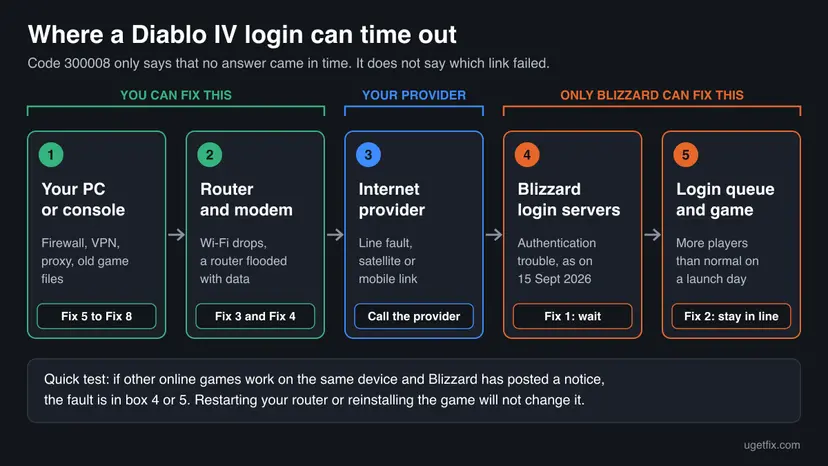
A timeout tells you that the answer did not arrive. It does not tell you where it got lost. The request may have died in your Wi-Fi, at your internet provider or inside Blizzard's login servers, and the message looks the same each time. That is why the first job is to find out whose side it is.
| What you see or type | Where it comes from | What it is |
|---|---|---|
| "Your login attempt has timed out. Please try again. (Code 300008)" | The login screen. This is the wording in Blizzard's support article. | The login request got no answer in time. |
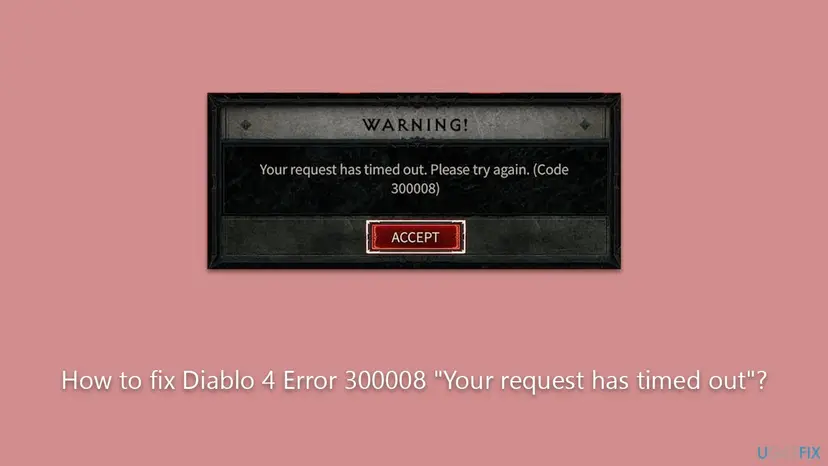
| "Your request has timed out. Please try again. (Code 300008)" | The same box in the 2023 release of the game, as in the picture above. | The same code with an older or more general text. |
| "Quick Join Time Expired (Code 300008)" | Inside the game, when joining a group. Reported by players on Blizzard's forum, not described in a support article. | The same timeout code for a party request. |
| Error 30008, error 3000008, code 30008 | Typing mistakes in searches and in forum titles. | The code has six digits: 300008. |
ERROR_GLOBAL_TIMED_OUT (300008) | A line from the game's debug log that a player posted on Blizzard's forum in September 2026. | It suggests a general timeout, not a login-only error. Blizzard has not documented this name. |
A login queue shows a box with an estimated wait timer, and Blizzard says queues appear when more players than normal log in. Code 300008 is the attempt failing outright. Code 395002 is another message again: Blizzard says it normally follows an abrupt disconnect and typically clears within 15 minutes.
Is it Blizzard's servers or your connection? How to check
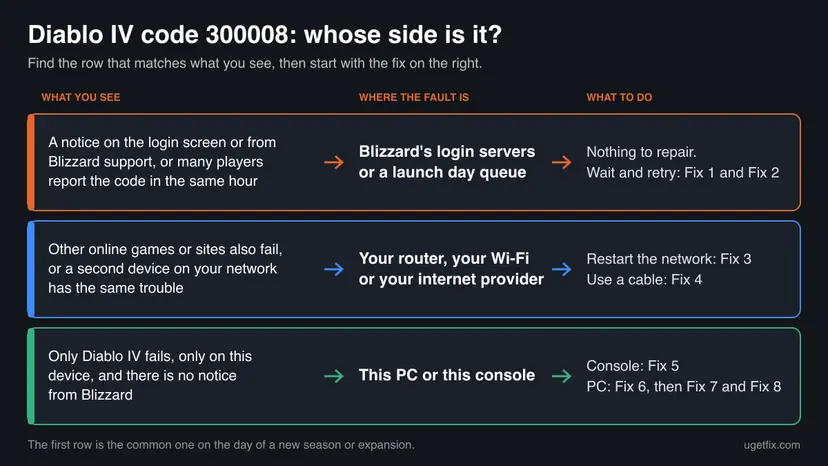
Blizzard's own list for this code starts with the servers, not with your PC. Step 1 reads: "Check for breaking news on the login screen or follow @BlizzardCS on Twitter for service updates." Only after that come the router, the Wi-Fi and the firewall.
| Channel | What you find there | Named by Blizzard in |
|---|---|---|
| Breaking news on the Diablo IV login screen | A short notice about a known problem or maintenance, shown before you log in. | The article for code 300008, step 1 |
| @BlizzardCS on X (Americas) and @BlizzardCSEU_EN (Europe) | Service updates from customer support. | The article for code 300008 and the weekly maintenance schedule |
| @support.blizzard.com on Bluesky | The same service updates. This is where we read the notices quoted below. | The weekly maintenance schedule |
| Weekly Maintenance Schedule on the support site | Planned downtime per game, with start and end times in PDT for the Americas and CEST for Europe. | A banner on every support page |
| The Diablo IV forums, Technical Support | Other players with the same code in the same hour, and now and then a reply from Blizzard staff. | The article for code 300008, last line |
Blizzard's articles name no live status page for Diablo IV. The general connection article says to check a status page "or" the support account and adds "if your game doesn't have a Service Status page, continue troubleshooting". For this game the notices above are the status page.
| When | What Blizzard wrote | Where |
|---|---|---|
| 15 September 2026, 09:15 UTC | "We are aware of an issue affecting our login servers for #DiabloIV on PlayStation and are working on a resolution." | Blizzard support on Bluesky |
| 15 September 2026, 16:50 UTC | "[#D4] We're currently investigating an issue affecting our authentication servers, which may result in failed or slow login attempts." | Blizzard support on Bluesky |
| 19 August 2026, 19:22 UTC | "[#Bnet] We are aware of an issue that is affecting our authentication servers, which may result in slow or failed login attempts." | Blizzard support on Bluesky |
| 27 April 2026, 23:49 UTC | "The team is aware of this issue, and are working on it", written by a community manager nine minutes after a player opened a thread about code 300008. | Diablo IV forum, PC General Discussion |
The Bluesky notices speak of login and authentication servers and do not print the number 300008. The link is the timing: on 15 September 2026 the forum filled with threads about code 300008 on PC, PS5 and PS4, from players who called it the first day of Season 15. Several wrote that they waited for hours. That is a report from players, not a figure from Blizzard.
Error 300008 on PC, PlayStation and Xbox: what differs
The code and its meaning are the same everywhere, but your options are not. On a PC you control the firewall, the proxy, the VPN and the game files. On a console you control the network and little else, and Blizzard's console article is three steps long for that reason.
| Platform | What you can check yourself | What you cannot do | Start with |
|---|---|---|---|
| PC, Battle.net | Blizzard's notices, modem and router, cable or Wi-Fi, Windows Firewall, security software, VPN and proxy, IP and DNS, game update and repair. | Skip a queue or reach a login server that is down. | Fix 1, then Fix 3 |
| PC, Steam | The same as above. The game still logs in to Blizzard's servers, and Steam players reported this code in July and September 2026. | Use the Battle.net repair tool. Steam has its own file check. | Fix 1, then Fix 3 |
| PlayStation 5 and PlayStation 4 | Blizzard's notices, the PlayStation status page, the console's connection test, modem and router, a LAN cable. | Change firewall rules on the console or repair single game files. | Fix 1, then Fix 5 |
| Xbox Series X|S and Xbox One | Blizzard's notices, the Xbox status page, the console's network test, modem and router, a LAN cable. | The same limits as on PlayStation. | Fix 1, then Fix 5 |
- A fault can hit one platform only. Blizzard's first notice on 15 September 2026 was about login servers "for #DiabloIV on PlayStation". A friend on PC who gets in does not prove that your PS5 is at fault.
- Switch 2. Blizzard's console article also links Nintendo's support for a connection test. We could not read those steps from a primary source today, so this guide has none for that console.
What causes error 300008, from most to least common
Most often the cause is on Blizzard's side: login servers under load or with a fault. Less often your home network drops or delays the request. Rarely something on the PC blocks it. The order below follows Blizzard's own list and what Blizzard confirmed in 2026. Blizzard publishes no numbers on how often each cause occurs.
| Cause | How often | How to tell | Fix |
|---|---|---|---|
| Blizzard's login or authentication servers have a fault or are overloaded. | Most often | A notice from Blizzard, many forum threads in the same hour, a season or patch that started today. | Fix 1, then wait |
| A launch day queue: more players than normal are logging in. | Often on launch days | A box with an estimated wait timer, then the code, then the queue again. | Fix 2 |
| The router is "flooded with data", in Blizzard's words, or the modem lost its link to the provider. | Sometimes | Other online games or video calls stutter too. A second device has the same trouble. | Fix 3 |
| A weak Wi-Fi link, or a satellite or mobile connection. | Sometimes | The code comes and goes. It disappears with a cable. | Fix 4 |
| The console cannot reach the internet or the console maker's network properly. | Console only | The console's own connection test fails or the status page shows a problem. | Fix 5 |
| A firewall, security program, VPN or proxy blocks or slows the game's traffic. | PC, less often | Only this PC fails. The code started after you installed or changed such a program. | Fix 6 |
| A stale IP address or DNS cache on the PC. | PC, rarely | The code stays after a router restart, and other devices on the network log in. | Fix 7 |
| An outdated or damaged game installation. | Rarely, not in Blizzard's list | A game update is waiting, or the code came after a crash together with other codes. | Fix 8 |
A 2023 forum post repeats a claim that this code appears because Blizzard limits how many players may log in at once. We found no statement from Blizzard that says so. Blizzard's queue article only says that queues may occur when more players than normal log in.
How to fix Diablo 4 error 300008
Fix 1 and Fix 2 decide whether you can do anything at all, and they take two minutes. Fix 3 and Fix 4 are Blizzard's network steps for every platform. Fix 5 is for PlayStation and Xbox. Fix 6 to Fix 8 are for Windows PCs only. Stop as soon as the character screen appears.
| What you see or have | Start with |
|---|---|
| The code appeared today, on the first day of a season, an expansion or a patch. | Fix 1, then Fix 2 |
| Breaking news on the login screen, or a notice from Blizzard support about login or authentication servers. | Fix 1. Nothing else will help until the notice is closed. |
| A queue box with a wait timer, then code 300008, again and again. | Fix 2 |
| No notice anywhere, friends log in, and you play over Wi-Fi. | Fix 3, then Fix 4 |
| PlayStation or Xbox, and friends on the same console family log in. | Fix 5 |
| A Windows PC with a VPN, a proxy or a third-party security program. | Fix 6 |
| A Windows PC, the code is still there after a router restart. | Fix 7 |
| The game crashed first, and now you get 300008 together with other codes. | Fix 8 |
| "Quick Join Time Expired (Code 300008)" inside the game, while logging in works. | Fix 1, then the section "If error 300008 is still there" |
Fix 1. Check Blizzard's notices before you change anything
2 minutesNo riskEveryone, on every platform, before any other step.
This is step 1 of Blizzard's own article for the code. When the login or authentication servers have a fault, the timeout happens inside Blizzard's network, and no setting on your PC, console or router can shorten it.
- Start Diablo IV and read the breaking news on the login screen, if a notice is shown there.
- Open Blizzard's support account: @BlizzardCS on X for the Americas, @BlizzardCSEU_EN for Europe, or @support.blizzard.com on Bluesky.
- Look for a post from the last hours that names Diablo IV, #D4, #Bnet, login servers or authentication servers.
- Open the Weekly Maintenance Schedule on Blizzard's support site and check whether Diablo IV is listed for today. Mind the time zone: PDT for the Americas, CEST for Europe.
- Open the Diablo IV forums, category Technical Support, and look at the newest threads. Many new threads about code 300008 within one hour point at the servers.
- If you find a notice or a wave of reports, stop here. Try again every 10 to 15 minutes, or come back when Blizzard posts that the issue is resolved.
You can stop troubleshooting when two things are true: Blizzard has posted a notice about login or authentication servers, or the forum shows a wave of the same code, and your other online games and websites work. Restarting the router, resetting the firewall or reinstalling the game changes nothing in that case.
- A notice can lag behind. On 27 April 2026 a community manager confirmed the problem in a forum thread nine minutes after a player opened it. The forum is often the fastest signal.
- Read the newest post, not the first one you see. Support accounts also post tips and news. Only a post about servers, logins or authentication counts.
It worked if: You know whose side it is. With a notice from Blizzard, the code goes away by itself once Blizzard closes the incident.
If not: If there is no notice, no wave of reports and friends are playing, the fault is nearer to you. Go to Fix 3, or to Fix 2 if you see a queue.
Fix 2. Stay in the login queue and retry the right way
5 to 60 minutes of waitingNo riskA season, an expansion or a patch started today, or you see a queue box before the code.
Blizzard says login queues occur when more players than normal log in, and names expansion launches, new seasons and game patches. A timeout during such hours is the crowd, and leaving the line only sends you to its end.
- Start the game once and log in.
- If a loading box with an estimated wait timer appears, leave it alone. That box is the queue.
- Do not close the game, the launcher or the console while the timer runs.
- If the box with Code 300008 appears, close it with its button (Accept in the 2023 version) and log in again.
- If it fails several times in a row, wait 10 to 15 minutes before the next attempt instead of pressing the button without a pause.
- On PC, enter your password and your authenticator code promptly when the Battle.net app asks for them.
- The queue does not keep your place. Blizzard's article on the Battle.net login queue says the queue will not save your place if you leave or are removed, and advises: "Stay in the queue until it finishes. Do not leave or restart the client."
- Support cannot move you forward. The Diablo IV queue article states that customer support is unable to change or bypass queue times.
Blizzard gives no number for how long to wait between attempts. We suggest 10 to 15 minutes because Blizzard's notices can be hours apart, as on 15 September 2026. Whether fast repeated attempts help or hurt, we could not confirm.
It worked if: The wait timer counts down, or the next attempt goes straight to the character screen.
If not: If friends on the same platform log in at once while you time out for more than an hour, treat it as your connection and go to Fix 3.
Fix 3. Power cycle the modem and the router
5 minutesLow riskThere is no notice from Blizzard, or you want to rule out your home network. Works for PC and console.
This is step 2 of Blizzard's list for the code: reset your network devices "to make sure your router hasn't become flooded with data". The console article says the same step resolves most network problems. A full power cycle makes the modem build a new link to your provider.
Phones, TVs and work calls on the same network lose their connection until the router is back. Warn the people you live with before you pull the plug.
- Close Diablo IV.
- Shut down the PC or turn the console off completely. Rest mode or sleep is not enough.
- Power down and unplug the modem, and the router if you have a separate one.
- Leave them unplugged for 60 seconds.
- Plug in the modem first, then the router, and turn them on.
- Wait until the connection lights on the front of the modem are steady.
- Start the PC or console, wait until it has fully started, then start Diablo IV and log in.
- A modem with a backup battery does not restart when you unplug it. Blizzard's note: take the battery out or use the reset button on the modem.
- Sony asks for a longer pause. Its help page for a PlayStation connection error says to turn the modem or router off and wait 5 minutes. On a PlayStation, use the longer pause.
- Old router firmware. Blizzard's firewall article advises updating the router firmware and, for configuration errors, a factory reset with the maker's instructions. A factory reset erases your Wi-Fi name, password and provider settings, so keep it for last.
It worked if: The game logs in and shows the character screen. Other online services at home also feel normal again.
If not: If the code returns and you play over Wi-Fi, go to Fix 4. On a console continue with Fix 5.
Fix 4. Use a cable and free up the connection
5 to 10 minutesNo riskYou play over Wi-Fi, on a shared or slow line, or on a satellite or mobile connection.
Step 3 of Blizzard's list tells wireless players to rule out the connection itself. A login is a short exchange with a deadline, and a Wi-Fi link that drops for a moment can miss it even when the servers are fine.
- Close other programs that use the internet: downloads, updates, cloud backups and video streams. On a console, pause downloads that run in the background.
- Connect the PC or console to the router with a network cable. Blizzard notes that wireless connections can have difficulties with online gaming.
- Check that the device now uses the cable. On Windows 11 open Start > Settings > Network & internet: the top of the page shows the active connection.
- Start Diablo IV and log in.
- If the code is gone, the Wi-Fi was the weak link. Keep the cable, or move the router closer.

- Satellite, mobile and WiMax. Blizzard states that these connections are "entirely unsupported for PC gameplay". If you play that way, timeouts can come from the line itself, and Blizzard will not troubleshoot it.
- A phone hotspot as a one-time test. If the login works at once over a hotspot, your home line or router is the cause. If it times out there too, the servers are the likelier cause. Do not keep playing on it: see the point above.
- A wider check of the home network on Windows: How to check your internet connection in Windows
It worked if: With the cable in, the login goes through on the first or second attempt.
If not: Console players go to Fix 5. On a Windows PC continue with Fix 6.
Fix 5. On PlayStation or Xbox: check the platform status and run the connection test
10 minutesNo riskYou play on PS5, PS4, Xbox Series X|S or Xbox One, and Fix 1 showed no notice from Blizzard.
Blizzard's console article ends with the console's built-in connection test, because a console has no firewall settings or game repair to try. The test and the maker's status page show whether the console reaches the internet and its own network at all.
- Open the status page of your platform on a phone or PC: PlayStation Status at
status.playstation.com, or Xbox Status onsupport.xbox.com. - If the page shows a failure, maintenance, Limited or Major outage, wait until it is back to normal.
- Close Diablo IV completely, then turn the console off fully and do the power cycle from Fix 3.
- PS5: open Settings > Network > Connection Status > Test Internet Connection.
- PS4: open Settings > Network > Test Internet Connection.
- Xbox: press the Xbox button, then open Profile & system > Settings > General > Network settings > Test network connection.
- If the test fails, the problem is the network and not the game. Connect a LAN cable and run the test again.
- When the test passes, start Diablo IV and log in.
| Result | What it means | Next |
|---|---|---|
| The status page shows a problem | The console maker's network has trouble. Sony's own advice for such errors ends with "please try again later". | Wait |
| The connection test fails | The console does not reach the internet properly. | Cable, Fix 3, then your provider |
| Status and test are fine, Blizzard posted a notice | Blizzard's login servers for your platform have a fault, as on 15 September 2026 for PlayStation. | Fix 1: wait |
| Everything is fine and there is no notice | Not explained by any check you can run on a console. | Post on Blizzard's forum, see "If error 300008 is still there" |
It worked if: The connection test passes and the game reaches the character screen.
If not: If the test passes, the status pages are clean and the code stays for a day, collect the details listed under "If error 300008 is still there" and post them on Blizzard's forum.
Fix 6. On PC: reset the Windows Firewall and check security software, VPN and proxy
10 minutesRead the warningA Windows PC where only Diablo IV fails, above all with a VPN, a proxy or a third-party security program installed.
Step 4 of Blizzard's list is to check the network configuration for firewall, router or port problems. Blizzard explains that firewalls can restrict packets or change their priority, which causes problems connecting to its services, and that security software sometimes blocks its games by mistake.
The reset deletes every rule you or your programs added to Windows Firewall. Apps such as remote desktop tools, game servers or development tools may ask for access again or stop accepting connections until you allow them. If you depend on custom rules, note them first or skip to the second list of steps. The firewall itself stays on.
- Press Win + R.
- Type
Firewall.cpland press Enter. - Select Restore Defaults in the menu on the left.
- Select the Restore Defaults button.
- Select Yes to confirm.
- Start Diablo IV. When Windows asks whether to allow the game or the Battle.net app through the firewall, allow it.
Next, the programs that sit between the game and the internet. Blizzard counts antivirus programs, firewalls and VPNs as security software and gives the order: update the program first, then add the game client to its exception list, and only then pause it for a test.
- Disconnect your VPN and close its app, then try to log in.
- Update your third-party security program and add Battle.net and Diablo IV to its exception list. The maker's help pages show where that list is.
- Press Win + R, type
inetcpl.cpland select OK. - Open the Connections tab and select LAN settings.
- Clear Use a proxy server for your LAN. If it was already clear, switch Automatically detect settings off and on once.
- Select OK and try to log in.
- A proxy you never set. Blizzard warns that proxy settings can be turned on by malware without your knowledge and advises an antivirus scan after you clear them: How to scan for malware with Microsoft Defender
- Pausing protection is a test, not a fix. Blizzard's second option is to pause the security program until its maker fixes the conflict and to run another one, such as Microsoft Defender, in the meantime. If a short pause proves the point, turn it back on and add the exception: Turn off Microsoft Defender protection for a moment
It worked if: Windows asks once to allow the game, and after you allow it the login goes through.
If not: If nothing changed, your firewall and security software were not the cause. Turn your VPN back on if you need it and go to Fix 7.
Fix 7. On PC: release and renew the IP address and flush DNS
3 minutesLow riskA Windows PC that still times out after the router restart, while other devices on the same network log in.
Blizzard's general article for players who cannot connect lists this step "to resolve any network conflicts". The PC asks the router for a fresh address and forgets stored server addresses, so the next login looks the servers up again.
- Close Diablo IV and the Battle.net app.
- Press the Windows key and type
cmd. - Right-click Command Prompt and select Run as administrator, then Yes.
- Type
ipconfig /releaseand press Enter. Wait a few seconds for the reply. The connection drops. - Type
ipconfig /renewand press Enter. Wait until an address is shown again. - Type
ipconfig /flushdnsand press Enter. - Close the window, start the game and log in.
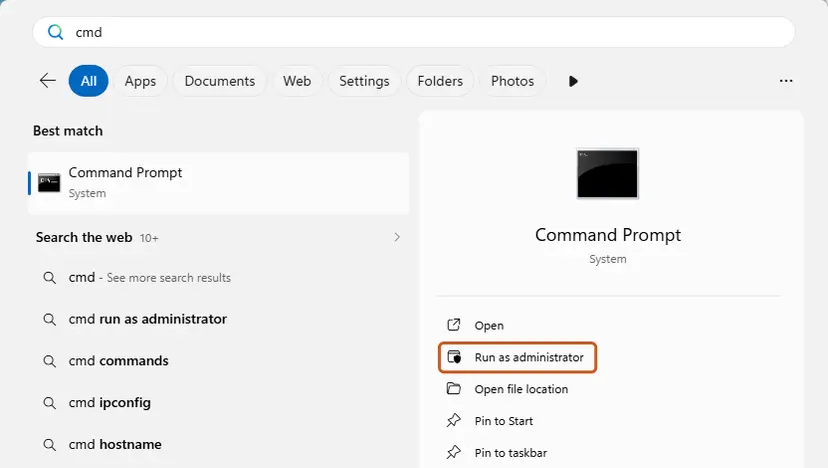
The three commands, in Blizzard's order
ipconfig /release
ipconfig /renew
ipconfig /flushdns- Not in the 300008 article. This step comes from Blizzard's article "Disconnected from Blizzard Services", not from the short list for this code. It is safe, quick and worth one try.
- No command line? Blizzard says that restarting the computer may produce the same effects.
- Winsock and TCP/IP resets. The old version of this guide added
netsh winsock reset. Blizzard's article does not list it. The full network reset is here: Reset the network and flush DNS
It worked if: Each command answers without an error, and the game logs in on the next attempt.
If not: If the code stays and a game update or a crash came before it, go to Fix 8. Otherwise read "If error 300008 is still there".
Fix 8. On PC: update the game, then run Scan and Repair
10 to 30 minutesNo riskA Windows PC where the game crashed or lost its connection before the code appeared, or where a game update is waiting.
Blizzard's article for code 300008 does not list a repair, so this is the last fix and not the first. It is here for the case in the question above: Blizzard's steps for a login that fails after an abrupt disconnect begin with the repair tool.
- Open Battle.net. Open the Battle.net desktop app.
- Select the game. Select the icon of the game you want to repair.
- Check for updates first. Select the cogwheel next to the Play button and select Check for Updates. An update often fixes the problem on its own.
- Open Scan and Repair. If the game is up to date, select the cogwheel again and select Scan and Repair.
- Begin the scan. Select Begin Scan and wait for the repair to finish.
These steps were written for Battle.net on Windows. The full page with the other versions and what each result means: How to verify game files in Steam, Epic Games, Xbox app, EA app, Battle.net and GOG Galaxy
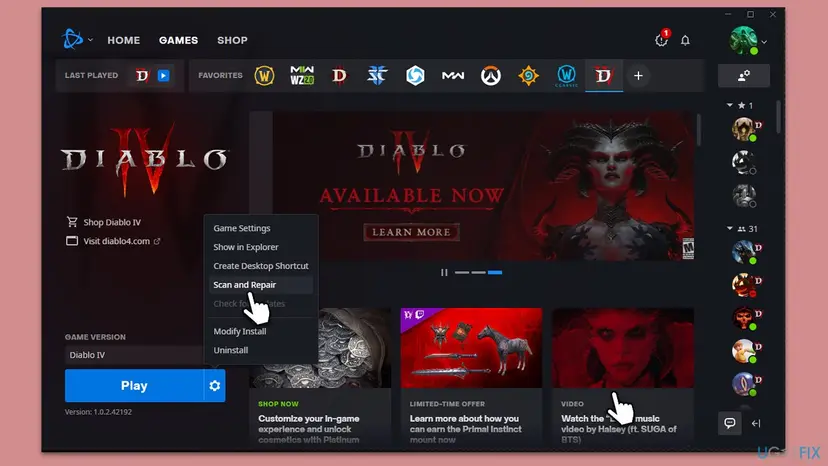
- Update first. Blizzard's repair article says that updating the game often resolves such problems and asks you to check for updates before the repair.
- Steam. The Battle.net tool is not available there. Use Verify integrity of game files on the Installed Files tab of the game's properties, as shown on the Steam tab of the procedure above.
- Code 395002 after a crash. If that code shows up next to 300008, Blizzard says it normally follows an abrupt disconnect and typically resolves within 15 minutes. Wait that long before you repair anything.
It worked if: The scan ends without errors or replaces some files, and the game logs in afterwards.
If not: If the repair finds nothing and the code stays, the game files were not the cause. Go to "If error 300008 is still there".
If error 300008 is still there: what to collect and where to send it
Blizzard's article for the code ends with one line: if the steps did not resolve the problem, visit the Diablo IV forums. There is no ticket form behind that link. So the useful thing you can do is post a report that staff and other players can work with.
- Platform and store: PC with Battle.net, PC with Steam, PS5, PS4, Xbox Series X|S or Xbox One.
- Region and time: your country, the date and the time with the time zone of the first failure.
- The exact text: "Your login attempt has timed out", "Your request has timed out" or "Quick Join Time Expired", and any second code such as 395002 or 315306.
- Your connection: cable or Wi-Fi, the provider, and whether a second device on the same network logs in.
- What you tried: the fixes above by name, and on a console the result of the connection test.
- Where to post: the Technical Support category of the Diablo IV forum for PC, and Console Bug Report for PlayStation and Xbox. Blizzard runs forums for North America, Europe, Germany, France, Korea and Taiwan.
| Tool or log | Status today | What we found |
|---|---|---|
| Battle.net Looking Glass | Shut down | A Blizzard customer support agent wrote on 13 April 2023 that the site "was shutdown and it is no longer available". |
| WinMTR, traceroute, pathping | Recommended by staff in 2023, no article today | The same reply recommends them and prefers WinMTR. A search of Blizzard's support site for each of the three names now returns no results. |
| Blizzard's list of server addresses to test against | Not found | The old traceroute article, number 7870, opens the support home page. We found no current Diablo IV server address from Blizzard, so we give no trace command. |
| The game's debug log | Not documented | Players quote lines from a log they call FenrisDebug. Blizzard's support site does not say where it is, so we cannot confirm a path. |
- When it is your provider or your hardware: other online games time out too, the console's connection test fails, or the trouble follows the router and not the device. Blizzard's connection article ends with the internet provider, and with a local network technician when all else is exhausted.
- When it is Blizzard: only Diablo IV fails, on a connection that passes every test, and other players report the same code in the same hours. Customer support cannot bypass a queue or a server fault for one account.
- When it is only the party feature: if you can log in and play, and the code appears only on Quick Join or in the party finder, your connection is working. A player reported exactly that on 27 September 2026 in a thread with no staff answer. Report it in the bug forum.
How to avoid error 300008 next season
- Check Blizzard's support account and the login screen news before you start troubleshooting.
- Play over a network cable, or keep the router close when you must use Wi-Fi.
- Update the game before the season starts, so the first evening is not spent on a download.
- Stay in the queue once you are in it, and keep the authenticator at hand on PC.
- Close the game through its menu when you stop playing, so the session ends cleanly.
- Power cycle the modem and router when other online services at home also act up.
- Do not reinstall the game because of a timeout. Blizzard does not list it for this code.
- Do not restart the game or the console while a queue timer is running.
- Do not leave a firewall or an antivirus program switched off after a test.
- Do not factory reset the router on a day when Blizzard has posted a notice.
- Do not rely on a satellite or mobile connection for PC play. Blizzard does not support it.
The honest part: you cannot prevent the common case. A season or expansion launch brings more players than normal, and Blizzard confirmed login server trouble on such a day in September 2026. Plan for a delay on the first evening.
Frequently asked questions
What does error code 300008 mean in Diablo 4?
It means a request from your game to Blizzard's servers got no answer in time. Blizzard's support article gives the message as "Your login attempt has timed out. Please try again (Code 300008)" and treats it as a connection issue. The code does not say where the answer got lost. It can be Blizzard's login servers, which is the usual case on the first day of a season, or your own router, Wi-Fi or firewall. That is why Blizzard's list starts with checking for breaking news and only then turns to your network.
Is Diablo 4 down right now, and how do I check?
Blizzard names no live status page for Diablo IV, so you check its notices. Look at the breaking news on the game's login screen, then at Blizzard's support account: @BlizzardCS on X for the Americas, @BlizzardCSEU_EN for Europe, or @support.blizzard.com on Bluesky. Planned downtime is in the Weekly Maintenance Schedule on the support site. The Technical Support category of the Diablo IV forum shows whether many players have the same code in the same hour. A wave of new threads can come before the official notice.
How long does error 300008 last?
There is no fixed length, and Blizzard gives none. When the cause is your own network, it ends as soon as the router restart or the cable fixes the link, usually within minutes. When the cause is a server fault, it ends when Blizzard repairs it. On 15 September 2026 Blizzard posted a first notice about login servers at 09:15 UTC and another about authentication servers at 16:50 UTC, and players on the forum wrote that they waited for hours. Follow Blizzard's support account and try again every 10 to 15 minutes.
How do I fix error 300008 on PS5 or PS4?
Check Blizzard's notices first, because the fault can be on Blizzard's side for PlayStation only, as on 15 September 2026. Then open status.playstation.com to see whether Sony's network has trouble. Turn the console off fully and unplug the modem and router. Blizzard asks for 60 seconds, Sony for 5 minutes. On PS5 run Settings > Network > Connection Status > Test Internet Connection, on PS4 Settings > Network > Test Internet Connection. If the test fails, use a LAN cable and repeat it. If everything passes and the code stays, post on Blizzard's Console Bug Report forum.
How do I fix error 300008 on Xbox?
The steps match the PlayStation ones with Microsoft's names. Read Blizzard's notices, then open the Xbox Status page on support.xbox.com and check that no service is marked Limited or Major outage. Power cycle the modem and router with the console fully off. Then press the Xbox button and open Profile & system > Settings > General > Network settings > Test network connection. A failed test means the console's connection is the problem, and a LAN cable is the first thing to try. A passed test with clean status pages points back at Blizzard's servers.
Does error 300008 mean my account is banned or my character is lost?
Nothing we read from Blizzard says so. The support article describes the code as a connection issue and offers only network steps. A timeout carries no information about your account. Players do sometimes see a second message after a failed login, such as code 395002 about a character that has not finished being saved. Blizzard says that one normally follows an abrupt disconnect and typically resolves within 15 minutes. If a character stays unreachable long after logins work again, report it on the forum.
Why do I get "Quick Join Time Expired" with code 300008 when I can log in?
Because the same timeout code is used for party requests, not only for the login. Players reported "Quick Join Time Expired (Code 300008)" on Blizzard's forum in July 2025, and in September 2026 one player posted log lines in which a quick join failed with a general timeout carrying this number. Blizzard has published no article and, as far as we found, no staff answer on this case. Your connection is working if you can log in and play. Try again later, and report it in the bug forum with the time and your platform.
Will reinstalling Diablo 4 fix error 300008?
Almost never, and Blizzard does not ask for it. The article for the code lists four things: breaking news, the network devices, the wireless connection and the firewall or router settings. A reinstall touches none of them, and it costs a long download. On a PC the Scan and Repair tool in the Battle.net app replaces damaged files without that cost, and Blizzard asks you to check for updates before using it. A player on the European forum wrote in January 2026 that two reinstalls did not remove the code.
Will a VPN get me past error 300008?
We found no Blizzard source that says it does. Blizzard's guidance points the other way: it counts VPNs as security software that can wrongly block its games, and it states that it does not directly support proxies, firewalls or routers. If you already use a VPN, disconnect it for one login attempt, because it adds another place where the request can time out. If the cause is Blizzard's login servers, the route you take to them makes no difference, since the delay is at the destination.
Sources
- Blizzard Support: Diablo IV Error Code 300008 (article 000338863) (us.support.blizzard.com)
- Blizzard Support: Troubleshooting Diablo IV Connection Issues on Consoles (us.support.blizzard.com)
- Blizzard Support: Power Cycling Your Network Devices (us.support.blizzard.com)
Did this fix work?
One click, no account. It tells the next reader which guides are worth their time.
Questions and experiences: fix Diablo 4 Error 300008 "Your request has timed out"
Still broken, or found a fix we did not cover? Ask here: members and our editors answer. Reading is open; writing needs a free account.
…