
How to fix Discord green screen and camera not working in Windows?

Prefer to fix it yourself? The manual steps follow.
- 9methods
- 5 to 30 minutes
- Easy
Applies to Discord desktop app on Windows 11 and Windows 10; built-in laptop cameras and USB webcams
9 methods in this guide
- What green screen means
- Test the camera first
- Likely causes
- The fixes
- 1. Quit and refresh Discord
- 2. Close camera apps
- 3. Windows camera privacy
- 4. Hardware acceleration
- 5. Reset voice and video
- 6. Toggle the camera button
- 7. Connection and updates
- 8. Reinstall camera driver
- 9. Reinstall Discord
- Still broken
- Keep it working
- FAQ
Hey. Whenever I try to use Discord's camera, there is only a green screen visible. I tried to restart the app and camera, but it did nothing to help the situation. I am using Windows 10.
The Discord green screen is a plain green square where your camera picture should be. Discord's help pages do not name it as an error, so the fix is a short list of checks. Start by testing the camera in the Windows Camera app, then quit Discord completely.
Users report that the camera works in other apps, so test it first in Start > Camera. If it works there, quit Discord from the tray and press Ctrl + R (Fix 1), close other apps that use the camera (Fix 2), and check that Let desktop apps access your camera is on (Fix 3). If the square stays green, switch hardware acceleration in Discord's Video settings (Fix 4).
| Error | A green square instead of your video when the camera is on in a Discord call. No error code or message appears. |
|---|---|
| Where it appears | In the Discord desktop app, on the camera preview and in voice or video calls, while the same camera may work in other apps. |
| Main cause | Not named by Discord. Its help pages list camera permissions, another app using the camera, drivers, hardware acceleration and a damaged install as the things to check. |
| Fastest fix | Quit Discord from the tray, start it again and press Ctrl + R (Fix 1). Then check Windows camera privacy (Fix 3). |
| Also written as | discord green screen, discord camera not working, camera unavailable discord, failed to start camera discord, discord camera error. |
| Affects | The Discord desktop app on Windows 11 and Windows 10. Users report the same green square on other systems, so the steps for phones are in the FAQ. |
| Discord's status | No known issue or patch is listed. Discord Support has a Voice and Video Troubleshooting Guide and an error code guide, and asks for a debug log if nothing helps. |
| Time to fix | 5 to 30 minutes, depending on how far down the list you need to go. |
Facts checked on 16 October 2026. Steps written for Windows 11 (25H2 and 26H2) and Windows 10 22H2 with the Discord desktop app.
What the Discord green screen means
The green screen is a flat green square in the place of your video, in the camera preview or in a call. Discord shows no error code and no message with it, so there is nothing to look up. Users report that the camera works fine in any other app and that the problem began suddenly, though some say it was there from the start.
Discord's help pages do not describe the green square. What they do describe are the usual reasons a camera fails in Discord: missing permissions, a loose connection, old drivers, the hardware acceleration setting and a damaged install. This guide follows that list and says where we could not confirm a cause.
| What you see | What it points to | Start with |
|---|---|---|
| Green square in Discord, camera works in the Windows Camera app | A Discord, permission or settings problem | Fix 1 |
| Green square or no picture in Discord and in the Camera app | The camera, its cable or its driver | Fix 7 |
| Camera unavailable, or a camera that cannot start | Another app may have the camera open | Fix 2 |
| Discord error 2011, 2013 or 2014 on video | Discord names hardware acceleration and the network | Fix 4 |
People search the same problem as green screen, green square, camera unavailable and failed to start camera. Discord's own error code page lists camera related codes 2011, 2013 and 2014 for slow or failed video, and no code for a green square.
Find out first whether Discord or the camera is the problem
One short test saves time. Microsoft's camera guide tells you to try the camera in a different app, because if it works in one app and not in another, the fault lies with the app settings. The Windows Camera app is the cleanest test, since it does not depend on Discord at all.
- Close the Discord call, but leave Discord itself running.
- Select Start and open Camera. If Windows asks to allow access to the camera, select Yes.
- Look at the preview. A normal picture means the camera and its driver work.
- If the preview is green, black or missing too, go straight to Fix 7 and Fix 8.
| Camera app result | What it means | Next |
|---|---|---|
| Normal picture | Camera and driver are fine; Discord or its settings are the problem | Fix 1 to Fix 6 |
| Green or black picture | The camera, its connection or its driver | Fix 7 and Fix 8 |
| Message that the camera is in use | Another program has the camera open | Fix 2 |
Why Discord shows a green screen instead of your camera
Neither Discord nor Microsoft publishes a measured ranking of causes for this symptom. The table below is ordered by how little each check costs and by how directly the vendor pages name it, not by how often it works. We could not confirm the exact cause of the green square itself.
| Cause | Sign | Fix |
|---|---|---|
| Discord needs a fresh start, or a leftover copy is still in the tray | Green square after a long session, a restart of the call did nothing | Fix 1 |
| Another app holds the camera | Skype, Teams, Zoom, OBS or a browser call was open | Fix 2 |
| Windows blocks desktop apps from the camera | Camera access or Let desktop apps access your camera is off | Fix 3 |
| Hardware acceleration in Discord | Video lags, or Discord reports video error 2008 to 2015 | Fix 4 |
| Damaged Discord voice and video settings | The problem began after you changed Discord settings | Fix 5 |
| A glitch in the camera stream | Green appears when the camera starts | Fix 6 |
| Old Windows build or camera driver; loose cable | Camera also fails in the Camera app | Fix 7 and Fix 8 |
| Damaged Discord install | Nothing above helped | Fix 9 |
How to fix the Discord green screen when the camera is not working
Fixes 1 to 3 cost almost nothing and match what Discord Support lists first. Fixes 4 to 6 change Discord's own video settings. Fixes 7 and 8 deal with Windows and the camera driver, and Fix 9 reinstalls Discord.
| What you see or have | Start with |
|---|---|
| Green square, and you only closed the Discord window before | Fix 1 |
| Skype, Teams, Zoom, OBS or a browser call was open | Fix 2 |
| The camera never worked in Discord, or Windows was reinstalled or updated recently | Fix 3 |
| Video is slow or Discord reports a video error code | Fix 4 |
| You changed voice or video settings before it broke | Fix 5 |
| Only the first seconds of the call are green | Fix 6 |
| The camera is green or missing in the Camera app too | Fix 7 |
| The camera is missing in Device Manager or shows a warning | Fix 8 |
| Everything else failed | Fix 9 |
Fix 1. Quit Discord completely and refresh it
2 minutesNo riskEveryone, first, especially if you only closed the Discord window or restarted the call.
Discord's own troubleshooting guide says to refresh the client with Ctrl + R and, if that is not enough, to exit the active Discord program completely and start it again. Closing the window leaves Discord running in the tray, so a plain restart may not restart it.
- Click the Show hidden icons arrow on the taskbar.
- Right-click the Discord icon and select Quit Discord.
- Start Discord again from the Start menu.
- Open a call or the camera preview and turn the camera on.
- If it is still green, click inside Discord and press Ctrl + R on the keyboard to refresh the app.
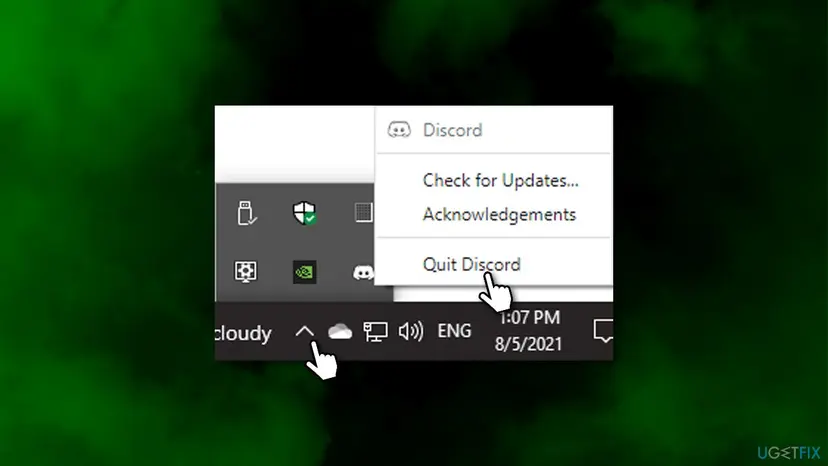
It worked if: Your own picture appears in the camera preview instead of the green square.
If not: If the green square is still there, go on to Fix 2.
Fix 2. Close other apps that are using the camera
3 minutesNo riskSkype, Teams, Zoom, OBS, a camera tool or a browser video call was open today, or Discord says the camera is unavailable.
A camera that another program already has open can show up as unavailable in a second app. Discord does not say this about the green square, so we treat it as a cheap check and not as a proven cause.
- Press Ctrl + Shift + Esc to open Task Manager.
- Under Apps, look for programs that may use the camera: Skype, Teams, Zoom, OBS, a camera or virtual camera tool and browsers with a video call.
- Right-click each of them and select End task.
- Leave Discord and your other apps running.
- Turn the camera on in Discord again.
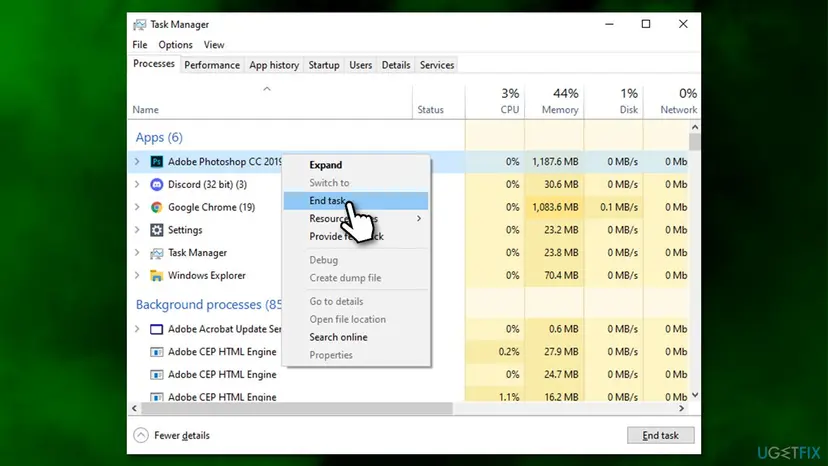
Step by step for a stuck program: Close a frozen app (Task Manager, Force Quit)
It worked if: The camera starts in Discord and shows your picture.
If not: If the green square is still there, go on to Fix 3.
Fix 3. Allow desktop apps to use the camera in Windows privacy settings
3 minutesLow riskThe camera never worked in Discord, or it stopped after a Windows update or a reinstall of Windows.
Microsoft says that apps installed from the internet are desktop apps, and that their camera access is controlled by one switch for all of them, not one per app. Discord does not appear in the list of Store apps, so this switch is the only one that applies to it.
- Right-click Start and select Settings.
- On Windows 11, select Privacy & security, then Camera. On Windows 10, select Privacy, then Camera under App permissions.
- Turn on Camera access (Windows 11) or Camera access for this device (Windows 10). If the switch is grey, an administrator has to turn it on for you.
- Turn on Let apps access your camera (Windows 11) or Allow apps to access your camera (Windows 10).
- Turn on Let desktop apps access your camera (Windows 11) or Allow desktop apps to access your camera (Windows 10).
- Restart Discord from the tray (Fix 1) and test the camera.
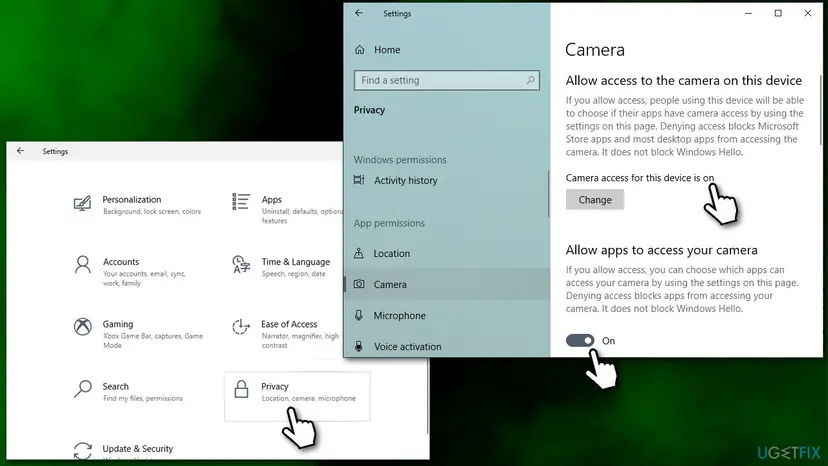
If you use discord.com in a browser, the browser has its own camera permission for the site. Discord's guide links to the Chrome, Firefox and Safari pages for this.
It worked if: The three switches are on and Discord shows a live picture after a restart.
If not: If the green square is still there, go on to Fix 4.
Fix 4. Switch hardware acceleration in Discord's Video settings
3 minutesLow riskVideo is slow, Discord reports a video error code, or the first three fixes did not help.
Discord's pages disagree on this one setting. Its troubleshooting guide says to turn hardware acceleration off for video issues on a PC, while its error code page says to turn it on for video errors 2008 to 2015. So flip it to the opposite of what it is now and test.
- Click the cogwheel in the bottom left corner of Discord to open User Settings.
- Select Voice & Video in the left sidebar and open the Video tab.
- Scroll down to the Advanced section.
- Switch Hardware Acceleration to the opposite of its current position.
- Quit Discord from the tray (Fix 1), start it again and test the camera.
If it is on, turn it off. If it is off, turn it on. If neither helps, put it back the way it was before you move on.
It worked if: The camera preview shows your picture, and the error code, if there was one, does not return.
If not: If the green square is still there, go on to Fix 5.
Fix 5. Reset Discord's voice and video settings
2 minutesLow riskThe camera broke after you changed voice or video settings in Discord.
Discord lists Reset Voice and Video Settings as the step for when settings issues persist. It clears the choices you made in the Voice & Video page and leaves your account and servers alone.
- Open User Settings with the cogwheel and select Voice & Video.
- Scroll to the Debugging area of the page.
- Select Reset Voice and Video Settings and confirm.
- Check your microphone and speakers again, because they may need to be chosen once more.
- Turn the camera on in a call.
It worked if: The camera works with Discord's default video settings.
If not: Go to Fix 6, or to Fix 7 if the Camera app test also failed.
Fix 6. Click the camera button on and off several times
1 minuteNo riskThe camera is green only when it starts, and the other fixes are not an option right now.
This is a user report, not a Discord instruction. Some users say that stopping and starting the video stream restarts a camera feed that came up green, and Discord's own pages do not mention it. It costs nothing to try.
- Open a call or the camera preview where the camera is green.
- Click the camera button at the bottom of the window to turn the camera off.
- Click it again to turn the camera on.
- Repeat the on and off clicks several times in quick succession.
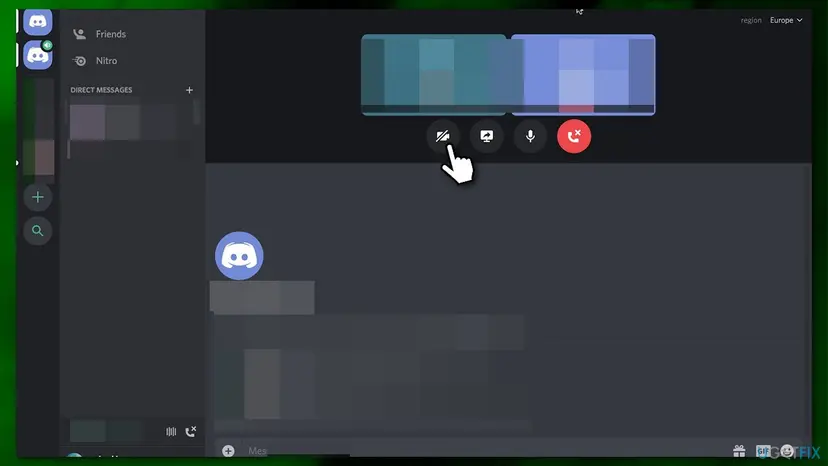
It worked if: The green square turns into your live picture after a few clicks.
If not: If the green square is still there, go on to Fix 7.
Fix 7. Check the camera connection and install Windows updates
15 minutesLow riskThe camera is also green, black or missing in the Windows Camera app, or Windows has not been updated for a long time.
Discord's guide and Microsoft's camera guide both start the hardware checks with a secure connection, another USB port and an up to date Windows. Microsoft also says to look for camera drivers in optional updates and to restart, since waking from sleep does not count.
- For a USB webcam, check the cable and plug it into a different USB port. A laptop camera may have a switch, a shutter or an Fn key that turns it off, so check those too.
- If you can, test the webcam on another PC. A camera that fails there too is a hardware fault.
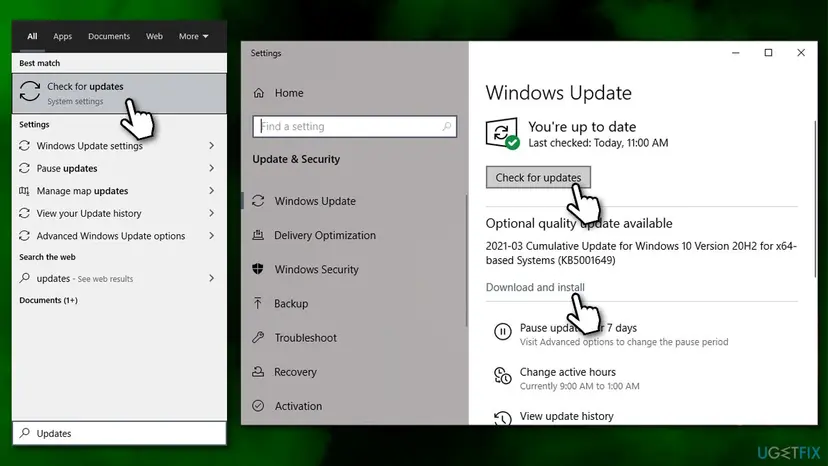
- Open Settings > Windows Update and select Check for updates. On Windows 10, the path is Settings > Update & Security > Windows Update.
- Select Advanced options > Optional updates and install any driver update for your camera.
- Restart the PC with Start > Power > Restart.
- Test the camera in the Camera app, then in Discord.
It worked if: The Camera app shows a normal picture and Discord follows.
If not: If the green square is still there, go on to Fix 8.
Fix 8. Reinstall the camera driver
10 minutesLow riskDevice Manager shows a warning sign next to the camera, or the camera is green or missing everywhere, even after updates.
A camera driver can become damaged or be replaced by a wrong one, and Discord's guide asks Windows users to keep camera drivers current. Removing the driver and letting Windows install it again replaces the damaged files.
Follow the Uninstall device part of the driver procedure and restart: Update, roll back or reinstall a driver
- Open Device Manager and expand Cameras, Imaging devices or Sound, video and game controllers to find your camera.
- Right-click the camera and select Uninstall device, then confirm.
- Restart the PC so that Windows installs the camera again.
- If the camera does not come back, install its driver from your PC or webcam maker's website.
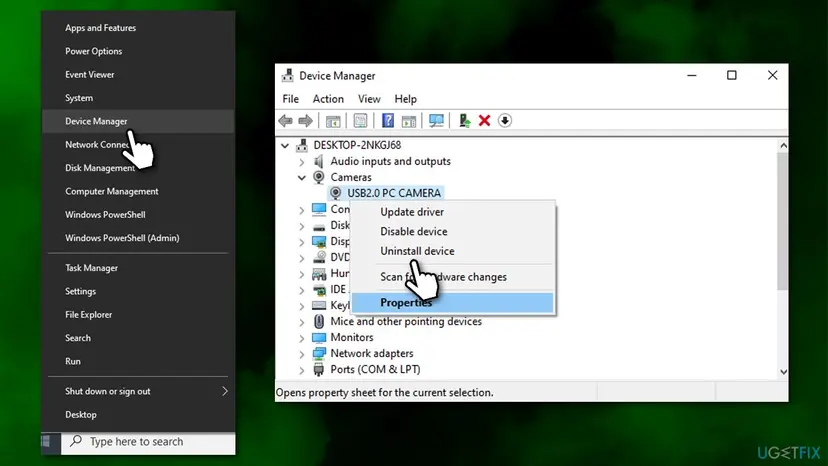
- Open Device Manager. Right-click Start and select Device Manager.
- Open the device's Driver tab. Expand the category (for example Display adapters), right-click the device, select Properties and open the Driver tab. Driver Date and Driver Version show what is installed now.
- Update the driver. Select Update Driver and let Windows search automatically. To use a driver you downloaded from the device maker, select Browse my computer for drivers instead and point to the unpacked folder.
- Or roll back the driver. If the problem started after a driver update, select Roll Back Driver, choose a reason and select Yes. The button is greyed out when Windows has no earlier driver to return to.
- Or reinstall the driver. Select Uninstall Device. Tick Attempt to remove the driver for this device only if you want Windows to delete the driver package too, then select Uninstall.
- Restart. Restart the PC. Windows detects the device again and installs a driver for it.
- Check optional driver updates. Open Settings > Windows Update > Advanced options > Optional updates. If driver updates are listed, tick the ones you need and select Download & install.
These steps were written for Windows 11 24H2 and later. The full page with the other versions and what each result means: Update, roll back or reinstall a driver
It worked if: The camera appears in Device Manager again and works in the Camera app.
If not: If the green square is still there, go on to Fix 9.
Fix 9. Uninstall Discord and install it again
10 minutesLow riskNothing above helped and the Camera app shows a normal picture.
Discord's troubleshooting guide lists a complete reinstall in its advanced steps: download a fresh copy and do a clean installation. That replaces any damaged Discord files, which is the one cause still left.
- Quit Discord from the tray (Fix 1).
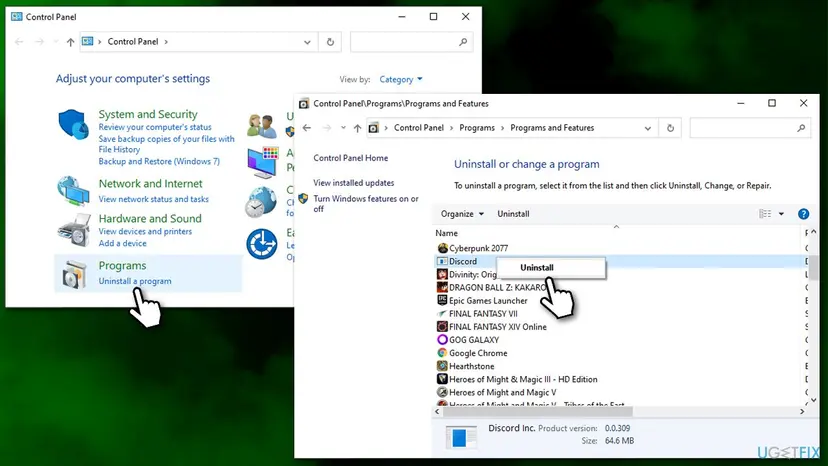
- Uninstall Discord from Windows: Uninstall a program or app in Windows
- Restart the PC.
- Download Discord from its official page, discord.com/download, and install it.
- Sign in and test the camera before you change any settings.
- Uninstall from the Start menu. Select Start > All apps and find the app. Right-click it (or press and hold) and select Uninstall.
- Or uninstall in Settings. Select Start > Settings > Apps > Installed apps. Find the app, select More (the three dots) > Uninstall, and confirm.
- Or uninstall from Control Panel. Some programs can only be removed here. Type Control Panel in the search box on the taskbar and open it, then select Programs > Programs and Features. Right-click the program and select Uninstall or Uninstall/Change, then follow the program's own uninstaller.
- Restart if the uninstaller asks. Some programs finish removing their files only after a restart.
These steps were written for Windows 11 24H2 and 25H2. The full page with the other versions and what each result means: Uninstall a program or app in Windows
It worked if: A fresh Discord opens and the camera shows your picture.
If not: Read the section on what to do when it is still broken.
If the Discord camera is still green or not working
Three more checks come from Discord's troubleshooting guide. None is a cure for every case, and the first two apply only when the Camera app works and Discord alone fails.
- Run Discord as administrator: right-click the Discord shortcut and select Run as administrator. Step by step: How to run a program as administrator or in compatibility mode
- Try the Discord PTB build: Discord calls it a pre-release build that may break, but it also holds the newest code, so it shows whether a fix is already there.
- Scan for malware: Discord suggests a full scan and a restart if threats are found. Step by step: How to scan for malware with Microsoft Defender
If the Camera app also fails after Fix 7 and Fix 8, treat it as a hardware or maker problem. The camera may be disabled by a switch, or a USB webcam may be failing, which the test on another PC shows.
- What to send Discord Support: a clear description of the problem and your Windows version. Add which Discord client you use (desktop, browser or mobile) and screenshots of your Voice & Video settings. Finish with a list of your devices and the debug log from the Debugging area.
- Where: the support form at dis.gd/contact.
- Who for a hardware fault: the laptop maker for a built-in camera, or the webcam maker for a USB one.
How to keep the Discord camera working
- Quit Discord from the tray after an update or a long session, not only the window.
- Test the camera in the Windows Camera app first whenever Discord shows a green square.
- Keep Windows and the camera driver updated from Windows Update or the maker's site.
- Close other programs that use the camera before you join a call.
- Do not end every app in Task Manager, only those that may use the camera.
- Do not use a third-party driver updater for the camera driver.
- Do not download Discord from anywhere except discord.com.
Windows 10 left Microsoft support on 14 October 2025. The steps above still work on Windows 10 22H2, but moving to Windows 11 means you keep getting camera driver and security updates.
Frequently asked questions
Why does Discord show a green screen instead of my camera?
Discord does not document the green square, so we cannot give one confirmed cause. Its help pages list the usual reasons a camera fails: missing app permissions, a loose connection, outdated drivers, the hardware acceleration setting and a damaged install. Users report that the camera works in other apps. Test it first in Start > Camera, then work through Fix 1 to Fix 9 in order.
Is my webcam broken if Discord shows a green screen?
Probably not if the camera works in the Windows Camera app. Microsoft says that a camera that works in one app and not in another points to the app settings, not the camera. If the Camera app is also green, black or empty, check the cable and USB port, test the webcam on another PC and then follow Fix 7 and Fix 8.
Is the DroidCam green screen the same problem?
We could not confirm that. Discord's and Microsoft's pages do not cover DroidCam, which is a separate app that lets a phone act as a webcam, so its green screen may have a cause on the phone or in that app. Test it in the Windows Camera app, and if it is green there too, look at DroidCam's own help. If it works there, Fix 1 to Fix 5 still apply.
What can I do about failed to start camera or a camera error in Discord?
Check the error text, then follow Fix 2 and Fix 4. Discord's error code page lists video timeouts 2011 and 2014, which can mean the camera could not make its first connection, and 2013, a camera that sends a very low frame rate. For these it says to check the network, make sure the PC is not overloaded and change hardware acceleration.
Should hardware acceleration be on or off for the Discord camera?
Discord gives both answers, so test both. Its Voice and Video guide says to turn hardware acceleration off for video problems on a PC, and its error code page says to turn it on for video errors 2008 to 2015 and for a low camera frame rate. Change the setting, restart Discord from the tray, test, and keep the way that works.
Why would clicking the camera button many times fix the green screen?
We could not confirm why. This comes from user reports and Discord does not mention it. The likely idea is that stopping and starting the video stream a few times restarts a camera feed that began as a green square. It takes a minute and changes nothing on the PC, so Fix 6 is worth trying, but do not rely on it.
Will reinstalling Discord delete my servers and messages?
The troubleshooting guide only says to download a fresh copy from discord.com/download and install it cleanly. After installing, you sign in with your account again. Your Discord account lives on Discord's side and not on the PC, so reinstalling the app is not meant to remove servers or messages, but settings stored on the PC are reset.
Does the green screen happen on a phone or Mac too?
Users report it on other systems. This guide covers the Windows desktop app. For a phone, Discord lists the same first checks: update the operating system and the Discord app, allow camera permission for Discord, turn off battery saver and switch between Wi-Fi and mobile data. On a Mac, it points to the Privacy and Security settings.
Can a server setting stop my camera in a voice channel?
Yes. Discord says that the Video permission in a voice channel allows you to share your camera. If the camera fails only in one server or channel, ask the server owner or an admin to check it. If it fails in every server and in the camera preview, it is not a permission set by a server.
Sources
- Discord Support: Discord Voice and Video Troubleshooting Guide (support.discord.com)
- Discord Support: Discord Audio and Video Error Codes, Troubleshooting Guide (support.discord.com)
- Microsoft Support: Camera doesn't work in Windows (support.microsoft.com)
Did this fix work?
One click, no account. It tells the next reader which guides are worth their time.
Questions and experiences: fix Discord green screen and camera not working in Windows
Still broken, or found a fix we did not cover? Ask here: members and our editors answer. Reading is open; writing needs a free account.
…