
How to fix DistributedCOM error 10005 in Windows?

Prefer to fix it yourself? The manual steps follow.
- 6methods
- 5 minutes to read the event, 5 to 30 minutes to fix the service
- Intermediate
Applies to Windows 11, Windows 10
6 methods in this guide
- What the error means
- The codes in the message
- Causes, most likely first
- When you can ignore it
- The fixes
- 1. Read the code and service
- 2. Re-enable a disabled service
- 3. Fix a slow or stuck service
- 4. Check dependencies and logon
- 5. Repair the owner program
- 6. Repair system files
- If it is still broken
- Prevent it
- FAQ
Hello. The system error DistributedCOM error 10005 bothers me. It appears with a Blue Screen, and the issue persists. I read that it is not a major problem, but it seems serious and I want to get rid of it. Can you help me?
DistributedCOM error 10005 is an Event Viewer entry that says Windows could not start a service a program asked for. The number in quotes, such as 1058 or 1115, tells you why, and often the event is harmless. Read that code first, then fix only the service it names.
Event 10005 means DCOM tried to start a service and the start failed. Open the event and read the code in quotes (Fix 1). Code 1115 at shutdown and 1084 in Safe Mode are harmless. Code 1058 means the service is disabled: set it back to its normal startup type (Fix 2). Code 1053 means the service was too slow (Fix 3). The event does not cause blue screens.
| Error | Source DistributedCOM, Event ID 10005, level Error: DCOM got error "<code>" attempting to start the service <name> with arguments "<args>" in order to run the server: <server>. |
|---|---|
| Where it appears | Event Viewer, Windows Logs > System. It does not show a message on the desktop; you find it when you open the log. |
| Main cause | A service that hosts a DCOM component could not start. The code in quotes says why: disabled (1058), too slow (1053), shutdown in progress (1115), Safe Mode (1084) and a few more. |
| Fastest fix | Read the code and the service name (Fix 1). For 1058, set the service back to its default startup type in services.msc (Fix 2). |
| Also written as | DCOM 10005, DCOM error 10005, event ID 10005, event 10005 DistributedCOM, Microsoft-Windows-DistributedCOM 10005, error 10005. |
| Services named most often | WSearch (Windows Search), wuauserv (Windows Update), TrustedInstaller, SecurityHealthService, TokenBroker and other built-in services. |
| Affects | Windows 11 and Windows 10, and every older version back to Windows XP. The text and the codes have not changed. |
| Microsoft's status | Not a bug. The event reports a failed service start, and the code is a standard Windows system error code. |
| Time to fix | 5 minutes to read the event. 5 to 30 minutes to repair the service it names. |
Facts checked on 15 October 2026. Steps written for Windows 11 (25H2 and 26H2) and Windows 10 22H2.
What DistributedCOM error 10005 means
DCOM (Distributed Component Object Model) lets one program use a component, a "server", that lives in another process. Many of these servers run inside Windows services. When a program asks for one, the DCOM Server Process Launcher service starts the service that hosts it. If that start fails, Windows writes event 10005 from the source DistributedCOM to the System log.
The event always has the same shape. Microsoft's Q&A thread on event 10005 shows the full text and its XML, where the four parts are stored as param1 to param4:
Event 10005, source DistributedCOM (a real example from a Windows Search failure)
DCOM got error "1053" attempting to start the service WSearch with arguments "" in order to run the server:
{7D096C5F-AC08-4F1F-BEB7-5C22C517CE39}- The code in quotes (
param1) is a Windows system error code. It is the reason the service did not start, and the only part that decides the fix. - "the service WSearch" (
param2) is the short service name, the one you see on the General tab of the service inservices.msc. - "with arguments" (
param3) is empty or says "Unavailable" on most PCs. It is not an error of its own. - "in order to run the server:" (
param4) is the DCOM component that was asked for, as a name or a class ID in braces. - Older Windows wrote the code as
%1058or as the full sentence instead of the number. The meaning is the same.
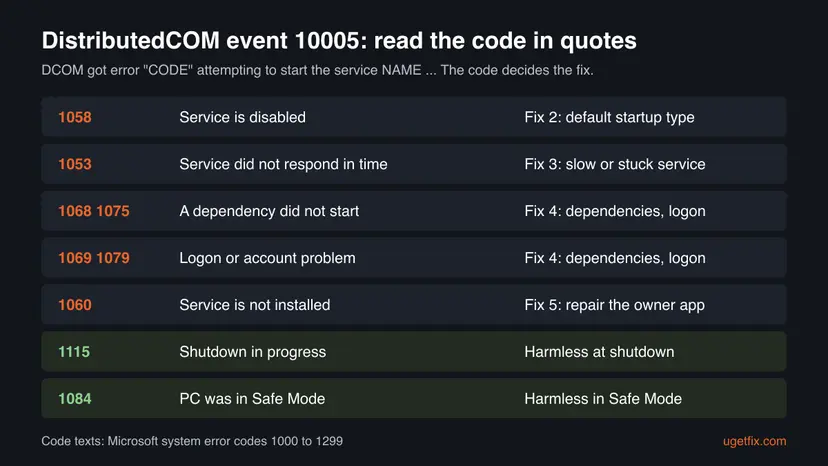
What each code in the DCOM 10005 message means
Every code below is defined in Microsoft's list of system error codes 1000 to 1299. The text in the second column is Microsoft's own wording.
| Code | Microsoft's text | What it means here | Fix |
|---|---|---|---|
| 1058 | "The service cannot be started, either because it is disabled or because it has no enabled devices associated with it." | The service's startup type is Disabled, often set by a tweak tool or by hand. | Fix 2 |
| 1053 | "The service did not respond to the start or control request in a timely fashion." | The service started too slowly or hung during start. | Fix 3 |
| 1068 | "The dependency service or group failed to start." | A service it needs did not start first. | Fix 4 |
| 1075 | "The dependency service does not exist or has been marked for deletion." | A service it needs was removed. | Fix 4 |
| 1069 | "The service did not start due to a logon failure." | The account on the Log On tab was changed or its password is wrong. | Fix 4 |
| 1079 | "The account specified for this service is different from the account specified for other services running in the same process." | The service shares a process with others that use another account. | Fix 4 |
| 1060 | "The specified service does not exist as an installed service." | The component is still registered, but its service is gone. | Fix 5 |
| 1115 | "A system shutdown is in progress." | Something asked for the service while Windows was shutting down. | Nothing to fix |
| 1084 | "This service cannot be started in Safe Mode." | The PC was in Safe Mode. | Nothing to fix |
If your event says 1084, the PC was in Safe Mode when it was logged. Every case of that code is covered in DCOM got error 1084.
Why the DCOM 10005 error appears, most common cause first
The event has one technical trigger, a failed service start, but several reasons behind it. In the forum and Microsoft Q&A reports we checked, these come up in this order.
| Cause | How it looks | Fix |
|---|---|---|
| Windows is shutting down or restarting. | Code 1115, time stamps in the last seconds before a shutdown, often naming wuauserv, TrustedInstaller or SecurityHealthService. | None, see the section on when to ignore it |
| A service was set to Disabled. | Code 1058, the same service in every row, often WSearch or wuauserv after a privacy or debloat tool. | Fix 2 |
| The service is slow or stuck at start. | Code 1053, mostly right after you sign in, often WSearch. | Fix 3 |
| A dependency or the logon account was changed. | Code 1068, 1069, 1075 or 1079. | Fix 4 |
| A program was removed, but its component is still registered. | Code 1060, a service name you do not find in services.msc. | Fix 5 |
| The PC was in Safe Mode. | Code 1084, a burst of rows in one session. | None, or the 1084 guide |
| Damaged system files. | The service is set correctly and still fails with 1053 or another code. | Fix 6 |
- Malware. Some guides list it as a cause. Nothing in Microsoft's documentation ties event 10005 to malware. A scan does no harm, but do not expect it to change these rows.
- Blue screens. Event 10005 is a log entry, not a crash. If your PC also shows blue screens, the crash has its own events, see the section on what to do if it is still broken.
When you can ignore event 10005 and when to act
- The code is 1115 and the rows sit in the last seconds before a shutdown or restart.
- The code is 1084 and the rows come from a session in Safe Mode.
- There are a few rows a week and nothing on the PC is broken.
- You found it while looking at the log for another problem.
- The code is 1058, 1053, 1068 or 1069 and the same service fails at every start.
- A feature tied to that service is broken: search finds nothing, updates do not install, Windows Security shows a blank page.
- Dozens of new rows appear every hour in a normal session.
- A program you use reports a COM or "server execution failed" error at the same time.
Windows writes many harmless DCOM events, and this one is no exception. What matters is whether the service named in the event is needed for something that is broken on your PC. If nothing is broken and the code is 1115 or 1084, you can stop here.
How to fix DistributedCOM error 10005
Fix 1 takes five minutes and tells you which case you are in. Fix 2 to Fix 5 each match one code. Fix 6 is the general repair for a service that is set correctly and still fails. Use only the fix that matches your code.
| What the event says | Start with |
|---|---|
| You have not read the code yet. | Fix 1 |
| Code 1058, the service is disabled. | Fix 2 |
| Code 1053, the service did not respond in time. | Fix 3 |
| Code 1068, 1069, 1075 or 1079. | Fix 4 |
| Code 1060, or a service name that is not in Services. | Fix 5 |
| Code 1115 at shutdown, or 1084 in Safe Mode. | Nothing, read the section on when to ignore it |
| The service is set correctly and still fails. | Fix 6 |
Fix 1. Read the error code and the service name in Event Viewer
5 minutesNo riskEveryone who found event 10005, before changing anything.
Event 10005 is the same event for very different problems. The code in quotes and the service name tell you which one you have, and the PowerShell command counts them so you see which pair repeats.
- Right-click Start and select Event Viewer.
- Open Windows Logs > System.
- Select Filter Current Log on the right, type
10005in the <All Event IDs> box and select OK. - Select a row and read the General tab: note the code in quotes and the name after the service.
- Compare the time stamps with your shutdowns and restarts. Rows in the last seconds before a shutdown with code 1115 are harmless.
- For a count of every code and service pair, run the PowerShell command below.
PowerShell (as administrator): DCOM 10005 events of the last 7 days, counted by code and service
Get-WinEvent -FilterHashtable @{ LogName='System'; ProviderName='Microsoft-Windows-DistributedCOM'; Id=10005; StartTime=(Get-Date).AddDays(-7) } |
  Group-Object { "code $($_.Properties[0].Value)  service $($_.Properties[1].Value)" } |
  Sort-Object Count -Descending |
  Format-Table Count, Name -AutoSize
Properties[0] and Properties[1] are param1 (the code) and param2 (the service) of the event XML. If the command prints "No events were found", there were no 10005 rows in the last 7 days. We had no PC with these errors to run it against, so compare its output with Event Viewer once.
It worked if: You know the code and the service, for example code 1058 and WSearch, and how often each pair appears.
If not: If you cannot open Event Viewer, press Win + R, type eventvwr.msc and press Enter. Then go to the fix in the chooser above.
Fix 2. Set a disabled service back to its default startup type (code 1058)
5 minutesLow riskThe code is 1058 and the same service appears in every row.
Code 1058 means Windows refused to start the service because its startup type is Disabled. DCOM keeps asking for it, so the event repeats until the service may start again.
- Press Win + R, type
services.mscand press Enter. - Find the service. The event shows the short name (WSearch); the list shows the display name (Windows Search). The General tab of each service shows both.
- Double-click it and check Startup type. If it says Disabled, that is the cause.
- Set Startup type to the default for that service, then select Apply.
- Select Start, then OK.
- Restart the PC and run the Fix 1 command again.
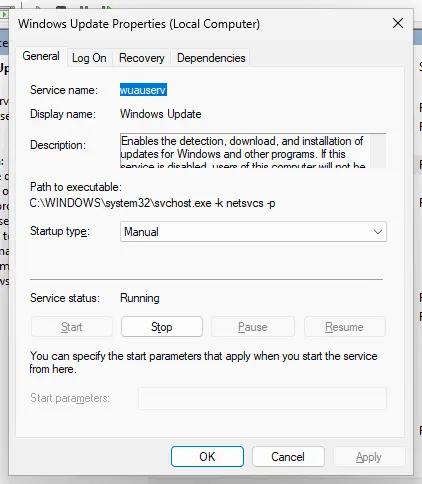
| Short name in the event | Display name | Default startup type |
|---|---|---|
| WSearch | Windows Search | Automatic (Delayed Start) |
| wuauserv | Windows Update | Manual (Trigger Start) |
| Other services | Check the same service on another Windows 11 PC | Usually Manual |
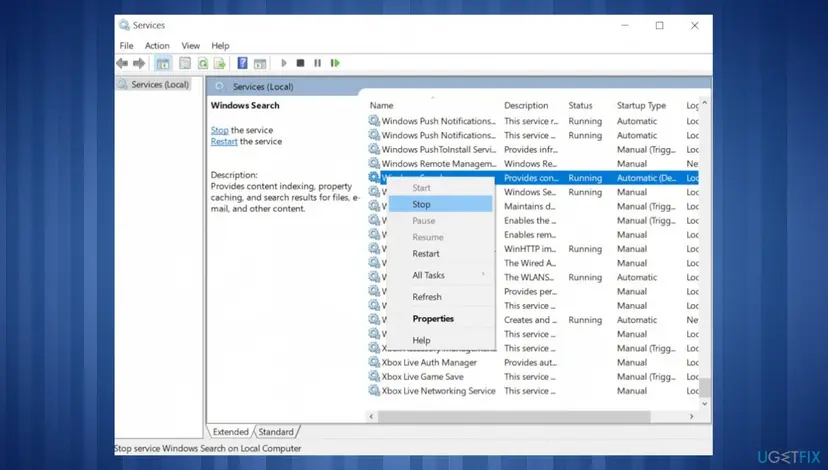
Some people disable Windows Update or Windows Search to stop updates or indexing. Then code 1058 is the expected result: DCOM still asks for the service and is refused. Either accept the rows, or turn the service back on. Disabling Windows Update also stops security fixes.
Step by step, with the PowerShell way: Check and restart Windows services
It worked if: The service shows Running, and no new 1058 rows for it appear after the restart.
If not: If the startup type changes back to Disabled after a restart, a tool or a policy sets it. Check the apps in Settings > Apps > Startup and any tweak or privacy tool you installed. If the code changes to 1053, go to Fix 3.
Fix 3. Restart a slow or stuck service and find what delays it (code 1053)
10 to 30 minutesLow riskThe code is 1053, usually right after you sign in, and often for WSearch.
Code 1053 means the service did not report that it had started within the time Windows allows. A hung earlier start, a damaged search index or a third-party program that loads at the same time can cause that delay.
- In
services.msc, right-click the service and select Restart, or Start if it is stopped. - If it starts by hand without delay, the problem is at boot time only. Note the time of the next 10005 row after a restart.
- For WSearch, rebuild the search index: on Windows 11 open Settings > Privacy & security > Searching Windows > Advanced indexing options, on Windows 10 Settings > Search > Searching Windows > Advanced Search Indexer Settings.
- Select Advanced, then Rebuild, and select OK. Indexing runs in the background and can take a while.
- If the service still fails at boot, do a clean boot to see whether a third-party service or startup app delays it.

Clean boot step by step, and how to undo it: How to perform a clean boot in Windows
It worked if: The service shows Running after a restart and no new 1053 rows appear.
If not: If the clean boot stops the rows, turn third-party services back on in halves to find the one that delays it. If the clean boot changes nothing, go to Fix 6.
Fix 4. Check the dependencies and the logon account of the service (codes 1068, 1069, 1075, 1079)
10 minutesLow riskThe code is 1068, 1069, 1075 or 1079.
These codes mean the service itself is fine but something it needs is not: a service it depends on, or the account it starts with. The service's Properties window shows both.
- In
services.msc, double-click the service from the event and open the Dependencies tab. - Read the list under This service depends on the following system components. Check that each one is not Disabled and starts by hand.
- If a dependency is disabled, set it back to its default type as in Fix 2. If it is missing (code 1075), go to Fix 6.
- Open the Log On tab of the service. Built-in Windows services start as Local System account or as a built-in account such as Local Service.
- If someone changed it to a user account, set it back to what the same service uses on another Windows PC, select OK and restart.
Command Prompt or PowerShell: startup type, account and dependencies of a service (replace WSearch with your service)
sc.exe qc WSearchsc.exe qc prints START_TYPE, DEPENDENCIES and SERVICE_START_NAME (the account) in one place, which is quicker than the tabs when you check several services.
It worked if: All dependencies start, the account is the built-in one, and the service starts without a new 10005 row.
If not: If a dependency itself fails, run Fix 1 again for that service. If everything looks correct and it still fails, go to Fix 6.
Fix 5. Repair or reinstall the program that owns the missing service (code 1060)
10 to 20 minutesLow riskThe code is 1060, or the service name in the event is not in services.msc at all.
Code 1060 means the component is still registered with DCOM but the service that should host it was removed. That happens when a program is uninstalled only partly, or when a debloat script deletes a service.
- Search the web or your installed programs for the service name in the event to find which program it belongs to.
- If the program is still installed, repair or reinstall it. Most programs offer Modify or Repair in Settings > Apps > Installed apps.
- If you removed the program on purpose and do not miss it, the rows are leftovers and harmless.
- If the name is a Windows service, it should not be missing. Go to Fix 6.
Repair or reset an app: How to repair or reset an app in Windows Remove a program completely: Uninstall a program or app in Windows
Guides that tell you to delete the class ID from HKEY_CLASSES_ROOT\CLSID or AppID can break other programs. If you edit the registry anyway, back it up first: Back up the registry before editing it
It worked if: After a repair or reinstall the service exists again and no new 1060 rows appear.
If not: If the service belongs to Windows, go to Fix 6.
Fix 6. Repair Windows system files with DISM and SFC
15 to 30 minutesNo riskA built-in service is set correctly and still fails, or a Windows service is missing (codes 1060 and 1075).
If the files of a Windows service are damaged, the service can fail at start whatever its settings are. DISM restores the component store and SFC replaces damaged system files from it.
- Open an elevated command window. Right-click Start and select Terminal (Admin), or type cmd in the search box, right-click Command Prompt and select Run as administrator. Select Yes when Windows asks for permission.
- Run DISM first. Type the command below and press Enter. DISM downloads clean copies of damaged components from Windows Update, so it can take several minutes. Wait until it says The operation completed successfully.
DISM.exe /Online /Cleanup-Image /RestoreHealth - Run System File Checker. In the same window, type the command below and press Enter. Do not close the window until the verification reaches 100%.
sfc /scannow - Read the result and restart. Compare the last message with the table below this guide, then restart the PC so that repaired files are loaded.
These steps were written for Windows 11 24H2 and 25H2. The full page with the other versions and what each result means: Run DISM and SFC to repair Windows system files

It worked if: SFC reports that it found no integrity violations, or that it repaired them, and the service starts after a restart.
If not: If the service still fails, reinstall Windows over itself while keeping your files and apps: Reinstall Windows without losing files
If DistributedCOM 10005 keeps coming back: what to check and what to collect
If the same code and service still fail after the matching fix, check that DCOM itself is running and collect the details below before you ask Microsoft or the program's maker for help.
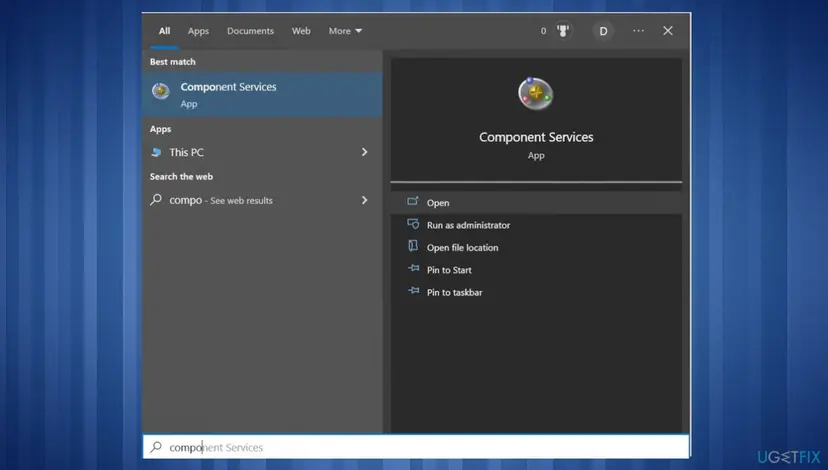
- The DCOM services. In
services.msc, DCOM Server Process Launcher, Remote Procedure Call (RPC) and RPC Endpoint Mapper must show Running and Automatic. Do not change them. - DCOM is turned on. Press Win + R, type
dcomcnfgand press Enter. Open Component Services > Computers, right-click My Computer, select Properties and open Default Properties. Enable Distributed COM on this computer should be ticked. - The event XML. On the Details tab of the event, select XML View and copy it. It holds the code, the service and the server ID.
- The Windows version and build. Press Win + R, type
winverand note both. - What changed. Reliability Monitor (
perfmon /rel) shows installs, updates and crashes day by day.
| What to read | Where |
|---|---|
| BugCheck 1001 | Windows Logs > System: the stop code of the last blue screen. |
| Kernel-Power 41 and EventLog 6008 | The PC turned off or restarted without a clean shutdown. See Event ID 6008. |
| Memory dumps | C:\Windows\Minidump holds one file per blue screen. |
Event 10005 does not crash Windows. If a blue screen and 10005 rows have the same time stamp, the crash came first and the service failed because Windows was going down, which is what code 1115 says.
How to keep DCOM 10005 errors away
- Leave built-in services at their default startup type unless a guide for a specific problem tells you otherwise.
- Before you run a debloat or privacy tool, create a restore point so you can undo its service changes.
- Uninstall programs from Installed apps, not by deleting their folders.
- When you hunt for a crash, filter the System log by time, so harmless 10005 rows do not hide the real event.
- Do not disable DCOM Server Process Launcher, Remote Procedure Call (RPC) or RPC Endpoint Mapper. Windows needs them.
- Do not clear Enable Distributed COM on this computer to make the rows stop.
- Do not delete DCOM keys from the registry because of these events.
- Do not reset Windows because of 1115 or 1084 rows alone. They are not a fault.
Frequently asked questions
What is DistributedCOM error 10005?
It is an Event Viewer entry from the source DistributedCOM with Event ID 10005. Windows writes it when a program asks for a DCOM component that lives in a service, and that service fails to start. The text is DCOM got error, a code in quotes, attempting to start the service, and the service name. The code is a standard Windows system error code that says why the start failed. Code 1058 means the service is disabled, 1053 that it was too slow, 1115 that Windows was shutting down.
Is event ID 10005 dangerous?
Usually not. It is a log entry, not a crash, and Windows does not show it on the desktop. Rows with code 1115 during a shutdown and 1084 in Safe Mode are expected. It matters only when the same service fails at every start and a feature that needs it is broken, such as search or Windows Update. Nothing in Microsoft's documentation ties the event to malware, so a virus scan will not change it. Read the code with Fix 1 before you change anything.
Can DistributedCOM 10005 cause a blue screen?
No. The event only records that a service did not start. A blue screen has its own entries: BugCheck 1001 with the stop code, and Kernel-Power 41 or EventLog 6008 after the restart. If you see 10005 rows next to a blue screen, check their code. Code 1115 means Windows was already shutting down, so the crash came first. Look for the cause of the crash in those other events and in the dump files in C:\Windows\Minidump, not in the DCOM rows.
How do I fix DistributedCOM 10005 on Windows 11?
The steps are the same as on Windows 10. Open Event Viewer, go to Windows Logs, System, filter by 10005 and read the code in quotes. If it is 1058, open services.msc, find the service and set its startup type back from Disabled to its default. If it is 1053, restart the service and do a clean boot to find what delays it. Codes 1115 and 1084 need nothing. Windows 11 only moves some Settings pages, which Fix 3 gives for both versions.
What does DCOM got error 1058 mean?
Code 1058 is Microsoft's ERROR_SERVICE_DISABLED: "The service cannot be started, either because it is disabled or because it has no enabled devices associated with it." In event 10005 it almost always means the service's startup type is set to Disabled. Something asked DCOM for a component inside that service, and Windows refused to start it. Set the startup type back to its default in services.msc, as Fix 2 shows. If you disabled the service on purpose, the rows are the expected result.
What does DCOM got error 1115 mean?
Code 1115 is "A system shutdown is in progress." A program asked for a service while Windows was already shutting down or restarting, so Windows did not start it. The rows sit in the last seconds before the shutdown and often name wuauserv, TrustedInstaller or SecurityHealthService. Users on Microsoft Q&A and Windows forums report them on healthy PCs. You can ignore them. They only matter if the PC shuts down when you did not ask it to, and then the cause is elsewhere.
Why does event 10005 name WSearch?
WSearch is the short name of the Windows Search service, which builds the index for searches in Start and File Explorer. Many parts of Windows ask for it, so it shows up in 10005 rows more often than most services. With code 1058 someone disabled it, often to stop indexing; set it back to Automatic (Delayed Start). With code 1053 it started too slowly; restart it and rebuild the index as in Fix 3. The earlier version of this page also changed search suggestion policies, which do not affect this event.
What is event ID 10005 in other logs or programs?
This page is about Event ID 10005 from the source DistributedCOM in the Windows System log. Other programs use the same number for unrelated errors. A message such as an untrusted resource error 10005 with a wrong API key comes from a specific app or service and has nothing to do with DCOM. Check the Source column in Event Viewer. If it is not DistributedCOM, look for help from the maker of that program instead.
I see this error in another language. Is it the same?
Yes. Event Viewer translates the text with Windows, but the Event ID 10005, the source DistributedCOM and the code in quotes stay the same. Searches such as ошибка 10005 windows 10 in Russian describe the same event, with the same codes and the same fixes. Read the number in quotes and use the table in the section on codes. This page is in English, but every command and path in it works the same on a Windows in another language.
Should I turn on Enable Distributed COM on this computer?
It should already be on, and on a normal Windows PC it is. You find it with dcomcnfg, under Component Services, Computers, My Computer, Properties, on the Default Properties tab. If it is cleared, tick it, select OK and restart, because many Windows parts use DCOM. Turning it on or off does not remove the 10005 rows of a disabled or slow service, though. The code in the event still decides the fix, so start with Fix 1.
Sources
Did this fix work?
One click, no account. It tells the next reader which guides are worth their time.
Questions and experiences: fix DistributedCOM error 10005 in Windows
Still broken, or found a fix we did not cover? Ask here: members and our editors answer. Reading is open; writing needs a free account.
…