
[Fix] DCOM got error "1084" attempting to start the service in Windows

Prefer to fix it yourself? The manual steps follow.
- 8methods
- 5 minutes to confirm, 10 to 60 minutes if normal startup is broken
- Intermediate
Applies to Windows 11, Windows 10
8 methods in this guide
- What the error means
- Services in the message
- Causes, most likely first
- When you can ignore it
- The fixes
- 1. Check the boot mode
- 2. Clear Safe boot in msconfig
- 3. Remove safeboot with bcdedit
- 4. Run Startup Repair
- 5. Remove the last driver or app
- 6. Use System Restore
- 7. Check the drive and memory
- 8. Repair system files
- If it is still broken
- Prevent it
- FAQ
Something happened to my computer and I couldn't boot into it: it simply froze when the Windows logo showed up. After several tries, I managed to get into Safe Mode and noticed non-stop errors saying DCOM got error "1084" attempting to start the service. Several different arguments are mentioned as being "Unavailable", such as ShellHWDetection, lfsvc, camsvc and more. What is there to be done here?
DCOM got error "1084" is a DistributedCOM event 10005 that Windows writes while it runs in Safe Mode: code 1084 means "This service cannot be started in Safe Mode." The error itself needs no repair and stops once Windows starts normally. First check whether your PC is still in Safe Mode, then fix whatever made normal startup fail.
Error 1084 is Windows saying a service is not allowed to run in Safe Mode, so a burst of these DCOM errors during a Safe Mode session is expected and harmless. Check the boot mode first (Fix 1). If every restart lands in Safe Mode, clear the Safe boot box in msconfig (Fix 2). If normal startup freezes or crashes, that startup problem is what you need to fix (Fix 4 to Fix 7).
| Error | Source DistributedCOM, Event ID 10005, level Error: DCOM got error "1084" attempting to start the service <name> with arguments "Unavailable" in order to run the server: <server>. |
|---|---|
| Where it appears | Event Viewer, Windows Logs > System. Dozens of rows within a few minutes, all from a session that ran in Safe Mode. |
| Main cause | Windows was started in Safe Mode. System error 1084, ERROR_NOT_SAFEBOOT_SERVICE, means "This service cannot be started in Safe Mode." |
| Fastest fix | Restart normally. If the PC keeps starting in Safe Mode, clear Safe boot on the Boot tab of msconfig (Fix 2). |
| Also written as | DCOM error 1084, DCOM 1084, error 1084, error code 1084, DistributedCOM 10005, 0x43C, "This service cannot be started in Safe Mode". |
| Services named | Whatever Windows asked for: TokenBroker, ShellHWDetection, camsvc, lfsvc, DispBrokerDesktopSvc, netprofm, WSearch, EventSystem, DPS and others. |
| Affects | Every Windows version with Safe Mode. Reports go back to Windows 8 in 2012 and continue on Windows 10 and Windows 11. |
| Microsoft's status | Not a bug and not a known issue: Safe Mode starts only the drivers and services listed under the SafeBoot registry keys, by design. |
| Time to fix | 5 minutes to confirm and leave Safe Mode. 10 to 60 minutes when Windows does not start normally. |
Facts checked on 15 October 2026. Steps written for Windows 11 (25H2 and 26H2) and Windows 10 22H2.
What DCOM got error "1084" attempting to start the service means
DCOM (Distributed Component Object Model) lets one part of Windows ask for a component, a "server", that runs inside another process. Many of these servers live inside Windows services. When a program asks for one, the DCOM Server Process Launcher service (DcomLaunch) tries to start the service that hosts it. If that start fails, Windows writes event 10005 from the source DistributedCOM, with the Windows error code in quotes.
The code in your event is 1084. Microsoft's list of system error codes gives it the name ERROR_NOT_SAFEBOOT_SERVICE, the value 0x43C and one sentence of text: "This service cannot be started in Safe Mode." So the event does not say the service is broken. It says Windows refused to start it because the PC was in Safe Mode.
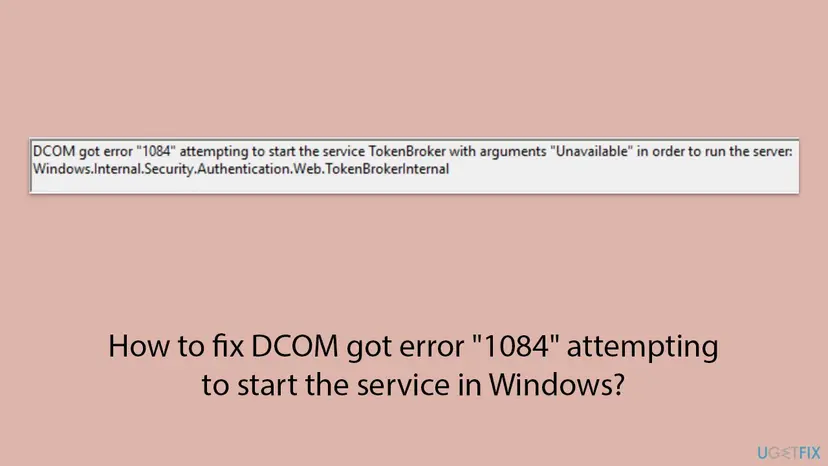
The most common full text, as it appears on the General tab of the event, is:
Event 10005, source DistributedCOM (the most searched example)
DCOM got error "1084" attempting to start the service TokenBroker with arguments "Unavailable" in order to run the server:
Windows.Internal.Security.Authentication.Web.TokenBrokerInternal- "the service TokenBroker" is the service name Windows tried to start. It changes from row to row.
- "with arguments "Unavailable"" only means no start parameters were passed. It is not an error of its own.
- "in order to run the server:" is followed by the DCOM server that was requested, either a name such as
Windows.Internal.Security.Authentication.Web.WAMProviderRegistrationor a class ID in braces, such as{DD522ACC-F821-461A-A407-50B198B896DC}. - Other numbers in the same message mean other things. Code 1115 is "A system shutdown is in progress.", 1053 is a service that did not respond in time, and 1058 is a disabled service. This page is about 1084.
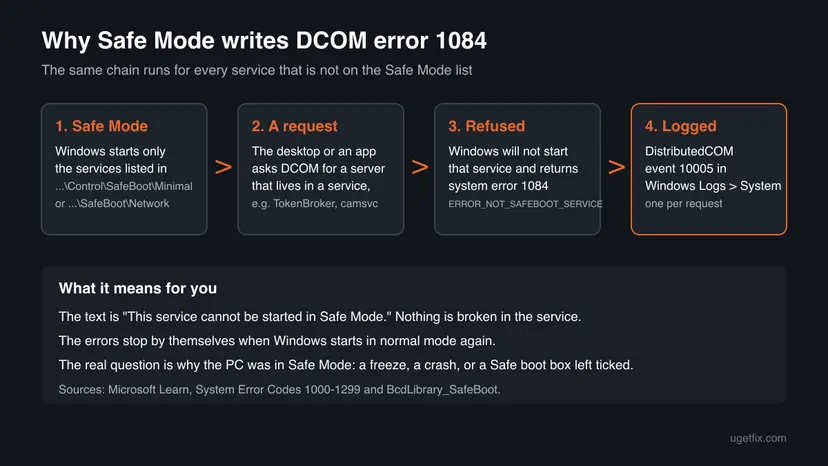
TokenBroker, ShellHWDetection, camsvc and the other services in the message
People search for the error together with the service name they see, as if each one were a separate problem. It is the same event every time. The service is simply the one Windows was asked for at that moment and could not start in Safe Mode. The table lists the names that come up most in searches and reports.
| Service name in the event | Display name in Services | What it does |
|---|---|---|
| TokenBroker | Not in Microsoft's service list we checked | The server names (TokenBrokerInternal, WAMProviderRegistration) point to sign-in to web accounts. We could not confirm the display name from a Microsoft page. |
| ShellHWDetection | Shell Hardware Detection | "Provides notifications for AutoPlay hardware events." |
| camsvc | Not in Microsoft's service list we checked | The server named in the event is Windows.Internal.CapabilityAccess.CapabilityAccess, which points to app permissions such as camera and microphone access. |
| DispBrokerDesktopSvc | Not in Microsoft's service list we checked | The server is DispBrokerDesktop.GlobalBrokerInstance, which points to display settings. |
| lfsvc | Geolocation Service | Monitors the location of the system and manages geofences. |
| netprofm | Network List Service | Identifies the networks the PC has connected to and stores their properties. |
| WSearch | Windows Search | Content indexing and search results for files and other content. |
| EventSystem | COM+ Event System | Distributes system events, such as logon and logoff notifications, to COM components. |
| DPS | Diagnostic Policy Service | Problem detection and troubleshooting for Windows components. |
None of these services is damaged. Changing their startup type, adding them to the SafeBoot registry keys or disabling them does not help, and it can break sign-in, search or AutoPlay later in normal mode. The display names and descriptions above come from Microsoft's service guidelines for Windows Server 2016.
Why the DCOM 1084 error appears, most common cause first
Error 1084 has exactly one technical trigger: a service start request while Windows runs in Safe Mode. What differs between readers is why the PC was in Safe Mode, and that is what decides the fix.
| Why the PC was in Safe Mode | How it looks | Fix |
|---|---|---|
| You or a repair tool started Safe Mode on purpose, for one session. | The errors are all from one session. Windows now starts normally. | Nothing to repair. Fix 1 confirms it. |
The Safe boot box in msconfig, or a safeboot value set with bcdedit, is still on. | Every restart lands in Safe Mode, with "Safe Mode" in the corners of the screen. | Fix 2, then Fix 3 |
| Normal startup freezes, crashes or stays black, so Safe Mode is the only way in. | The question at the top of this page: the PC froze at the Windows logo. | Fix 4 to Fix 6 |
| A driver or program installed shortly before the trouble. | Normal mode fails, Safe Mode works. Microsoft says most such cases are third-party drivers. | Fix 5, Fix 6 |
| A failing drive or memory. | Freezes and crashes also happen in Safe Mode, or the drive reports errors. | Fix 7 |
- Malware and "DCOM corruption". Other guides list these as causes. Nothing in Microsoft's documentation ties error 1084 to them. A scan with Windows Security does no harm, but it will not change these events.
- Windows updates. An update does not produce error 1084 by itself. An update that breaks normal startup can, because it pushes you into Safe Mode. Then Fix 4 and Fix 6 apply.
When you can ignore error 1084 and when it points to a real problem
- All the 1084 rows have time stamps from a session you started in Safe Mode on purpose.
- Windows now starts normally and the rows stopped.
- You found them while looking at the log for something else.
- The PC starts in Safe Mode every time, even when you did not ask for it.
- Normal startup freezes, restarts or shows a black screen.
- New 1084 rows keep appearing while Fix 1 shows Normal boot. That is not a documented case: collect the details in the section on what to do if it is still broken.
These DCOM rows will not tell you. The events to read are Kernel-Power 41 and EventLog 6008 from the normal start that failed, see Event ID 6008, and any bug check or driver error just before them.
How to fix DCOM got error "1084" attempting to start the service
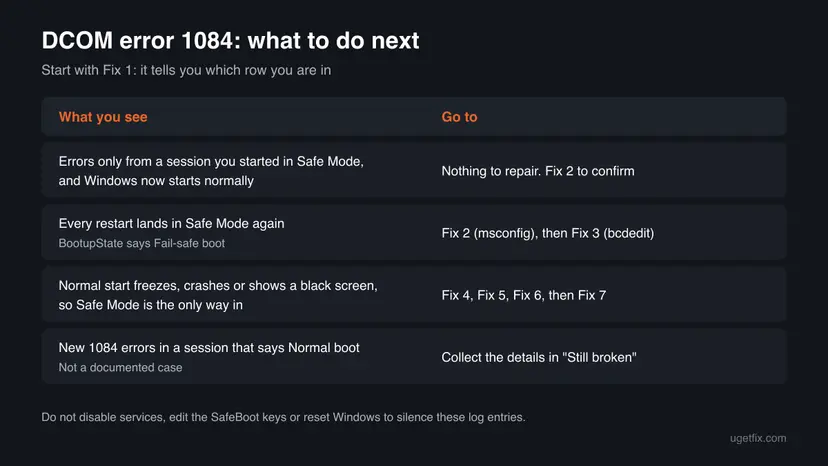
Fix 1 takes two minutes and tells you which case you are in. Fix 2 and Fix 3 get you out of Safe Mode. Fix 4 to Fix 8 are for a PC that does not start normally, which is the real problem behind the error. You do not need them if Windows starts fine.
| What you see | Start with |
|---|---|
| The errors are from a Safe Mode session, and Windows now starts normally. | Fix 1, then stop |
| The PC starts in Safe Mode every time. | Fix 2, then Fix 3 |
| The msconfig box is cleared, but Safe Mode still comes back. | Fix 3 |
| Normal startup freezes at the logo, crashes or stays black. | Fix 4, then Fix 5 and Fix 6 |
| The trouble began after a new driver, app or update. | Fix 5, then Fix 6 |
| Freezes or crashes also happen in Safe Mode, or the PC is old. | Fix 7 |
Fix 1. Check whether Windows runs in Safe Mode now and when the errors were logged
2 minutesNo riskEveryone who found these errors, before changing anything.
Error 1084 can only come from a Safe Mode session, so the boot mode decides everything. Windows reports it directly, and the time stamps of the events show whether they belong to one past session or to every start.
- Right-click Start and select Terminal (Admin). On Windows 10, search for
PowerShell, right-click Windows PowerShell and select Run as administrator. - Run the first command below. It prints how the current session was started.
- Run the second command. It lists the 1084 events of the last 7 days next to the start of each session.
- Compare the times. Rows that sit right after one 6005 row belong to that session.
- Look at the corners of the desktop. In Safe Mode Windows writes Safe Mode there and uses a black background.
PowerShell: how was this session started?
(Get-CimInstance Win32_ComputerSystem).BootupStatePowerShell (as administrator): DCOM 1084 events and session starts (event 6005) of the last 7 days, oldest first
Get-WinEvent -FilterHashtable @{ LogName='System'; Id=10005,6005; StartTime=(Get-Date).AddDays(-7) } |
  Where-Object { $_.Id -eq 6005 -or $_.Message -like '*"1084"*' } |
  Sort-Object TimeCreated |
Format-Table TimeCreated, Id, @{ n='Text'; e={ $_.Message.Split("`n")[0] } } -Wrap| BootupState says | What it means | Next |
|---|---|---|
| Normal boot | This session is a normal one. Old 1084 rows came from an earlier Safe Mode session. | Nothing to repair if Windows works. |
| Fail-safe boot | Safe Mode. | Fix 2 |
| Fail-safe with network boot | Safe Mode with Networking. | Fix 2 |
The three values are documented by Microsoft for the BootupState property of Win32_ComputerSystem, which says that a fail-safe boot is also called SafeBoot. We had no PC with these errors to run the second command against, so check its output against Event Viewer once.
It worked if: BootupState shows Normal boot and the 1084 rows all sit inside one earlier session, so there is nothing left to fix.
If not: If it shows Fail-safe boot after a normal restart, go to Fix 2. If you can only get in through Safe Mode, go to Fix 4.
Fix 2. Restart normally and clear the Safe boot box in System Configuration
3 minutesLow riskThe PC starts in Safe Mode every time, or BootupState says Fail-safe boot after a normal restart.
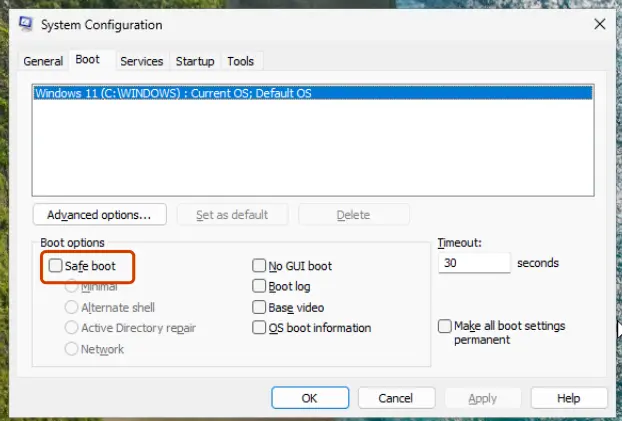
Safe Mode chosen from Startup Settings lasts one start. Safe Mode chosen in System Configuration is stored and repeats until the box is cleared, and every start then fills the log with 1084 errors again. Microsoft gives exactly this step for a PC that keeps starting in Safe Mode.
- Save your work and restart once from Start > Power > Restart. A one-time Safe Mode ends here.
- If Safe Mode comes back, press Win + R, type
msconfigand select OK. - Open the Boot tab.
- Under Boot options, clear Safe boot.
- Select OK, then Restart when Windows asks.
How to start Safe Mode on purpose, and every way out of it: Start Windows or a Mac in Safe Mode
Leave Safe Mode only when you have what you needed. If normal startup froze before, it will freeze again. Then keep the box ticked for now and work through Fix 4 to Fix 6 first.
It worked if: Windows starts with your normal wallpaper, no Safe Mode text in the corners, and BootupState shows Normal boot.
If not: If the Safe boot box is already clear and Safe Mode still comes back, go to Fix 3. If normal startup freezes, go to Fix 4.
Fix 3. Remove the safeboot setting with bcdedit
5 minutesLow riskSafe Mode returns although the msconfig box is clear, or you only have Safe Mode with Command Prompt.
Safe Mode is stored as the safeboot value of the boot entry in the boot configuration data. A script or a guide may have set it with bcdedit, and deleting that value is the direct way to remove it. Microsoft notes that msconfig should be used instead when possible.
- Right-click Start and select Terminal (Admin), or type
cmdin search, right-click Command Prompt and select Run as administrator. - Run
bcdedit /enum {current}and look for a line that starts withsafeboot. - If it is there, run
bcdedit /deletevalue {current} safeboot. - If the output also has
safebootalternateshell, runbcdedit /deletevalue {current} safebootalternateshell. - Close the window and restart.
Command Prompt or PowerShell, as administrator
bcdedit /enum {current}
bcdedit /deletevalue {current} safeboot- The values.
safeboot minimalis Safe Mode,safeboot networkis Safe Mode with Networking. Both load only the drivers and services listed underHKEY_LOCAL_MACHINE\SYSTEM\CurrentControlSet\Control\SafeBoot\Minimalor\Network. - "The element data type specified is not recognized". This message means there is no
safebootvalue on that entry. Nothing to remove. - In PowerShell the braces need quotes:
bcdedit /deletevalue '{current}' safeboot. - BitLocker. Changing boot settings can make Windows ask for the BitLocker recovery key at the next start. Have it ready from your Microsoft account before you restart.
It worked if: The bcdedit output no longer has a safeboot line, and Windows restarts in normal mode.
If not: If Windows now starts normally but freezes or crashes, the setting was not the problem. Go to Fix 4.
Fix 4. Run Startup Repair or Quick machine recovery from the recovery screens
10 to 30 minutesLow riskNormal startup freezes at the logo, restarts or stays black, so Safe Mode is the only way in.
In this case the 1084 errors are only a side effect of using Safe Mode. The fault is in normal startup, and the recovery environment has a tool that checks exactly that: boot files, boot configuration and drivers that stop Windows from starting.
- From Safe Mode, open Settings > System > Recovery and select Restart now next to Advanced startup. On Windows 10, open Settings > Update & Security > Recovery.
- If Windows does not start at all, turn it on and hold the power button as soon as the logo appears. After two failed starts Windows opens the recovery screens by itself.
- Select Troubleshoot > Advanced options.
- Select Quick machine recovery, or Startup Repair on builds that do not have it, and sign in when asked.
- Wait for the result. If it repairs something, the PC restarts into Windows.
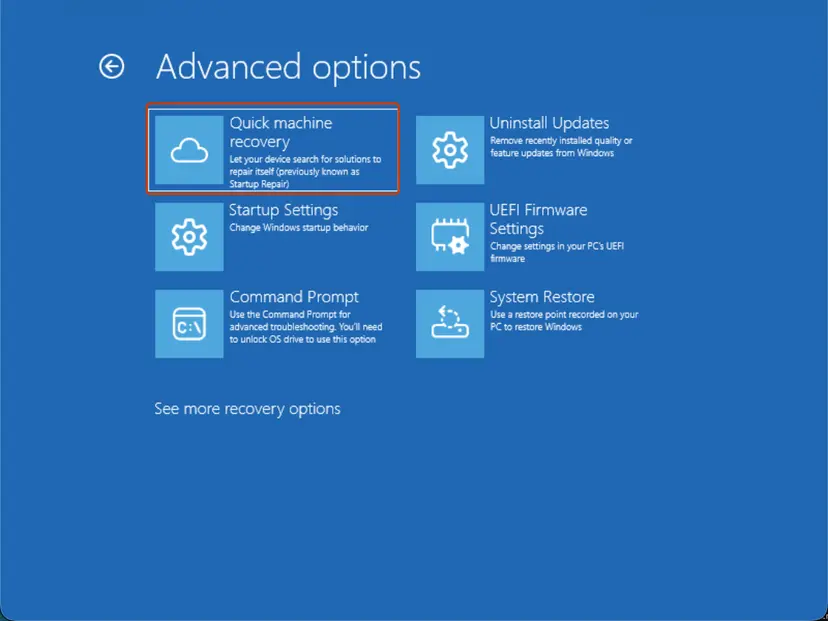
Every screen of the repair, and where it writes its log: Run Startup Repair
It worked if: Windows starts in normal mode, and no new 1084 rows appear after the restart.
If not: If the tool says it could not repair the PC, or normal startup still freezes, go back into Safe Mode and use Fix 5.
Fix 5. Remove the driver or program installed just before the trouble
10 minutesLow riskNormal startup broke after a new driver, a graphics or audio package, security software or a system tool, and Safe Mode works.
Safe Mode loads only basic drivers, so a third-party driver that hangs normal startup is skipped there. Microsoft's support article on Windows that boots only in Safe Mode says most such cases are third-party drivers, and Safe Mode is where you can remove them.
- In Safe Mode, open Settings > Apps > Installed apps (Windows 10: Settings > Apps > Apps & features).
- Sort the list by Install date and note what was installed on the day the trouble started.
- Uninstall that program. The Windows Installer service does not run in Safe Mode, so some programs refuse; skip those for now.
- For a driver, right-click Start, open Device Manager, open the device's Properties > Driver and select Roll Back Driver if it is available.
- Restart normally and test.
Uninstall steps for both Windows versions: Uninstall a program or app in Windows Driver rollback and reinstall: Update, roll back or reinstall a driver
It worked if: Windows starts normally after the program or driver is removed.
If not: If you cannot tell what changed, or the program will not uninstall in Safe Mode, use Fix 6.
Fix 6. Go back to a restore point from before the problem
20 to 40 minutesRead the warningNormal startup broke after a change you cannot identify or remove, and a restore point from before that day exists.
System Restore puts back the system files, drivers, programs and registry of an earlier day in one step. It undoes a bad driver or update even when you do not know which one it was, and it works from Safe Mode or the recovery screens.
Your documents, photos and other personal files stay. Apps, drivers and updates installed after the restore point are removed and may need to be installed again. Use Scan for affected programs to see the list before you start.
- Press Win + R, type
rstruiand press Enter. From the recovery screens, select Troubleshoot > Advanced options > System Restore. - Select a restore point from before the day the freezes began.
- Select Scan for affected programs, read the list and select Close.
- Select Next, then Finish, and let the PC restart without turning it off.
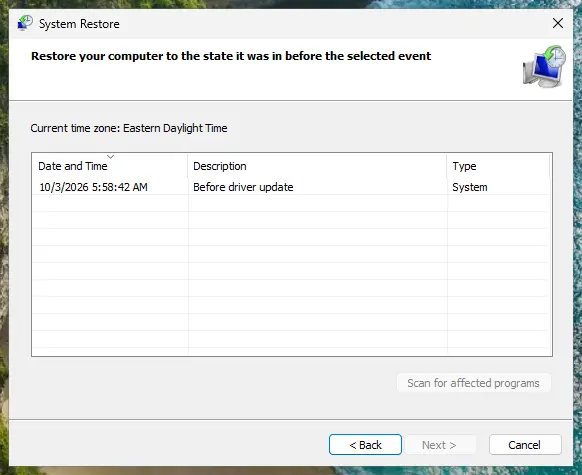
The full procedure, including the case with no restore point: Undo recent changes with System Restore
It worked if: Windows reports that the restore succeeded and starts in normal mode.
If not: If there is no restore point, or startup still fails, check the hardware with Fix 7 before you consider resetting Windows.
Fix 7. Check the drive and the memory for errors
30 to 60 minutesLow riskFreezes and crashes also happen in Safe Mode, the PC is several years old, or a blue screen mentioned memory or the disk.
A failing drive or memory module can stop normal startup and push you into Safe Mode. In a Microsoft Q&A thread about error 1084, users who had to use Safe Mode after a crash suspected a failing drive, so test the hardware before you reinstall anything.
- Back up your files first, from Safe Mode with Networking if needed: Back up your files (Windows Backup, File History, Time Machine)
- Open Command Prompt as administrator and run
chkdsk C:to scan the Windows drive without changing anything. - If it reports errors, run
chkdsk C: /f, type Y and restart so the check runs before Windows starts. - Press Win + R, type
mdschedand select Restart now and check for problems to test the memory. - Read both results after the restart in Event Viewer or as the procedures below describe.
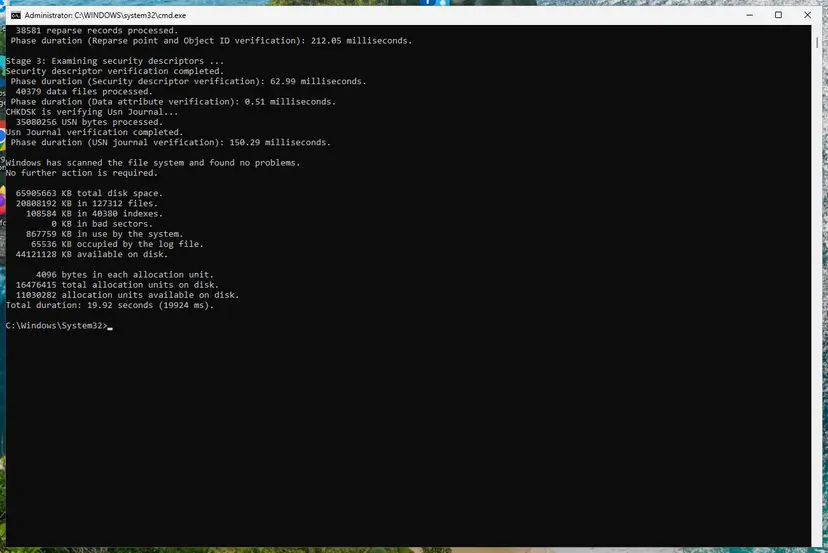
Both checks step by step: Check a disk for errors (chkdsk) and How to test your RAM with Windows Memory Diagnostic
It worked if: chkdsk reports no problems and the memory test finds no errors, so the hardware is not the cause.
If not: If either test finds errors, replace the drive or the memory module before anything else. If both are clean, go to Fix 8.
Fix 8. Repair Windows system files with DISM and SFC
15 to 30 minutesNo riskNormal startup still fails after Fix 4 to Fix 7, and the hardware tests were clean.
Damaged system files can stop services or drivers from loading during a normal start. DISM restores the component store and SFC then replaces damaged files from it. It will not change the 1084 events themselves.
- Open an elevated command window. Right-click Start and select Terminal (Admin), or type cmd in the search box, right-click Command Prompt and select Run as administrator. Select Yes when Windows asks for permission.
- Run DISM first. Type the command below and press Enter. DISM downloads clean copies of damaged components from Windows Update, so it can take several minutes. Wait until it says The operation completed successfully.
DISM.exe /Online /Cleanup-Image /RestoreHealth - Run System File Checker. In the same window, type the command below and press Enter. Do not close the window until the verification reaches 100%.
sfc /scannow - Read the result and restart. Compare the last message with the table below this guide, then restart the PC so that repaired files are loaded.
These steps were written for Windows 11 24H2 and 25H2. The full page with the other versions and what each result means: Run DISM and SFC to repair Windows system files

It worked if: SFC reports that it found no integrity violations, or that it repaired them, and Windows starts normally after a restart.
If not: If startup still fails, reinstall Windows over itself while keeping your files: Reinstall Windows without losing files
If Windows still will not start normally: what to read and what to collect
The 1084 rows will not explain a failed normal start. Look at the moments when normal startup failed, not at the Safe Mode session after it. Collect the facts below before you ask the PC maker or Microsoft for help.
- The last events before each failure. In Event Viewer, Windows Logs > System, find Kernel-Power 41 or EventLog 6008 and read the errors in the minute before it, especially Service Control Manager 7000, 7001 and 7023 and BugCheck 1001.
- A boot log. In Startup Settings press 2 for Enable boot logging. Windows writes
C:\Windows\ntbtlog.txt, a list of the drivers loaded during startup. The last driver in the list of a frozen start is a suspect. - The Windows version and build. Press Win + R, type
winverand note both. - What changed. Reliability Monitor (
perfmon /rel) shows installs, updates and crashes day by day. - The repair log. Startup Repair writes
C:\Windows\System32\LogFiles\Srt\SrtTrail.txt.
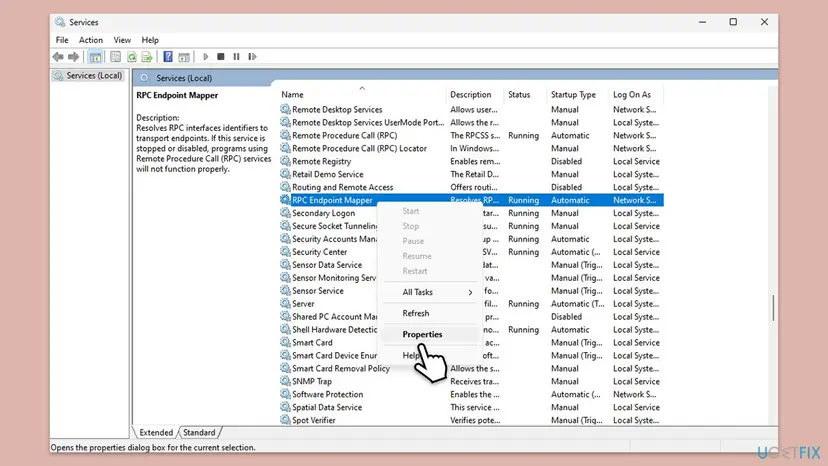
If new 1084 rows appear while Fix 1 says Normal boot, open Services (services.msc) and check that DCOM Server Process Launcher, Remote Procedure Call (RPC) and RPC Endpoint Mapper show Running. Microsoft says programs using COM or DCOM stop working without them. We found no documented case of error 1084 outside Safe Mode, so report it with the event XML: Check and restart Windows services
| Sign | Why it points away from Windows |
|---|---|
| Freezes or blue screens also happen in Safe Mode. | Safe Mode loads almost no third-party code, so the hardware remains. |
| chkdsk or the drive maker's tool reports bad sectors. | A failing drive corrupts files faster than any repair can fix them. |
| Windows Memory Diagnostic reports errors. | Bad memory causes random crashes in every mode. |
| The PC freezes in the firmware setup or in the recovery screens too. | Windows is not running there at all. |
How to avoid Safe Mode surprises and the error 1084 flood
- Use Startup Settings (Shift + Restart) for Safe Mode. It lasts one start and does not need to be switched off.
- When you tick Safe boot in msconfig, clear it as soon as you are done.
- Keep System Protection on for drive C:, so a restore point exists before driver and update installs.
- Keep your BitLocker recovery key somewhere outside the PC.
- Filter the System log by time when you hunt for a crash, so Safe Mode noise does not hide the real event.
- Do not add services to the
SafeBootregistry keys to stop the errors. It changes what runs in the mode meant for repairs. - Do not disable DCOM Server Process Launcher or Remote Procedure Call (RPC). Microsoft recommends leaving both running.
- Do not clear the System log to hide the rows. You lose the history of the failure you are trying to fix.
- Do not reset Windows because of these events alone. They are not a fault.
Frequently asked questions
What does DCOM got error 1084 mean?
It means a Windows service could not be started because the PC was running in Safe Mode. Windows logs it as event 10005 from the source DistributedCOM when a program asks for a component that lives in a service. Microsoft's list of system error codes defines 1084 as ERROR_NOT_SAFEBOOT_SERVICE, "This service cannot be started in Safe Mode." The service named in the message is not damaged. Safe Mode starts only the drivers and services on its own list, and refuses the rest. Once Windows starts normally, the errors stop.
Is DCOM error 1084 dangerous or a sign of a virus?
No. The event is written by Windows itself whenever a service is refused in Safe Mode, and nothing in Microsoft's documentation connects it to malware. It is a side effect, not a cause. What can be serious is the reason you were in Safe Mode, such as a PC that froze at the logo or crashed during normal startup. If you suspect an infection for other reasons, run a full scan with Windows Security, but do not expect the scan to change these events.
Why does the error mention TokenBroker and TokenBrokerInternal?
TokenBroker is the service that was requested, and Windows.Internal.Security.Authentication.Web.TokenBrokerInternal is the component inside it. The names point to sign-in to web and Microsoft accounts, which apps and the desktop request soon after you sign in. In Safe Mode that service is not allowed to start, so the request fails with 1084. The same applies to WAMProviderRegistration, which also names the TokenBroker service. Nothing needs to be repaired in TokenBroker. Leave Safe Mode with Fix 2 and the errors stop.
What about ShellHWDetection, camsvc and DispBrokerDesktopSvc?
They are other services Windows tried to start in the same Safe Mode session. ShellHWDetection is Shell Hardware Detection, which provides AutoPlay notifications. The camsvc event names Windows.Internal.CapabilityAccess.CapabilityAccess, which points to app permissions. DispBrokerDesktopSvc is asked for by display settings. Each request produces one more 1084 row, which is why you see dozens of them in a few minutes. The table in the services section lists more names. None of them needs a change to its startup type.
Is DCOM error 1084 different on Windows 10 and Windows 11?
No. The code, the text and the cause are the same on both, and the same rows were reported on Windows 8 in 2012. The service names change a little between versions, because Windows 11 has services that Windows 10 does not. The menu paths to Recovery and Installed apps differ, and the fixes give both. Note that Windows 10 left support on 14 October 2025, so it no longer gets security fixes. A PC that keeps failing to start on Windows 10 is a good moment to plan the move.
How do I get out of Safe Mode if it keeps coming back?
Restart once from the Start menu first, because Safe Mode chosen in Startup Settings lasts one start only. If it returns, press Win + R, type msconfig, open the Boot tab and clear Safe boot, then restart. That is Microsoft's own advice. If the box is already clear, open an administrator Command Prompt, run bcdedit /enum {current} and, if there is a safeboot line, remove it with bcdedit /deletevalue {current} safeboot. Fix 2 and Fix 3 show every step.
What does DCOM got error 1115 mean?
Code 1115 is a different error in the same message. Microsoft's list of system error codes gives it the text "A system shutdown is in progress." It means a service was requested while Windows was already shutting down, so it was not started. It usually appears at the end of a shutdown or restart, often naming SecurityHealthService, and users on Microsoft Q&A treat it as harmless. Error 1084 instead means Safe Mode. If you see both, read their time stamps to see which session each belongs to.
Does enabling the services stop the error?
No. Older guides, including the earlier version of this page, told you to set the named services to Automatic and start them. In normal mode those services already start when needed, and in Safe Mode Windows refuses them whatever their startup type is, because only services listed under the SafeBoot registry keys may run there. Changing startup types can cause new problems later. The only setting that matters is the boot mode, which Fix 1 checks and Fix 2 changes.
I see this error in another language. Is it the same?
Yes. The event text is translated with Windows, but the event ID 10005, the source DistributedCOM and the code 1084 stay the same. This page is in English, but searches such as ошибка dcom 1084 (Russian) or fehler 1084 in DCOM (German) describe the same event, with the same cause and the same fixes. Check the code in quotes: if it is 1084, the PC was in Safe Mode when it was logged.
My PC froze at the Windows logo and only Safe Mode works. Where do I start?
Start with Fix 4, Startup Repair or Quick machine recovery from the recovery screens. If it finds nothing, go back into Safe Mode and remove the driver or program installed just before the trouble (Fix 5), or use System Restore (Fix 6). Microsoft's support article for PCs that start only in Safe Mode names third-party drivers as the usual cause. If freezes also happen in Safe Mode, back up your files and test the drive and memory with Fix 7 before anything else.
Sources
- Microsoft Learn: System Error Codes (1000-1299), ERROR_NOT_SAFEBOOT_SERVICE 1084 (0x43C), 1053, 1058 and 1115 (learn.microsoft.com)
- Microsoft Learn: BcdLibrary_SafeBoot enumeration (SafemodeMinimal, SafemodeNetwork and the SafeBoot registry keys) (learn.microsoft.com)
- Microsoft Learn: BCDEdit /set (safebootalternateshell, /deletevalue, use MSConfig when possible) (learn.microsoft.com)
Did this fix work?
One click, no account. It tells the next reader which guides are worth their time.
Questions and experiences: [Fix] DCOM got error "1084" attempting to start the service in Windows
Still broken, or found a fix we did not cover? Ask here: members and our editors answer. Reading is open; writing needs a free account.
…