
How to fix DNS_PROBE_POSSIBLE error in Chrome or other browsers?

Prefer to fix it yourself? The manual steps follow.
- 8methods
- 5 to 20 minutes
- Easy
Applies to Windows 11, Windows 10; Google Chrome, Brave, Microsoft Edge and other Chromium browsers; Chrome on Android
8 methods in this guide
- What the error means
- Why it appears
- Chrome, Brave and Edge
- The fixes
- 1. Change secure DNS
- 2. Check the VPN or DNS filter
- 3. Clear both DNS caches
- 4. Test without extensions
- 5. Set a working DNS server
- 6. Check proxy and firewall
- 7. Restart router, reset network
- 8. Pause security software
- Still broken: test DNS
- Keep it from coming back
- FAQ
I have recently come across a rather annoying issue. I can't load any websites on Chrome because of the DNS_PROBE_POSSIBLE error - it comes up every time I try to use Google or anything else. I don't think this is related to my internet, as everything else (including other browsers) works fine. Please help.
DNS_PROBE_POSSIBLE is the placeholder code that Chrome, Brave and other Chromium browsers show the moment a site name cannot be looked up, before their built-in DNS check has given a verdict. When the code stays on the screen, the verdict never arrived, so treat it as a plain failed lookup. Start with the browser's own Use secure DNS setting, then the VPN.
The browser failed to turn the site name into an IP address, and its own diagnosis did not finish. If other browsers and apps work, the cause sits inside this browser: open Settings > Privacy and security > Security, switch Use secure DNS off or to another provider, and reload (Fix 1). If a VPN or a DNS filter is running, disconnect it and test again (Fix 2). Then clear both DNS caches (Fix 3).
| Error | This site can't be reached. "[site]'s DNS address could not be found. Diagnosing the problem." Code: DNS_PROBE_POSSIBLE. |
|---|---|
| Where it appears | On the error page of Chromium browsers (Chrome, Brave, Edge and others), in place of the site, on Windows, macOS, Linux and Android. |
| Main cause | A site name lookup failed inside the browser, most often because of its secure DNS (DNS over HTTPS) setting or a VPN or DNS filter that takes over DNS. The code itself only says that no diagnosis has arrived. |
| Fastest fix | Switch Use secure DNS off or to another provider and reload the page (Fix 1). |
| Also written as | DNS PROBE POSSIBLE, dns_probe_possibl, "DNS address could not be found. Diagnosing the problem." |
| Underlying error | ERR_NAME_NOT_RESOLVED. Chromium starts its DNS probe only for this error. |
| Related codes | DNS_PROBE_STARTED, DNS_PROBE_FINISHED_NXDOMAIN, DNS_PROBE_FINISHED_NO_INTERNET, DNS_PROBE_FINISHED_BAD_CONFIG, DNS_PROBE_FINISHED_BAD_SECURE_CONFIG. |
| Vendor status | Not a bug with a patch date. Chromium's source describes it as a status used only until the page receives the probe result. Brave's source turns the probe off by default. |
| Time to fix | About 2 minutes for Fix 1. Up to 20 minutes when the Windows network settings need a reset. |
| Where the cause is logged | nslookup and ipconfig /displaydns in Command Prompt, and a network log saved from chrome://net-export. |
Facts checked on 13 October 2026. Steps written for Windows 11 (25H2 and 26H2) and Windows 10 22H2, with the Chrome, Edge and Brave settings as their vendors describe them.
What DNS_PROBE_POSSIBLE means
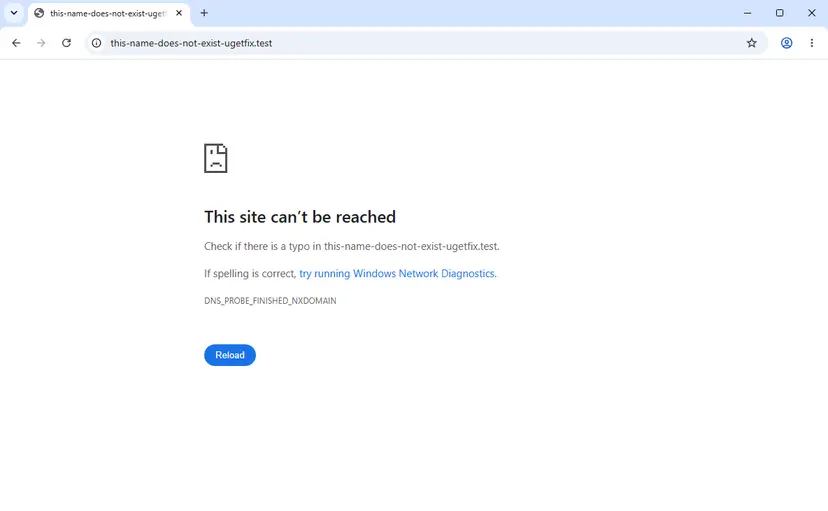
The page has the heading This site can't be reached and one line of text: the name of the site, followed by "DNS address could not be found. Diagnosing the problem." The code DNS_PROBE_POSSIBLE is printed under it. DNS is the service that turns a site name such as www.google.com into the numeric IP address a browser connects to.
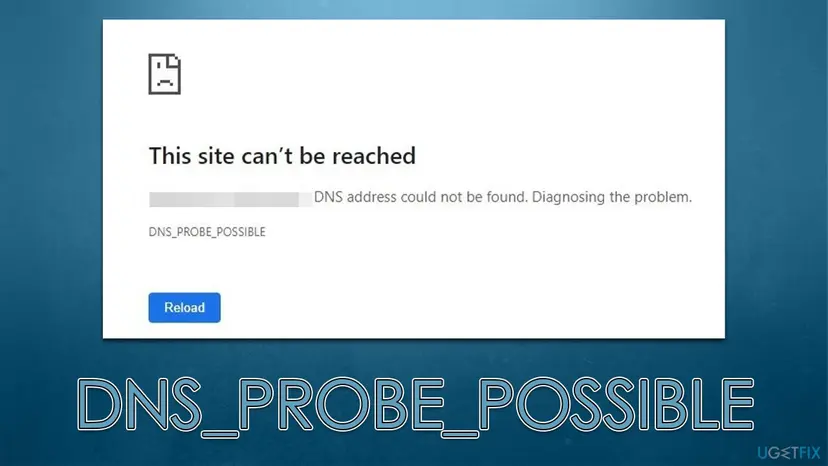
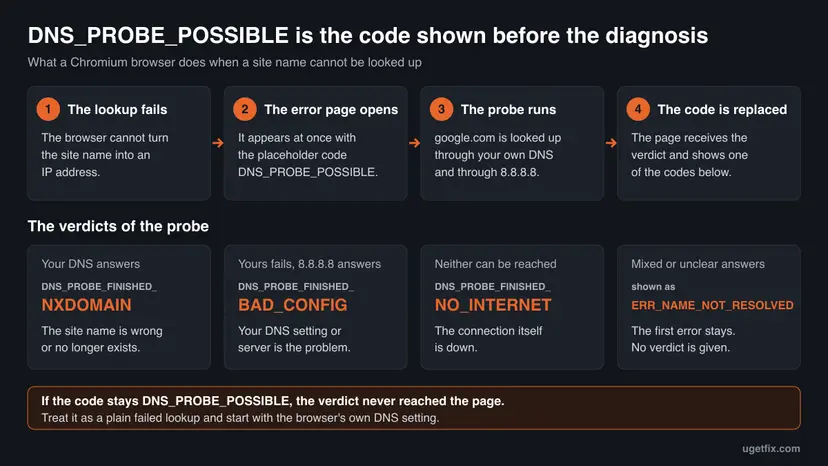
The code does not name a cause. In Chromium's source it is the first value in the list of DNS probe statuses, with this comment: "A DNS probe may be run for this error page. (This status is only used on the renderer side before it's received a status update from the browser.)" In plain words: the page was drawn, and the result of the check has not reached it yet.
A DNS probe is a short test the browser runs after a failed lookup. It looks up google.com twice, once with your current DNS settings and once through Google Public DNS at 8.8.8.8 and 8.8.4.4, and compares the results. The result is kept for 5 seconds.
| Code on the page | What Chromium's source says it means |
|---|---|
DNS_PROBE_POSSIBLE | A probe may be run. The page has not received any status yet. |
DNS_PROBE_STARTED | A probe is running. A finished status should follow while the page stays open. |
DNS_PROBE_FINISHED_NXDOMAIN | "The DNS servers are working fine, so the domain must not exist." |
DNS_PROBE_FINISHED_NO_INTERNET | "There's no internet connection." Your DNS failed and Google's servers could not be reached either. |
DNS_PROBE_FINISHED_BAD_CONFIG | "The DNS configuration is wrong, or the servers are down or broken." Your DNS failed while Google's answered. |
DNS_PROBE_FINISHED_BAD_SECURE_CONFIG | The same, when the browser's secure DNS is set to a fixed provider. |
ERR_NAME_NOT_RESOLVED | The first error, shown again when the probe was not run or its result was inconclusive. |
- Other spellings. People type it as DNS PROBE POSSIBLE, with spaces, or cut it short to dns_probe_possibl. It is one and the same status.
- Other languages and browsers. The code is never translated, only the words above it. It belongs to Chromium's code, so Firefox, which is not built on Chromium, has its own error pages.
Why DNS_PROBE_POSSIBLE stays on the screen
Two things happen before you can read this code for longer than a moment. A lookup fails, and the diagnosis that should replace the placeholder does not arrive. The fixes work on the first part, because a page that loads needs no diagnosis.
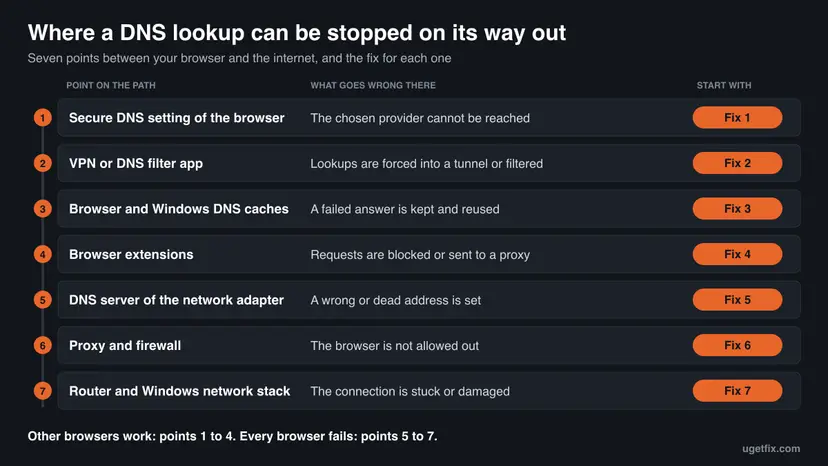
Most often the lookup fails inside the browser, through its secure DNS setting. Less often a VPN, a DNS filter or an extension stands in the way. Rarely the DNS address in Windows, the firewall or the router is at fault.
| Cause | How often | How to tell | Fix |
|---|---|---|---|
| The browser's secure DNS provider cannot be reached, and a fixed provider has no fallback. | Most often | Other browsers and apps work. The error began after a new network, router or provider. | Fix 1 |
| A VPN or a DNS filter app sends all lookups to its own servers or blocks them. | Often | The error starts or stops when the VPN connects or disconnects. | Fix 2 |
| A failed answer is kept in the browser's or Windows' DNS cache. | Sometimes | A site that failed once keeps failing while new sites open. | Fix 3 |
| An extension blocks requests or routes them through a proxy. | Sometimes | The site opens in an Incognito window. | Fix 4 |
| A wrong or dead DNS server address is set on the network adapter. | Sometimes | Every browser fails, and nslookup reports a timeout. | Fix 5 |
| A proxy setting or a firewall rule keeps the browser off the network. | Rarely | One browser fails right after its update or after a security program was installed. | Fix 6 |
| The router or the Windows network stack is stuck. | Rarely | Other devices on the same network fail too, or nothing helps on this PC. | Fix 7 |
Chromium's source describes one more case: the current DNS fails and Google's servers answer "with errors or incorrect results". Its comment reads: "an invasive captive portal or a restrictive firewall may be intercepting or rewriting DNS traffic". The page then keeps the first error instead of a verdict. A captive portal is a Wi-Fi network that waits for a sign-in page.
Chrome, Brave, Edge and Android: where the code shows up and why
In Chrome the probe is allowed by default, so the placeholder is replaced by DNS_PROBE_STARTED and then by a finished code. In our run on Chrome 155 the finished code was on the page about 4 seconds after Enter. By that code, a lasting DNS_PROBE_POSSIBLE in Chrome means that the status update did not reach the open page. A reload repeats the lookup and the probe.
Brave is where most reports come from, and its source shows why. The file brave_profile_prefs.cc sets the preference that allows the probe to off, under the comment "Not using chrome's web service for resolving navigation errors". With that preference off, Chromium's code does not start a probe at all. We could not confirm from Brave's source why the page then keeps the placeholder instead of the first error.
| Browser | Where the secure DNS switch is | Source |
|---|---|---|
| Chrome on a computer | More > Settings > Privacy and security > Security, under Advanced: Use secure DNS | Google Chrome Help |
| Chrome on Android | More > Settings > Privacy and security, under Security: Use secure DNS | Google Chrome Help |
| Microsoft Edge | Settings and more > Settings > Privacy, search, and services > Security: Use secure DNS | Microsoft Support |
| Brave | brave://settings/security: Use secure DNS | Users and helpers on Brave's forum. We found no Brave help page for it. |
- Users on Brave's forum and in Brave's issue tracker report that the error stopped after they switched Use secure DNS off or changed its provider. One report began right after a new router and internet provider were installed.
- Another user there reports the error with secure DNS off and no VPN, and sites that load again by themselves after a few minutes. That points to a failing DNS server (Fix 5), not to a browser setting.
Chrome's secure DNS is on in automatic mode by default. In this mode Chrome falls back to an ordinary lookup when the secure one has problems. With a custom provider, Google's help page says, "Chrome won't default to unencrypted mode". A hand-picked provider that stops answering therefore blocks every site at once.
How to fix the DNS_PROBE_POSSIBLE error
Fixes 1 to 4 work inside the browser, for the case where other browsers and apps still load pages. Fixes 5 to 7 repair the DNS and network settings of Windows and the router, for the case where every browser fails. Fix 8 is one test with security software paused. Reload the page after each fix.
| What you see or have | Start with |
|---|---|
| Only one browser shows the error. Other browsers and apps work. | Fix 1, then Fix 3 and Fix 4 |
| Brave shows the error on every site or after some time of browsing. | Fix 1 |
| A VPN, a DNS filter or an ad blocker app is installed or was just removed. | Fix 2 |
| Only one site fails and it worked a short while ago. | Fix 3 |
| The site opens in an Incognito or private window. | Fix 4 |
| Every browser on this PC fails, and other devices on the same network work. | Fix 5, then Fix 7 |
| The browser stopped working right after it updated or after new security software. | Fix 6, then Fix 8 |
| Every device on the same Wi-Fi fails. | Fix 7 (restart the router first) |
| Chrome on an Android phone. | The Android answer in the FAQ |
Fix 1. Switch the browser's secure DNS off or to another provider
2 minutesLow riskOther browsers and apps load pages, or the error began after a change of network, router or provider.
With secure DNS on, the browser can send its lookups straight to a DNS provider over HTTPS. If that provider is blocked or down on your network, every lookup of this browser fails while the rest of the PC works. Google's help page gives this remedy for errors that say the server's IP address could not be found.
- In Chrome, select More (the three dots at the top right), then Settings.
- On the left, select Privacy and security, then Security.
- Under Advanced, find Use secure DNS and note what the list Select DNS provider shows.
- If a named provider is selected, choose OS default (when available) or a different provider from the list, and reload the failing page.
- If the error stays, turn Use secure DNS off and reload the page again.
- In Edge and Brave, open the same switch by the path in the table above and test it in the same way.
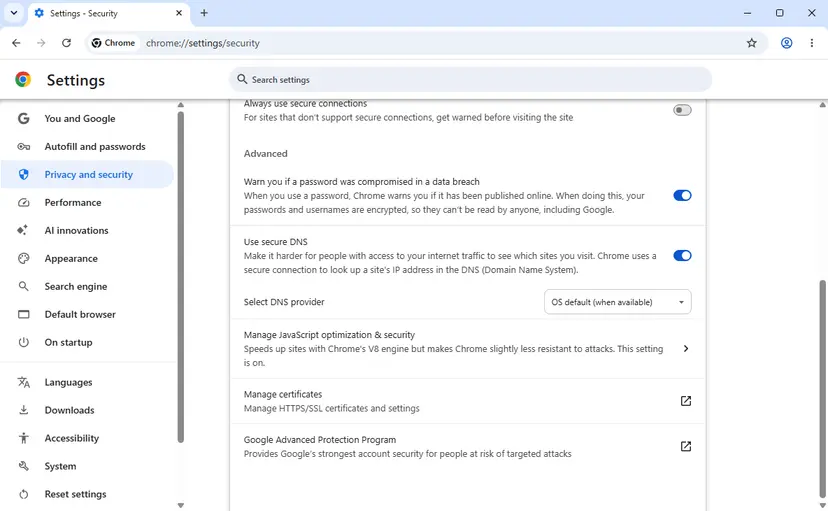
With secure DNS off, lookups go unencrypted to the DNS server set in Windows. Pages stay protected by HTTPS. Once the cause is found, turn the setting back on with a provider that works on your network.
- The switch is locked. Google says secure DNS cannot be used on a managed device or with parental controls on. Ask the administrator, or go on to Fix 2.
- It worked. The provider you had could not be reached from your network.
It worked if: The page loads after the reload, and the address bar shows the site instead of the error page.
If not: Leave the setting as it was before and go on to Fix 2 if you use a VPN or a DNS filter, otherwise to Fix 3.
Fix 2. Disconnect the VPN or DNS filter, then reconnect it
5 minutesNo riskYou use a VPN, an ad blocker that works through DNS, a web protection module or a parental control app.
A VPN app sends your lookups to its own DNS servers and blocks those that try to leave another way. Proton VPN states that its apps use firewall rules so that no DNS query leaves the device outside the VPN interface. A browser that sends encrypted lookups to another provider collides with such rules.
- Disconnect the VPN in its app and reload the failing page.
- If the page loads now, connect the VPN again and choose a different server.
- Reload the page with the VPN connected.
- If the error returns only with the VPN on, turn the browser's Use secure DNS off (Fix 1) and keep the VPN on.
- In the VPN app, remove any custom DNS server you entered, so the app uses its own.
- Pause a separate DNS filter or ad blocker app in the same way and reload the page.
Proton VPN writes that it strongly recommends against DNS over HTTPS while its VPN is connected, and against third-party DNS servers too. NordVPN lists turning off DNS over HTTPS or Secure DNS in the browser among its steps for a site that does not load over the VPN.
- The error began after you removed a VPN. Its DNS address may have stayed behind. Use Fix 5 to return the DNS server to automatic, then Fix 7.
- A DNS filter blocks one name on purpose. Cloudflare's
1.1.1.2and1.1.1.3services, for example, block malware or adult sites by design. Such a site does not open in any browser.
It worked if: Pages load with the VPN off, and after the change they also load with the VPN on.
If not: If the error is the same with the VPN and every filter off, they are not the cause. Go on to Fix 3.
Fix 3. Clear the DNS cache of the browser and of Windows
3 minutesNo riskA site that failed once keeps failing, or the error stayed after Fix 1 or Fix 2 removed its cause.
The browser keeps its own host cache, and Windows keeps a second one that also stores failed answers. Microsoft describes ipconfig /flushdns as the way to "discard negative cache entries" during DNS troubleshooting. Until the caches are empty, an old failure can be served again.
- In Chrome, type
chrome://net-internals/#dnsin the address bar and press Enter. - Select Clear host cache.
- Close every window of the browser and open it again.
- Type
cmdin the search box on the taskbar, then select Run as administrator next to Command Prompt and Yes. - Type the command below and press Enter.
ipconfig /flushdns - Reload the failing page in the browser.
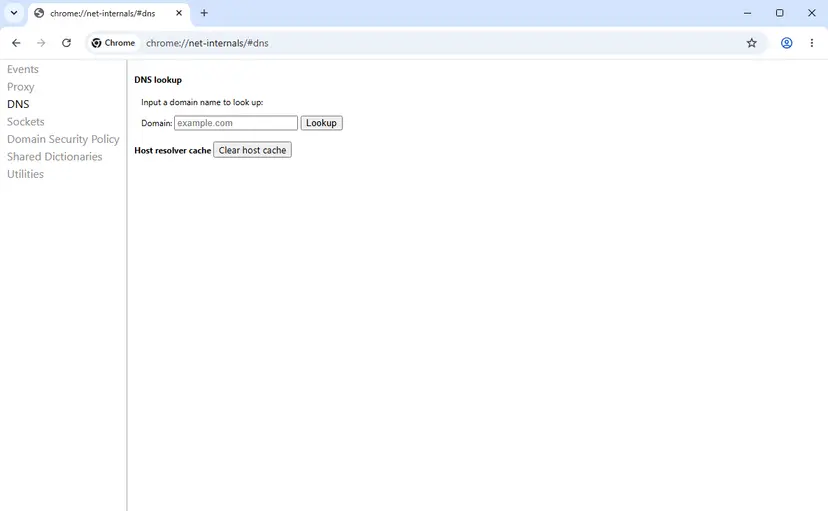
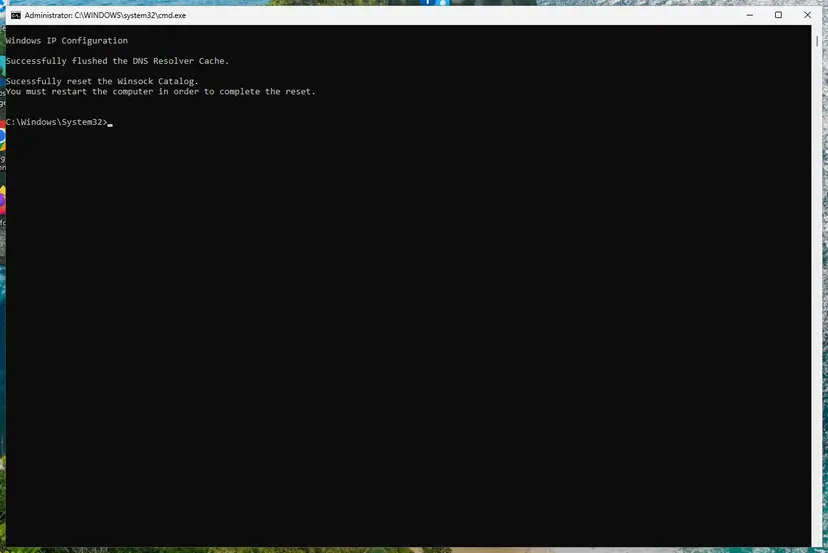
The Clear host cache button is part of Chromium's own page, so Edge and Brave have it under their own names, edge://net-internals/#dns and brave://net-internals/#dns. We could not confirm these two addresses on a vendor page.
It worked if: Command Prompt answers "Successfully flushed the DNS Resolver Cache." and the page loads after a reload.
If not: Run ipconfig /displaydns and look for the failing name. If it is back with "Name does not exist", the DNS server itself refuses it: go to Fix 5.
Fix 4. Test in an Incognito window and switch extensions off
5 minutesNo riskThe error appears in one browser only and you have ad blocker, privacy, VPN or proxy extensions installed.
Ad blocker, privacy and proxy extensions sit between the page and the network. Extensions do not run in an Incognito window unless you allowed them there, which makes it a quick test. Google's own steps for connection errors use the same order: Incognito first, then extensions.
- In Chrome, press Ctrl + Shift + N, or select More > New Incognito window.
- Open the failing site in that window.
- If it loads, close the window and select More > Extensions > Manage extensions.
- Turn every extension off with its switch and reload the failing page in a normal window.
- Turn the extensions back on one at a time, with a reload after each, until the error returns.
- Remove or update the extension that brings the error back.
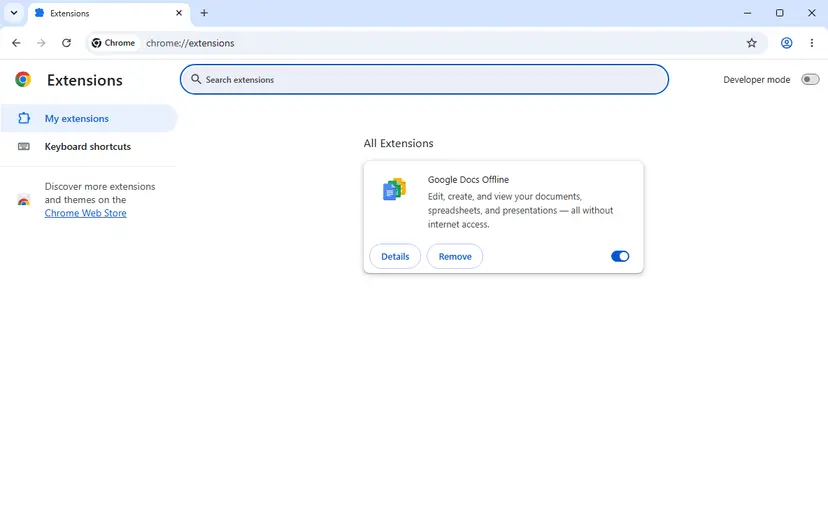
If the site loads in the Incognito window and still fails in a normal one with every extension off, Google's next step is to delete the browsing data: Clear the browser cache and cookies
It worked if: The page loads with one extension off, and the error returns when that extension is turned on again.
If not: If the Incognito window shows the same error, the cause is outside the browser. Go on to Fix 5.
Fix 5. Set a working DNS server on the network adapter
5 minutesLow riskEvery browser on this PC fails, or nslookup cannot reach the DNS server while other devices on the network work.
Without secure DNS, the browser uses the DNS server that Windows has for the network adapter. A mistyped address, a server left behind by a removed VPN or a provider's server that is down makes every lookup fail. The browser's own probe compares your server with Google's 8.8.8.8, so that address is a sound test.
Write down the DNS addresses that are set now before you change them. Google and Cloudflare both give this advice in their setup pages, so you can put the old values back.
- Press Win + I and open Network & internet.
- For Wi-Fi, select Wi-Fi > Manage known networks and choose your network. For a cable connection, select Ethernet and then the network you are connected to.
- Next to DNS server assignment, select Edit.
- If it says Manual and you never set it yourself, switch to Automatic (DHCP), select Save and reload the page. Stop here if it works.
- Otherwise choose Manual and turn on IPv4.
- Type
8.8.8.8in Preferred DNS and8.8.4.4in Alternate DNS. For Cloudflare, type1.1.1.1and1.0.0.1instead. - Leave DNS over HTTPS on Off for this test and select Save.
- Reload the failing page.
| Service | IPv4 | IPv6 |
|---|---|---|
| Google Public DNS | 8.8.8.8 and 8.8.4.4 | 2001:4860:4860::8888 and 2001:4860:4860::8844 |
| Cloudflare 1.1.1.1 | 1.1.1.1 and 1.0.0.1 | 2606:4700:4700::1111 and 2606:4700:4700::1001 |
- Windows 10. Open Settings > Network & Internet, select Change adapter options, right-click your connection and select Properties. Select Internet Protocol Version 4, then Properties, then Use the following DNS server addresses, type the two addresses and select OK. Obtain DNS server address automatically in the same window returns to the automatic setting.
- Windows 10 has no DNS over HTTPS row, as Microsoft's page notes. Its support ended on 14 October 2025, which does not cause this error.
- To see which DNS server Windows uses now and whether it answers a ping: How to check your internet connection in Windows
It worked if: The page loads after the change, and nslookup google.com in Command Prompt returns addresses instead of a timeout.
If not: Put the old addresses back if nothing changed, and go on to Fix 6.
Fix 6. Turn off a manual proxy and allow the browser through the firewall
10 minutesLow riskOne browser stopped working right after its update, or after a security program or a proxy tool was installed.
For a failed lookup the browser's own error page suggests "Checking the proxy, firewall, and DNS configuration". A manual proxy entry that points to a tool you removed leaves the browser with no way out. The firewall part of the hint is to remove the browser from the allowed list and add it again.
- Press Win + I and go to Network & internet > Proxy.
- Turn off any manual proxy setting you did not set on purpose, then reload the page.
- If the error stays, open the Windows Security app and select Firewall & network protection.
- Select Allow an app through firewall.
- Select Change settings and confirm if Windows asks.
- Find your browser in the list and check that its boxes are ticked.
- If it is listed and still blocked, clear its box, select OK, then open the list again and tick it once more.
- If it is missing, select Allow another app, enter the path of the browser's program file and add it.
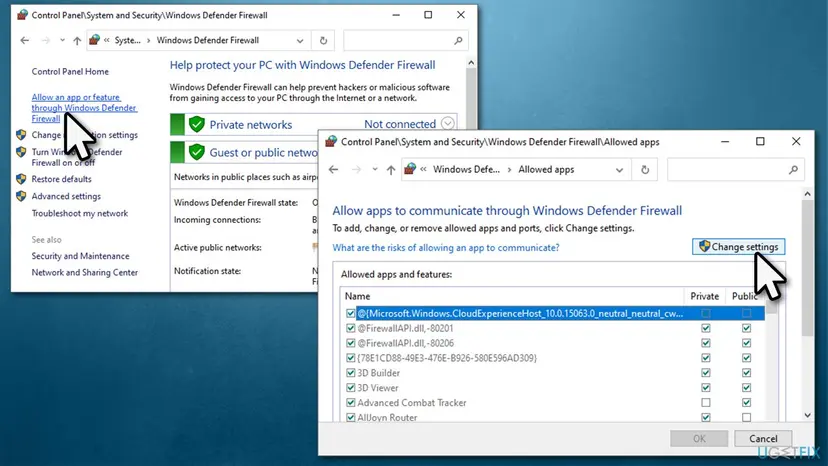
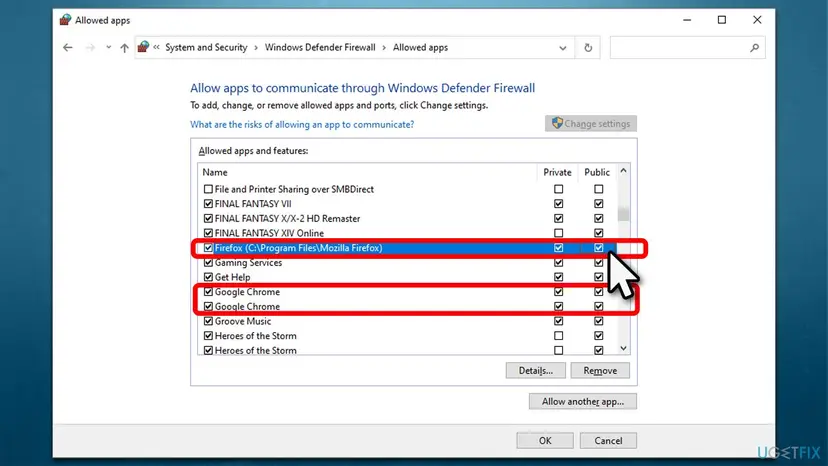
Microsoft warns that every allowed app is a risk and tells you never to allow an app you do not recognise. Allow the browser only, and do not open ports. The browser's hint in full: "If it is already listed as a program allowed to access the network, try removing it from the list and adding it again."
It worked if: The browser has a ticked row in the list, no manual proxy is on, and the page loads after a reload.
If not: If the proxy was off and the firewall already allowed the browser, change nothing more here and go on to Fix 7.
Fix 7. Restart the router and reset the Windows network stack
15 minutesLow riskOther devices on the same network fail too, or every fix above left the error in every browser on this PC.
A home router is often the DNS server for every device behind it, so a stuck router gives the same error on all of them. On the PC, Microsoft's network commands reset the TCP/IP stack, renew the IP address and flush the DNS cache.
- Unplug the power cable of the router, and of the modem if it is a separate box.
- Wait at least 30 seconds.
- Plug the modem in first and wait until its lights stop blinking, then plug the router in.
- Wait a few minutes, reconnect the PC and reload the failing page.
- If the error stays, run the network commands below in the order shown and restart the PC.
- Open an elevated command window. Right-click Start and select Terminal (Admin), or type cmd in the search box, right-click Command Prompt and select Run as administrator. Select Yes when Windows asks for permission.
- Flush the DNS cache. Type the command below and press Enter. Windows forgets the website addresses it looked up earlier and asks for them again.
ipconfig /flushdns - Reset Winsock. Type the command below and press Enter. It returns the Windows sockets catalog to its default state.
netsh winsock reset - Reset TCP/IP. Type the command below and press Enter. If you entered an IP address or DNS server by hand, note it first: you may need to enter it again.
netsh int ip reset - Get a new IP address. Run these two commands one after the other. The connection drops for a moment between them.
ipconfig /release ipconfig /renew - Restart the PC. Restart Windows so the Winsock and TCP/IP resets take effect, then test the connection. If it still does not work, continue with the network reset below.
These steps were written for Windows 11 24H2 and later. The full page with the other versions and what each result means: Reset the network and flush DNS
Microsoft lists the commands in this order: netsh winsock reset, netsh int ip reset, ipconfig /release, ipconfig /renew, ipconfig /flushdns. If you once typed a fixed IP address by hand, write it down first. ipconfig /registerdns, which older guides add, registers the PC's own name with a DNS server and does nothing for this error.
The full network reset in Settings removes and reinstalls every network adapter, and VPN clients may need to be set up again. Microsoft calls it the last step to try: Reset the network and flush DNS
It worked if: After the restart, pages load in every browser and ipconfig /all lists a DNS server for your connection.
If not: If other devices on the network still fail after the router restart, the problem is with the router or the provider. See the section on what to check next.
Fix 8. Pause third-party security software for one test
5 minutesLow riskYou use a security suite other than Microsoft Defender that has a web shield, a firewall or a DNS protection module.
Google's steps for connection errors tell you to make sure that firewall or antivirus software is not blocking the connection. A web protection module filters the browser's traffic, so a short test with it paused shows whether it is the part that stops the lookups.
- Open the security program and pause its web protection or firewall module for the shortest time it offers.
- Reload the failing page straight away.
- Turn the protection back on, whether the page loaded or not.
- If the page loaded only while protection was paused, add the browser to the allowed programs of the security program, or update that program.
Pause protection for one reload only and open no other sites meanwhile. Never leave protection off as the fix. Microsoft Defender can stay on. If you still want to test with it paused, the steps are here: Turn off Microsoft Defender protection for a moment
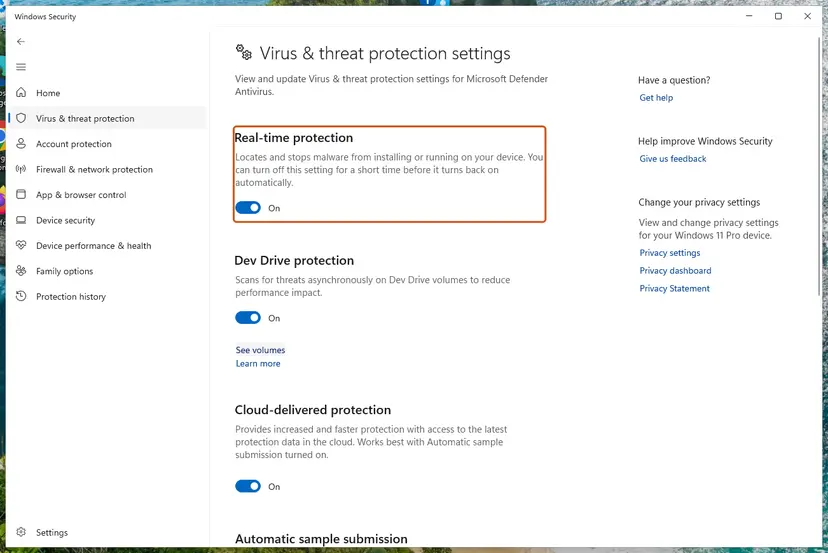
It worked if: The page loads while protection is paused and fails again when it is on, which names the security program as the cause.
If not: Turn protection back on. The cause is elsewhere, so collect the facts listed in the next section.
If DNS_PROBE_POSSIBLE is still there: find out who fails to answer
The error page gives no log, so ask DNS yourself. Microsoft's guide for DNS clients uses nslookup, because it skips the DNS cache of the PC and asks the configured server. A second parameter names another server to ask. Three commands show which link of the chain fails.
Run in Command Prompt, one line at a time
nslookup google.com
nslookup google.com 8.8.8.8
ipconfig /all| What you see | What it means | What to do |
|---|---|---|
Both nslookup lines return addresses, and the browser still fails. | DNS on the PC works. The lookup fails inside the browser. | Repeat Fix 1 and Fix 4, then save a network log (below). |
| The first line times out, the second returns addresses. | The DNS server set in Windows is wrong or down. | Fix 5. |
| Both lines time out, and pages do not load in any app. | DNS traffic does not leave the PC or the network. | Fix 2, Fix 7, then the provider. |
| Both lines answer for google.com, and for one site name the reply says the domain does not exist. | That name is not in DNS, or a filter refuses it. | Check the spelling and try another network. It is not a fault of your PC. |
ipconfig /all shows no DNS server for your connection. | The adapter got no settings from the router. | Fix 7. |
- To save a network log in Chrome, open a new tab and go to
chrome://net-export. - Select Start Logging to Disk. Leave the options under it as they are.
- Open the failing site in a different tab and wait for the error. Keep the first tab open, or logging stops.
- Go back to the first tab and select Stop Logging.
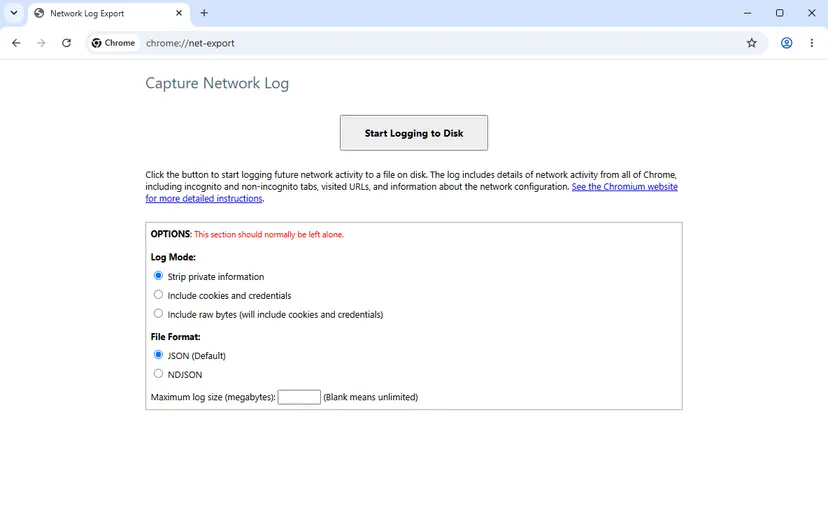
- What to send to support. The whole log file, the failing address, the browser version, the secure DNS setting and the name of your VPN. Chromium's page warns that such a log can hold personal information, so send it by email, not in a public post.
- When it is the network. Other devices on the same Wi-Fi fail, and the phone works on mobile data. Restart the router, then call the provider.
- When it is the site. One name fails on other networks too. Only the owner of the domain can repair that.
- When it is policy. On a work or school device the administrator sets DNS, proxy and secure DNS. Report the error with the time and the address.
How to keep DNS_PROBE_POSSIBLE from coming back
- Keep the browser's secure DNS on its default, OS default (when available) in Chrome, unless you have a reason for a fixed provider.
- When you use a VPN, let the VPN handle DNS and keep the browser's secure DNS off, as the VPN makers advise.
- Write down the DNS addresses that are set before you change them, in Windows and on the router.
- After you remove a VPN or a DNS filter, check that DNS server assignment is back on Automatic (DHCP).
- Type DNS addresses with care: Google's are
8.8.8.8and8.8.4.4, Cloudflare's are1.1.1.1and1.0.0.1.
- Do not stack DNS tools: a VPN, a DNS filter app, a custom DNS in Windows and a fixed secure DNS provider in the browser at once.
- Do not leave a manual proxy on after you remove the program that used it.
- Do not leave the firewall or the security program off after a test.
- Do not copy DNS addresses from a forum post without a check on the provider's own page.
The old version of this guide gave 8.8.8.9 as the alternate Google server. That address is not on Google's list of Public DNS addresses, so it cannot stand in when the first server is slow. If you once followed that step, correct the second address to 8.8.4.4.
Frequently asked questions
What does DNS_PROBE_POSSIBLE mean?
It means the browser could not find the IP address of the site and has not yet received the result of its own DNS check. Chromium's source describes the status as one used only before the error page has received a status update. It is a placeholder, not a diagnosis. When it stays on the screen, read it as a plain failed lookup and check the browser's secure DNS setting, a VPN or DNS filter, and the DNS cache, in that order.
What is a DNS probe?
A DNS probe is a short test that Chromium browsers run after a site name could not be looked up. By the source code, the browser looks up google.com twice without any cache: once with your current DNS settings and once through Google Public DNS at 8.8.8.8 and 8.8.4.4. If your own DNS answers, the site name is judged wrong. If only Google's answers, your DNS setup is judged bad. If neither can be reached, the verdict is no internet.
What is the difference between DNS_PROBE_POSSIBLE and DNS_PROBE_FINISHED_NXDOMAIN?
DNS_PROBE_POSSIBLE is shown before the check has reported anything, and DNS_PROBE_FINISHED_NXDOMAIN is a finished verdict. NXDOMAIN means your DNS servers work, so the browser concludes that the site name does not exist: check the spelling first. DNS_PROBE_STARTED means the check is still running. NO_INTERNET means neither your DNS nor Google's could be reached. BAD_CONFIG means your DNS failed while Google's answered. With POSSIBLE you have none of these hints.
Why do I get DNS_PROBE_POSSIBLE in Brave and not in other browsers?
Because the cause is usually a setting inside Brave, and Brave treats the DNS check differently from Chrome. Brave's source code turns off the preference that allows Chromium's DNS probe, so no verdict replaces the first code. Users on Brave's forum report that the error stopped after they switched Use secure DNS off or changed its provider. If the same sites open in another browser, your network and Windows are fine. Start with Fix 1 and Fix 4.
How do I fix DNS_PROBE_POSSIBLE on Android?
Check the two DNS settings of the phone. In Chrome, tap More, then Settings, then Privacy and security, tap Use secure DNS under Security and turn it off or choose another provider. For Android 9 and later, Google's Public DNS page gives the system path Settings, Network and Internet, Advanced, Private DNS: correct or remove a provider name typed there. Disconnect any VPN app for a test, and switch between Wi-Fi and mobile data to see whether one network alone fails.
Why does DNS_PROBE_POSSIBLE appear only when my VPN is on?
Because the VPN takes over DNS. A VPN app sends lookups through its tunnel to its own DNS servers and blocks lookups that try to leave another way. Proton VPN states this for its apps and advises against DNS over HTTPS and third-party DNS servers while connected. A browser with a fixed secure DNS provider collides with that. Turn the browser's secure DNS off while you use the VPN, remove custom DNS entries from the VPN app, and try another server.
Why does only one website show DNS_PROBE_POSSIBLE?
Because only that name fails to resolve. Either the site's domain has expired or its DNS records are broken, and then it fails for everyone. Or a DNS filter or parental control refuses the name on purpose: Cloudflare's 1.1.1.3 service, for example, blocks malware and adult content. Or a failed answer is stuck in the cache, which Fix 3 clears. This page explains the error and cannot tell you whether a certain site is up. Test the address on mobile data.
Which DNS server should I use, 8.8.8.8 or 1.1.1.1?
Either one works, and both are free public services. Google Public DNS uses 8.8.8.8 and 8.8.4.4. Cloudflare uses 1.1.1.1 and 1.0.0.1. The DNS server of your internet provider, which you get with the automatic setting, is also fine when it answers. Do not use 8.8.8.9, which an older version of this guide named: it is not a Google DNS address. Write down the old values before you change anything.
Is it safe to turn off Use secure DNS?
Yes, with one trade-off. Secure DNS encrypts the lookup itself, so that others on the network cannot read or change which site names you ask for. With it off, the lookup goes unencrypted to the DNS server set in Windows. The pages you open stay encrypted by HTTPS. If you use a VPN, it already carries your lookups in its tunnel, and VPN makers advise keeping the browser's secure DNS off. Otherwise turn it back on with a provider that works.
The page is in Spanish or Portuguese (que significa, solución, erro DNS_PROBE_POSSIBLE). Is it the same error?
Yes. The code DNS_PROBE_POSSIBLE is written the same way in every language of the browser, and only the words above it are translated. It means the same everywhere: the browser could not look up the address of the site, and its own check has not reported a result. This page uses the English names of menus and buttons. In another language the settings sit in the same places, so you can follow the fixes by position.
Sources
Did this fix work?
One click, no account. It tells the next reader which guides are worth their time.
Questions and experiences: fix DNS_PROBE_POSSIBLE error in Chrome or other browsers
Still broken, or found a fix we did not cover? Ask here: members and our editors answer. Reading is open; writing needs a free account.
…