
How to fix "Documents are waiting" error when using printer in Windows?

Prefer to fix it yourself? The manual steps follow.
- 7methods
- 3 minutes to cancel the queue, 5 minutes to reset the spooler, 15 to 20 minutes with a printer or driver reinstall
- Easy
Applies to Any printer on Windows 11 and Windows 10 that shows Error, Offline or a number of documents waiting in the print queue
7 methods in this guide
Hello. When I try to print on Windows I get the "Documents are waiting" error. This has never happened before. How do I fix this?
"Documents waiting" means Windows holds print jobs that the printer has not taken yet, so new ones line up behind them. Most often one stuck job blocks the queue. Cancel every job in the print queue first, and if they will not go away, reset the Print Spooler and empty its PRINTERS folder.
Your printer documents waiting status means jobs sit in the Windows print queue and the printer is not taking them, usually because one job is stuck. Open the print queue and cancel every job (Fix 1). If they stay, stop the Print Spooler, delete the files in C:\Windows\System32\spool\PRINTERS and start it again (Fix 2). Then check paper, ink and the connection (Fix 3, Fix 4).
| Error | The printer's status in Windows reads Error, Offline or nothing, with a count such as 1, 2 or 3 documents waiting. Nothing prints, and new jobs join the line. |
|---|---|
| Where it appears | Settings > Bluetooth & devices > Printers & scanners on Windows 11, Settings > Devices > Printers & scanners on Windows 10, and the printer's Print Queue window. |
| Main cause | A print job that cannot finish blocks the queue. Every job sent after it waits, so the count grows each time you press Print again. |
| Fastest fix | Cancel all jobs in Open print queue (Fix 1). If they will not leave, reset the spooler and empty %WINDIR%\system32\spool\PRINTERS (Fix 2). |
| Also written as | error 2 documents waiting, 2 documents waiting printer, error 3 documents waiting, 1 document waiting, offline 1 document waiting, documents waiting to print, printer says waiting. |
| Affects | Any printer brand (HP, Canon, Epson, Brother and others), USB or network, on Windows 11 and Windows 10. The queue belongs to Windows, not to the printer. |
| Vendor status | Not a bug. Microsoft lists print jobs stuck in the queue as a common printer problem and gives the cancel, spooler and spool folder steps used here. |
| Time to fix | 3 to 5 minutes for Fix 1 and Fix 2. 15 to 20 minutes when the printer or its driver must be installed again. |
Facts checked on 15 October 2026. Steps written for Windows 11 (25H2 and 26H2) and Windows 10 22H2, with the queue and spooler steps read from Microsoft Support.
What "documents waiting" on a printer means
When you print, the app does not talk to the printer directly. It hands the job to the Windows Print Spooler, which stores it as files in C:\Windows\System32\spool\PRINTERS and sends it to the printer in order. The print queue is the list of those jobs.
"Documents waiting" is simply that list as Windows reports it: the number of jobs still in the queue. Error 2 documents waiting printer, error 3 documents waiting and 1 document waiting are the same message with a different count. The word in front of the count tells you where the line is blocked.
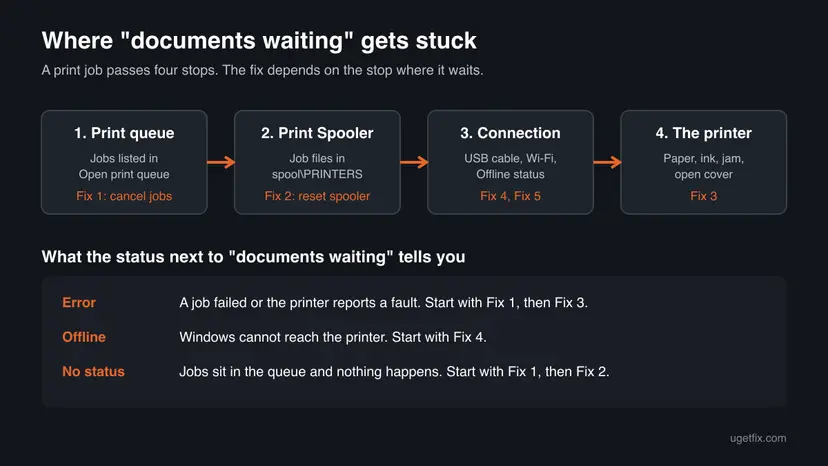
| Status you see | What it means | Start with |
|---|---|---|
| Error and documents waiting | A job failed, or the printer reports a fault such as paper, ink or a jam. | Fix 1, then Fix 3 |
| Offline and documents waiting | Windows cannot reach the printer over USB, Wi-Fi or the network. | Fix 4 |
| Only a count, no status | The jobs sit in the queue and the first one never starts. | Fix 1, then Fix 2 |
| The queue shows 0 but nothing prints | The job left Windows and the printer is not printing it. | Fix 3, then Fix 4 |
Why documents are waiting and not printing, from most to least common
Most often one job is stuck at the front of the queue, and everything sent after it waits. Next comes a printer problem the PC only sees as an error: no paper, low ink, a jam or an open cover. Less often the printer is offline for Windows. Rarely the installed printer or its driver is damaged. Microsoft publishes no statistics; this order follows its printing help.
| Cause | How often | How to tell | Fix |
|---|---|---|---|
| One stuck or damaged job blocks the queue. | Most often | The first job shows Error, Printing or Deleting and never changes. | Fix 1, Fix 2 |
| The printer needs paper or ink, has a jam or an open cover. | Often | The printer's own panel or light shows a warning, and Windows says Error. | Fix 3 |
| Windows cannot reach the printer. | Sometimes | The status reads Offline, or the printer moved to another Wi-Fi network. | Fix 4 |
| The printer entry or its driver is damaged. | Rarely | The queue clears, but every new job gets stuck again. | Fix 5, Fix 6 |
Each new attempt adds one more job behind the stuck one. That is why the count climbs from 1 to 2 to 3 documents waiting. Clear the queue before you print again.
How to fix the printer documents waiting error
Fix 1 and Fix 2 clear the queue and solve most cases in five minutes. Fix 3 and Fix 4 deal with the printer and its connection. Fix 5 to Fix 7 rebuild the printer in Windows when the problem keeps coming back.
| What you see or have | Start with |
|---|---|
| Error and 1, 2 or 3 documents waiting. | Fix 1, then Fix 3 |
| Jobs you cancel stay in the queue, or show Deleting. | Fix 2 |
| Offline and documents waiting. | Fix 4 |
| The printer's own panel shows a warning light or message. | Fix 3 |
| The queue clears, but every new job gets stuck again. | Fix 5, then Fix 6 |
| Nothing above helped. | Fix 7 |
Fix 1. Open the print queue and cancel every waiting document
3 minutesLow riskEveryone, first. It is the quickest way to clear documents waiting on a printer.
The queue prints in order, so one job that cannot finish holds back all the others. Cancelling every job removes the blocker. This is Microsoft's first step for jobs stuck in the queue.
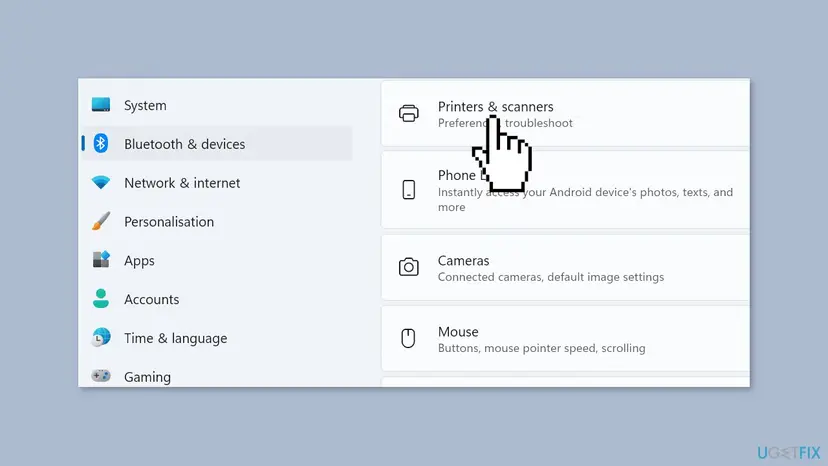
- Press Win + I and open Bluetooth & devices > Printers & scanners. On Windows 10, open Devices > Printers & scanners.
- Select your printer, then select Open print queue. On Windows 10 the button is Open queue.
- In the Print Queue window, open the Printers menu at the top and check that the right printer is selected.
- Right-click each document and select Cancel, then confirm with Yes.
- Wait one minute and look at the list again. It should be empty.
- Print one short test document, once.
It worked if: The print queue is empty, the documents waiting count is gone, and the test page prints.
If not: If a document will not cancel, stays on Deleting, or comes back after a restart, go to Fix 2.
Fix 2. Stop the Print Spooler, empty the PRINTERS folder and start it again
5 minutesLow riskJobs do not cancel in Fix 1, show Deleting for good, or return after a restart.
Waiting jobs live as files in the PRINTERS folder, and the spooler loads them again each time it starts. A damaged file there keeps the queue stuck. Microsoft's fix is to stop the service, delete those files and start it again.
Only the documents waiting to print are deleted, so print them again afterwards. Printers, drivers and settings stay. Delete the files in the folder, never the PRINTERS folder itself.
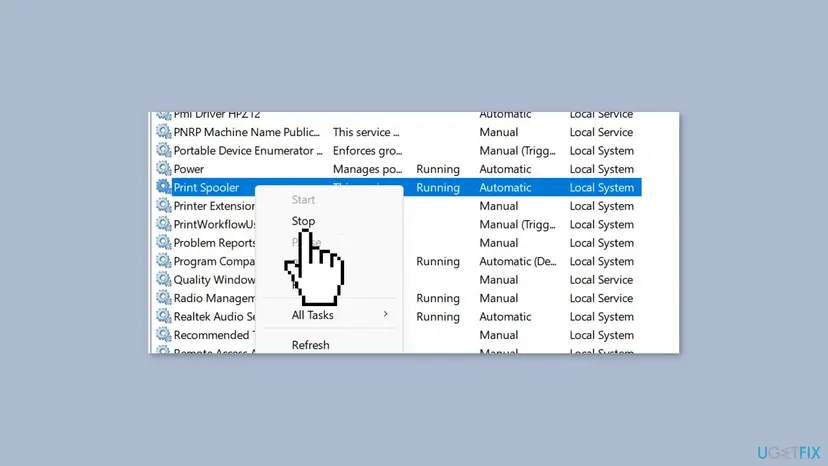
- Press Win + R, type
services.mscand press Enter. - Scroll to Print Spooler, right-click it and select Stop. Leave the window open.
- Press Win + R, type
%WINDIR%\system32\spool\PRINTERSand press Enter. Select Continue if Windows asks for permission. - Select all files in the folder with Ctrl + A and delete them.
- Back in Services, double-click Print Spooler, select Start, set Startup type to Automatic, then select OK.
- Open the print queue again as in Fix 1. It should be empty.
The same reset from an administrator Command Prompt takes three commands. How to start, stop and restart any service: Check and restart Windows services.
Command Prompt (administrator)
net stop spooler
del /q /f %WINDIR%\system32\spool\PRINTERS\*.*
net start spooler
It worked if: The PRINTERS folder is empty, Print Spooler shows Running, and the queue no longer lists documents waiting.
If not: If the queue is empty but a new job gets stuck at once, the block is at the printer. Go to Fix 3. If the spooler stops by itself, see our guide on spoolsv.exe high CPU.
Fix 3. Check the printer itself, then restart the printer and the PC
5 minutesNo riskWindows shows Error next to the documents waiting, or the printer's panel shows a light or a message.
Windows only knows that the printer refused the job. Microsoft notes that an error state often means a problem with the printer itself: low paper or ink, an open cover or a jam. A full restart also clears a printer that froze mid-job.
- Read the printer's own screen or lights. A blinking paper or ink light names the problem.
- Load paper, close every cover, and remove any jammed sheet as the printer's manual shows.
- Check the ink or toner level on the printer's panel or in the maker's app.
- Turn the printer off and unplug it. Microsoft says to wait at least 60 seconds.
- Plug it in and turn it on. Wait until it is ready.
- Restart the PC with Start > Power > Restart, then try printing again.
A small torn piece of paper or an empty second tray is easy to miss. Check each paper tray and every door the manual names, not only the front tray.
It worked if: The printer's panel shows ready, the status in Windows no longer reads Error, and the waiting documents print.
If not: If the status reads Offline, go to Fix 4. If the printer is ready but jobs still wait, run Fix 2 again, then go to Fix 5.
Fix 4. Bring an offline printer back online
5 to 10 minutesLow riskThe status reads Offline and documents are waiting, or a Wi-Fi printer stopped printing after a router change.
Jobs leave the queue only when Windows can reach the printer. An unplugged cable, a printer on another network, or the queue set to work offline all leave documents waiting with nothing wrong in the jobs themselves.
- USB printer: check that the cable sits firmly at both ends. Try another USB port on the PC.
- Wi-Fi printer: make sure its wireless light is on, and run the wireless test from the printer's menu if it has one.
- Check that the PC and the printer are on the same network. Microsoft warns that extenders or several routers with separate network names can split them.
- Open the print queue as in Fix 1, open the Printer menu, and if Use Printer Offline has a check mark, select it to clear it.
- Print a test document.
Microsoft keeps a separate page for printers that stay offline. If the steps above do not bring yours back, the network checks there go further, and our guide on printer error 0x00000040 covers network printing faults.
It worked if: The status changes from Offline to ready and the waiting documents start printing.
If not: If the printer stays offline on a working connection, remove it and add it again (Fix 5).
Fix 5. Remove the printer from Windows and add it again
10 minutesLow riskThe queue clears, but every new job gets stuck again, or the printer appears twice in the list.
Removing the printer deletes its queue, port and settings in Windows. Adding it back builds a fresh entry, which clears a damaged port or a printer that changed its network address. Microsoft lists this as a general printer fix.
- Open Settings > Bluetooth & devices > Printers & scanners. On Windows 10, open Settings > Devices > Printers & scanners.
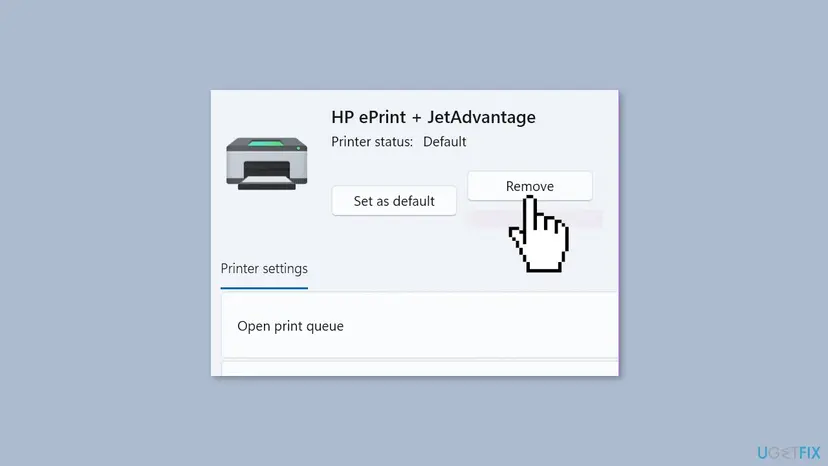
- Select your printer, select Remove, then Yes. On Windows 10 the button is Remove device.
- Remove any copy of the same printer too, such as Printer (Copy 1).
- Restart the PC. Turn the printer on and connect it.
- Select Add device (on Windows 10, Add a printer or scanner), wait for your printer, then select Add device next to it.
- If it does not appear, select Add manually and follow the wizard, then print a test page.
It worked if: The printer is listed once, its queue is empty, and the test page prints.
If not: If jobs still get stuck with the fresh entry, the driver is the next suspect. Go to Fix 6.
Fix 6. Install the latest driver for your printer
15 minutesLow riskThe problem returns after Fix 5, or it started after a Windows upgrade or a new printer.
The driver turns each document into data the printer understands. A wrong or outdated one can produce jobs the printer never finishes, so they wait. Microsoft says most printers need the latest driver to work well.
- Download the current driver for your exact model from the printer maker's website.
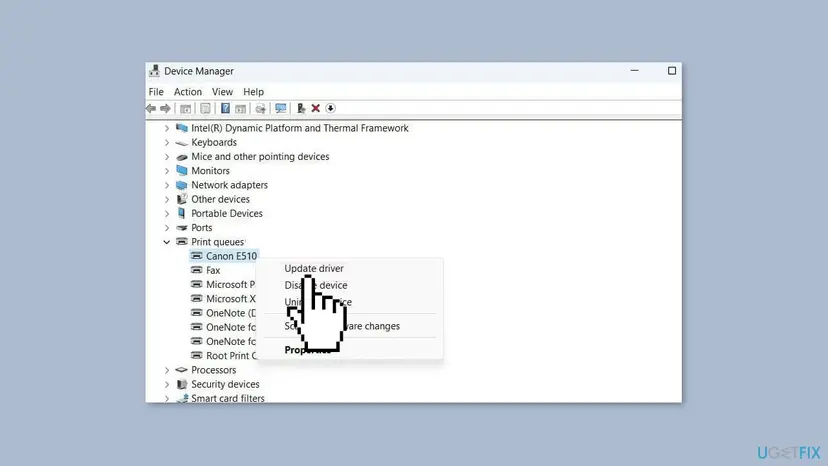
- Right-click Start and open Device Manager.
- Expand Print queues, right-click your printer and select Update driver.
- If that finds nothing new, select Uninstall device, restart the PC and run the installer you downloaded.
- Print a test page.
Updating, rolling back and reinstalling drivers in general: Update, roll back or reinstall a driver.
It worked if: The new driver is installed, the test page prints, and new jobs no longer wait.
If not: If the new driver behaves the same, run the troubleshooter in Fix 7, then read the section on what to do when nothing helped.
Fix 7. Run the printer troubleshooter in the Get Help app
5 to 10 minutesNo riskNothing above helped, or you want Windows to check the spooler and connection for you.
Microsoft's automated printer troubleshooter checks the spooler service, the queue and the connection in one run. Microsoft now points Windows 11 and Windows 10 users to the Get Help app for it.
- Open Get Help from the Start menu.
- Type printer troubleshooter and follow the questions.
- Let it run its checks and apply the fixes it offers.
- Print a test document.
Windows 10 left support on 14 October 2025. Only PCs enrolled in Extended Security Updates still get fixes from Windows Update, so the queue and driver steps above matter more there.
It worked if: The troubleshooter reports a problem it fixed, and the documents print.
If not: If it finds nothing, read the next section.
Documents still waiting: where Windows writes the cause
If the queue is clear, the printer is ready and new jobs still wait, look at what Windows logged before you reinstall more. The spooler writes its own log, which often names the printer, the driver or the job that failed.
- PrintService log: press Win + R, type
eventvwr.mscand open Applications and Services Logs > Microsoft > Windows > PrintService > Admin. Errors there name the printer or driver. - Another app: print a page from Notepad. If that prints and one app's documents keep waiting, the problem is in that app or document, not in Windows.
- A shared printer: if the printer hangs off another PC, clear the queue on that PC too, with Fix 1 and Fix 2.
- The maker: when every PC fails on the same printer, contact the printer maker's support with the model and the error on its panel.
If the printer will not print its own test or configuration page from its menu, with no PC involved, the fault is in the printer. No Windows fix can clear documents waiting in that case.
How to keep documents from getting stuck again
- When a job fails, cancel it at once in the print queue before you press Print again.
- Keep paper loaded and replace ink or toner when the printer warns you.
- Keep the PC and the printer on the same network, and give the printer a fixed address on the router if it keeps going offline.
- Install drivers from the printer maker's website and remove printers you no longer have.
- Leave the Print Spooler on Automatic. Microsoft's reset steps set it that way.
These habits remove the usual reasons a queue fills up. If the count still climbs every day, the printer itself or its connection deserves a closer look with the maker.
Frequently asked questions
Why does my printer say documents waiting?
Because Windows holds print jobs that the printer has not taken. The queue prints in order, so when the first job gets stuck, every document after it waits. The usual reasons are a damaged job, a printer that needs paper or ink, or a printer Windows cannot reach. Cancel the queue as in Fix 1, then check the status: Error points to the printer, Offline points to the connection.
How do I clear error documents waiting on a printer?
Open Settings, Bluetooth & devices, Printers & scanners, select the printer and select Open print queue. Right-click each document and select Cancel. If the documents stay, stop the Print Spooler in Services, delete the files in C:\Windows\System32\spool\PRINTERS and start the service again. This clears error documents waiting in almost every case, as long as the printer itself is ready.
What does Error 2 documents waiting mean?
It means two jobs are in the Windows print queue and the printer reported an error, so neither prints. The number is just the count of jobs; error 1 document waiting or error 3 documents waiting is the same problem. Cancel the jobs as in Fix 1, then check the printer for paper, ink, a jam or an open cover as in Fix 3.
What does 1 document waiting mean on a printer?
One job sits in the Windows print queue and has not reached the printer. If you press Print again, the count grows to 2 documents waiting. Open the queue and cancel that job. If it will not cancel, reset the spooler as in Fix 2. If the status also reads Offline, the printer is not reachable, so check the cable or Wi-Fi as in Fix 4.
Why does it say Offline 1 document waiting?
Windows cannot reach the printer, so the job cannot leave the queue. Check the USB cable or the printer's Wi-Fi, and make sure the PC and printer are on the same network. In the print queue, open the Printer menu and clear Use Printer Offline if it is checked. If the printer still shows Offline, remove it and add it again as in Fix 5.
The queue shows 0 documents pending, but nothing prints. Why?
Then the job has left Windows and the printer is not printing it. Look at the printer's own screen or lights for paper, ink or a jam, and restart it as in Fix 3. If it shows ready and still prints nothing, remove and add the printer again (Fix 5) and install the latest driver (Fix 6). Printing the printer's own test page tells you whether the printer works at all.
What does waiting for documents mean on the printer screen?
On many printers this is the idle message: the printer is on and ready, but no data has arrived from the PC. If a job is waiting in Windows at the same time, the two are not talking. Check the connection as in Fix 4. We could not confirm the exact wording for each printer maker, so check your manual for its own status messages.
Is documents waiting different on HP, Canon or Epson printers?
No. The print queue and its documents waiting count belong to Windows, so the fixes on this page work for every brand. What differs is the printer's own panel: each maker uses its own lights and messages for paper, ink or jams. Read those in Fix 3, and get the current driver for your model from the maker's website in Fix 6.
Will clearing the print queue delete my files?
No. Cancelling jobs or emptying the PRINTERS folder only removes the copies Windows made for printing. Your documents, photos and PDFs stay where you saved them. Printers, drivers and settings also stay. After you clear the queue, open the file and print it again, once, so it does not join a new line.
How do I force the printer to print the waiting documents?
You cannot push a stuck job through; you remove what blocks it. Fix the reason first: paper, ink and jams (Fix 3) or the connection (Fix 4). If the queue then starts moving, the documents print in order. If the first job stays stuck, cancel it, let the others print, and send the cancelled document again.
Sources
- Microsoft Support: Fix print job stuck in queue errors in Windows (support.microsoft.com)
- Microsoft Support: Fix printer connection and printing problems in Windows (support.microsoft.com)
- Microsoft Support: View a printer's print queue in Windows (support.microsoft.com)
Did this fix work?
One click, no account. It tells the next reader which guides are worth their time.
Questions and experiences: fix "Documents are waiting" error when using printer in Windows
Still broken, or found a fix we did not cover? Ask here: members and our editors answer. Reading is open; writing needs a free account.
…