
How to fix Print Spooler (spoolsv.exe) high CPU usage in Windows?

Prefer to fix it yourself? The manual steps follow.
- 8methods
- 5 minutes to clear the queue and spool folder, 15 to 30 minutes with a driver change
- Intermediate
Applies to The Print Spooler service (spoolsv.exe) and PrintIsolationHost.exe on Windows 11 and Windows 10
8 methods in this guide
I use a printer relatively often, but I've recently noticed that spoolsv.exe or Print Spooler is using way too much CPU. How do I fix that? I am not too PC-savvy, so help would be appreciated.
spoolsv.exe is the Windows Print Spooler, the service that holds print jobs and talks to printer drivers. Task Manager shows it as Spooler SubSystem App. When it eats CPU with nothing printing, a stuck job or a faulty printer driver is almost always behind it, so clear the queue and the spool folder first.
spoolsv.exe is the real Print Spooler, not a virus, as long as it runs from C:\Windows\System32. High CPU with nothing printing means a stuck job or a bad printer driver. Cancel the jobs in the queue (Fix 1), then stop the spooler, empty the PRINTERS folder and start it again (Fix 2). If it returns, remove old printers and update the driver (Fix 3, Fix 4).
| Error | No error message. Task Manager shows Spooler SubSystem App (spoolsv.exe) or PrintIsolationHost.exe high in the CPU column, often with nothing printing. |
|---|---|
| Where it appears | Task Manager on Windows 11 and Windows 10. The Services tab names the service Spooler, shown as Print Spooler. The file is C:\Windows\System32\spoolsv.exe. |
| Main cause | A print job that is stuck or damaged, which the spooler keeps retrying, or a faulty printer driver loaded into the spooler. |
| Fastest fix | Cancel the queue (Fix 1), then stop the spooler, delete the files in %WINDIR%\system32\spool\PRINTERS and start it again (Fix 2). |
| Also written as | spoolsv, spoolsv exe, spool.exe, spooler exe, Spooler SubSystem App, app spooler subsystem, spoolsvc, PrintIsolationHost high CPU. |
| What it does | In the words of the service's own description: it spools print jobs and handles interaction with the printer. |
| Safe to disable? | Only on a PC that never prints. The service description warns: "If you turn off this service, you won't be able to print or see your printers." Microsoft Print to PDF stops too. |
| Vendor status | Not a known Windows bug. Microsoft's own printing help includes clearing and resetting the print spooler as a standard step. |
| Time to fix | 5 minutes for Fix 1 and Fix 2. 15 to 30 minutes when a driver has to be changed. |
Facts checked on 15 October 2026. Steps written for Windows 11 (25H2 and 26H2) and Windows 10 22H2, with the spooler reset read from Microsoft Support and driver isolation from Microsoft Learn.
What spoolsv.exe (Spooler SubSystem App) is and why it uses CPU
spoolsv.exe is the program file of the Print Spooler service. Windows starts it automatically and it runs all the time, even when no printer is connected. Task Manager lists it on the Processes tab as Spooler SubSystem App, on the Details tab as spoolsv.exe, and on the Services tab as Spooler.
Every job you print goes through it. The app hands the job to the spooler, the spooler writes it to disk, and a printer driver turns it into something the printer understands. Microsoft also lets a driver run in a separate process, PrintIsolationHost.exe, so a faulty driver cannot halt the whole print service.
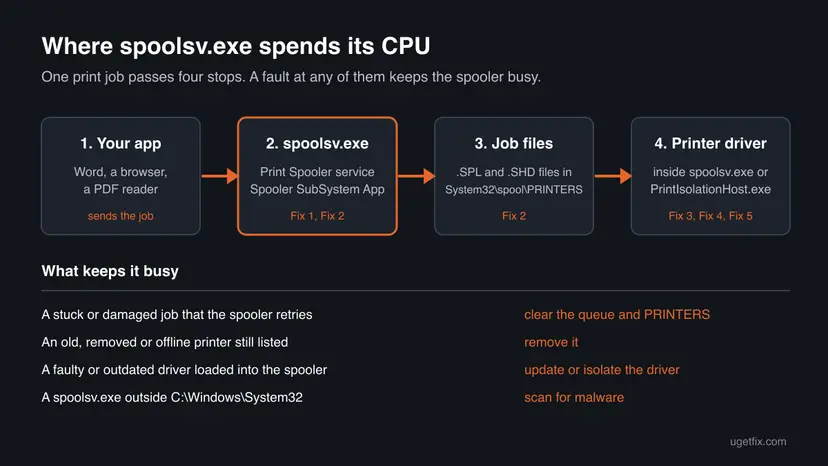
| Name | Where you see it | What it is |
|---|---|---|
| Spooler SubSystem App | Task Manager, Processes tab | The file description of spoolsv.exe |
spoolsv.exe | Task Manager, Details tab | The Print Spooler program in C:\Windows\System32 |
Print Spooler (Spooler) | Services (services.msc) | The Windows service that runs spoolsv.exe |
PrintIsolationHost.exe | Task Manager, Details tab | A helper process that runs printer drivers outside the spooler |
%WINDIR%\system32\spool\PRINTERS | File Explorer | The folder where waiting jobs are kept as files |
While a large document prints, spoolsv.exe can use noticeable CPU for a minute. Constant load with an empty queue, or load that starts again right after every restart, is not normal and has a cause you can remove.
Why the Print Spooler uses high CPU, from most to least common
Most often a print job is stuck or damaged, and the spooler keeps trying to process it. Next comes a printer driver that loops or leaks inside the spooler. Less often, old or duplicate printers that are no longer reachable keep it busy. Rarely the file is damaged or is not the real spoolsv.exe. Microsoft publishes no statistics; this order follows its printing help and the reports we read.
| Cause | How often | How to tell | Fix |
|---|---|---|---|
| A stuck, huge or damaged job in the queue. | Most often | The queue shows a job with Error or Deleting that never goes away, or the PRINTERS folder is not empty with nothing printing. | Fix 1, Fix 2 |
| A faulty or outdated printer driver. | Often | The load comes back after Fix 2, starts when you open the printer's settings, or sits in PrintIsolationHost.exe. | Fix 4, Fix 5 |
| Old, offline or duplicate printers still installed. | Sometimes | Printers & scanners lists printers you no longer have, or several copies of the same one. | Fix 3 |
| Damaged system files after a failed update. | Rarely | Printing broke after an update and SFC finds errors. | Fix 6, Fix 7 |
| Malware using the spoolsv.exe name. | Rarely | The busy spoolsv.exe opens from a folder other than C:\Windows\System32. | Fix 8 |
Microsoft does not publish a list of drivers known to cause spooler load, and we found no Microsoft page that ties high CPU to one Windows update. Reports of such a link on forums are left out.
How to fix spoolsv.exe high CPU usage
Fix 1 and Fix 2 clear what the spooler is working on and solve most cases in five minutes. Fix 3 to Fix 5 deal with printers and drivers, the cause when the load comes back. Fix 6 to Fix 8 are the general checks.
| What you see or have | Start with |
|---|---|
| Something failed to print, or the queue shows jobs that will not go away. | Fix 1, then Fix 2 |
| The queue is empty but spoolsv.exe stays busy. | Fix 2 |
| The load comes back after every restart. | Fix 3, then Fix 4 |
PrintIsolationHost.exe is the busy process. | Fix 4, then Fix 5 |
| It started after a Windows update. | Fix 6, then Fix 7 |
The busy spoolsv.exe is not in C:\Windows\System32. | Fix 8 |
Fix 1. Find the busy process and cancel stuck print jobs
3 minutesLow riskEveryone, first. Most of all if something failed to print shortly before the load began.
A job that cannot finish keeps the spooler working on it again and again. Cancelling it from the queue removes the work, and Task Manager tells you whether the load is in spoolsv.exe or in a driver host.
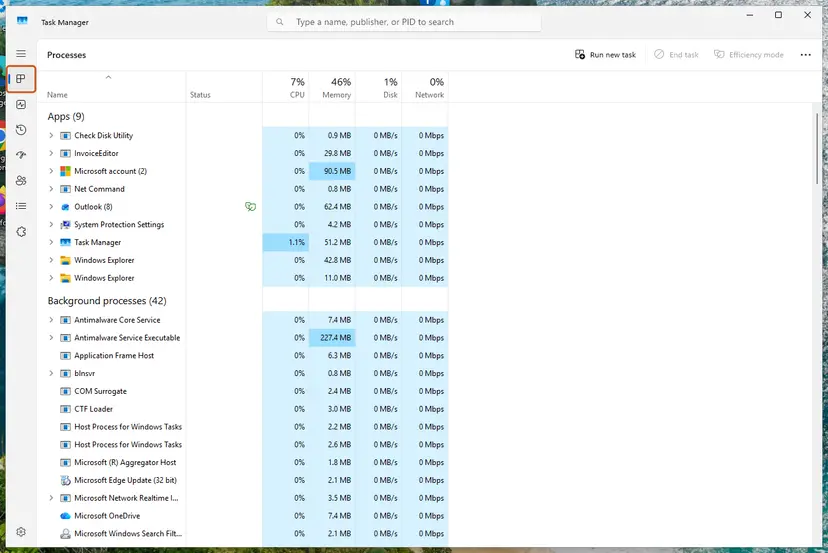
- Press Ctrl + Shift + Esc to open Task Manager. On Windows 10, select More details if you see a short list.
- On the Processes tab, select the CPU column header and look for Spooler SubSystem App.
- Open the Details tab and check whether
spoolsv.exeorPrintIsolationHost.exehas the CPU. Note which one. - Press Win + I and open Bluetooth & devices > Printers & scanners. On Windows 10, open Devices > Printers & scanners.
- Select each printer and select Open print queue.
- Right-click every job and select Cancel, then confirm with Yes.
- Watch Task Manager for a minute. A job marked Deleting that never disappears needs Fix 2.
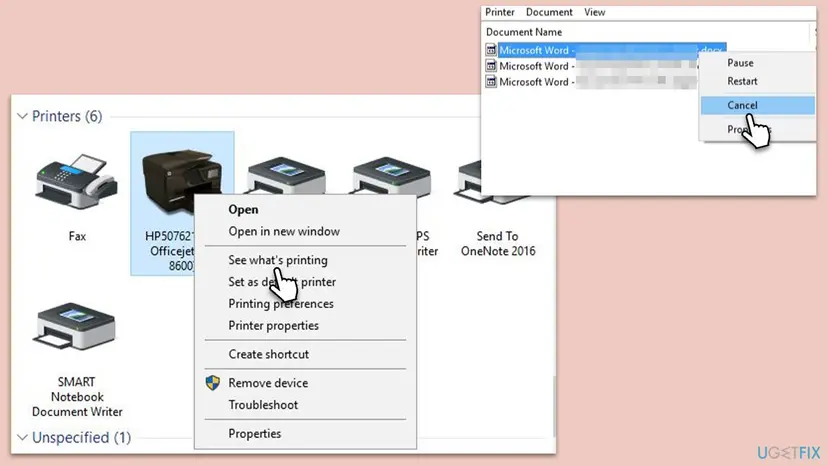
It worked if: The queue is empty and Spooler SubSystem App drops to 0% CPU within a minute.
If not: If jobs will not cancel or the load stays with an empty queue, go to Fix 2. If PrintIsolationHost.exe is the busy one, go to Fix 4.
Fix 2. Stop the Print Spooler, empty the PRINTERS folder and start it again
5 minutesLow riskThe load stays after Fix 1, a job will not cancel, or the spooler is busy with an empty queue.
Waiting jobs live as files in the PRINTERS folder, and the spooler reloads them each time it starts. A damaged file there keeps it busy after every restart. Microsoft's own fix is to stop the service, delete those files and start it again.
Only the documents that wait to be printed are deleted, so print them again afterwards. Printers, drivers and settings stay. Delete the files in the folder, never the PRINTERS folder itself.
- Type services in the search box on the taskbar and open Services.
- Double-click Print Spooler, select Stop, then OK. Leave the window open.
- Press Win + R, type
%WINDIR%\system32\spool\PRINTERSand press Enter. Select Continue if Windows asks for permission. - Select all files in the folder with Ctrl + A and delete them.
- Back in Services, double-click Print Spooler, select Start, check that Startup type is Automatic, then OK.
- Watch Spooler SubSystem App in Task Manager for two minutes.
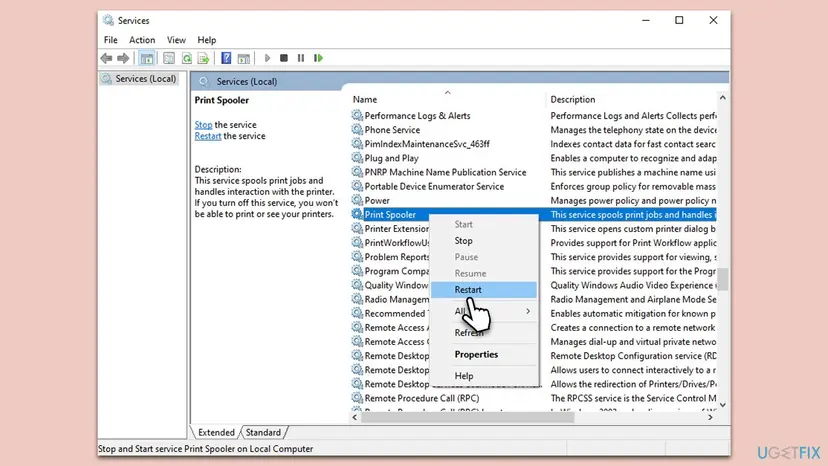
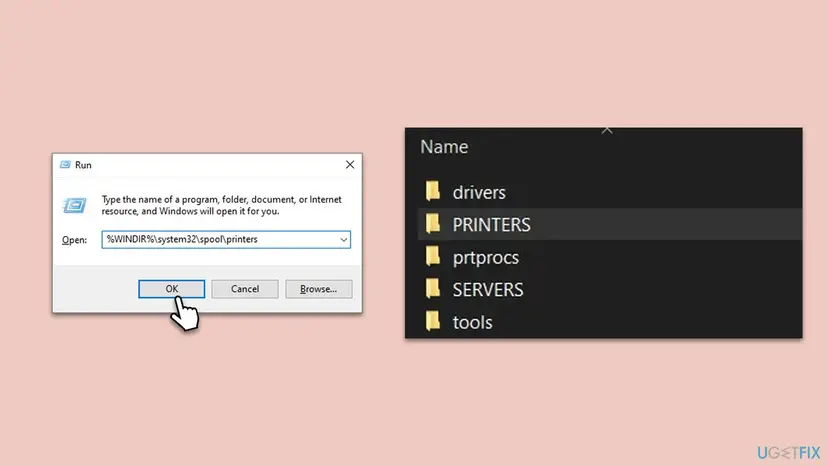
The same reset from an administrator Command Prompt, and a short guide to any service: Check and restart Windows services.
Command Prompt (administrator)
net stop spooler
del /q /f %WINDIR%\system32\spool\PRINTERS\*.*
net start spooler
It worked if: The PRINTERS folder is empty, the service shows Running, and spoolsv.exe stays near 0% CPU when nothing prints.
If not: If the load returns within minutes or after the next restart, a printer or its driver is feeding it. Go to Fix 3.
Fix 3. Remove printers you no longer use, then add your printer again
10 minutesLow riskThe load comes back after Fix 2, or Printers & scanners lists old, offline or duplicate printers.
Every installed printer loads its driver and port into the spooler. A printer that no longer exists, or three copies of the same one, gives it work that never ends. Users report that removing all printers and adding back only the ones they need stopped the load.
- Press Win + I and open Bluetooth & devices > Printers & scanners. On Windows 10, open Devices > Printers & scanners.
- Select a printer you no longer have, or an extra copy such as Printer (Copy 1), and select Remove, then Yes.
- Remove your real printer too if it shows Offline or Error for no reason.
- Restart the PC.
- Turn the printer on, connect it, and in Printers & scanners select Add device.
- When your printer appears, select Add device. If it does not, select Add manually and follow the wizard.
- Print a test page and watch spoolsv.exe in Task Manager.
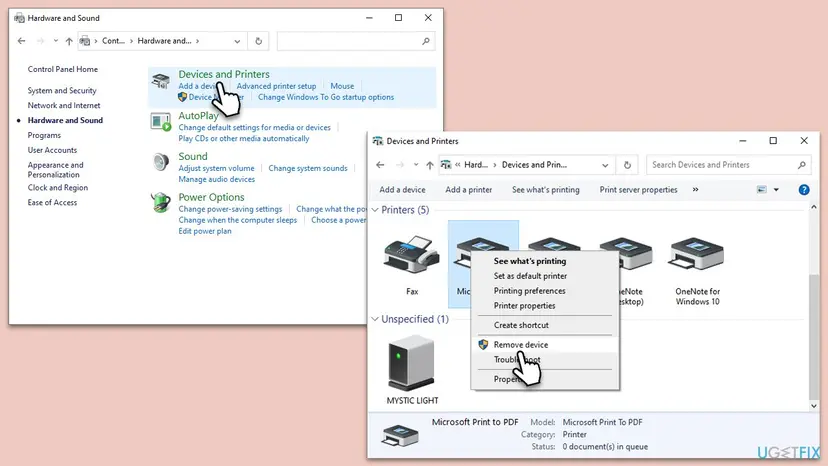
It worked if: Only the printers you use are listed, the test page prints, and spoolsv.exe stays quiet after a restart.
If not: If the load returns as soon as your printer is added back, its driver is the cause. Go to Fix 4.
Fix 4. Update the printer driver and remove old driver packages
15 minutesLow riskThe load returns with one printer installed, or PrintIsolationHost.exe is the busy process.
The driver does the heavy work for each job, and it runs inside spoolsv.exe or PrintIsolationHost.exe. A driver that loops or leaks shows up as their CPU. Removing a printer leaves its driver package behind, so the old driver must be removed separately.
- Download the current driver for your printer model from the printer maker's website. Do not run it yet.
- Remove the printer as in Fix 3.
- Press Win + R, type
printui /s /t2and press Enter. Print Server Properties opens on the Drivers tab. - Select the driver of your printer and select Remove.
- Choose Remove driver and driver package and select OK, then Delete. If Windows says the driver is in use, run Fix 2 and try again.
- Restart the PC, run the installer you downloaded and print a test page.
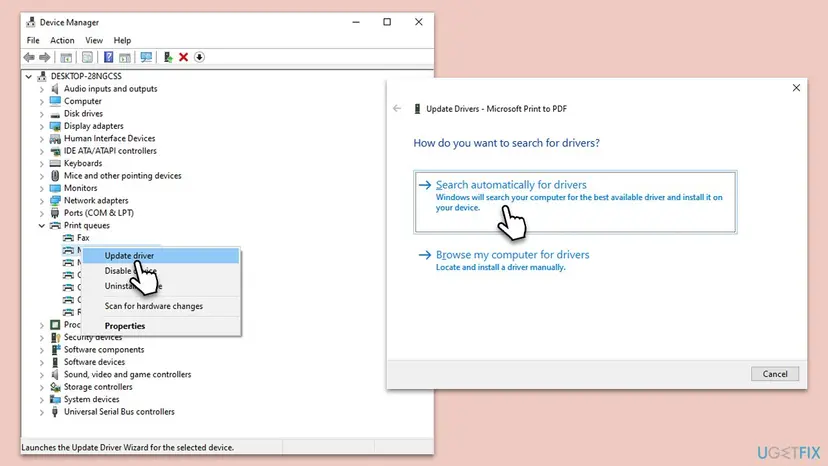
Updating, rolling back and reinstalling drivers in general: Update, roll back or reinstall a driver. If the load began right after a new driver, rolling back to the previous one is the quicker test.
It worked if: The new driver is installed, the test page prints, and neither spoolsv.exe nor PrintIsolationHost.exe stays busy.
If not: If the new driver behaves the same, isolate it so it cannot load the spooler (Fix 5), or ask the printer maker for a different driver for your model.
Fix 5. Run a problem printer driver in isolation (Windows Pro, Enterprise, Education)
10 minutesLow riskYou have several printers and need to find which driver loads the CPU, or one driver keeps slowing the spooler.
Microsoft lets an administrator run a driver in its own process instead of inside the spooler, so a fault in it cannot halt printing. The CPU then shows in that PrintIsolationHost.exe, which points to the driver, and the spooler itself stays responsive.
- Press Win + R, type
printmanagement.mscand press Enter. Home editions do not include this console. - Open Print Servers, then your PC's name, then Drivers.
- Right-click the driver of your printer and select Set Driver Isolation.
- Select Isolated to give it a process of its own. Shared runs it with other drivers, None runs it inside the spooler.
- Restart the Print Spooler as in Fix 2 and print a test page.
- In Task Manager, open Details and watch which
PrintIsolationHost.exetakes the CPU.
| Mode | Where the driver runs | Use it when |
|---|---|---|
| Shared | A process shared with other drivers, outside the spooler | Default for drivers that support isolation |
| Isolated | A process of its own, outside the spooler | One driver faults, leaks or loads the CPU |
| None | Inside spoolsv.exe | An old driver that does not work isolated |
Set the driver back to System default in the same menu. A driver that does not support isolation may fail to print when isolated; in that case, set it back and replace it as in Fix 4.
It worked if: The busy process is the isolated PrintIsolationHost.exe of one driver, which names the culprit, or the load is gone.
If not: If the spooler itself stays busy with every driver isolated, the cause is not a driver. Go to Fix 6.
Fix 6. Run the printer troubleshooter and install Windows updates
15 to 30 minutesNo riskThe fixes above did not help, or the problem started after a Windows update.
Microsoft's printer troubleshooter checks the spooler, the queue and the connection in one run. Windows updates replace spooler files and inbox drivers, so a PC that is behind on updates can carry an old fault.
- Open the Get Help app from the Start menu, type printer troubleshooter and follow the questions. Microsoft points Windows 11 and Windows 10 users to this app.
- Press Win + I, open Windows Update and select Check for updates.
- Install everything offered, including optional driver updates for your printer.
- Restart the PC and watch spoolsv.exe in Task Manager.
Windows 10 left support on 14 October 2025. Only PCs enrolled in Extended Security Updates still get fixes from Windows Update. On the others, the driver fixes in Fix 4 and Fix 5 matter more.
It worked if: The troubleshooter reports a problem it fixed, or Windows is up to date and the spooler stays quiet.
If not: If an update is the trigger, the steps to remove it as a test are here: How to uninstall a Windows update. Otherwise go to Fix 7.
Fix 7. Repair Windows system files with SFC and DISM
20 minutesNo riskThe load stays with all printers removed, or the spooler crashes and other Windows parts fail too.
spoolsv.exe and its helper files are part of Windows. If they or the component store are damaged, the service can fail and restart in a loop, which shows as constant CPU. SFC and DISM replace damaged files with good copies.
- Open an elevated command window. Right-click Start and select Terminal (Admin), or type cmd in the search box, right-click Command Prompt and select Run as administrator. Select Yes when Windows asks for permission.
- Run DISM first. Type the command below and press Enter. DISM downloads clean copies of damaged components from Windows Update, so it can take several minutes. Wait until it says The operation completed successfully.
DISM.exe /Online /Cleanup-Image /RestoreHealth - Run System File Checker. In the same window, type the command below and press Enter. Do not close the window until the verification reaches 100%.
sfc /scannow - Read the result and restart. Compare the last message with the table below this guide, then restart the PC so that repaired files are loaded.
These steps were written for Windows 11 24H2 and 25H2. The full page with the other versions and what each result means: Run DISM and SFC to repair Windows system files
It worked if: SFC reports that it repaired corrupt files, or found no integrity violations, and spoolsv.exe settles after a restart.
If not: If files cannot be repaired, read the section on what to do when nothing helped.
Fix 8. Check that spoolsv.exe is the real file and scan for malware
15 minutesNo riskYou suspect a virus, or Task Manager shows a spoolsv.exe that does not open from System32.
Malware likes the names of system processes because people expect them to run. The real spoolsv.exe is always in C:\Windows\System32. A copy anywhere else, or a second spoolsv.exe, is not the Print Spooler.
- In Task Manager, open the Details tab and find
spoolsv.exe. There should be only one. - Right-click it and select Open file location.
- Check that File Explorer opens
C:\Windows\System32with spoolsv.exe selected. - Run a full scan with Microsoft Defender: How to scan for malware with Microsoft Defender.
It worked if: There is one spoolsv.exe, it is in System32, and Defender finds no threats.
If not: If the file is elsewhere or Defender finds a threat, remove it and run a Microsoft Defender Offline scan before any other fix.
spoolsv.exe still uses high CPU: where Windows writes the cause
If the queue and the PRINTERS folder are empty, the driver is new and the load stays, read what Windows logged before you reinstall anything. The spooler writes to its own log, and crashes go to the Application log.
- PrintService log: press Win + R, type
eventvwr.mscand open Applications and Services Logs > Microsoft > Windows > PrintService > Admin. Errors there name the printer, the driver or the job. - Operational log: in the same place, right-click Operational and select Enable Log. Print once, and each job is recorded step by step. Turn it off again later.
- Application Error: under Windows Logs > Application, an Application Error with
spoolsv.exeas the faulting application lists a faulting module. A DLL from a printer maker there points to its driver. - Shared printers: if the printer is shared from another PC, the fault may be on that PC. Network printing errors are covered in our guide on printer error 0x00000040.
- Repair install: as a last step, reinstall Windows over itself and keep files and apps: Reinstall Windows without losing files.
High CPU in spoolsv.exe is a software problem: a job, a driver or a damaged file. It does not mean the processor or the printer is failing. A printer that shows Error on its own panel needs paper, ink or a jam cleared, which is a different problem.
How to keep the Print Spooler from using high CPU again
- Install drivers from the printer maker's website, and remove the old driver package when you change printers, as in Fix 4.
- Remove printers you no longer have instead of leaving them offline in the list.
- Cancel a job that fails at once, before you send it again. Sending the same document five times fills the queue.
- Keep Windows updated so spooler files and inbox drivers stay current.
- Leave the Print Spooler on Automatic. Setting it to Manual or Disabled does not fix a fault and stops printing.
A user on Microsoft's own forum reported that with the Print Spooler on Manual, it did not start when an app asked to print. Microsoft's reset steps set it back to Automatic. A Manual spooler saves nothing and leaves you without printing.
Frequently asked questions
What is spoolsv.exe?
spoolsv.exe is the program file of the Windows Print Spooler service. It takes print jobs from apps, stores them as files in the spool folder and hands them to the printer driver. It lives in C:\Windows\System32 and starts with Windows, even when no printer is connected. Task Manager shows it as Spooler SubSystem App on the Processes tab. It is a normal part of Windows 11 and Windows 10, and it uses almost no CPU when nothing prints.
Is spoolsv.exe a virus?
No, the real spoolsv.exe is a Windows file and runs from C:\Windows\System32. Malware can copy its name, so check the location: in Task Manager, open Details, right-click spoolsv.exe and select Open file location. If it opens somewhere else, or there are two spoolsv.exe processes, scan with Microsoft Defender as in Fix 8. The same check answers the question for Spooler SubSystem App, which is the same process under its description.
What is Spooler SubSystem App in Task Manager?
Spooler SubSystem App is how Task Manager's Processes tab names spoolsv.exe, using the file's description. It is the Windows Print Spooler and not a separate program or app you installed. If it uses a lot of CPU, the same fixes apply: cancel the queue, clear the PRINTERS folder, then look at the printer driver. You cannot uninstall it, and you do not need to.
Why does PrintIsolationHost.exe use high CPU?
PrintIsolationHost.exe runs printer drivers outside the spooler. Microsoft built this so that a fault in a driver cannot halt the whole print service. High CPU in it therefore points to a driver, not to Windows itself. Update or replace that printer's driver as in Fix 4. With several printers, set each driver to Isolated in Print Management as in Fix 5, and the busy process shows which driver it is.
What does the spoolsv.exe Application Error mean?
It means the Print Spooler crashed. Windows records it under Windows Logs, Application, as an Application Error with spoolsv.exe as the faulting application. The faulting module in that entry is the useful part: a DLL from a printer maker points to its driver. Clear the PRINTERS folder as in Fix 2, then remove and replace that driver as in Fix 4. If the module is a Windows file, run SFC and DISM as in Fix 7.
Can I disable the Print Spooler to stop the CPU use?
Only if the PC never prints. The service description says that if you turn it off, you won't be able to print or see your printers. Microsoft Print to PDF and printing from every app stop too. Disabling hides the problem instead of fixing it, and the load returns the day you turn it back on. Clearing the queue and replacing the driver removes the cause and keeps printing working.
Should I set the Print Spooler startup type to Manual?
No. The old version of this guide suggested it, and we no longer do. A user on Microsoft's forum reported that a Manual spooler did not start when an app asked to print, so printing simply failed. Microsoft's own reset steps set the startup type to Automatic. The spooler uses almost nothing when it is healthy, so Manual saves nothing.
Where can I download spoolsv.exe?
Do not download spoolsv.exe from a DLL or EXE download site. Such files can be outdated, for the wrong Windows build, or malware under a trusted name. If you think the file is damaged or missing, Windows can restore its own copy: run SFC and DISM as in Fix 7. If that fails, a repair install keeps your files and apps and puts back every system file.
What is Print Filter Pipeline Host and why does it use CPU?
Print Filter Pipeline Host is printfilterpipelinesvc.exe, a Windows process that runs the processing filters of some printer drivers while a job is prepared. Like PrintIsolationHost.exe, its CPU use comes from a driver and the job it is working on. We could not confirm more detail from a Microsoft page today. The same steps help: cancel the job, clear the PRINTERS folder, then update the printer's driver.
Is spoolsv.exe different on Windows 10 and Windows 11?
No. The file, its location in C:\Windows\System32, the Print Spooler service and the PRINTERS folder are the same on Windows 11 and Windows 10. Only the Settings pages differ: Windows 11 has Bluetooth & devices, Printers & scanners, and Windows 10 has Devices, Printers & scanners. Windows 10 left support on 14 October 2025, so only PCs in Extended Security Updates still get spooler fixes from Windows Update.
Sources
- Microsoft Support: Fix printer connection and printing problems in Windows (clear and reset the print spooler) (support.microsoft.com)
- Microsoft Learn: Printer driver isolation (learn.microsoft.com)
- Microsoft Q&A: spoolsv.exe process is running all the time and wasting 50% CPU (user reports) (learn.microsoft.com)
Did this fix work?
One click, no account. It tells the next reader which guides are worth their time.
Questions and experiences: fix Print Spooler (spoolsv.exe) high CPU usage in Windows
Still broken, or found a fix we did not cover? Ask here: members and our editors answer. Reading is open; writing needs a free account.
…