
How to fix Easy Anti-Cheat error 30005 (Create File Failed with 32) when launching games?

Prefer to fix it yourself? The manual steps follow.
- 7methods
- 2 minutes for a restart, 5 to 20 minutes for the repairs
- Easy
Applies to PC games protected by Easy Anti-Cheat, such as Fortnite, Elden Ring, Apex Legends, Vermintide 2 and New World, on Windows 11 and Windows 10
7 methods in this guide
Can anyone help me resolve an issue I'm having with Apex Legends? Every time I attempt to start the game, I receive an error that says, "Couldn't start the game. Error Code: 30005 (CreateFile failed with 32.)"
Easy Anti-Cheat error 30005 (CreateFile failed with 32) means the anti-cheat could not open one of its own files because another process was using it. Most often that is an antivirus or a stuck anti-cheat process from the last session. Restart the PC first, then add exceptions for the game and Easy Anti-Cheat.
Windows error 32 means "the process cannot access the file because it is being used by another process". Easy Anti-Cheat tried to open a file of its service and something else held it. Start with Fix 1: restart the PC, not just the game, and launch again from the game's launcher. If it comes back, add the game folder and Easy Anti-Cheat to your antivirus exceptions (Fix 2).
| Error | "Couldn't start the game. Error Code: 30005 (CreateFile failed with 32.)" in the Easy Anti-Cheat launch window. |
|---|---|
| Where it appears | Right after you press Play, while the Easy Anti-Cheat splash screen loads and before the game window opens. |
| Main cause | A file of the Easy Anti-Cheat service is locked by another process. Fatshark's support names an antivirus or a similar program as the usual culprit. |
| Fastest fix | Restart Windows to release the lock, then launch from Steam or the Epic Games Launcher (Fix 1). |
| Also written as | EAC 30005, easyanticheat error 30005, launch error 30005, CreateFile failed with 32, Create File Failed with 32, CopyFile failed with 32, createfile for read failed with 32. |
| What the 32 is | Windows system error 32 (0x20), ERROR_SHARING_VIOLATION: "The process cannot access the file because it is being used by another process." |
| Vendor status | Not a bug with a patch. Epic and game studios treat 30005 as a local problem: restart, reinstall Easy Anti-Cheat, update drivers, then a clean boot. |
| Affects | Any game that uses Easy Anti-Cheat on Windows 11 or Windows 10. Windows 10 left support on 14 October 2025, which does not cause this error. |
| Time to fix | 2 minutes for Fix 1. 5 to 20 minutes for exceptions, the service, a reinstall of Easy Anti-Cheat or a clean boot. |
Facts checked on 15 October 2026. Steps written for Easy Anti-Cheat in Steam and Epic Games Launcher games on Windows 11 (25H2 and 26H2) and Windows 10 22H2, read against Microsoft's list of Windows system error codes, Epic Games Support and Fatshark's Easy Anti-Cheat troubleshooting article.
What Easy Anti-Cheat error 30005 (CreateFile failed with 32) means
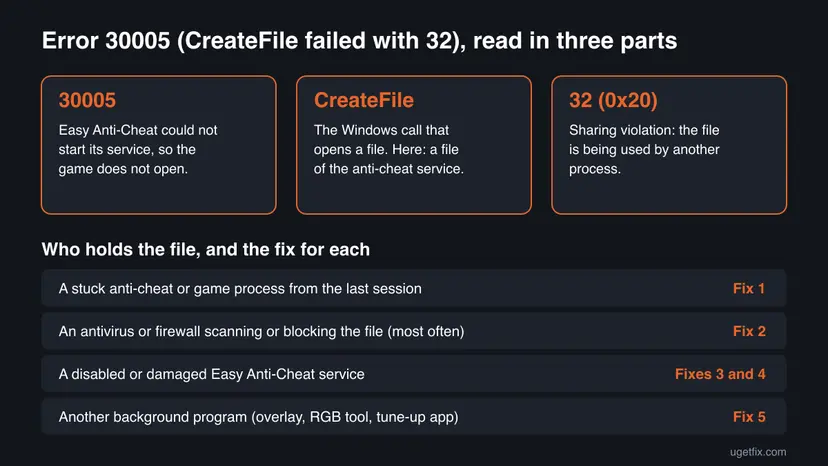
Easy Anti-Cheat (EAC) is the anti-cheat Epic Games provides to many online PC games. Before the game opens, it starts a Windows service of its own. Code 30005 is the number its launcher shows when that start-up fails, and the text in brackets names the Windows call that failed and the Windows error it got back.
Here the call is CreateFile, which opens a file, and the answer is error 32. In Microsoft's list of system error codes, 32 (0x20) is the sharing violation, "The process cannot access the file because it is being used by another process", and nothing worse. So the anti-cheat is fine in principle: a file it needs is locked by something else at that moment.
| Text on screen | What failed | This page? |
|---|---|---|
| Couldn't start the game. Error Code: 30005 (CreateFile failed with 32.) | Opening a file of the EAC service: the file is in use | Yes |
| Error: Copy Failed With 32 / CopyFile failed with 32 | Copying a file of the EAC service: the file is in use | Yes, same fixes |
| Error Code: 30005 (CreateService failed with 1072) | Creating the EAC service in Windows | Partly: Fix 1, Fix 4 and Fix 5 are Epic's steps for it |
| Error Code: 30005 (StartService failed with 1450) or (1275) | Starting the EAC service | Partly: Fatshark ties 1450 to missing Windows updates (Fix 7) |
Error 30005 says nothing about your account. It is a Windows file lock that stops the anti-cheat from starting. The fix is to let Easy Anti-Cheat run normally, never to get around it: games refuse to connect without it, and trying to bypass it can get an account banned.
What causes error 30005 (CreateFile failed with 32), from most to least likely
Fatshark's support article for Easy Anti-Cheat says this error "indicates something on your PC is blocking the Easy Anti-Cheat service from performing one of it's operations. In most cases, an Anti-Virus or similar program is responsible." The order below follows that note, Epic's steps for the related 30005 message and the sharing violation itself. No vendor publishes numbers.
| Cause | How to tell | Fix |
|---|---|---|
| A process from the last session still holds the file, after a crash, a sleep or a quick restart of the game. | It began after the game crashed or after the PC woke from sleep. It may work once and fail the next time. | Fix 1 |
| An antivirus or firewall scans or blocks the EAC file at the moment the service opens it. | It began after you installed or updated security software. It fails on every launch. | Fix 2 |
| The Easy Anti-Cheat service is disabled by a tune-up tool or by hand. | Services shows EasyAntiCheat with Startup type Disabled. | Fix 3 |
| The Easy Anti-Cheat installation is damaged or left half removed. | Other errors came first, or the EAC folder is missing files. | Fix 4 |
| Another background program reaches for the same files: an overlay, an RGB lighting tool, a system tune-up app. | It works after a clean boot. | Fix 5 |
| Damaged game files, including the game's own copy of the EAC setup. | One game fails, other EAC games start. | Fix 6 |
| Outdated Windows or graphics driver. | The PC has not been updated for months, or the message says StartService failed with 1450. | Fix 7 |
Many guides tell you to set the Easy Anti-Cheat service to Automatic or to switch the antivirus off. Fatshark's support asks for Startup type Manual: the game starts the service when it needs it. And the antivirus needs an exception, not to be turned off.
How to fix Easy Anti-Cheat error 30005 (CreateFile failed with 32)
Fix 1 releases the lock in two minutes and is Epic's first step. Fix 2 answers the most common cause. Fixes 3 and 4 repair Easy Anti-Cheat itself. Fix 5 finds another program in the way, and Fixes 6 and 7 are the general repairs.
| What you see or did | Start with |
|---|---|
| The game crashed, or the PC woke from sleep, and now it shows 30005. | Fix 1 |
| You have a third-party antivirus or firewall, or it began after a security update. | Fix 2 |
| You used a tune-up or game booster tool that turns services off. | Fix 3 |
| The message says Easy Anti-Cheat is not installed, or the error stays after a restart. | Fix 4 |
| You run overlays, RGB lighting software or many startup apps. | Fix 5 |
| One game fails while other Easy Anti-Cheat games start. | Fix 6 |
| The message says CreateService failed with 1072 or StartService failed with 1450. | Fix 1, then Fix 4 and Fix 7 |
Fix 1. Restart Windows fully and launch the game from its launcher
2 minutesNo riskEveryone starts here, above all after a crash, after sleep or hibernation, or when the error appears for the first time.
Error 32 means another process holds the file. A full restart ends every process, including a game or anti-cheat process that never closed, so the file is free on the next launch. Epic's support lists a restart as the first step for 30005.
- Select OK or close the Easy Anti-Cheat window.
- Exit the launcher too: in Steam open the Steam menu and select Exit; in the Epic Games Launcher right-click its tray icon and select Exit.
- Open Start, select the power button and choose Restart. Do not use Shut down: with Fast Startup on, Windows keeps part of the last session.
- After Windows starts, wait a minute for startup apps to settle.
- Open Steam or the Epic Games Launcher and press Play on the game. Do not start its .exe file from the game folder.
If the error came back after every shutdown but not after a restart, Fast Startup may be keeping the lock. You can turn it off: Turn off Fast Startup
It worked if: The Easy Anti-Cheat splash screen passes and the game's own window opens.
If not: If 30005 shows again right after a clean restart, something locks the file at every launch. Go to Fix 2.
Fix 2. Add the game folder and Easy Anti-Cheat to your antivirus and firewall exceptions
5 minutesLow riskYou use a third-party antivirus or firewall, or the error started after security software was installed or updated.
Fatshark's support names an antivirus or a similar program as the cause in most cases. A real-time scanner opens each new file to check it, and if it holds the EAC file at the moment the service opens it, Windows answers with error 32. An exception lets the scanner leave those files alone.
- Open your antivirus and find its Exclusions, Exceptions or Allowed apps settings.
- Add the game's install folder. In Steam: right-click the game, select Manage > Browse local files and copy the path from the address bar.
- Add the Easy Anti-Cheat folder. Older games install it to
C:\Program Files (x86)\EasyAntiCheat; games on the newer Epic Online Services version useC:\Program Files (x86)\EasyAntiCheat_EOS. - In the firewall, allow the game's .exe file and the EasyAntiCheat .exe file in that folder.
- Restart the PC and launch the game from its launcher.
- Microsoft Defender only? Defender rarely holds files this way. If it is your only protection, go on to Fix 3 instead.
- Users report particular products. The old version of this guide named Kaspersky, and Fatshark's article names ByteFence, Reason Core Security, Webroot SecureAnywhere, SpyBot and BullGuard for other Easy Anti-Cheat errors. We could not confirm a list for 30005 itself.
- One test with protection paused. If you cannot find the exceptions, pause real-time protection for one launch and turn it back on at once: Turn off Microsoft Defender protection for a moment
If the game starts only while protection is paused, the answer is an exception in that program. Turn real-time protection back on right after the test and leave it on.
It worked if: The game starts with your antivirus running.
If not: If the exceptions change nothing, check that the Easy Anti-Cheat service can start with Fix 3.
Fix 3. Set the Easy Anti-Cheat service back to Manual in Services
2 minutesLow riskA tune-up or game booster tool has turned services off, or you are not sure whether the service is enabled.
Games protected by Easy Anti-Cheat start its service each time they launch. If the service is set to Disabled, the start fails. Fatshark's support asks for Startup type Manual, the normal setting.
- Press Win + R, type
services.mscand press Enter. - Find EasyAntiCheat in the list. Games on the newer version show an entry that starts with EasyAntiCheat_EOS; some games install both.
- Double-click the entry to open its properties.
- If Startup type says Disabled, set it to Manual.
- Select Apply and OK. Leave the service stopped: the game starts it.
- Launch the game from its launcher.
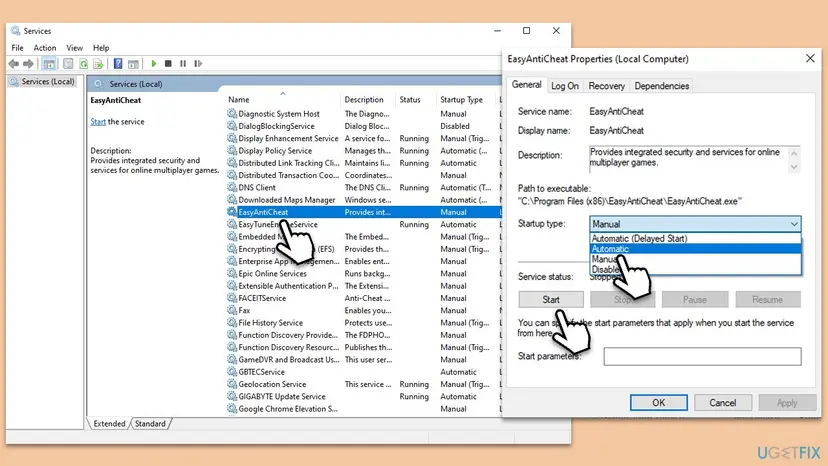
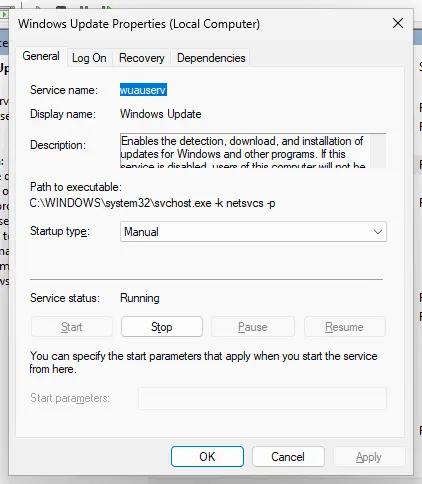
The full Services steps, with PowerShell as an alternative: Check and restart Windows services
It worked if: The EasyAntiCheat entry shows Startup type Manual, and while the game runs its Status shows Running.
If not: If there is no EasyAntiCheat entry at all, or it was already Manual, repair or reinstall Easy Anti-Cheat with Fix 4.
Fix 4. Repair or reinstall Easy Anti-Cheat from the game's folder
5 minutesLow riskA restart and exceptions did not help, the service is missing, or Easy Anti-Cheat reports it is not installed.
Every game ships its own Easy Anti-Cheat installer. Running it again writes fresh service files and registers the service again, which clears a damaged or half removed install. Epic's support gives a reinstall of EAC as the second step for 30005.
- Restart the PC so that no EAC file is in use.
- Open the game's folder. In Steam right-click the game and select Manage > Browse local files; in the Epic Games Launcher select the three dots on the game, then Manage and the folder icon next to the install path.
- Open the EasyAntiCheat folder there. Some games keep it under
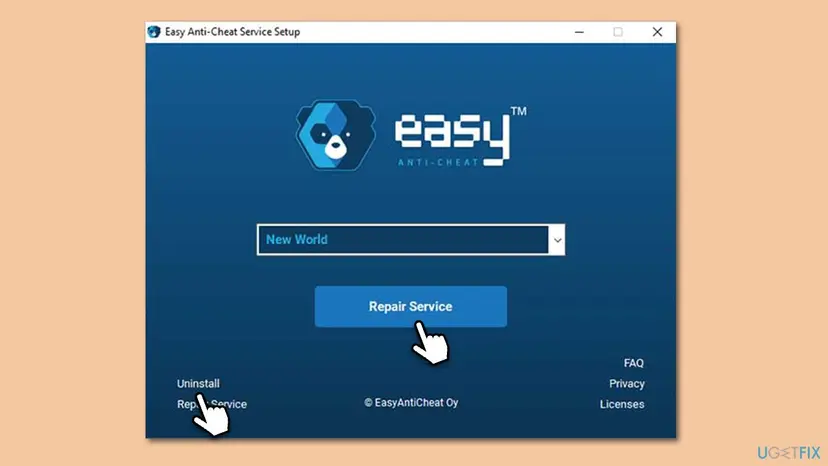
installers\EasyAntiCheatEOS. - Double-click EasyAntiCheat_Setup.exe or EasyAntiCheat_EOS_Setup.exe and select Yes in User Account Control.
- If a list of games appears, pick your game. Select Repair Service.
- If the repair finishes but the error stays, run the setup again, select Uninstall, restart the PC, then run it once more and install.
- Launch the game from its launcher.
Fatshark gives a PowerShell way for Vermintide 2: in its installers\EasyAntiCheatEOS folder run .\EasyAntiCheat_EOS_Setup.exe uninstall and then install, each followed by the game's product ID from its support page. Other games use their own ID, so take the command from that game's support, never from a random forum.
Users also report clearing the error by removing a leftover EasyAntiCheat.sys from C:\Program Files (x86)\EasyAntiCheat between the uninstall and the new install. We could not confirm this with Epic. If you try it, do it only after the uninstall and a restart, and run the installer again straight away.
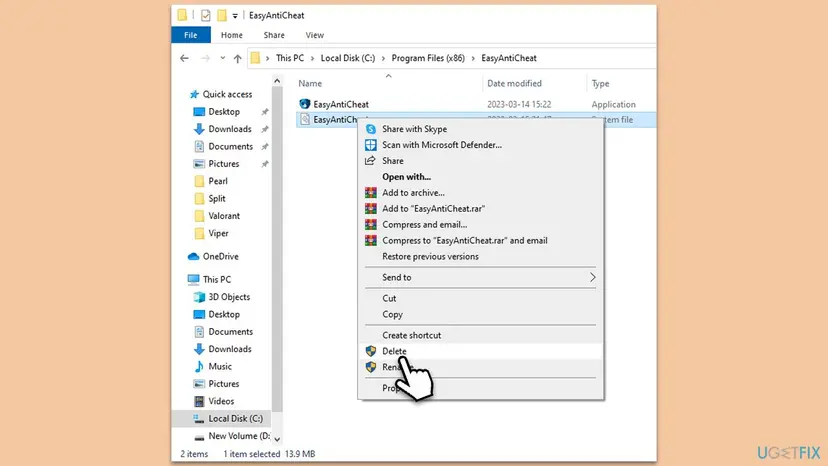
It worked if: The setup reports that the service was installed or repaired, and the game opens past the Easy Anti-Cheat splash screen.
If not: If the setup itself fails, or the error returns, look for a program in the way with Fix 5.
Fix 5. Start Windows with a clean boot to find the program that holds the file
10 to 15 minutesLow riskFixes 1 to 4 did not help, or you run overlays, RGB lighting tools, tune-up apps or many startup programs.
Both Epic and Fatshark list a clean or selective startup for 30005. Windows starts with Microsoft services only, so no third-party program can hold the EAC file. If the game starts, one of the programs you turned off is the cause.
- Open System Configuration. Select Search on the taskbar, type msconfig and select System Configuration from the results.
- Hide Microsoft services. On the Services tab, select the Hide all Microsoft services check box. Only services from other companies stay in the list.
- Disable the remaining services. Select Disable all, then select Apply.
- Open Task Manager. On the Startup tab of System Configuration, select Open Task Manager.
- Disable the startup apps. On the Startup apps tab in Task Manager, select each item whose status is Enabled and select Disable. Write down or take a screenshot of the items you disable: you need the list to turn them back on.
- Confirm the changes. Close Task Manager. On the Startup tab of System Configuration, select OK.
- Restart and test. Restart the PC. Windows now starts in a clean boot environment: try again the thing that failed (run the app, install the update, uninstall the program).
These steps were written for Windows 11 25H2 and 26H2. The full page with the other versions and what each result means: How to perform a clean boot in Windows

- If the game starts: turn the services and startup apps back on in small groups, restarting each time, until 30005 returns. The last group holds the program.
- Known suspects for Easy Anti-Cheat: Fatshark names RGB controllers such as ASUS Aura Sync and RGB Fusion for other EAC errors. Close such tools before you play, or update them.
- When you are done, undo the clean boot with the last steps of the procedure so your programs start normally.
It worked if: The game starts after a clean boot, and turning programs back on in groups points at one of them.
If not: If the error stays even after a clean boot, no third-party program is to blame. Check the game files with Fix 6.
Fix 6. Verify the game's files in its launcher
5 to 30 minutes, by the size of the gameLow riskOne game shows 30005 while other Easy Anti-Cheat games start.
The game folder holds its own Easy Anti-Cheat files and setup. If one is missing or damaged, the service cannot be set up for that game. Verifying downloads the original files again, and Fatshark adds it after every EAC reinstall.
- Restart and open Steam. Restart your computer and launch Steam.
- Open the game's menu. Right-click the game in your Library, or open the game's Library page and select the gear icon on the far right.
- Open Properties. Select Properties in the menu.
- Verify the files. Select the Installed Files tab and select Verify integrity of game files.
- Wait for the result. Steam checks the game's files. This can take several minutes.
These steps were written for Steam on Windows. The full page with the other versions and what each result means: How to verify game files in Steam, Epic Games, Xbox app, EA app, Battle.net and GOG Galaxy
It worked if: The launcher reports the files as verified or repaired, and the game starts.
If not: If nothing changes, update Windows and the graphics driver with Fix 7.
Fix 7. Install Windows updates and update the graphics driver
10 to 30 minutesLow riskNothing above helped, the PC has not been updated for a while, or the message says StartService failed with 1450.
Epic lists up to date graphics drivers for 30005, and Fatshark ties the 1450 version of 30005 to a Windows that is not up to date. Easy Anti-Cheat runs a driver of its own and expects current Windows components.
- Open Settings > Windows Update and select Check for updates. Install everything offered and restart.
- Update the graphics driver from the maker of your card: NVIDIA, AMD or Intel. Step by step: Update, roll back or reinstall a driver
- Restart the PC and launch the game from its launcher.
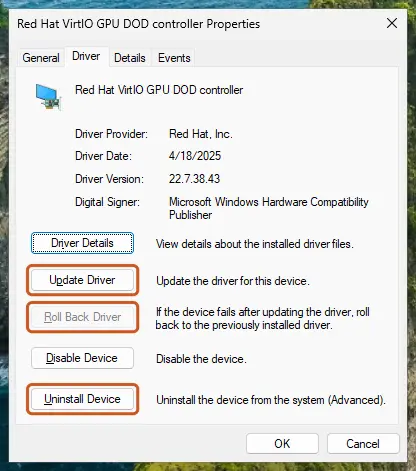
It worked if: Windows reports that it is up to date, the new driver is in place, and the game starts.
If not: If 30005 still shows, collect the logs below and contact the game's support.
If error 30005 still shows: the logs to send and whom to ask
Easy Anti-Cheat writes its logs to %AppData%\EasyAntiCheat. Fatshark's support asks players to zip that folder and attach it to a ticket, and the game's support team is the right place for it: they can see what EAC reported for their game.
- Press Win + R, type
%appdata%and press Enter. - Right-click the EasyAntiCheat folder and select Compress to ZIP file (on Windows 10: Send to > Compressed (zipped) folder).
- Take a screenshot of the error with the full text in brackets.
- Write down your antivirus, whether a clean boot changed anything and which fixes you tried.
- Send all of it to the support of the game, not to the store: Steam and Epic route anti-cheat problems to the game's developer.
A file lock is a software problem, not a hardware fault. If 30005 appears together with crashes, disk errors or blue screens, check the drive first with Check a disk for errors (chkdsk) before you reinstall anything.
How to keep error 30005 from coming back
- Keep permanent exceptions for your game folders and the Easy Anti-Cheat folder in your antivirus.
- Restart, not shut down, after a game crash before you play again.
- Start games from Steam, the Epic Games Launcher or the game's own launcher.
- Keep Windows and the graphics driver up to date.
- Leave the Easy Anti-Cheat service on Manual.
- Do not let tune-up or game booster tools disable services.
- Do not turn your antivirus off for good to make a game start.
- Do not delete Easy Anti-Cheat folders without running its setup again.
- Do not use tools or files that promise to skip or bypass the anti-cheat.
- Do not download EAC setup files from anywhere but the game's own folder or support.
The rule is short: Easy Anti-Cheat needs its files free when the game starts. Keep other programs away from them with exceptions, and close what is left over from the last session with a restart.
Frequently asked questions
What does Easy Anti-Cheat error 30005 mean?
It means Easy Anti-Cheat could not start its Windows service, so the game did not open. The 30005 code stays the same and the text in brackets says which step failed. With "CreateFile failed with 32", the anti-cheat tried to open one of its files and Windows answered with error 32, a sharing violation: another process was using the file. Most often that is an antivirus or a process left over from the last session, so a restart and an antivirus exception fix most cases.
What is "CreateFile failed with 32"?
CreateFile is the Windows function programs use to open a file, and 32 is the Windows error it returned. In Microsoft's list of system error codes, 32 (0x20) reads "The process cannot access the file because it is being used by another process", a sharing violation. The same message turns up in other programs, but with Easy Anti-Cheat and code 30005 it means a file of the anti-cheat service was locked. Free the file with a restart (Fix 1) and keep scanners off it with exceptions (Fix 2).
How do I fix error 30005 in Easy Anti-Cheat fast?
Restart Windows, not only the game, and launch from Steam or the Epic Games Launcher. This is Epic's first step and it releases any file a stuck process was holding. If the error is back on the next launch, add the game folder and C:\Program Files (x86)\EasyAntiCheat or EasyAntiCheat_EOS to your antivirus exceptions, then check that the EasyAntiCheat service is set to Manual in Services. Those three steps take about ten minutes together.
Is error 30005 the same as CreateService failed with 1072?
Same code, different failure. With 1072 the problem is creating the Easy Anti-Cheat service in Windows, not opening a file. Epic's support page for that message lists four steps: restart the computer, reinstall Easy Anti-Cheat, update the graphics driver, and do a clean boot with background apps turned off. Fixes 1, 4, 7 and 5 on this page cover the same steps, so you can follow them in that order.
Can my antivirus cause Easy Anti-Cheat error 30005?
Yes, and it is the most common cause. Fatshark's support says an antivirus or a similar program is responsible in most cases. A real-time scanner opens new or changed files to check them, and if it holds an Easy Anti-Cheat file at the moment the service needs it, Windows returns error 32. Add the game folder and the Easy Anti-Cheat folder as exceptions instead of turning the antivirus off.
Should I set the Easy Anti-Cheat service to Automatic?
No, Manual is enough. Fatshark's support asks for Startup type Manual, and the game starts the service when it launches. What breaks the launch is Disabled, which some tune-up and game booster tools set. Open services.msc, find EasyAntiCheat or EasyAntiCheat_EOS, and if it says Disabled, change it to Manual and apply.
Is it safe to delete or uninstall Easy Anti-Cheat?
Uninstalling it through its own setup is safe, but games that use it will not start until it is installed again. Run EasyAntiCheat_Setup.exe or EasyAntiCheat_EOS_Setup.exe from the game's folder, choose Uninstall, restart, then run it again to install. Deleting the folder by hand leaves the Windows service registered without its files, which can cause new errors. The game's setup puts everything back.
Which games show Easy Anti-Cheat error 30005?
Any game protected by Easy Anti-Cheat can show it. Players report it in Fortnite, Apex Legends, Elden Ring, Lost Ark, Vermintide 2, Smite 2, Rocket League, New World, War Thunder and VRChat, among others. The cause and the fixes are the same in each, because the error comes from the anti-cheat service and Windows, not from the game. Only the folder of the game and, for the newer version, its EAC product ID differ.
Can I play without Easy Anti-Cheat to avoid the error?
No. Games that use Easy Anti-Cheat require it to connect to their online modes, and tools that claim to skip or bypass it break the game's rules and can get your account banned. This page only covers making Easy Anti-Cheat work normally. If none of the fixes help, send the game's support the zipped %AppData%\EasyAntiCheat folder and a screenshot of the error.
Is "code d'erreur 30005 Easy Anti-Cheat" the same error?
Yes. "Code d'erreur 30005" is the French version of the same message, and "erro 30005" is the Portuguese one. The number and the text in brackets stay the same in every language, so the fixes on this page apply as written. Epic's own support page for the 1072 version of 30005 is available in French, Spanish, Portuguese and Russian too.
Sources
- Microsoft Learn: System Error Codes (0-499), error 32 (0x20) ERROR_SHARING_VIOLATION (learn.microsoft.com)
- Epic Games Support: Error Code: 30005 (CreateService failed with 1072) (epicgames.com)
- Fatshark Support: [PC] How to Resolve Easy Anti-Cheat Errors (Error Code: 30005 (CreateFile Failed with 32.)) (support.fatshark.se)
Did this fix work?
One click, no account. It tells the next reader which guides are worth their time.
Questions and experiences: fix Easy Anti-Cheat error 30005 (Create File Failed with 32) when launching games
Still broken, or found a fix we did not cover? Ask here: members and our editors answer. Reading is open; writing needs a free account.
…