
How to fix the envirtahci.sys blue screen (BSOD) in Windows

Prefer to fix it yourself? The manual steps follow.
- 7methods
- 15 to 90 minutes
- Intermediate
Applies to Windows 11 and Windows 10 desktop PCs with an AMD Ryzen processor and AMD StoreMI installed
7 methods in this guide
Hello, I keep receiving strange Blue Screen of Death crashes at random times. It mentions the envirtahci.sys component when the PC restarts. I am not quite sure what it is or how to deal with it. Any help would be appreciated.
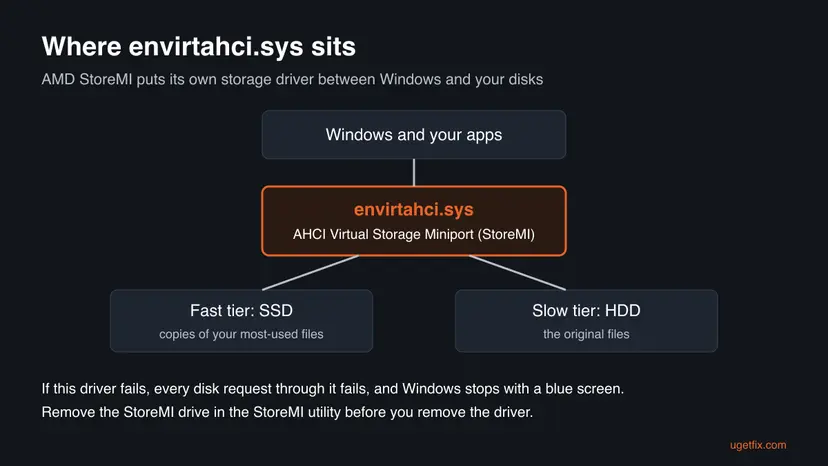
envirtahci.sys is the AHCI Virtual Storage Miniport driver that AMD StoreMI installs to merge an SSD and a hard drive into one fast drive. When the stop screen names it, StoreMI's storage driver crashed Windows. Back up, then remove the StoreMI drive in the StoreMI utility before you touch the driver.
The crash comes from AMD StoreMI, the storage acceleration software on many prebuilt Ryzen PCs. Back up your files, then use Remove StoreMI in the StoreMI utility so your data goes back to the plain hard drive (Fix 1). Uninstall StoreMI (Fix 2) and remove any leftover envirtahci.sys driver (Fix 3). If you want to keep StoreMI, update it and check the disks instead (Fixes 4 and 5).
| Error | A stop screen (blue, or black on Windows 11 24H2 and later) with What failed: envirtahci.sys, usually with SYSTEM_THREAD_EXCEPTION_NOT_HANDLED and sometimes NO_MORE_IRP_STACK_LOCATIONS. |
|---|---|
| Where it appears | At random during normal use, often while something reads the disks hard: a game load, a copy, or a disk tool such as a partition manager. The PC restarts on its own. |
| Main cause | A fault in the AMD StoreMI storage driver, or a disk behind it that stops answering. |
| Fastest fix | Back up, then Remove StoreMI in the StoreMI utility and uninstall StoreMI (Fixes 1 and 2). |
| Also written as | envirtahci, Envirtahci.sys, envirtahci.sys+16d1c, AV_envirtahci!unknown_function, AHCI Virtual Storage Miniport Driver. |
| Who makes it | AMD, as part of StoreMI. The older StoreMI was built on Enmotus technology, and its setup tool is called the Enmotus configuration utility. It is not a Windows file. |
| Affects | Desktop Ryzen PCs on AMD 400 series, A520, B550, X570, PRO 565, X399, TRX40 and WRX80 boards. Windows 10 left support on 14 October 2025. |
| Vendor status | No public AMD notice about this crash. The newest StoreMI on AMD's site is 2.1.0.218, released on 2 May 2022. |
| Where the cause is logged | C:\Windows\Minidump, one .dmp file per crash. WinDbg's !analyze -v shows IMAGE_NAME: envirtahci.sys. |
| Time to fix | 15 minutes to check, 30 to 90 minutes to remove StoreMI, depending on how much data moves back to the hard drive. |
Facts checked on 15 October 2026. Steps written for Windows 11 (25H2 and 26H2) and Windows 10 22H2.
What envirtahci.sys is and why it stops Windows
envirtahci.sys is a Windows kernel driver called the AHCI Virtual Storage Miniport Driver. It belongs to AMD StoreMI, a free AMD tool for Ryzen desktops that pairs a fast SSD with a large hard drive. StoreMI puts this driver between Windows and the two disks, so every read and write to the StoreMI drive passes through it.
Because it is a storage driver running in the kernel, a mistake inside it cannot be caught by Windows. Windows stops the PC with a bug check and writes What failed: envirtahci.sys under the stop code. On Windows 11 24H2 and later that screen is black instead of blue.
| What you see | What it means |
|---|---|
| What failed: envirtahci.sys | The StoreMI storage driver was running when Windows stopped. |
SYSTEM_THREAD_EXCEPTION_NOT_HANDLED (0x7E) | A system thread hit an error nobody caught. In a published dump of this crash it was a memory access violation, code c0000005. |
NO_MORE_IRP_STACK_LOCATIONS (0x35) | A disk request was passed through more driver layers than Windows had prepared for. It points at the storage driver stack. |
envirtahci+16d1c, AV_envirtahci!unknown_function | How WinDbg prints the same fault: AV means access violation inside envirtahci. |
| AHCI Virtual Storage Miniport | The driver's own description, shown in file properties and driver lists. |
The normal Windows SATA driver is storahci.sys, shown in Device Manager as Standard SATA AHCI Controller. envirtahci.sys is a separate driver that only StoreMI installs. Do not uninstall the standard controller to fix this crash.
Why envirtahci.sys crashes: the causes, most common first
In a Microsoft Q&A thread, a user with daily crashes posted a full dump. The fault was inside envirtahci.sys, it struck when he started a disk tool, and his PC came with StoreMI preinstalled. The advisor who read the dumps blamed AMD's storage software and also saw disk errors. That gives this order.
| How often | Cause | Sign | Fix |
|---|---|---|---|
| Most often | A fault in the StoreMI driver itself, often an old StoreMI preinstalled by the PC builder | Crashes at random, with one of the two stop codes above | Fixes 1 and 2 |
| Often | The StoreMI driver is still registered after StoreMI was removed | StoreMI is not in Installed apps, but dumps still name envirtahci.sys | Fix 3 |
| Less often | An outdated StoreMI or chipset driver on a PC where you keep StoreMI | Crashes began after a Windows or chipset update | Fix 4 |
| Less often | A failing or disconnecting SSD or hard drive behind StoreMI | Disk errors in Event Viewer, a drive that vanishes, slow copies | Fix 5 |
| Rarely | Unstable memory or an old BIOS | Many different stop codes, crashes outside disk work | Fix 6 |
| Rarely | Damaged Windows system files | SFC finds files it cannot repair | Fix 7 |
If your files live on a StoreMI drive, Windows reaches them only through envirtahci.sys. Deleting or renaming the driver before you remove the StoreMI drive can leave that drive unreadable or the PC unable to start. Fix 1 always comes before Fix 3.
Check that StoreMI is on your PC and caused the crash
Two quick checks tell you whether StoreMI is active and whether the crash dumps blame it. Do them before you change anything.
- Open Settings > Apps > Installed apps (Apps & features on Windows 10) and search for StoreMI. Note the version number.
- Right-click Start, select Terminal (Admin) (on Windows 10: Windows PowerShell (Admin)) and check whether the driver is loaded.
driverquery /v | findstr /i envirtahci - Open Disk Management (right-click Start, select Disk Management) and look for a drive that is as big as your SSD and hard drive together. That is the StoreMI drive.
- Open
C:\Windows\Minidump. Windows writes one small dump per crash there, named by date. - Install Microsoft's debugger with
winget install Microsoft.WinDbg, open the newest.dmpfile as administrator and run!analyze -v. - Read IMAGE_NAME and MODULE_NAME.
envirtahci.sysandenvirtahciconfirm the StoreMI driver.
If the dumps also mention storahci.sys, stornvme.sys or disk errors, a drive may be dropping out under StoreMI. Do Fix 5 before you blame StoreMI alone.
How to fix the envirtahci.sys blue screen
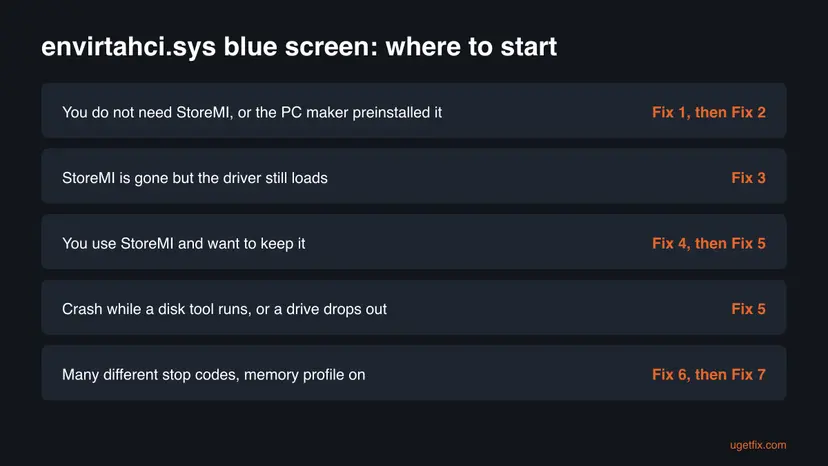
Most readers do not need StoreMI and start with Fix 1, then Fix 2. Fix 3 cleans up a driver that outlived StoreMI. If you rely on StoreMI, use Fix 4 and Fix 5 instead. Fixes 6 and 7 rule out memory and Windows itself.
| What you see or what your PC has | Start with | Then |
|---|---|---|
| You never set up StoreMI, or the PC builder preinstalled it | Fix 1 | Fix 2 |
| StoreMI is not in Installed apps, but the crash still names envirtahci.sys | Fix 3 | Fix 5 |
| You use StoreMI on purpose and want to keep it | Fix 4 | Fix 5 |
| The crash comes while a disk tool runs, or a drive disappears | Fix 5 | Fix 1 |
| Many different stop codes, and a memory profile (XMP or EXPO) is on | Fix 6 | Fix 7 |
Fix 1. Back up and remove the StoreMI drive in the StoreMI utility
30 to 90 minutesRead the warningStoreMI is installed and you can live without the SSD acceleration, which is true for most readers.
The crash is inside StoreMI's own driver, and the StoreMI drive is what forces every disk request through it. Removing the StoreMI drive returns your data to the plain hard drive so the driver is no longer needed.
CyberPowerPC's support page warns that this procedure can erase data if it goes wrong. An extra drive made from spare SSD space over the licence limit is deleted when StoreMI is removed. Copy everything you need to an external drive or cloud storage first: Back up your files (Windows Backup, File History, Time Machine)
- Back up your files from the StoreMI drive and from any extra SSD drive letter that StoreMI created.
- Save your work and close all programs. The PC restarts during this step.
- Open the StoreMI utility from the Start menu.
- Select Remove StoreMI (Remove StoreMI Drive in some versions) and confirm.
- Let the PC restart and wait. The data on the StoreMI drive moves back to the slower hard drive, which can take a long time.
- If the utility says it cannot shrink the last partition, open Disk Management and shrink partitions until the SSD's size plus 2 GB is Unallocated, then run Remove StoreMI again.
- Open File Explorer and check that your files are on the hard drive and open normally.
- What Remove does
- Detaches the SSD and the RAM cache and leaves the hard drive as a single normal disk. It does not uninstall the software.
- Space it needs
- The SSD's capacity plus 2 GB free at the end of the StoreMI drive, because 2 GB of metadata stays during the move.
- Newer StoreMI 2.x
- AMD says StoreMI 2 only mirrors files to the SSD and leaves the originals on the hard drive, so removing the cache moves nothing.
It worked if: The StoreMI utility shows no StoreMI drive, Disk Management shows the SSD and the hard drive as two separate disks, and your files open from the hard drive.
If not: If the PC crashes during the move, restore from your backup before you try again. When the drive is removed, go to Fix 2.
Fix 2. Uninstall AMD StoreMI and restart
10 minutesLow riskFix 1 finished and the StoreMI drive is gone, or StoreMI is installed but never had a drive set up.
Removing the StoreMI drive does not unload the software. Uninstalling StoreMI takes envirtahci.sys out of the boot sequence, so the faulty driver cannot run at all.
- Check in the StoreMI utility or in Disk Management that no StoreMI drive exists any more.
- Open Settings > Apps > Installed apps (Apps & features on Windows 10), find AMD StoreMI and select Uninstall. All the ways to remove a program: Uninstall a program or app in Windows
- Follow the uninstaller and restart the PC when it asks.
- Open Terminal (Admin) and check that the driver no longer loads. No output means it is gone.
driverquery /v | findstr /i envirtahci - Use the PC normally for a day, including the task that used to crash it.

It worked if: The driverquery command prints nothing for envirtahci, and no new file appears in C:\Windows\Minidump.
If not: If the command still lists envirtahci, the driver outlived the uninstaller. Go to Fix 3.
Fix 3. Remove the leftover envirtahci.sys driver package
15 minutesRead the warningStoreMI is no longer in Installed apps, no StoreMI drive exists, but envirtahci still loads or the dumps still name it.
A driver package stays in the Windows driver store until it is deleted, so Windows can load envirtahci.sys again after StoreMI is gone. Deleting the package removes it for good.
Do this only when Disk Management shows no StoreMI drive. On a PC that still boots from a StoreMI drive, removing the driver can stop Windows from starting. Create a restore point first: Undo recent changes with System Restore
- Right-click Start, select Terminal (Admin) (on Windows 10: Windows PowerShell (Admin)).
- List the third-party driver packages and save the list to a file you can search.
pnputil /enum-drivers > $env:USERPROFILE\Desktop\drivers.txt - Open
drivers.txton the Desktop and search for StoreMI, Enmotus or Virtual Storage. Note the Published Name of that entry, for exampleoem21.inf. - Delete that package. Use your own oem number, not the one in this example.
pnputil /delete-driver oem21.inf /uninstall - Restart the PC.
- Check again. No output means the driver is gone.
driverquery /v | findstr /i envirtahci
If pnputil says a device still uses the package, open Device Manager, expand Storage controllers, open each device's Properties > Driver > Driver Details and find the one whose file list shows envirtahci.sys. Uninstall that device with Attempt to remove the driver for this device ticked, then restart.
It worked if: driverquery finds nothing for envirtahci after the restart, and Device Manager shows the disks under the standard controllers.
If not: If the PC does not start, open the recovery screen and use System Restore to return to the restore point. Then check the disks with Fix 5.
Fix 4. Update StoreMI and the AMD chipset driver if you keep StoreMI
20 minutesLow riskYou use StoreMI on purpose and want to keep the SSD acceleration.
PC builders shipped older StoreMI versions that predate current Windows builds. AMD's newest release is 2.1.0.218, and a current chipset driver gives the StoreMI driver the storage stack it was tested with.
- Back up your files: Back up your files (Windows Backup, File History, Time Machine)
- Check your StoreMI version in Settings > Apps > Installed apps.
- Check that your board is supported. AMD lists 400 series, A520, B550, X570, PRO 565, X399, TRX40 and WRX80 chipsets only.
- If your version is older than 2.1.0.218, open AMD's StoreMI page and read the release notes and FAQ before you update.
- Download the newest AMD chipset driver for your board from AMD or from the motherboard maker and install it.
- Restart the PC and use it normally, including the task that used to crash it.
We could not confirm whether StoreMI 2.x still uses the envirtahci.sys file name, or whether an old StoreMI drive upgrades in place. AMD's user guide and FAQ on the StoreMI page cover the upgrade.
It worked if: StoreMI shows version 2.1.0.218, the chipset driver is current, and the PC runs through a full day without a stop screen.
If not: If the crash returns on the newest StoreMI, check the disks in Fix 5. If they are healthy, remove StoreMI with Fixes 1 and 2.
Fix 5. Check the SSD and the hard drive for errors
30 to 60 minutesLow riskThe crash comes during heavy disk work, a drive disappears, or Event Viewer shows disk errors.
envirtahci.sys passes every request to both disks. When one of them stops answering, the StoreMI driver is the first to fail, and the advisor on Microsoft Q&A saw several disk errors in the same dumps.
- Press Win + X, select Event Viewer and open Windows Logs > System.
- Look for errors from the sources disk, Ntfs or storahci around the times of the crashes.
- Check each drive for file system errors: Check a disk for errors (chkdsk)
- Run the health tool from your SSD or hard drive maker and read its SMART status.
- Reseat the SATA and power cables of the hard drive, or move it to another SATA port, with the PC switched off.
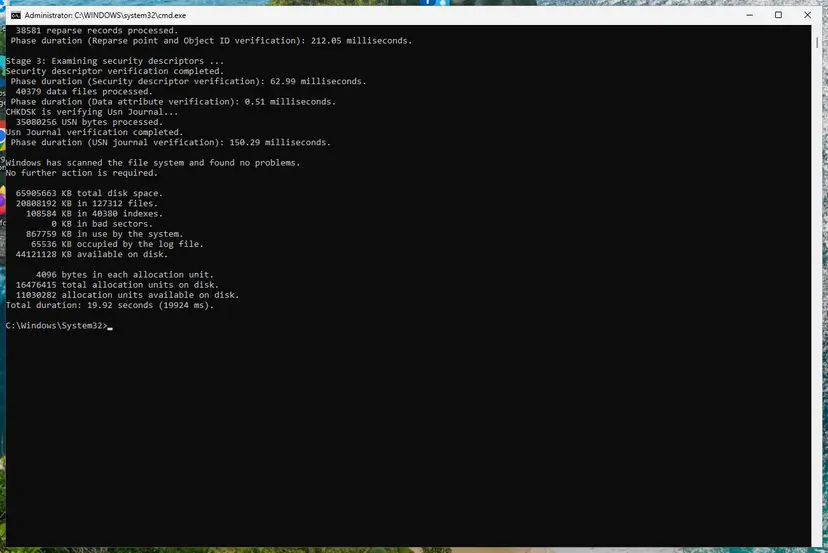
It worked if: Check disk reports no problems, the maker's tool shows a healthy drive, and no disk errors appear in Event Viewer.
If not: A drive with bad sectors or failing SMART values must be replaced. Copy your data off it first. If the disks are healthy, go to Fix 6.
Fix 6. Rule out unstable memory and an old BIOS
60 minutes or moreLow riskYou see many different stop codes, or crashes also happen without disk work.
A storage driver moves large blocks of data through memory, so an unstable memory profile can surface as an access violation inside it, the exact fault in the published envirtahci dump.
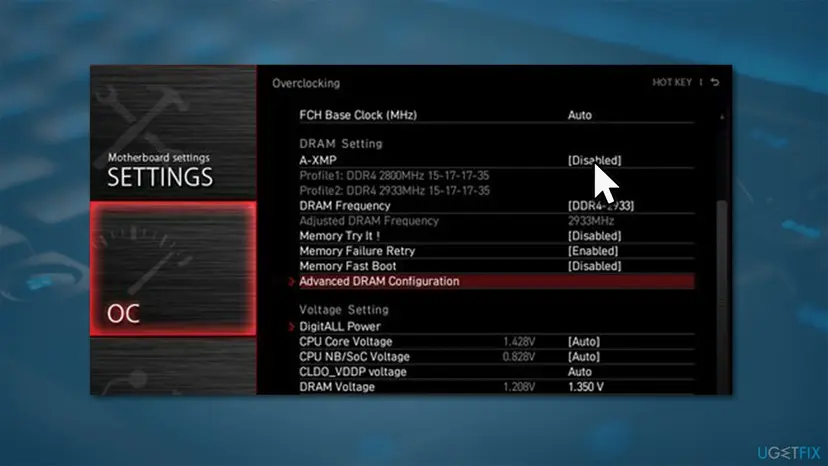
- Restart and press the BIOS key shown on the start screen, usually Del or F2.
- Find the memory profile setting (XMP, A-XMP, DOCP or EXPO), usually under Overclocking, OC or Advanced.
- Set it to Disabled, save and exit. Undo any CPU overclock as well.
- Test the memory with the tool built into Windows: How to test your RAM with Windows Memory Diagnostic
- Update the BIOS from your motherboard maker's support page, after reading its release notes.
It worked if: The memory test finds no errors and the PC runs without a stop screen at default memory speed.
If not: If the memory test reports errors, replace the RAM. If not, run Fix 7.
Fix 7. Repair Windows system files as a last check
20 minutesNo riskThe steps above did not help, or SFC has never run on this PC.
envirtahci.sys is not a Windows file, so this cannot repair the driver. It rules out damaged Windows storage components that the driver calls into, which is why it comes last.
DISM fetches clean copies of Windows components and SFC replaces damaged system files. Step by step with screenshots: Run DISM and SFC to repair Windows system files
In Terminal (Admin), one after the other:
DISM.exe /Online /Cleanup-Image /RestoreHealth
sfc /scannow
It worked if: SFC reports that it found no integrity violations or repaired them, and the PC runs without a stop screen.
If not: Collect the dumps and read the next section on what to send to support.
Still crashing: what to check and whom to ask
If the dumps still name envirtahci.sys after Fixes 1 to 3, the driver is still installed somewhere. Run the driverquery check again. If the dumps now name another driver, the StoreMI problem is solved and that driver is the next lead.
- Zip the three newest
.dmpfiles fromC:\Windows\Minidump. - Note your Windows edition and version from Settings > System > About.
- Note the StoreMI version, the motherboard model and the BIOS version.
- Note what you were doing at each crash: a game load, a copy, a disk tool.
| Where to ask | When |
|---|---|
| The PC builder's support | StoreMI came preinstalled on a prebuilt PC |
| AMD support, through the StoreMI page | You installed StoreMI yourself |
| A repair shop | Disk or memory tests report errors, or the PC no longer starts |
Let Windows fail to start twice so it opens the recovery screen. Try Startup Repair first: Run Startup Repair If that fails, use System Restore from the same screen.
How to keep the envirtahci.sys blue screen from coming back
- Keep a current backup of any drive that StoreMI manages.
- Remove the StoreMI drive in the StoreMI utility before you replace or remove the SSD.
- Keep the BIOS and the AMD chipset driver current.
- Watch Event Viewer for disk errors after a crash.
- Delete or rename envirtahci.sys while a StoreMI drive exists.
- Uninstall the Standard SATA AHCI Controller to fix this crash.
- Run a partition manager on a StoreMI drive without a backup.
- Download envirtahci.sys from DLL or driver sites.
On a new build, a plain NVMe SSD for Windows and games gives the speed StoreMI was meant to add, without an extra driver layer. Windows 10 left support on 14 October 2025, so a PC that can run Windows 11 also gets current storage fixes.
Frequently asked questions
What is envirtahci.sys?
envirtahci.sys is the AHCI Virtual Storage Miniport Driver of AMD StoreMI, a tool that combines an SSD and a hard drive into one faster drive on Ryzen desktops. It runs in the Windows kernel and handles every read and write to the StoreMI drive. It is not part of Windows. Many prebuilt Ryzen PCs came with StoreMI already set up, which is why owners find the file without having installed anything themselves.
Is envirtahci.sys a virus?
No. The genuine file is a signed storage driver that StoreMI installs. To check your copy, open C:\Windows\System32\drivers, right-click envirtahci.sys, select Properties and open the Digital Signatures tab. The signer should be AMD or Enmotus, the company behind the older StoreMI. If the tab is missing or names another company, scan the PC with Microsoft Defender before you do anything else.
Can I just delete envirtahci.sys?
Not while a StoreMI drive exists. If your data sits on a StoreMI drive, Windows reaches it only through this driver, so deleting it can leave the drive unreadable or Windows unable to start. First remove the StoreMI drive in the StoreMI utility (Fix 1), then uninstall StoreMI (Fix 2), then delete any leftover driver package with pnputil (Fix 3). Done in that order, nothing is lost.
Will removing StoreMI delete my files?
Not if the Remove step finishes. With the older tiered StoreMI, Remove StoreMI moves all data back to the hard drive, which needs the SSD's size plus 2 GB free. AMD says StoreMI 2 only mirrors files to the SSD, so the originals never leave the hard drive. An extra drive made from spare SSD space is deleted, and a crash during the move can cause loss. Back up first.
Does envirtahci.sys have anything to do with FACEIT?
We found no statement from FACEIT or AMD that links the two. FACEIT's anti-cheat runs its own kernel driver, and a game it protects reads the disks hard while loading, so the StoreMI driver may simply be the one that fails at that moment. If the dumps name envirtahci.sys, fix StoreMI first. If they name a FACEIT driver, contact FACEIT support with the dumps.
Why does the blue screen happen when I open a disk tool?
Partition managers and disk utilities talk to the disks at a low level, and every request on a StoreMI PC passes through envirtahci.sys. In the published Microsoft Q&A case, the PC crashed with the StoreMI driver as soon as the user started a disk tool. Do not run partition tools on a StoreMI drive until you have a backup, and remove StoreMI first if you plan to repartition.
Does StoreMI work on Windows 11 and new Ryzen PCs?
AMD's StoreMI page lists support for Ryzen 1000 to 5000 desktop chips and Threadripper on 400 series, A520, B550, X570, PRO 565, X399, TRX40 and WRX80 boards only. Newer AM5 boards are not in the list. The newest release is 2.1.0.218 from May 2022. We could not confirm an AMD statement on Windows 11 support, so on a newer PC a plain NVMe SSD is the safer choice.
What do SYSTEM_THREAD_EXCEPTION_NOT_HANDLED and NO_MORE_IRP_STACK_LOCATIONS mean here?
Both are stop codes that Windows shows with this crash. SYSTEM_THREAD_EXCEPTION_NOT_HANDLED (0x7E) means a system thread hit an error nobody caught, in the published dump a memory access violation inside envirtahci.sys. NO_MORE_IRP_STACK_LOCATIONS (0x35) means a disk request passed through more driver layers than planned. Both point at the storage driver stack, and the fixes on this page apply to both.
StoreMI is not on my PC, but the crash still names envirtahci.sys. Why?
The uninstaller can leave the driver package behind, so Windows keeps loading it. People searching in Polish write this as "nie ma" (it is not there). Run driverquery /v | findstr /i envirtahci in Terminal (Admin). If it prints a line, delete the package with pnputil as in Fix 3, but only after checking in Disk Management that no StoreMI drive is left.
What should I do, step by step?
In short: back up, remove the StoreMI drive in the StoreMI utility, uninstall StoreMI, restart, then check that driverquery no longer lists envirtahci. If you keep StoreMI, update it and the chipset driver and check the disks instead. Readers searching in Polish ("co zrobić krok po kroku") or French ("cela n'a pas marché", it did not work) will find the same order in the table above the fixes.
Sources
- AMD: AMD StoreMI Technology (supported chipsets, version 2.1.0.218, release notes, user guide) (amd.com)
- Microsoft Q&A: Constant BSODs from envirtahci.sys aka the AHCI Virtual Storage Miniport Driver (learn.microsoft.com)
- CyberPowerPC Help Center: How do I disable AMD StoreMI? (support.cyberpowerpc.com)
Did this fix work?
One click, no account. It tells the next reader which guides are worth their time.
Questions and experiences: fix the envirtahci.sys blue screen (BSOD) in Windows
Still broken, or found a fix we did not cover? Ask here: members and our editors answer. Reading is open; writing needs a free account.
…