
How to fix error 0x80004001 (Not implemented) in Windows?

Prefer to fix it yourself? The manual steps follow.
- 9methods
- 2 to 30 minutes
- Easy to intermediate
Applies to Windows 11 and Windows 10 when you move, cut, paste or open files in File Explorer, use a right-click menu, or start a local kernel debugging session in WinDbg
9 methods in this guide
Hello. I tried to move a folder on my Windows PC, but I received a message "Error 0x80004001: Not implemented". What can I do to get rid of it?
Error 0x80004001 "Not implemented" is the Windows code E_NOTIMPL: the folder, device or program you are working with does not support the action you asked for, most often a move in File Explorer. Copy the file instead and delete the original afterwards. If every move fails, restart File Explorer and check the disk.
The place you are moving from or to cannot do a move, so Windows answers with E_NOTIMPL. Copy the file or folder instead (Ctrl + C, then Ctrl + V), check the copy, then delete the original (Fix 1). If the source is a phone, a camera or a zip file, copy it to a normal folder first (Fix 2). If every move fails, restart File Explorer (Fix 3).
| Error | "Error 0x80004001: Not implemented". In File Explorer it usually follows "An unexpected error is keeping you from moving the file." |
|---|---|
| Where it appears | File Explorer when you move, cut and paste or drag a file or folder; blank desktop or This PC icons; some right-click and Open with menus; WinDbg as "FAILURE HR=0x80004001: Failed to AttachKernel". |
| Main cause | The folder or the program behind it (a phone, a camera, a zip folder, a shell extension) does not support that action. Windows itself is usually fine. |
| Fastest fix | Copy instead of move, check the copy, then delete the original (Fix 1). It takes a minute and changes no setting. |
| Also written as | 0x80004001, 80004001, error code 80004001, E_NOTIMPL, "Not implemented", "not implemented error". |
| Affects | Windows 11 (25H2 and 26H2) and Windows 10 22H2. The code is a generic COM code, so it also shows up in other Microsoft products, such as the Xbox. |
| Vendor status | Not a bug with a known patch. Microsoft lists E_NOTIMPL (0x80004001) as a generic COM error with the text "Not implemented". |
| Time to fix | 1 to 5 minutes for Fixes 1 to 3. Up to 30 minutes for a disk check, a system file check or a clean boot. |
Facts checked on 15 October 2026. Steps written for Windows 11 (25H2 and 26H2) and Windows 10 22H2.
What error 0x80004001 "Not implemented" means
In Microsoft's list of generic COM error codes, 0x80004001 is E_NOTIMPL with the description "Not implemented". A program asked another part of Windows to do something, and that part answered that it has no code for this action. It is not a message about a broken disk, a virus or a missing licence.
File Explorer is built from many such parts. A phone, a camera, a zip folder, a cloud drive or an app can add its own folder to Explorer, and each one decides which actions it supports. When it supports copy but not move, you see a dialog like this:
The message in File Explorer
An unexpected error is keeping you from moving the file. If you continue to receive this error, you can use the error code to search for help with this problem.
Error 0x80004001: Not implemented- Copy often works when move does not. A move asks the source to delete the item after copying it, and some sources cannot. A Microsoft Q&A moderator asks exactly this first: what happens when you copy the file instead.
- The same code appears outside File Explorer. WinDbg prints
FAILURE HR=0x80004001: Failed to AttachKernelwhen local kernel debugging is not turned on, and some right-click menus fail with "Not implemented. (0x80004001)". - Other spellings. People search
80004001,error code 80004001,e_notimpl 0x80004001, "not implemented error" and the same text in other languages, such as "ошибка 0x80004001". They are all the same code. - Do not confuse it with neighbours.
0x80004002is E_NOINTERFACE ("No such interface supported") and0x80004005is E_FAIL ("Unspecified error"). They have other causes.
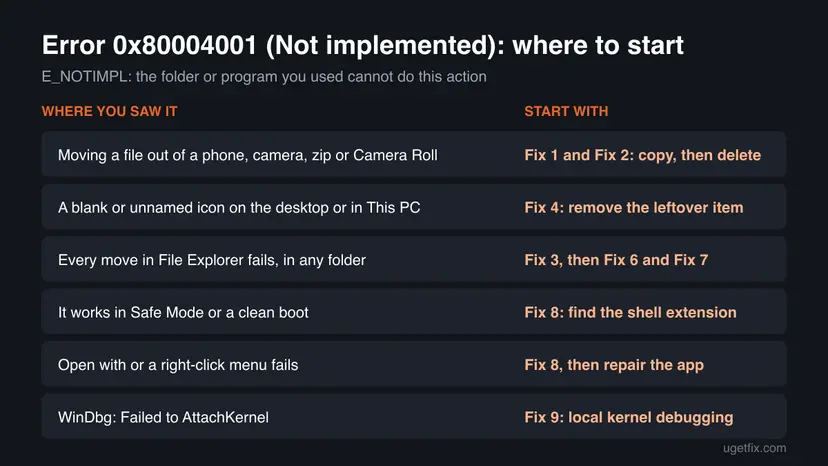
Why "Not implemented" appears: causes in order
Most often you move an item out of a folder that only supports copying: a phone, a camera, a zip file or a special folder such as Camera Roll. Less often File Explorer itself is stuck, or a blank leftover icon from a removed program is being moved. Rarely the cause is a third-party shell extension, a file system error or damaged system files.
| Cause | How often | How to tell | Fix |
|---|---|---|---|
| The source folder supports copy but not move (phone, camera, zip, special folder) | Most often | Copy and paste of the same item works. | Fix 1, Fix 2 |
| File Explorer is in a bad state after long use or an update | Often | Moves that worked yesterday fail everywhere, and a restart of Explorer or the PC helps. | Fix 3 |
| A blank or unnamed icon left by a removed program or device | Sometimes | The icon has no name or picture, and cut, delete or shortcut does nothing or gives the error. | Fix 4 |
| Your account lacks rights on a folder | Sometimes | Only one folder fails, often Camera Roll or a folder from another PC. | Fix 5 |
| File system errors on the source or target drive | Rarely | Moves fail on one drive only, often with slow or freezing Explorer. | Fix 6 |
| Damaged Windows system files | Rarely | Several Explorer actions fail on all drives. | Fix 7 |
| A third-party shell extension (context menu, sync or document tool) | Rarely | The move works in Safe Mode or a clean boot. | Fix 8 |
| WinDbg local kernel session without kernel debugging turned on | Developers only | Failed to AttachKernel in WinDbg or KD. | Fix 9 |
How to fix error 0x80004001 "Not implemented" in Windows
Fixes 1 and 2 solve it for most readers and change nothing on the PC. Fixes 3 and 4 are for File Explorer itself and for blank leftover icons. Fixes 5 to 8 are for the rare cases when moves fail everywhere. Fix 9 is only for WinDbg users.
| What you see or what you were doing | Start with |
|---|---|
| Moving one file or folder in File Explorer. | Fix 1 |
| Moving photos or files out of a phone, camera, zip file or Camera Roll. | Fix 2 |
| Every move fails, in any folder. | Fix 3, then Fix 6 and Fix 7 |
| A blank or unnamed icon on the desktop or in This PC. | Fix 4 |
| Only one folder fails. | Fix 5 |
| It works in Safe Mode, or a right-click menu or Open with fails. | Fix 8 |
| WinDbg shows Failed to AttachKernel. | Fix 9 |
Fix 1. Copy the file instead of moving it, then delete the original
1 to 5 minutesLow riskEveryone who sees the error when moving, cutting and pasting or dragging a file or folder.
A move is a copy plus a delete at the source. When the source cannot do the delete part as one action, it reports E_NOTIMPL. Doing the two parts yourself avoids the action it does not support.
- Select the file or folder in File Explorer and press Ctrl + C (not Ctrl + X).
- Open the target folder and press Ctrl + V.
- Wait until the copy dialog closes, then open one or two of the copied files to check them.
- Go back to the source, select the original and press Delete.
- If you drag with the mouse, drag with the right mouse button and select Copy here when you drop.
For a big folder, copy it in parts. If one file stops the copy, you see which one, and the rest is already in place.
It worked if: The copy finishes without the 0x80004001 message, and the files open from the new place.
If not: If the copy also fails and the source is a phone, a camera or a zip file, go to Fix 2. If it fails in normal folders, go to Fix 3.
Fix 2. Take files out of a phone, camera or zip file in two steps
2 to 10 minutesLow riskThe source is a phone or camera connected by USB, a zip archive opened like a folder, or a special folder such as Camera Roll.
A phone, a camera and a zip file are not normal folders: a driver or a built-in handler shows them in File Explorer, and they often support reading but not moving. Putting the files into a normal folder on your disk first gives Explorer a source it fully handles.
- Make a normal folder for the files, for example in Pictures or Documents.
- For a zip file: right-click it, select Extract All, choose the new folder and select Extract.
- For a phone or camera: unlock the phone, open it in File Explorer and copy (Ctrl + C) the files into the new folder (Ctrl + V).
- Check that the files open from the new folder.
- Delete the originals on the phone or camera only after that, with the phone's own gallery or file app if Explorer refuses.
You cannot move files around inside a zip archive with File Explorer. Extract it, rearrange the files, then make a new zip with right-click and Compress to ZIP file (Windows 11) or Send to > Compressed (zipped) folder (Windows 10).
It worked if: The files are in a normal folder on your PC and you can move them anywhere from there without the error.
If not: If the copy from the phone stops, try another cable or USB port. If normal folders fail as well, go to Fix 3.
Fix 3. Restart File Explorer
1 minuteLow riskMoves that used to work now fail in every folder, often after a long session or an update.
File Explorer loads the handlers of every folder type it shows. If one of them is stuck, Explorer keeps returning errors such as E_NOTIMPL until it starts again with fresh copies.
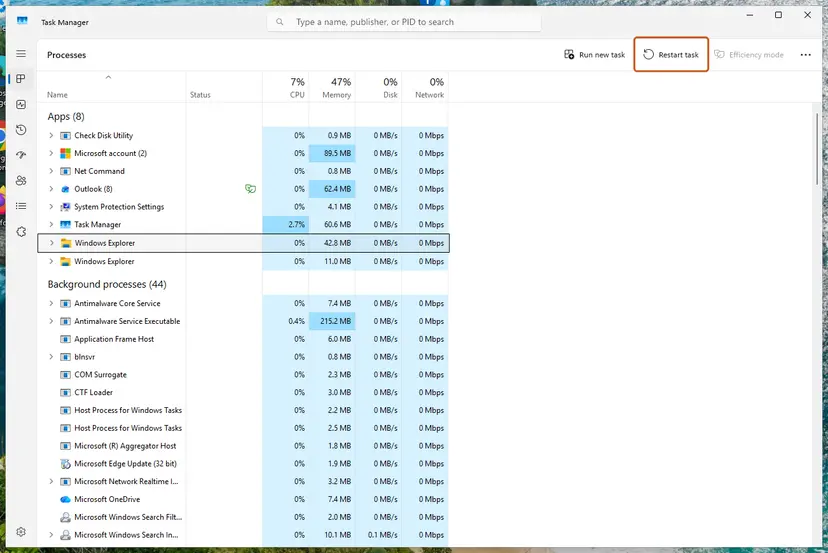
- Open Task Manager. Press Ctrl + Shift + Esc. The Processes page opens.
- Select Windows Explorer. Find Windows Explorer in the list and select it. If it is not under Apps, look under Windows processes further down.
- Restart it. Select Restart task at the top of the window. The taskbar disappears for a moment and comes back. If you do not see Restart task, right-click Windows Explorer and select Restart.
These steps were written for Windows 11 26H2 (build 26300). The full page with the other versions and what each result means: Restart File Explorer
If it still fails, restart the whole PC once. A full restart also reloads drivers for phones and other devices.
It worked if: The taskbar flickers and comes back, and the move works.
If not: If only one odd icon fails, go to Fix 4. If every move still fails, go to Fix 6.
Fix 4. Remove a blank or unnamed leftover icon
5 minutesLow riskA blank, nameless icon sits on the desktop or under Devices and drives in This PC, and cutting, deleting or making a shortcut of it fails with 0x80004001.
Such an icon is usually not a file but an entry a program or device added to File Explorer. When that program is removed or broken, the entry stays but nothing behind it can carry out a move or a cut, so it answers Not implemented.
- Right-click the blank icon and select Delete if it is offered. Do not try to cut or move it.
- If there is no Delete, press Win + I and open Apps > Installed apps (Windows 10: Apps > Apps & features).
- Look for a recently removed or half-installed program that adds drives or folders, such as a cloud drive, a phone tool or a virtual drive tool.
- Repair, reinstall or uninstall that program. Step by step: Uninstall a program or app in Windows.
- Restart the PC and check whether the icon is gone.
Users on Microsoft Q&A reported nameless folder icons on the desktop after the March 2023 updates, with 0x80004001 when they cut them. We could not confirm a single cause for that case, so start with the program that last added a drive or folder to Explorer.
It worked if: The blank icon disappears after the restart.
If not: If it comes back, run Fix 7 to check Windows files, then Fix 8 to find the program.
Fix 5. Check your rights on the folder
5 to 10 minutesRead the warningOnly one folder fails, for example Camera Roll or a folder copied from another PC, while others work.
When your account cannot write or delete in one folder, the program behind it can report the move as an action it cannot do. Giving your own account Modify rights on that one folder lets the move finish.
Wrong permissions can lock you or programs out of a folder. Change only your own folder, never Windows, Program Files or a whole drive C. Take a screenshot of the Security tab before you change anything.
- Press Win + E to open File Explorer.
- Right-click the folder that fails, for example Camera Roll, and select Properties.
- Open the Security tab and select your user name in the list.
- If Modify is not ticked under Allow, select Edit, select your name and tick Modify.
- Select Apply, then OK, and try the move again.
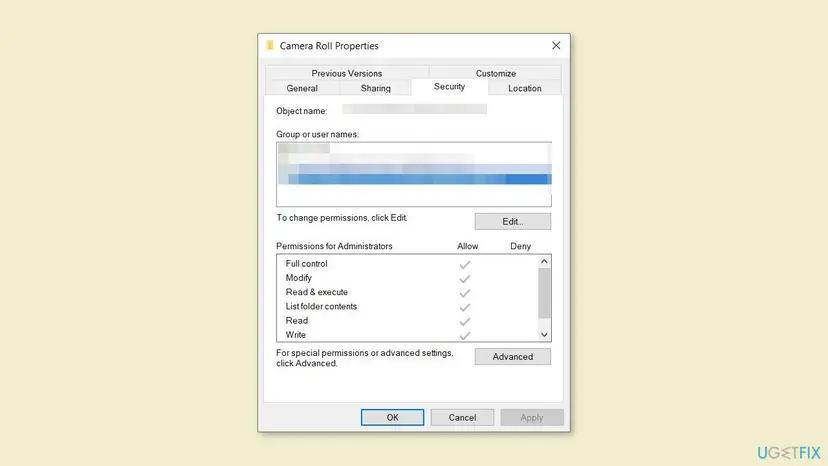
It worked if: Your account shows Modify under Allow, and the move out of that folder works.
If not: If you already have Modify rights, the folder is not the cause: go to Fix 6.
Fix 6. Check the drive for file system errors
10 to 30 minutesLow riskMoves fail on one drive only, or File Explorer slows down or freezes on it.
A move on the same drive only rewrites the file system's records. If those records are damaged, the operation can fail with a generic code. The Microsoft Q&A answer on this error lists chkdsk /f for this reason.
Run the check on the drive you move from and on the one you move to. Step by step: Check a disk for errors (chkdsk).
In Terminal (Admin), for drive D (use your own letter):
chkdsk D: /f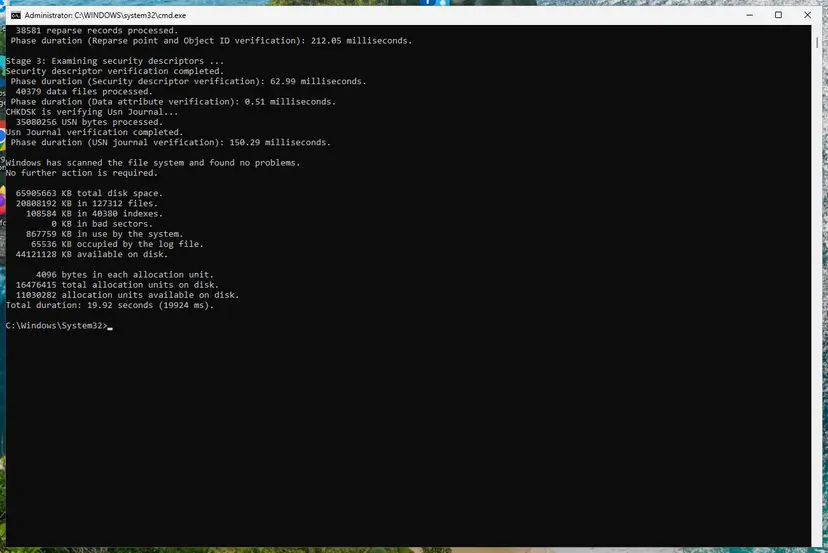
It worked if: chkdsk reports that Windows found no problems or fixed them, and the move works.
If not: If the disk keeps reporting errors, back up your files first. Then go to Fix 7.
Fix 7. Repair Windows system files with SFC and DISM
15 to 30 minutesLow riskSeveral File Explorer actions fail on all drives, not only moves.
The handlers that carry out moves and right-click actions are Windows system files. If one of them is damaged, Explorer can no longer reach the code it needs. SFC and DISM replace damaged files with good copies.
- Open an elevated command window. Right-click Start and select Terminal (Admin), or type cmd in the search box, right-click Command Prompt and select Run as administrator. Select Yes when Windows asks for permission.

Search for cmd and choose Run as administrator. Screenshot: Windows 11 26H2. - Run DISM first. Type the command below and press Enter. DISM downloads clean copies of damaged components from Windows Update, so it can take several minutes. Wait until it says The operation completed successfully.
DISM.exe /Online /Cleanup-Image /RestoreHealth
DISM /RestoreHealth running. Screenshot: Windows 11 26H2. - Run System File Checker. In the same window, type the command below and press Enter. Do not close the window until the verification reaches 100%.
sfc /scannow
sfc /scannow at 100%. Screenshot: Windows 11 26H2. - Read the result and restart. Compare the last message with the table below this guide, then restart the PC so that repaired files are loaded.

The result line tells you what SFC did. Screenshot: Windows 11 26H2.
These steps were written for Windows 11 24H2 and 25H2. The full page with the other versions and what each result means: Run DISM and SFC to repair Windows system files
It worked if: SFC reports no integrity violations, or that it repaired them, and moves work after a restart.
If not: If SFC cannot repair some files, run the DISM command again with a working internet connection, then go to Fix 8.
Fix 8. Find a shell extension in Safe Mode or a clean boot
15 to 30 minutesLow riskThe move fails in normal Windows, a right-click menu or Open with fails with 0x80004001, or the error came after you installed a new program.
Context menu, sync and document tools hook into File Explorer. A buggy one can answer Not implemented for actions it should pass on. Safe Mode and a clean boot start Windows without them, so you can tell which one it is.
First test in Safe Mode: if the move works there, a third-party program is the cause. Step by step: Start Windows or a Mac in Safe Mode.
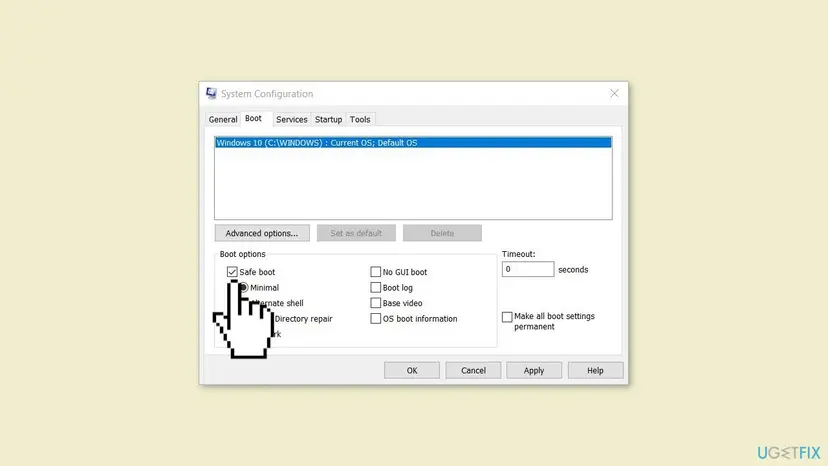
Then find the program with a clean boot: turn off non-Microsoft services and startup apps, and turn them back on in halves until the error returns.
- Open System Configuration. Select Search on the taskbar, type msconfig and select System Configuration from the results.
- Hide Microsoft services. On the Services tab, select the Hide all Microsoft services check box. Only services from other companies stay in the list.
- Disable the remaining services. Select Disable all, then select Apply.
- Open Task Manager. On the Startup tab of System Configuration, select Open Task Manager.
- Disable the startup apps. On the Startup apps tab in Task Manager, select each item whose status is Enabled and select Disable. Write down or take a screenshot of the items you disable: you need the list to turn them back on.
- Confirm the changes. Close Task Manager. On the Startup tab of System Configuration, select OK.
- Restart and test. Restart the PC. Windows now starts in a clean boot environment: try again the thing that failed (run the app, install the update, uninstall the program).
These steps were written for Windows 11 25H2 and 26H2. The full page with the other versions and what each result means: How to perform a clean boot in Windows

It worked if: You find the one program whose service brings the error back. Updating, repairing or removing it ends the error.
If not: If the error stays in Safe Mode too, read "Still not working" below.
Fix 9. For WinDbg: turn on local kernel debugging (Failed to AttachKernel)
5 minutes plus a restartRead the warningOnly developers who see FAILURE HR=0x80004001: Failed to AttachKernel when starting a local kernel session in WinDbg or KD.
Microsoft documents that local kernel debugging needs kernel debugging turned on in the boot settings and a restart. Without it, the debugger's attach call is not implemented for this PC and returns 0x80004001.
Microsoft notes that you may need to suspend BitLocker and Secure Boot before you change boot settings with bcdedit. Do not weaken them on your everyday PC: use a test PC or a virtual machine, and have your BitLocker recovery key ready. Turn debugging off when you finish.
- Open Command Prompt as administrator.
- Type
bcdedit /debug onand press Enter. - If the PC is not already set up as a debug target, type
bcdedit /dbgsettings localand press Enter. - Restart the PC.
- Start WinDbg as administrator, select File > Kernel Debug, open the Local tab and select OK. Or run
windbg -klorkd -klfrom an elevated Command Prompt.
Turn kernel debugging off again when you are done, then restart:
bcdedit /debug offIt worked if: WinDbg opens a local kernel session with the lkd> prompt instead of the AttachKernel failure.
If not: Check that WinDbg runs as administrator and that the restart happened after the bcdedit change.
If "Error 0x80004001: Not implemented" is still there
Collect these facts before you ask on a forum or contact the maker of the device or program behind the folder.
- The full source and target paths, and whether they are on a phone, a camera, a zip file, a network share or a cloud drive.
- Whether copy and paste of the same item works (Fix 1).
- Whether the move works in Safe Mode (Fix 8).
- Your Windows version: press Win + R and type
winver. - Programs that add menus or drives to File Explorer, installed or removed lately.
- Errors at the time of the move in Event Viewer > Windows Logs > Application, with Explorer.EXE as the faulting application.
0x80004001 is about a missing action, not about hardware. But if the drive disconnects, chkdsk keeps finding errors or the copy stops at random files, the drive or cable may be failing: back up what you can first, then check the drive with Check a disk for errors (chkdsk).
How to avoid error 0x80004001 in the future
- Copy files from phones, cameras and zip files into a normal folder first, then sort them.
- Delete originals only after you have opened the copies.
- Remove programs that add drives or menus to File Explorer with their uninstaller, not by deleting their folder.
- Keep Windows updated. Windows 10 left support on 14 October 2025.
- Turn kernel debugging off with
bcdedit /debug offwhen you finish a WinDbg session.
- Use cut and paste out of a phone, camera or zip folder.
- Change permissions of Windows, Program Files or the whole drive C.
- Rebuild the boot record to fix a move error: it has nothing to do with this code.
- Leave Secure Boot or BitLocker off after a debugging test.
Frequently asked questions
What does error 0x80004001 mean?
It is the generic Windows COM code E_NOTIMPL, which Microsoft describes as "Not implemented". A program asked a part of Windows, a folder handler or a device to do an action, and that part has no code for it. In File Explorer this is most often a move out of a phone, a camera, a zip file or a special folder. Copying the item instead and deleting the original afterwards usually works.
Why can I copy the file but not move it?
A move asks the source to copy the item and then remove it in one action. Some sources, such as a phone connected by USB, a camera or a zip archive, can hand out a copy but do not support that combined action, so they answer Not implemented. When you copy and then delete the original yourself, each step is one the source does support. That is why Fix 1 works for most readers.
Is error code 80004001 the same as 0x80004001?
Yes. 80004001 is the same number without the 0x that marks it as hexadecimal. Some programs and consoles print it that way, others add "error code" in front. E_NOTIMPL, "Not implemented" and "not implemented error" are names for the same code. The fix depends on where you saw it, not on how it was written: File Explorer, a right-click menu or WinDbg.
What is "FAILURE HR=0x80004001: Failed to AttachKernel"?
It is the WinDbg or KD message when you start a local kernel debugging session on a PC where kernel debugging is not turned on. Microsoft's setup page says to run bcdedit /debug on from an elevated Command Prompt, add bcdedit /dbgsettings local if the PC is not set up as a debug target, and restart. Then start WinDbg as administrator and choose the Local tab. Do this on a test PC, and turn it off again with bcdedit /debug off.
Do I need to repair the Master Boot Record to fix 0x80004001?
No. An earlier version of this guide suggested rebuilding the boot record with bootrec commands, but the boot record only decides how Windows starts. It has nothing to do with moving files or with the E_NOTIMPL code, and running those commands on a working PC adds risk for no gain. If Windows starts and you only see the error while moving files, start with Fix 1.
Is error 0x80004001 a virus?
No. The code itself only says an action is not supported. Malware is not a known cause of this error. If the error came together with other strange behavior, such as settings that changed by themselves or unknown programs, run a full scan with Microsoft Defender anyway: How to scan for malware with Microsoft Defender. Otherwise there is no reason to suspect malware.
Why does a blank icon on my desktop give 0x80004001?
A blank, nameless icon is usually not a real file. It is an entry that a program or device added to File Explorer, and the program behind it is gone or broken. When you cut it or make a shortcut, nothing can carry out the action, so Windows reports Not implemented. Delete it with right-click if possible, otherwise repair or remove the program that added it and restart (Fix 4).
I see error 0x80004001 on my Xbox. Does this page help?
Only partly. This page is about Windows PCs. The code means the same thing on an Xbox, an action that is not implemented, and Xbox users on Microsoft Q&A reported it for all games and apps at once. File Explorer fixes do not apply there. On the console, a full restart and then Xbox Support are the right next steps.
Is error 0x80004001 different on Windows 11 and Windows 10?
No. The code, the message and the causes are the same on Windows 11 (25H2 and 26H2) and Windows 10 22H2, and all the fixes on this page work on both. Only some names differ: Windows 11 shows Terminal (Admin) and Installed apps, Windows 10 shows Windows PowerShell (Admin) and Apps and features. Windows 10 left support on 14 October 2025, so it gets no more security updates.
I searched "ошибка 0x80004001" in Russian. Is it the same error?
Yes. Windows translates the message text into the display language, but the code 0x80004001 stays the same in every language. "Ошибка" simply means "error". The meaning, E_NOTIMPL or Not implemented, and every fix on this page are the same whatever language your Windows uses, so start with Fix 1 if you saw it while moving files.
Sources
- Microsoft Learn: COM Error Codes (Generic) (learn.microsoft.com)
- Microsoft Learn: Setting Up Local Kernel Debugging of a Single Computer Manually (learn.microsoft.com)
- Microsoft Q&A: How do I fix the error 0x80004001: Not implemented error (learn.microsoft.com)
Did this fix work?
One click, no account. It tells the next reader which guides are worth their time.
Questions and experiences: fix error 0x80004001 (Not implemented) in Windows
Still broken, or found a fix we did not cover? Ask here: members and our editors answer. Reading is open; writing needs a free account.
…