How to fix
Error code 0xA00F4244
on Windows
Resolve error code 0xA00F4244 in Windows 10 quickly with effective solutions. Trusted methods and expert-tested tips await you, fixed in minutes!

What causes How to fix error code 0xA00F4244 in Windows 10?
- Camera not enabled via privacy settings
- Camera drivers are outdated
- Camera is not properly connected
- Antivirus software is blocking the camera
- Camera is too old
Repairs Windows system files, removes malware, and restores a clean OS state — without reinstalling.
Hello. When I try to start camera pp, I receive an error message 0xA00F4244<NoCamerasAreAttached>. I am not sure what's wrong, as I do indeed have a camera attached to the PC. I would appreciate some tips on how to solve this. Thanks in advance.
A camera on Windows devices can either be attachable or reside as a built-in device in a laptop. Those who do not use laptops have to buy a standalone video camera and connect it to the PC via USB[ref en-2] or another cable. In most cases, the process is very simple - as soon as the device is attached, it automatically installs the required drives and is available for use.
Unfortunately, this process might not always go as smooth as anticipated - users reported that they encountered an error code 0xA00F4244<NoCamerasAreAttached> when trying to make the camera working. Some people said that issues started as soon as they plugged in a new device, while others reported that it stopped working abruptly.
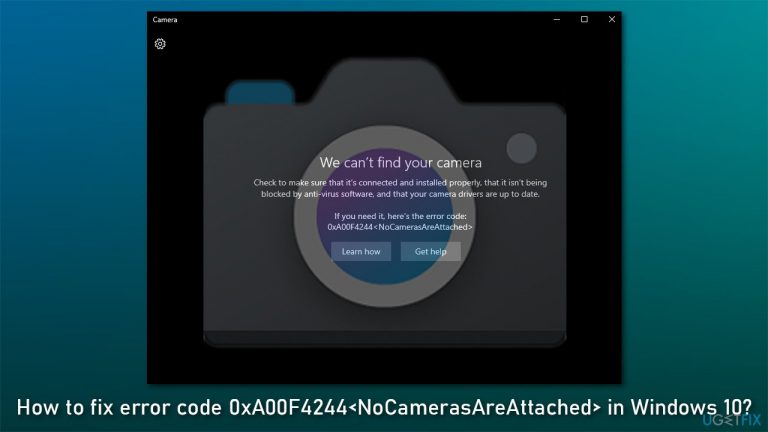
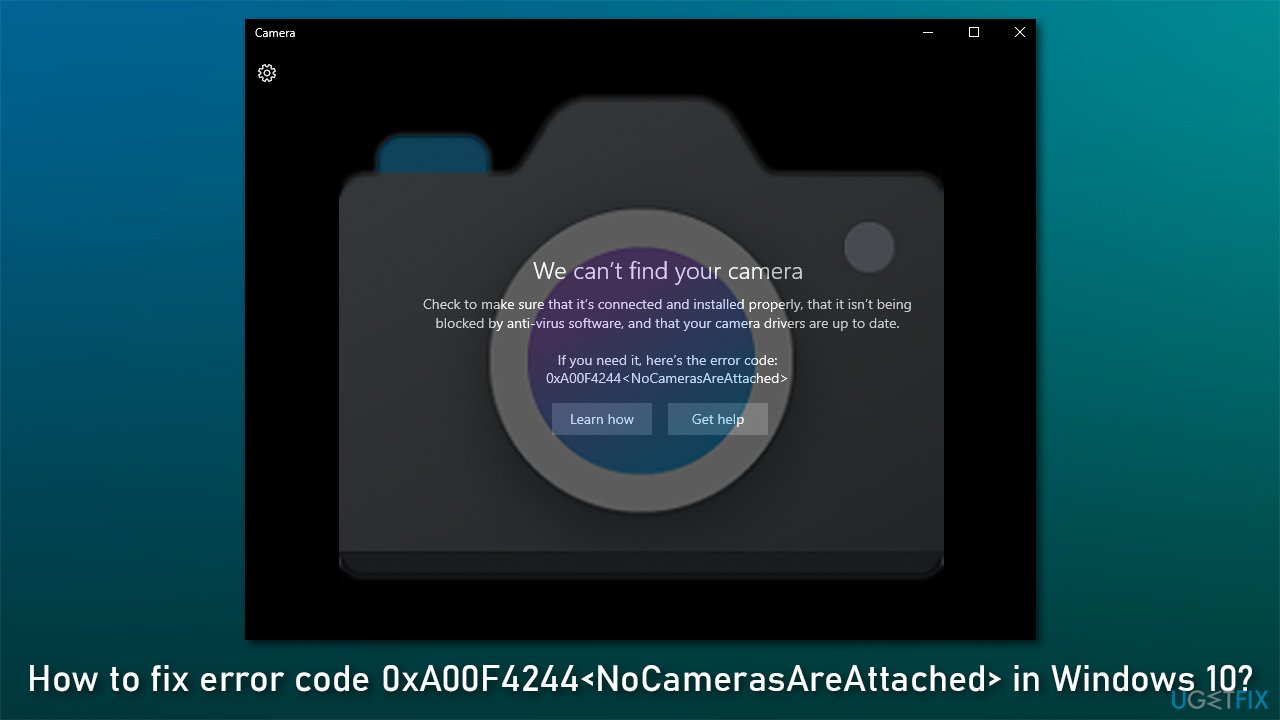
Here is the full message that users might see after connecting their cameras:
We can't find your camera
Check to be sure it's connected and installed properly, that it isn't being blocked by antivirus software, and that your camera drivers are up-to-date.
If you need it, here's the error code:
code 0xA00F4244<NoCamerasAreAttached>
The error itself hints at one thing - that the is no device attached to the PC. Many people said that they do have it attached, however, so they are confused why the issue is there in the first place.
The truth is that there could be many reasons why this might be happening to you. For example, the camera might simply not be enabled via privacy settings, or it might be too old. Nonetheless, it is worth mentioning that all the issues proposed by the error message should also be checked out - we provide steps on how to do that below.
Camera errors are relatively common - we previously discussed problems such as 0xA00F4288, 0xA00F4244 (0xC00D36D5), 0xA00F4271(0x80070001), 0xA00F4246(0x80040154), etc. If you encounter these or other errors on your PC frequently, we highly recommend you run a scan with a PC repair tool [d1] - you might about the trouble and save your time instead of going through the troubleshooting steps below.
1. Allow apps to use your camera
First thing's first, let's make sure that the camera is enabled on Windows:
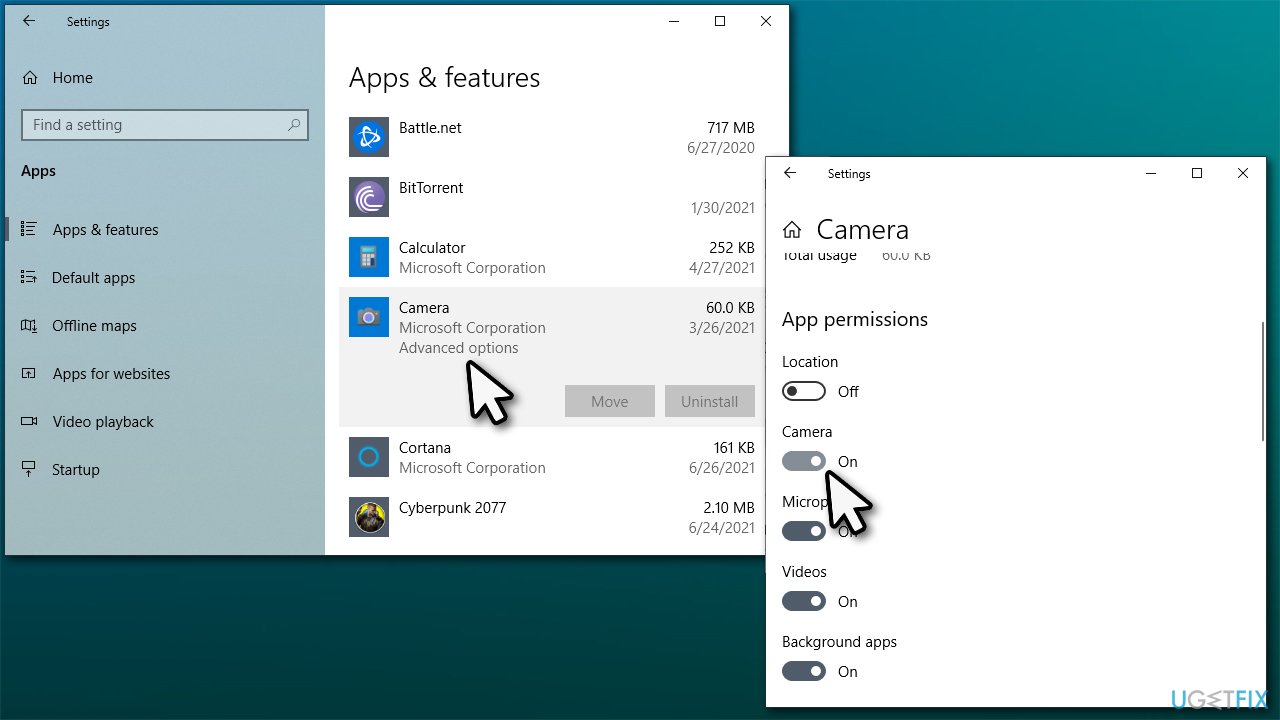
- Right-click on Start and pick Apps and Features.
- Scroll down to find the Camera app.
- Click on it once and pick Advanced options.
- Under App permissions, make sure Camera toggle switch is moved to the right (On setting).
How to fix error code 0xa00f4244 nocamerasareattached in windows 10 allow apps to use camera
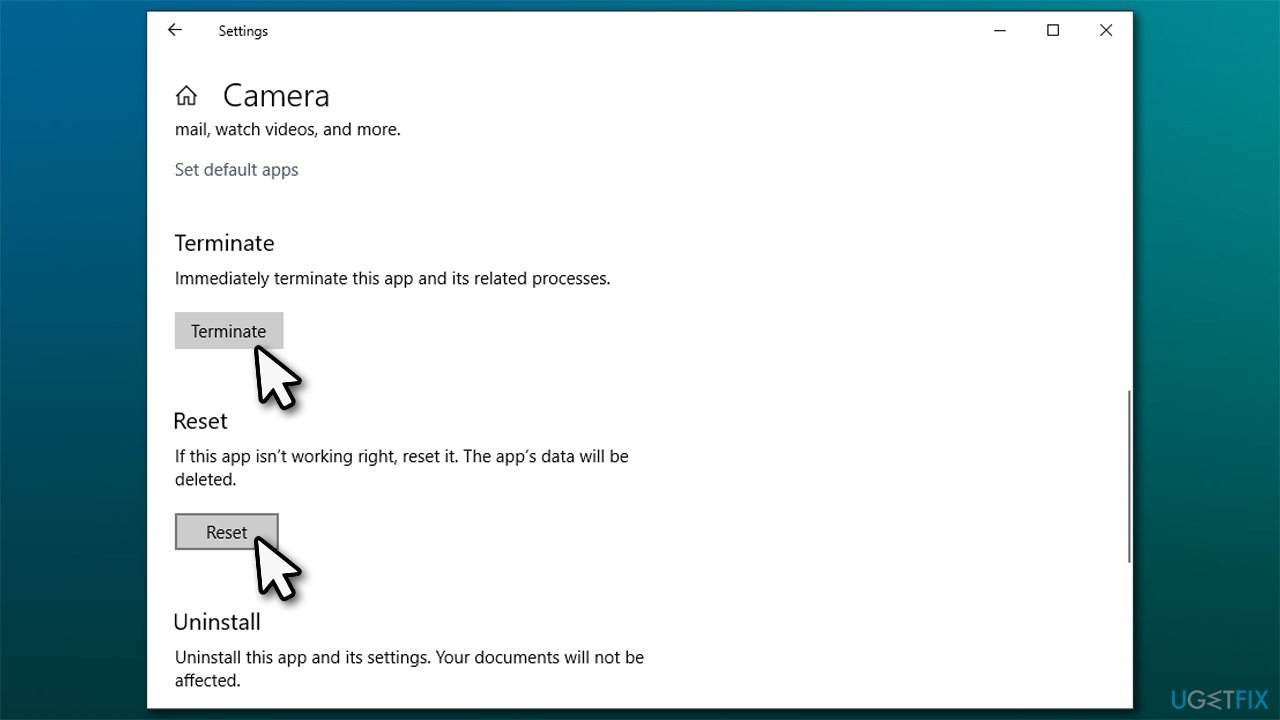
Note: you can also terminate and reset your Camera app here - we recommend you try doing so if the above method did not help.
2. Ensure your camera is compatible with your device
Older camera versions do not click well with newer Windows versions. If your camera is old and was developed prior to the release of Windows 7, it will simply not work. To check if that is the case, follow these steps:
- Right-click on Start and pick Device Manager.
- Locate your camera: expand Imaging devices, Cameras, or Camera, Sound, video and game controllers section (the location depends on your Windows version).
- Right-click on the camera and select Properties.
- Pick Driver tab and select Driver Details.
- Here, look for a file called stream.sys. If it's there, you need to replace your camera as it is simply too old for the Windows version you are using.
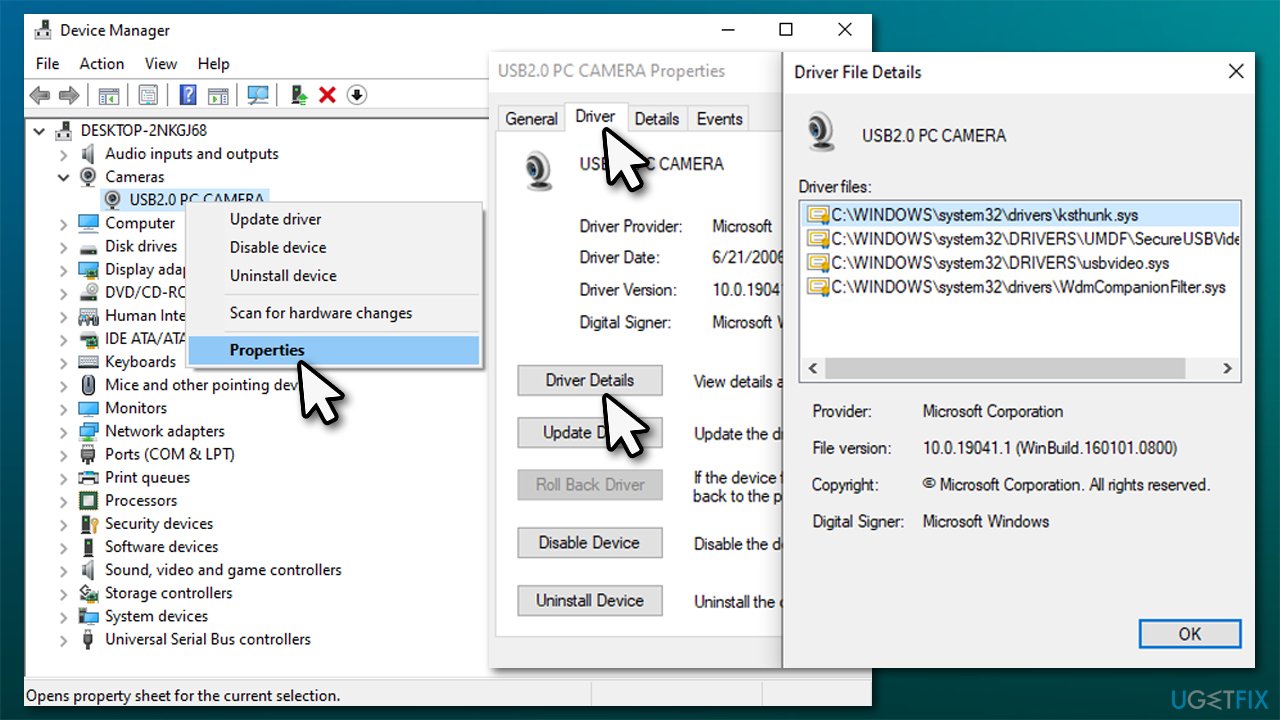
How to fix error code 0xa00f4244 nocamerasareattached in windows 10 check if camera too old
3. Enable camera access
Sometimes incorrect privacy settings might prevent you from using your camera properly. Check if that is the case:
- Right-click on Start and pick Settings.
- Go to Privacy section and select Camera.
- On the right side of the window, make sure that the Camera access for this device setting is on. If not, click on Change and turn the switch to the right.
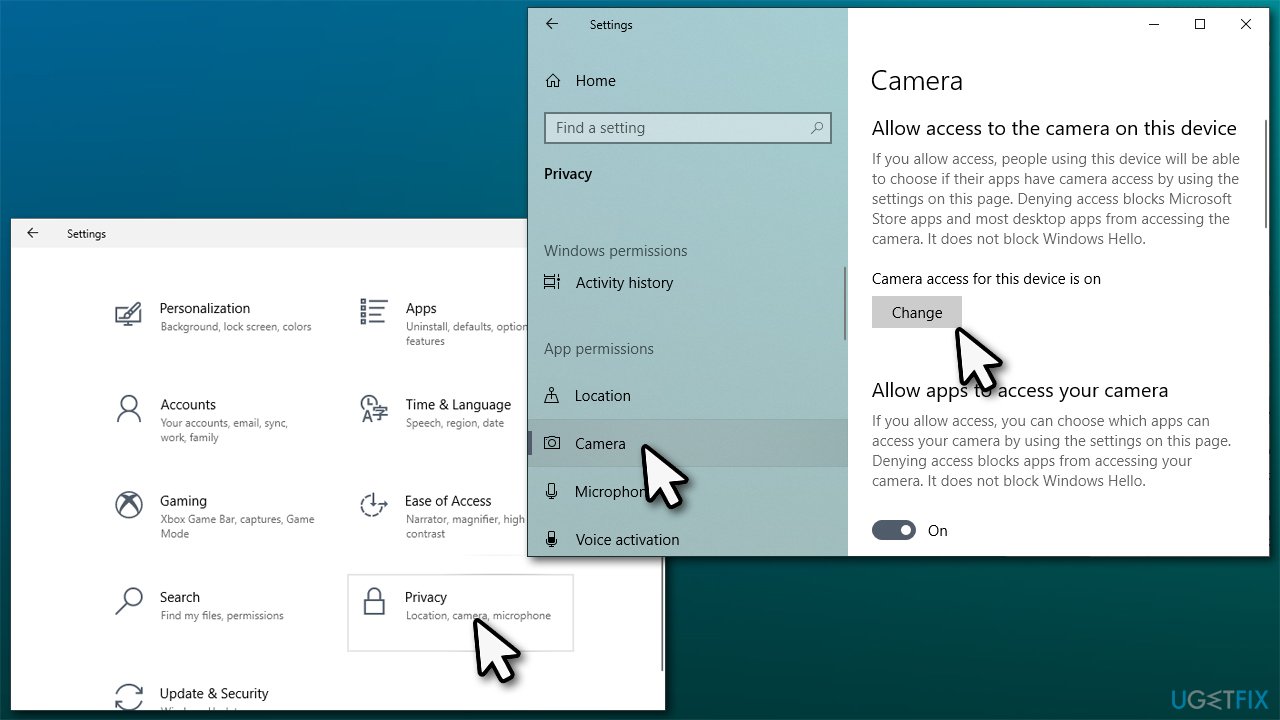
How to fix error code 0xa00f4244 nocamerasareattached in windows 10 enable camera access
4. Check camera drivers
Most simple USB cameras install the drivers[ref en-3] as soon as they are attached to the computer. However, they might not be installed correctly or not be available at the time. Thus, you need to make sure that your camera is using the latest drivers. For the most simple way to deal with this, we recommend using [rev id="DriverFix"] driver updater. It can automatically locate the missing drivers and install them for you without trouble. Otherwise, proceed with the below:
Update the driver
- Right-click on Start and pick Device Manager.
- Find your camera from the list (as explained above).
- Right-click on it and select Update driver.
- Select Search automatically for driver.
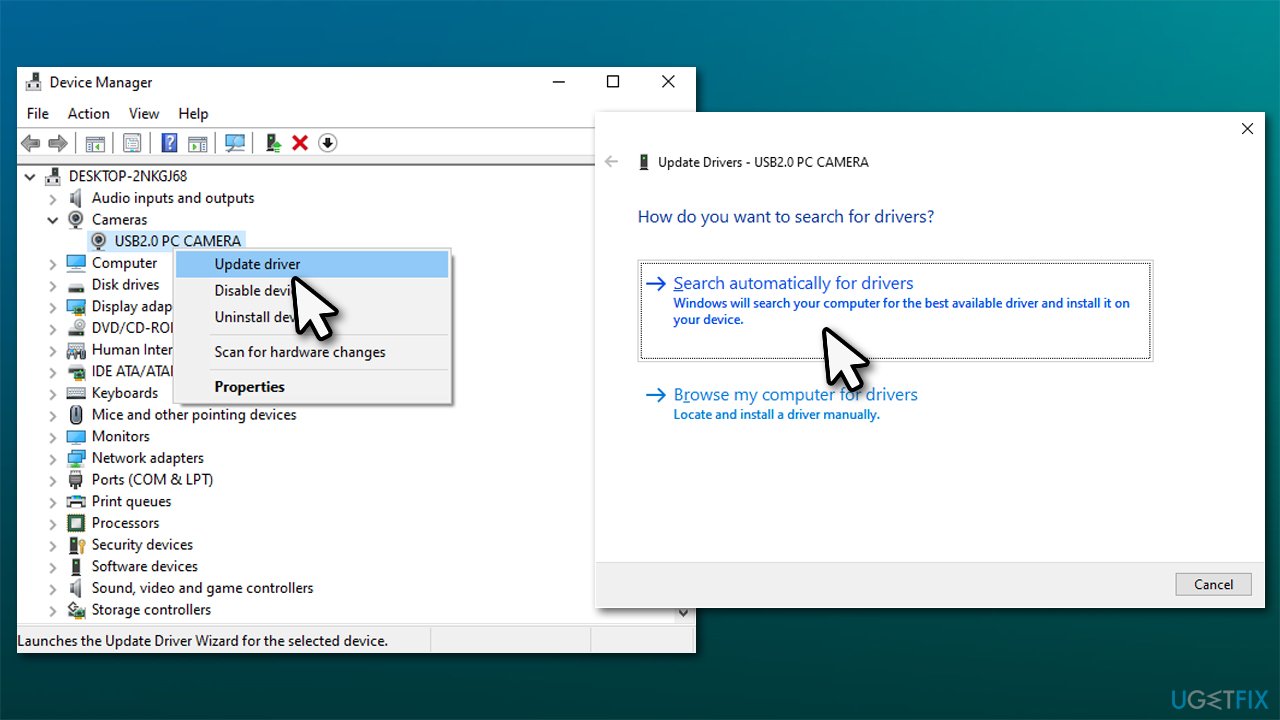
How to fix error code 0xa00f4244 nocamerasareattached in windows 10 update drivers - Restart your PC.
Roll back camera driver
If the issue started abruptly and your camera worked before, your drivers were likely updated automatically. In some cases, they might prevent the camera from working correctly, so you could try reverting to the previous driver version:
- Go to Device Manager again.
- Right-click on your camera and select Properties.
- Go to Driver tab.
- Click on Roll back driver if such option is available.
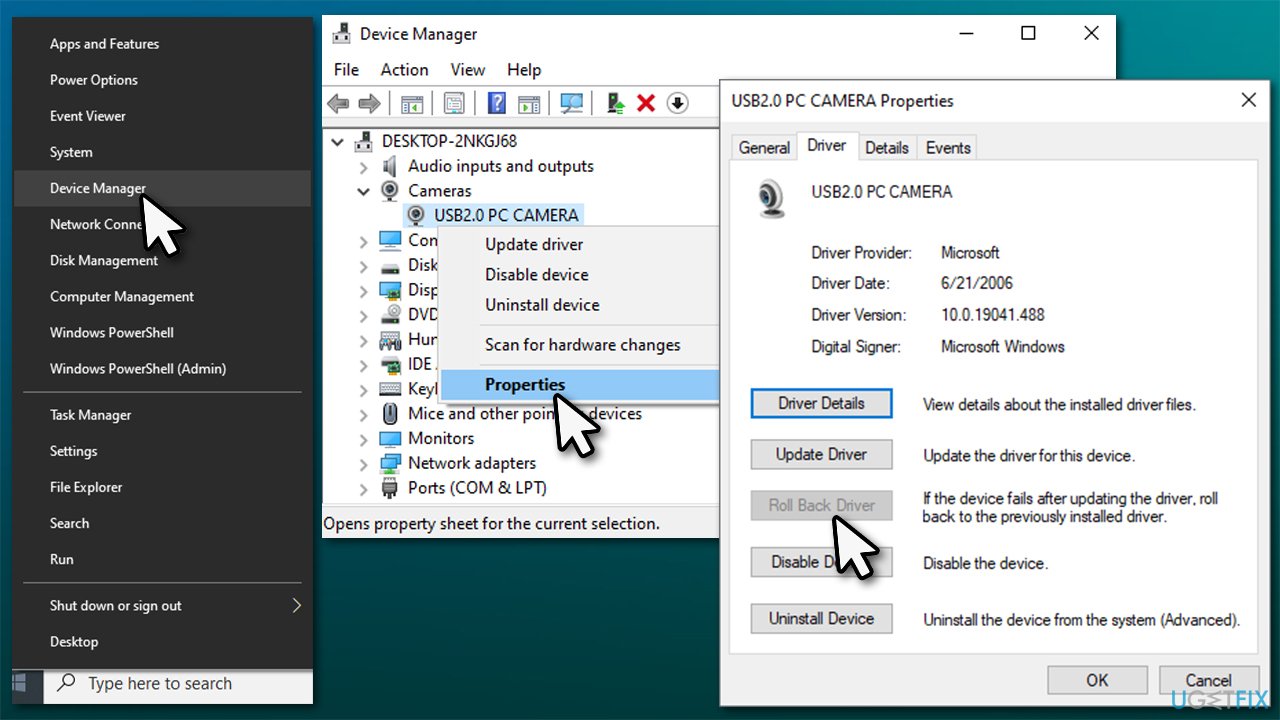
How to fix error code 0xa00f4244 nocamerasareattached in windows 10 roll back drivers - Restart your computer.
Download the driver from the manufacturer
This method is the most accurate of the three listed here. However, it might be a lot of hassle if you are unsure which model or brand your camera is. Thus, we recommend using an automatic driver updater instead.
Note: If the camera is missing from the Device Manager, click on View > Show hidden devices and then select Action > scan for hardware changes.
5. Roll back Windows updates
If your camera is not working after the Windows update, reverting to the previous OS version could help you fix 0xA00F4244<NoCamerasAreAttached> error.
- Type Control Panel in Windows search and hit Enter.
- Go to Programs > Uninstall a program.
- On the left side of the window, click View installed updates.
- Sort the entries by Installed On column.
- Find Microsoft Windows section.
- Right-click on the most recent update and select Uninstall.
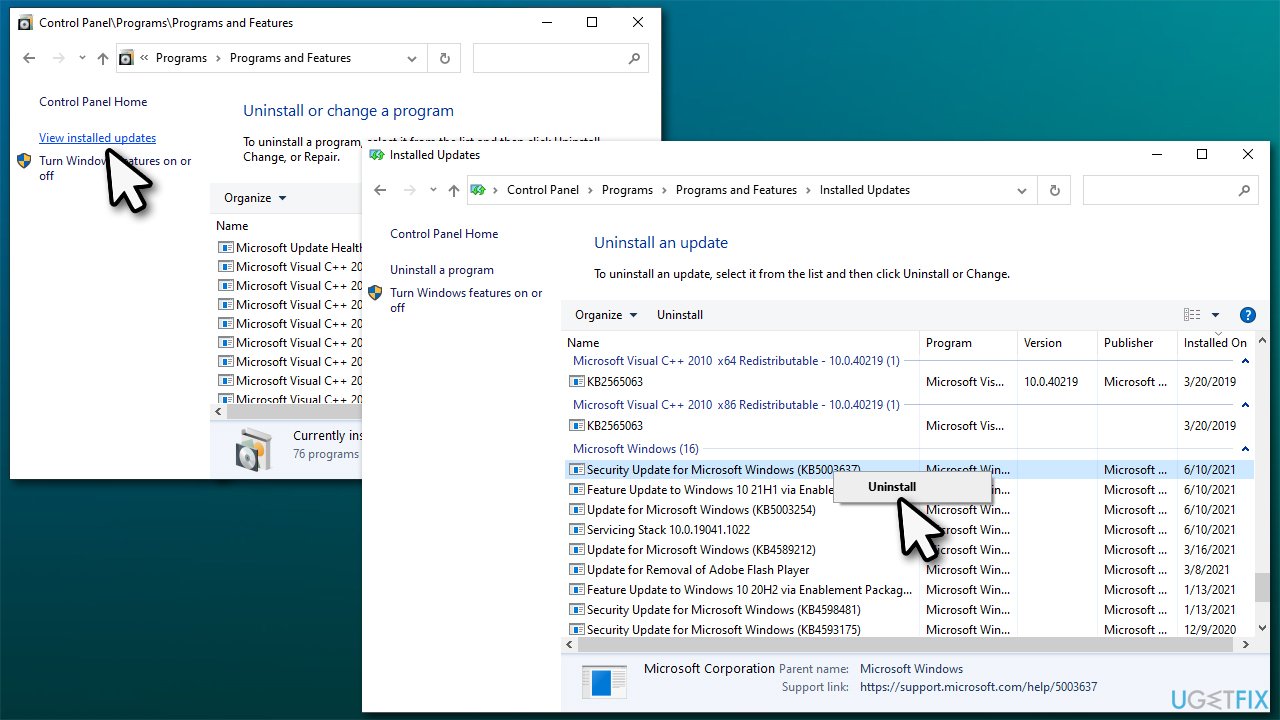
How to fix error code 0xa00f4244 nocamerasareattached in windows 10 uninstall windows updates - Follow on-screen instructions and restart your PC.
6. Other solutions
If the above did not help you to resolve the issue, we recommend you try the following:
- Apply all the available Windows updates.
- Disable or uninstall your third-party antivirus.
- Plug the camera into a different PC and see if it works. If it doesn't, it means that the device is broken and you need to buy a new one.
- Try using a different USB slot (in some cases, USB 3.0 - blue slot - might not work correctly with a USB device).
- Scan your system for malware, as it might cause camera malfunctions.
- Enable your camera via BIOS[ref en-1] (refer to your motherboard or laptop manufacturer for more detailed instructions).
- You can try to reinstall or reset your PC if nothing else worked for you.
Bottom line
To fix error code 0xA00F4244, ensure that your camera is properly connected, check for updated drivers, and verify that privacy settings allow camera access. Additionally, check if antivirus software is interfering with the camera's functionality. If none of these solutions work, consider seeking further technical support.
Frequently asked questions
Error code 0xA00F4244 typically indicates a problem with your camera or its drivers in Windows 10, often related to hardware or software conflicts.
To troubleshoot this error, ensure that your camera is properly connected, check for driver updates, and make sure the camera is not disabled in Device Manager.
Yes, resetting the camera app can help resolve error code 0xA00F4244; go to Settings > Apps > Apps & features, find the Camera app, and select 'Advanced options' to reset it.




Report an issue
What's wrong with this guide? We review every report and update or remove content.
Report received — thank you. We'll review and fix it.
You need a free account to submit a report.
Be the first to comment