
How to fix ESIF TYPE: ERROR MODULE: IPF TIME error in Windows?

Prefer to fix it yourself? The manual steps follow.
- 6methods
- 5 minutes to check, 20 to 40 minutes to update the BIOS and drivers
- Intermediate
Applies to Windows 11, Windows 10, PCs with Intel Dynamic Tuning Technology or Intel DPTF
6 methods in this guide
Hello. Recently my Windows 11 PC started crashing frequently. I noticed an ESIF TYPE: ERROR MODULE: IPF TIME error in Event Viewer. How should I fix this?
"ESIF TYPE: ERROR MODULE: IPF TIME" is an Event Viewer entry written by Intel's power and thermal software, Intel Dynamic Tuning Technology (DTT) or its older form DPTF, through the Intel Innovation Platform Framework (IPF). On a stable PC it is log noise. When the PC also crashes, install the BIOS and the Intel package from your PC maker first.
The entry is written by Intel's thermal and power framework (DTT, older DPTF), not by Windows. If the PC runs normally, it is harmless log noise. If it crashes or a Dynamic Tuning entry in Device Manager shows a warning, install the latest BIOS and the Intel Dynamic Tuning or DPTF package for your exact model from your PC maker (Fix 2 and Fix 3). Intel says such instability usually comes from mismatched BIOS and driver versions.
| Error | An Event Viewer entry that starts with ESIF(version) TYPE: ERROR MODULE: IPF TIME [number] ms, for example "ESIF(1.0.11904.2707) TYPE: ERROR MODULE: IPF TIME 43982 ms". |
|---|---|
| Where it appears | In Event Viewer, mostly at shutdown, restart or right after a sudden power-off. Users report it under Event ID 17. It does not appear as a window on screen. |
| Main cause | An Intel Dynamic Tuning Technology (DTT) or Dynamic Platform and Thermal Framework (DPTF) driver that does not match the BIOS or the Intel Innovation Platform Framework (IPF) on the PC. |
| Fastest fix | Install the latest BIOS and chipset or thermal driver package for your exact model from your PC maker's support site (Fix 2). |
| Also written as | ESIF type error module IPF time, IPF time error, error module IPF time, IPF event ID 17, event 17 IPF, esif uf, esif_uf.exe. |
| What the parts mean | ESIF(...): the version of the Intel framework. TYPE: ERROR: the level. MODULE: IPF: the Innovation Platform Framework part that logged it. TIME n ms: milliseconds since that service started, not a delay. |
| Affects | Windows 11 and Windows 10 on Intel PCs, mostly laptops. Intel says DTT is preinstalled on nearly all Intel based mobile systems. Windows 10 left support on 14 October 2025. |
| Intel's status | No public fix version. Intel says instability is rare and usually comes from mismatched BIOS or driver versions, and that DTT and IPF are supplied and supported by the PC maker. |
| Time to fix | 5 minutes to check if it matters. 20 to 40 minutes for a BIOS and driver update. |
Facts checked on 15 October 2026. Steps written for Windows 11 (25H2 and 26H2) and Windows 10 22H2, on laptops and desktops with Intel processors.
What ESIF TYPE: ERROR MODULE: IPF TIME means
The text is a log line from Intel software, not a Windows error. Intel Dynamic Tuning Technology (DTT) manages power, fan speed and temperature on Intel PCs. Intel describes it as a user mode device driver that relies on the Intel Innovation Platform Framework (IPF) to talk to the platform devices. Its older form is the Intel Dynamic Platform and Thermal Framework (DPTF). When one of these parts fails a task, it writes an ESIF line to the event log.
- ESIF(1.0.11904.2707) is the version of the framework that wrote the line. It differs from PC to PC.
- TYPE: ERROR is the level of the message.
- MODULE: IPF names the part that logged it, the Innovation Platform Framework. Other lines name the DPTF part instead.
- TIME 43982 ms counts milliseconds. In the lines users post, the number matches the time stamp in angle brackets later in the same line, so it reads as the time since the framework started, not a delay or a timeout. Intel does not document it in the pages we read.
The useful part is after the first line. Two real examples posted by users show the kind of detail it holds. On an Alienware laptop the line continued with "Unauthorized EsifEventRegister: NA (-1)". On an Acer laptop the DPTF part reported "Unhandled exception caught during execution of work item". Its exception text read "The feature is not implemented." Both point to a driver that asks the platform for a feature it does not have, which fits a version mismatch.
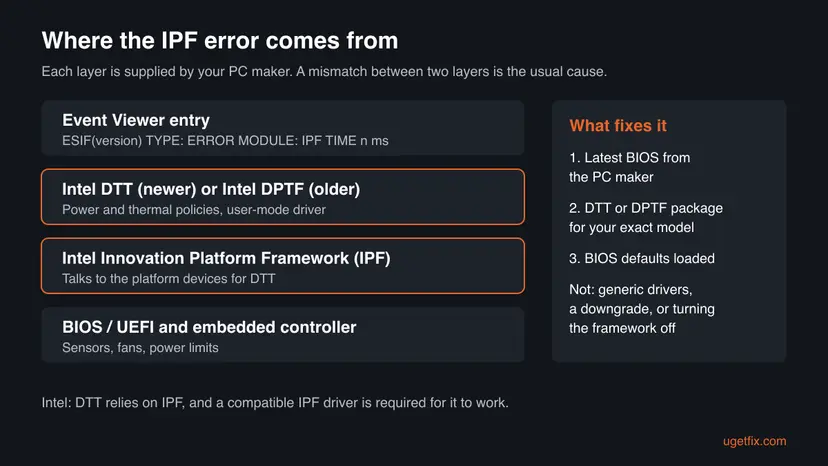
Users report the entry on PCs that run perfectly well, often once at every shutdown. Some also hear a notification sound at shutdown and connect it to this entry. The line only matters when the PC also crashes, freezes, runs hot or shows a warning in Device Manager.
Why the IPF TIME error appears: causes ranked
Intel's own support article says that instability with DTT is rare and typically related to mismatched BIOS or driver versions, and that most issues are resolved by installing the latest BIOS and drivers from the PC maker rather than generic versions. An Intel support technician added, for this exact message, that outdated or corrupted Intel drivers are the usual reason.
| Cause | How often | Sign | Fix |
|---|---|---|---|
| A harmless message at shutdown from a working framework. | Most often | Only the ESIF line, no crash, normal temperatures. | Fix 1, then Fix 2 once |
| BIOS and Intel DTT or DPTF driver versions that do not match. | Often | The line appears after a Windows reinstall, a Windows Update driver or a BIOS update. | Fix 2 |
| A broken or generic Intel thermal driver. | Less often | A yellow warning on an Intel Dynamic Tuning or DPTF entry in Device Manager. | Fix 3 |
| BIOS settings changed from the maker's values. | Rarely | Performance or fan profiles were changed, or an overclock is set. | Fix 4 |
| A crash with another cause that the IPF line only sits next to. | Rarely, but serious | Kernel-Power 41 or a bugcheck event 1001 in the same minute. | Fix 5 |
The old version of this guide also blamed the Intel Rapid Storage Technology storage driver. We found no Intel or Microsoft page that ties this message to the storage controller, so that step is gone.
How to fix the ESIF TYPE: ERROR MODULE: IPF TIME error
Fix 1 takes five minutes and tells you whether the entry matters at all. Fixes 2 to 4 are what Intel recommends for this framework, in that order. Fix 5 is for PCs that really crash, and Fix 6 is a general repair to try last.
| What you see or have | Start with |
|---|---|
| You found the ESIF line in Event Viewer and the PC works fine. | Fix 1, then Fix 2 once. After that the entry can be ignored. |
| An Intel Dynamic Tuning, DPTF or Dynamic Tuning Technology Updater Component entry in Device Manager has a warning sign. | Fix 2, then Fix 3 |
| The error started after a BIOS update, a Windows reinstall or a driver from Windows Update. | Fix 2, then Fix 3 |
| The PC overheats, throttles or the fans behave oddly. | Fix 2, then Fix 4 |
| The PC crashes, freezes or turns off by itself. | Fix 1, then Fix 2 to 4, then Fix 5 |
Fix 1. Find the IPF event and check what else happened at that minute
5 minutesNo riskEveryone. Do this first to see whether the line is noise or part of a real problem.
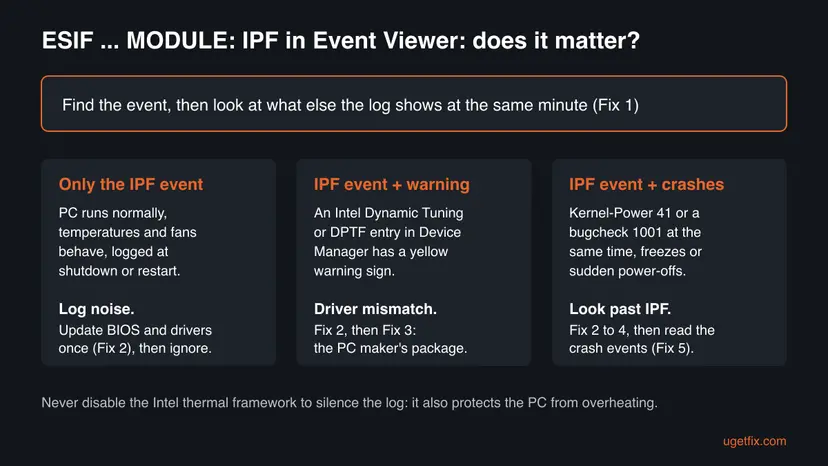
The ESIF line names no cause of a crash. What decides the next step is whether crash or power events stand next to it and whether it only appears at shutdown.
- Right-click Start and select Terminal (Admin). On Windows 10, search for
PowerShell, right-click it and select Run as administrator. - Paste the first command below and press Enter. It lists ESIF lines from the System and Application logs of the last 14 days.
- Note the times. Lines only at shutdown or restart, with a normal working PC, are noise.
- Paste the second command and press Enter. It lists crashes and unexpected shutdowns of the same 14 days.
- Compare the times. A Kernel-Power 41 or an event 1001 within a minute or two of the ESIF line means the PC really crashed.
PowerShell (as administrator): ESIF and IPF lines of the last 14 days
Get-WinEvent -FilterHashtable @{ LogName='System','Application'; StartTime=(Get-Date).AddDays(-14) } -ErrorAction SilentlyContinue |
  Where-Object { $_.Message -like '*ESIF*' } |
  Format-Table TimeCreated, Id, ProviderName, LogName -AutoSize
PowerShell (as administrator): crashes and unexpected shutdowns of the last 14 days
Get-WinEvent -FilterHashtable @{ LogName='System'; Id=41,1001,6008; StartTime=(Get-Date).AddDays(-14) } -ErrorAction SilentlyContinue |
Format-Table TimeCreated, Id, ProviderName -AutoSizeUsers report the entry as Event ID 17, but we could not confirm from Intel which log and which source name it uses on every PC. That is why the first command searches the text in both logs. The ProviderName column then shows the source on your PC.
It worked if: You know whether the ESIF lines stand alone at shutdown, or whether crash events 41, 1001 or 6008 appear at the same time.
If not: If the first command finds nothing, the line is older than 14 days. Change -14 to -60. Then go on to Fix 2 in either case.
Fix 2. Install the latest BIOS and Intel drivers from your PC maker
20 to 40 minutesRead the warningEvery PC that logs the ESIF line, and first of all PCs that crash or show a Device Manager warning.
Intel says DTT depends on the BIOS, the embedded controller and the platform drivers, and that keeping firmware and platform software up to date is essential for it. Mismatched versions are the cause Intel names for instability.
A BIOS update that is cut off can leave the PC unable to start. Plug a laptop into its charger, close all programs and follow the PC maker's instructions exactly. Back up your files first: Back up your files (Windows Backup, File History, Time Machine)
- Press Win + R, type
msinfo32and select OK. Note System Model and BIOS Version/Date. - Open your PC maker's support site (Dell, HP, Lenovo, Acer, ASUS, MSI and others) and search for that exact model.
- Open the drivers and downloads list and compare the newest BIOS version with yours.
- Download the newest BIOS and the newest Chipset, Intel Dynamic Tuning Technology or Intel DPTF package for that model.
- Install the BIOS first, as the maker describes, and let the PC restart.
- Install the chipset and Intel Dynamic Tuning or DPTF packages, then restart again.
- On a self-built desktop, use the motherboard maker's support page for the board model instead.
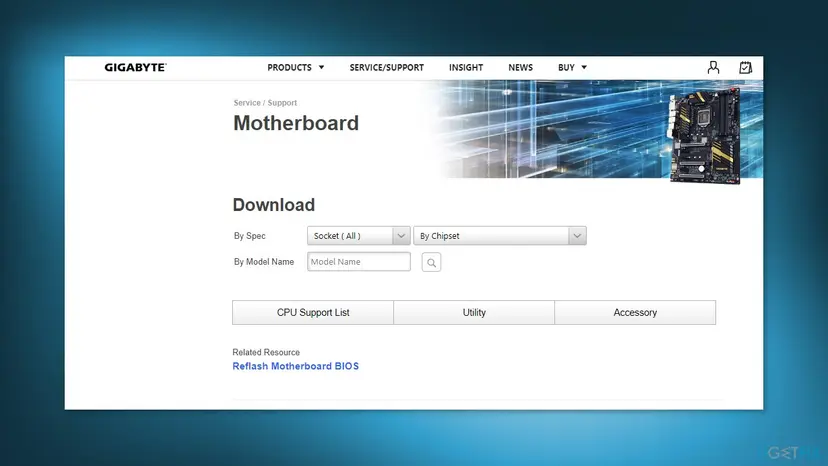
- Use the maker's package, not Intel's generic one. Intel says to always use the DTT or DPTF driver from the system or motherboard maker, because it can hold settings made for that model even when the version number looks the same.
- Other routes. Intel lists Windows Update (on supported PCs) and the Intel Platform Performance Package as other ways DTT arrives. Use them only when the PC maker offers nothing newer.
- Do not downgrade. Intel says DTT can be upgraded but should not be uninstalled or downgraded, or the PC can run hot and noisy with a shorter battery life.
It worked if: After the restarts, Fix 1 shows no new ESIF lines, or only one at shutdown with no crash events next to it.
If not: If a Device Manager entry still shows a warning or the line keeps coming with crashes, go to Fix 3.
Fix 3. Reinstall the Intel Dynamic Tuning or DPTF package for your model
15 minutesLow riskAn Intel Dynamic Tuning, DPTF or Dynamic Tuning Technology Updater Component entry in Device Manager shows a warning, or Fix 2 found nothing newer to install.
An Intel support technician advised for this message to download and reinstall, not update, the version of the thermal framework that the PC maker provides for the specific model. This replaces a broken or generic driver with the one the BIOS expects.
- Right-click Start and select Device Manager.
- Look for Intel(R) Dynamic Platform and Thermal Framework as its own group, or expand System devices and Software components and look for Intel(R) Dynamic Tuning entries.
- Note any entry with a yellow warning sign. Double-click it and read the Device status box on the General tab.
- Download the Intel Dynamic Tuning Technology or DPTF package for your exact model from the PC maker's support site.
- Run the downloaded package and choose Repair or install it over the existing one if it offers that.
- Restart the PC and open Device Manager again.
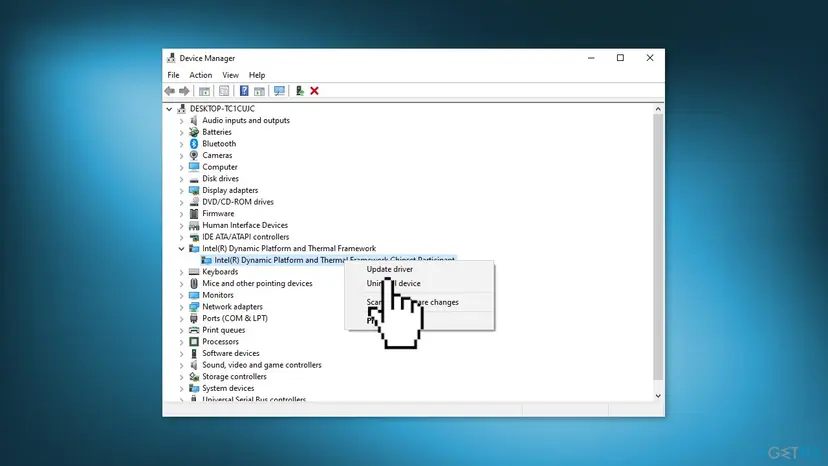

Intel's support article says DTT should not be uninstalled or downgraded. Remove the old version only if the PC maker's package tells you to, and have the new package downloaded before you do. Never disable the device to silence the log: Intel warns that turning DTT or DPTF off can lead to overheating and instability.
Generic steps for Device Manager, if the PC maker's package will not install: Update, roll back or reinstall a driver
It worked if: No entry in Device Manager shows a warning, and the ESIF lines stop or appear only once at shutdown.
If not: If the warning stays with the maker's newest package, go to Fix 4, then contact the PC maker's support (see the section below).
Fix 4. Load the default BIOS settings
10 minutesLow riskFix 2 and Fix 3 did not help, or you or a tool changed fan, power or performance settings in the BIOS.
Intel's technician suggested loading the BIOS defaults for this message. DTT works with the power and thermal limits the maker set, so changed values can give it a platform it does not expect.
- Write down any BIOS setting you need to keep, such as the boot order or virtualization.
- Open Settings > System > Recovery and select Restart now next to Advanced startup. On Windows 10 the path is Settings > Update & Security > Recovery.
- Select Troubleshoot > Advanced options > UEFI Firmware Settings > Restart.
- In the BIOS, find the option to load defaults. Common names are Load Setup Defaults, Load Optimized Defaults or Restore Defaults, often on F9.
- Save and exit, often with F10, and let Windows start.
- Turn back on only the settings you wrote down in step 1.
If you use an overclock or an undervolt tool in Windows, turn it off too while you test. Intel says DTT behavior is meant to be changed only through the BIOS performance modes, the maker's own utilities and the Windows power plans.
It worked if: Windows starts normally and Fix 1 shows no new ESIF lines with crash events next to them.
If not: If the PC still crashes, go to Fix 5. The ESIF line is then most likely a side effect, not the cause.
Fix 5. If the PC crashes: read the crash events and undo the last change
20 minutesLow riskFix 1 showed Kernel-Power 41, event 1001 or event 6008 next to the ESIF line, and Fixes 2 to 4 did not stop the crashes.
Users report the ESIF line during sudden power-offs and at shutdown, so it often only records that the framework was cut off. The cause of the crash is written in the crash events, not in the ESIF line.
- Open Event Viewer (Win + R,
eventvwr) and go to Windows Logs > System. - Double-click the Kernel-Power event 41 nearest to the ESIF line and open the Details tab.
- Read BugcheckCode. A number above 0 means a Windows crash with a stop code. All zeros point to lost power, overheating or other hardware.
- If an event 1001 says the computer has rebooted from a bugcheck, note the code and the dump path in it.
- If the crashes started on a known day, undo what changed just before it with a restore point.
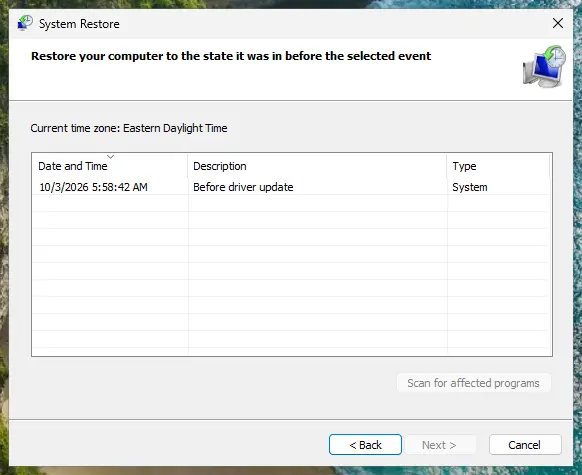
The whole method of reading event 41 and its neighbours, with a table of what each value means: our guide to Event ID 6008. The restore step by step: Undo recent changes with System Restore
It worked if: You know whether the PC had a stop error or lost power, and the crashes stop after the change is undone.
If not: If the stop codes change from crash to crash, or event 41 always shows zeros, suspect hardware and see the section below.
Fix 6. Repair the Windows system files
20 minutesNo riskThe crashes go on, and Windows itself shows other errors besides the ESIF line.
This does not touch the Intel framework, which is not a Windows system file. It repairs damage that repeated crashes and forced power-offs can leave in Windows, and rules Windows out as the cause.
Terminal (Admin): repair the component store first, then the system files
DISM /Online /Cleanup-Image /RestoreHealth
sfc /scannow
Step by step, with what each result means: Run DISM and SFC to repair Windows system files
It worked if: SFC reports that it found no integrity violations, or that it repaired the files it found.
If not: If SFC cannot repair files, follow the procedure's next step. If Windows is clean and the PC still crashes, see the section below.
If the IPF error and the crashes continue
Intel's support team says the Innovation Platform Framework is distributed and managed by the PC maker, and that support should begin with the BIOS and the maker's drivers and then the maker's support team. Intel's own DTT article gives the same order. So the next step is the maker, with the facts ready.
- The full ESIF line. Copy the whole text from Event Viewer, including the part after the first line, such as "Unauthorized EsifEventRegister" or the exception text.
- Versions. BIOS version, the Intel Dynamic Tuning or DPTF driver version from Device Manager, and the Windows version from
winver. - The crash pattern. The output of the two commands in Fix 1, and what the PC was doing each time: a game, a video call, sleep or nothing.
- What you already did. Fixes 2 to 4, and whether a clean Windows install changed anything.
| Sign | Why |
|---|---|
| Crashes only under load, with hot air and loud fans. | Cooling at its limit. Intel says DTT can shut the PC down as a last line of defense when critical temperatures are reached. |
| Event 41 with all zeros every time. | Windows could not write a code: power or hardware. |
| Crashes also after a clean Windows install with the maker's drivers. | Software that came with the old Windows is ruled out. |
| Stop codes that change from crash to crash. | One faulty driver usually repeats one code. Changing codes fit memory, power or heat. |
Users of some gaming laptops report crashes with this line that continued after clean installs, BIOS updates and driver reinstalls. For them the remaining route was the PC maker's warranty service. We could not confirm a fix for those models.
How to keep the ESIF IPF TIME error from coming back
- Take BIOS, chipset and Intel Dynamic Tuning updates from your PC maker's site or its own update tool.
- After a clean Windows install, install the maker's chipset and thermal packages before you use the PC for games or heavy work.
- Keep the vents clear and the fans clean, so the thermal framework has headroom.
- Run the first command from Fix 1 a few days after any BIOS or driver change.
- Do not disable the Intel thermal framework devices or services to stop the log. Intel warns of overheating and instability.
- Do not install generic Intel DTT or DPTF drivers from a third-party download site.
- Do not downgrade the Intel Dynamic Tuning package.
- Do not clear the event logs to make the line go away. The history is what shows a pattern.
Frequently asked questions
What does ESIF TYPE: ERROR MODULE: IPF TIME mean?
It is a log line from Intel's power and thermal software. ESIF with a number in brackets is the framework version, TYPE: ERROR is the level, MODULE: IPF names the Intel Innovation Platform Framework, and TIME with a number of milliseconds counts from when the framework started. The real reason follows later in the same entry, for example "Unauthorized EsifEventRegister" or an exception text. Intel says this software, Intel Dynamic Tuning Technology, relies on IPF and is set up by the PC maker. The line is not a Windows error and has no Windows error code.
Is the IPF time error dangerous or can I ignore it?
On a PC that runs normally you can ignore it. Users report the line at every shutdown on laptops with no other problem, and nothing breaks. Install the BIOS and the maker's Intel package once (Fix 2), because that is the fix Intel names for mismatched versions. Do not ignore it when the PC also crashes, freezes, overheats or shows a warning on an Intel entry in Device Manager. Then follow Fixes 2 to 5 in order.
Can the ESIF IPF error cause crashes or a blue screen?
Intel says instability caused by Dynamic Tuning Technology is rare and typically comes from mismatched BIOS or driver versions, which the latest maker BIOS and drivers usually resolve. More often the line only stands next to a crash with another cause, because the framework is cut off when Windows goes down. Run the second command in Fix 1. If Kernel-Power 41 or a bugcheck event 1001 appears at the same time, read their details as Fix 5 describes.
What is IPF event ID 17?
Users report the ESIF IPF line in Event Viewer under Event ID 17. An Intel support technician tied an IPF error with Event ID 17 to the Intel Innovation Platform Framework or Intel Speed Shift Technology, usually with outdated or corrupted Intel drivers. Event numbers repeat across sources, so always read the source next to it. If an event 17 holds text that starts with ESIF and names MODULE: IPF, this guide is the right one. The fix is the same: the maker's BIOS and Intel package first.
What are esif_uf.exe and the ESIF upper framework service?
Both names belong to the same Intel thermal framework that writes the ESIF lines. Users find a process called esif_uf.exe and an Intel service with ESIF in its name, installed with the DPTF or Dynamic Tuning package. We could not confirm the exact file and service names from an Intel page, and they differ between versions. To check yours, open services.msc, find the Intel Dynamic Tuning or DPTF service, open Properties and read Path to executable. A file signed by Intel in a Windows driver folder is the real one. Do not stop or disable the service to silence the log.
What is the ipfsvchost error?
We could not confirm a file or process named ipfsvchost from Intel or Microsoft. The search usually comes from the IPF service of Intel's Innovation Platform Framework, which writes the ESIF lines this guide covers. Check which file runs it as described for esif_uf.exe: open services.msc, find the Intel service, and read Path to executable. If the file sits outside the Windows or Program Files folders, or is not signed by Intel, scan the PC with Microsoft Defender, because malware sometimes copies names of system services.
Should I disable Intel DPTF or Dynamic Tuning in Device Manager to stop the error?
No. Some forum answers suggest it, but Intel's support article says disabling Intel DTT or DPTF is not recommended unless the PC maker tells you to, because these parts belong to the platform's safety design. Turning them off can lead to overheating, shorter battery life and instability. That trades a harmless log line for a real risk. If the line bothers you, update the BIOS and the maker's package (Fix 2) and leave the framework on.
Why do I hear a notification sound when my laptop shuts down with this error?
Users with this ESIF line report a short Windows sound at shutdown or restart, with no window visible because the screen is already closing. They link the sound to the framework failing a task while Windows shuts down. We could not confirm this from Intel. The fix is the same as for the line itself: the maker's newest BIOS and Intel package. Turning off system sounds only hides the sound and does not fix anything.
Is ipeaklwf.sys related to the IPF TIME error?
We found no source that ties ipeaklwf.sys to the ESIF IPF line. The name looks similar only because it starts with ip, and this page is about Intel's thermal framework. A file ending in lwf.sys is usually a network filter driver. If Windows names ipeaklwf.sys in a blue screen or a driver warning, look up the file's company in its properties and update or remove the program that installed it.
What is this error, asked in Korean as 이건 무슨 오류야?
If you searched in Korean what this error is: the ESIF IPF TIME line is a record from Intel's power and thermal software on Intel PCs, not a Windows fault. This page is in English. In short, on a PC that runs well you can ignore it. If the PC crashes, install the newest BIOS and the Intel Dynamic Tuning or DPTF package from your PC maker's support site, as Fix 2 and Fix 3 describe, and check the crash events as Fix 5 describes.
Sources
- Intel Support: Intel Dynamic Tuning Technology (Intel DTT) Overview (article 000102775) (intel.com)
- Intel Community: IPF Error, Event ID 17 (Alienware M16 R1), answers by Intel Customer Support (community.intel.com)
- Microsoft Q&A: ESIF(1.0.11401.39039) TYPE: ERROR MODULE: IPF TIME 36125 ms (user report with the full DPTF log text) (learn.microsoft.com)
Did this fix work?
One click, no account. It tells the next reader which guides are worth their time.
Questions and experiences: fix ESIF TYPE: ERROR MODULE: IPF TIME error in Windows
Still broken, or found a fix we did not cover? Ask here: members and our editors answer. Reading is open; writing needs a free account.
…