
How to fix Event ID 1796 (TPM-WMI) in Windows?

Prefer to fix it yourself? The manual steps follow.
- 7methods
- 10 minutes to read the event, up to 30 minutes with a firmware update
- Intermediate
Applies to Windows 11, Windows 10, Windows Server
7 methods in this guide
Hello. I have experienced Event ID 1796 on my Windows computer. It has been a few days and nothing changed. A blue screen occurs, sometimes the restart works and all things work great. Then the blue screen occurs again. I got no solutions online, so can you help me fix it?
Event ID 1796 from the source TPM-WMI means Windows tried to write a Secure Boot update into the firmware and hit an unexpected error. Windows retries at the next restart, so a few 1796 events that stop are harmless. If they repeat, read which update failed, install all updates and then the newest BIOS or UEFI firmware from your PC maker.
Event 1796 is a failed attempt of the Secure Boot certificate update, not a crash. Open the event and read which update failed (DB, DBX, SBAT, KEK 2023) and the error code (Fix 1). Restart twice so the Secure-Boot-Update task can retry (Fix 2). If 1796 keeps coming back, install all Windows updates and then the newest BIOS or UEFI firmware from your PC maker (Fix 3 and Fix 4).
| Error | Event ID 1796, source TPM-WMI, level Error, in the System log: "The Secure Boot update failed to update [event type] with error [error code]." |
|---|---|
| Where it appears | In Event Viewer under Windows Logs > System, usually at startup or every 12 hours, when the scheduled task \Microsoft\Windows\PI\Secure-Boot-Update runs. |
| Main cause | The firmware did not accept a Secure Boot variable write. Microsoft says 1032, 1795, 1796 and 1802 typically point to firmware or platform limits. |
| Fastest fix | Read the event type and error code, restart twice and check whether a success event (1036, 1043, 1044, 1045, 1799 or 1808) follows (Fix 1 and Fix 2). |
| Also written as | Event 1796, EventID 1796, TPM-WMI 1796, TPM WMI error 1796, Microsoft-Windows-TPM-WMI 1796, error 1796, error code 1796. |
| Event types it names | DB, DBX, SBAT, Policy Update (SKU), Windows UEFI CA 2023 (DB), Option ROM CA 2023 (DB), 3P UEFI CA 2023 (DB), KEK 2023, DBX SVN, Revoke UEFI CA 2011 (DBX). |
| Affects | Windows 11 (22H2 to 25H2), Windows 10 22H2 and Windows Server 2012 ESU to 2025, per Microsoft KB5016061. |
| Microsoft's status | Documented, not a bug in itself. Part of the move from the 2011 Secure Boot certificates, which expire in 2026, to the 2023 ones. |
| Where the progress is written | The AvailableUpdates value and the UEFICA2023Status values under HKLM\SYSTEM\CurrentControlSet\Control\SecureBoot, plus the TPM-WMI events. |
| Time to fix | Two restarts for a passing error. A firmware update takes 10 to 30 minutes, depending on the PC maker's tool. |
Facts checked on 15 October 2026. Steps written for Windows 11 (25H2 and 26H2) and Windows 10 22H2, from Microsoft's Secure Boot documentation.
What Event ID 1796 (TPM-WMI) means
Event ID 1796 is an Error in the System log from the source TPM-WMI. Microsoft lists it in KB5016061, "Secure Boot DB and DBX variable update events". Its text follows one pattern: "The Secure Boot update failed to update [event type] with error [error code]." A link to Microsoft's Secure Boot guidance follows it.
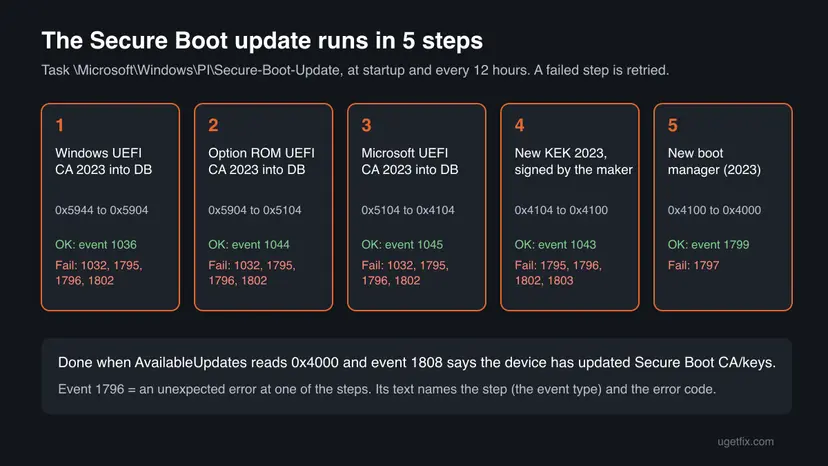
Microsoft's description is short. When a Secure Boot update is applied and an error occurs that no other event covers, Windows logs 1796 and tries the update again at the next restart. So 1796 is the catch-all failure of the Secure Boot update, and its value lies in the two blanks: the event type and the error code.
TPM-WMI is only the component that writes these events. Event 1796 is about the Secure Boot databases in your firmware (DB, DBX, KEK), not about the TPM chip. Clearing the TPM does nothing for it, and Microsoft does not suggest it.
- Other spellings. Event 1796, event id: 1796, TPM-WMI 1796, TPM WMI 1796, Microsoft-Windows-TPM-WMI 1796, error 1796 and error code 1796 all mean this one event.
- The common reported text. Users report a version that reads "The Secure Boot update failed to update a Secure Boot variable with error Secure Boot is not enabled on this machine." That one means Secure Boot is off (Fix 5).
- SBAT. An HP forum thread reports "The Secure Boot update failed to update SBAT". SBAT is one of the event types Microsoft lists, used to block old Linux boot loaders.
- Not a stop code. 1796 is an event number, not a blue screen code and not a Windows error code.
Why Event ID 1796 appears: the causes, ranked
Microsoft is replacing the Secure Boot certificates of 2011, which expire in 2026, with new ones from 2023. Windows does this itself through a scheduled task that writes into the firmware. Every write the firmware refuses for an unusual reason leaves a 1796. Microsoft's troubleshooting guide says such failures typically point to firmware or platform limitations.
| Cause | How you recognise it | Fix |
|---|---|---|
| A one-off failure that the next run fixes. | One or a few 1796 events, then a success event such as 1036, 1043, 1045 or 1808. | Fix 1, Fix 2 |
| Windows is missing the latest cumulative update. | 1796 repeats, no success events, Windows Update shows pending updates. | Fix 3 |
| The firmware does not handle the update well (most persistent cases). | 1796 at every start, often with 1795 or 1802 nearby, on an older BIOS version. | Fix 4 |
| Secure Boot is turned off. | The text says "Secure Boot is not enabled on this machine" and System Information shows Secure Boot State Off. | Fix 5 |
| The Secure-Boot-Update task is disabled or deleted. | No progress at all and the task status is Disabled or not found. | Fix 6 |
| BitLocker blocks the write. | Event 1032 next to 1796: the update was not applied due to the BitLocker configuration. | Fix 7 |
Microsoft ties no crash and no restart to event 1796. It is logged by a background task that retries and moves on. If your PC also shows blue screens, as in the question above, the crash has a cause of its own: look for events 41 and 1001 (see the section on what to do if it continues).
How to fix Event ID 1796 in Windows 11 and 10
Fix 1 takes five minutes and tells you which of the later fixes you need. Fixes 2 and 3 cost nothing and solve the passing cases. Fix 4, the firmware update, is the one Microsoft points to for the stubborn ones. Fixes 5 to 7 match a specific text in the event.
| What you see or have | Start with |
|---|---|
| You found 1796 and do not know whether it still happens. | Fix 1 |
| One or a few 1796 events, or the last one is days old. | Fix 1, then Fix 2 |
| 1796 at every start, and Windows Update has pending updates. | Fix 3 |
| 1796 at every start with all updates installed, or 1795 or 1802 next to it. | Fix 4 |
| The text ends with "Secure Boot is not enabled on this machine". | Fix 5 |
| The registry shows no progress at all. | Fix 6 |
| Event 1032 about BitLocker sits next to 1796. | Fix 7 |
Fix 1. Read the full 1796 event and check whether a later success event exists
5 minutesNo riskEveryone who found 1796. It decides whether there is anything to fix.
Event 1796 names the step that failed and Windows retries it. A later success event or event 1808 means the retry worked and nothing needs fixing. The event type and error code point to the right fix otherwise.
- Right-click Start and select Terminal (Admin). On Windows 10, right-click Start and select Windows PowerShell (Admin).
- Select Yes when Windows asks for permission.
- Paste the command below and press Enter. It lists the Secure Boot update events of the TPM-WMI source, newest first.
- Read the newest 1796: note the event type after "failed to update" and the error code after "with error".
- Look above it for a newer success event: 1036, 1043, 1044, 1045 or 1799. Event 1808 means the update is complete.
- Note any 1032, 1795, 1801, 1802 or 1803 near it. Each one has its own meaning in the table below.
PowerShell (as administrator): Secure Boot update events, newest first
Get-WinEvent -FilterHashtable @{ LogName='System'; Id=1032,1033,1036,1043,1044,1045,1795,1796,1797,1799,1800,1801,1802,1803,1808 } -MaxEvents 60 |
  Where-Object ProviderName -like '*TPM-WMI*' |
Format-Table TimeCreated, Id, Message -Wrap| Event | Level | What it means for you |
|---|---|---|
| 1036, 1043, 1044, 1045, 1799 | Information | One step of the update worked: DB, KEK, Option ROM CA, UEFI CA, boot manager. |
| 1808 | Information | The device has the new certificates and boot manager. Older 1796 events can be ignored. |
| 1800 | Warning | A restart is needed before the update can go on. |
| 1801 | Error | Certificates are updated in Windows but not yet in the firmware. |
| 1795 | Error | The firmware itself returned an error. Microsoft: contact the maker about a firmware update. |
| 1802 | Error | Windows blocked the update on purpose because of a known firmware issue. |
| 1803 | Error | The PC maker has not provided a signed KEK for this model. |
| 1032 | Error | BitLocker would go into recovery, so the update waited. |
Then check the progress Windows stores in the registry. The command below lists the AvailableUpdates value and the UEFICA2023Status, UEFICA2023Error and UEFICA2023ErrorEvent values that Microsoft's guide tells you to read.
Command Prompt or PowerShell (as administrator): the Secure Boot servicing state
reg query HKLM\SYSTEM\CurrentControlSet\Control\SecureBoot /s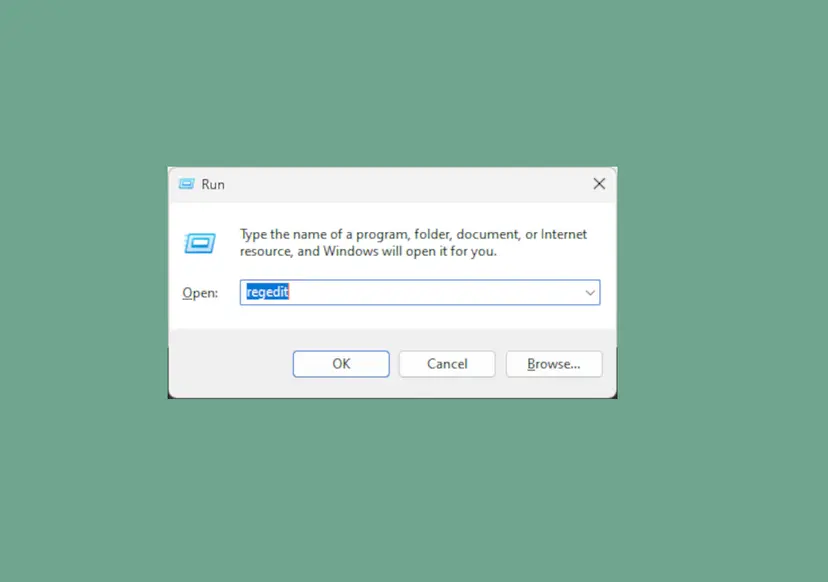
- AvailableUpdates is 0x4000: every step is done. Microsoft says the 0x4000 bit stays set at the end.
- AvailableUpdates is 0x5944, 0x5904, 0x5104, 0x4104 or 0x4100: the update is still at step 1, 2, 3, 4 or 5.
- No such values at all: the update never started. Go to Fix 3, Fix 5 and Fix 6.
It worked if: Either a success event or 1808 newer than the last 1796, which means you are done, or a clear picture of which step keeps failing.
If not: If the last 1796 is recent and nothing newer follows it, go to Fix 2.
Fix 2. Restart twice and run the Secure-Boot-Update task yourself
10 minutesNo riskThe 1796 events are recent but few, or event 1800 asks for a restart.
Microsoft says that after a 1796 Windows tries the update again at the next restart. The task runs at startup and every 12 hours, and a PC that sleeps for weeks gives it few chances.
- Select Start > Power > Restart. Use Restart, not Shut down, so a full start follows.
- Wait two minutes after you sign in, then restart once more.
- Open Terminal (Admin) again and run the first command below to start the task now.
- Wait one minute and run the event command from Fix 1 again.
- Look for a success event newer than the last 1796.
PowerShell (as administrator): run the Secure Boot update task now
Start-ScheduledTask -TaskPath "\Microsoft\Windows\PI\" -TaskName "Secure-Boot-Update"The update works one step at a time, and some steps need a restart before the next one starts. Seeing 1796 once, then 1036, then 1800, then 1045 over a few days is normal progress, not a fault.
It worked if: A new success event such as 1036, 1043, 1045 or 1799, and in the end 1808. AvailableUpdates moves closer to 0x4000.
If not: If the same event type fails again with the same error code, go to Fix 3.
Fix 3. Install every pending Windows update
15 to 40 minutesLow riskWindows Update shows pending or failed updates, or the PC has not been updated for a month or more.
Microsoft's troubleshooting guide names the latest required security updates as the first condition. The monthly cumulative updates carry the new certificates, the signed KEK files of PC makers and the fixes for known update failures.
- Press Win + I and open Windows Update.
- Select Check for updates and let every update download and install.
- Restart when Windows asks, then check again until no update is left.
- Run the event command from Fix 1 after one more restart.
Windows 10 left support on 14 October 2025. Microsoft's troubleshooting guide lists Windows 10 ESU, so a Windows 10 22H2 PC without Extended Security Updates may not receive the later steps of this update. On such a PC 1796 can stay until you move to Windows 11 or join ESU.
If one update fails to install with its own error, fix that first. Step by step: Run the Windows Update troubleshooter, and if that is not enough, Reset Windows Update components. Do not uninstall the latest update because of 1796: you would lose the security fixes, and the Secure Boot step would come back with the next update anyway.
It worked if: Windows Update says you are up to date, and after a restart a success event follows the last 1796.
If not: If 1796 still appears at every start with all updates in place, the firmware is the likely cause. Go to Fix 4.
Fix 4. Update the BIOS or UEFI firmware from your PC maker
15 to 30 minutesRead the warning1796 repeats at every start with all Windows updates installed, or 1795 or 1802 appears with it.
The firmware stores the Secure Boot databases and must accept each write. Microsoft says 1795, 1796 and 1802 typically mean firmware limits, and that the maker's latest firmware may be needed before the update can complete.
A firmware update that is cut off by a power loss can leave the PC unable to start. Plug a laptop into power, close all apps and do not switch off during the update. If BitLocker is on, have the recovery key ready: it is at aka.ms/myrecoverykey for a Microsoft account.
- Press Win + R, type
msinfo32and press Enter. - Note System Manufacturer, System Model and BIOS Version/Date.
- Open the support page of your PC or motherboard maker and enter the model or serial number.
- Download the newest BIOS or UEFI update for your exact model. Read its notes for words such as Secure Boot, KEK or certificates.
- Run the update with the maker's tool or the instructions on that page, and let the PC restart by itself.
- Back in Windows, restart once more and run the event command from Fix 1.
Many firmware menus offer Restore Factory Keys, Reset to Setup Mode or a reset of Secure Boot to defaults. Microsoft warns that on a PC that already moved to the 2023 boot manager, this reset can stop Windows from starting. Leave those options alone unless your maker's firmware notes say the defaults include the 2023 certificates.
If the maker has no newer firmware for your model, write to its support with the event text, the error code and the BIOS version. For event 1803, Microsoft says only the maker can supply the signed KEK, and on older models there may be no fix.
It worked if: After the firmware update and one or two restarts, success events follow and in the end event 1808 appears.
If not: If the event text mentions that Secure Boot is not enabled, go to Fix 5. Otherwise read the section on what to do if it continues.
Fix 5. Turn on Secure Boot when the event says it is not enabled
10 minutesRead the warningThe 1796 text ends with "Secure Boot is not enabled on this machine", or System Information shows Secure Boot State Off.
The update writes into the Secure Boot databases, and Microsoft names Secure Boot enabled in firmware as a condition. With Secure Boot off the update cannot apply, and the task logs the failure each time it runs.
- Press Win + R, type
msinfo32and press Enter. - In System Summary, read BIOS Mode and Secure Boot State.
- If BIOS Mode is UEFI and Secure Boot State is Off, restart into the firmware: Settings > System > Recovery > Advanced startup > Restart now, then Troubleshoot > Advanced options > UEFI Firmware Settings > Restart.
- Find Secure Boot on the Security or Boot tab, set it to Enabled, then save and exit.
- In Windows, open
msinfo32again: Secure Boot State should now read On.
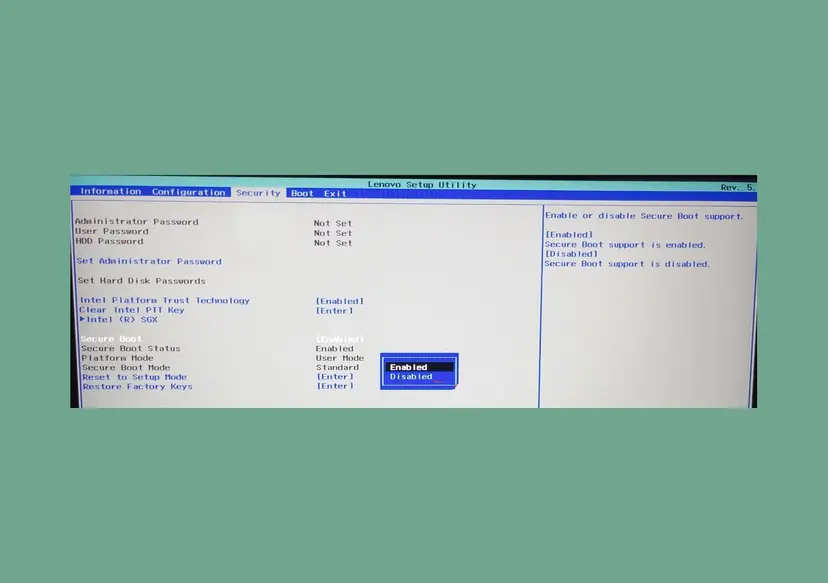
If BIOS Mode reads Legacy, Secure Boot cannot work until the disk is converted to GPT and the PC starts in UEFI mode. That is a bigger change, so back up first. If you start Linux or another system with an unsigned boot loader, it may not start with Secure Boot on.
Changing the UEFISecureBootEnabled value in the registry does not turn Secure Boot on. That value only reports the state, and Microsoft's guide sends you to the firmware settings for this. Microsoft's page "Windows 11 and Secure Boot" shows the steps for common PC makers.
It worked if: Secure Boot State reads On, and within a day the TPM-WMI log shows success events instead of 1796.
If not: If Secure Boot is on and 1796 continues, go back to Fix 4, then Fix 6.
Fix 6. Check that the Secure-Boot-Update task exists and is enabled
5 minutesLow riskFix 1 shows no Secure Boot servicing values in the registry, or the events stopped without a 1808.
Microsoft's guide says the update cannot progress at all when the task is disabled or missing. Tuning and cleanup tools sometimes turn off scheduled tasks they do not recognise.
- Open Terminal (Admin).
- Run the first command below and read the Status line.
- Ready means the task is fine. Disabled means you run the second command. An error or "cannot find" means the task is missing.
- After enabling it, restart the PC or start the task with the command from Fix 2.
Check the task, then enable it if it is disabled
schtasks.exe /Query /TN "\Microsoft\Windows\PI\Secure-Boot-Update" /FO LIST /V
Enable-ScheduledTask -TaskPath "\Microsoft\Windows\PI\" -TaskName "Secure-Boot-Update"
If the task is missing, Microsoft offers a sample script, Enable-SecureBootUpdateTask.ps1, on its troubleshooting page. Microsoft says the script is a sample it does not support. On a home PC, installing the latest cumulative update or a repair install with Reinstall Windows without losing files is the safer way to restore it.
It worked if: The Status line reads Ready, and the next run logs a new TPM-WMI event.
If not: If the task is fine and 1796 continues, read the section on what to do if it continues.
Fix 7. Suspend BitLocker for two restarts when event 1032 appears too
10 minutesRead the warningEvent 1032, "not applied due to a known incompatibility with the current BitLocker configuration", sits next to 1796.
Microsoft says some BitLocker setups would go into recovery if the firmware changed, so Windows holds the update back. Suspending BitLocker for two restarts lets the update through and protection comes back by itself.
Save or print the BitLocker recovery key before you start. A Microsoft account keeps it at aka.ms/myrecoverykey. Your files are not decrypted, but the key protectors are off until the second restart.
- Type
cmdin the search box, right-click Command Prompt and select Run as administrator. - Run the first command below.
- Restart the PC two times.
- Run the second command to make sure protection is back on.
Command Prompt (as administrator), Microsoft's commands for event 1032
Manage-bde -Protectors -Disable %systemdrive% -RebootCount 2
Manage-bde -Protectors -Enable %systemdrive%
It worked if: The 1032 event stops, and a success event follows the next run of the task.
If not: If 1796 continues without 1032, go to Fix 4.
If Event ID 1796 continues: what to collect and when it is the firmware
When 1796 keeps coming back after updates and a firmware update, the cause is almost always a firmware limit that only the PC maker can fix. Your PC keeps working and starting as before. Collect these facts for the maker's support or for a forum post:
- The full event text of the newest 1796, with the event type and the error code, and the event list from Fix 1.
- The registry state from
reg query HKLM\SYSTEM\CurrentControlSet\Control\SecureBoot /s, mainlyAvailableUpdatesand the UEFICA2023 values. - Make, model and BIOS Version/Date from
msinfo32, and whether BIOS Mode is UEFI. - Any 1795, 1802 or 1803 events. Their text includes the BucketId and BucketConfidenceLevel, which tell Microsoft and the maker which device group yours belongs to.
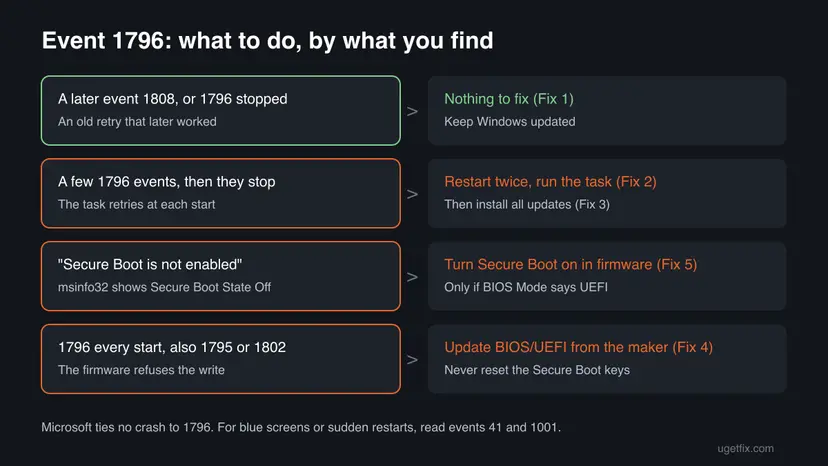
Microsoft links no stop error to 1796. Look for a Kernel-Power event 41 and an event 1001 with a bug check code at the times your PC crashed. Our guide to Event ID 6008 and unexpected shutdowns shows how to list them in one command.
Microsoft also lists a state called Not Supported, Known Limitation: some devices cannot take the automatic certificate update because of hardware or firmware limits. On such a PC 1796 or 1795 may stay for good. Secure Boot keeps working with the old certificates for now, but the PC will not get new boot security fixes.
How to keep Event ID 1796 from coming back
- Install Windows updates every month and restart when asked. The Secure Boot update moves forward only on restarts and task runs.
- Install firmware updates from your PC maker, especially ones that mention Secure Boot or certificates.
- Keep Secure Boot on and the Secure-Boot-Update task enabled.
- Keep your BitLocker recovery key somewhere outside the PC.
- Do not reset Secure Boot keys to factory defaults or use Restore Factory Keys on a PC that already got the update.
- Do not edit
UEFISecureBootEnabledorAvailableUpdatesby hand on a home PC. - Do not let cleanup tools disable scheduled tasks under
\Microsoft\Windows\PI. - Do not uninstall a cumulative update only because of 1796.
Once event 1808 appears, the device has the 2023 certificates and the new boot manager. Older 1796 events in the log can be ignored after that. They stay in the log until it rolls over, but they no longer mean anything.
Frequently asked questions
What is Event ID 1796?
It is an Error from the source TPM-WMI in the System log. Windows writes it when the Secure Boot update fails with an unexpected error that no other event covers. The text reads "The Secure Boot update failed to update [event type] with error [error code]." The event type names which part failed, such as DB, DBX, SBAT or KEK 2023. Microsoft documents the event in KB5016061 and says Windows retries the update at the next restart.
Is Event ID 1796 dangerous? Can I ignore it?
It is not dangerous by itself. Your files are safe and Windows starts as before. You can ignore old 1796 events when a newer success event or event 1808 follows them. You should act when 1796 repeats at every start for weeks, because then the PC does not receive the new Secure Boot certificates. Microsoft says the 2011 certificates expire in 2026, so a PC stuck on them misses future boot security fixes.
Does Event ID 1796 cause blue screens or crashes?
Microsoft links no crash to it. The event comes from a background task that tries a firmware write, logs the result and stops. If your PC shows blue screens and you also see 1796, the two are most likely separate problems. Look for Kernel-Power event 41 and event 1001 at the crash times, which hold the stop code. Users do report both together in forums, but no Microsoft page we read connects them.
Event ID 1796 on Windows 11: is it different from Windows 10?
The event, the source and the text are the same. Microsoft's list covers Windows 11 22H2 to 25H2, Windows 10 22H2 and Windows Server 2012 ESU to 2025. The difference is support. Windows 10 left support on 14 October 2025, and Microsoft's troubleshooting guide lists Windows 10 ESU. A Windows 10 PC without Extended Security Updates may not get the later steps, so 1796 can stay on it.
What does "Secure Boot is not enabled on this machine" in event 1796 mean?
It means the update tried to write a Secure Boot variable while Secure Boot is turned off in the firmware. Press Win + R, run msinfo32 and check Secure Boot State. If it says Off and BIOS Mode says UEFI, turn Secure Boot on in the firmware settings (Fix 5). If you keep Secure Boot off on purpose, for example to start an unsigned system, the event will repeat. It is then a record, not a fault.
What does TPM-WMI error 1796 have to do with the TPM?
Almost nothing. TPM-WMI is the Windows component that writes the Secure Boot update events, so its name appears as the source. The failure is in the Secure Boot databases stored in the firmware, not in the TPM chip. Clearing or resetting the TPM does not fix 1796, and it can make BitLocker ask for the recovery key. Read the event type and follow Fix 1 instead.
What does error 1796 with SBAT mean?
SBAT is one of the event types Microsoft lists for 1796. It is a Secure Boot policy that blocks old, vulnerable Linux boot loaders. A failure to update SBAT means the firmware did not accept that write. The steps are the same as for the other types: install all Windows updates, restart twice and then update the BIOS or UEFI firmware. An HP forum thread reports this exact text on HP PCs.
Can I fix Event ID 1796 with a registry edit?
Not safely on a home PC. The old advice to set UEFISecureBootEnabled to 1 does not turn Secure Boot on, because that value only reports the state. The AvailableUpdates value drives the update, and Microsoft documents it for IT administrators who manage many devices. Setting it by hand can push steps your firmware is not ready for. Read the registry values to see progress, and fix the cause with Fixes 2 to 5.
Should I reset Secure Boot to factory keys to stop 1796?
No. Microsoft warns that resetting Secure Boot to firmware defaults clears the databases. On a PC that already moved to the boot manager signed with the 2023 certificate, Windows may then refuse to start. Microsoft's recovery path for that case needs a second PC and a USB drive. Update the firmware instead, and use a reset only when the maker's notes say the new defaults include the 2023 certificates.
How do I know the Secure Boot update finally worked?
Event 1808 from TPM-WMI says the device has updated Secure Boot CA and keys. It appears when all needed certificates are in the firmware and the boot manager signed with the Windows UEFI CA 2023 is installed. The AvailableUpdates value then reads 0x4000. Microsoft also shows a Secure Boot certificate status in the Windows Security app. After 1808, older 1796 events no longer matter.
Sources
- Microsoft Support: Secure Boot DB and DBX variable update events (KB5016061) (support.microsoft.com)
- Microsoft Support: Secure Boot troubleshooting guide (KB5085046) (support.microsoft.com)
Did this fix work?
One click, no account. It tells the next reader which guides are worth their time.
Questions and experiences: fix Event ID 1796 (TPM-WMI) in Windows
Still broken, or found a fix we did not cover? Ask here: members and our editors answer. Reading is open; writing needs a free account.
…