
How to fix Event ID 46 (Crash dump initialization failed) in Windows?

Prefer to fix it yourself? The manual steps follow.
7 methods in this guide
I have recently replaced my CPU with a Ryzen 5 5600X, and since then my PC has been crashing. I checked the Event Viewer and saw Event ID 46 errors whenever these crashes occur. Please advise on how to resolve this.
Event ID 46 from the source volmgr, "Crash dump initialization failed!", means Windows started without a place ready to save a crash dump. Microsoft says the usual reason is a missing paging file, and that the event can be ignored after a clean install. If it appears at every start, set the paging file back to System managed size on the Windows drive.
Event 46 is not why a PC crashes. It says Windows could not prepare a crash dump at startup, usually because the paging file is off or not on the Windows drive. Seen once after a clean install, ignore it. Seen at every start, check when it appears (Fix 1), then set the paging file to System managed size on C: (Fix 2) and choose Automatic memory dump (Fix 3).
| Error | Event ID 46, source volmgr, level Error, System log: "Crash dump initialization failed!" |
|---|---|
| Where it appears | In Event Viewer under Windows Logs > System, written while Windows starts. It is not a pop-up and does not show on screen. |
| Main cause | Windows booted without a configured dump file. The default dump file is the paging file, so a paging file that is off, too small or on another drive triggers it. |
| Fastest fix | Set the paging file to System managed size on the Windows drive (Fix 2) and restart. |
| Also written as | volmgr 46, event 46 volmgr, volmgr error 46, crash dump initialization failed volmgr, "Crash dump initialization failed!" with the exclamation mark. |
| Safe to ignore when | It was logged once on the first start of a clean Windows install, or you chose to have no dump file. Microsoft says so in its article on the event. |
| Related volmgr events | "Dump file creation failed due to error during dump creation" (a crash happened and the dump failed) and "Dump file generation succeeded" (the dump was saved). |
| Affects | Windows 11, Windows 10 and Windows Server. Windows 10 left support on 14 October 2025. |
| Time to fix | 5 minutes to check, 10 to 15 minutes with a restart. |
Facts checked on 15 October 2026. Steps written for Windows 11 (25H2 and 26H2) and Windows 10 22H2, with notes for Windows Server.
What volmgr Event ID 46 "Crash dump initialization failed!" means
volmgr is the Volume Manager driver of Windows. At every start it prepares the place where Windows will write a memory dump if the system stops with a blue screen. When that preparation fails, it logs Event ID 46 with the level Error and the text "Crash dump initialization failed!"
Microsoft's article on the event names one cause: the computer booted without a configured dump file. The default dump file is the paging file (pagefile.sys). On a clean install, the very first boot always hits this, because the paging file does not exist yet.
The event says only that a crash, if one happens, could not be saved to a dump file. It is logged at startup, often after a crash, so it sits next to the crash in the log. That is why people read it as the cause. The crash has its own reason, and event 46 only takes away the evidence.
- The full event. Log Name System, Source volmgr, Event ID 46, Level Error, Keywords Classic, User N/A.
- Its spellings in searches. volmgr 46, event 46 volmgr, volmgr error 46, ID 46, and the text with or without the exclamation mark.
- Not the same as event 161. The volmgr message "Dump file creation failed due to error during dump creation" is logged after a crash, when Windows tried to write the dump and failed. Fix 1 tells them apart.
- Not an app error. No program shows this message. You only see it in Event Viewer, Reliability Monitor or a log tool.
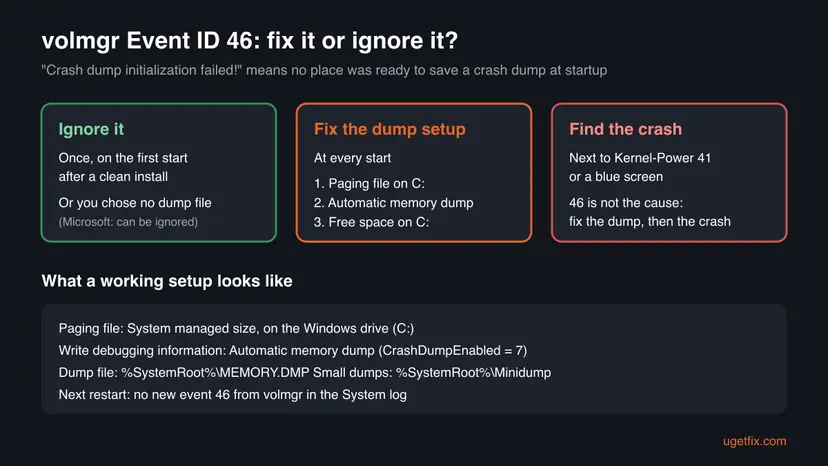
Why crash dump initialization fails, most common cause first
Most often the paging file is off or was moved. Less often the dump setting points to a drive or size Windows cannot use. Rarely the disk or its driver cannot be reached at that early moment of startup.
| Cause | How common | Sign | Fix |
|---|---|---|---|
| First start after a clean install | Common, harmless | One event 46 on the day Windows was installed, none later | None: Fix 1 confirms it |
| Paging file turned off, or set only on a second drive | Most common repeat cause | Event 46 at every start; Virtual memory shows No paging file for C: | Fix 2 |
| Paging file too small for the chosen dump type | Common after tuning guides | A fixed small size; Complete memory dump selected | Fix 2 and Fix 3 |
| Dump writing set to (none) or to a path that does not exist | Less common | CrashDumpEnabled is 0, or DumpFile points to a missing drive | Fix 3 |
| Very little free space on the Windows drive | Less common | C: is almost full | Fix 4 |
| File system errors or a storage driver problem | Rare | Disk warnings in the System log, or new controller settings | Fix 5 and Fix 6 |
A changed CPU, motherboard or memory setting does not cause event 46 on its own. If your PC also crashes, the crash has its own cause. Fix 7 shows where to look for it once the dump works again.
How to fix volmgr Event ID 46
Fix 1 tells you whether there is anything to fix. Fixes 2 and 3 solve most repeat cases and take about ten minutes with one restart. Fixes 4 to 6 are for the rare cases where the settings are right and the event stays. Fix 7 is for readers whose PC also crashes.
| What you see or have | Start with |
|---|---|
| One event 46, on the day Windows was installed. | Fix 1: nothing else to do |
| Event 46 at every start. | Fix 2, then Fix 3 |
| You followed a guide that turned off or shrank the paging file. | Fix 2 |
| The paging file is fine, but the dump setting is (none) or on another drive. | Fix 3 |
| Settings are right and the C: drive is nearly full. | Fix 4 |
| Disk warnings in the log, or you changed the storage controller mode. | Fix 5, then Fix 6 |
| The PC also crashes, restarts or shows blue screens. | Fix 2 and Fix 3 first, then Fix 7 |
Fix 1. Check when event 46 appears and what stands next to it
5 minutesNo riskEveryone who found event 46 and wants to know whether it needs a fix.
Microsoft says event 46 can be ignored after a clean install or when no dump is wanted. Its timing and its neighbours tell you which case is yours, and whether a crash sits next to it.
- Right-click Start and select Terminal (Admin). On Windows 10, type
PowerShellin the search box, right-click Windows PowerShell and select Run as administrator. - Select Yes when Windows asks for permission.
- Paste the command below and press Enter. It lists the volmgr events and the start and crash events of the last 30 days, oldest first.
- Check the ProviderName column. Only rows from
volmgrwith Id 46 are this event. - Count the days with a 46. One row on the install date means it was the first boot.
- Look at the rows with the same start time: a Kernel-Power 41, a 6008 or a 1001 there means the PC crashed or lost power before that start.
PowerShell (as administrator): volmgr and start events, last 30 days
Get-WinEvent -FilterHashtable @{ LogName='System'; Id=41,46,161,162,1001,6005,6008; StartTime=(Get-Date).AddDays(-30) } |
  Sort-Object TimeCreated |
Format-Table TimeCreated, Id, ProviderName, Message -Wrap| Pattern | Meaning | Next |
|---|---|---|
| One 46 on the install date, none since | The first boot before the paging file existed | Nothing to fix |
| 46 after every 6005 (each start) | No usable dump file is configured | Fix 2 |
| 46 together with 41 or 6008 after a crash | The PC crashed and the next start had no dump file | Fix 2, Fix 3, then Fix 7 |
| "Dump file creation failed due to error during dump creation" | A crash happened and writing the dump failed | Fix 2 to Fix 5 |
| "Dump file generation succeeded" | The dump was saved; event 46 was a one-off | Read the dump (Fix 7) |
It worked if: You know whether event 46 was a one-time entry, a repeat at every start, or a companion of real crashes.
If not: If the command returns no rows, the System log does not reach back 30 days. Change -30 to a larger number, or go straight to Fix 2.
Fix 2. Set the paging file to System managed size on the Windows drive
5 minutes and a restartLow riskEvent 46 appears at every start, or you once turned off, shrank or moved the paging file.
Microsoft's resolution for event 46 is to complete the paging file setup, because the paging file is the default dump file. A small dump needs a paging file of at least 2 MB on the boot volume.
- Press Win + R, type
sysdm.cpland select OK. System Properties opens. - Open the Advanced tab. Under Performance, select Settings.
- In Performance Options, open the Advanced tab and select Change under Virtual memory.
- Tick Automatically manage paging file size for all drives.
- If the box was already ticked, clear it, select the C: drive, choose System managed size and select Set.
- Select OK in each window and restart the PC when Windows asks.
PowerShell: check the paging file before and after
Get-CimInstance Win32_ComputerSystem | Select-Object AutomaticManagedPagefile
Get-CimInstance Win32_PageFileUsage | Select-Object Name, AllocatedBaseSize, CurrentUsageSome tuning guides move the paging file to a second SSD and set C: to No paging file. Windows can then still page, but it has no dump file on the boot volume. Keep at least a System managed paging file on C:, even if you keep one on the other drive too.
It worked if: AutomaticManagedPagefile is True, or C:\pagefile.sys is listed with a size, and the next start logs no new event 46 from volmgr.
If not: If event 46 comes back after the restart, check the dump settings in Fix 3.
Fix 3. Choose Automatic memory dump in Startup and Recovery
5 minutes and a restartLow riskThe paging file is fine, but the dump setting is (none), Complete memory dump on a small paging file, or a path on another drive.
The dump type decides how large the paging file must be. A complete dump needs a paging file as large as all RAM plus 257 MB, so the wrong type on a normal paging file can leave no usable dump file.
- Press Win + R, type
sysdm.cpland select OK. On the Advanced tab, select Settings under Startup and Recovery.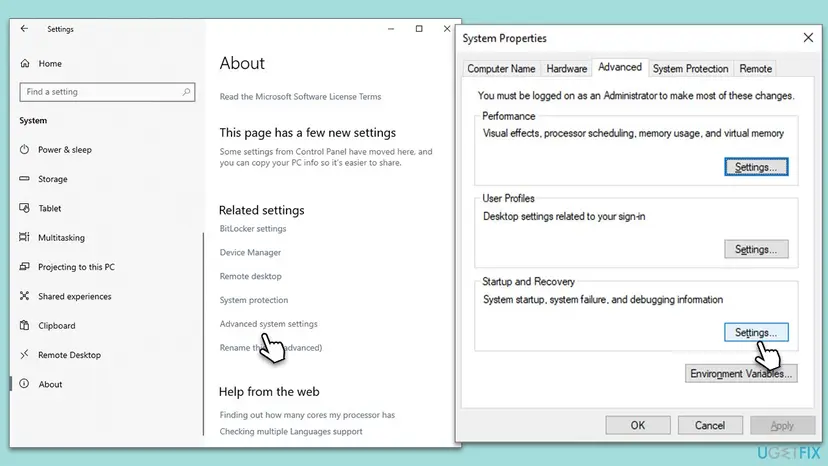
The way to Startup and Recovery on Windows 10. Windows 11 opens the same System Properties window from Settings > System > About. - Under System failure, keep Write an event to the system log ticked.
- Under Write debugging information, choose Automatic memory dump. This is the Windows default.
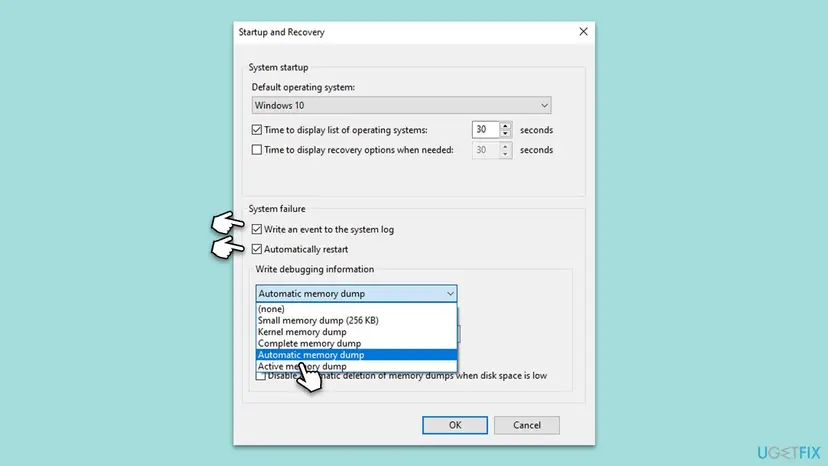
The Write debugging information list: (none), Small, Kernel, Complete, Automatic and Active memory dump. The dialog is the same on Windows 11. - Check that Dump file shows
%SystemRoot%\MEMORY.DMP. If it points to a drive that no longer exists, type that path back. - Select OK, close System Properties and restart the PC.
- Automatic memory dump
CrashDumpEnabled= 7. Saved as%SystemRoot%\MEMORY.DMP.- Kernel memory dump
CrashDumpEnabled= 2. Needs a paging file large enough for kernel memory.- Complete memory dump
CrashDumpEnabled= 1. Needs a paging file of all RAM plus 257 MB on a local volume.- Small memory dump
CrashDumpEnabled= 3. One file per crash in%SystemRoot%\Minidump; needs a paging file of 2 MB or more on the boot volume.- None
CrashDumpEnabled= 0. No dump is written, and Microsoft says event 46 can then be ignored.
PowerShell: read the current dump settings (changes nothing)
Get-ItemProperty 'HKLM:\SYSTEM\CurrentControlSet\Control\CrashControl' |
  Select-Object CrashDumpEnabled, DumpFile, MinidumpDir, LogEvent, AutoReboot
It worked if: CrashDumpEnabled reads 7 and DumpFile reads %SystemRoot%\MEMORY.DMP, and no new event 46 is logged at the next start.
If not: If both settings are right and event 46 still comes back, free up space on the Windows drive with Fix 4.
Fix 4. Free up space on the Windows drive
10 minutesLow riskThe paging file and dump settings are right, and the C: drive is almost full.
Windows needs room on the boot volume for the paging file it uses as the dump file. With almost no free space, a System managed paging file cannot grow to the size the dump type asks for.
Use Storage settings and Disk Cleanup to remove temporary files, then restart. Step by step: Free up disk space and delete temporary files
- Open Storage settings. Select Start > Settings > System > Storage. The top of the page shows how full the drive is and what uses the space.
- Open Cleanup recommendations. Under Storage management, select Cleanup recommendations.
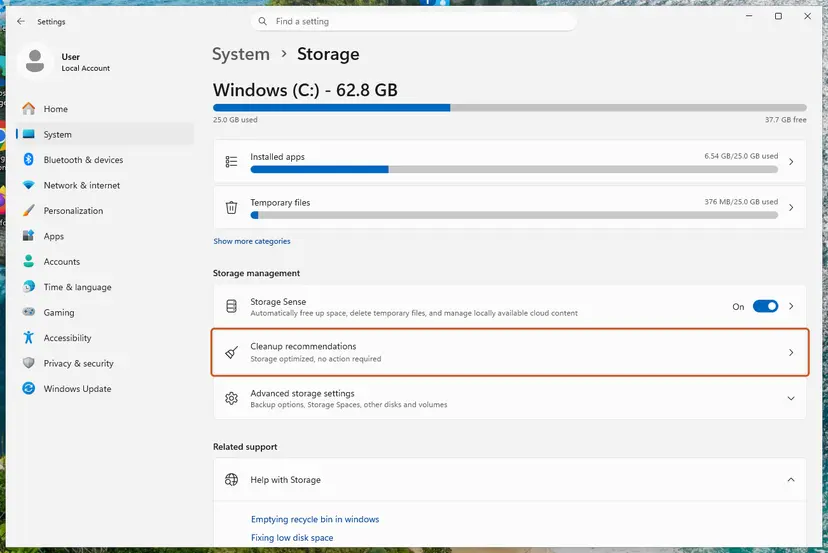
Settings, System, Storage: Cleanup recommendations is under Storage management. Screenshot: Windows 11 26H2. - Clean up what Windows suggests. Open each group (Temporary files, Large or unused files, Files synced to the cloud, Unused apps), check the items you do not need and select Clean up in that group.
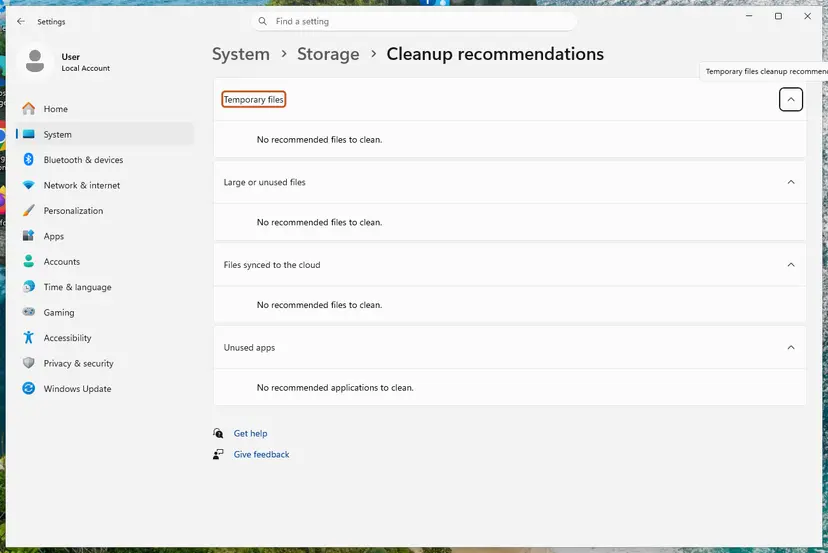
Cleanup recommendations groups the suggestions; on our test PC there was nothing to clean yet. Screenshot: Windows 11 26H2.
These steps were written for Windows 11 (screenshots: 26H2). The full page with the other versions and what each result means: Free up disk space and delete temporary files
In Startup and Recovery, the box Disable automatic deletion of memory dumps when disk space is low is cleared by default. Leave it that way on a small drive, so an old MEMORY.DMP does not fill C:.
It worked if: Several gigabytes are free on C:, and the next start logs no event 46.
If not: If space is not the issue, check the drive for file system errors in Fix 5.
Fix 5. Check the Windows drive for file system errors
10 to 30 minutesLow riskThe System log shows disk or NTFS warnings, or the PC lost power during a write.
The dump file lives on the Windows drive. If the file system there is damaged, Windows can fail to prepare the paging file as a dump target at startup.
Run chkdsk on C:, schedule the repair for the next start and read the result afterwards. Step by step: Check a disk for errors (chkdsk)
- Open Command Prompt as administrator. Type cmd in the search box on the taskbar, right-click Command Prompt and select Run as administrator. Select Yes when Windows asks for permission.
- Scan the drive without changing anything. Type the command below and press Enter. Replace C: with another drive letter to check that drive. This scan only reports; it does not fix anything.
chkdsk C: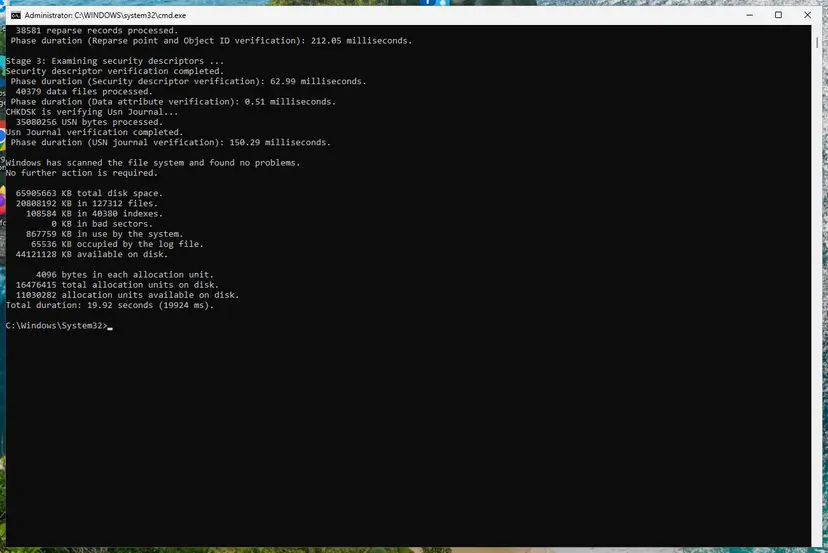
A clean result: no problems found and 0 KB in bad sectors. Screenshot: Windows 11 26H2. - If errors were found, run the repair. Run chkdsk with /f to fix file system errors. On the Windows drive (C:) chkdsk cannot lock the drive while Windows is running, so it offers to check it at the next restart.
chkdsk C: /f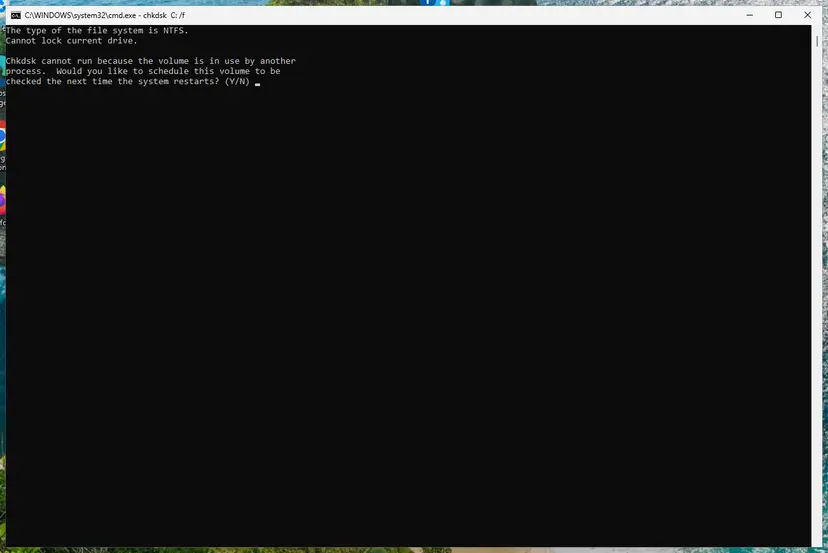
On the system drive chkdsk /f asks to run at the next restart. Screenshot: Windows 11 26H2. - Schedule the check and restart. Type Y and press Enter, then restart the PC. chkdsk runs before Windows starts. Do not turn the PC off while it runs.
These steps were written for Windows 11 and Windows 10 (the steps are the same). The full page with the other versions and what each result means: Check a disk for errors (chkdsk)
It worked if: chkdsk reports no problems, or it fixed them, and event 46 does not return.
If not: If chkdsk finds bad sectors or cannot finish, back up your files at once and go to the hardware signs in the section after the fixes.
Fix 6. Update the storage controller and chipset drivers
15 minutesLow riskEvent 46 started after a new motherboard, a BIOS update, a change of the SATA or RAID mode, or a new NVMe drive.
At a crash, Windows writes the dump through the driver of the disk controller. Users report messages such as "The system could not sucessfully load the crash dump driver" after controller changes, and a current driver from the maker removes that mismatch.
- Note your motherboard or PC model: press Win + R, type
msinfo32and read BaseBoard Product or System Model. - Download the chipset and storage (SATA, RAID or NVMe) drivers for that model from the board or PC maker's support page.
- Install them and restart.
- If you changed the SATA mode in the firmware (AHCI, RAID or Intel VMD) after Windows was installed, set it back to what it was.
To update or roll back one driver in Device Manager: Update, roll back or reinstall a driver
It worked if: The storage controller under Storage controllers in Device Manager shows no warning, and event 46 stops.
If not: If nothing changes, repair the system files in Fix 7's first step, then read the crash evidence.
Fix 7. If the PC also crashes: repair system files and find the real crash
30 minutesLow riskYour PC restarts, freezes or shows blue screens, and event 46 sits next to those crashes in the log.
Event 46 only says the last crash could not be saved. Once Fixes 2 and 3 make the dump work, the next crash leaves a stop code and a file, and those name the driver or part behind it.
- Repair the Windows files once with DISM and SFC: Run DISM and SFC to repair Windows system files
- In Startup and Recovery, clear Automatically restart for a while, so the next blue screen stays on screen and you can note the stop code.
- After the next crash, check for
C:\Windows\MEMORY.DMPor a new file inC:\Windows\Minidump. - Read the event 41, 1001 and 6008 entries of that crash. Our guide to Event ID 6008 shows how to read them together.
- After a new CPU, update the motherboard firmware to a version whose CPU support list names your processor, and run the memory test: How to test your RAM with Windows Memory Diagnostic
With the box cleared, the PC stays on the blue screen until you restart it. That helps on a desk PC. On a remote server leave it ticked and rely on the dump file.
It worked if: The next crash leaves a stop code and a dump file, and the System log logs a volmgr "Dump file generation succeeded" entry instead of event 46.
If not: If the PC goes off with no blue screen and no dump, even with the dump set up, it is likely power or hardware. See the next section.
If event 46 stays: what to collect and when it is hardware
When the paging file is System managed on C:, the dump type is Automatic and event 46 still appears at every start, collect the facts before changing more settings. A repair shop, the PC maker or Microsoft Support can work with them.
- The event history. The output of the command in Fix 1 for 30 days or more.
- The paging file and dump settings. The output of the two read-only commands in Fix 2 and Fix 3.
- What changed. A new CPU, board, drive, BIOS version, SATA mode or a tuning tool before the first event 46.
- Dump files, if any.
%SystemRoot%\MEMORY.DMPand the files in%SystemRoot%\Minidump. - Disk health. The chkdsk result from Fix 5 and any disk or NTFS warnings in the System log.
| Sign | Why |
|---|---|
| chkdsk finds bad sectors, or the drive drops out | The dump target itself is failing |
| Crashes with no blue screen and no dump, with dumps set up | Windows never got to write anything, which fits power or hardware |
| Crashes started right after a CPU or memory change | Firmware support, memory settings or seating are more likely than Windows |
| Different stop codes from crash to crash | One bad driver usually repeats one code |
If you do not want dump files at all, set Write debugging information to (none). Microsoft says event 46 can then be ignored. You lose the evidence of future crashes, so we do not suggest this on a PC that crashes.
How to keep event 46 from coming back
- Leave the paging file on. Tuning guides that turn it off to save space or "speed up" an SSD are the most common way back to event 46.
- Keep one paging file on C:. A paging file on a second drive is fine as an extra, not as the only one.
- Keep Automatic memory dump. It sizes itself to what the paging file allows.
- Keep free space on C:. A nearly full Windows drive leaves no room for the paging file to grow.
- Check the log after hardware changes. Run the command from Fix 1 once after a new CPU, board, drive or BIOS update.
These settings cost nothing in daily use. They only matter on the day the PC crashes, when a saved dump is the fastest way to the cause.
Frequently asked questions
What does Event ID 46 "Crash dump initialization failed!" mean?
It means the Volume Manager driver, volmgr, could not prepare a place to save a crash dump while Windows was starting. Microsoft's article on the event says this happens when the computer boots without a configured dump file. The default dump file is the paging file, so the usual reason is a paging file that is off, too small or not on the Windows drive. The event does not mean anything crashed at that moment. It means a crash, if one came later, could not be saved.
Is volmgr 46 something I need to fix?
Not always. Microsoft says the event can be ignored when it is logged during a clean install, or when you do not want a dump file. One event 46 on the day Windows was installed is normal, because the paging file did not exist yet on that first boot. If it appears at every start, the dump setup is broken and it is worth a fix, mainly so that a future blue screen leaves evidence. Fix 1 shows which case you have in about five minutes.
Does Event ID 46 cause crashes or blue screens?
No. Event 46 is logged at startup and only reports that crash dumps cannot be saved. People see it next to crashes because the start after a crash logs it together with Kernel-Power 41 or event 6008. The crash has another cause: a driver, overheating, power, memory or the firmware. Fixing event 46 makes the next crash leave a dump file and a stop code, and those point to the real cause. Fix 7 covers that path.
My PC crashes since I replaced the CPU, and the log shows event 46. What now?
Treat them as two problems. First restore the paging file and the dump settings with Fix 2 and Fix 3, so the next crash is recorded. Then work on the crash. After a CPU swap, check that the motherboard firmware is a version whose CPU support list names the new processor, that memory runs at settings the board supports, and that the cooler is seated well. Run the memory test from Fix 7. If crashes continue, read the stop code and the dump.
Where is the Windows crash dump file?
With Automatic, Kernel or Complete memory dump, Windows writes %SystemRoot%\MEMORY.DMP, which is normally C:\Windows\MEMORY.DMP. The next crash overwrites it while Overwrite any existing file is ticked. Small memory dumps go to %SystemRoot%\Minidump, one new file per crash, with the date in the name. You can see and change both paths in Startup and Recovery under Dump file. The registry values behind them are DumpFile and MinidumpDir under the CrashControl key.
How do I enable crash dumps on Windows 11?
Press Win + R, type sysdm.cpl and select OK. On the Advanced tab, select Settings under Startup and Recovery. Under Write debugging information, choose Automatic memory dump and keep the dump file at %SystemRoot%\MEMORY.DMP. Then make sure the paging file is System managed on the C: drive, as in Fix 2, and restart. Microsoft notes that the changes take effect only after a restart. The steps are the same on Windows 10.
What does "Dump file creation failed due to error during dump creation" from volmgr mean?
It is a different volmgr event from event 46. It is logged after a crash, when Windows tried to write the dump and could not finish it. So a crash did happen, and the evidence was lost. The causes overlap with event 46: a paging file that is too small for the dump type, too little free space on C:, or a disk or storage driver problem. Work through Fix 2 to Fix 5, and read the crash itself with Fix 7.
Should I set NMICrashDump in the registry to fix event 46?
No. Some older guides, our earlier version of this page included, suggest creating the NMICrashDump value under the CrashControl key. Microsoft says this value is not required on Windows 8 and later or Windows Server 2012 and later, and that setting it there has no effect. It was meant for servers that start a dump with a hardware NMI switch. It does not touch the paging file problem behind event 46, so leave the registry alone and use Fix 2 and Fix 3.
What does "shift was held during dump initialization" mean?
We could not find this text in Microsoft's documentation of the volmgr events, so we cannot say what writes it or what it means. If you see it in your own log, note its source and event ID and run the command from Fix 1, which lists every volmgr event of the last 30 days. If it sits next to event 46 at every start, the paging file and dump settings in Fix 2 and Fix 3 are still the place to begin.
Is there a guide in Portuguese, Russian or Korean for volmgr 46?
This page is in English only. The steps are the same in every language of Windows, but the names on screen are translated. In Portuguese Windows the event text is the translation of "Crash dump initialization failed!", and people search for it as "volmgr 46 crash dump initialization failed solução" or "erro volmgr 46". The event ID 46 and the source volmgr do not change with the language, so the commands in Fix 1 to Fix 3 work as written.
Sources
- Microsoft Learn: Event ID 46 is logged when you start a computer (volmgr, Crash dump initialization failed!) (learn.microsoft.com)
- Microsoft Learn: Overview of memory dump file options for Windows (learn.microsoft.com)
- Microsoft Learn: Generate a kernel or complete crash dump (learn.microsoft.com)
Did this fix work?
One click, no account. It tells the next reader which guides are worth their time.
Questions and experiences: fix Event ID 46 (Crash dump initialization failed) in Windows
Still broken, or found a fix we did not cover? Ask here: members and our editors answer. Reading is open; writing needs a free account.
…