
How to fix Event ID 566 Kernel-Power error?

Prefer to fix it yourself? The manual steps follow.
- 7methods
- 5 minutes to read the event, 20 minutes to find a wake or crash cause
- Intermediate
Applies to Windows 11, Windows 10, Windows Server 2022 and later
7 methods in this guide
Hello. I got a new device and it randomly crashes on me. It was working fine for a while. Now Event Viewer shows a kernel error. The code Event ID 566 Kernel-Power even appears. But I have no idea how to fix this. Help me.
Kernel-Power Event ID 566 reads "The system session has transitioned from X to Y" and is an Information entry, not an error. Windows writes it each time the PC changes power state, such as sleep, wake or shutdown. Fix nothing until you have checked whether a real crash or an unwanted wake sits next to it.
Event 566 from Kernel-Power is not an error and does not cause crashes. It only records that the power session changed, for example from sleep to working. Open its Details tab and read the Reason (Fix 1). If your PC really crashes, look for Kernel-Power 41 or EventLog 6008 at the same time (Fix 2). If it wakes by itself, ask powercfg what woke it (Fix 3).
| Error | Event ID 566, source Kernel-Power, level Information, Task Category (268): "The system session has transitioned from [n] to [n+1]." Windows 11 adds "Reason" and a name such as SxTransition. |
|---|---|
| Where it appears | Event Viewer, Windows Logs > System. Logged at every change of the power session: sleep, wake, hibernation, shutdown and some screen and input events. |
| Main cause | Normal power state changes. It is a record, not a fault, and appears on healthy PCs many times a day. |
| Fastest fix | Nothing to fix by itself. Read its Details tab (Fix 1), then check for Kernel-Power 41 or EventLog 6008 at the same time (Fix 2). |
| Also written as | Event 566, EventID 566, Kernel-Power 566, kernel power event 566, error 566, "The system session has transitioned from 0 to 1", "from 1 to 3", "from 4 to 6". |
| What the numbers mean | Session numbers that count up from 0 at each start. They are not error codes, so "from 4 to 6" means the same kind of entry as "from 0 to 1". |
| Affects | Windows 11, Windows 10 and Windows Server 2022. Windows 11 shows the Reason as a name, older versions as a number such as "Reason: 22". |
| Vendor status | Microsoft does not document event 566 as a fault. The Reason names come from Microsoft's documented list of power monitor request reasons. |
| Time to fix | 5 minutes to rule it out. 20 minutes or more when an unwanted wake or a real crash stands next to it. |
Facts checked on 15 October 2026. Steps written for Windows 11 (25H2 and 26H2) and Windows 10 22H2, with notes for Windows Server.
What Kernel-Power Event ID 566 means and why it is not an error
Event ID 566 comes from the provider Microsoft-Windows-Kernel-Power in the System log. Its level is Information, the same level as "the Event log service was started". Its General tab shows one short line, for example "The system session has transitioned from 0 to 1." On Windows 11 a second line names the reason, such as "Reason SxTransition".
The line is a summary of the event data on the Details tab. There Windows stores the number of the session that ended, the number of the session that started, the power state of each, how long the previous one lasted, the battery charge at its start and end, and why the state changed.
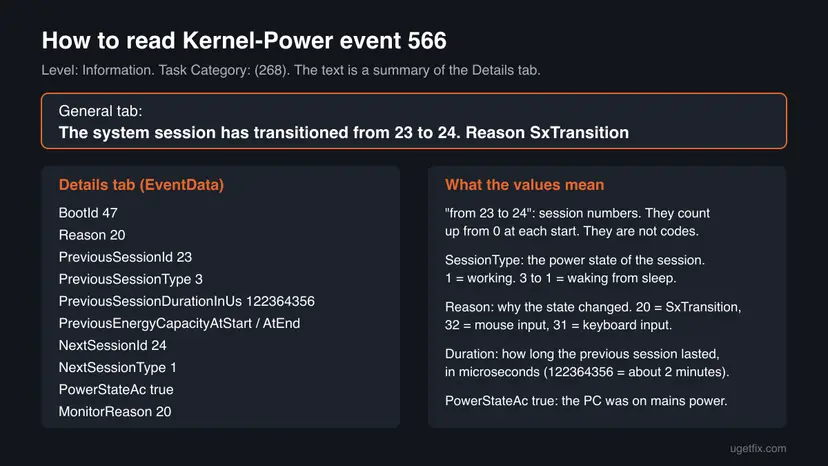
"From 23 to 24" means session 23 ended and session 24 began. The counter starts at 0 when Windows starts, so a PC that sleeps and wakes often reaches high numbers by evening. "From 0 to 1", "from 1 to 3" and "from 4 to 6" are the same kind of entry.
- Other spellings. Event 566, EventID 566, Kernel-Power 566, kernel power event 566 and error 566 all mean this one entry. The number is an event ID, not a Windows error code.
- Not the Security log event 566. Older Windows versions used Security log event 566 for an object operation. That is a different event from a different source and has nothing to do with power.
- Why the numbers sometimes jump by two. We could not confirm from Microsoft why some entries go from 1 to 3 or from 4 to 6. Treat it as normal unless a crash event sits next to it.
The Reason in event 566: what woke, slept or changed the PC
The Reason is the useful part of the event. Windows 11 prints its name on the General tab. Windows 10 and Windows Server print a number, for example "Reason: 22". The names match Microsoft's documented list of power monitor request reasons, and the number is the position in that list, counted from 0.
| Number | Name in Microsoft's list | What it usually means |
|---|---|---|
| 1 | MonitorRequestReasonPowerButton | The power button was pressed. |
| 4 | MonitorRequestReasonUserInput | General user input. |
| 5 | MonitorRequestReasonAcDcDisplayBurst | The charger was plugged in or pulled out. Windows 11 users report it as "AcDcBurst". |
| 10 | MonitorRequestReasonSessionUnlock | The session was unlocked. |
| 12 | MonitorRequestReasonIdleTimeout | The idle timer ran out, so the screen or PC went to sleep. |
| 15 | MonitorRequestReasonLid | The laptop lid was opened or closed. |
| 18 | MonitorRequestReasonPnP | A device was added or removed. |
| 20 | MonitorRequestReasonSxTransition | A sleep or wake transition of the whole system. |
| 22 | MonitorRequestReasonNearProximity | A proximity signal. Seen on a Windows Server 2022 machine in a Microsoft Q&A thread. |
| 23 | MonitorRequestReasonThermalStandby | Standby because of heat. Worth a closer look. |
| 25 | MonitorRequestReasonResumeS4 | Resume from hibernation, which Fast Startup also uses. |
| 31 to 35 | UserInputKeyboard, Mouse, Touchpad, Pen, Accelerometer | A key, the mouse, the touchpad, a pen or a motion sensor woke the PC. |
| 50 | MonitorRequestReasonResumeModernStandby | Resume from Modern Standby on laptops and tablets. |
The session type fields work the same way. A technical answer on Super User maps them to the Windows power states: 1 is working, 2 to 4 are sleep states, 5 is hibernation and 6 is shutdown. In its example, type 3 followed by type 1 meant waking from sleep. Microsoft does not document this mapping for event 566, so use it as a hint.
Why you see event 566, and when it points to a real problem
Most often, event 566 is simply Windows going to sleep, waking up, or switching the screen state, and nothing is wrong. Less often, it marks an unwanted wake, a sleep that did not happen or a restart that did not finish. Rarely, it sits right before a crash, and then the crash is the problem, not 566.
| What you notice | What the log shows | Cause | Fix |
|---|---|---|---|
| Nothing, you were just reading the log. | Many 566 entries with Reasons such as SxTransition, IdleTimeout or keyboard and mouse input. | Normal power changes. | Fix 1, then leave it. |
| The PC crashes, restarts or goes black. | Kernel-Power 41, EventLog 6008 or a 1001 bug check at the same start. | A crash or a loss of power. 566 is only next to it. | Fix 2, then Fix 7 |
| The PC wakes up at night or by itself. | 566 with SxTransition or an input Reason at the time of the wake. | A device or a wake timer. | Fix 3, then Fix 4 |
| The laptop drains its battery in standby or is warm in the bag. | Many 566 entries during the night, Reasons such as ResumeModernStandby. | Modern Standby keeps waking. | Fix 5 |
| Shutdown or restart does not finish, or a restart is ignored once. | 566 at the time you asked for the restart, no 1074 restart record. | Fast Startup, a driver or an app blocking the change. | Fix 6, then Fix 4 |
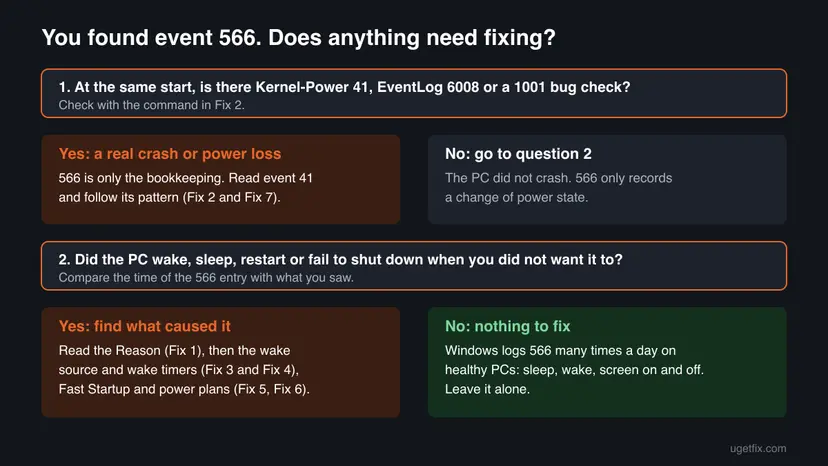
If your PC really crashes, as in the question above, event 566 is not the clue to follow. Look for Kernel-Power 41 at the same time. Its Details tab tells a crash from a power loss, and our guide to Event ID 6008 explains each pattern.
How to read Event ID 566 and fix what stands behind it
Fix 1 and Fix 2 take about ten minutes and tell you whether there is anything to fix. Fixes 3 to 6 deal with unwanted wakes, standby drain and restarts that do not finish. Fix 7 is for a real crash found next to event 566.
| What you see or have | Start with |
|---|---|
| You found event 566 and want to know what it is. | Fix 1 |
| Your PC crashes, restarts by itself or goes black. | Fix 2, then Fix 7 |
| Your PC wakes up from sleep when nobody touches it. | Fix 3, then Fix 4 |
| Your PC does not go to sleep, or sleeps and wakes again at once. | Fix 4 |
| Your laptop loses battery in standby. | Fix 5 |
| Shut down or restart does not finish, or a restart is ignored. | Fix 6 |
Fix 1. Open the Details tab of event 566 and read the Reason
5 minutesNo riskEveryone who found event 566 and wants to know what it records.
The General tab gives only two session numbers. The Details tab shows the session types and the Reason, which tell you whether the PC slept, woke, hibernated or shut down, and what triggered it.
- Press Win + R, type
eventvwrand select OK. - Expand Windows Logs and select System.
- Select Filter Current Log in the right pane, type
566in the event ID box and select OK. - Double-click an entry whose source is Kernel-Power.
- On the General tab, note the time, the two session numbers and the Reason.
- Open the Details tab, choose Friendly View and expand EventData.
- Read PreviousSessionType, NextSessionType and Reason, and compare them with the Reason table above.
PowerShell: the last 20 entries of event 566 with their text
Get-WinEvent -FilterHashtable @{ LogName='System'; ProviderName='Microsoft-Windows-Kernel-Power'; Id=566 } -MaxEvents 20 |
Format-Table TimeCreated, Message -Wrap- PreviousSessionDurationInUs is in microseconds. Divide by 1,000,000 to get seconds: 122364356 is about two minutes.
- PowerStateAc true means the PC was on mains power. On a laptop, false means it ran on battery.
- Energy capacity fields show the battery charge at the start and end of the session. A large drop over a short sleep is a sign for Fix 5.
It worked if: You know which change each entry records, for example a wake by mouse input at 07:02 or a sleep after the idle timer ran out.
If not: If the Reason is only a number, look it up in the Reason table. If the time matches a crash or a black screen, go to Fix 2.
Fix 2. Check whether a real crash or power loss sits next to event 566
5 minutesNo riskYour PC crashes, restarts by itself or goes black, and event 566 is what you found in the log.
Event 566 is logged around every power change, so it also appears near crashes. The events that describe a crash are Kernel-Power 41, EventLog 6008 and the 1001 bug check record. One list shows whether any of them is there.
- Right-click Start and select Terminal (Admin). On Windows 10, search for
PowerShell, right-click it and select Run as administrator. - Paste the command below and press Enter.
- Read the rows around the time of your crash.
- If you see only 566 rows, the PC changed power state normally. Go back to Fix 1.
- If you see ID 41 or ID 6008, the shutdown was not clean. Open that event 41 in Event Viewer and read BugcheckCode and PowerButtonTimestamp on its Details tab.
- If you see ID 1001 with the text "The computer has rebooted from a bugcheck", Windows crashed. Note the bug check code and go to Fix 7.
PowerShell (as administrator): power and crash events of the last 7 days, oldest first
Get-WinEvent -FilterHashtable @{ LogName='System'; Id=41,566,1001,6008; StartTime=(Get-Date).AddDays(-7) } |
  Sort-Object TimeCreated |
Format-Table TimeCreated, Id, ProviderName, Message -WrapEvent 41 with a BugcheckCode above 0 is a crash. Event 41 with only zeros usually means lost power or a hardware fault. Every pattern, with the next step for each, is in our guide to Event ID 6008.
It worked if: You can say for sure whether the PC crashed or lost power, or whether event 566 stands alone.
If not: If 41 or 6008 is there, follow the 6008 guide and Fix 7. If only 566 is there and the PC still wakes or restarts on its own, go to Fix 3.
Fix 3. Find out what woke the PC and stop that device from waking it
10 minutesLow riskEvent 566 shows a wake at a time when nobody used the PC, for example at night.
A wake is logged as event 566 with a Reason such as SxTransition or an input type. Microsoft's powercfg tool reports what woke the system from the last sleep and which devices are allowed to wake it.
- Right-click Start and select Terminal (Admin).
- Run
powercfg /lastwakeright after an unwanted wake and read the Wake Source lines. - Run
powercfg /devicequery wake_armedto list every device that may wake the PC. - Find the device you do not need as a wake source, often a mouse, a network adapter or a USB hub.
- Run
powercfg /devicedisablewake "device name"with the name exactly as the list shows it. - Run
powercfg /devicequery wake_armedagain and check that the device is gone from the list.
Terminal (as administrator): what woke the PC, and which devices may wake it
powercfg /lastwake
powercfg /devicequery wake_armed
powercfg /devicedisablewake "HID-compliant mouse"Keep at least the keyboard or the power button as a way to wake the PC. To allow a device again, run powercfg /deviceenableawake "device name". Microsoft's powercfg reference spells this option with the extra letter a.
It worked if: The device no longer appears in the wake_armed list, and the next nights show no 566 wake entries at the times you were away.
If not: If powercfg /lastwake shows no wake source, a timer or a program woke the PC. Go to Fix 4.
Fix 4. Check wake timers and the programs that keep the PC awake
10 minutesLow riskThe PC wakes with no device as the source, or it does not go to sleep when it should.
Scheduled tasks and drivers can set wake timers, and apps can hold power requests that block sleep. Both show up only as power changes in event 566, while powercfg names the program behind them.
- Open Terminal (Admin) as in Fix 3.
- Run
powercfg /waketimers. Each line names the process or task that set a timer and when it runs out. - Run
powercfg /requests. It lists the apps, services and drivers that ask Windows to stay awake or keep the screen on. - If a scheduled task set the timer, open Task Scheduler, find that task and check whether it needs to wake the PC.
- If an app holds a request you do not need, close it or change its settings, then try sleep again.
- Run both commands again before the next sleep to confirm the change.
Terminal (as administrator): wake timers and power requests
powercfg /waketimers
powercfg /requests
Microsoft describes wake timers as timers that, if enabled, wake the system from sleep and hibernate states when they run out. A media player, a download or a backup that is still running often appears in the requests list. That is normal while it runs.
It worked if: Both lists are empty or show only what you expect, and the PC sleeps and stays asleep.
If not: If the lists are empty and the PC is a laptop that still drains or wakes, go to Fix 5. If shutdown or restart is the problem, go to Fix 6.
Fix 5. On a laptop, read the sleep study report for Modern Standby
15 minutesNo riskYour laptop or tablet shows many 566 entries at night, loses battery in standby or is warm in the bag.
Many current laptops use Modern Standby, where the PC stays partly active and changes sessions often, each logged as event 566. Microsoft's sleep study report shows which components were active during standby.
- Open Terminal (Admin).
- Run
powercfg /availablesleepstatesto see which sleep states your PC supports. A PC with S0 low power idle uses Modern Standby. - Run
powercfg /sleepstudy. It saves an HTML file in the current folder. - Open the file. Read the standby sessions with the highest drain and the components listed as most active.
- If one device or app tops the list, update it or turn it off during standby.
- Compare the session times in the report with the 566 entries in Event Viewer.
Terminal (as administrator): sleep states and the standby report
powercfg /availablesleepstates
powercfg /sleepstudy
powercfg /systemsleepdiagnostics- Sleep study. Microsoft describes it as a report of modern standby quality over the last three days.
- System sleep diagnostics. It reports intervals when the user was not present over the last three days, and whether the system went to sleep. It works on PCs without Modern Standby too.
It worked if: The report names the component that kept the laptop busy, and after you deal with it the drain per standby hour drops.
If not: If the report shows nothing unusual, contact the PC maker: standby behaviour also depends on its firmware and drivers.
Fix 6. Turn off Fast Startup when shutdown or restart misbehaves
5 minutesLow riskShut down does not finish, a restart is ignored once, or problems survive a shutdown but not a restart.
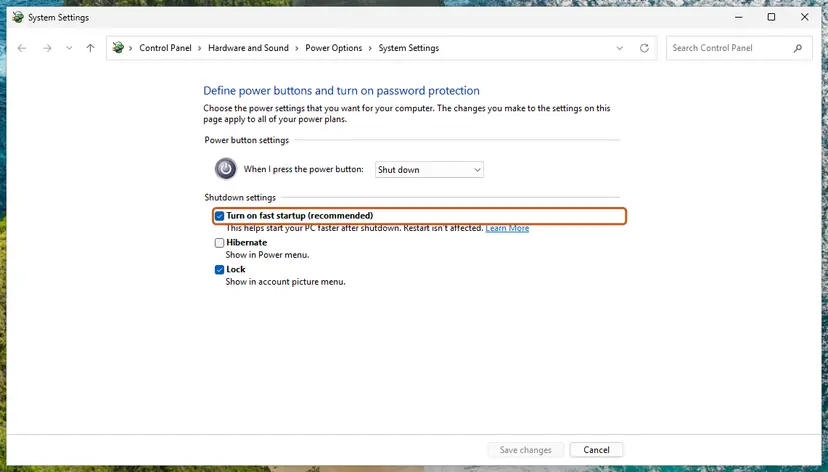
With Fast Startup on, a shutdown is partly a hibernation, so the kernel and drivers are saved and loaded again. A driver problem then survives the shutdown and shows as odd power transitions. Turning it off makes every shutdown a full one.
- Open Power Options. Press Windows key + R, type the command below and select OK.
powercfg.cpl - Open the power button settings. In the left pane, select Choose what the power buttons do.
- Make the shutdown settings editable. Select Change settings that are currently unavailable, then Yes when Windows asks for permission.
- Clear the Fast Startup box. Under Shutdown settings, clear Turn on fast startup (recommended).
- Save. Select Save changes.
- Shut down once. Shut down the PC and start it again. From now on every shutdown is a full one.
These steps were written for Windows 11 and Windows 10 (the steps are the same). The full page with the other versions and what each result means: Turn off Fast Startup
Every step, and what to do when the option is missing: Turn off Fast Startup Restart is not affected by Fast Startup, so if a restart already fixes your problem, this is a good sign it will help.
It worked if: Shutdown and restart finish normally, and the next start shows no Resume from hibernation Reason in event 566.
If not: If the restart is still ignored, run powercfg /requests from Fix 4 to see which program or driver blocks it.
Fix 7. If a crash sits next to event 566: drivers, memory and system files
30 minutes or moreLow riskFix 2 found a Kernel-Power 41 with a bug check code, a 1001 bug check or repeated 6008 entries.
Here the problem is the crash, and event 566 is only logged around it. On a new PC, the usual suspects are a chipset, graphics or storage driver, the firmware, or a memory fault, so check them in that order.
- Note the bug check code from event 1001 or from BugcheckCode in event 41.
- Open the support page of your PC or motherboard maker and install its latest chipset driver and firmware (BIOS or UEFI) update.
- If the crashes began after a driver update, roll that driver back in Device Manager.
- Run the Windows memory test, especially when the bug check codes change from crash to crash.
- Repair the Windows system files with DISM and SFC.
- Use the PC for a few days and run the command from Fix 2 again.
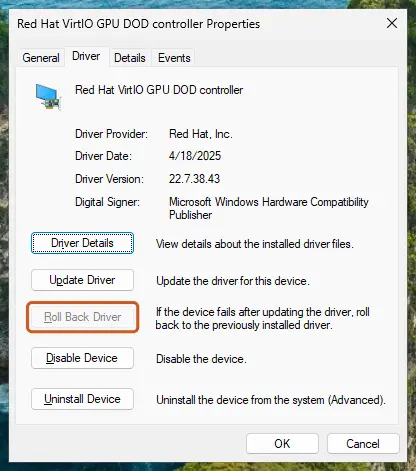
Driver update and rollback, step by step: Update, roll back or reinstall a driver The memory test: How to test your RAM with Windows Memory Diagnostic System file repair: Run DISM and SFC to repair Windows system files
A new device that crashes from the start can also be faulty. If the memory test reports errors, or event 41 shows only zeros after you ruled out power, use the warranty instead of more settings.
It worked if: No new event 41, 1001 or 6008 appears in the list from Fix 2 after the update or rollback.
If not: If the crashes go on, collect the evidence listed in the next section and contact the PC maker or a repair shop.
If the PC still crashes or wakes on its own: what to collect
Event 566 entries alone are never proof of a fault, so do not send them to support as the error. Send what describes the real symptom. That saves a round of questions from the PC maker, Microsoft Support or a repair shop.
- The event list from Fix 2 for 14 days or more, with IDs 41, 566, 1001 and 6008 together.
- Event 41 details. BugcheckCode and PowerButtonTimestamp of each Kernel-Power 41.
- Dump files.
C:\Windows\MEMORY.DMPand the files inC:\Windows\Minidumpafter a crash. - The powercfg reports. The output of
powercfg /lastwake,/waketimersand/requests, and the HTML file of/sleepstudyon a laptop. - What you were doing. Gaming, idle, asleep, lid closed, on battery or on mains power, each time it happened.
| Sign | Why it points to hardware |
|---|---|
| Kernel-Power 41 with only zeros, again and again. | Windows could not write any crash code, which fits a loss of power or a hardware fault. |
| Bug check codes that change from crash to crash. | One bad driver usually repeats one code. Changing codes fit memory, power or heat. |
| Crashes also in the firmware setup screen. | Windows is not running there, so no Windows setting can be the cause. |
| Reason ThermalStandby in event 566 before shutdowns. | The PC went to standby because of heat. Check the fans and the vents. |
How to keep event 566 normal and your power changes under control
- Read the Reason before you change anything. It tells you which device or event caused each change.
- Keep the chipset driver and the firmware of your PC current from the maker's support page.
- Allow only the devices you really use to wake the PC, and check
powercfg /devicequery wake_armedafter you add new hardware. - On a laptop, run
powercfg /sleepstudynow and then when standby drain grows. - Look for Kernel-Power 41 and EventLog 6008 first whenever the PC crashes.
- Do not try to remove or hide event 566. It is a normal record and stops nothing.
- Do not clear the System log to make it disappear. The history is what shows a pattern later.
- Do not install driver updater tools because of event 566. It is not a driver error.
- Do not change many power settings at once. Change one and watch the next day's entries.
Frequently asked questions
What does Event ID 566 Kernel-Power mean?
It means the Windows power session changed. Kernel-Power writes event 566 to the System log each time the PC moves between power states, such as working, sleep, hibernation and shutdown, and at some screen and input events. The text "The system session has transitioned from X to Y" names the old and the new session number. The Details tab holds the power state of each session and the Reason for the change. The level is Information, so it is a record of normal activity, not an error or a warning.
Is Kernel-Power event 566 an error I need to fix?
No. Event 566 is logged at the Information level and appears on healthy PCs many times a day. People search for error 566, but the number is an event ID, not a Windows error code. It needs attention only when it matches something you noticed, such as a wake in the night or a restart that did not finish. Then the Reason in the event points you to Fix 3, Fix 4, Fix 5 or Fix 6. If your PC crashes, the events to read are Kernel-Power 41 and EventLog 6008.
What does "The system session has transitioned from 0 to 1" mean?
It means session 0 ended and session 1 began. The numbers are session IDs that start at 0 when Windows starts and count up with every power change. The first entry after a start often reads "from 0 to 1". Later in the day you can see "from 1 to 3", "from 4 to 6" or numbers far above 50. We could not confirm why some entries skip a number. None of these numbers is an error code. To see what really happened, open the Details tab and read the session types and the Reason.
Can event 566 cause my PC to crash or restart?
No. An event is a record that Windows writes after something happens. It cannot cause a crash. Event 566 often appears near a crash only because the PC changes power state around it. To find the cause, list Kernel-Power 41, EventLog 6008 and event 1001 for the same time with the command in Fix 2. A bug check code in event 41 or 1001 means a crash, usually a driver or hardware fault. Event 41 with only zeros points to a loss of power or a hardware problem.
What is the Reason number or name in event 566?
It is why the power state changed. Windows 11 prints a name such as SxTransition, InputKeyboard, InputAccelerometer or AcDcBurst. Windows 10 and Windows Server print a number such as "Reason: 22". The names match Microsoft's documented list of power monitor request reasons, and the number is the position in that list counted from 0. For example, 20 is a system sleep or wake transition, 31 is keyboard input and 32 is mouse input. The table in this guide lists the common values.
Why do I have so many event 566 entries every day?
Because the PC changes power state often. Each sleep and wake, each idle timeout and, on laptops with Modern Standby, each short burst of activity in standby can add an entry. A PC that sleeps several times a day collects dozens of them, and the session numbers climb accordingly. Many entries are not a problem by themselves. They matter when the laptop drains its battery in standby or wakes when nobody touches it, and then the sleep study report from Fix 5 shows what kept it busy.
Is event 566 the same on Windows 10, Windows 11 and Windows Server?
Yes, the event ID, the source and the message are the same. The difference is the Reason. Windows 11 shows its name on the General tab, while Windows 10 and Windows Server 2022 show only a number, which you can look up in the table in this guide. The powercfg commands in Fixes 3 to 5 work on all of them. Windows 10 left support on 14 October 2025, so a Windows 10 PC no longer gets regular security updates.
Will updating drivers, disabling fast startup or running SFC fix event 566?
Not the event, because event 566 is not a fault and will keep appearing at every power change. These steps help only when the log shows a matching problem. A driver or firmware update helps when Kernel-Power 41 or a 1001 bug check shows real crashes. Turning off Fast Startup helps when shutdown or restart does not finish. A system file check repairs damaged Windows files, but it does not change how often the PC sleeps or wakes. Start with Fix 1 and Fix 2 to know which case you have.
Is Security log event 566 the same as Kernel-Power event 566?
No. Older Windows versions such as Windows Server 2003 used Security log event 566 for an object operation. It lives in the Security log and comes from a different source. The Kernel-Power event 566 discussed here lives in the System log and records power session changes. When you search for event 566, check the log name and the Source column first. Event numbers repeat across sources and only mean something together with the source.
Sources
- Microsoft Learn: POWER_MONITOR_REQUEST_REASON enumeration (ntpoapi.h) (learn.microsoft.com)
- Microsoft Learn: Powercfg command-line options (learn.microsoft.com)
- Super User: How to decode Kernel-Power Event 566 when waking from sleep (superuser.com)
Did this fix work?
One click, no account. It tells the next reader which guides are worth their time.
Questions and experiences: fix Event ID 566 Kernel-Power error
Still broken, or found a fix we did not cover? Ask here: members and our editors answer. Reading is open; writing needs a free account.
…