
How to fix File System Error (-2147219195) in Windows?

Prefer to fix it yourself? The manual steps follow.
- 8methods
- 5 minutes to 2 hours
- Intermediate
Applies to Windows 10 and Windows 11; Microsoft Photos, Microsoft Store, Groove Music (Media Player), WhatsApp and other apps installed from Microsoft Store
8 methods in this guide
Hi, every time I attempt to open the Photos app, I receive File System Error (-2147219195). This happens with a few other applications as well. I am running Windows 10 version 22H2.
File System Error (-2147219195) appears when you open Photos, Microsoft Store or another Store app, or run wsreset.exe, and Windows cannot start the app. Your pictures and your disk are fine. Repair and reset Photos first; if the Store and other apps fail too, register them again.
File System Error (-2147219195) is the Windows code 0x80040905 written as a negative number. It means Windows could not start a Store app such as Photos or Microsoft Store. If only Photos fails, repair and then reset it in Settings (Fix 1). If the Store, wsreset and other apps fail too, register the Store and your apps again in PowerShell (Fix 3), and repair install Windows if that does not help (Fix 8).
| Error | A box with a red cross and the text File system error (-2147219195). above an OK button. When you run wsreset.exe, the title reads ms-windows-store:PurgeCaches. |
|---|---|
| Where it appears | When you open a picture or the Photos app, start Microsoft Store, run wsreset.exe, or start other Store apps such as Groove Music or WhatsApp. |
| Main cause | A damaged Photos or Store app package when one app fails; broken app registrations or damaged Windows components when the Store and several apps fail together. |
| Fastest fix | Settings > Apps > Installed apps (Windows 10: Apps & features), Microsoft Photos > Advanced options, then Repair and Reset (Fix 1). |
| Also written as | -2147219195, "file system error 2147219195", "ms-windows-store:PurgeCaches File system error (-2147219195)", hex 0x80040905. |
| Affects | Windows 10 in most reports on Microsoft Q&A, and Windows 11. Classic desktop programs keep working; only packaged Store apps fail. |
| Microsoft's status | No Microsoft Learn page defines 0x80040905. On Microsoft Q&A the answers advise disk and system file checks, registering the Store and apps again, and a repair upgrade that keeps files and apps. |
| Where the cause is logged | Event Viewer: Applications and Services Logs > Microsoft > Windows > AppModel-Runtime > Admin, at the minute the app fails. |
| Time to fix | 5 minutes for Photos alone; 1 to 2 hours when Windows needs a repair install. |
Facts checked on 16 October 2026. Steps written for Windows 11 (25H2 and 26H2) and Windows 10 22H2.
What File System Error (-2147219195) means
You double-click a picture, or open Photos or Microsoft Store, and instead of the app a small box appears with File system error (-2147219195). and an OK button. Sometimes nothing opens at all. When you try to clear the Store cache with wsreset.exe, the same box appears with ms-windows-store:PurgeCaches in it.
Despite the words "file system", the number is a Windows error code printed as a negative decimal number. In hex, -2147219195 is 0x80040905. We could not find a Microsoft document that defines this code, so this page relies on the Microsoft Q&A threads where it appears and on what the fixes repair.
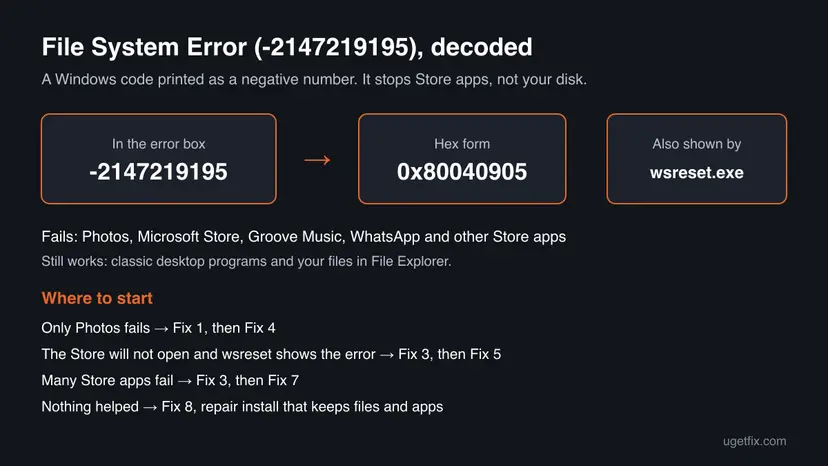
Your pictures and documents are not damaged. Windows could not start an app that is installed as a Store package, such as Photos. You can still open your pictures in another program while you fix it, for example Paint.
One quick test tells you which fixes you need. Open Microsoft Store, Calculator and Notepad. If only Photos fails, its own package is the problem. If the Store and other apps fail too, the app registrations or Windows itself need repair.
Why the file system error -2147219195 appears
The reports on Microsoft Q&A fall into two groups. In the first, only Photos or one other app shows the box. In the second, Microsoft Store closes as soon as it opens, wsreset.exe fails with the same code, and Store apps such as WhatsApp will not start.
| Cause | How often | How to tell | Fix |
|---|---|---|---|
| The Photos app package is damaged. | Most often | Only Photos fails. The Store and other apps open. | Fix 1, Fix 4 |
| Photos, the Store or Windows is out of date, or the Store cache is broken. | Often | The Store shows pending updates, or the error started after an update. | Fix 2 |
| The registrations of Microsoft Store and the built-in apps are broken. | Sometimes | The Store closes at once, wsreset.exe shows the error, several apps fail. | Fix 3 |
| A service the Store needs is disabled. | Rarely | Microsoft Store Install Service or Windows License Manager Service is set to Disabled. | Fix 5 |
| Damaged Windows system files or disk errors. | Less often, but the usual cause when nothing else helps | Many built-in apps fail, SFC finds files it cannot fix. | Fixes 7 and 8 |
The same message box shows many other numbers, and each has its own cause. File system error (-2147163901), for example, also stops Store apps but is a different code: File system error (-2147163901). The codes -1073479340 and -2147219200 are other codes too; this page covers only -2147219195.
How to fix File System Error (-2147219195) in Windows
Fixes 1, 2 and 4 repair Photos and solve the case where only Photos fails. Fixes 3, 5 and 6 repair Microsoft Store and the app registrations when the Store and wsreset fail too. Fixes 7 and 8 repair Windows itself, which the Microsoft Q&A answers name as the last step.
| What you see or have | Start with |
|---|---|
| Only Photos shows the box; the Store and other apps open. | Fix 1 |
| Microsoft Store shows updates for Photos, or the error started after an update. | Fix 2 |
| Microsoft Store closes at once, and wsreset.exe shows ms-windows-store:PurgeCaches with the error. | Fix 3 |
| Repair and Reset did not help Photos, but the Store works. | Fix 4 |
| The Store opens but installs nothing, or a service is set to Disabled. | Fix 5 |
| Several built-in apps fail, and Fix 3 did not help. | Fix 7, then Fix 8 |
Fix 1. Repair and reset the Photos app and Microsoft Store
5 minutesLow riskPhotos, or one other Store app, shows the error.
When one app shows the box, the damage usually sits in that app's own package. Repair replaces damaged app files and keeps its data; Reset returns the app to a fresh state. Do the same for Microsoft Store if it fails too.
- Close Photos and the error box, restart the PC once and try again.
- Windows 11: open Settings > Apps > Installed apps. Windows 10: open Settings > Apps > Apps & features.
- Find Microsoft Photos, select the three dots (Windows 11) or the app name (Windows 10), then Advanced options.
- Select Terminate, then Repair. Open a picture again.
- If the box still appears, go back and select Reset, confirm, and test again.
- If Microsoft Store also fails, repeat steps 3 to 5 for Microsoft Store.
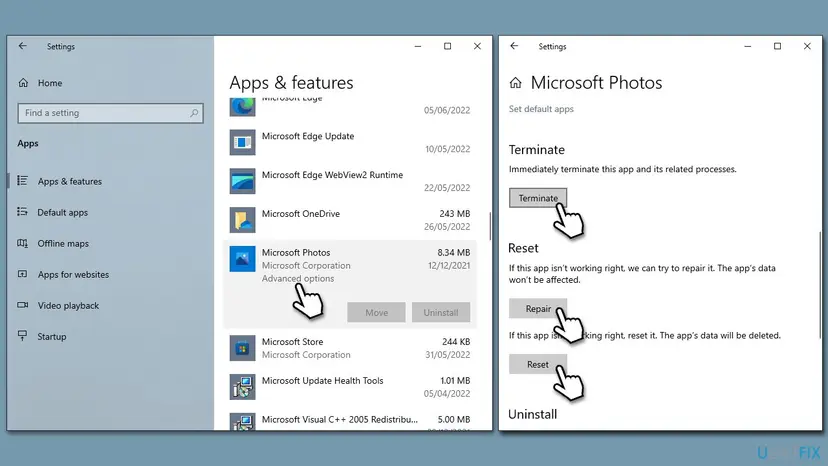
Reset deletes the app's own settings on this PC. Your pictures in your folders are not touched. In Photos, folders you added to the library may need to be added again.
Full steps with screenshots: How to repair or reset an app in Windows
It worked if: Pictures open in Photos without the File System Error box.
If not: Update Photos, the Store and Windows in Fix 2.
Fix 2. Clear the Store cache and install app and Windows updates
15 minutesNo riskFix 1 did not help, the Store shows pending updates, or the error started after a Windows update.
Photos is updated through Microsoft Store, while the parts of Windows that start Store apps come through Windows Update. A half finished update on either side can leave an app that will not start.
- Press Win + R, type
wsreset.exeand press Enter. A blank window opens, closes by itself, and Microsoft Store starts. - If wsreset.exe shows ms-windows-store:PurgeCaches with the error instead, stop here and go to Fix 3.
- In Microsoft Store, open Library and select Get updates. Let every app update.
- Type Updates in Windows search and open Check for updates. Select Check for updates.
- Install everything offered, including optional updates, and restart when asked.
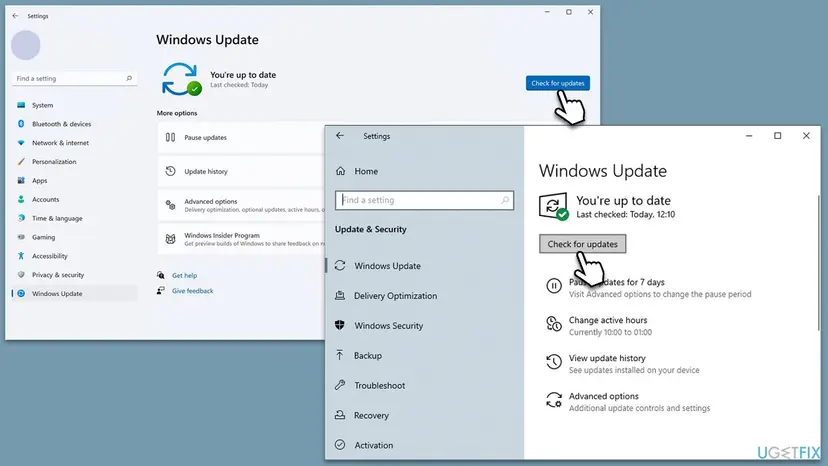
More on the Store cache and the Store's own Reset button: Reset the Microsoft Store
It worked if: The Store lists your apps as up to date, Windows Update reports you are up to date, and Photos opens.
If not: If the Store or wsreset still fails, register the Store and apps again in Fix 3.
Fix 3. Register Microsoft Store and the built-in apps again in PowerShell
10 minutesLow riskMicrosoft Store closes as soon as it opens, wsreset.exe shows the error, or several Store apps fail.
Every Store app is registered to Windows. When those registrations break, the app files are still on the disk but Windows cannot start them, and wsreset fails because it starts the Store. This is the step the Microsoft Q&A answers give for this code.
- Close all apps.
- Right-click Start and select Windows PowerShell (Admin) on Windows 10, or Terminal (Admin) on Windows 11. Select Yes in User Account Control.
- Paste the first command below and press Enter to register Microsoft Store again. Restart and test the Store.
- If the Store works but Photos or other apps still fail, paste the second command, which registers every app. Red lines about packages in use are normal.
- Restart the PC, open Microsoft Store, select Library > Get updates, and open Photos.
Register Microsoft Store again (PowerShell as administrator)
Get-AppXPackage *WindowsStore* -AllUsers | Foreach {Add-AppxPackage -DisableDevelopmentMode -Register "$($_.InstallLocation)\AppXManifest.xml"}Register every built-in app again (PowerShell as administrator)
Get-AppXPackage -AllUsers | Foreach {Add-AppxPackage -DisableDevelopmentMode -Register "$($_.InstallLocation)\AppXManifest.xml"}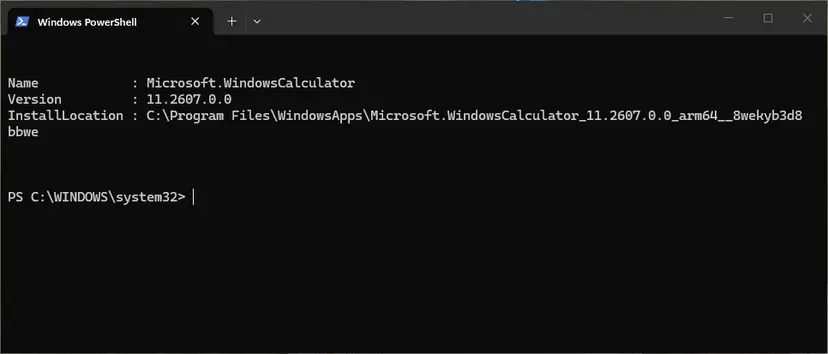
To register one app only, and what each red error means: How to re-register Microsoft Store apps with PowerShell
It worked if: Microsoft Store stays open, wsreset.exe runs without the error, and Photos opens pictures.
If not: If only Photos still fails, reinstall it in Fix 4. If the Store still closes, check its services in Fix 5.
Fix 4. Uninstall Photos and install it again from Microsoft Store
10 minutesLow riskRepair and Reset did not help Photos, and Microsoft Store opens and downloads.
Reset keeps the same package on the disk. Removing Photos and downloading it again replaces every file of the app. Do it only when the Store works, or you cannot get Photos back.
- Right-click Start and open Windows PowerShell (Admin) or Terminal (Admin). Select Yes in User Account Control.
- Paste the command below and press Enter. It removes only the Microsoft Photos package.
- Restart the PC.
- Open Microsoft Store, search for Microsoft Photos and select Get or Install.
- Open a picture to test.
Remove the Photos app (PowerShell as administrator)
Get-AppxPackage Microsoft.Windows.Photos | Remove-AppxPackage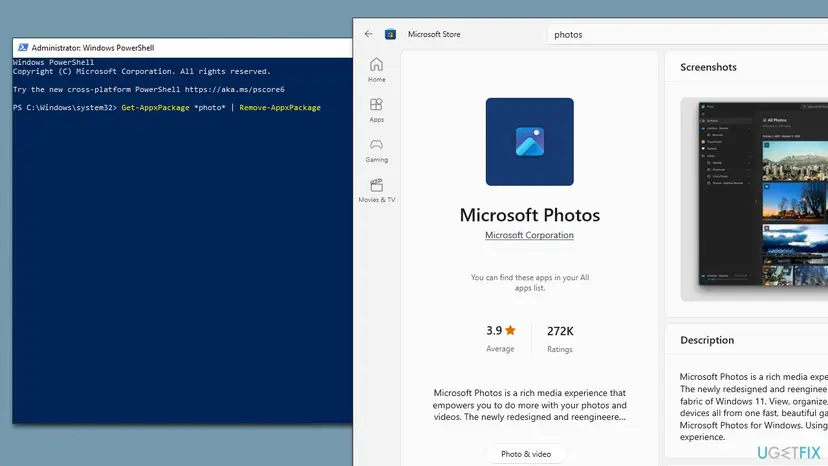
The old command Get-AppxPackage *photo* | Remove-AppxPackage can match other apps with "photo" in their name, so the command above names the Photos package exactly.
It worked if: Microsoft Store installs Photos again, and pictures open in it.
If not: If the Store cannot download Photos, go to Fix 5.
Fix 5. Check Microsoft Store Install Service and Windows License Manager Service
5 minutesNo riskThe Store opens but installs nothing, or Fixes 1 to 4 did not help.
Store apps need their licence checked, and the Store needs its install service to download and update them. If one of these services is set to Disabled, Store apps and the Store can fail.
- Type Services in Windows search and press Enter.
- Scroll down to Microsoft Store Install Service. If its status is Running, right-click it and select Restart.
- If its Startup type is Disabled, double-click it, choose Automatic, then select Start, Apply and OK.
- Do the same for Windows License Manager Service.
- Restart the PC and open Photos and the Store.
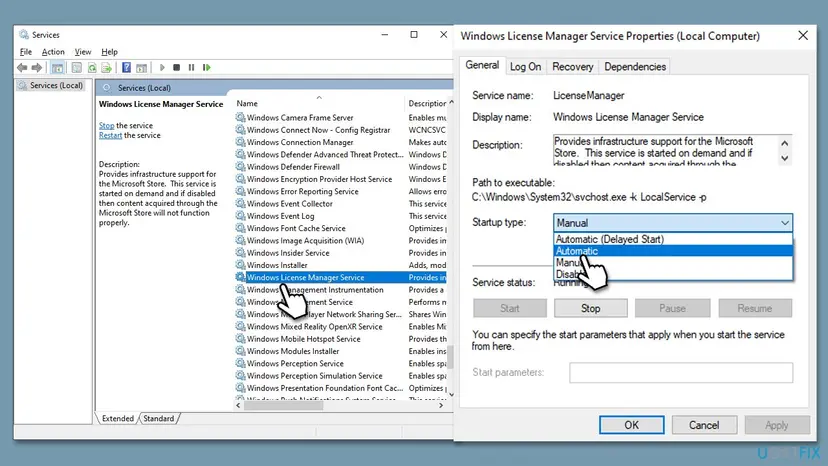
Change only these two services. More on the Services window: Check and restart Windows services
It worked if: Both services show Running or start when needed, and the Store installs and updates apps.
If not: Run the Windows Store Apps troubleshooter in Fix 6.
Fix 6. Run the Windows Store Apps troubleshooter
5 minutesNo riskStore apps still fail and you want Windows to check its own settings.
The troubleshooter checks settings that Store apps rely on, such as the app cache and some Store settings, and offers to fix what it finds. It rarely solves this error alone, but it is quick.
- Type Troubleshoot in Windows search and press Enter.
- Windows 10: select Additional troubleshooters. Windows 11: select Other troubleshooters.
- Find Windows Store Apps and select Run (Windows 11) or Run the troubleshooter (Windows 10).
- Apply the fixes it recommends, then restart and test Photos.
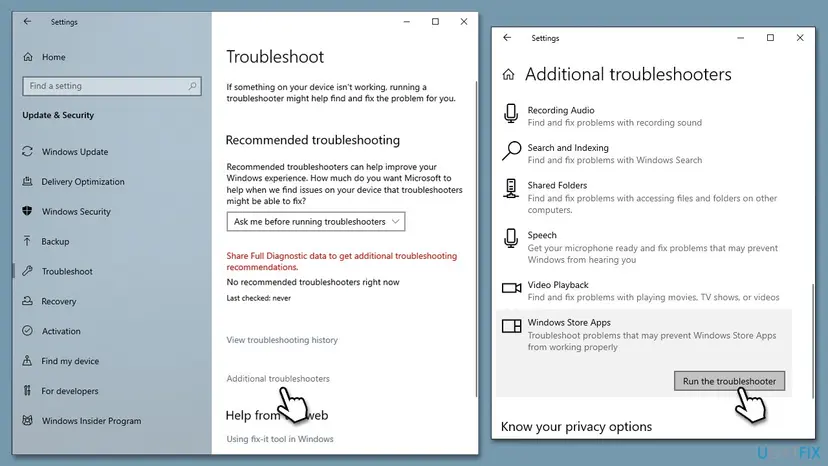
On recent Windows 11 builds, Run may open the Get Help app instead of the old troubleshooter. Follow its questions; the result is the same kind of check.
It worked if: The troubleshooter reports what it fixed, and Photos opens.
If not: Check the disk and repair system files in Fix 7.
Fix 7. Check the disk, then run DISM and SFC
30 to 90 minutesNo riskSeveral built-in apps fail, or Fixes 1 to 6 did not help.
The first steps in the Microsoft Q&A answer for this code are a disk check and a system file repair. If Windows files that start Store apps are damaged, DISM repairs the component store and SFC replaces the damaged files.
Start with the disk check: in an administrator PowerShell window run chkdsk c: /f /r, answer Y to schedule it, and restart. The check runs before Windows starts and can take a long time. Step by step: Check a disk for errors (chkdsk)
- Open an elevated command window. Right-click Start and select Terminal (Admin), or type cmd in the search box, right-click Command Prompt and select Run as administrator. Select Yes when Windows asks for permission.
- Run DISM first. Type the command below and press Enter. DISM downloads clean copies of damaged components from Windows Update, so it can take several minutes. Wait until it says The operation completed successfully.
DISM.exe /Online /Cleanup-Image /RestoreHealth - Run System File Checker. In the same window, type the command below and press Enter. Do not close the window until the verification reaches 100%.
sfc /scannow - Read the result and restart. Compare the last message with the table below this guide, then restart the PC so that repaired files are loaded.
These steps were written for Windows 11 24H2 and 25H2. The full page with the other versions and what each result means: Run DISM and SFC to repair Windows system files
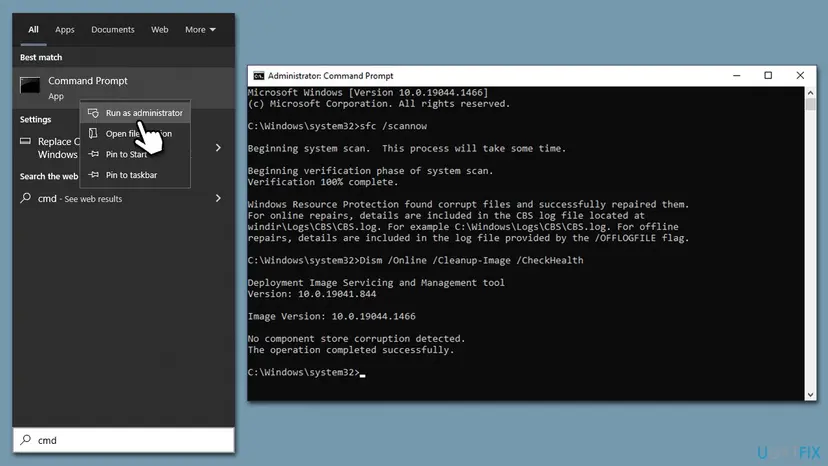
It worked if: CHKDSK and SFC report no problems, or that they fixed them, and Photos opens after a restart.
If not: If SFC says it could not fix some files, or the apps still fail, run the repair install in Fix 8.
Fix 8. Repair Windows with an in-place upgrade that keeps your files and apps
1 to 2 hoursLow riskMicrosoft Store, Photos and other built-in apps still fail after Fixes 1 to 7.
A repair upgrade installs Windows over itself. The Microsoft Q&A answer for this code says it repairs all Windows files, apps, services and registry keys, which covers every part that starts Store apps.
- Back up your important files first: Back up your files (Windows Backup, File History, Time Machine)
- Uninstall any third-party security program and unplug USB drives, printers and other devices you do not need.
- Windows 11: open Settings > System > Recovery and select Reinstall now next to Fix problems using Windows Update, if it is offered.
- Otherwise, download the Windows 11 ISO or the Windows 10 Media Creation Tool from Microsoft's download page and run it.
- Select Upgrade this PC now (Windows 10 tool) or run setup.exe from the mounted ISO, and accept the terms.
- Check that Keep personal files and apps is chosen; use Change what to keep if it is not. Then select Install.
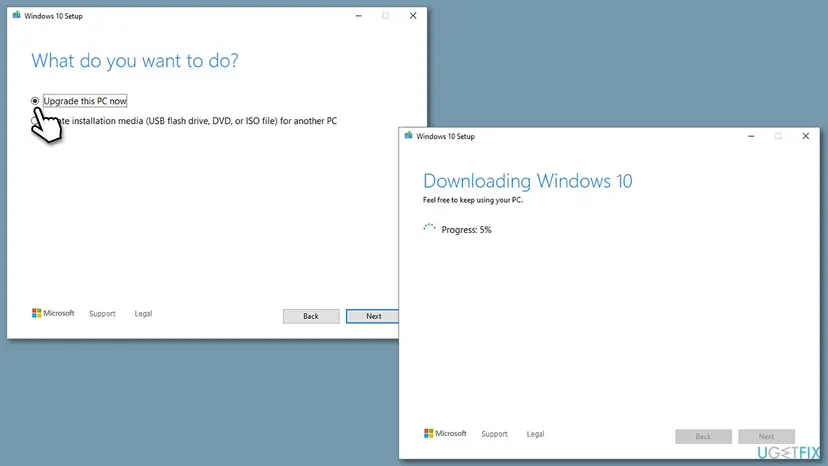
All ways to reinstall Windows without losing files, with screenshots: Reinstall Windows without losing files Install your security program again after setup.
It worked if: Windows starts with your apps and files, and Photos and Microsoft Store open again.
If not: Read "If the file system error is still there" below.
If the file system error -2147219195 is still there
Windows writes the reason an app failed to start to Event Viewer. Reading it is useful when you ask for help.
- Right-click Start and select Event Viewer.
- Open Applications and Services Logs > Microsoft > Windows > AppModel-Runtime > Admin.
- Open Photos to make the error appear, then select Refresh and read the newest error with the app name in its details.
- Test another account: create a second user and open Photos there: Create a new user account to test a problem If it works, the problem is in your account's app registrations.
- What to send to support: the full message, the apps that fail, whether wsreset.exe shows the error, the Event Viewer entry, the Windows version from Settings > System > About, and which fixes you ran.
- Where to ask: Microsoft Support or Microsoft Q&A, since Photos and the Store are Microsoft apps.
- When it is not software: if CHKDSK reports bad sectors or files fail to copy in File Explorer, back up your files now and check the drive's health.
The last step is Reset this PC with Keep my files, which keeps personal files but removes installed programs. Back up first and note the programs you use: Reinstall Windows without losing files
How to keep Photos and the Store from breaking again
- Keep Store apps updated through Microsoft Store > Library > Get updates.
- Install Windows updates and restart afterwards, so no update stays half done.
- Turn off a VPN or proxy tool if the Store stops working right after you install one, and test again.
- Do not use tweak tools that remove built-in apps or turn off "unneeded" services.
- Do not delete the WindowsApps folder or change its permissions.
- Do not switch off the PC while Windows installs updates.
Windows 10 left support on 14 October 2025, so it gets fewer fixes for its built-in apps. The steps above work on Windows 10 22H2, but an upgrade to Windows 11 is the lasting route.
Frequently asked questions
What is File System Error (-2147219195)?
It is the Windows code 0x80040905 written as a negative number. You see it when you open Photos, Microsoft Store or another Store app, or run wsreset.exe, and Windows cannot start the app. Microsoft has no public page that defines the code. When only Photos fails, repair or reset it (Fix 1). When the Store and other apps fail too, register them again in PowerShell (Fix 3).
Why can't I open pictures in the Photos app?
Photos is a Store app, and this error stops Windows from starting it. If only Photos fails, repair and reset it in Settings (Fix 1), update it (Fix 2), and reinstall it from Microsoft Store if needed (Fix 4). To see your pictures right now, right-click one, select Open with and choose Paint or another program. Your picture files themselves are not damaged.
Why does wsreset show ms-windows-store:PurgeCaches File system error (-2147219195)?
wsreset.exe clears the Store cache by starting Microsoft Store with the PurgeCaches command. When the Store itself cannot start, wsreset fails with the same code. So clearing the cache cannot help yet. Register Microsoft Store again with the PowerShell command in Fix 3, restart, and run wsreset.exe once more. If it still fails, check the Store services in Fix 5 and repair Windows in Fixes 7 and 8.
Can I fix the error in Settings?
Yes, the first fix is in Settings. Open Settings, Apps, Installed apps on Windows 11 or Apps and features on Windows 10, select Microsoft Photos, then Advanced options. Select Terminate, Repair, and if that does not help, Reset. Do the same for Microsoft Store if it fails. If Settings does not help, the next fixes use PowerShell and Windows Setup.
Is my hard drive or file system damaged?
Very likely not. The words "file system" are misleading: the code is about apps that cannot start, not about the disk. Classic desktop programs and your files keep working, which a failing disk would not allow. The Microsoft Q&A answer still suggests a disk check with chkdsk c: /f /r, which is part of Fix 7. Back up first if File Explorer shows read errors.
Will a repair install delete my files or programs?
No, as long as Keep personal files and apps is chosen in Windows Setup. A repair upgrade replaces Windows system files and keeps your files, programs and settings. Back up first anyway, because any large change can fail. Reset this PC with Keep my files is different: it keeps personal files but removes installed programs, so use it only after the repair install.
Does this error happen on Windows 10 and Windows 11?
Yes. Most reports on Microsoft Q&A come from Windows 10, but Windows 11 runs the same Store apps and can show the same code. The fixes are the same; only some Settings paths differ, and this page gives both. Fix problems using Windows Update in Fix 8 is a Windows 11 feature; on Windows 10 use the Media Creation Tool. Windows 10 left support on 14 October 2025.
Should I turn off my antivirus to fix it?
No. Turning off protection is not a fix for this error, and none of the threads we read traced it to Microsoft Defender. Before a repair install, Microsoft Q&A advice is to uninstall a third-party security program and install it again afterwards. For a single test, you can pause a third-party program and turn it back on right after: Turn off Microsoft Defender protection for a moment
I got this error. What does it mean and how do I fix it?
This page is in English and covers only File System Error (-2147219195). It means Windows cannot start an app from Microsoft Store, such as Photos or the Store itself. Your pictures and your disk are fine. Repair or reset the app in Settings (Fix 1). If the Store and other apps fail, register them again in PowerShell (Fix 3), then repair install Windows (Fix 8).
Sources
- Microsoft Q&A: File system error (-2147219195) Store and photos app not opening (answer: CHKDSK, SFC and DISM, registering the Store and apps again, repair upgrade with the Media Creation Tool) (learn.microsoft.com)
- Microsoft Q&A: ms-windows-store:PurgeCaches File system error (-2147219195) (wsreset fails, Store apps such as WhatsApp do not start; Microsoft Store Install Service, Store reset and re-registration) (learn.microsoft.com)
Did this fix work?
One click, no account. It tells the next reader which guides are worth their time.
Questions and experiences: fix File System Error (-2147219195) in Windows
Still broken, or found a fix we did not cover? Ask here: members and our editors answer. Reading is open; writing needs a free account.
…