
How to fix File system error (-2147163901) in Windows?

Prefer to fix it yourself? The manual steps follow.
- 8methods
- 5 minutes to 2 hours
- Intermediate
Applies to Windows 11, Windows 10; Photos, Snipping Tool, Notepad, Calculator, Clock, Windows Terminal, Windows Security and other apps installed from Microsoft Store
8 methods in this guide
Hello, I have an issue: when I try to open apps like Photos or Snipping Tool, I receive a File system error (-2147163901). Could you provide some solutions? I can't use so many apps on my PC. Please help.
File system error (-2147163901) appears when you start an app that came from Microsoft Store, such as Photos, Snipping Tool or Notepad, and Windows cannot launch it. Your files and your disk are fine. Repair the one app first; if many built-in apps fail, repair Windows itself.
File system error (-2147163901) is the Windows code 0x8004E103. It means Windows could not start a Store app, the kind installed under C:\Program Files\WindowsApps. If one app fails, repair, reset or reinstall it (Fix 1). If Notepad, Photos, Calculator and the Store all fail, Microsoft's support staff point to damaged system components: run a repair install that keeps your files and apps (Fix 7).
| Error | A box with a red cross, the app's path in the title bar and on the first line, then File system error (-2147163901). and an OK button. |
|---|---|
| Where it appears | When you start an app from Microsoft Store: Photos, Snipping Tool, Notepad, Calculator, Clock, Calendar, Windows Terminal, the Windows Security window, or a maker's app such as Lenovo's utility. |
| Main cause | One damaged app when a single app fails; damaged Windows components for app start and licensing when many built-in apps fail at once. |
| Fastest fix | Settings > Apps > Installed apps, the app's Advanced options, then Repair and Reset (Fix 1). |
| Also written as | -2147163901, "file system error 2147163901", 0x8004E103, 0x8004e103 (the same code in Microsoft Store downloads). |
| Affects | Windows 11 and Windows 10. Classic desktop programs keep working; only packaged Store apps fail. |
| Microsoft's status | No Microsoft Learn page for this code. On Microsoft Q&A, Microsoft's support staff say 0x8004E103 together with -2147163901 means damaged system components and advise an in-place repair. |
| Where the cause is logged | Event Viewer: AppModel-Runtime and Client-Licensing errors with Event ID 203 at the moment the app fails. |
| Time to fix | 5 minutes for one app; 1 to 2 hours when Windows needs a repair install or a reset. |
Facts checked on 15 October 2026. Steps written for Windows 11 (25H2 and 26H2) and Windows 10 22H2.
What File system error (-2147163901) means
You click an app and, instead of the window, a small box appears. Its title bar and first line show the path of the program Windows tried to start, often inside C:\Program Files\WindowsApps\. Below it stands File system error (-2147163901). with one OK button.
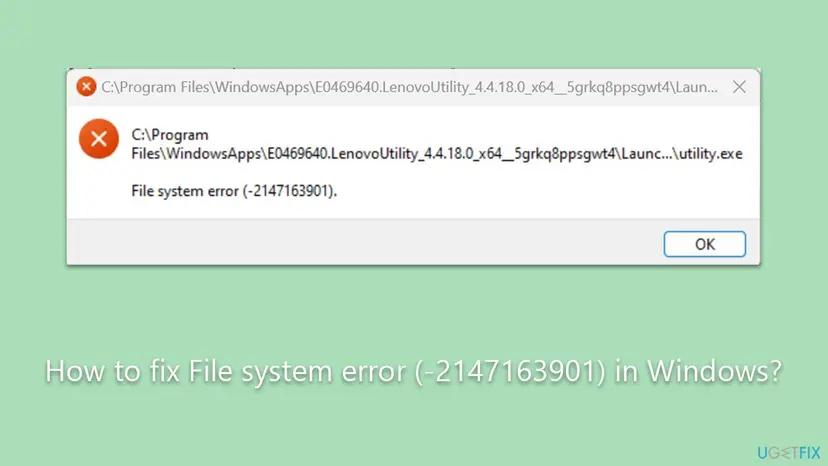
Despite the words "file system", the number is a Windows error code printed as a negative decimal number. In hex, -2147163901 is 0x8004E103. That hex code is the one Microsoft Store shows when downloads and installs fail on the same PC, and Microsoft Q&A threads report both together.
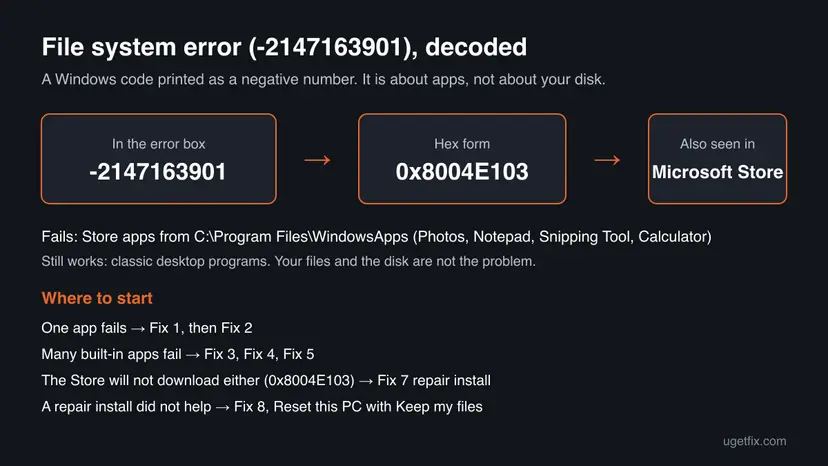
Your documents, pictures and the disk are not damaged. Windows could not start an app that is installed as a Store package. We could not find a Microsoft document that names the exact meaning of 0x8004E103, so this page relies on what Microsoft's support staff and the Windows logs show.
One quick test tells you which half of this guide you need. Open two or three other built-in apps, for example Calculator, Notepad and Settings. If only one app fails, its own package is the problem. If several fail, Windows itself needs repair.
Why the file system error -2147163901 appears
The reports on Microsoft Q&A fall into two groups. In the first, one app such as Photos or a maker's utility shows the box. In the second, almost every built-in app fails at once, Microsoft Store will not download, and Windows may also say it is not activated.
| Cause | How often | How to tell | Fix |
|---|---|---|---|
| The app's own package is damaged. | Most often | Only one app fails. Other built-in apps open. | Fix 1 |
| The app or Microsoft Store is out of date, or the Store cache is broken. | Often | The Store shows pending updates, or the error started after an update. | Fix 2 |
| The app registrations of your user account are broken. | Sometimes | Several built-in apps fail, but only in your account. | Fix 3 |
| Windows licensing does not work, so Store apps are refused. | Sometimes | Activation shows an error, or the clock is wrong. Event Viewer shows Client-Licensing errors. | Fix 4 |
| Damaged Windows system files or components. | Less often, but the usual cause when many apps fail | Notepad, Photos, Terminal, Windows Security and the Store all fail; the Store shows 0x8004E103. | Fixes 5 to 8 |
The same message box shows many other numbers, and each has its own cause. File system error (-2147416359), for example, hits Photos and media players for a different reason: File system error (-2147416359).
How to fix File system error (-2147163901) in Windows
Fixes 1 and 2 repair a single app and solve the case where only one app fails. Fixes 3 to 6 repair your account's apps and Windows files without reinstalling anything. When many built-in apps and the Store fail together, Fixes 7 and 8 reinstall Windows over itself; that is what solved it in Microsoft's own forum threads.
| What you see or have | Start with |
|---|---|
| Only one app, for example Photos or Snipping Tool, shows the box. | Fix 1 |
| Microsoft Store shows updates for the app, or the error started after an update. | Fix 2 |
| Several built-in apps fail, but they work in another user account. | Fix 3 |
| Windows says it is not activated, or the clock is wrong. | Fix 4 |
| The error started a few days ago after a crash or an update, and you have a restore point. | Fix 6 |
| Notepad, Photos, Terminal, Windows Security and the Store all fail, and Store downloads show 0x8004E103. | Fix 5, then Fix 7 |
| A repair install finished but the apps still fail. | Fix 8 |
Fix 1. Repair, reset or reinstall the app that shows the error
5 minutesLow riskOnly one app fails, for example Photos, Snipping Tool or a maker's utility from Lenovo, HP or Dell.
When only one app shows the box, the damage sits in that app's package in the WindowsApps folder. Repair replaces damaged app files, Reset returns the app to a fresh state, and a reinstall downloads a new package.
- Close the app and any error box, then restart the PC once and try again.
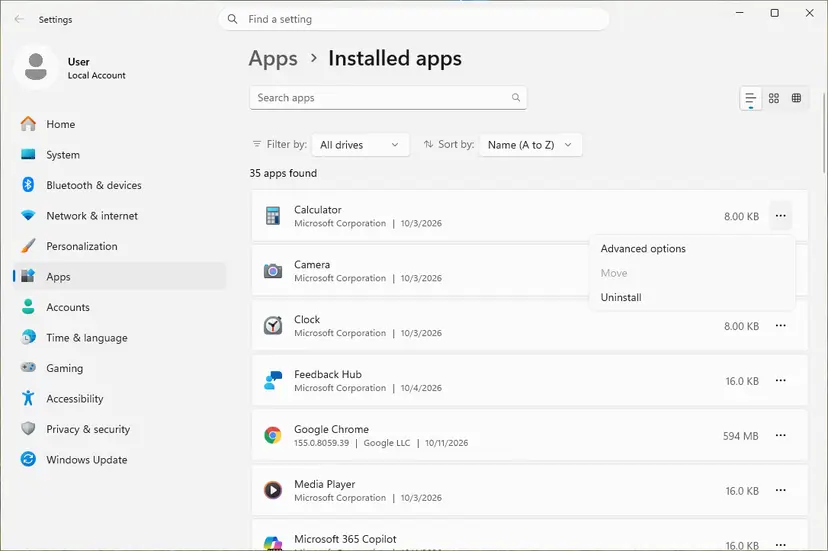
- Open Settings > Apps > Installed apps. On Windows 10, open Settings > Apps > Apps & features.
- Find the app, select the three dots (Windows 11) or the app name (Windows 10), then Advanced options.
- Select Terminate, then Repair. Start the app again.
- If the box still appears, go back and select Reset, confirm, and test again.
- If Reset did not help and Uninstall is offered, uninstall the app, restart, and install it again from Microsoft Store.
Reset deletes the app's own data on this PC: its settings, its sign-in and anything kept only inside the app. Your documents and pictures in your folders are not touched. Note any setting you need before you reset.
Full steps with screenshots for Windows 11 and Windows 10: How to repair or reset an app in Windows
It worked if: The app opens without the File system error box.
If not: Update the app and clear the Store cache in Fix 2.
Fix 2. Clear the Microsoft Store cache and install app and Windows updates
15 minutesNo riskFix 1 did not help, the Store shows pending updates, or the error started after a Windows update.
Built-in apps such as Photos, Notepad and Snipping Tool are updated through Microsoft Store, while the parts of Windows that start them come through Windows Update. A half-finished update on either side can leave an app that will not launch.
- Press Win + R, type
wsreset.exeand press Enter. A blank window opens, closes by itself, and Microsoft Store starts. - In Microsoft Store, open Library in the left bar and select Get updates. Let every app update.
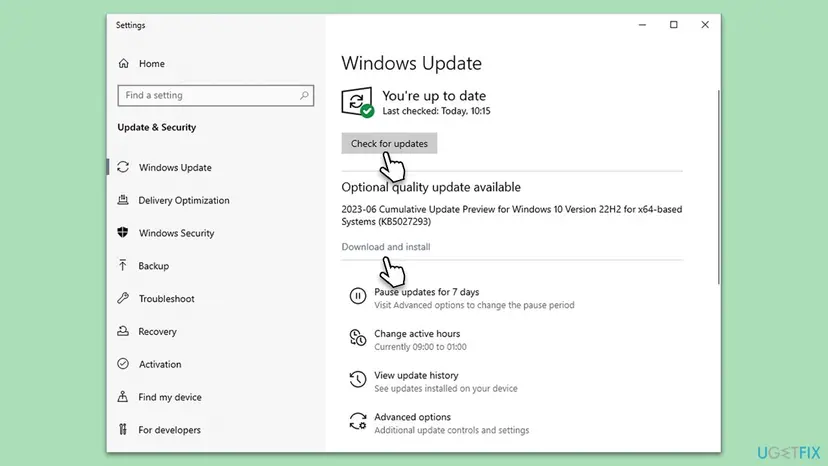
- Open Settings > Windows Update (Windows 10: Settings > Update & Security > Windows Update) and select Check for updates.
- Install everything offered, including optional quality updates, and restart when asked.
- Start the app that showed the error.
If Microsoft Store itself shows error 0x8004E103 when it tries to update, the Store is hit by the same fault. Skip ahead to Fix 5 and Fix 7. More on the Store cache and the Store's own Reset button: Reset the Microsoft Store
It worked if: The Store lists your apps as up to date, Windows Update reports you are up to date, and the app opens.
If not: If several built-in apps still fail, register them again in Fix 3.
Fix 3. Register all built-in apps of your account again
10 minutesLow riskSeveral built-in apps fail, such as Notepad, Calculator, Clock and Photos.
Every Store app is registered to your user account. When those registrations break, the app files are still on the disk but Windows cannot start them. Registering them again repairs the link without downloading anything.
- Close all apps.
- Select Start, type PowerShell and open Windows PowerShell the normal way, not as administrator. In an administrator window the apps are registered to the administrator account instead of yours.
- Paste the command below and press Enter. Red lines about packages in use or a higher version already installed are normal.
- Wait until the prompt returns, restart Windows, and start the app.
Register every app of your account again (PowerShell)
Get-AppxPackage | ForEach-Object { Add-AppxPackage -Path "$($_.InstallLocation)\AppxManifest.xml" -Register -DisableDevelopmentMode }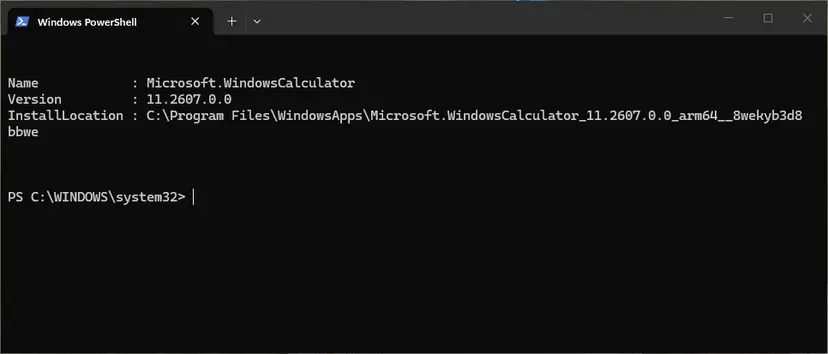
To register one app only, and what each red error means: How to re-register Microsoft Store apps with PowerShell
It worked if: Notepad, Calculator and the other built-in apps open again after the restart.
If not: If the apps still fail, or the command shows red errors for every package, check activation and the clock in Fix 4.
Fix 4. Check Windows activation and the date and time
5 minutesNo riskWindows says it is not activated, the clock or time zone is wrong, or Event Viewer shows Client-Licensing errors.
Store apps check their licence each time they start. In the Microsoft Q&A threads about this error, Event Viewer showed Client-Licensing errors at the same moment, and one PC also lost its activation. A licence that cannot be checked can stop every Store app.
- Open Settings > System > Activation (Windows 10: Settings > Update & Security > Activation) and read the activation state.
- If it says Windows is not activated and you have a digital licence, connect to the internet and select Troubleshoot on that page.
- Open Settings > Time & language > Date & time and turn on Set time automatically and Set time zone automatically.
- Select Sync now, restart Windows and start the app.
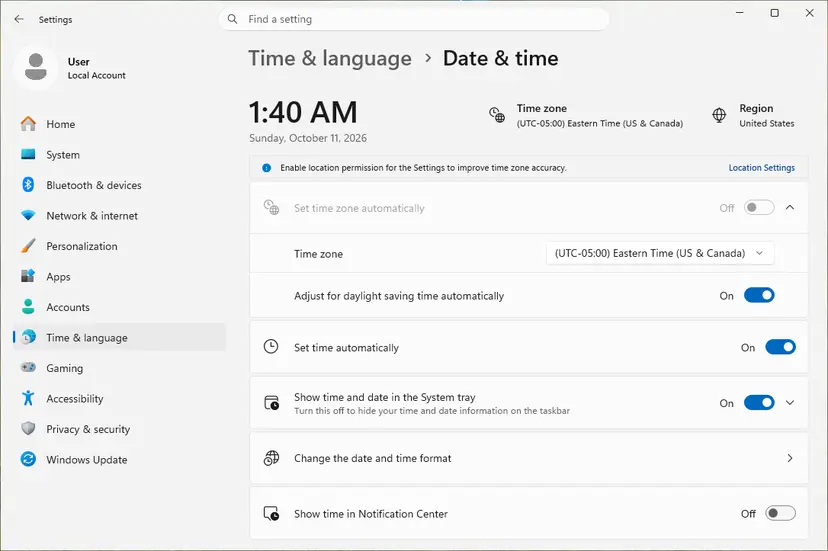
If the clock keeps drifting, the full steps are here: How to fix the date and time in Windows If activation fails because licensing itself is broken, the activation error usually clears after the repair install in Fix 7, as it did in one Microsoft Q&A thread.
It worked if: Activation shows Windows is activated, the clock is right, and the app opens.
If not: Repair Windows system files in Fix 5.
Fix 5. Run DISM and SFC to repair Windows system files
30 minutesNo riskMany built-in apps fail, or Fixes 1 to 4 did not help.
When many Store apps fail at once, the parts of Windows that start them may be damaged. DISM repairs the component store and SFC then replaces damaged system files. It does not touch your files or apps.
- Open an elevated command window. Right-click Start and select Terminal (Admin), or type cmd in the search box, right-click Command Prompt and select Run as administrator. Select Yes when Windows asks for permission.
- Run DISM first. Type the command below and press Enter. DISM downloads clean copies of damaged components from Windows Update, so it can take several minutes. Wait until it says The operation completed successfully.
DISM.exe /Online /Cleanup-Image /RestoreHealth - Run System File Checker. In the same window, type the command below and press Enter. Do not close the window until the verification reaches 100%.
sfc /scannow - Read the result and restart. Compare the last message with the table below this guide, then restart the PC so that repaired files are loaded.
These steps were written for Windows 11 24H2 and 25H2. The full page with the other versions and what each result means: Run DISM and SFC to repair Windows system files

In the Microsoft Q&A threads, these scans finished but did not clear the error on PCs where every built-in app failed. If SFC says it was unable to fix some files, go straight to Fix 7.
It worked if: SFC reports no integrity violations, or that it repaired files, and the app opens after a restart.
If not: Undo recent changes with Fix 6, or repair Windows in Fix 7.
Fix 6. Undo recent changes with System Restore
30 minutesLow riskThe error started recently, after a crash, an update or a new program, and the PC has a restore point from before that.
System Restore puts system files, the registry and installed programs back to the state of a restore point. If the app start or licensing parts of Windows broke after that point, this undoes it without touching your personal files.
- Press Win + R, type
rstrui.exeand press Enter. Select Next if a first page opens. - Select Show more restore points if it is shown, and pick one from before the error started.
- Select Scan for affected programs to see what will be removed, then Next and Finish.
- Wait while Windows restarts and restores, then start the app.
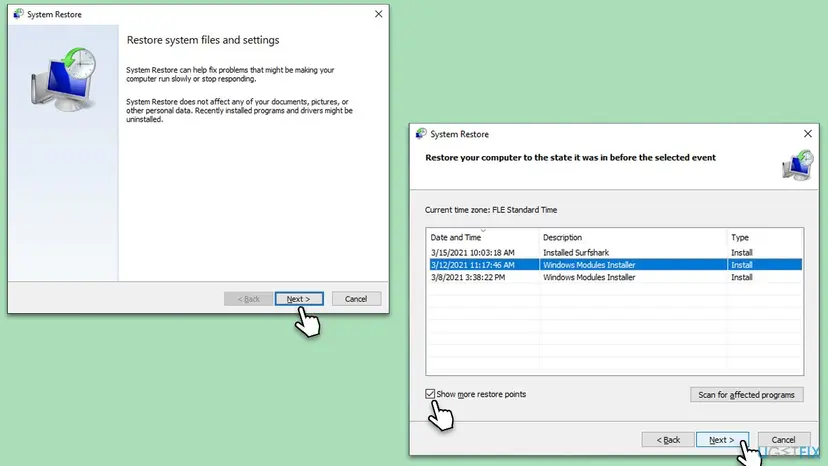
Programs installed after the restore point are removed. Step by step: Undo recent changes with System Restore
It worked if: Windows reports that the restore completed, and the built-in apps open.
If not: If there is no restore point, or the restore did not help, run the repair install in Fix 7.
Fix 7. Repair Windows with an in-place reinstall that keeps your files and apps
1 to 2 hoursLow riskNotepad, Photos, Terminal, Windows Security and Microsoft Store all fail, and the Store shows 0x8004E103.
This is the fix Microsoft's support staff give for 0x8004E103 together with -2147163901, because it replaces every Windows component that starts and licenses apps. The user in that thread reported that a fresh install from the ISO fixed both errors and kept activation.
- Back up your important files first: Back up your files (Windows Backup, File History, Time Machine)
- Windows 11: open Settings > System > Recovery and select Reinstall now next to Fix problems using Windows Update. It keeps apps, files and settings.
- If that is not offered or did not help, download the Windows 11 ISO (or the Windows 10 Media Creation Tool) from Microsoft's download page.
- Double-click the ISO in File Explorer to mount it and run setup.exe.
- On the updates page select Not right now, accept the terms, and check that Keep personal files and apps is chosen. If it is not offered, the ISO does not match your edition or language.
- Select Install and let the PC restart several times.
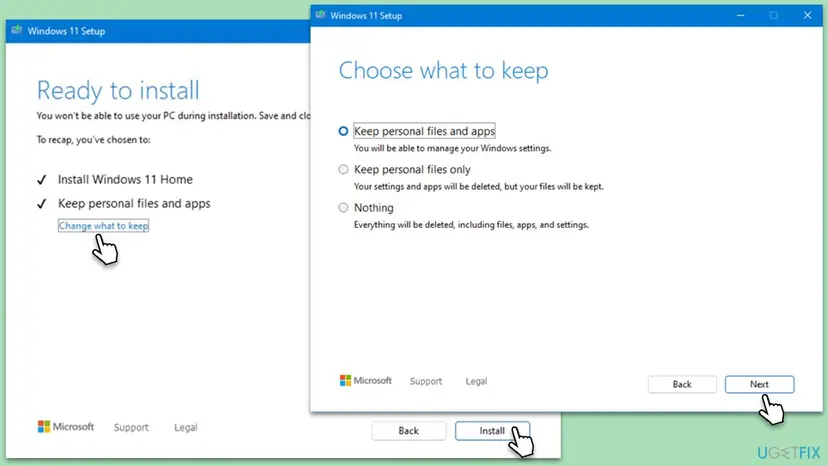
All three ways, with screenshots: Reinstall Windows without losing files Disconnect external drives except the mouse and keyboard during setup, as Microsoft's support staff advise.
It worked if: Windows starts with your apps and files, built-in apps open, and Microsoft Store downloads again.
If not: In one Microsoft Q&A thread a repair install from the ISO did not help. Go to Fix 8.
Fix 8. Reset this PC with Keep my files and Local reinstall
1 to 2 hoursRead the warningA repair install finished but the built-in apps and the Store still fail.
A reset rebuilds Windows and your app registrations from scratch, which a repair install does not. In the Microsoft Q&A thread where an ISO repair failed, this reset with the local option was the step that ended the error.
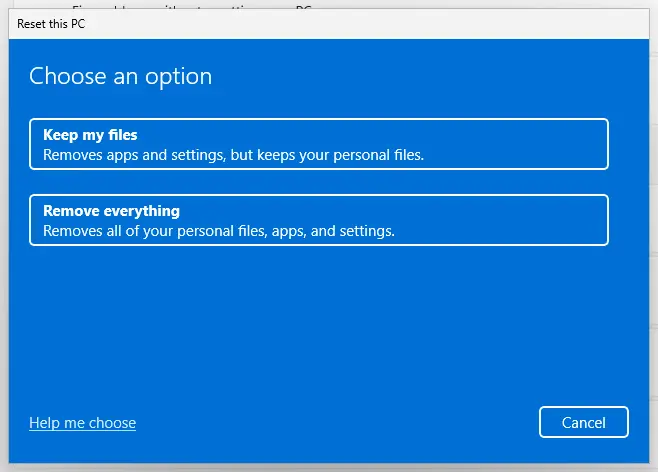
Keep my files keeps your documents, pictures and other personal files, but removes installed programs and resets settings. Note the programs you use, keep their installers and licence keys, and back up your files first. Have the BitLocker recovery key ready if the drive is encrypted.
- Open Settings > System > Recovery (Windows 10: Settings > Update & Security > Recovery).
- Next to Reset this PC, select Reset PC.
- Select Keep my files. Do not select Remove everything.
- Select Local reinstall. In the forum thread, Cloud download ended with "Something went wrong" on the damaged PC, while the local option worked.
- Review the summary, select Reset and wait while the PC restarts several times.
- After sign-in, open Removed Apps.html on the desktop: it lists the programs the reset removed, so you can install them again.
It worked if: Windows starts with your personal files, Notepad, Photos, Windows Security and the Store open, and activation is restored.
If not: Read "If the file system error is still there" below.
If the file system error -2147163901 is still there
Windows writes the real reason to Event Viewer. Reading it tells you whether the app start or the licence check fails, which is useful for support.
- Right-click Start and select Event Viewer.
- Open Applications and Services Logs > Microsoft > Windows > AppModel-Runtime > Admin.
- Start the failing app, then select Refresh and look at the newest error, for example Event ID 203, and the app name in its details.
- Also look for errors from Client-Licensing at the same minute. Licensing errors point to Fix 4 and Fix 7.
- Test another account: create a second user and start the same app there: Create a new user account to test a problem If it works, Fix 3 or a move to the new account solves it.
- What to send to support: the full message with the path, the app names that fail, the AppModel-Runtime and Client-Licensing events, the Windows version from Settings > System > About, and which fixes you ran.
- Where to ask: Microsoft Support or Microsoft Q&A for built-in apps; the PC maker's support when only its utility fails.
- When it is not software: if Windows also crashes with blue screens such as MEMORY_MANAGEMENT, test the memory before you reset again: How to test your RAM with Windows Memory Diagnostic
The last step is Reset this PC with Remove everything, which deletes your personal files too. Back up everything first. In the forum thread, the person who solved it with Keep my files named this as the fallback.
How to keep Store apps from breaking again
- Keep Store apps updated through Microsoft Store > Library > Get updates.
- Install Windows updates and restart afterwards, so no update stays half done.
- Keep the date, time and time zone set automatically.
- Keep restore points on, so Fix 6 is possible next time.
- Do not use tweak tools that remove built-in apps or turn off "unneeded" services.
- Do not delete the WindowsApps folder or change its permissions.
- Do not switch off the PC while Windows installs updates or resets.
Windows 10 left support on 14 October 2025, so it gets fewer fixes for its built-in apps. The steps above work on Windows 10 22H2, but an upgrade to Windows 11 is the lasting route.
Frequently asked questions
What is File system error (-2147163901)?
It is the Windows code 0x8004E103 written as a negative number. You see it when you start an app from Microsoft Store, such as Photos, Snipping Tool, Notepad or Calculator, and Windows cannot launch it. The box shows the app's path and an OK button. When one app fails, repair or reset it (Fix 1). When many built-in apps fail, Windows components are damaged and a repair install (Fix 7) is the fix Microsoft's support staff give.
Why can't I open Photos or Snipping Tool?
Both are Store apps, and the error stops Windows from starting Store apps. If only Photos or only Snipping Tool fails, repair and reset it in Settings (Fix 1), then update it in Microsoft Store (Fix 2). If Notepad, Calculator and other built-in apps fail too, the problem is in Windows itself: register the apps again (Fix 3), check activation (Fix 4), and then repair Windows (Fixes 5 and 7).
Is my hard drive or file system damaged?
Very likely not. The words "file system" are misleading: the code is about apps that cannot start, not about the disk. Classic desktop programs and your documents keep working, which a failing disk would not allow. Check the disk only if File Explorer reports read errors, files fail in every program, or Windows shows disk errors in other places. Running CHKDSK did not change the error for the people in the Microsoft Q&A threads.
What is Microsoft Store error 0x8004E103?
It is the same code in hex form. Microsoft Store shows 0x8004E103 when it cannot download, install or start an app. When the Store shows it while built-in apps show File system error (-2147163901), both come from the same damage. Microsoft's support staff call it damaged system components and advise an in-place repair with the Windows ISO (Fix 7), which in that thread fixed both errors.
Will a repair install delete my files or programs?
No, as long as you choose Keep personal files and apps in Windows Setup. A repair install replaces Windows system files and keeps your files, programs and settings, and Microsoft's support staff call it nondestructive. Back up first anyway, because any large change can fail. Reset this PC with Keep my files (Fix 8) is different: it keeps your personal files but removes installed programs and resets settings.
Why does Windows say it is not activated together with this error?
Store apps and activation both use Windows licensing. When that part of Windows is damaged, Event Viewer shows Client-Licensing errors, Store apps fail to start, and activation may fail to connect. In one Microsoft Q&A thread, both problems disappeared after a reset with Keep my files, and the PC activated again with its digital licence. Check the clock first (Fix 4), then repair Windows (Fix 7).
Does this error happen on Windows 10 and Windows 11?
Yes. Most recent reports on Microsoft Q&A come from Windows 11, but Windows 10 runs the same kind of Store apps and can show the same code. The fixes are the same; only some paths differ. Fix problems using Windows Update in Fix 7 is a Windows 11 feature, so on Windows 10 use the Media Creation Tool instead. Windows 10 left support on 14 October 2025.
Should I turn off my antivirus to fix it?
No. Turning off protection is not a fix for this error, and none of the threads we read traced it to an antivirus. During a repair install, Microsoft's support staff suggest you only disconnect extra devices; if a third-party security program blocks setup, pause it for that run and turn it back on right after: Turn off Microsoft Defender protection for a moment Microsoft Defender can stay on.
Que pasa con el error File system error (-2147163901) y como resolver?
This page is in English. The error means Windows cannot start an app from Microsoft Store, such as Photos, Notepad or Snipping Tool. If one app fails, repair or reset it in Settings, under Apps, Installed apps, Advanced options (Fix 1). If many apps fail, Windows needs a repair install that keeps your files and apps (Fix 7). Your files and your disk are not damaged.
Sources
- Microsoft Q&A: Error code 0x8004E103 when running or installing apps from Microsoft Store, with file system error -2147163901 (answer by Microsoft Community Support: damaged system components, in-place upgrade) (learn.microsoft.com)
- Microsoft Q&A: All desktop apps fail to open (file system error -2147163901): AppModel-Runtime and Client-Licensing Event 203, repair install, Reset this PC with Local reinstall (learn.microsoft.com)
- Microsoft Q&A: File System Error (-2147163901): Notepad, Calculator and other Microsoft apps fail; wsreset and re-registering the apps (learn.microsoft.com)
Did this fix work?
One click, no account. It tells the next reader which guides are worth their time.
Questions and experiences: fix File system error (-2147163901) in Windows
Still broken, or found a fix we did not cover? Ask here: members and our editors answer. Reading is open; writing needs a free account.
…