
How to fix File System Error (-2147416359) in Windows?

Prefer to fix it yourself? The manual steps follow.
- 7methods
- 5 to 40 minutes
- Easy
Applies to Windows 11, Windows 10; Photos, Media Player, Movies & TV (Films & TV) and other built-in apps that open media files
7 methods in this guide
Hello. I can no longer open MP3 or MP4 files because I keep getting File System Error (-2147416359). Any ideas on how to deal with this?
File system error (-2147416359) appears when you double-click a picture, a video or an MP3 and the Windows app that should open it, usually Photos, Media Player or Movies & TV, fails to start. Your files and your disk are fine. Repair or reset that app first.
File system error (-2147416359) is the Windows code 0x800106D9. It means the app that opens your file, usually Photos, Media Player or Movies & TV, could not reach a Windows service it needs. The file is not damaged. Repair, then reset that app in Settings (Fix 1), update it through Microsoft Store (Fix 2), and open the file in another program in the meantime (Fix 3).
| Error | A box with the file's path in the title bar and on the first line, then File system error (-2147416359). and an OK button. |
|---|---|
| Where it appears | When you double-click a picture, a video or a music file (.jpg, .png, .mp4, .mp3) in File Explorer or on the desktop, and Windows tries to open it in Photos, Media Player or Movies & TV. |
| Main cause | The built-in app set to open the file is damaged or out of date, so it cannot start for that file. |
| Fastest fix | Settings > Apps > Installed apps, the app's Advanced options, then Repair and, if needed, Reset (Fix 1). |
| Also written as | -2147416359, "file system error (-21474", "file system error 2147416359", 0x800106D9, 0x800106d9, and in Russian "ошибка файловой системы -2147416359". |
| Affects | Windows 10 and Windows 11. Most reports are about Photos and Movies & TV; programs that are not Store apps, such as Windows Media Player Legacy or Paint, usually still open the same file. |
| Microsoft's status | No Microsoft page for this message. Microsoft's error table lists the last part of the code, 1753 (0x6D9), as "There are no more endpoints available from the endpoint mapper". |
| Not the cause | A failing hard drive or a broken NTFS file system, as long as the file opens in another program. |
| Time to fix | 5 minutes for a repair or reset, up to 40 minutes for a reinstall and the system file check. |
Facts checked on 15 October 2026. Steps written for Windows 11 (25H2 and 26H2) and Windows 10 22H2.
What File system error (-2147416359) means
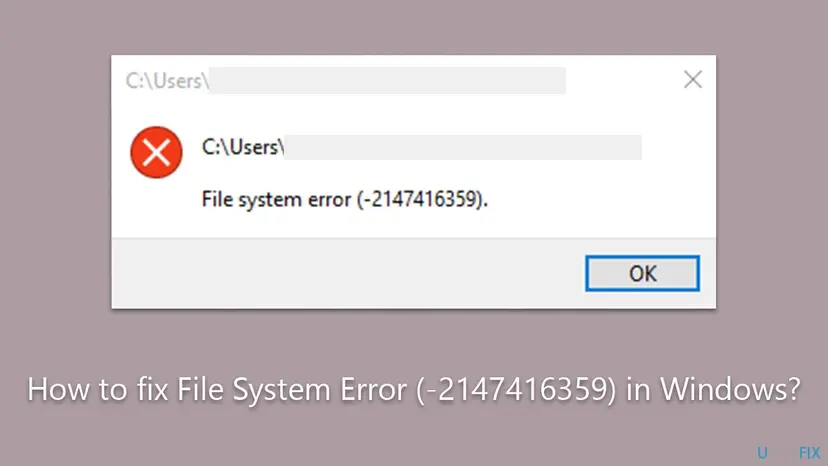
The message comes from Windows when it tries to start an app for a file. The title bar and the first line show the path of your file, for example C:\Users\you\Videos\clip.mp4. Below it stands File system error (-2147416359). with one OK button. The app never opens.
Despite the words "file system", the number is a Windows error code printed as a negative decimal number. In the usual hex form, -2147416359 is 0x800106D9. Its last four digits, 06D9, are 1753, which Microsoft's error table describes as "There are no more endpoints available from the endpoint mapper".
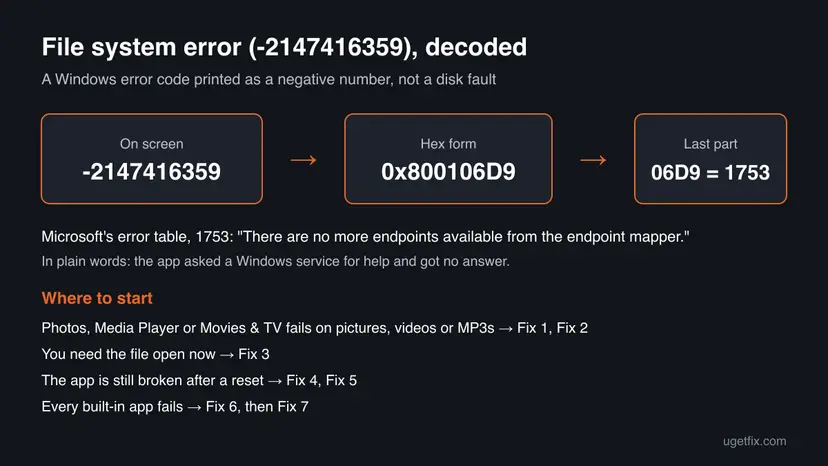
Your picture, video or song is not damaged. The app that Windows uses to open it could not start properly. Repair or replace that app, and the same file opens again. We could not confirm in a Microsoft document which service the app fails to reach.
That matches what people report on Microsoft's Q&A forum: the error appears with Photos and Movies & TV, while Windows Media Player opens the same files fine. The same code, 0x800106D9, also shows up when other Store apps fail to start, which points to the app, not the file.
Why the file system error -2147416359 appears
The error is tied to the app, not to the file type. That is why one day every photo fails and the next day, after an app repair, all of them open again. Rank the causes like this and start with the most likely one.
| Cause | How often | How to tell | Fix |
|---|---|---|---|
| Photos, Media Player or Movies & TV is damaged. | Most often | Only pictures, or only videos and music, fail. Other apps work. | Fix 1 |
| The app or Microsoft Store is out of date or its cache is broken. | Often | The Store shows pending updates, or the Store itself is slow to open. | Fix 2 |
| The app's install is broken beyond a reset. | Sometimes | Repair and Reset finish but the error stays. | Fix 4 |
| A Store service is stopped or disabled. | Sometimes | Windows License Manager Service is set to Disabled in Services. | Fix 5 |
| The built-in app registrations are broken. | Less often | Calculator, Photos, Store and other built-in apps all fail. | Fix 6 |
| Damaged Windows system files. | Rarely | Other errors too, or Fixes 1 to 6 changed nothing. | Fix 7 |
A similar box with another number is a different error. For example, File system error (-2015294522) is a license error that hits Notepad most often; it has its own guide: File system error (-2015294522).
How to fix File system error (-2147416359) in Windows
Fixes 1 and 2 repair and update the app that opens your media and solve most cases. Fix 3 gets your file open right now. Fixes 4 to 6 replace the app or its services, and Fix 7 is the general system check.
| What you see or have | Start with |
|---|---|
| Pictures fail in Photos, or videos and MP3s fail in Media Player or Movies & TV. | Fix 1 |
| Microsoft Store shows updates for the app, or the Store opens slowly. | Fix 2 |
| You need the photo or video open right now. | Fix 3 |
| Repair and Reset did not help Photos. | Fix 4 |
| Several Store apps fail, and the Store will not install or update anything. | Fix 5 |
| Calculator, Photos, the Store and other built-in apps all fail. | Fix 6 |
| Nothing above helped. | Fix 7 |
Fix 1. Repair, then reset Photos, Media Player or Movies & TV
5 minutesLow riskEveryone, first. Use the app that fails: Photos for pictures, Media Player or Movies & TV (Films & TV) for videos and music.
The code says the app could not start properly for your file. Repair replaces the app's damaged files and keeps its settings; Reset puts the app back to a fresh state. On Microsoft's forum, resetting Photos and Movies & TV is the first answer to this exact error.
- Close the app that shows the error.
- Open Settings > Apps > Installed apps. On Windows 10, open Settings > Apps > Apps & features.
- Find Photos (or Media Player, or Movies & TV), select the three dots or the app name, then Advanced options.
- Select Terminate, then Repair. Double-click your file again.
- If the error stays, go back and select Reset, confirm, and test again.
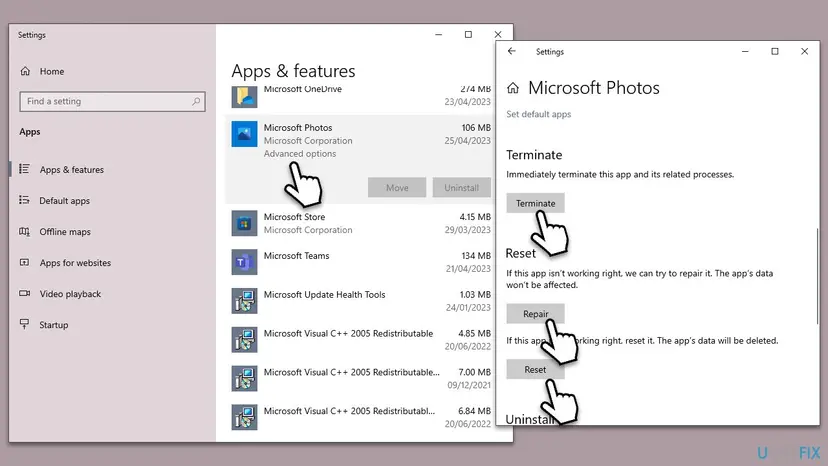
Reset deletes the app's own data: its settings, sign-in and, in Photos, albums or edits kept only inside the app. Your picture, video and music files in your folders are not touched. Write down any setting you care about first.
Full steps with screenshots for Windows 11 and Windows 10: How to repair or reset an app in Windows
It worked if: Double-clicking the picture, video or MP3 opens it in the app without the message.
If not: Update the app and clear the Store cache in Fix 2.
Fix 2. Update the app and clear the Microsoft Store cache
10 minutesNo riskFix 1 did not help, the Store shows pending updates, or the error started after a Windows update.
Photos, Media Player and Movies & TV are updated through Microsoft Store, not through Windows Update. An app left half updated, or a damaged Store cache, can stop it from starting. Microsoft's forum answer for this error also starts with updating Windows and Photos.
- Press Win + R, type
wsreset.exeand press Enter. A blank window opens, closes by itself, and then Microsoft Store starts. Do not close the blank window. - In Microsoft Store, open Library in the left bar and select Get updates.
- Let Photos, Media Player and the other apps update.
- Open Settings > Windows Update, select Check for updates and install what is offered.
- Restart Windows and double-click your file again.

Movies & TV and other Store apps check licenses and media rights against the clock. If your PC shows the wrong date or time zone, fix that first: How to fix the date and time in Windows
More on the Store cache and the Reset button in Settings: Reset the Microsoft Store
It worked if: The Store shows the apps as up to date, and the file opens.
If not: Open the file another way in Fix 3 while you go on to Fix 4.
Fix 3. Open the file in another program or change the default app
2 minutesNo riskYou need the picture, video or song right now, or you want to prove the file is fine.
The error comes from the app, so a program that is not a Store app is not affected. On Microsoft's forum, a user with this error found that Windows Media Player opened the same files that Photos and Movies & TV refused.
- Right-click the file and select Open with > Choose another app.
- For videos and MP3s, pick Windows Media Player Legacy if it is listed, or another player you have installed. For pictures, pick Paint or another viewer.
- Turn on Always use this app (Windows 11) or Always use this app to open (Windows 10) only if you want to keep it as the default. Select OK or Just once.
- Later, after Fix 1 or Fix 4, set Photos or Media Player back in Settings > Apps > Default apps.
If the file opens in any other program, the file and the disk are fine and only the app needs repair. If no program opens it, the file itself may be damaged; read "If the file system error is still there" below.
It worked if: The file opens in the other program.
If not: If every program fails on the same file, check the disk as described under "Still there". Otherwise go on to Fix 4.
Fix 4. Remove Photos and install it again from Microsoft Store
10 minutesLow riskRepair and Reset did not help, and pictures still fail in Photos.
A reset keeps the installed app package. When the package itself is broken, only a fresh copy from Microsoft Store helps. This is the reinstall step Microsoft's forum answer gives for Photos with this error.
- Right-click Start and select Terminal (Admin) (Windows 11) or Windows PowerShell (Admin) (Windows 10), then select Yes.
- Run the command below. It removes the Photos app for your account.
- Restart Windows.
- Open Microsoft Store, search for Microsoft Photos and select Install or Get.
- Double-click a picture and check that it opens.
Remove Microsoft Photos (PowerShell as administrator)
Get-AppxPackage *Microsoft.Windows.Photos* | Remove-AppxPackageYour pictures are separate files in your folders, so removing the app does not delete them. For Media Player or Movies & TV, use Uninstall in Settings > Apps > Installed apps if it is offered, then install the app again from the Store. We did not check a separate command for those apps.
It worked if: Photos is installed again and opens your pictures on a double-click.
If not: If the Store will not install Photos, or several Store apps fail, go to Fix 5.
Fix 5. Start the Windows License Manager Service
5 minutesLow riskSeveral Store apps fail, the Store will not install or update apps, or someone used a tool that turns off "unneeded" services.
Store apps call Windows services while they start, and the code means such a call got no answer. Windows describes this service as infrastructure for the Microsoft Store and warns that Store content will not work properly while it is disabled.
- Press Win + R, type
services.mscand press Enter. - Find Windows License Manager Service (service name
LicenseManager). - If it is running, right-click it and select Restart.
- If its Startup type is Disabled, double-click it, set Startup type to Manual, select Start, then Apply and OK.
- Do the same for Microsoft Store Install Service if it is disabled. Restart Windows and test the file.
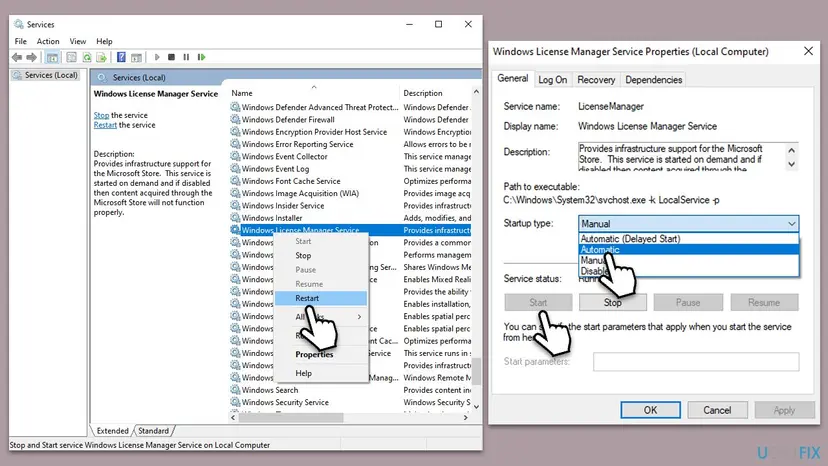
Windows starts this service on demand, so "Manual" and "Stopped" are normal. Only "Disabled" is a problem. We could not confirm in a Microsoft document that this service causes -2147416359; it is a quick and safe check.
Step by step with screenshots: Check and restart Windows services
It worked if: The service is not disabled, Store apps install again, and the file opens.
If not: If every built-in app still fails, register them again in Fix 6.
Fix 6. Register all built-in Windows apps again
10 minutesLow riskPhotos, Calculator, Microsoft Store and other built-in apps all fail, or each one shows its own error.
When every built-in app fails to start, the problem sits in their registration with Windows, not in one app. Registering them again repairs that without removing your files or reinstalling Windows.
- Right-click Start and select Terminal (Admin), then select Yes.
- Run the command from the procedure below. Red lines for apps that are in use are normal.
- Restart Windows, open Microsoft Store once, then double-click your file.
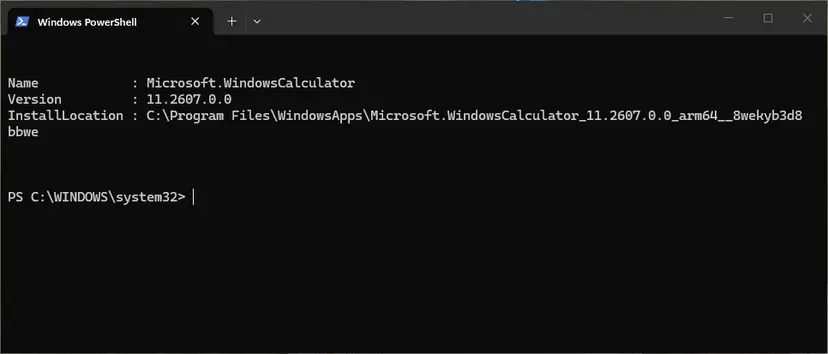
The command and what its output means: How to re-register Microsoft Store apps with PowerShell
It worked if: Photos, Media Player, Calculator and Microsoft Store start normally again.
If not: Go to Fix 7 to check Windows system files.
Fix 7. Run SFC and DISM to repair Windows system files
30 minutesNo riskFixes 1 to 6 did not help, or Windows shows other errors as well.
Store apps and the services they call rely on Windows system files. If those are damaged, no app repair helps. This check is general, so it comes last.
- Open an elevated command window. Right-click Start and select Terminal (Admin), or type cmd in the search box, right-click Command Prompt and select Run as administrator. Select Yes when Windows asks for permission.
- Run DISM first. Type the command below and press Enter. DISM downloads clean copies of damaged components from Windows Update, so it can take several minutes. Wait until it says The operation completed successfully.
DISM.exe /Online /Cleanup-Image /RestoreHealth - Run System File Checker. In the same window, type the command below and press Enter. Do not close the window until the verification reaches 100%.
sfc /scannow - Read the result and restart. Compare the last message with the table below this guide, then restart the PC so that repaired files are loaded.
These steps were written for Windows 11 24H2 and 25H2. The full page with the other versions and what each result means: Run DISM and SFC to repair Windows system files

It worked if: SFC reports no problems or that it repaired files, and the file opens after a restart.
If not: Read "If the file system error is still there" below.
If the file system error -2147416359 is still there
Windows does not write this message to a log you can easily read. Two quick tests tell you whether the problem is your user account, a program that starts with Windows, or the file itself.
- Create a second user account and sign in to it: Create a new user account to test a problem Double-click the same file there. If it opens, your own account's app data is damaged.
- Start a clean boot and try once more: How to perform a clean boot in Windows If the file opens, a program that starts with Windows interferes.
- Open the file in another program (Fix 3). If no program can open it, copy it from a backup or the original device.
- What to send to support: the full message with the code, the app that fails, the file type, the Windows version from Settings > System > About, and what Fixes 1 to 7 showed.
- Where to ask: Microsoft Q&A or Microsoft Support, since Photos, Media Player and Movies & TV are Microsoft's apps.
- When it is not software: if many files fail in every program, or File Explorer reports read errors, check the disk: Check a disk for errors (chkdsk)
As a last step, Windows can be reinstalled while keeping your files and apps, with the installation media from Microsoft: Reinstall Windows without losing files Back up first. It is rarely needed for this error.
How to keep the media apps from breaking again
- Keep Store apps updated through Microsoft Store > Library > Get updates.
- Install Windows updates and restart afterwards.
- Keep a second program for pictures or videos, so one broken app never locks you out of your files.
- Keep the PC's date, time and time zone set automatically.
- Do not use tweak tools that disable "unneeded" services or remove built-in apps.
- Do not block Microsoft Store in the firewall or the hosts file.
- Do not delete the WindowsApps folder or change its permissions.
Windows 10 left support on 14 October 2025, so its Photos and Movies & TV apps get fewer fixes. If you still run Windows 10 22H2, the steps above work the same, but an upgrade to Windows 11 is the lasting route.
Frequently asked questions
What is File system error (-2147416359)?
It is the Windows code 0x800106D9 written as a negative number. You see it when you double-click a picture, a video or an MP3 and the app that should open it, usually Photos, Media Player or Movies & TV, fails to start. The last part of the code, 1753, is described by Microsoft as "There are no more endpoints available from the endpoint mapper". Start with Fix 1: repair, then reset the app.
Why can't I open MP3 or MP4 files with File system error (-2147416359)?
Because the app set to play them, Media Player or Movies & TV, is the part that fails, not your files. Repair and reset that app in Settings (Fix 1) and update it in Microsoft Store (Fix 2). While you do that, right-click the file and choose Open with, then Windows Media Player Legacy or another player (Fix 3). On Microsoft's forum, a user with this error could still play the same files in Windows Media Player.
Is my hard drive or file system damaged?
Almost certainly not. The words "file system" in the message are misleading: the code is about an app that could not reach a Windows service, not about the disk. The test is simple. Open the same file in Paint, Windows Media Player Legacy or another program (Fix 3). If it opens, the file and the disk are fine. Only when files fail in every program, or File Explorer reports read errors, check the disk with CHKDSK.
Does this error happen on Windows 10 and Windows 11?
Yes. Most older reports, including the ones on Microsoft's forum, come from Windows 10 with Photos and Movies & TV. Windows 11 uses the same kind of Store apps, so the fixes are the same. Only some paths differ: the app list is Apps & features on Windows 10 and Installed apps on Windows 11. Windows 10 left support on 14 October 2025, so it gets fewer app fixes.
What does a plain "file system error" with another number mean?
The same message box shows many different Windows codes, and each number has its own cause. The number decides the fix, not the words "file system error". To decode any such number, add 4294967296 to it and turn the result into hex in Calculator's Programmer mode, then search for the hex code. File system error (-2015294522), for example, is a license error with its own guide, linked in the causes section above.
What are file system errors -1073740791 and -2147219195?
They are other codes in the same message box, so they have other causes. -1073740791 is 0xC0000409 and -2147219195 is 0x80040905. We did not research those codes for this page, so we give no fixes for them here. If one of them appears together with -2147416359 in the same app, Fix 1 and Fix 2 are still a safe first step, because they repair and update the app that shows the box.
What does "ошибка файловой системы -2147416359" mean?
It is the same error in a Russian version of Windows: "ошибка файловой системы" means "file system error". The code -2147416359 is the same in every language, and so are the fixes. Menus are translated, but the app names Photos and Microsoft Store stay recognisable. This page is in English only; people who search in Russian, Indonesian, Vietnamese, Arabic or Thai about this box have the same problem and the same fixes.
The error still appears after every fix. What now?
Create a second user account and open the file there, as described under "Still broken". If it opens in the new account, the app data of your own account is damaged, and moving to the new account solves it. If it fails everywhere, run Fix 7, then ask Microsoft Support with the details listed above. Until then, open your files with another program (Fix 3), which works for most people with this error.
Can I just delete the file and copy it again?
That rarely helps, because the file is not the problem. A copy of the same picture or video fails in the same app, since Windows starts the same broken app for it. Repair the app instead (Fix 1). Copying the file again only makes sense when it also fails in every other program, which points to a damaged file or disk. Then copy it from a backup and check the disk with CHKDSK.
Sources
- Microsoft Learn: System Error Codes (1700-3999), entry 1753 (0x6D9): There are no more endpoints available from the endpoint mapper (learn.microsoft.com)
- Microsoft Q&A: file system error -2147416359 (Photos and Movies & TV fail, Windows Media Player works, reset and reinstall of Photos) (learn.microsoft.com)
Did this fix work?
One click, no account. It tells the next reader which guides are worth their time.
Questions and experiences: fix File System Error (-2147416359) in Windows
Still broken, or found a fix we did not cover? Ask here: members and our editors answer. Reading is open; writing needs a free account.
…