
How to fix File System error (-2015294522) in Windows?

Prefer to fix it yourself? The manual steps follow.
- 7methods
- 2 to 30 minutes
- Easy
Applies to Windows 11, Windows 10; Notepad, Photos and other apps installed from Microsoft Store that open files on a double-click
7 methods in this guide
Hello, I've encountered a problem where attempting to open text documents results in a file system error (-2015294522). Everything was working properly just moments ago, and this error began occurring suddenly without any apparent cause.
File system error (-2015294522) appears when you double-click a text file, picture or other file and the app that should open it, usually Notepad or Photos, fails its license check. Your file and your disk are fine. Go online, open Microsoft Store and restart first.
The number -2015294522 is the Windows code 0x87E10BC6, which Microsoft describes as an error of its activation server or licensing service. The app that opens your file, usually Notepad on Windows 11, cannot confirm its license. Connect to the internet, open Microsoft Store, sign in and restart (Fix 1). If it stays, repair, reset or reinstall that app (Fix 4 and Fix 5).
| Error | A box with the file's full path in the title bar and the line File system error (-2015294522). with an OK button. |
|---|---|
| Where it appears | When you double-click a file in File Explorer or on the desktop. Most reports are about .txt files in Notepad on Windows 11, some about pictures opened in Photos. |
| Main cause | The Microsoft Store app that is set to open the file cannot confirm its license, so Windows refuses to start it for that file. |
| Fastest fix | Connect to the internet, open Microsoft Store, check that you are signed in, update your apps and restart Windows (Fix 1). |
| Also written as | -2015294522, (- 2015294522), 0x87E10BC6, 0x87e10bc6, "system file error (-2015294522)", "Notepad file system error", and in Spanish "Error del sistema de archivos (-2015294522)". |
| Affects | Windows 11 and Windows 10. Notepad on Windows 11 is a Microsoft Store app, which is why it is the app hit most often. |
| Microsoft's status | No Microsoft page for the file system message. Microsoft's activation error table lists 0x87E10BC6 as "An error occurred with our activation server or licensing service". |
| Not the cause | A damaged disk or a broken NTFS file system. The file opens normally in another program. |
| Time to fix | 2 minutes for the license refresh, up to 30 minutes for a reinstall and the system file check. |
Facts checked on 15 October 2026. Steps written for Windows 11 (25H2 and 26H2) and Windows 10 22H2.
What File system error (-2015294522) means
The box comes from Windows, not from your disk. Its title bar and first line show the path of the file you tried to open, for example C:\Users\you\Documents\notes.txt. Below it stands File system error (-2015294522). and one OK button. Nothing opens.
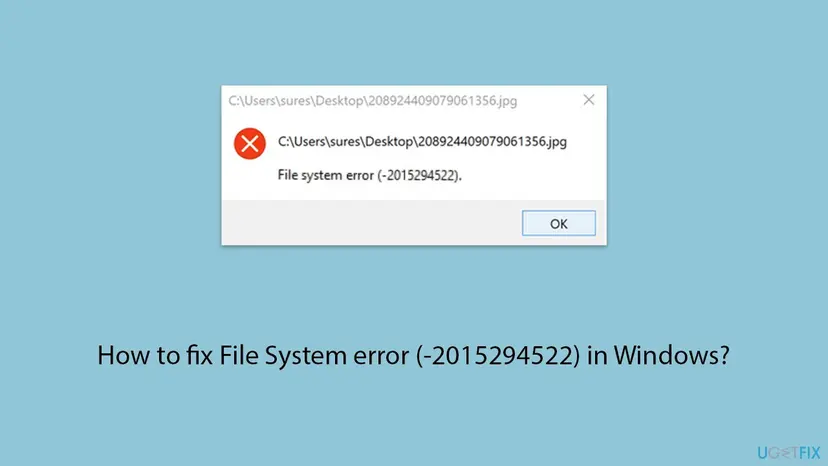
The number looks like a disk problem, but it is a Windows error code printed as a negative decimal number. Turned into the usual hex form, -2015294522 is 0x87E10BC6. Microsoft's table of activation errors describes 0x87E10BC6 as "An error occurred with our activation server or licensing service".
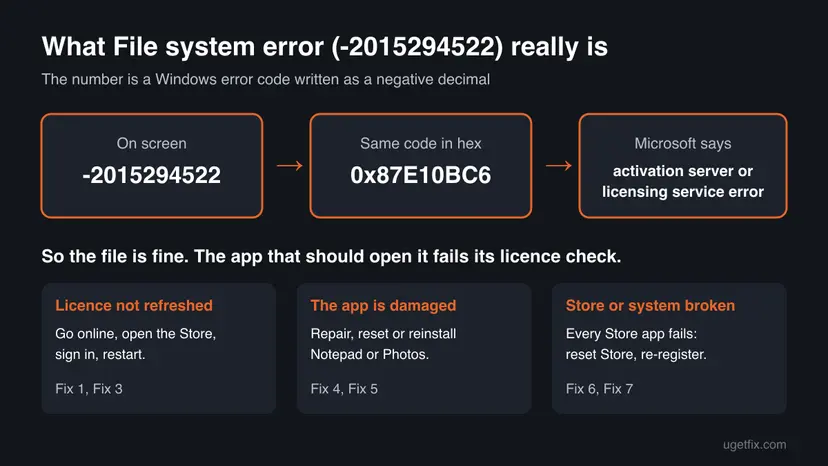
Your file is not damaged. Windows tried to start the app that opens this file type, the app could not prove its license, and Windows gave up. Fix the app, and the same file opens again.
That fits what people report on Microsoft's Q&A forum. One user found that after the error Notepad itself asked to "connect to the internet", and that the offline permission in the Store app seemed to have switched itself off. Another could still start notepad.exe from the C:\Windows folder and open the text file from inside Notepad.
Why the file system error -2015294522 suddenly appears
The error usually appears without warning, as in the reader's question above: everything worked a minute earlier. That is typical for a license that expired on the PC and could not be renewed in the background, for example while the PC was offline or signed out of the Store.
| Cause | How often | How to tell | Fix |
|---|---|---|---|
| The app's Store license was not refreshed. | Most often | Notepad or Photos asks you to connect to the internet, or the PC was offline for a long time. | Fix 1, Fix 2 |
| Windows activation or the licensing service has a problem. | Sometimes | Settings > System > Activation shows Windows is not active, or Store apps say they cannot be verified. | Fix 3 |
| The app that opens the file is damaged. | Sometimes | Only one file type fails, for example .txt, and other Store apps work. | Fix 4, Fix 5 |
| Microsoft Store or the app registrations are broken. | Less often | Several Store apps fail, or the Store will not open. | Fix 6 |
| Damaged Windows system files. | Rarely | Other errors too, or Fix 1 to Fix 6 changed nothing. | Fix 7 |
Users of modified Windows builds, where Microsoft Store and its parts were removed to save space, report the same code for every Windows app. If you use such a build, the missing Store parts are the cause, and the fixes below may not be able to help.
How to fix File system error (-2015294522) in Windows
Fixes 1 to 3 renew the license that the error is about and are quick. Fixes 4 and 5 repair or replace the app that opens the file. Fix 6 is for when every Store app fails, and Fix 7 is the general system check.
| What you see or have | Start with |
|---|---|
| The error started suddenly, and the PC was offline or you signed out of Microsoft Store. | Fix 1 |
| You need the file open right now. | Fix 2 |
| Settings > System > Activation says Windows is not activated. | Fix 3 |
Only .txt files (Notepad) or only pictures (Photos) fail. | Fix 4, then Fix 5 |
| Notepad, Photos, Calculator and other Store apps all fail, or the Store does not open. | Fix 6 |
| Nothing above helped. | Fix 7 |
Fix 1. Go online, open Microsoft Store and let it renew the app license
5 minutesNo riskEveryone, first. Especially when Notepad asks you to connect to the internet, or the PC was offline or signed out.
The code is a licensing service error, and Store apps renew their license through Microsoft Store when the PC is online. A user on Microsoft's forum traced this error to Notepad asking for an internet connection.
- Make sure the PC is online: open a web page in your browser. If it does not load, fix the connection first: How to check your internet connection in Windows
- Open Microsoft Store from the Start menu.
- Select your profile picture at the top. If it says Sign in, sign in with the Microsoft account you use on this PC.
- Open Library in the left bar and select Get updates. Let Notepad, Photos and the other apps update.
- Restart Windows with Start > Power > Restart, then double-click the file again.
A user on Microsoft's forum found the Store's offline permission switched off after this error. If your Microsoft Store version shows an offline permissions setting in its settings, turn it on for this PC while you are online.
It worked if: The file opens in Notepad or Photos without the message.
If not: If you need the file at once, use the workaround in Fix 2. Then check Windows activation in Fix 3.
Fix 2. Open the app first, then the file
2 minutesNo riskYou need the file open now, or Fix 1 did not change anything.
The error stops the app from starting through the file. On Microsoft's forum, a Windows 11 23H2 user started notepad.exe from C:\Windows, opened the file from inside Notepad, and after that double-clicking text files worked again.
- Press Win + R, type
notepadand press Enter. If that fails, open File Explorer, go toC:\Windowsand double-clicknotepad.exe. - In Notepad, select File > Open, pick your file and select Open.
- Close Notepad, then double-click a text file in File Explorer.
- For a picture, open Photos from the Start menu and open the picture from inside the app, or right-click the picture and select Open with and another program.
If no app opens the file at all, right-click it, select Open with > Choose another app and pick any other text editor or image viewer you have installed. This proves the file itself is fine.
It worked if: The file opens. After the first open from inside the app, double-clicking files often works again.
If not: If Notepad itself will not start or keeps asking for the internet, go on to Fix 3.
Fix 3. Check Windows activation and run the Activation troubleshooter
5 minutesNo riskSettings > System > Activation does not say Windows is active, or the error appeared after a hardware change or a Windows reinstall.
Microsoft's own fix for 0x87E10BC6 is to wait a few minutes, run the Activation troubleshooter and let Microsoft Store retry. Store apps and Windows use the same licensing service, so an activation problem can stop them too.
- Open Settings > System > Activation. On Windows 10, open Settings > Update & Security > Activation.
- Read the activation state. If Windows is active, skip this fix and go to Fix 4.
- If it is not active, wait a few minutes, then select Troubleshoot to run the Activation troubleshooter.
- When the troubleshooter finishes, select Go to Microsoft Store. If the Store shows a problem, select Try again.
- Restart Windows and open the file again.
Microsoft says you should see a message thanking you for activating genuine Windows, and then one that Windows is activated. Activation needs an internet connection and, for a digital license, the Microsoft account linked to it.
It worked if: Activation shows Windows is active, and Store apps open your files again.
If not: If Windows was already active, the app itself is the next suspect. Go to Fix 4.
Fix 4. Repair or reset Notepad or Photos
5 minutesLow riskOnly one kind of file fails: text files (Notepad) or pictures (Photos). Other Store apps work.
Repair keeps the app's settings and replaces damaged app files and data. A volunteer moderator on Microsoft's Q&A suggests Repair and then Reset of Notepad for this exact error, assuming Notepad opens .txt files on your PC.
- Close the app that fails.
- Open Settings > Apps > Installed apps, find Notepad (or Photos), select the three dots and select Advanced options. On Windows 10 the list is in Apps & features.
- Select Terminate, then Repair. Double-click the file again.
- If the error stays, select Reset and confirm. Test again.
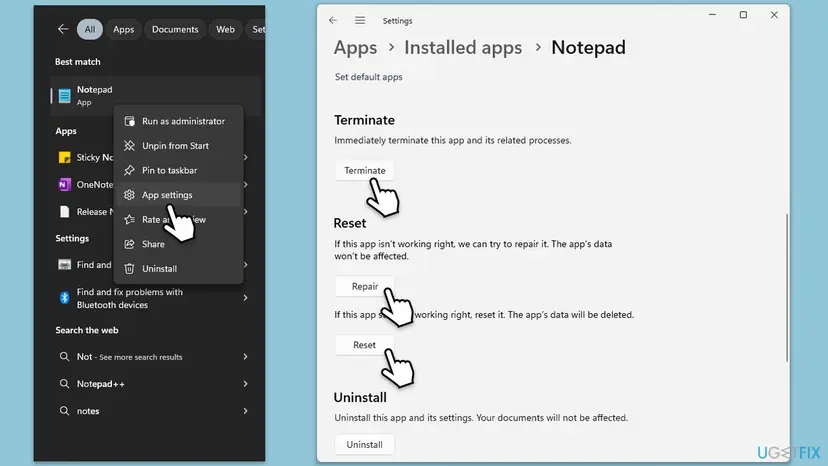
Reset deletes the app's own data, such as Notepad's settings and tabs it kept open between sessions. Save any unsaved text from open Notepad tabs into a file first. Your saved documents and pictures are not touched.
Full steps with screenshots for Windows 11 and Windows 10: How to repair or reset an app in Windows
It worked if: Double-clicking the file opens it in the app.
If not: One user on Microsoft's forum reports Repair and Reset did not help because the license was the problem. Then reinstall the app in Fix 5.
Fix 5. Remove Notepad and install it again from Microsoft Store
10 minutesLow riskRepair and Reset did not help, and only Notepad fails.
A fresh install from Microsoft Store downloads the app with a new license. This is the step Microsoft's Q&A moderator gives for this error: remove the Notepad package for all users, then reinstall it from the Store.
- Right-click Start and select Terminal (Admin) or Windows PowerShell (Admin), then select Yes.
- Run the first command below. It removes Notepad for every user of the PC.
- Run the second command. If it prints nothing, Notepad is fully removed.
- Open Microsoft Store, search for Windows Notepad and select Install. The Store ID is
9MSMLRH6LZF3. - Double-click a text file and check that it opens.
Remove Notepad, then check that it is gone
Get-AppxPackage -allusers *WindowsNotepad* | Remove-AppxPackage -allusers
Get-AppxPackage -allusers *WindowsNotepad*Your text files are separate files in your folders, so removing the app does not delete them. Unsaved text in Notepad tabs is lost, so save it first. For Photos, use Reset in Fix 4 and the Store's Get updates; we did not check a separate reinstall command for it.
It worked if: Notepad is installed again, and .txt files open on a double-click.
If not: If the second command still lists Notepad, post its output with your question on Microsoft's Q&A. If other Store apps also fail, go to Fix 6.
Fix 6. Reset Microsoft Store and re-register the Windows apps
10 minutesLow riskSeveral Store apps fail with this error, or Microsoft Store does not open.
When every Store app fails its license check, the problem sits in Microsoft Store or in the app registrations, not in one app. Clearing the Store cache and registering the built-in apps again repairs both without removing your files.
First clear the Store cache: press Win + R, type wsreset.exe and press Enter. A blank window opens and closes, then the Store starts. Step by step: Reset the Microsoft Store
- Right-click Start and select Terminal (Admin), then select Yes.
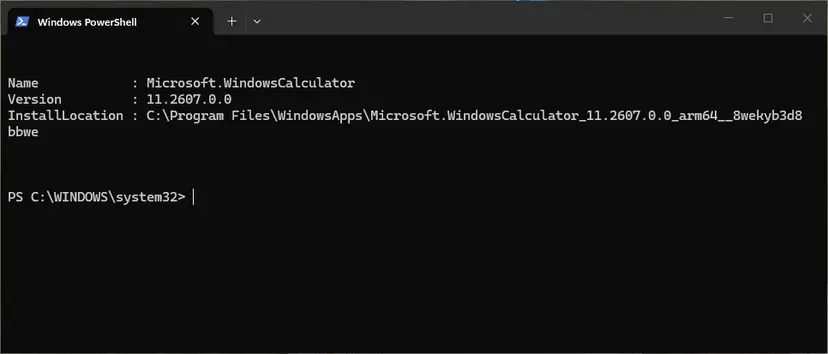
- Run the command from the procedure below to register the built-in apps again. Red lines for apps that are in use are normal.
- Restart Windows, open Microsoft Store once, then double-click your file.
The command and what its output means: How to re-register Microsoft Store apps with PowerShell
It worked if: Microsoft Store opens, and Notepad, Photos and the other Store apps start normally.
If not: Go to Fix 7 to check Windows system files and updates.
Fix 7. Run SFC and DISM, then install Windows updates
30 minutesNo riskFixes 1 to 6 did not help, or Windows shows other errors as well.
Store apps and the licensing service rely on Windows system files. If those are damaged, no app reinstall helps. This check is general, so it comes last.
- Open an elevated command window. Right-click Start and select Terminal (Admin), or type cmd in the search box, right-click Command Prompt and select Run as administrator. Select Yes when Windows asks for permission.
- Run DISM first. Type the command below and press Enter. DISM downloads clean copies of damaged components from Windows Update, so it can take several minutes. Wait until it says The operation completed successfully.
DISM.exe /Online /Cleanup-Image /RestoreHealth - Run System File Checker. In the same window, type the command below and press Enter. Do not close the window until the verification reaches 100%.
sfc /scannow - Read the result and restart. Compare the last message with the table below this guide, then restart the PC so that repaired files are loaded.
These steps were written for Windows 11 24H2 and 25H2. The full page with the other versions and what each result means: Run DISM and SFC to repair Windows system files

Then open Settings > Windows Update, select Check for updates, install everything offered and restart. If Windows Update itself fails: Run the Windows Update troubleshooter
It worked if: SFC reports no problems or that it repaired files, Windows is up to date, and the file opens.
If not: Read "If the file system error is still there" below.
If the file system error -2015294522 is still there
Windows does not write this message to a log you can easily read, so narrow it down with two tests. Each one takes a few minutes and tells you whether the problem is your user account or the whole PC.
- Create a second user account and sign in to it: Create a new user account to test a problem Open Microsoft Store there, then double-click the same file. If it opens, the license data of your own account is damaged.
- Start Windows in safe mode and try once more. If Notepad works there, a program that starts with Windows interferes: How to perform a clean boot in Windows
- What to send to support: the full message with the code, the app that fails, the Windows version from Settings > System > About, the activation state, and what Fixes 1 to 7 showed.
- Where to ask: Microsoft Q&A or Microsoft Support, since both the Store license and Windows activation are Microsoft's.
- When it is not software: this error is not a hardware fault. If files also fail to open in other programs or File Explorer reports read errors, check the disk: Check a disk for errors (chkdsk)
As a last step, Windows can be reinstalled while keeping your files: Reinstall Windows without losing files Back up first. It is rarely needed for this error.
How to keep Store apps from losing their license again
- Stay signed in to Microsoft Store with the account you bought or installed the apps with.
- Let the PC go online now and then, so Store apps can renew their licenses.
- Keep Store apps updated through Library > Get updates.
- Install Windows updates and restart afterwards.
- Do not use tweak tools or modified Windows builds that remove Microsoft Store or its services.
- Do not block Microsoft Store in the firewall or the hosts file.
- Do not delete the WindowsApps folder or change its permissions.
Windows 10 left support on 14 October 2025, so its Store apps and licensing parts get fewer fixes. If you still run Windows 10 22H2, the steps above work the same, but an upgrade to Windows 11 is the lasting route.
Frequently asked questions
What is File system error (-2015294522)?
It is the Windows code 0x87E10BC6 written as a negative number. Microsoft describes 0x87E10BC6 as an error of its activation server or licensing service. You see it when you double-click a file and the app that should open it, usually Notepad or Photos on Windows 11, cannot confirm its Microsoft Store license. The file is not damaged. Start with Fix 1: go online, open Microsoft Store, sign in and restart.
Why does Notepad show a file system error when I open a .txt file?
On Windows 11, Notepad is a Microsoft Store app, so it needs a valid Store license to start. When Windows opens a .txt file, it starts Notepad through the file, and if the license check fails, you get File system error (-2015294522) instead. One user on Microsoft's forum saw Notepad ask to connect to the internet at the same time. Renew the license (Fix 1), then repair or reinstall Notepad (Fix 4 and Fix 5).
Is my hard drive or file system damaged?
Almost certainly not. Despite the words "file system" in the message, the code is a licensing error, not a disk or NTFS error. The test is simple: open the same file in another program, or from inside Notepad with File > Open (Fix 2). If it opens, the file and the disk are fine. Only when files fail in every program, or File Explorer reports read errors, check the disk with CHKDSK.
The error appears with every file I open. What should I do?
If text files, pictures and other files all fail, every Store app is losing its license check, not just one. Microsoft Store or the app registrations are then the likely cause. Run Fix 1 first, check activation in Fix 3, then reset Microsoft Store and register the apps again in Fix 6. On modified Windows builds without Microsoft Store, the error can appear for every Windows app, and those builds may not be repairable this way.
I tried everything and the file still won't open. What now?
Create a second user account and open the file there, as described under "Still broken". If it works in the new account, the license data of your own account is damaged, and moving to the new account is a solution. If it fails everywhere, run Fix 7, then ask Microsoft Support with the details listed above. Until then, open files from inside the app or with another program (Fix 2).
What do other file system error numbers like -1073741189 or -2147163901 mean?
They are different Windows codes shown in the same message box, so they have other causes. -1073741189 is 0xC000027B and -2147163901 is 0x8004E103. We did not research those codes for this page, so we do not give fixes for them here. To decode any such number, add 4294967296 to it and convert the result to hex in Calculator's Programmer mode, then search for the hex code.
What does "A system error has occurred and is being investigated" mean?
That is a different message, not File system error (-2015294522). It does not contain the code this page is about, and we did not research it here. If you see it together with this error, fix the file system error first with Fixes 1 to 7, because a broken Store or licensing service can cause several messages at once. If it appears on its own, search for the full text of that message.
What is "Error del sistema de archivos (-2015294522)"?
It is the same error in a Spanish version of Windows. The code -2015294522 is the same in every language, and so are the fixes. In Spanish Windows the menus are translated, for example Microsoft Store keeps its name and Settings becomes Configuración. Follow Fix 1 first. This page is in English only; people searching in Spanish, Arabic, Russian or Romanian about this message have the same problem and the same fixes.
Does this error happen on Windows 10 too?
Yes. Most reports come from Windows 11, where Notepad became a Microsoft Store app, but Photos and other Store apps exist on Windows 10 too. The fixes are the same. Only some paths differ: activation is under Settings > Update & Security > Activation, and the app list is under Apps & features. Windows 10 left support on 14 October 2025, so it gets fewer fixes for Store apps.
Sources
- Microsoft Support: Get help with Windows activation errors (0x87E10BC6: activation server or licensing service, Activation troubleshooter, Go to Microsoft Store) (support.microsoft.com)
- Microsoft Q&A: Does not let me open all files under .txt, notepad. File system error (-2015294522) (reinstall commands, Store ID, opening from notepad.exe) (learn.microsoft.com)
- Microsoft Q&A: System file error (-2015294522) when opening text documents (Repair and Reset, Notepad asking for internet, offline permission) (learn.microsoft.com)
Did this fix work?
One click, no account. It tells the next reader which guides are worth their time.
Questions and experiences: fix File System error (-2015294522) in Windows
Still broken, or found a fix we did not cover? Ask here: members and our editors answer. Reading is open; writing needs a free account.
…